Base de conhecimento
1000 perguntas frequentes, 500 tutoriais e vídeos explicativos. Aqui, você encontra apenas soluções!
Este guia explica como iniciar uma conversa oral ou em vídeo entre um ou mais utilizadores kChat, com a solução ética de videoconferência gratuita da Infomaniak, kMeet.
Introdução
- A função de chamada no kChat está disponível em todas as versões Web (navegador), móvel (iOS/Android) e desktop (macOS/Windows).
Criar uma reunião entre utilizadores do kChat
Para poder conversar em uma sala virtual usando o microfone e a webcam do seu dispositivo, basta pressionar o botão Ligar, visível em qualquer conversa do kChat, canal privado, público, através do aplicativo ou diretamente no navegador: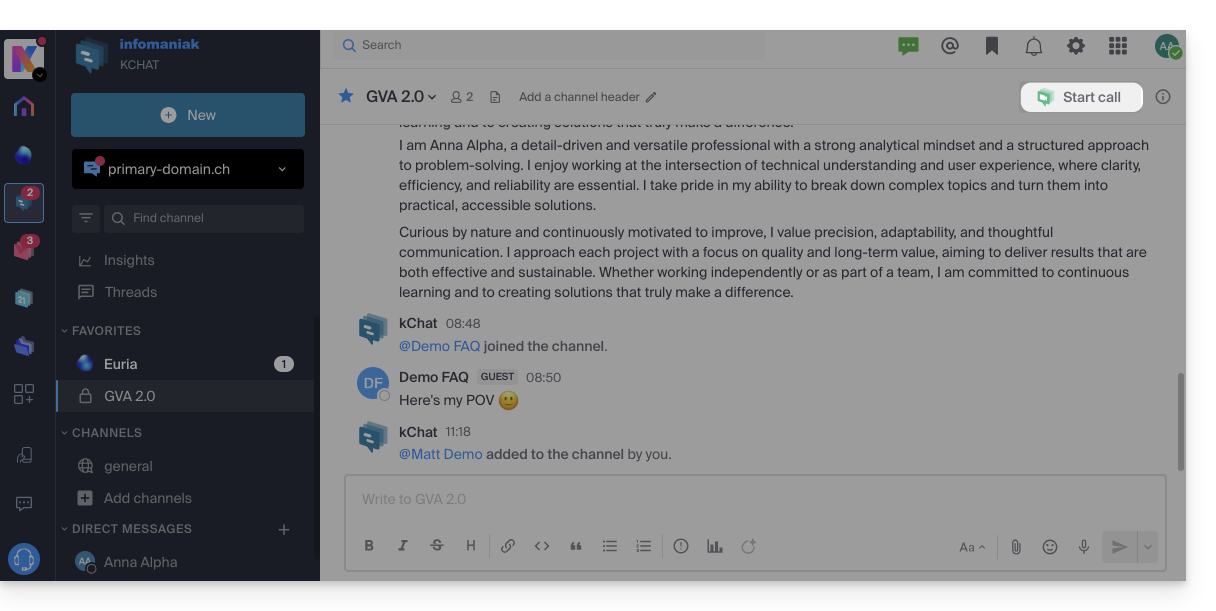
- Ligue diretamente para um usuário se você estiver em uma conversa direta com ele, ou inicie uma chamada para todos os membros de um canal se você iniciar a reunião a partir do canal.
- Ligar para um utilizador que está no modo “Não perturbar” não irá ativar o toque nem exibir uma notificação de chamada no dispositivo dele, mas ele verá a mensagem na conversa.
- O microfone é ativado por padrão quando a chamada é aceita, mas a câmera não.
- Visualize os participantes da reunião (quem aceitou, recusou ou não compareceu) usando os avatares na mensagem do kChat.
- Assim que a chamada começar, um emoji aparecerá no seu status do kChat para indicar que você está ocupado na conversa.
- Uma mensagem enviada durante a videoconferência (kMeet) também será visível na conversa do kChat (e vice-versa).
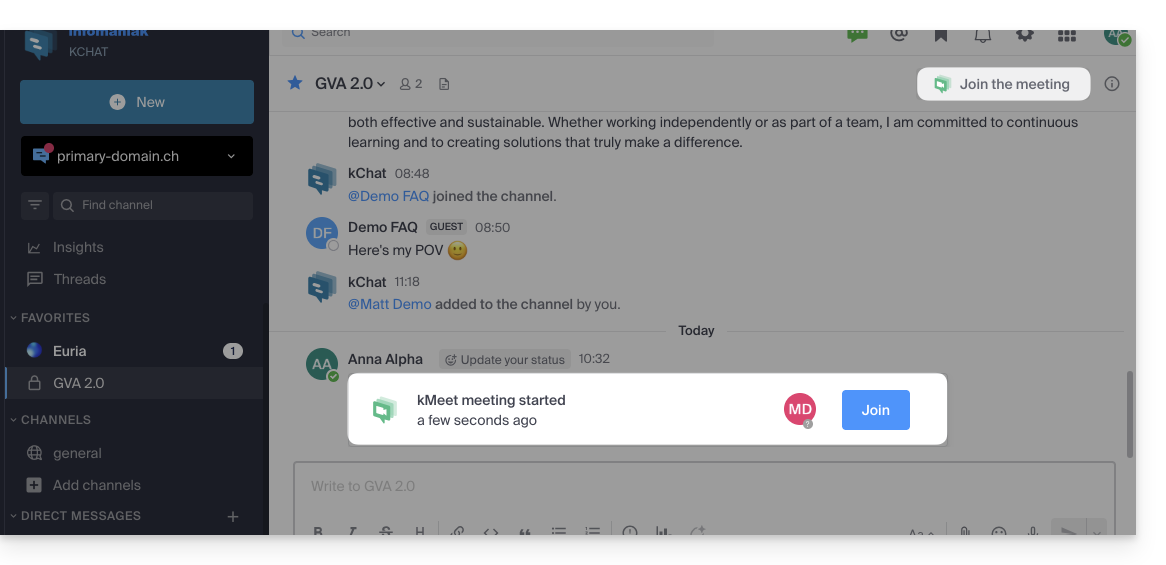
- Informações sobre o início e o fim da reunião são exibidas automaticamente no histórico de conversas do kChat correspondente:
Particularidades para chamadas em canais
- A chamada não tocará nos dispositivos dos destinatários, mas eles verão uma mensagem no kChat, bem como uma notificação.
- Uma mensagem (de alerta) será exibida se você tentar iniciar uma chamada em um canal com mais de 7 usuários.
Consulte este outro guia se você precisar de informações sobre o kMeet.
Link para esta FAQ: https://faq.infomaniak.com/2827
Esta seção de perguntas frequentes foi útil?
Este guia permite que você descubra rapidamente as funções essenciais da Euria, a inteligência artificial à sua disposição dentro do kSuite, que se destaca, em particular, como um agente de conversação no aplicativo kChat.
Introdução
- A Euria pode ajudá-lo a realizar todo o tipo de cálculos, traduções, fornecer informações sobre diferentes tópicos e responder às suas perguntas.
- Leia este outro guia sobre o modelo utilizado e as responsabilidades de cada um.
- Assim que um novo usuário é adicionado, ele recebe uma mensagem da Euria, dando-lhe as boas-vindas.
- Leia este outro guia sobre as possibilidades de resumos gerados por IA no kChat.
Adicionar a Euria aos contatos do kChat
Os bots atualmente disponíveis no kChat já fazem parte dos seus contatos.
Se você ainda não os vir, clique no menu lateral esquerdo do kChat…
- … na pesquisa de canal (os bots também aparecem como canais)
- … ou no ícone + ao lado de Mensagens diretas para pesquisar o bot
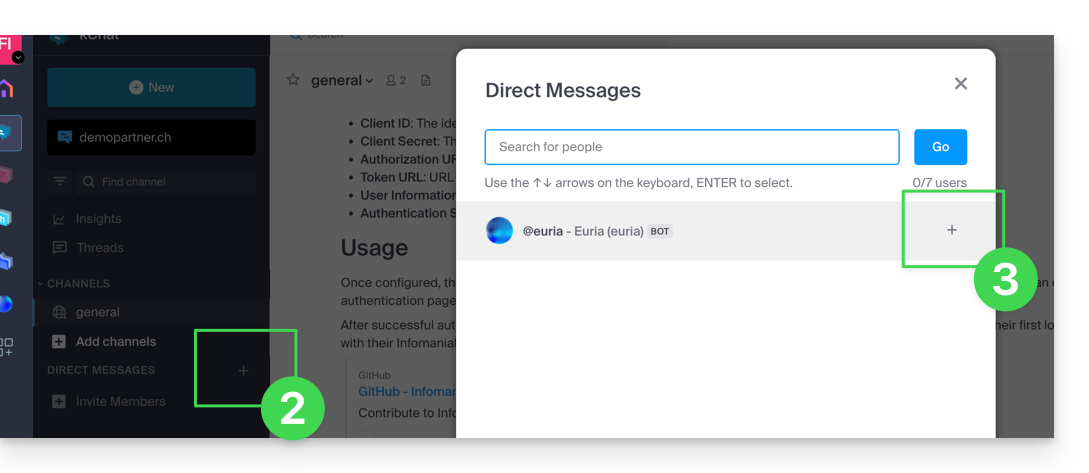
- Adicione os bots identificados como tal com a etiqueta [bot] ou pesquise o termo bot ou chat.
Não crie uma conversa em grupo entre os bots e você, pois isso não funcionará. É necessário criar um canal de discussão privado entre cada bot individualmente e você.
Basta então escrever para ele como se estivesse a conversar com um conhecido: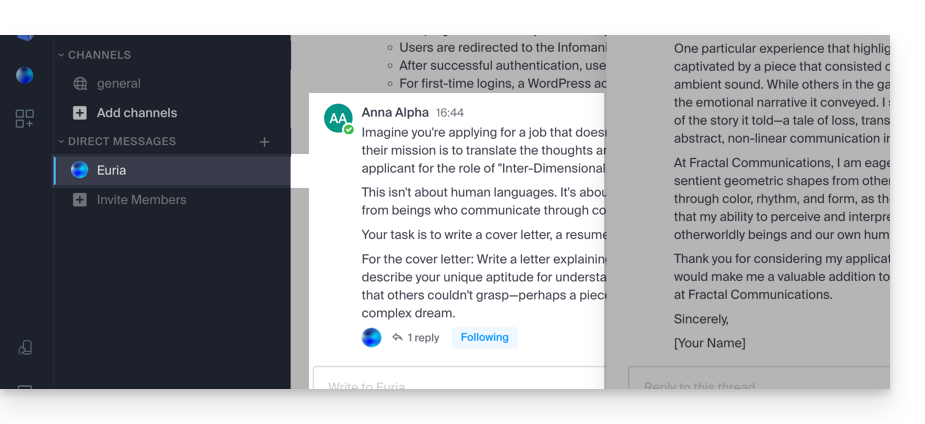
Link para esta FAQ: https://faq.infomaniak.com/2840
Esta seção de perguntas frequentes foi útil?
Este guia explica como adicionar um utilizador totalmente externo ao kChat.
Introdução
- Um administrador do kChat pode convidar um utilizador totalmente externo à sua organização, que não será contabilizado como um utilizador.
- Este utilizador será, no entanto, solicitado a criar uma conta Infomaniak caso ainda não possua uma.
- Para adicionar um utilizador kChat e conceder-lhe mais permissões (será contabilizado como um utilizador kSuite), consulte este outro guia.
Convidar um utilizador para participar numa conversa num canal privado
Pré-requisitos
- Ser administrador do kChat:
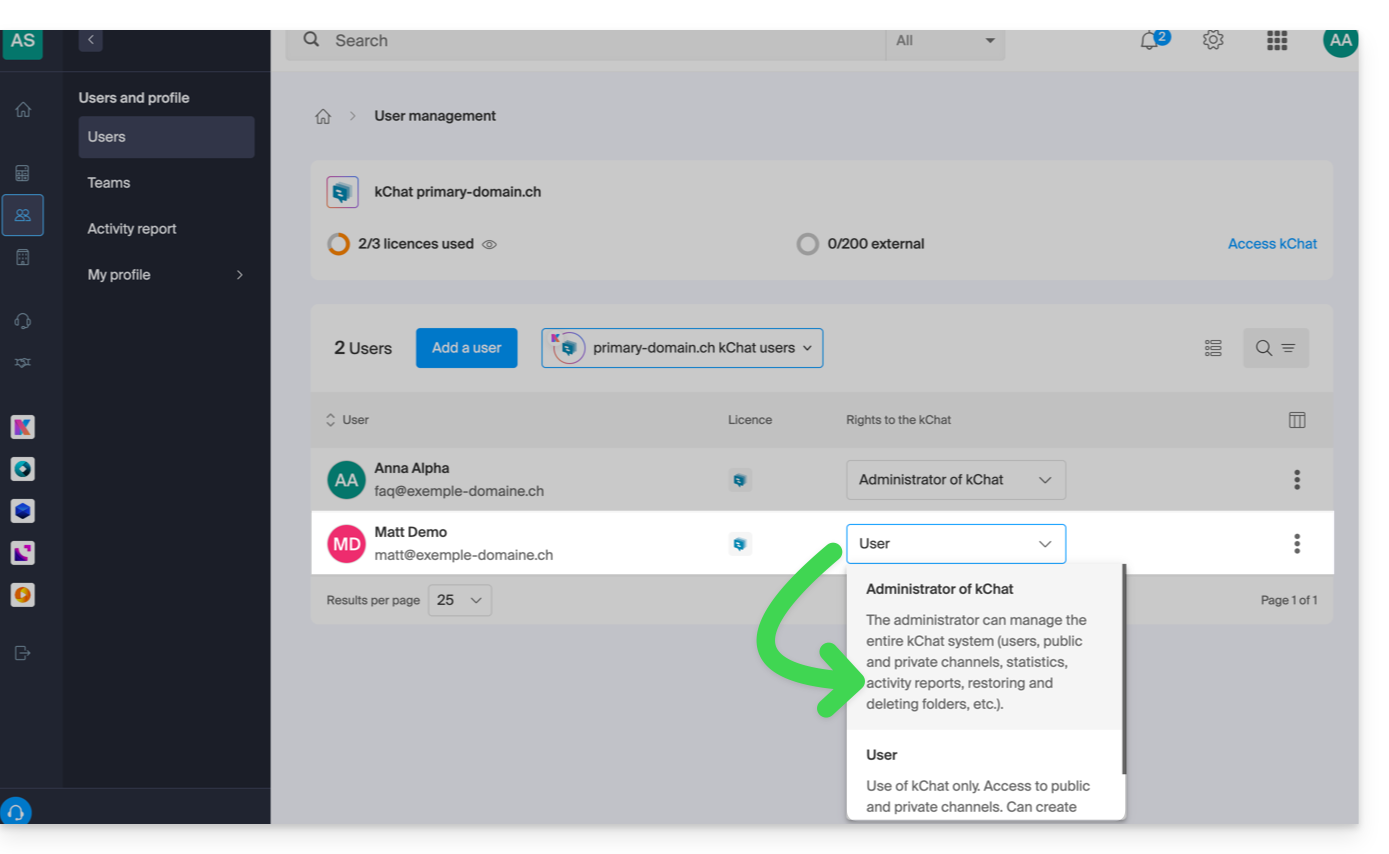
- Não importa o cargo na Organização; ser administrador da Organização na qual existe a kSuite (e, portanto, o kChat) não é obrigatório e, de qualquer forma, não é suficiente:
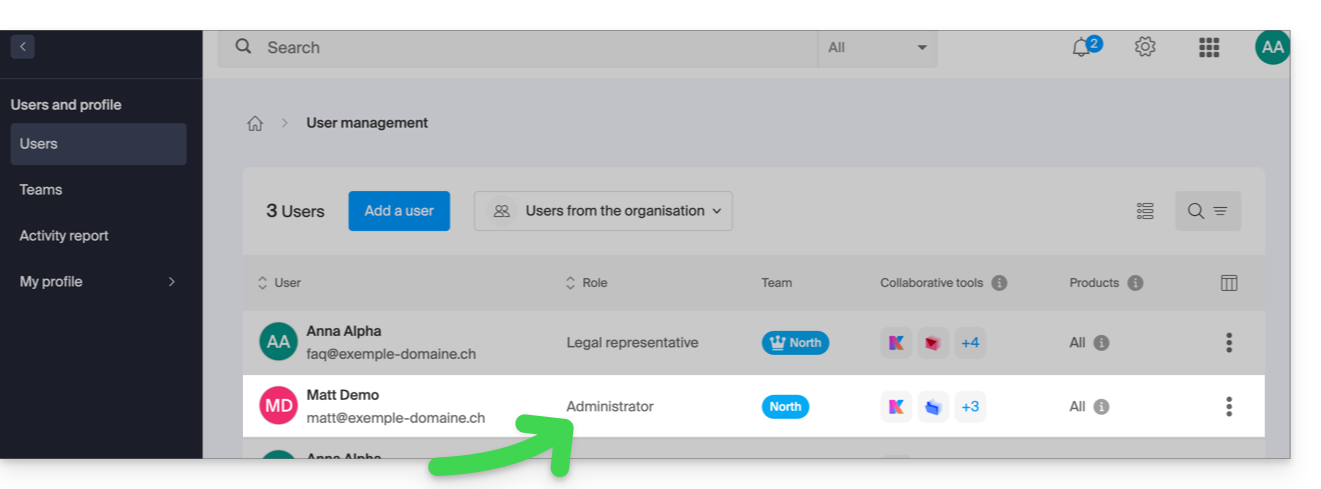
- Não importa o cargo na Organização; ser administrador da Organização na qual existe a kSuite (e, portanto, o kChat) não é obrigatório e, de qualquer forma, não é suficiente:
Em seguida, para enviar um convite por e-mail a partir do kChat:
- Clique aqui para acessar o aplicativo web kChat (serviço online ksuite.infomaniak.com/kchat) ou abra o aplicativo desktop kChat (aplicativo para computador em macOS / Windows / Linux).
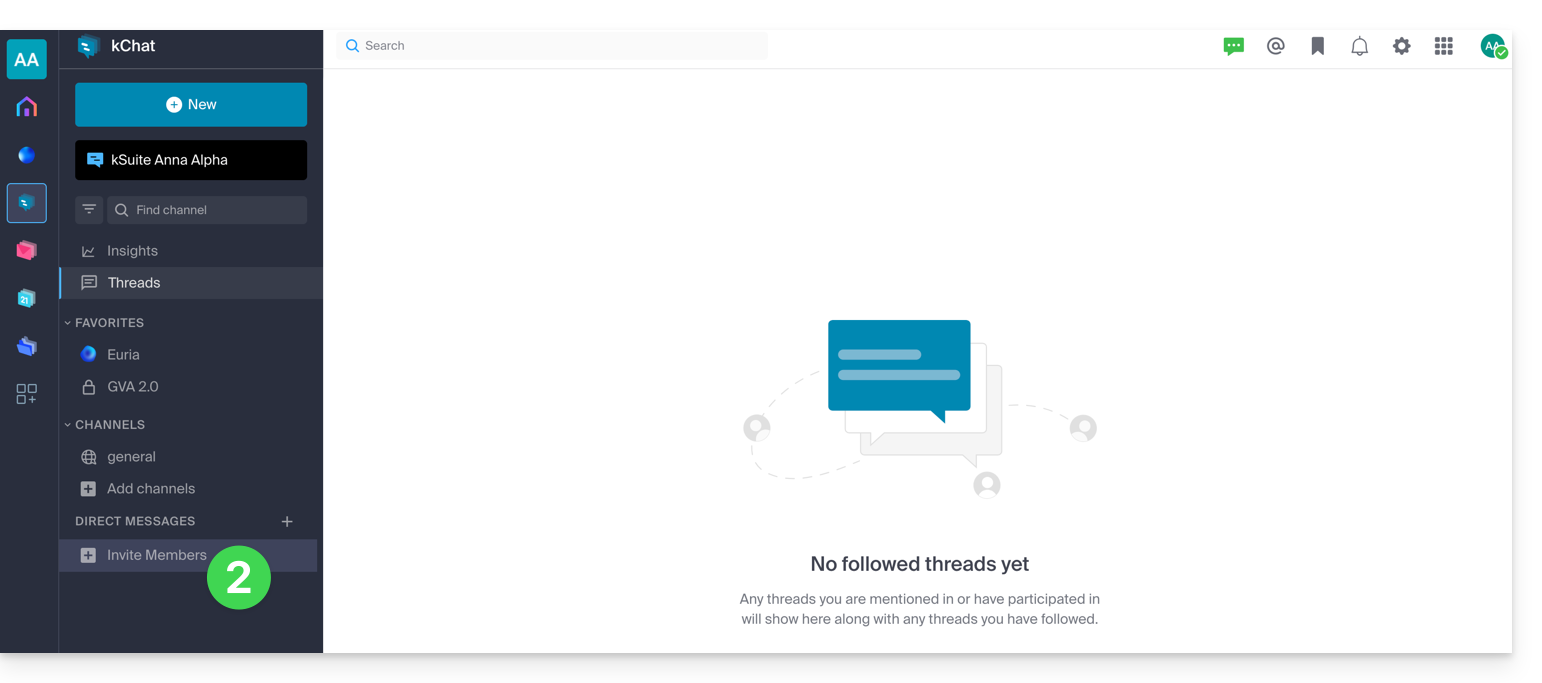
- Clique no botão para Convidar membros:
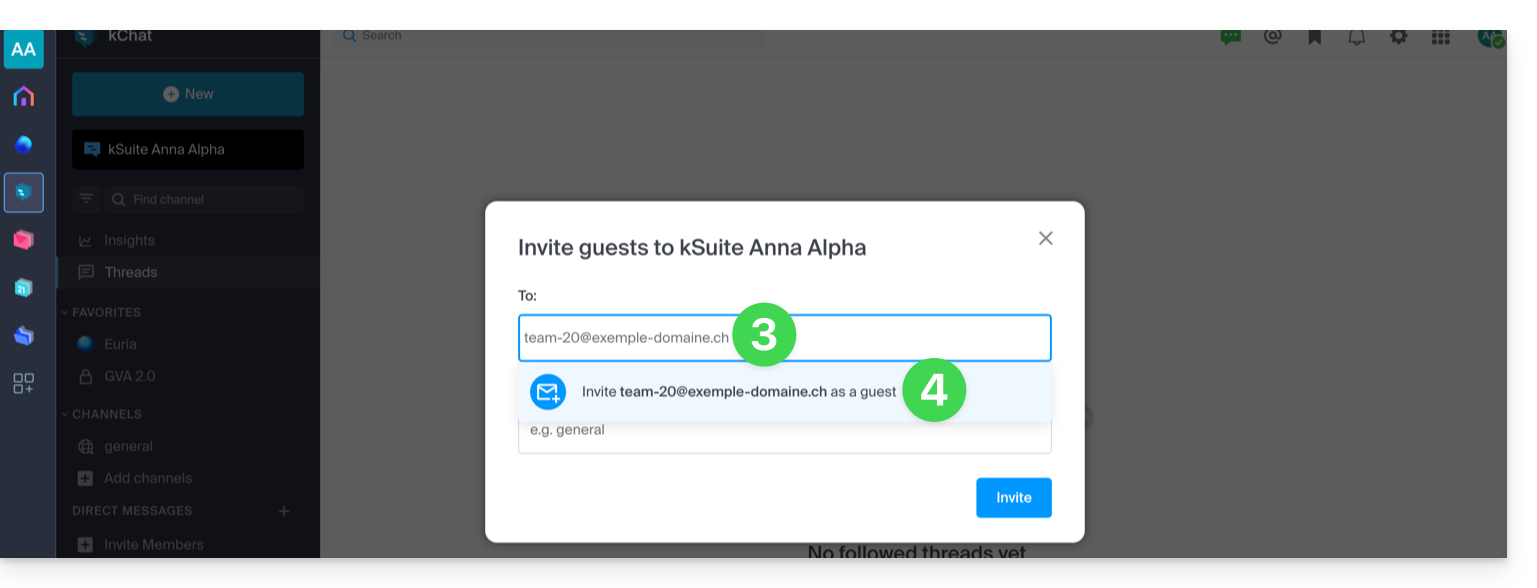
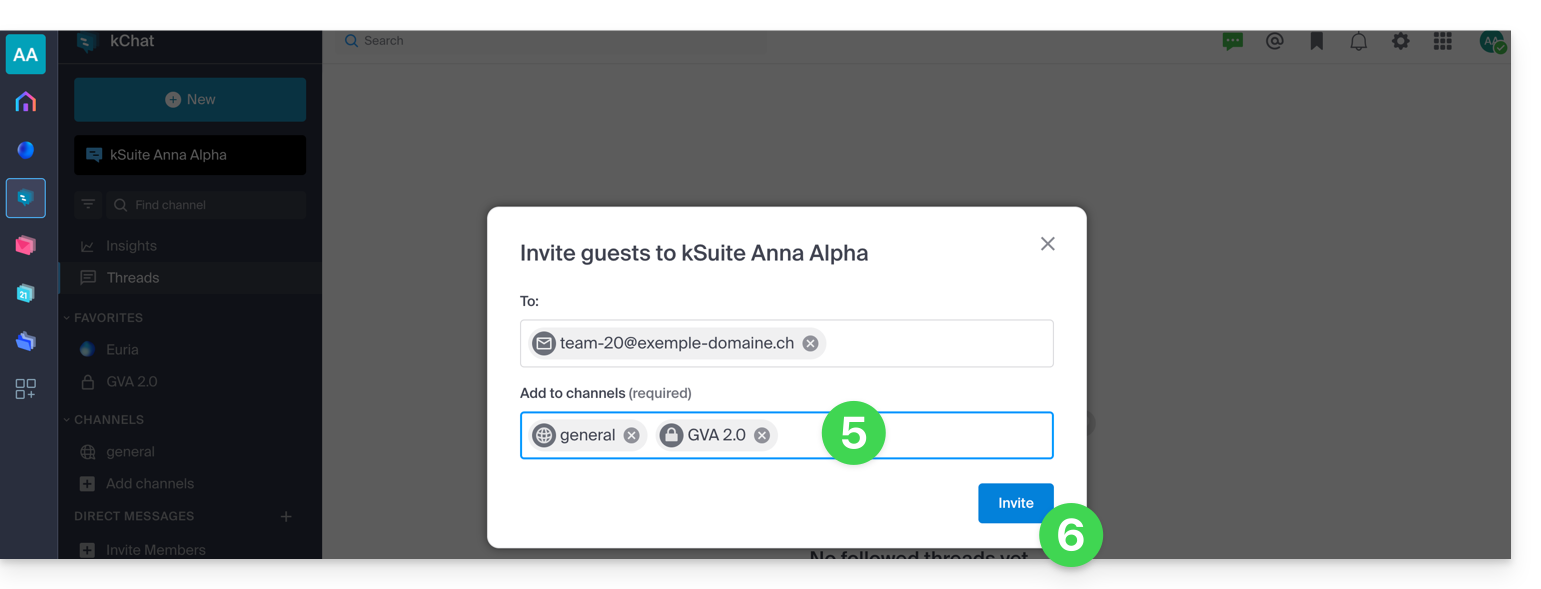
- Especifique o endereço de e-mail da pessoa que deseja convidar.
- Clique no endereço de e-mail para adicioná-lo como convidado:
- Especifique o(s) canal(is) aos quais essas pessoas poderão ter acesso.
- Clique no botão azul para enviar o convite:
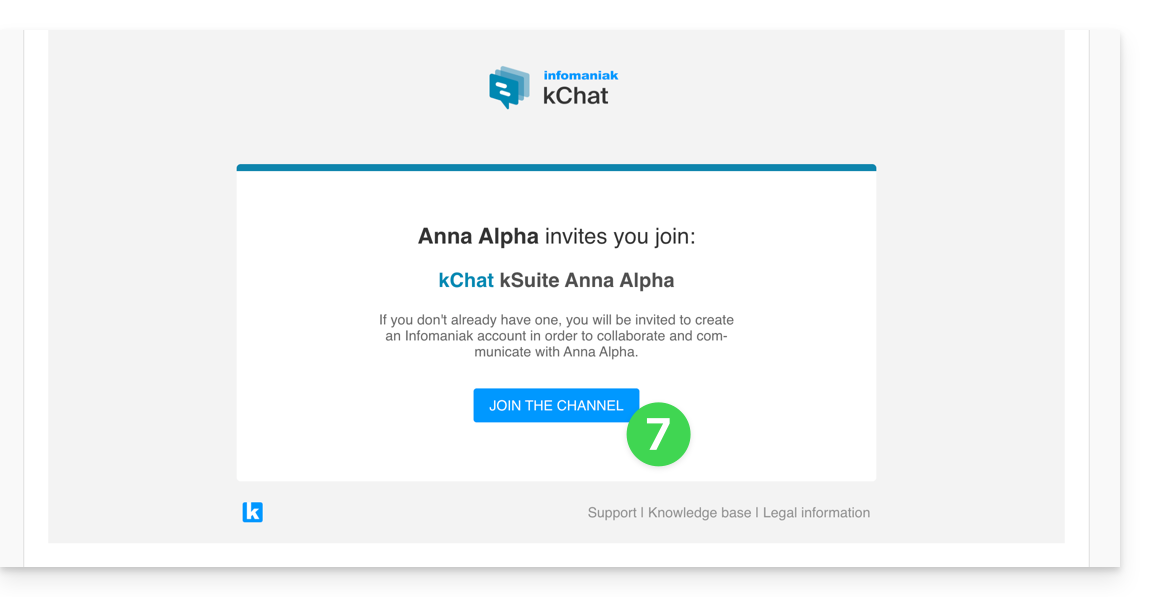
- A pessoa convidada recebe um e-mail com um link que a direciona para a interface kChat e para o canal compartilhado com ela:
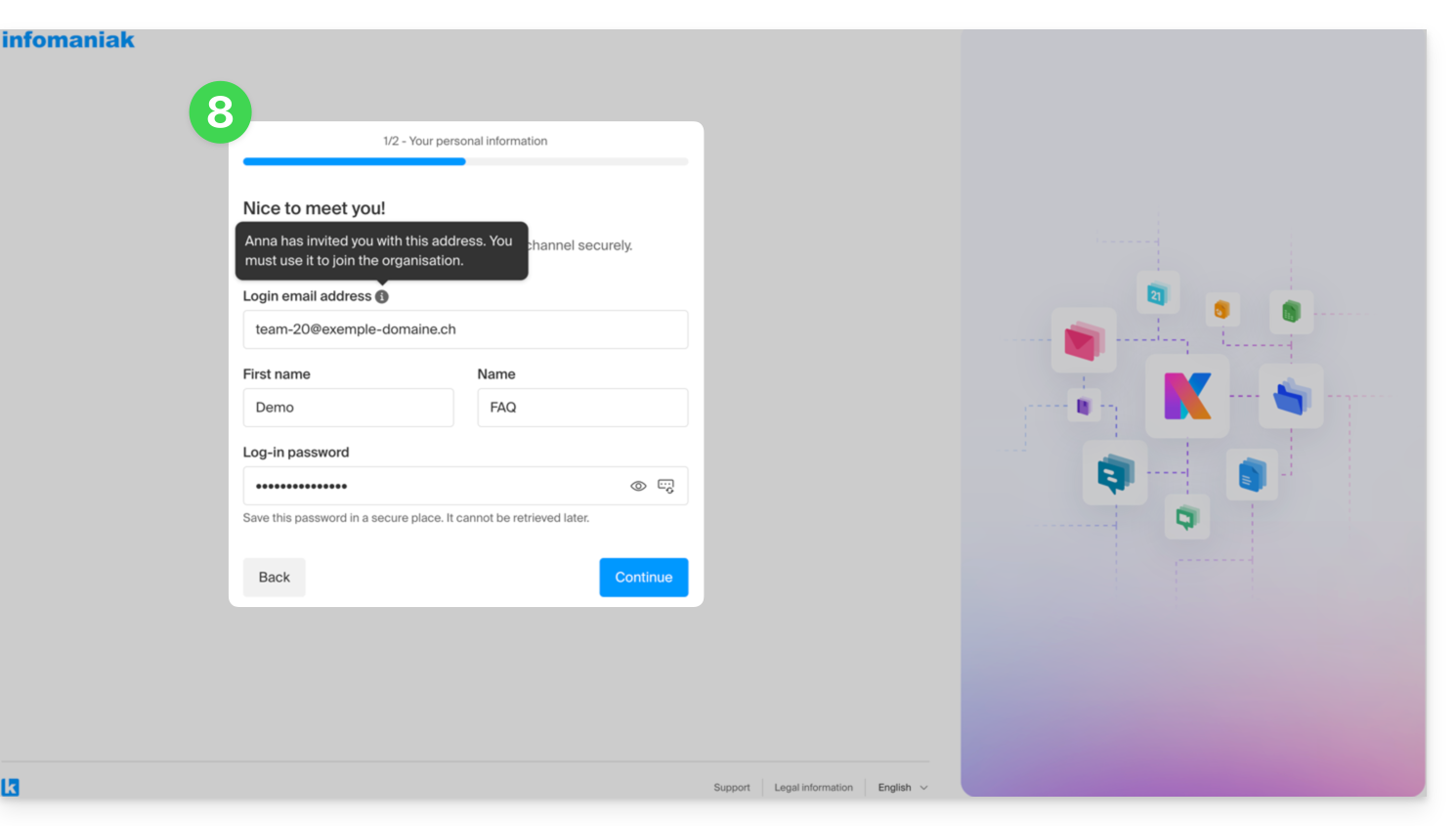
- Obviamente, existe uma fase de registo caso o utilizador ainda não tenha uma conta Infomaniak (durante esse período, o utilizador convidado é listado como em espera no canal kChat em questão):
- Note que ele não será listado como em espera no kSuite ou em outro lugar, pois é um utilizador externo com acesso restrito; e, enquanto o registo não for concluído, a quota permanece em 0 utilizadores externos:
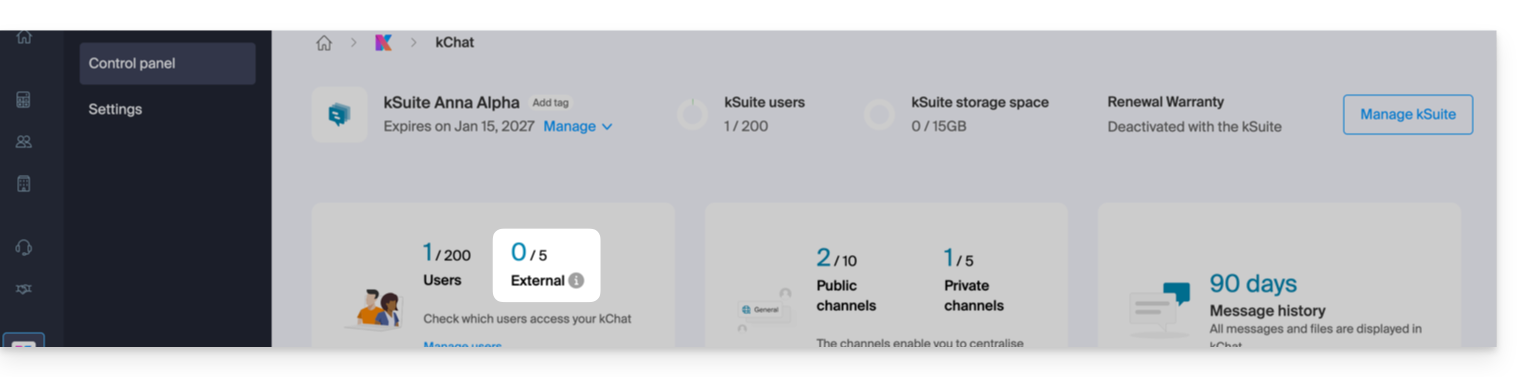
- Note que ele não será listado como em espera no kSuite ou em outro lugar, pois é um utilizador externo com acesso restrito; e, enquanto o registo não for concluído, a quota permanece em 0 utilizadores externos:
- Após a conclusão do registo, o convidado pode aceder ao kChat, uma versão restrita e limitada aos canais especificados pelo administrador durante a criação do convite:
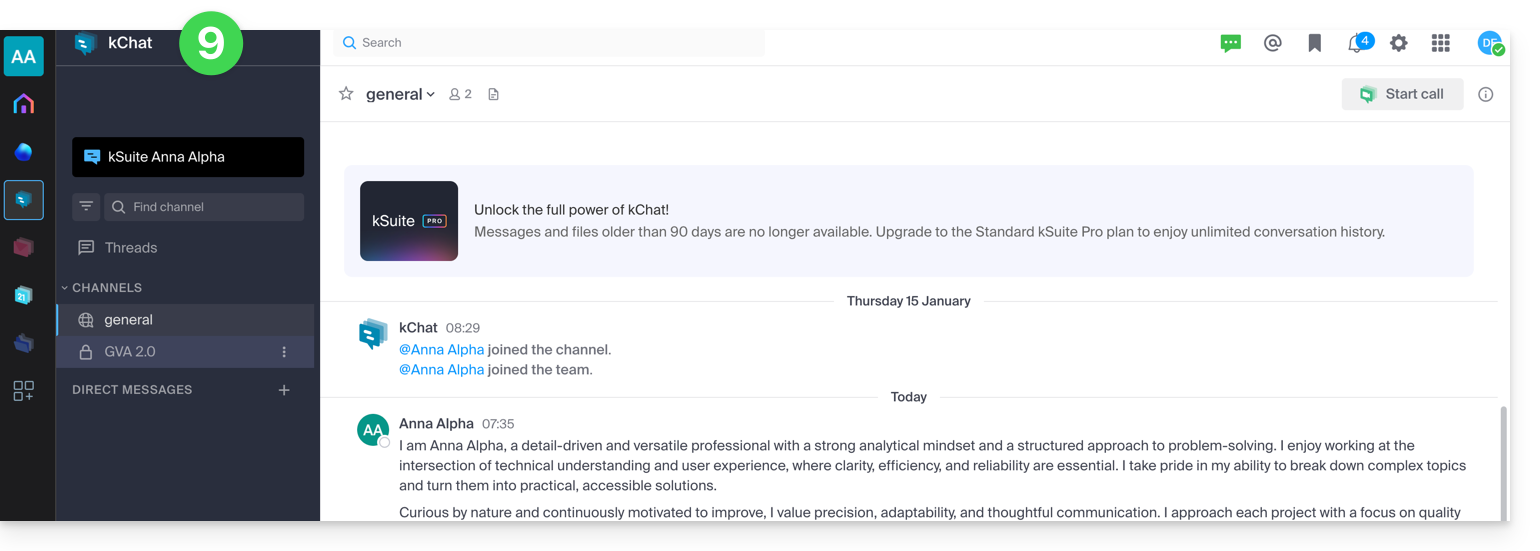
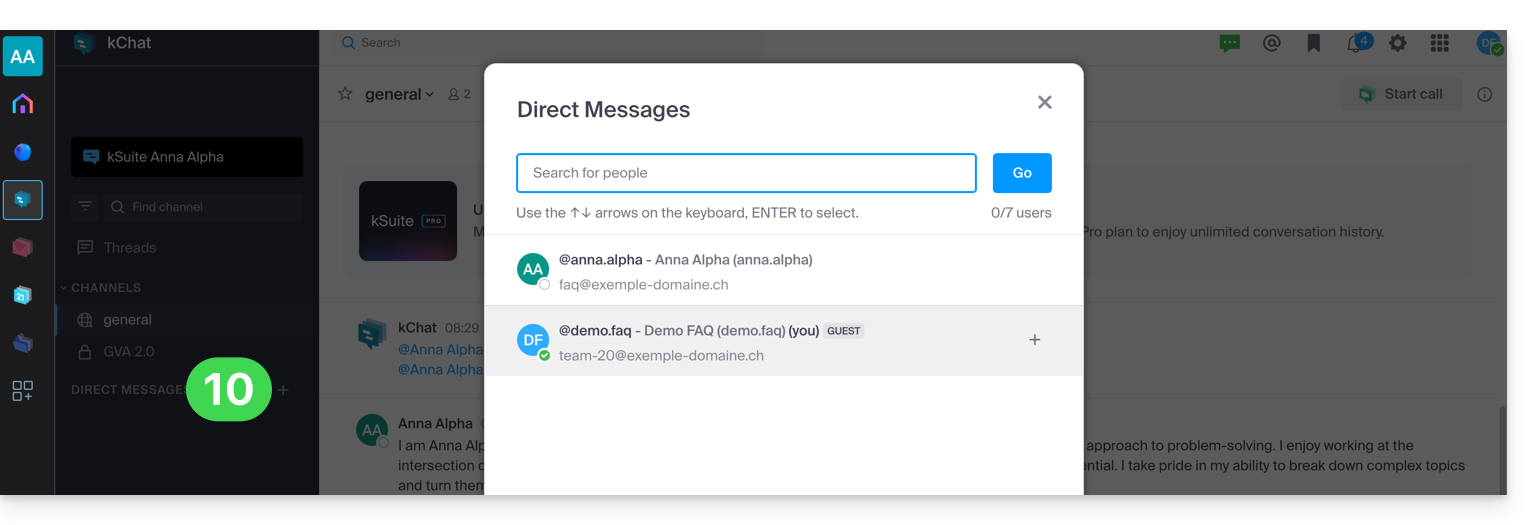
- Ele pode iniciar uma conversa privada com outros usuários:
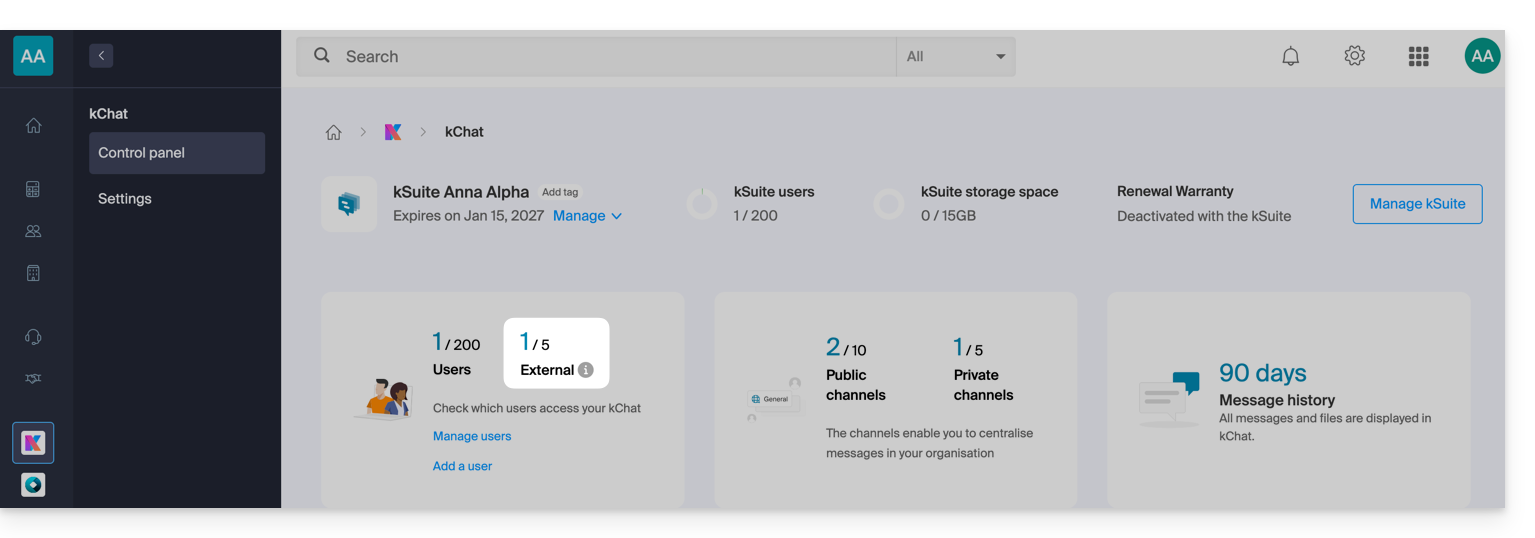
- No painel de controle do administrador, após o registro bem-sucedido do usuário externo, você verá a indicação de 1 usuário externo no seu painel de controle:
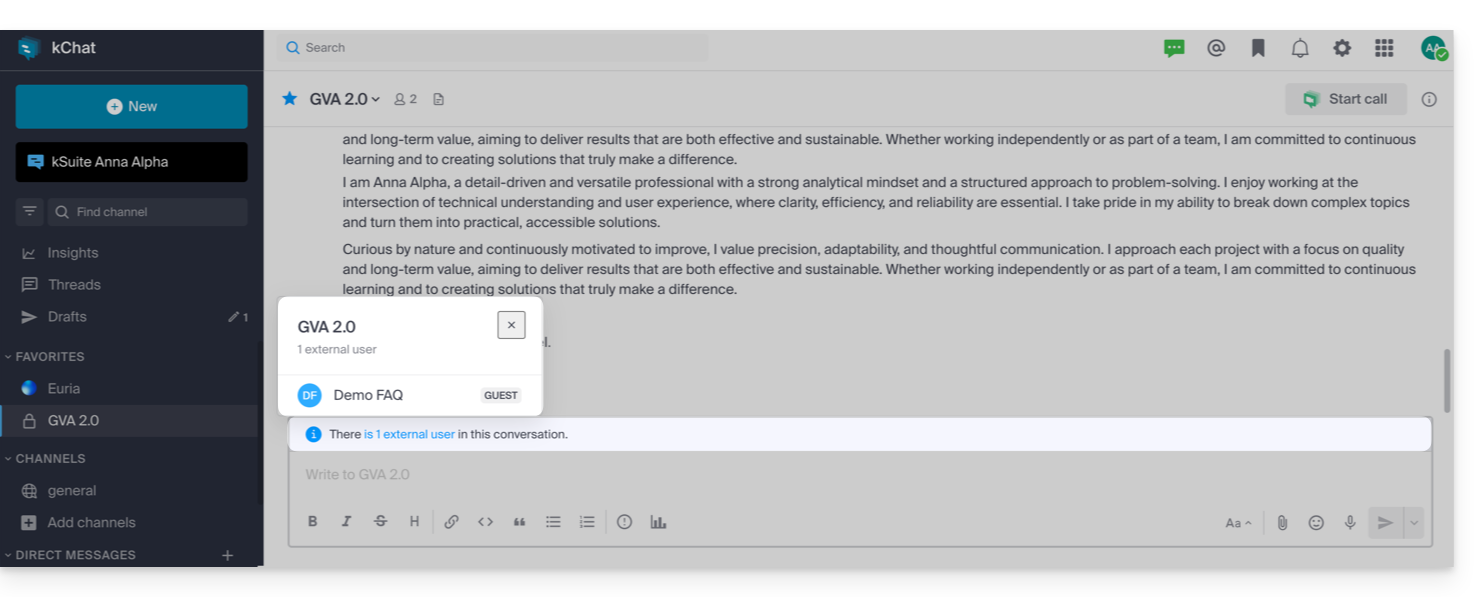
- E agora você verá a indicação no kChat de que o usuário tem acesso ao seu canal privado:
- No painel de controle do administrador, após o registro bem-sucedido do usuário externo, você verá a indicação de 1 usuário externo no seu painel de controle:
Permissões do usuário convidado
Os convidados podem…
- … fixar mensagens em canais
- … usar "comandos de barra" (com exceção de comandos restritos, como convidar membros, renomear canais, modificar cabeçalhos, etc.)
- … marcar um canal como favorito
- … silenciar um canal
- … atualizar o perfil
- … utilizar métodos de autenticação diferentes dos utilizados pelos outros utilizadores
- … utilizar a aplicação kChat: o utilizador convidado pode abrir a aplicação (Web, móvel ou desktop), quer seja já membro de um kChat ou não; este princípio de funcionamento é diferente do kDrive, por exemplo.
Os convidados não podem…
- … descobrir canais públicos
- … participar em grupos abertos
- … criar mensagens diretas ou mensagens de grupo com membros que não pertencem ao mesmo canal
- … convidar pessoas
Em caso de problema
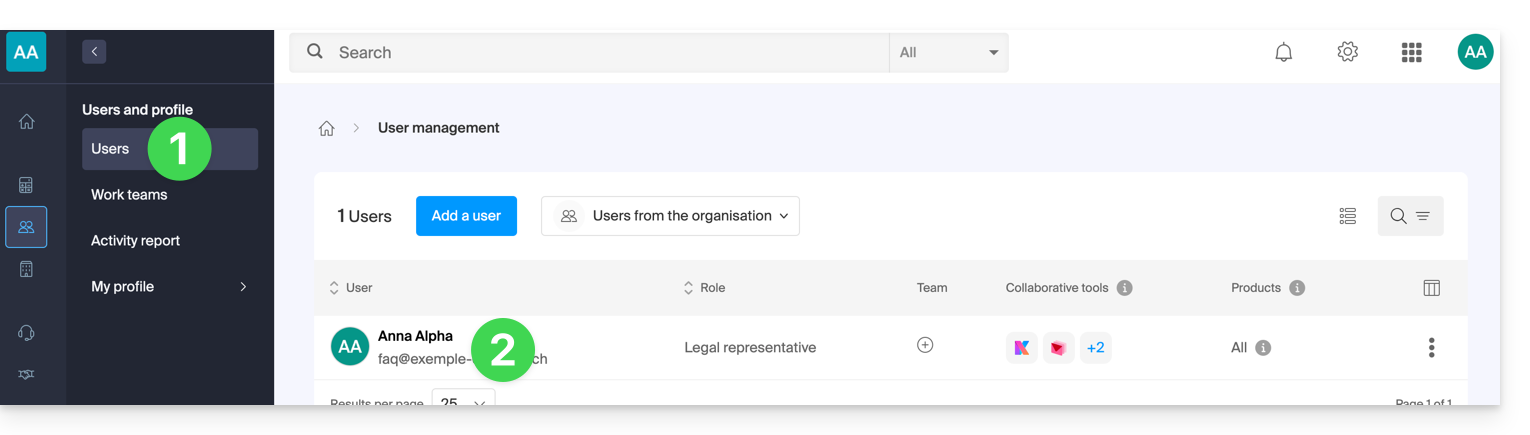
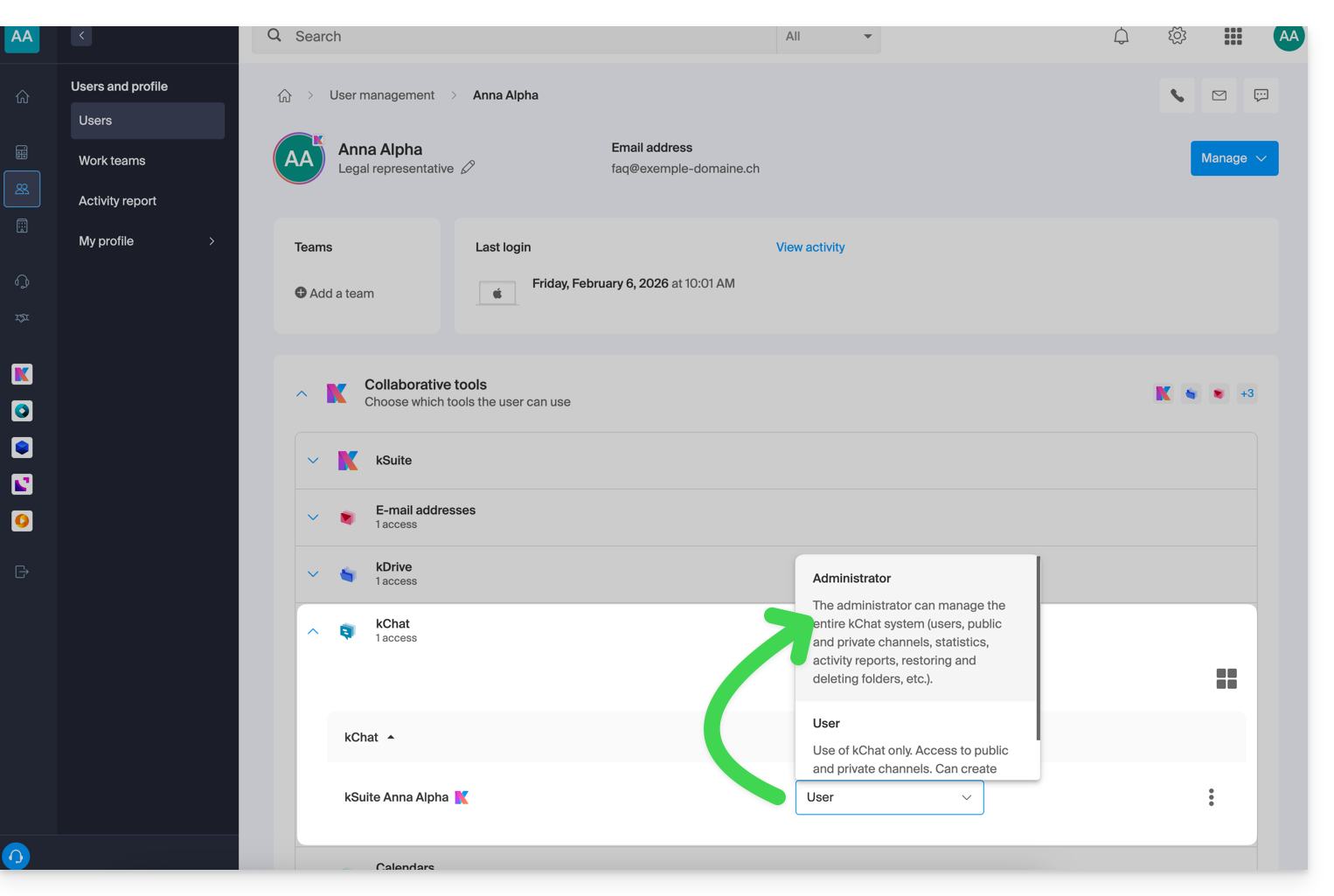
Se você é administrador da Organização, mas ainda assim não consegue convidar um novo usuário no kChat, verifique se você é realmente administrador dentro do kChat, pois é possível ser apenas um usuário/colaborador, mesmo sendo o único usuário com licença no kSuite, por exemplo:
- Clique aqui para acessar o gerenciamento de usuários da Organização no Manager Infomaniak (precisa de ajuda?).
- Clique no seu nome de utilizador:
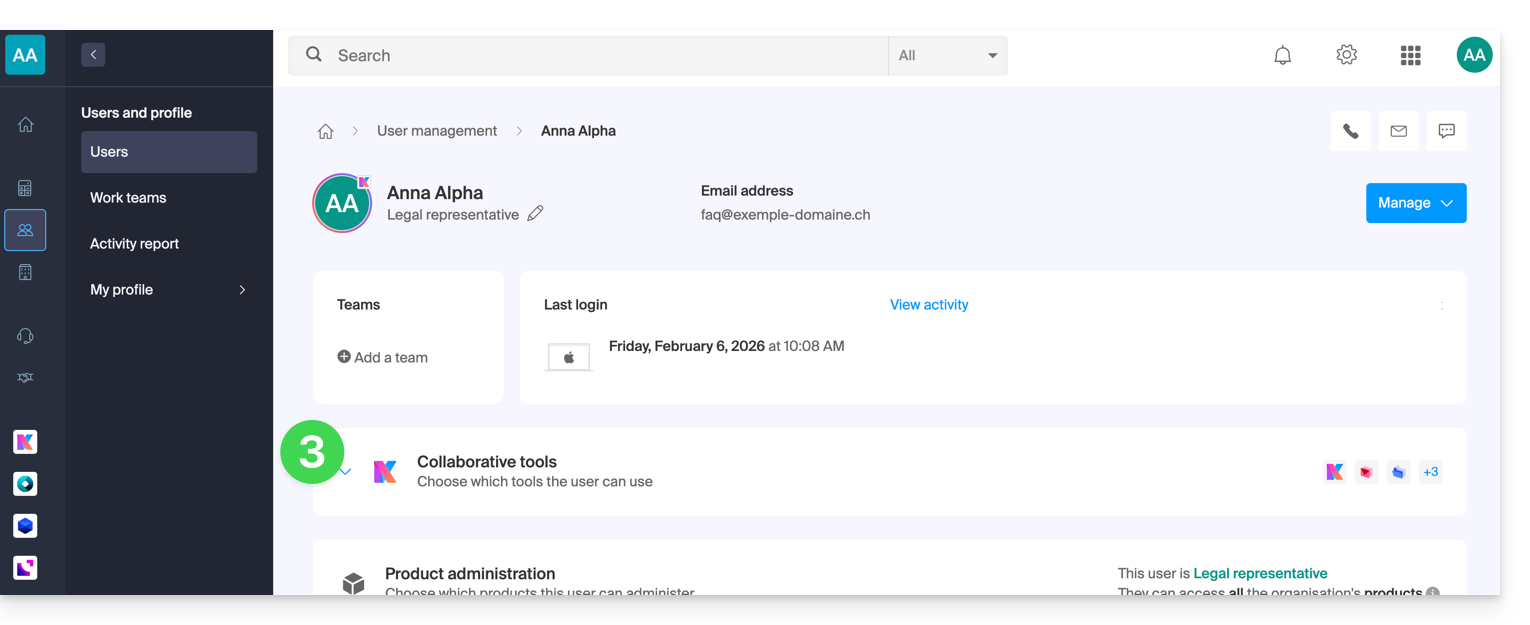
- Clique na seta para baixo para expandir as ferramentas de colaboração kSuite:
- No kChat, altere o papel de utilizador para administrador:
Link para esta FAQ: https://faq.infomaniak.com/2846
Esta seção de perguntas frequentes foi útil?
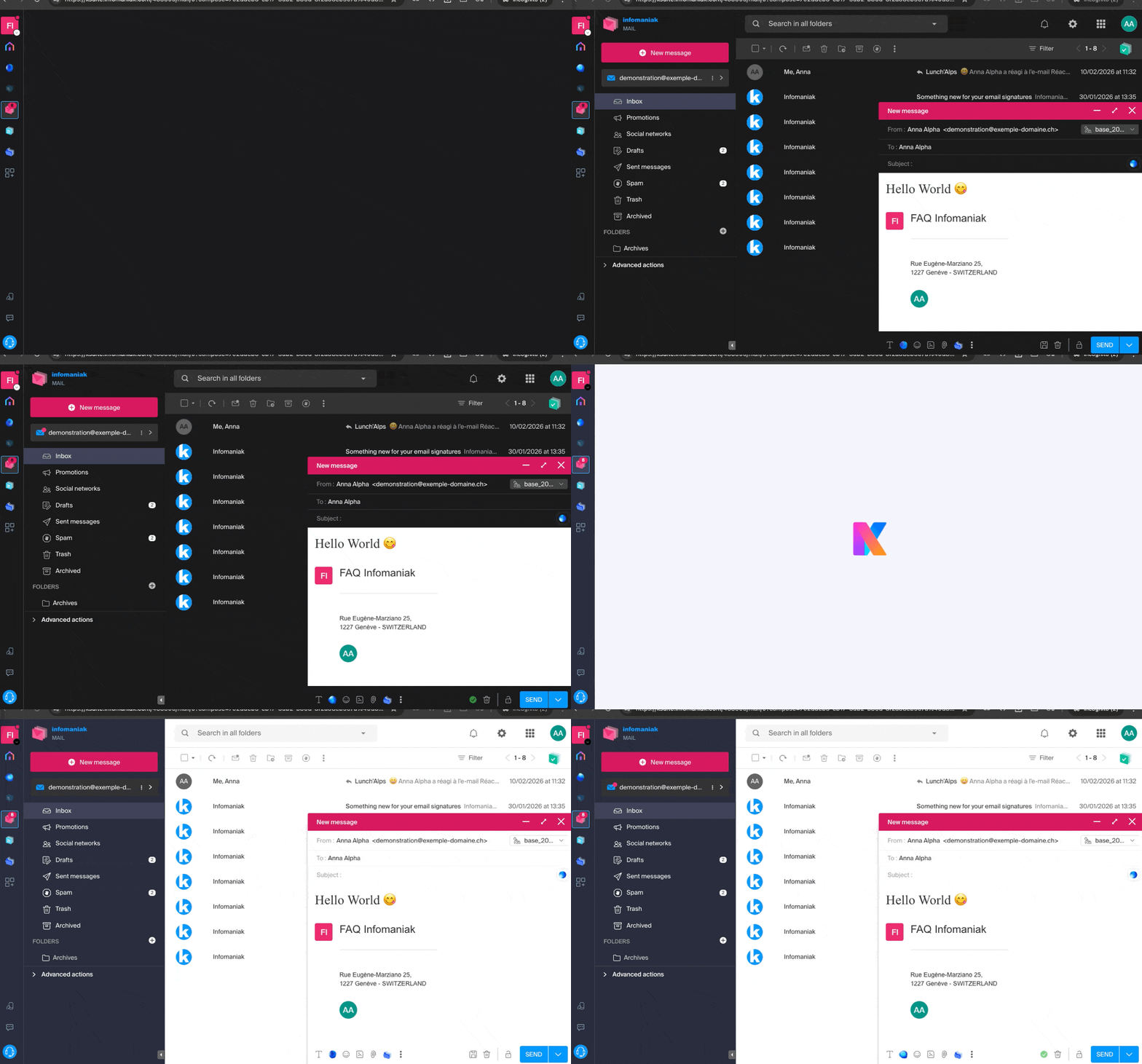
As ferramentas Infomaniak, como o aplicativo web Mail Infomaniak (serviço online ksuite.infomaniak.com/mail) ou as interfaces Calendar, Contacts, kSuite… podem ser exibidas no modo claro ou no modo escuro, inclusive com base nas configurações do seu sistema operacional:
Ativar um modo manual
Para escolher manualmente um tema escuro ou claro, sem se basear em um possível tema diferente definido no sistema operacional:
- Clique aqui (ou no ícone com suas iniciais/avatar no canto superior direito do Gerenciador Infomaniak) para “Gerenciar minha conta”:
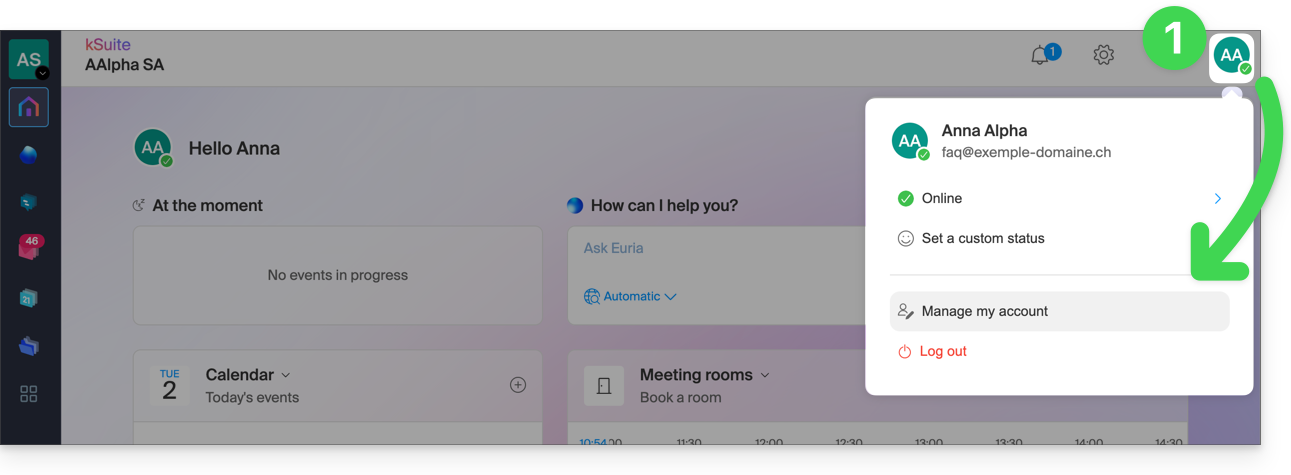
- Em seguida, clique em Aparência no menu lateral esquerdo.
- Clique em Claro para aplicar o modo claro:
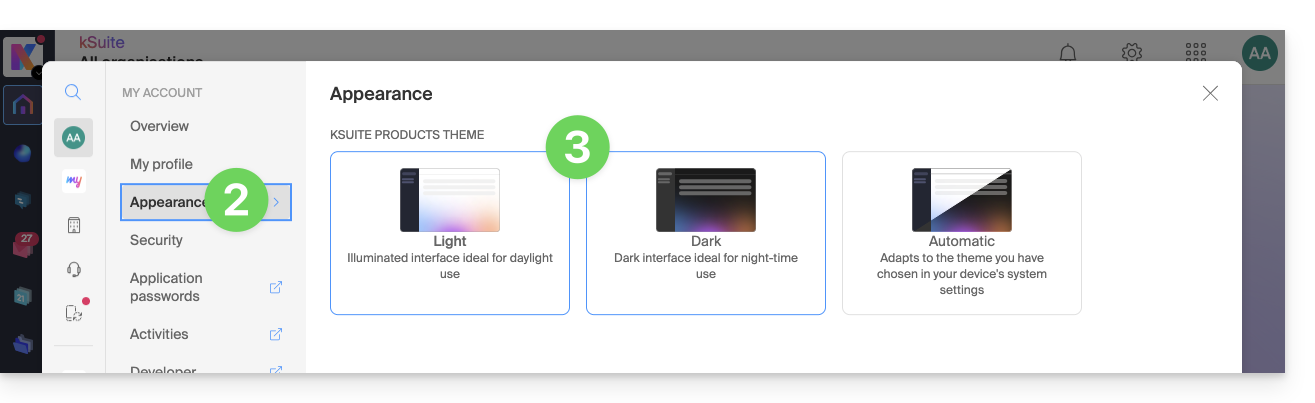
- Clique em Escuro para ativar o “modo noturno”.
Ativar o modo automático
O modo automático baseia-se nas configurações do seu sistema operativo (macOS / Windows...):
- Clique aqui ou no ícone com suas iniciais/avatar no canto superior direito do Gerenciador Infomaniak para "Gerenciar minha conta":
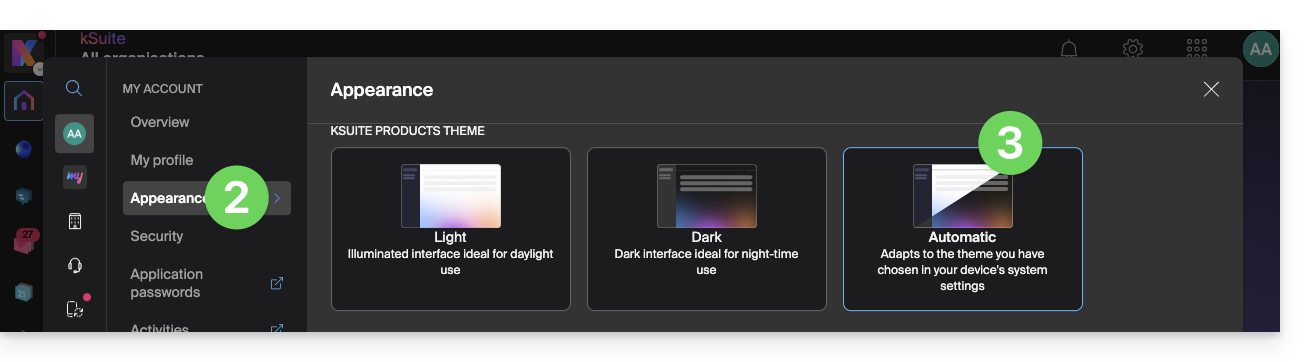
- Clique em Aparência no menu lateral esquerdo.
- Clique no modo Automático:
Em seguida, se desejar alterar o tema claro ou escuro do seu computador, para que o modo automático do Manager leve em consideração suas preferências…
… no macOS
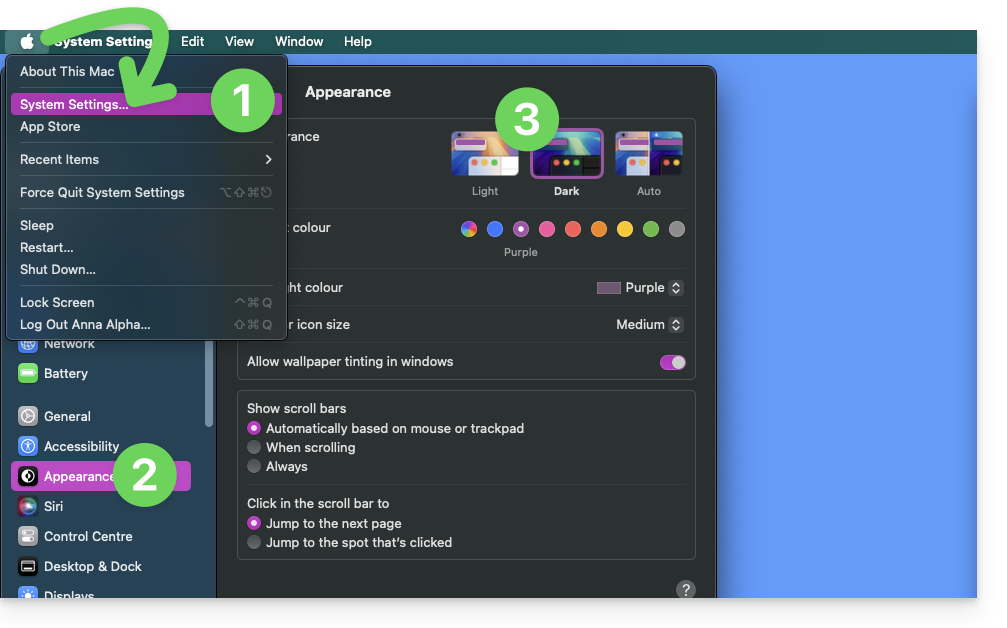
- Clique em Preferências do Sistema…
- Clique em Aparência.
- Escolha o modo desejado à direita:
… no Windows
- No menu Iniciar, abra Configurações > Personalização.
- Selecione Cores e, em seguida, Escolha o seu modo:
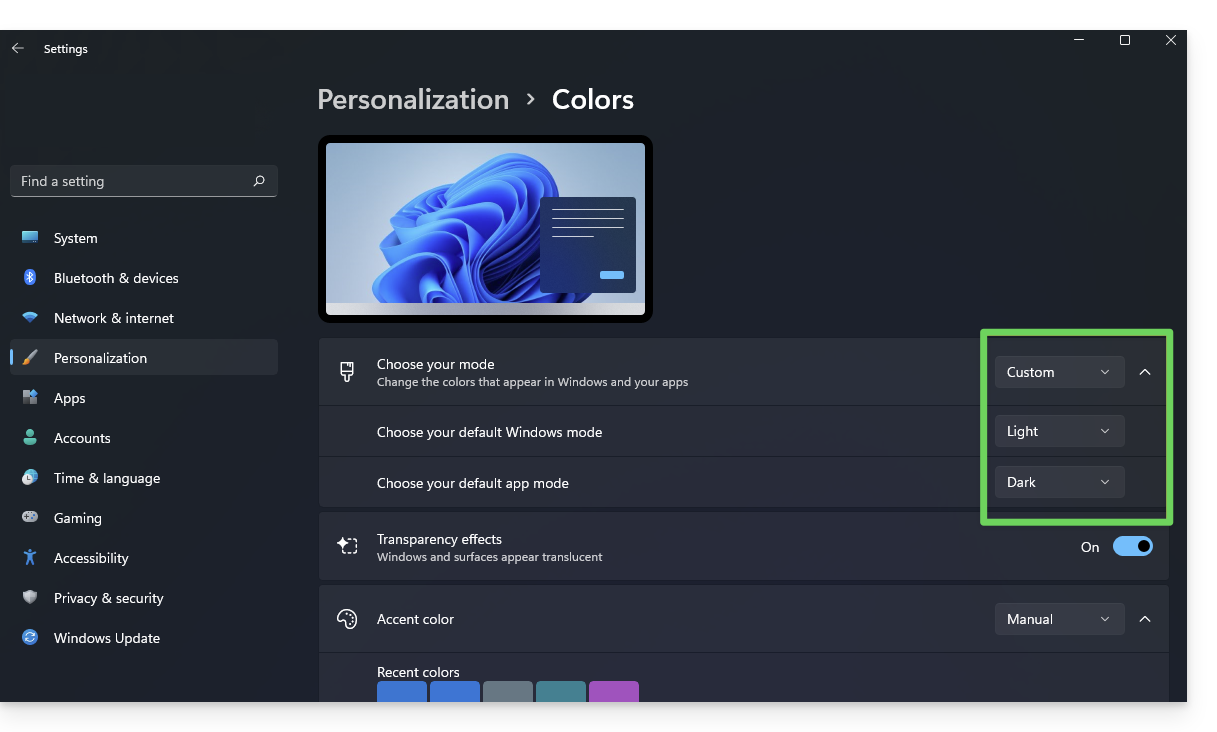
- Pode escolher entre Claro, Escuro ou Personalizado.
- Se selecionar Personalizado, terá a possibilidade de escolher um modo Windows predefinido e um modo de aplicação predefinido diferente.
E nos dispositivos móveis?
O tema escuro está ativado nos dispositivos móveis para as páginas de login e de criação de conta Infomaniak; ele se adapta automaticamente às preferências do sistema móvel, oferecendo assim uma experiência visual consistente entre os aplicativos móveis e o login/criação de conta.
Link para esta FAQ: https://faq.infomaniak.com/2870
Esta seção de perguntas frequentes foi útil?
Este guia detalha o uso de mensagens de voz nas conversas kChat da Infomaniak.
Enviar uma mensagem de voz (e transcrição automática)
Para gravar uma mensagem de voz usando o microfone do seu dispositivo e permitir que ela seja reproduzida na conversa em andamento (mensagem privada, por exemplo, mas também em todos os locais onde você pode enviar uma mensagem de texto):
- Clique aqui para acessar o aplicativo web kChat (serviço online ksuite.infomaniak.com/kchat) ou abra o aplicativo móvel kChat (aplicativo para smartphone ou tablet iOS / Android) ou o aplicativo desktop kChat (aplicativo para computador em macOS / Windows / Linux).
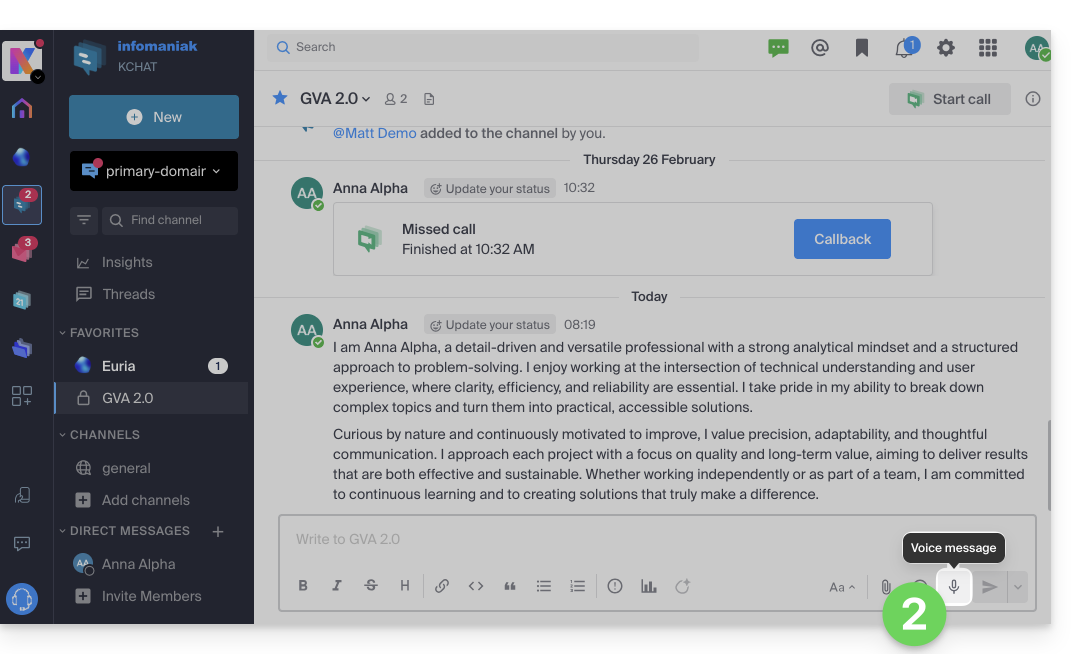
- Clique no ícone do microfone na janela de redação de uma nova mensagem:
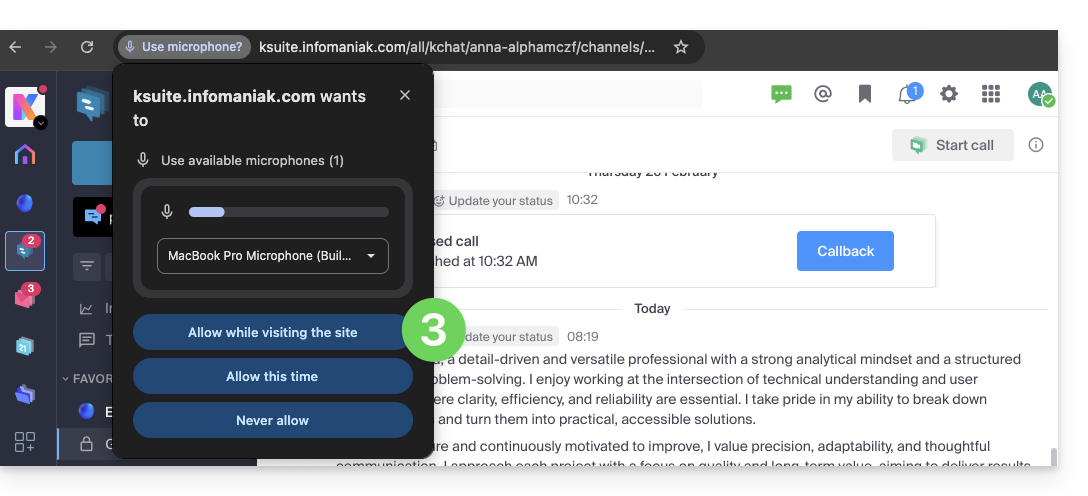
- O sistema pode solicitar permissões para que o kChat possa acessar sua interface de voz e áudio:
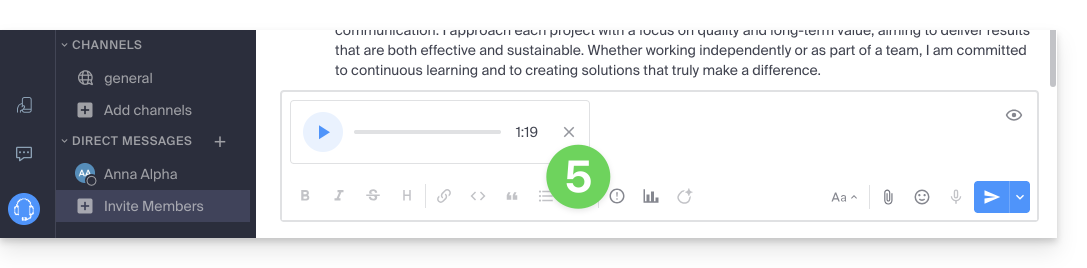
- Depois que a mensagem estiver sendo gravada, clique no "x" à direita da gravação para apagá-la ou no ícone ✓ para salvá-la:
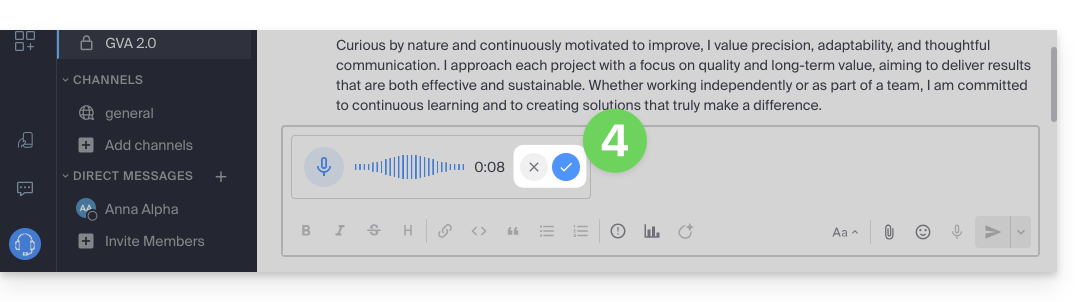
- Depois que a mensagem for salva, ela não será enviada diretamente, mas será adicionada a uma nova mensagem. Você pode ouvi-la novamente ou apagá-la e alterar a prioridade do envio.
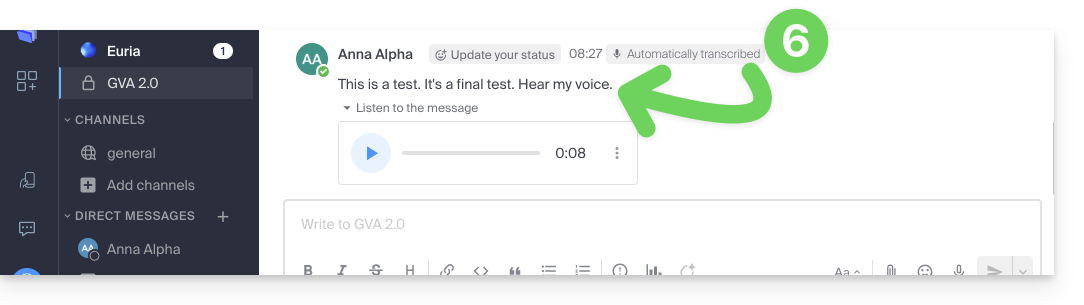
- Depois de enviar a mensagem, ela aparece na conversa em andamento, com o texto transcrito de forma clara e completa:
Ouvir uma mensagem de voz no kChat
Para ouvir a mensagem de voz gravada na conversa atual:
- Clique no botão ▶ (Reproduzir) para iniciar a reprodução.
- Clique novamente nele (botão ⏸ (Pausar)) para interromper a reprodução.
Descarregar a mensagem de voz
Para salvar a mensagem de voz no local desejado:
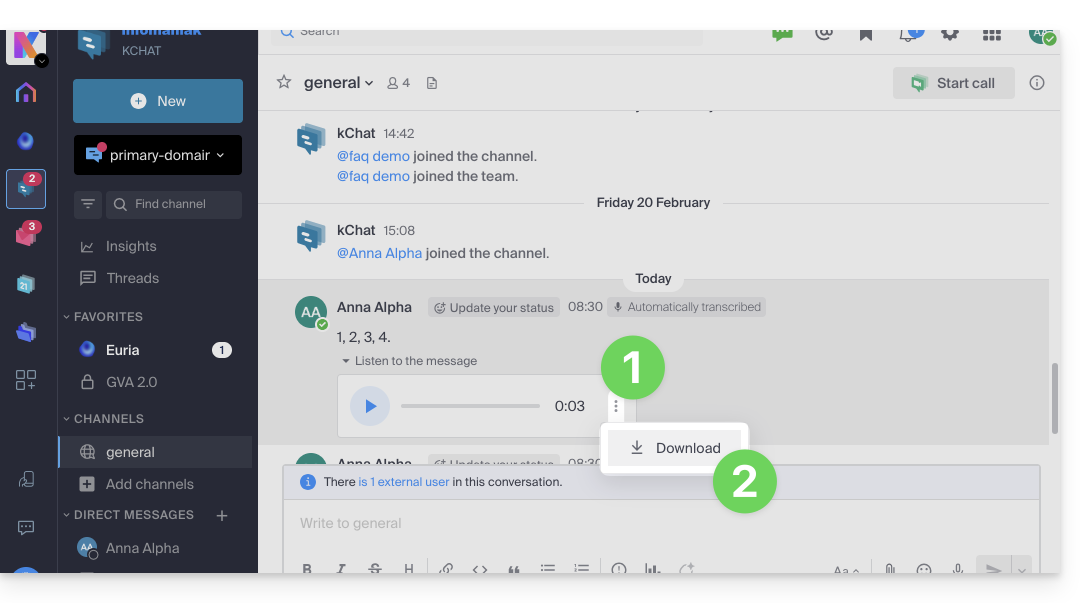
- Clique no menu de ação ⋮ para abrir um menu.
- Inicie o download da mensagem de voz para o seu disco rígido:
Link para esta FAQ: https://faq.infomaniak.com/2876
Esta seção de perguntas frequentes foi útil?
A Infomaniak oferece soluções para substituir o Skype, seja para chamadas individuais, reuniões remotas ou comunicação em grupo.
kMeet, a videoconferência para particulares e empresas
Apesar do seu sucesso inicial, a plataforma de comunicação Skype viu o seu uso diminuir face ao surgimento de soluções melhor integradas aos novos modelos de trabalho colaborativo.
Uma das formas mais simples de substituir o Skype é adotar o kMeet:
- Chamadas de áudio e vídeo ilimitadas
- Acesso sem registo
- Compatibilidade com web, dispositivos móveis e desktop
- Chat integrado e reações (emojis, sons)
- Compartilhamento de tela com ferramentas de desenho, controle remoto
- Salas de discussão (salas de subdivisão)
- Integração com a agenda (criação de link para videoconferência)
- Integração com o kDrive para o armazenamento das gravações de reuniões
- Integração com o kChat para chamadas de vídeo
- Respeito pela privacidade (sem publicidade, hospedagem na Suíça)
- Segurança com criptografia AES-256
- Ecológico (energia renovável, compensação de CO₂)
Substituir o Skype por kMeet
A alternativa kMeet para substituir o Skype pode ser implementada de várias maneiras:
1. Utilização rápida sem registo
Para iniciar uma comunicação privada entre várias pessoas na Internet, basta que uma delas aceda ao kMeet e partilhe o link da reunião com as outras. Eis o procedimento passo a passo:
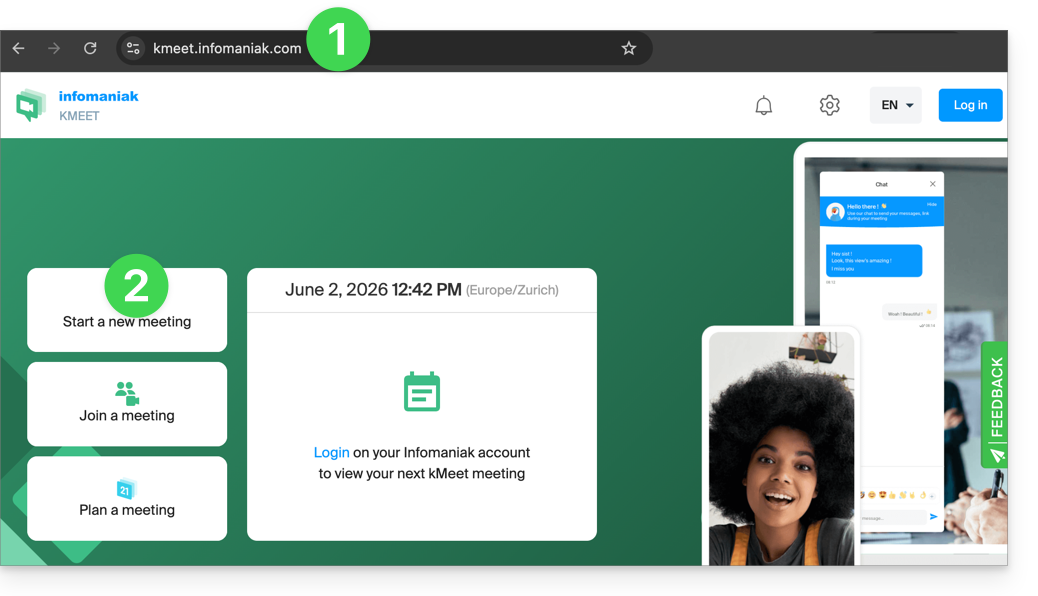
- Acesse kmeet.infomaniak.com em um navegador como o Chrome ou o Safari.
- Clique em Iniciar uma nova reunião:
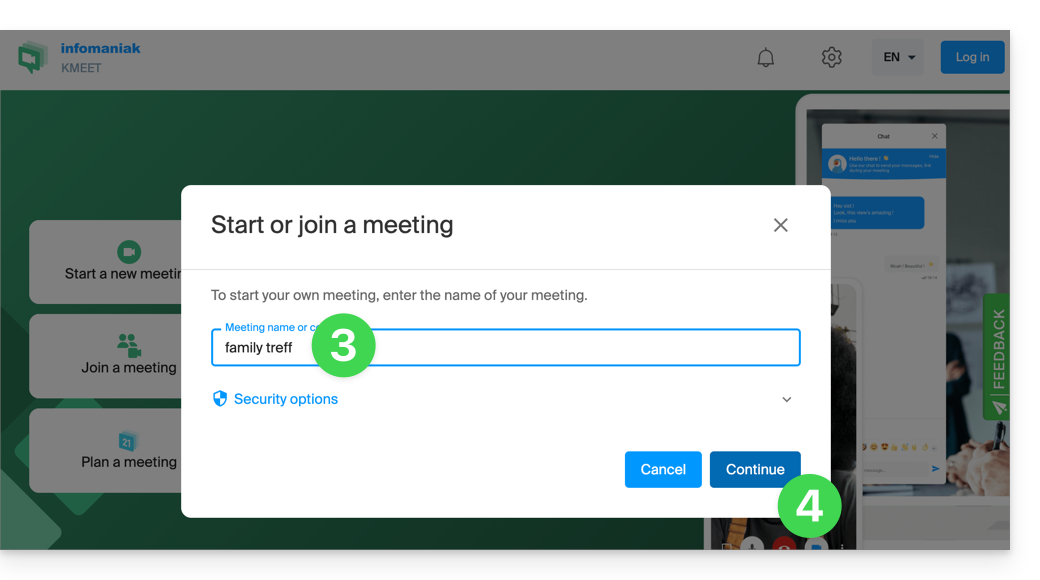
- Insira um nome para a reunião, o que permitirá indicar aos futuros participantes o tema da discussão à qual se juntarão.
- Clique no botão para Continuar:
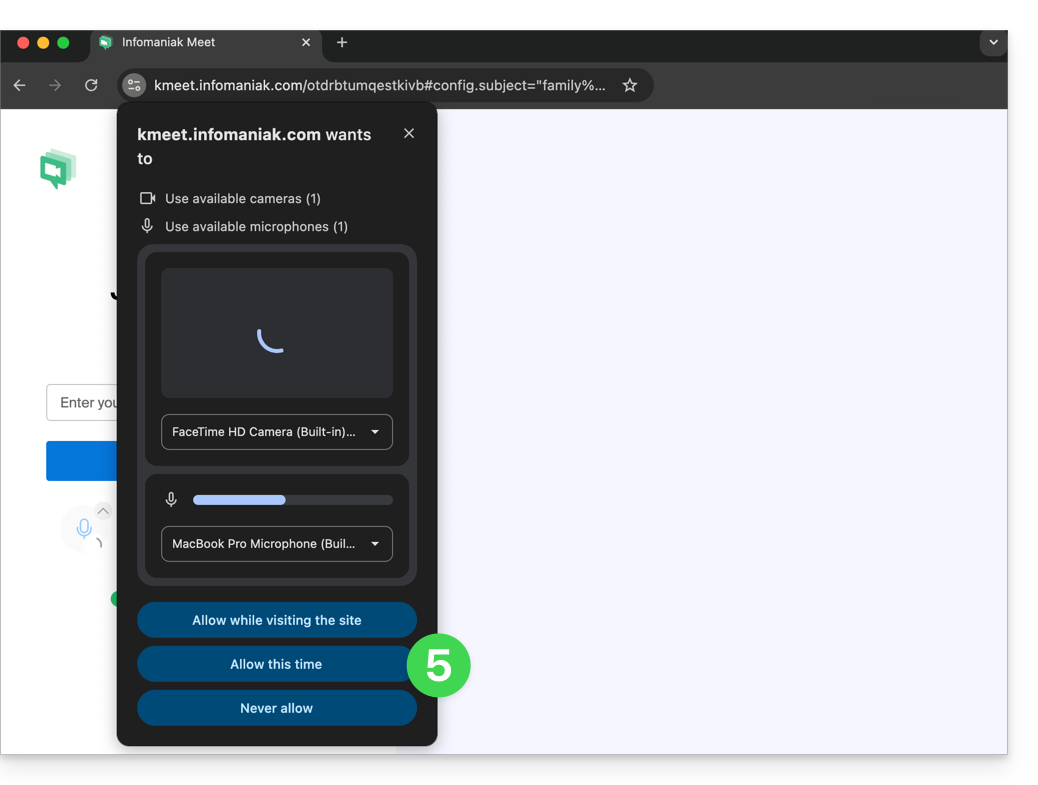
- Conceda as permissões necessárias ao kMeet:
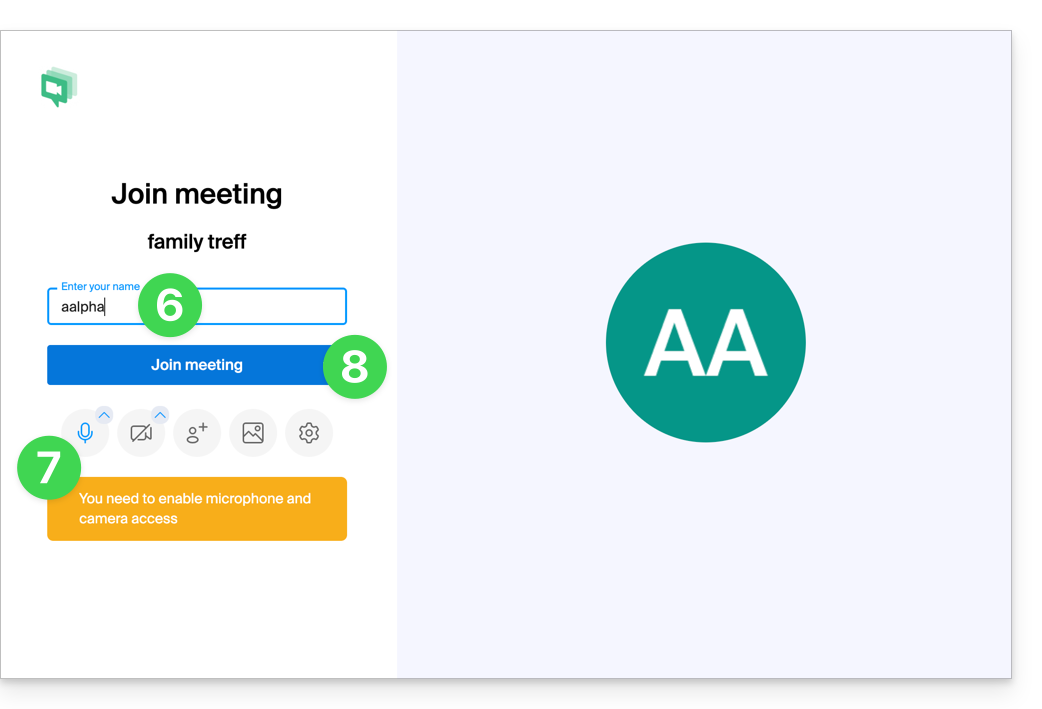
- Insira o seu nome, que será exibido para os outros participantes.
- Ative ou desative os possíveis canais de comunicação caso não devam ser utilizados no momento.
- Clique no botão para entrar na sala de reunião virtual (como primeiro participante, já que, por enquanto, você é o único convidado):
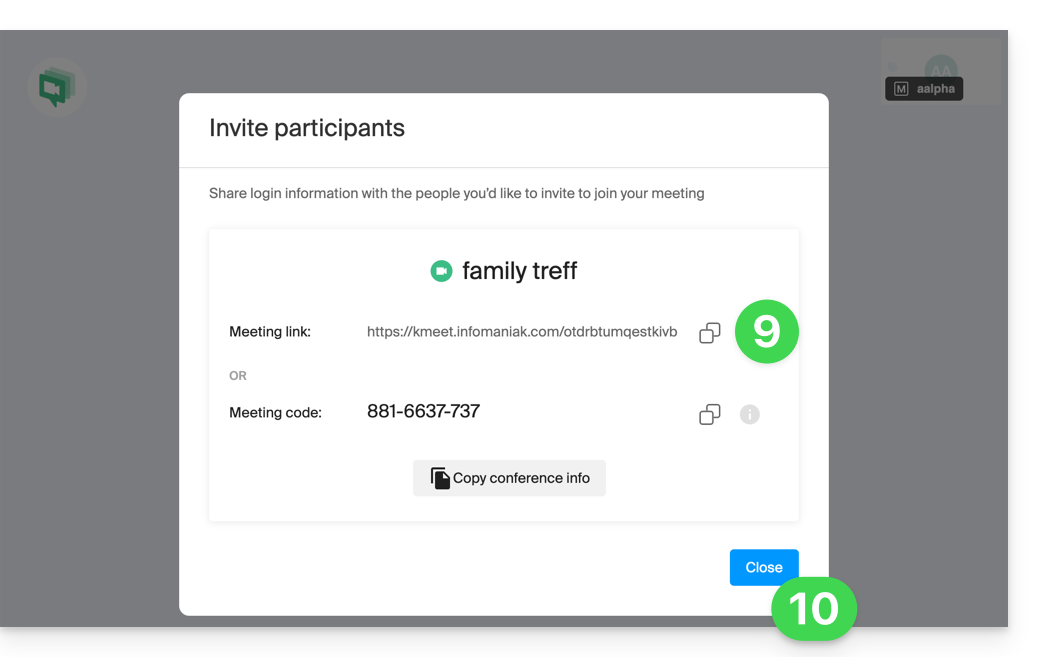
- Pronto, a sala foi criada e agora você pode copiar as informações sobre esta sessão e enviá-las aos participantes para que eles possam entrar (eles só precisarão clicar no link que você enviar).
- Feche a janela de informações para que todos possam conversar:
- A barra de ferramentas na parte inferior da tela permite ativar ou desativar o microfone, a câmera, etc.:
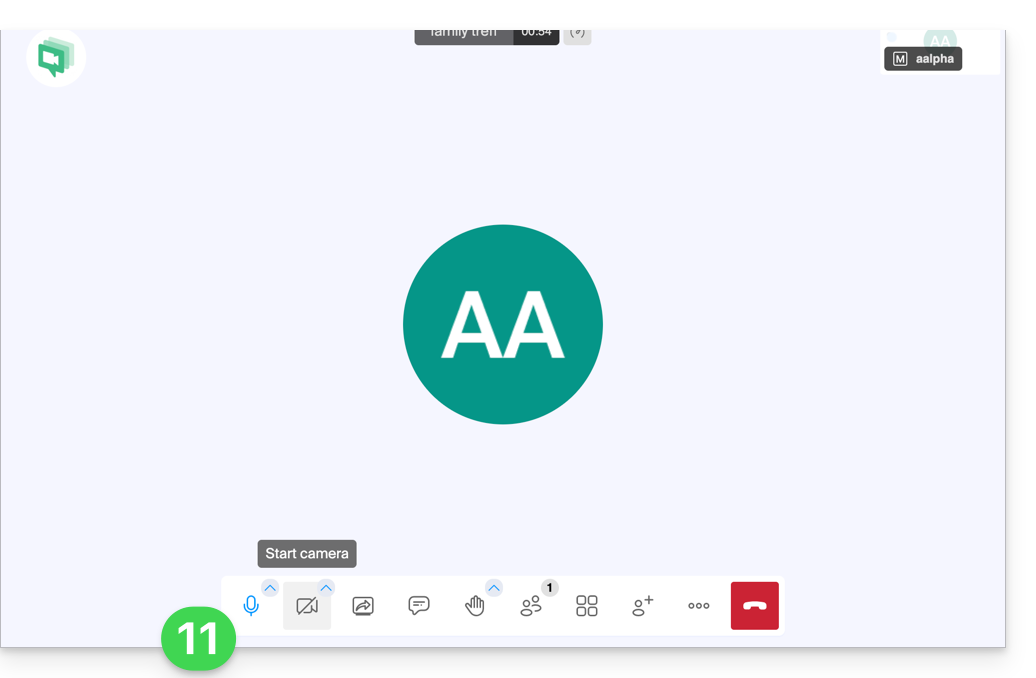
Para descobrir todas as possibilidades que o kMeet oferece, consulte este outro guia.
2. Planeamento e convites com my kSuite
Para trabalhar de forma eficiente, o kMeet pode ser ligado diretamente à sua agenda profissional. Isso significa que, sempre que criar um evento no seu calendário…
- … um link para videoconferência é gerado automaticamente…
- … os participantes recebem o convite por e-mail com todas as informações…
- … e no dia marcado, eles podem participar da reunião com um único clique, sem necessidade de inscrição ou instalação de software.
Vantagem: você centraliza o gerenciamento das reuniões, reduz o número de esquecimentos e simplifica a organização, tudo a partir de uma única interface.
Para implementar esta solução:
- Registe-se gratuitamente no my kSuite para ter um endereço de e-mail, por exemplo
anna.alpha@ikmail.com, e, principalmente, acesso aos serviços Infomaniak. - Aceda ao calendário em ksuite.infomaniak.com/calendar e, em seguida, crie um evento no dia de sua escolha.
- Adicione participantes ao evento, mesmo que não sejam clientes da Infomaniak.
- Clique no botão verde para gerar automaticamente um link kMeet que será adicionado ao evento.
- Clique no botão para salvar o seu evento:
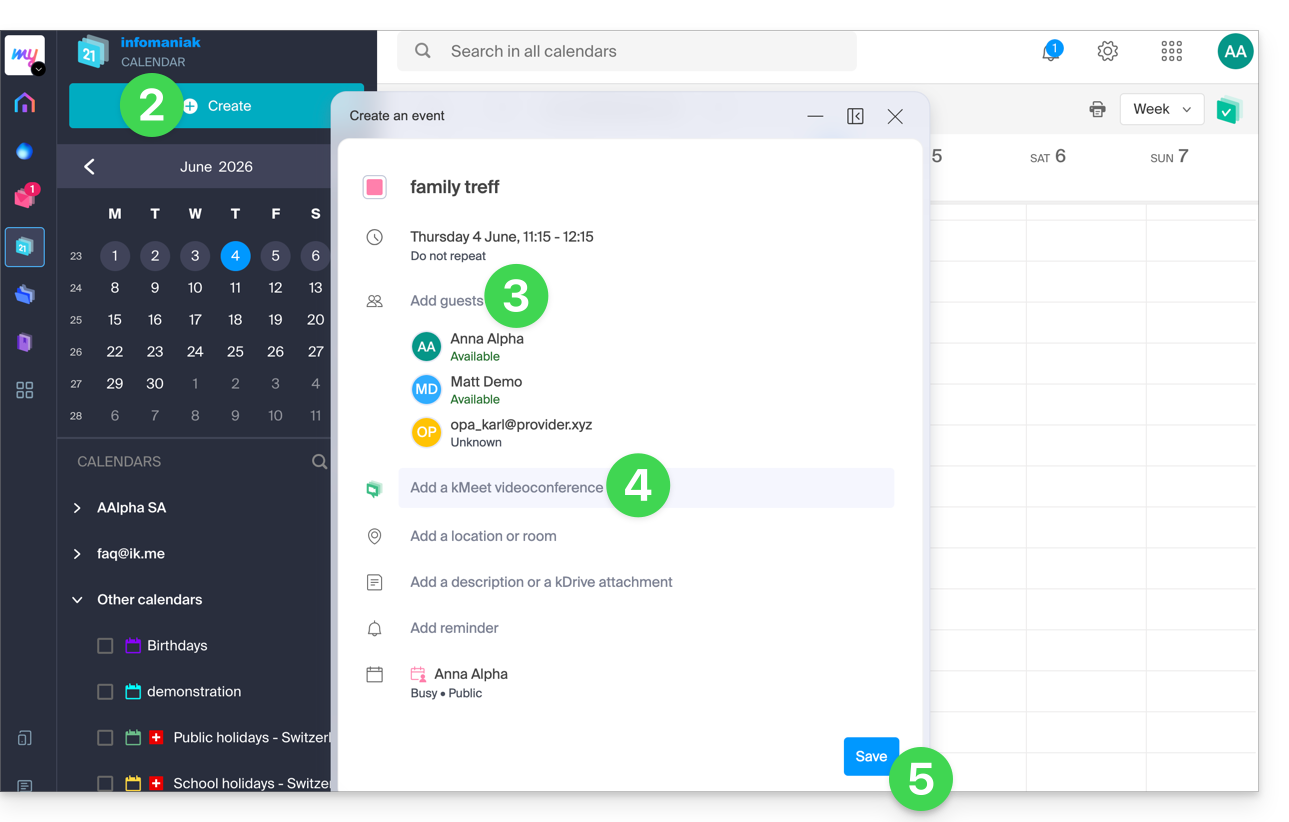
- Responda com SIM à proposta de enviar notificações aos convidados.
- As convites serão então enviados automaticamente por e-mail aos participantes, contendo o link kMeet clicável que permite participar na discussão online quando chegar a hora:
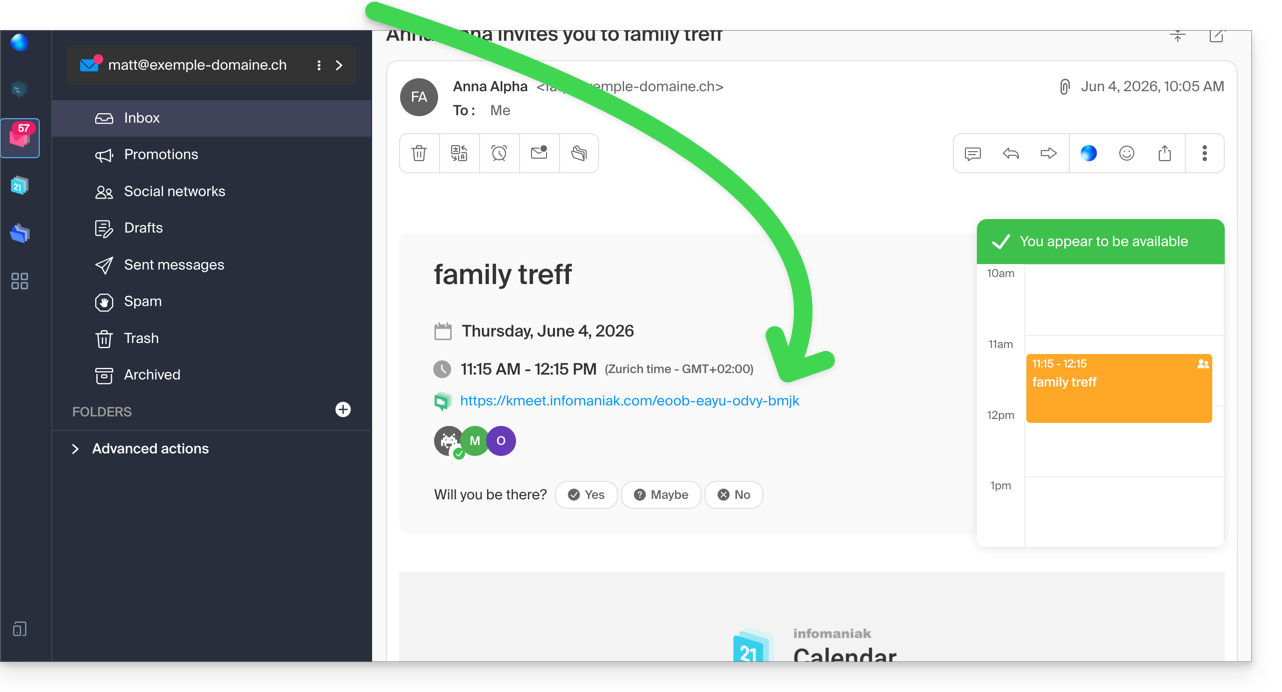
- O link da reunião kMeet também está visível no evento diretamente no calendário.
3. Ligar para o seu contato como no Skype
Para iniciar uma conversa a qualquer momento com um contato previamente registrado em sua lista de endereços, é necessário que ambos possuam o kChat, disponível dentro da kSuite Infomaniak. Para implementar esta solução, que pode ser estendida a um grupo inteiro de contatos:
- Inscreva-se na kSuite para ter acesso aos serviços Infomaniak correspondentes.
- Configure os utilizadores (estes podem até ser externos) na kSuite.
- Instale a aplicação kChat ou aceda à URL https://ksuite.infomaniak.com/kchat
- Um utilizador pode então ser contactado através do kChat, o que fará com que o dispositivo do destinatário toque:
- = navegador da Internet, se o URL do kChat estiver aberto, ou computador/dispositivo móvel, se a aplicação kChat estiver instalada.
- Consulte este outro guia para saber mais sobre as chamadas de videoconferência no kChat.
- O seu contacto pode então responder; a chamada será efetuada com a tecnologia kMeet dentro do kChat ou na aplicação kMeet, caso esteja instalada.
Link para esta FAQ: https://faq.infomaniak.com/2890
Esta seção de perguntas frequentes foi útil?