Knowledge base
1000 FAQs, 500 tutorials and instructional videos. Here, there are only solutions!
Ticketing: managing promotional codes
This guide explains how to create and manage your promotional codes (as part of the Infomaniak ticketing system).
Activate the option in your ticketing system
To do this:
- Click here to access the management of your product on the Infomaniak Manager (need help?).
- Click directly on the name assigned to the ticketing system concerned by the event.
- Click on Programming in the left sidebar menu.
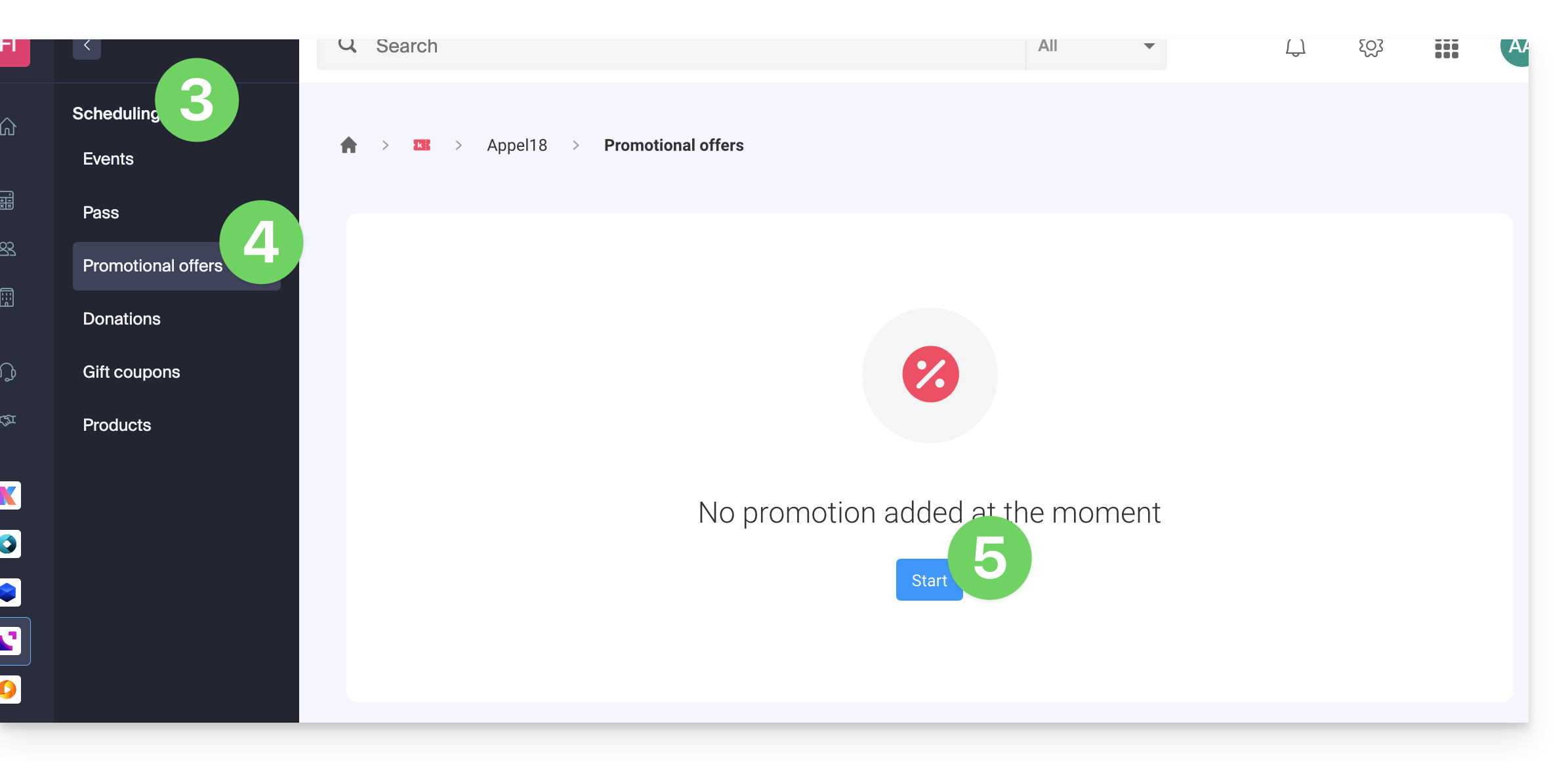
- Click on Promotional Offers in the left sidebar menu:
- Click the blue Add button:
Promotional codes and offers are only valid for the purchase of tickets and/or subscriptions/passes. They are not compatible with the purchase of gift vouchers and products. If the buyer's cart contains one of these 2 types of items, they will not be able to apply a promotional code to their order.
Configure the offer
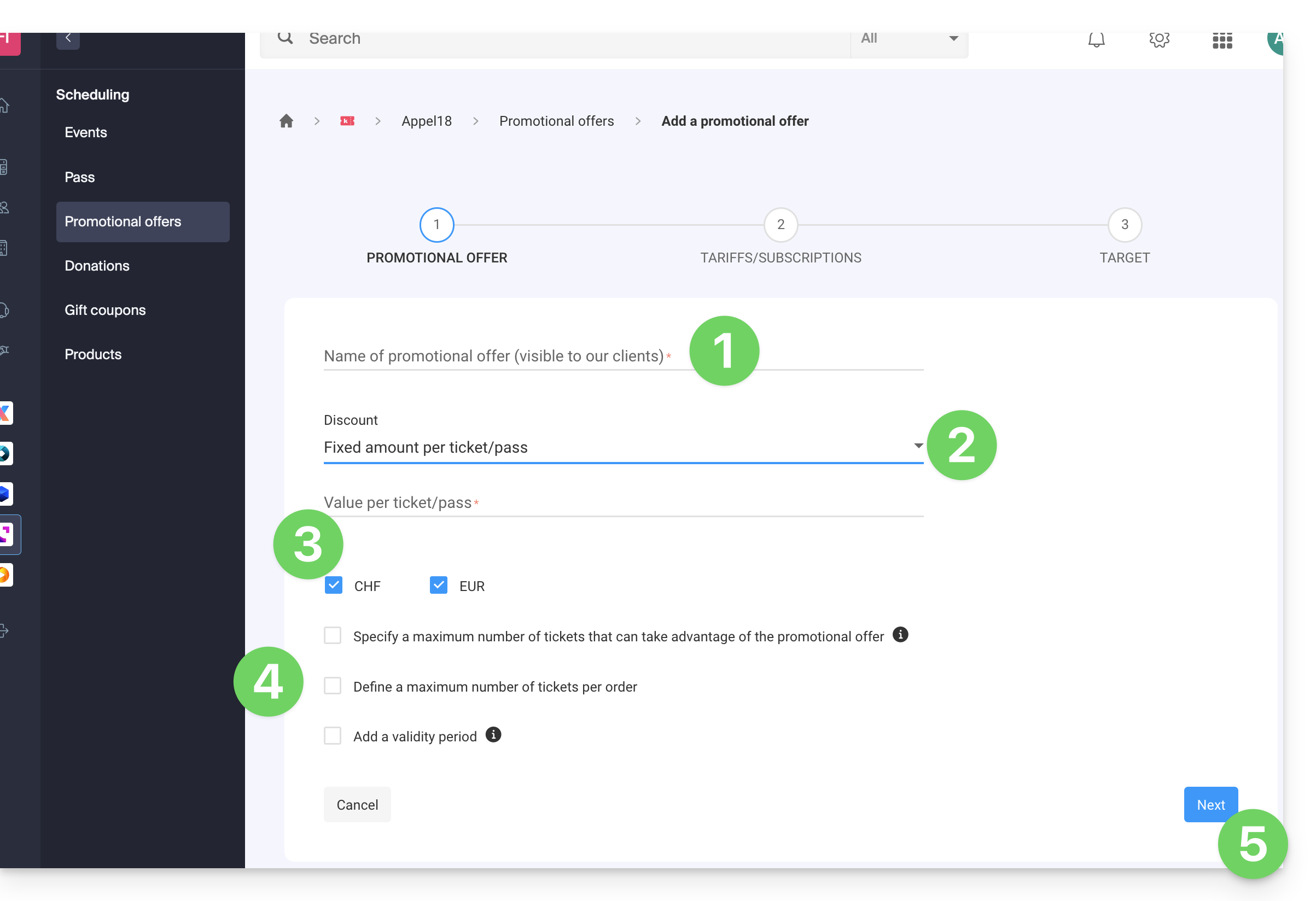
1. Promo code
- Specify a name for the offer to be proposed; this name will be visible to the customer when using the promo code(s).
- In Discount choose the type of discount: it is possible to apply a percentage to the cart, a fixed amount per ticket/pass, or a fixed amount on the total of the cart.
- Choose the currency and the price of the discount or the percentage of reduction to apply.
- It is possible to define 3 additional options:
- The maximum number of tickets that can benefit from this offer: once this quota is reached, no promotional code can be validated; useful if you want to give out a large number of codes, but only the first X people to arrive can benefit from the offer; note that orders in progress will count towards the quota unless the order is canceled along the way.
- The maximum number of tickets per order: if the order includes more than this number, an error message will indicate that the code cannot be used, as the maximum number has been exceeded.
- The validity period: it defines when this offer can be used.
- Click the button to Continue:
2. Prices
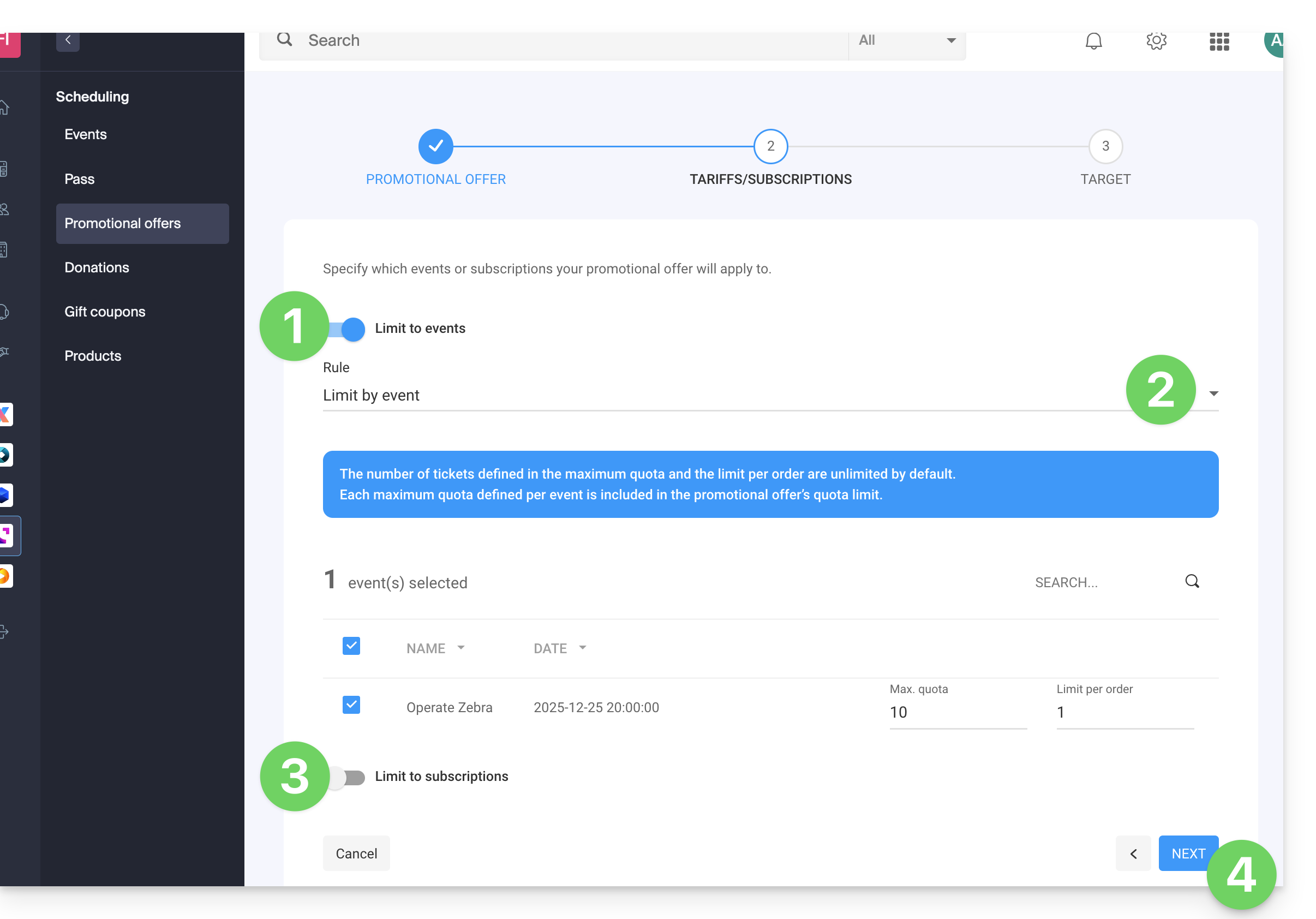
This step allows you to specify which events or subscriptions your promotional offer will apply to:
- If you limit to events…
- … set the events, zones, and prices for which this promotion will be applicable:
- It is possible to set maximum quotas and limits per order per item.
- The number of tickets defined in the maximum quota and the order limit are unlimited by default.
- Each maximum quota defined per event is included in the promotional offer quota limit.
- If you limit to subscriptions…
- The number of tickets defined in the maximum quota and the order limit are unlimited by default.
- Each maximum quota defined per subscription is included in the promotional offer quota limit:
- Click on Next to continue:
3. Target
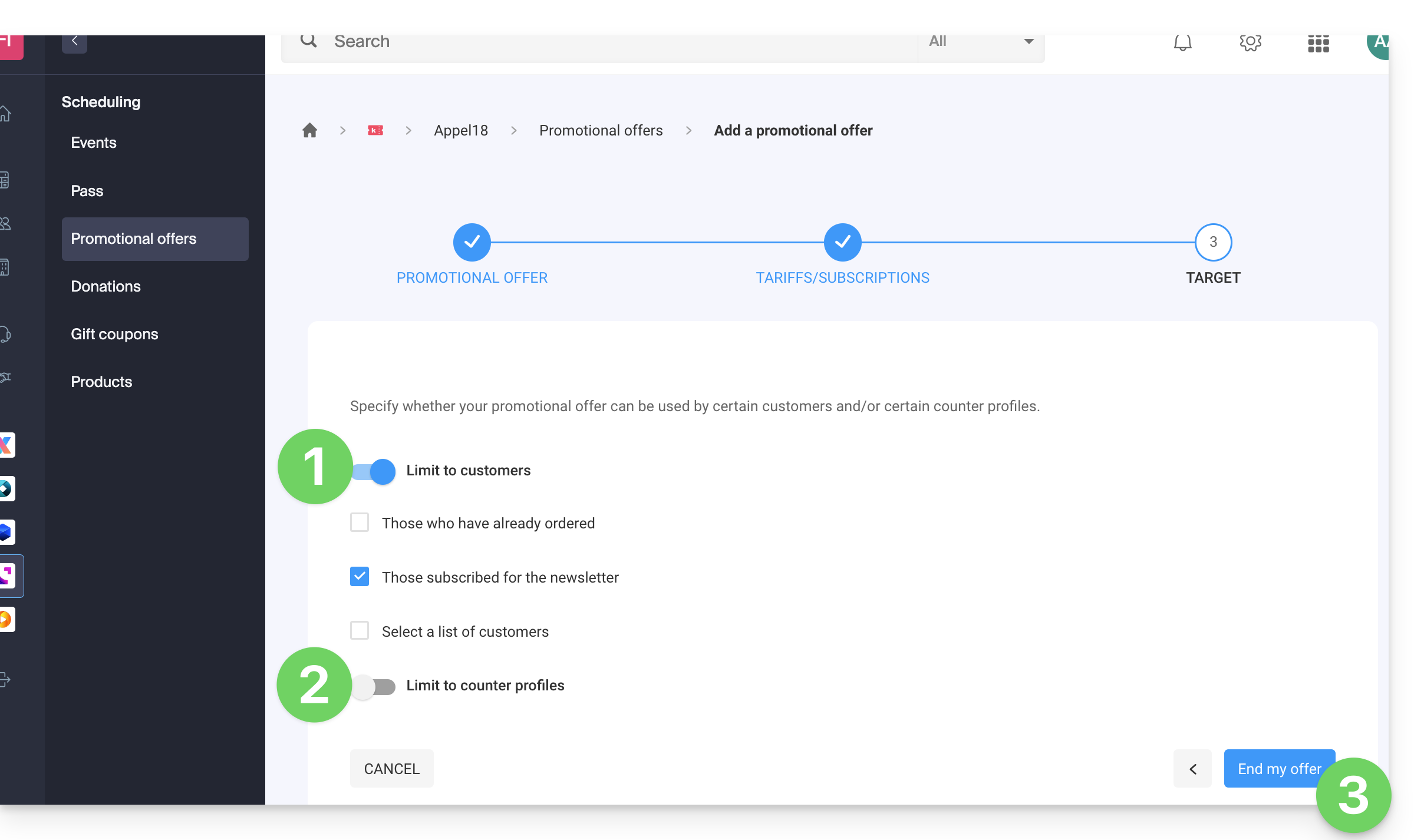
This step allows you to set the following conditions for which this promotion will be applicable:
- Limit to certain customers (limit to customers who have already ordered on the ticket office and who are therefore already on the customer list on the ticket office, to those who have signed up for the newsletter, or to a manually selected customer list…)
- Limit to certain box office profiles.
- Click on the button to Finish:
The promotion, once activated, will be immediately applied from the start date of validity.
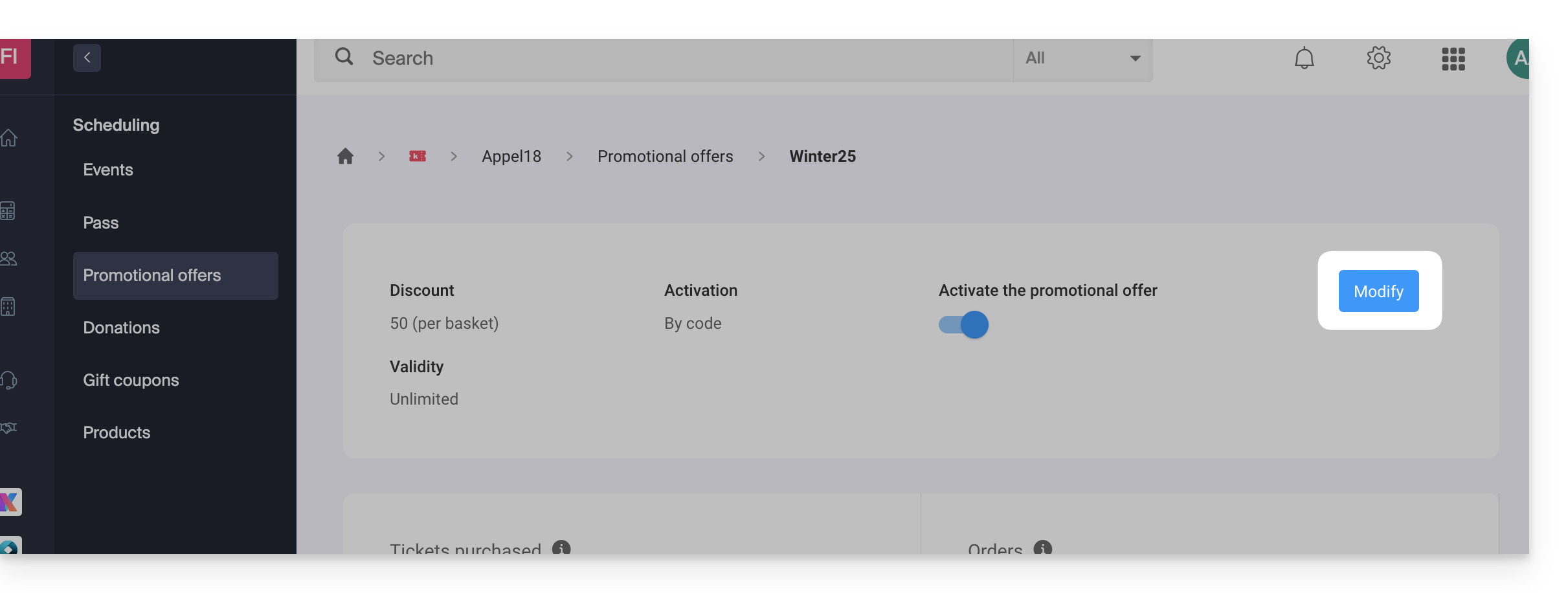
Note that it is possible to modify the parameters later:
- Click on the Modify button on the promotional offer page:
Add promotional codes
Once the offer is created, you now need to create the codes that customers can use when ordering:
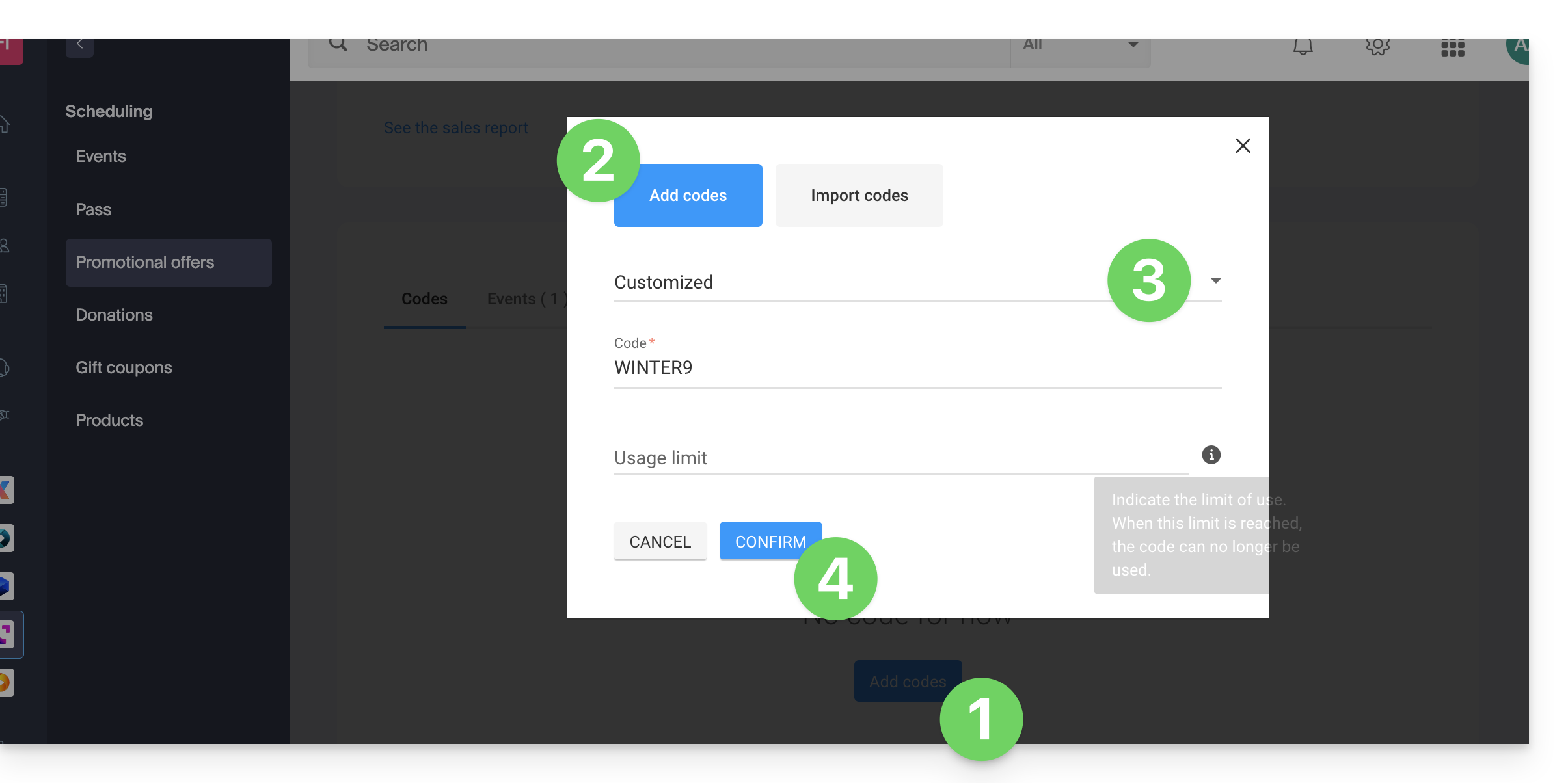
- Click on the Add codes button at the bottom of the page.
- Check that you add codes (importing is described later in this guide).
- Choose the type of code:
- Custom: Allows you to manually define a code, as well as the maximum number of uses; it is thus possible to generate codes with words that can be easy to remember or share on various media, even customized for certain people.
- Random: Generates a defined number of unique codes randomly; useful if the code itself is of little importance:
- Click on Confirm to validate the addition of the code:
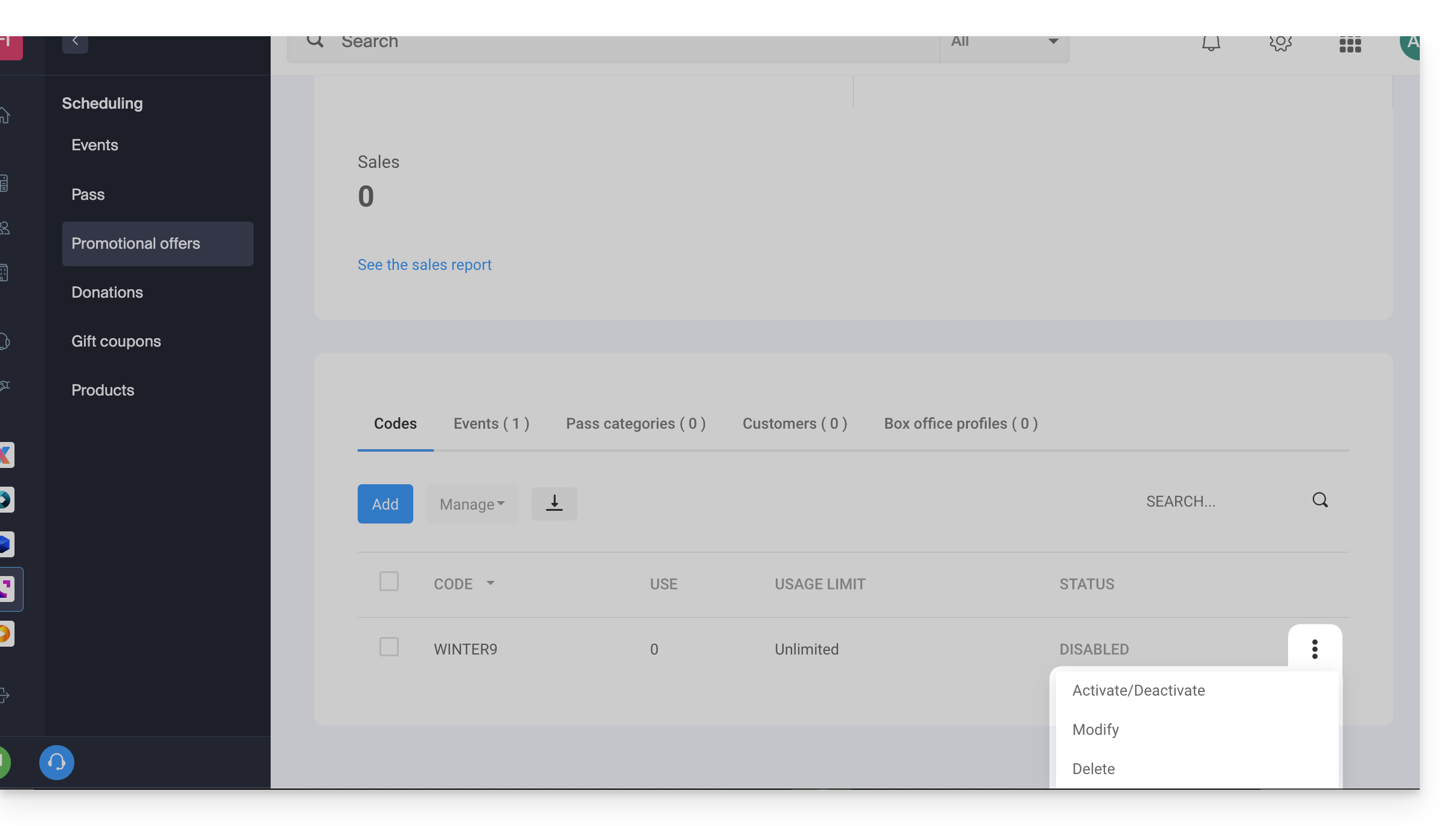
An action menu allows you to, for each generated promo code,:
- deactivate (or activate it)
- modify
- delete:
Export and/or import promo codes
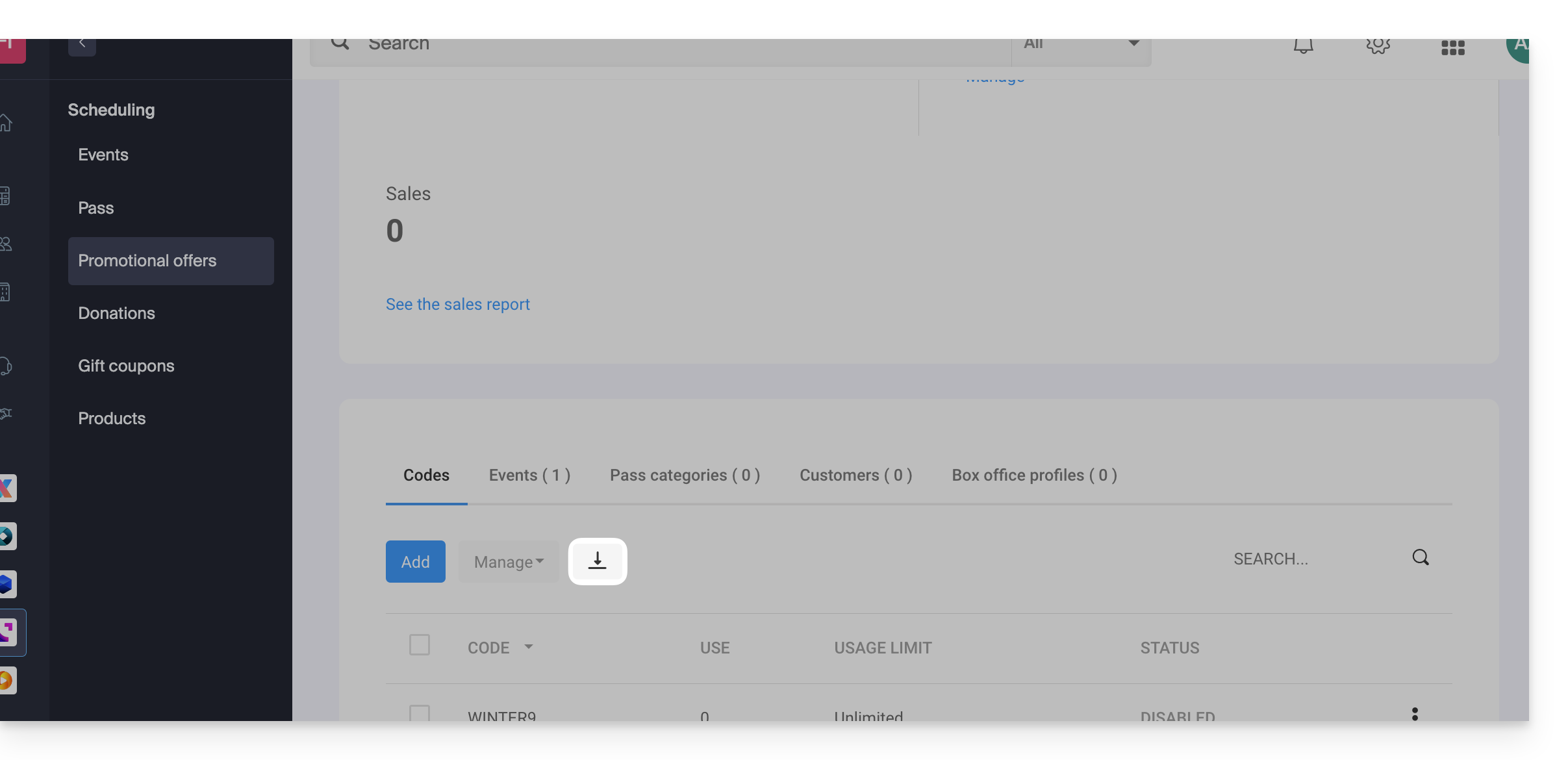
Once the promotional codes are generated, you can download a CSV file of all the codes:
- Click on the button with the downward arrow to download the list of codes:
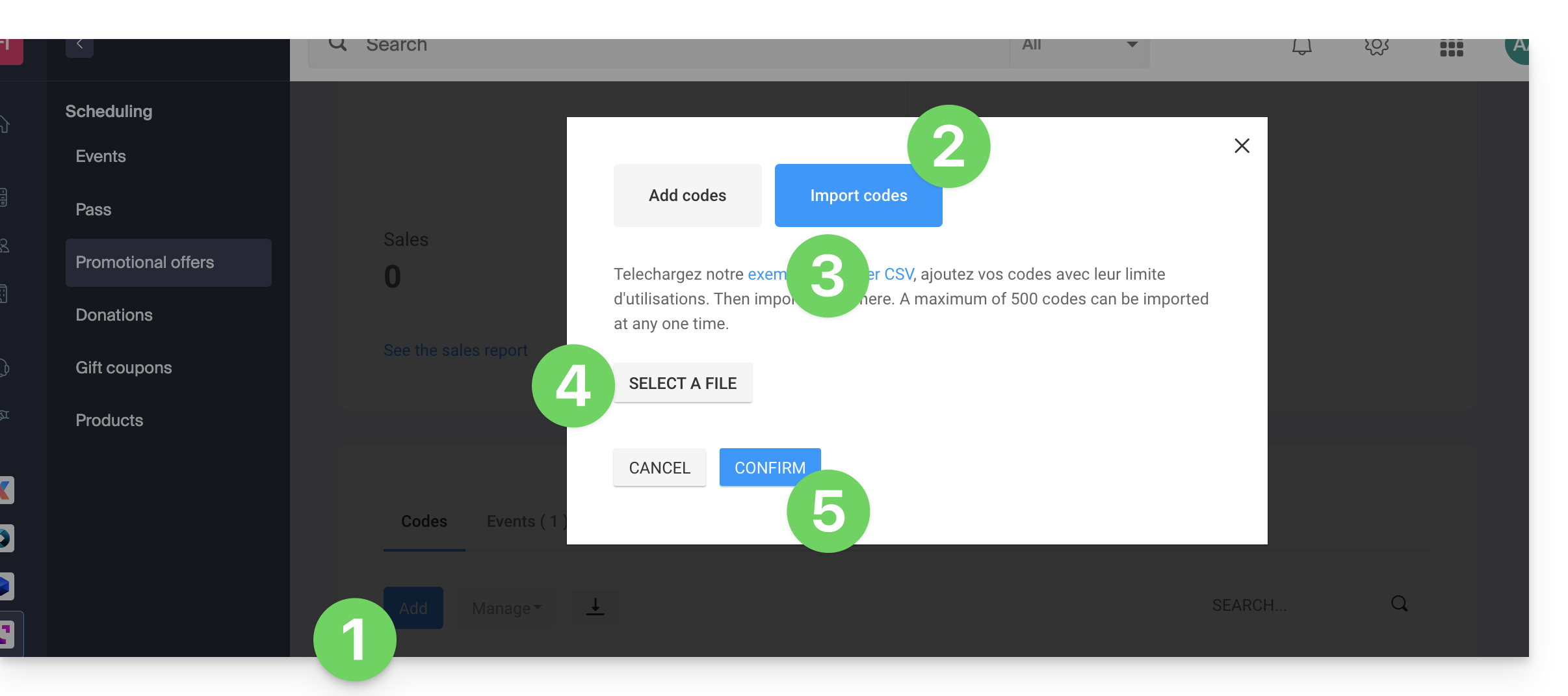
You can, for example, export a list of promotional codes from your ticketing system of last year and re-import it into this year's ticketing system (maximum of 500 codes per import):
- Click on the Add codes button at the bottom of the page.
- Click on Import codes.
- Download, if necessary, an example of a
CSVfile so that the document structure is accepted during import. - Select your correctly formatted
CSVfile. - Click on the button to Confirm the import:
Link to this FAQ: https://faq.infomaniak.com/2675
Has this FAQ been helpful?