Knowledge base
1000 FAQs, 500 tutorials and instructional videos. Here, there are only solutions!
Force the activation of two-step verification (2FA) for Organization users
This guide explains how to require users in your Organization to enable the two-factor authentication (2FA) feature, and then verify that it remains enabled.
Preamble
- Each Infomaniak user has the option to enable two-step verification for access to their account, which significantly increases the security of all Organization services…
- A legal representative can require this activation otherwise access to the Manager and Web apps will no longer be possible for the user.
- Access to desktop apps (desktop application on macOS / Windows / Linux) and mobile apps (application for iOS / Android smartphone or tablet) will always be possible without 2FA.
- It is recommended to warn users in your Organization in advance, so they can continue to use the services.
- If an external user does not wish to perform the operation requested by an Organization administrator, they can choose to leave instead of activating it.
Identify and warn users without 2FA
You can easily identify and contact people who have not yet enabled this security on their account:
- Click here to access the user management of your Organization.
- If necessary, enable the Security column:
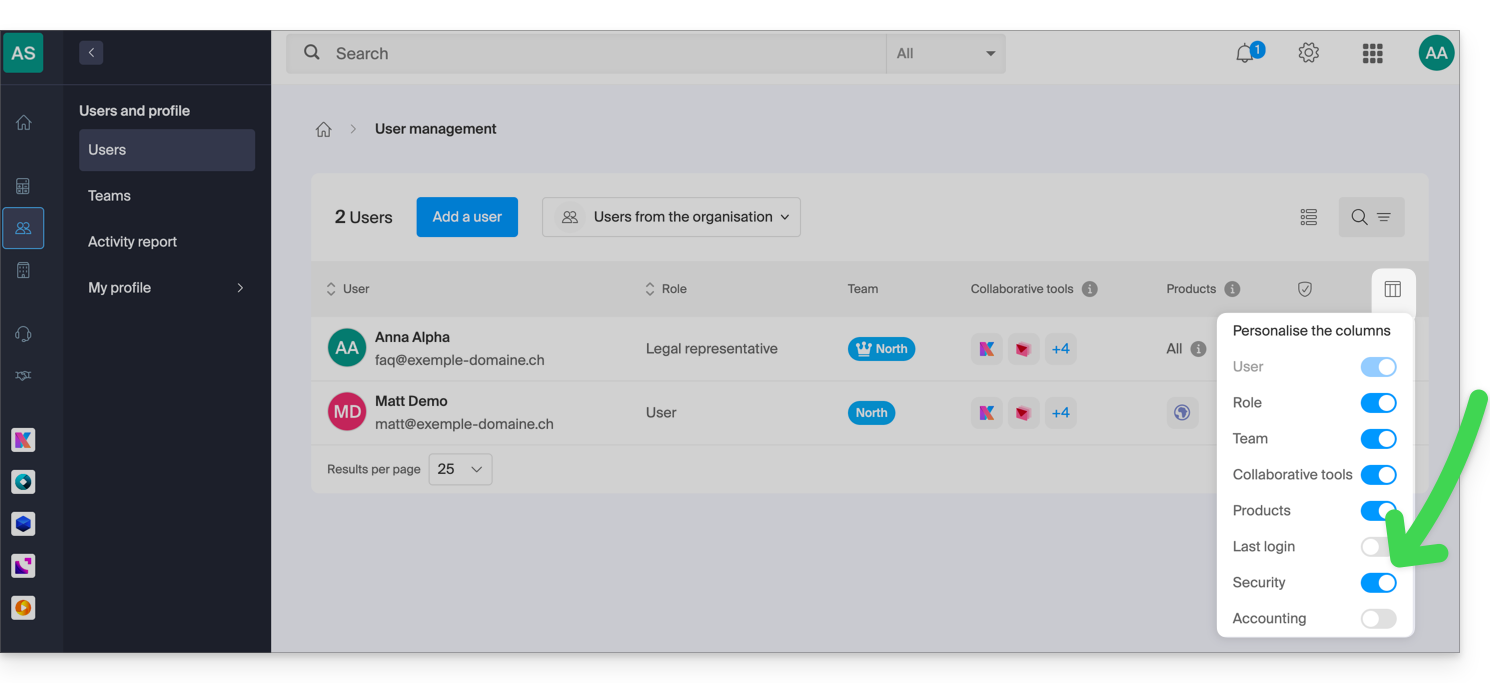
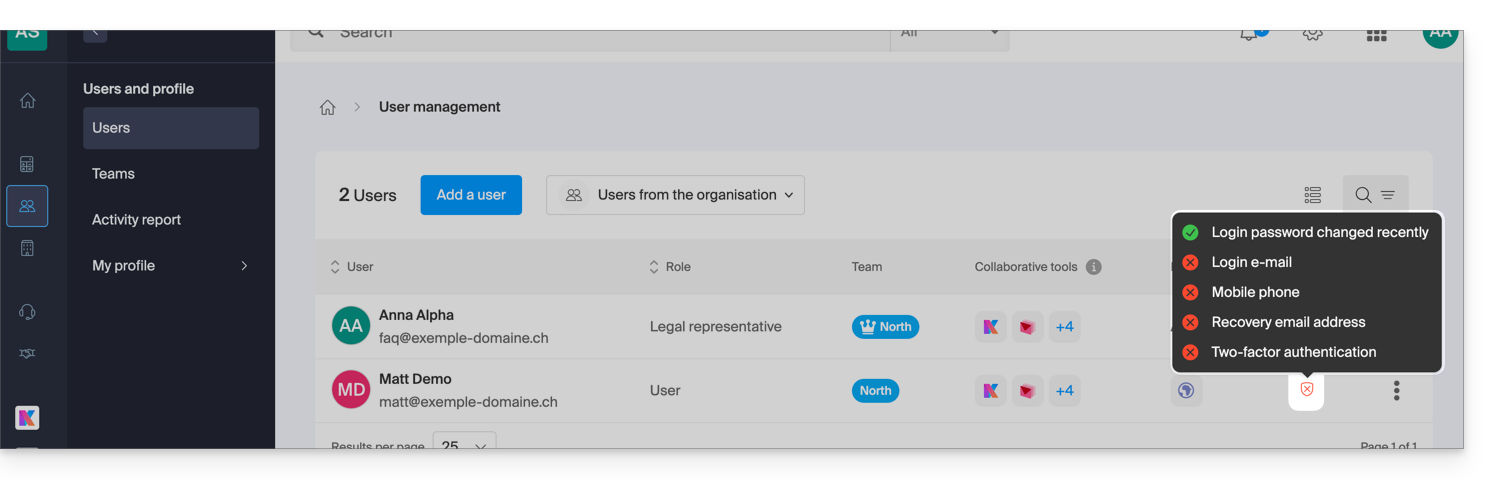
- In this Security column, the red symbol means that 2FA is not enabled:
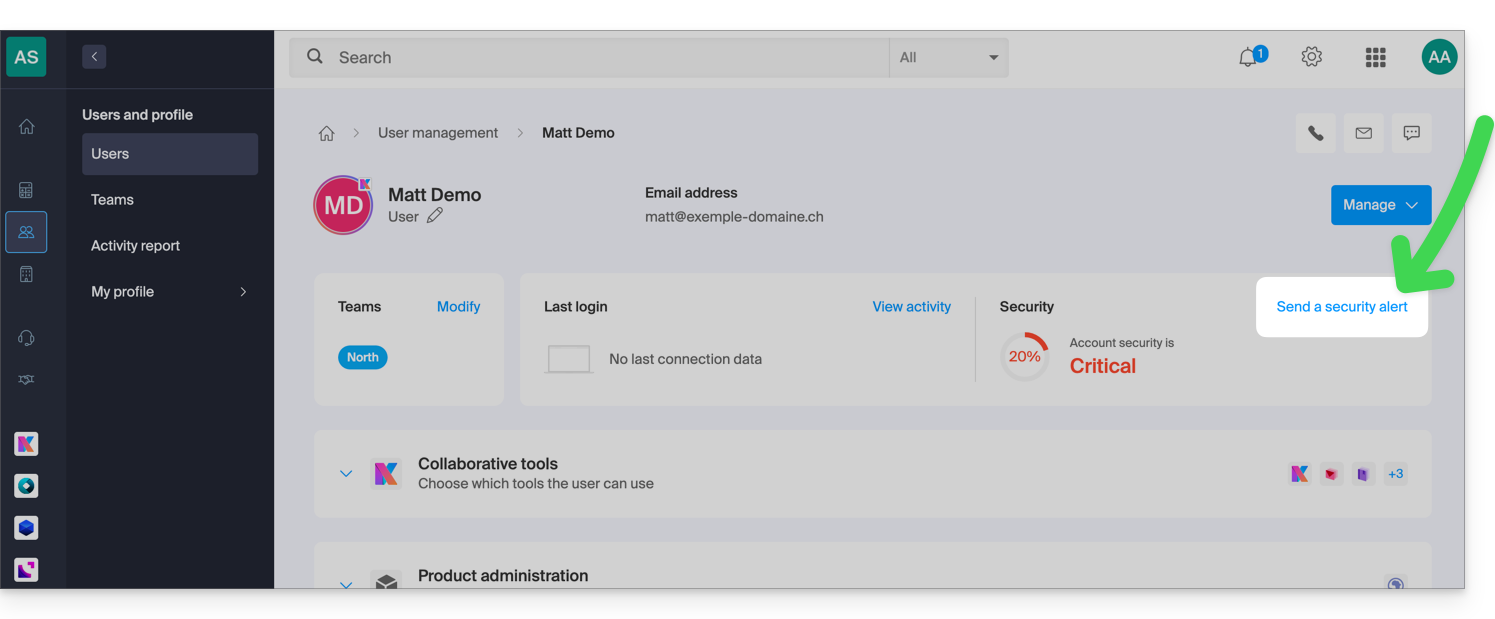
- Click on the user in question to access the alert sending feature:
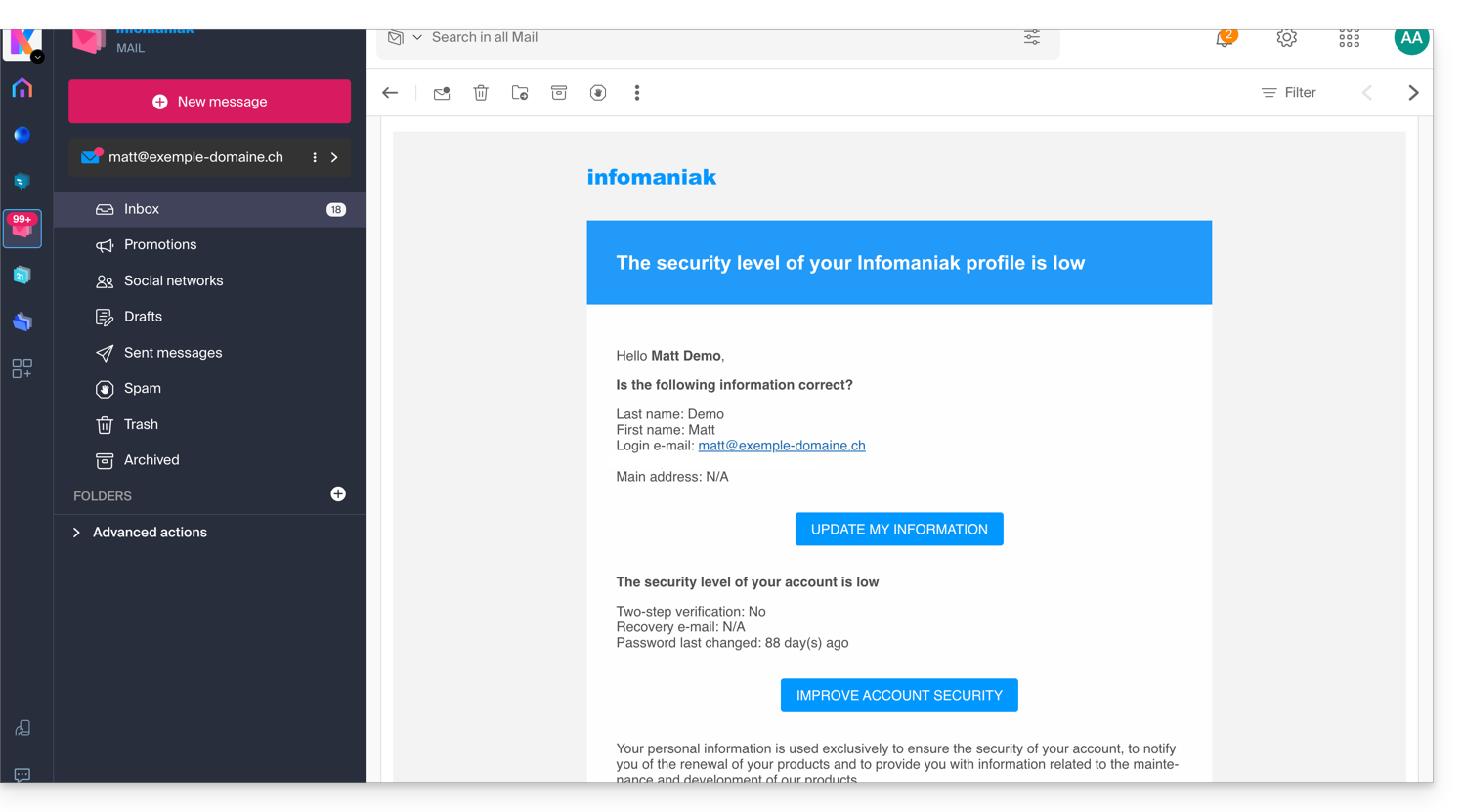
- After confirmation from you, an alert email will be sent from a no-reply address to the user concerned:
Require 2FA activation
Prerequisites
- Be Administrator or Legal Representative within the Organization.
To access settings:
- Click here to access the security management of the Organization on the Infomaniak Manager (need help?).
- Click the toggle switch to require an additional login verification for all Organization users:
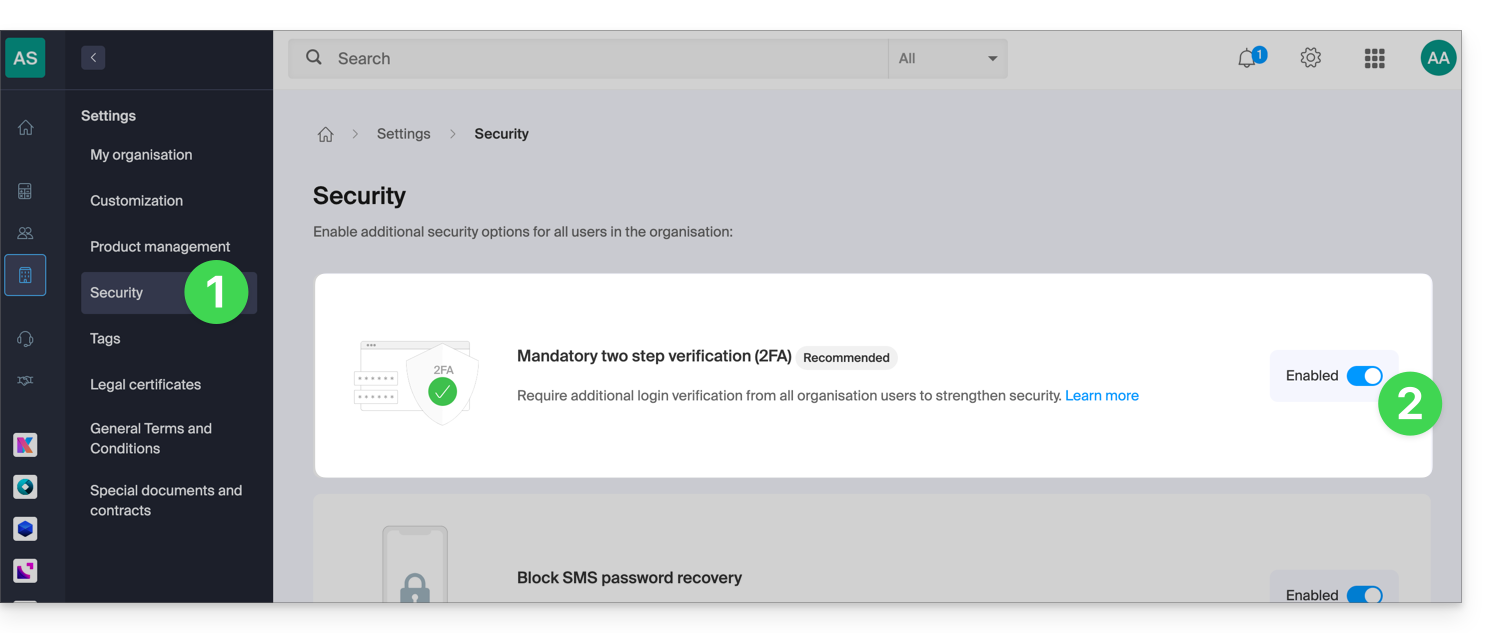
- Confirm the activation of the feature in the window that opens.
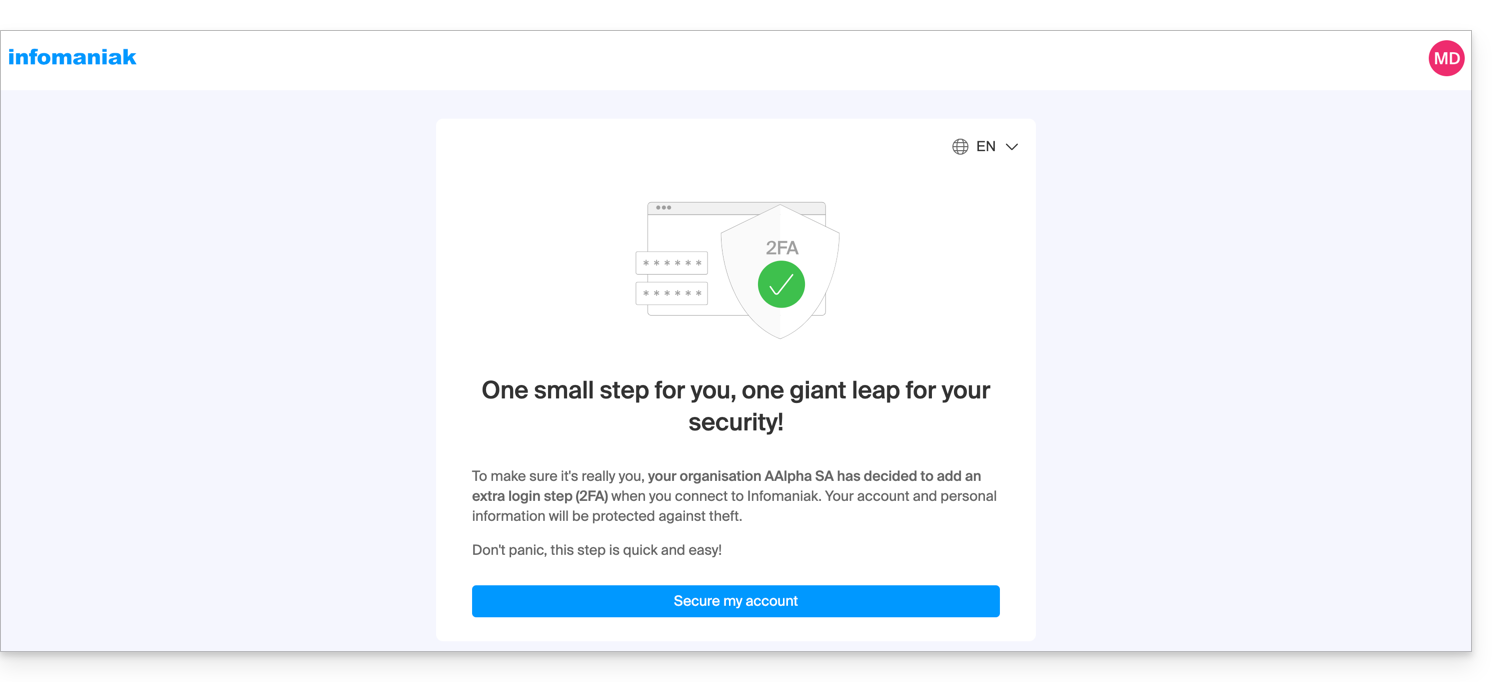
- Once the feature is activated, users in the Organization who have not yet activated 2FA receive a message (as soon as they perform their next action on their account) prompting them to set up an additional authentication method from those offered and preventing them from performing any other action before this one:
Link to this FAQ: https://faq.infomaniak.com/2192
Has this FAQ been helpful?