Base de conhecimento
1000 perguntas frequentes, 500 tutoriais e vídeos explicativos. Aqui, você encontra apenas soluções!
Contactar a Infomaniak / autorizar o acesso aos serviços
Este guia explica como entrar em contato com o Suporte da Infomaniak e autorizá-lo a acessar seus produtos onlinee, em particular, ao seu conteúdo, e fornecer detalhes úteis ao solicitar suporte.
Contactar o Suporte Infomaniak
Alguns endereços de e-mail, como support@infomaniak.com, não se destinam a receber pedidos de suporte diretos.
As mensagens enviadas para estes endereços não são tratadas pelas equipas e não permitem criar um acompanhamento da solicitação.
Para garantir um tratamento adequado, cada solicitação deve ser submetida exclusivamente através do centro de suporte:
- Este processo permite gerar um ticket, encaminhar automaticamente o pedido para o departamento responsável e garantir um acompanhamento completo até a sua resolução.
- Após o registo do pedido, a comunicação pode prosseguir diretamente por e-mail com o suporte.
Antes de entrar em contato com o suporte, também é recomendável consultar a base de conhecimento, que reúne diversos guias e respostas para as perguntas frequentes.
Permitir que o Suporte acesse um tipo de conteúdo
O Suporte da Infomaniak pode solicitar que conceda acesso temporário a uma parte do seu conteúdo. Isso permite economizar tempo no diagnóstico, evitando trocas de informações desnecessárias:
- Este acesso é estritamente limitado ao contexto da análise e serve apenas para identificar a origem do problema encontrado:
- Apenas os colaboradores da Infomaniak que estão tratando diretamente da sua solicitação de suporte.
- O acesso é feito exclusivamente a partir das instalações controladas da Infomaniak.
- De acordo com a política de privacidade da Infomaniak, os seus dados nunca serão utilizados para outros fins:
- Pode revogar este acesso a qualquer momento.
- Caso contrário, este expira automaticamente após 7 dias.
Para permitir que a Infomaniak aceda a uma parte específica dos seus serviços (autorizar o acesso a um conteúdo nunca abre o acesso aos outros; cada autorização é específica e independente):
- Clique aqui para acessar a gestão de acessos no Manager Infomaniak.
- Clique no botão de alternância para permitir o acesso ao conteúdo de…
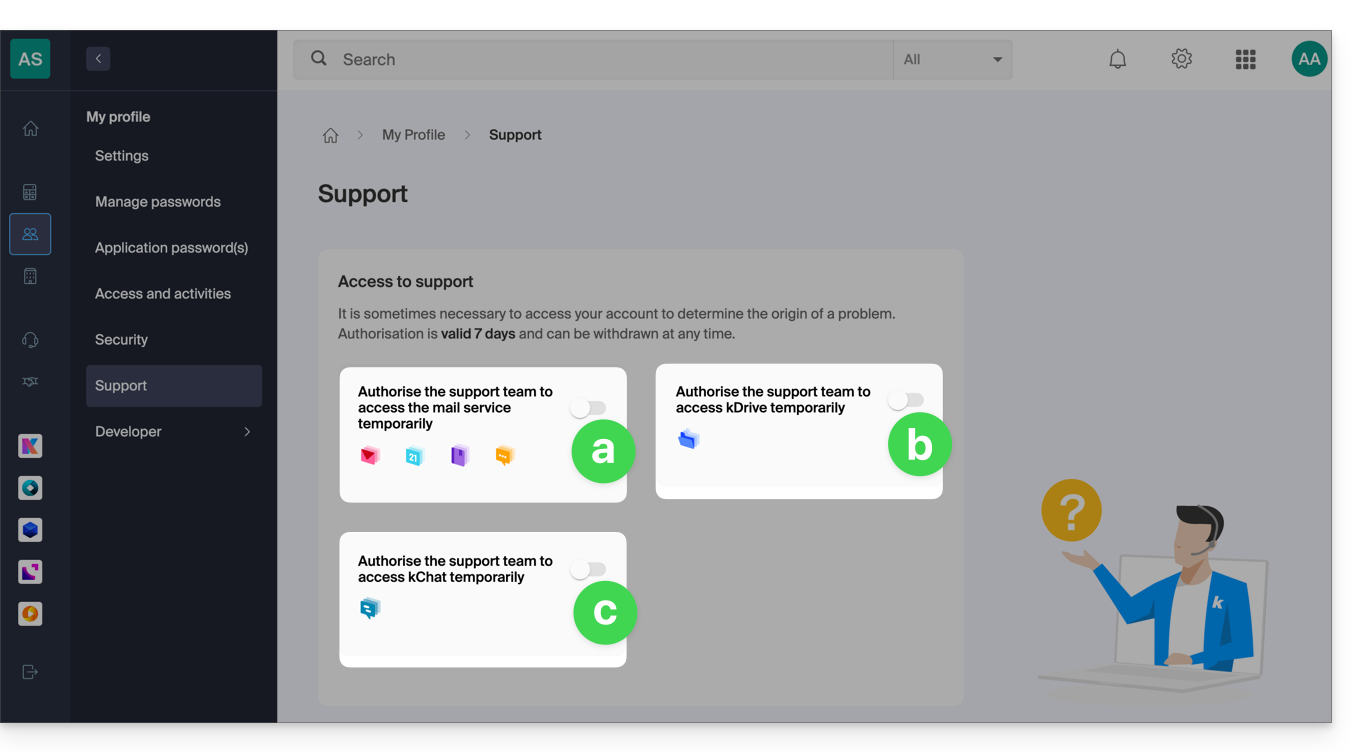
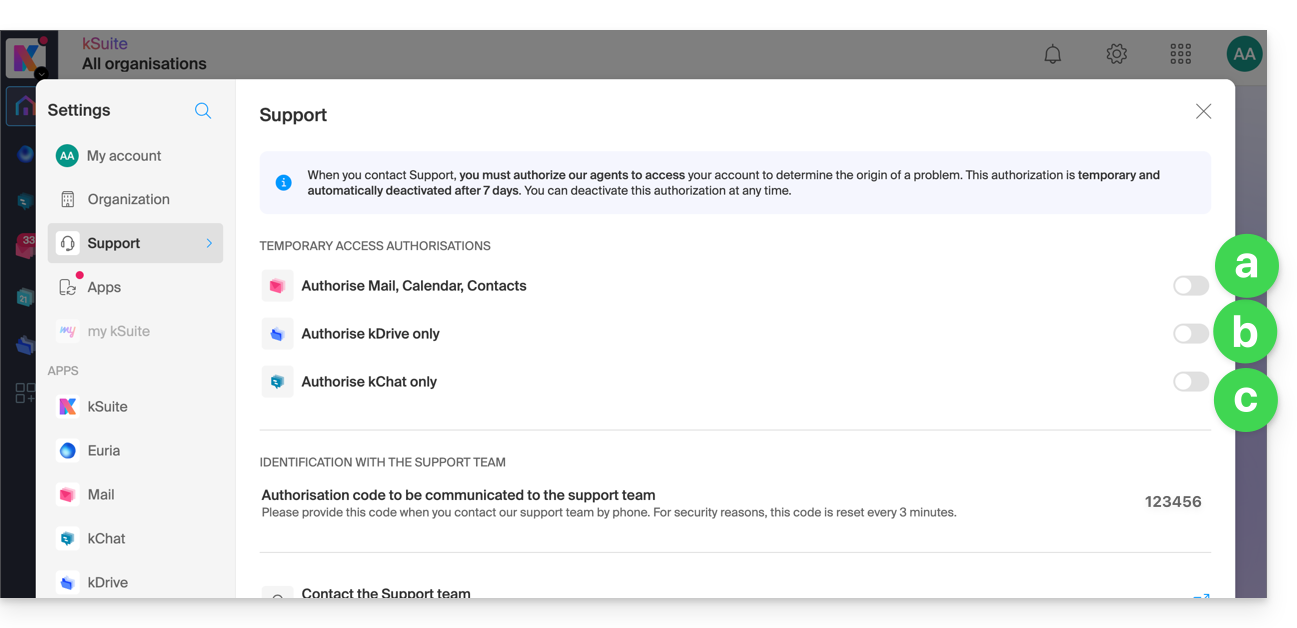
- … os endereços de e-mail associados ao aplicativo web Mail da Infomaniak (serviço online ksuite.infomaniak.com/mail) + contatos e calendários,
- … as pastas existentes no(s) kDrive das organizações das quais o utilizador atual faz parte,
- … as conversas existentes no(s) produto(s) kChat das organizações das quais o utilizador atual faz parte.
Com o kSuite, também pode fazê-lo clicando aqui ou seguir estes passos para o conseguir:
- Clique no ícone Configurações no canto superior direito da sua janela kSuite.
- Clique em Suporte no menu lateral esquerdo:
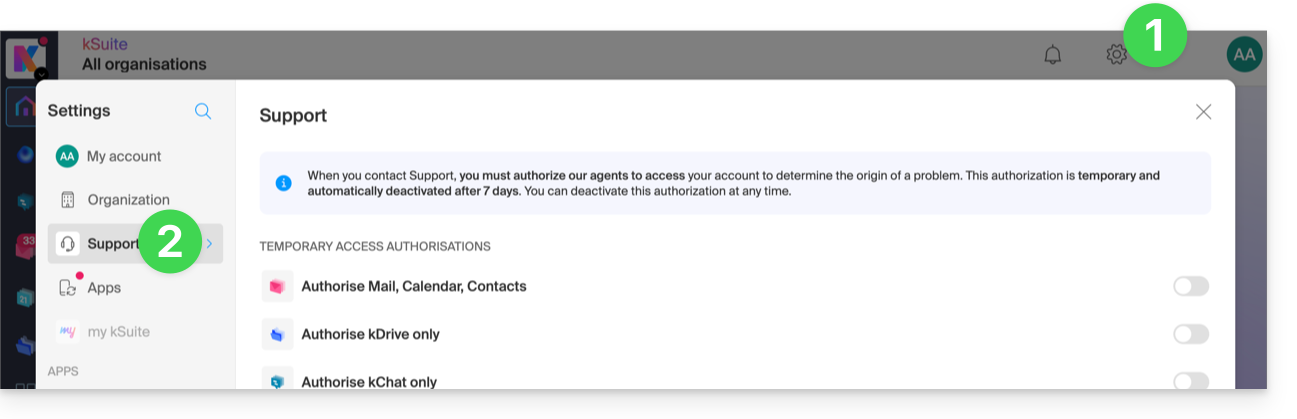
- Clique no botão de alternância para permitir o acesso ao conteúdo de…
Também pode partilhar um único e-mail específico de forma muito fácil.
Fazer capturas de tela
… no Windows
A Microsoft oferece um software pré-instalado dedicado à criação de capturas de tela. Mas, para criá-las manualmente:
- Exiba o que você quer/precisa mostrar na tela.
- Pressione a tecla PRINTSCREEN do seu teclado (ou
PRTSCR,IMPR. ECRAN, etc.) uma vez. - No Microsoft Word (ou similar), vá em "Editar" -> "Colar" para inserir a sua imagem na página.
- "Salvar" o seu arquivo.
- Repita a operação do ponto 1 ao ponto 5 tantas vezes quanto o número de capturas desejadas.
… no macOS
- Pressione simultaneamente as teclas "
CMD" + "shift" (a seta para cima — maiúscula) + a tecla "3". - A cada toque nessas teclas, um arquivo de imagem é criado na área de trabalho do seu computador.
… no iOS (iPhone, iPad...)
- Pressione simultaneamente os botões "
Power" + "Home" (os dois únicos botões físicos). - Em seguida, recupere as capturas de tela no aplicativo "Fotos" do seu dispositivo.
… no Android (por exemplo, Samsung, LG ou Huawei)
- Pressione simultaneamente o botão “Volume Baixo” (na lateral) e o botão de bloqueio.
- A imagem capturada é, assim, automaticamente guardada numa pasta chamada "Capturas de Ecrã" na galeria.
Copiar o conteúdo de uma janela de alerta
… no Windows
Para copiar e colar como texto uma mensagem de erro presente numa janela “pop-up” do Windows, basta pressionar a tecla CTRL + C no seu teclado para copiar a mensagem para a área de transferência. Em seguida, poderá colá-la (CTRL + V) no corpo da mensagem que está a enviar.
Acessar o console Javascript do navegador
… no Windows
Chrome, Firefox e Safari: pressione a combinação de teclas CTRL + MAJ + i
Internet Explorer e Edge: pressione a tecla F12
… no macOS
Chrome: pressione a combinação de teclas ⌘ + ⌥ + J
Safari: pressione a combinação de teclas ⌘ + ⌥ + C
- Em seguida, clique no ícone de círculo com uma barra ou similar para reiniciar o registro.
- Exiba a página do seu site que está apresentando o problema.
- A guia Console exibe os erros JavaScript e os recursos online não encontrados.
Link para esta FAQ: https://faq.infomaniak.com/913
Esta seção de perguntas frequentes foi útil?