Base de conhecimento
1000 perguntas frequentes, 500 tutoriais e vídeos explicativos. Aqui, você encontra apenas soluções!
Using Obsidian with kDrive and WebDAV
Atualização 12/11/2026
This guide explains how to synchronize your Obsidian vault on your Infomaniak kDrive via the WebDAV protocol. This way, you can keep your notes safe and secure in a storage medium located in Switzerland.
✘ UNAVAILABLE with
kSuite Free / kSuite Standard
my kSuite / my kSuite+ (ik.me, etik.com, ikmail.com)
Introduction
- Obsidian is a powerful and extensible note-taking tool that uses local Markdown files to organize your knowledge.
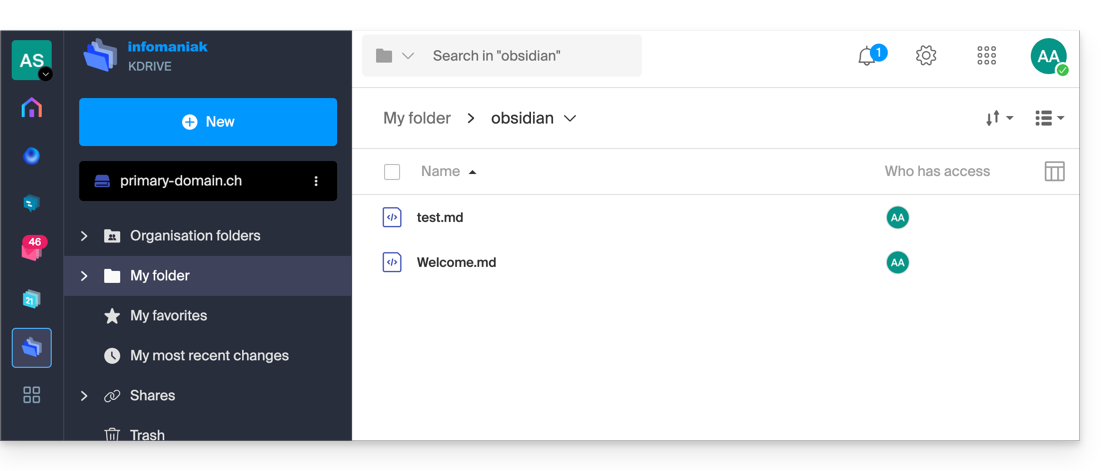
- To avoid cluttering your kDrive directories, it is strongly recommended to create a dedicated folder in your personal kDrive directory tree, with a simple folder name such as "
obsidian" for example, and then specify it at the end of the WebDAV link in step 7 below: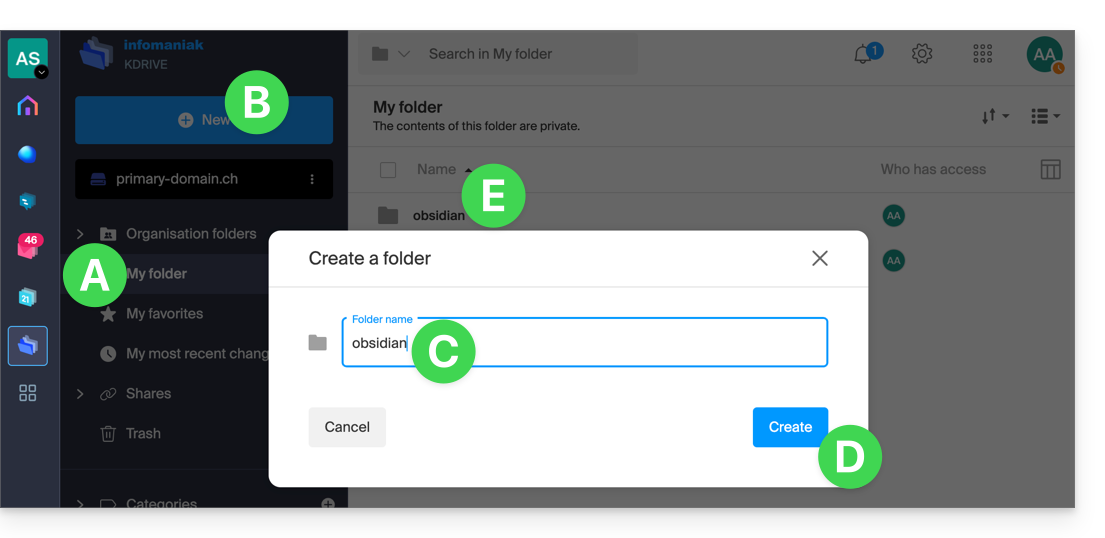
Configure Obsidian to use kDrive via WebDAV
Prerequisites
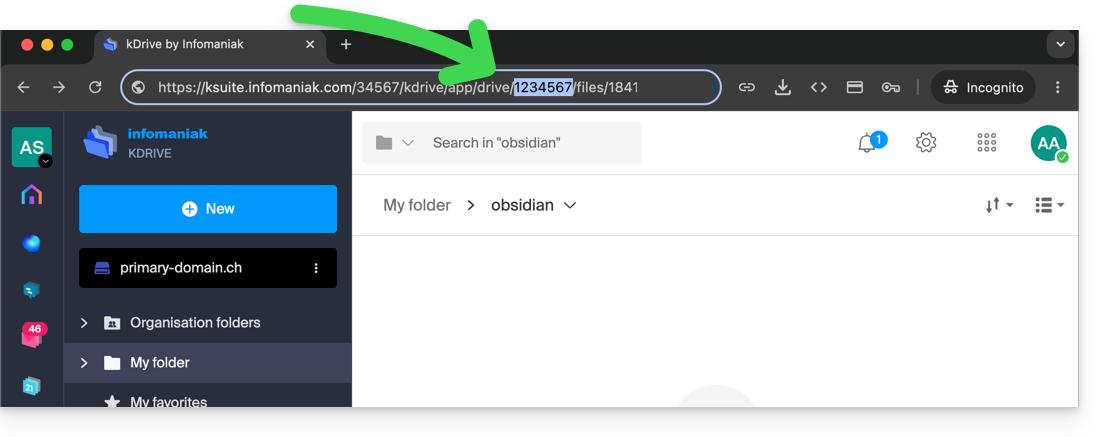
The integration is based on the community plugin WebDAV Sync, which ensures two-way synchronization:
- Open your vault in the Obsidian application.
- Go to Settings.
- Go to Community plugins.
- Enable them:
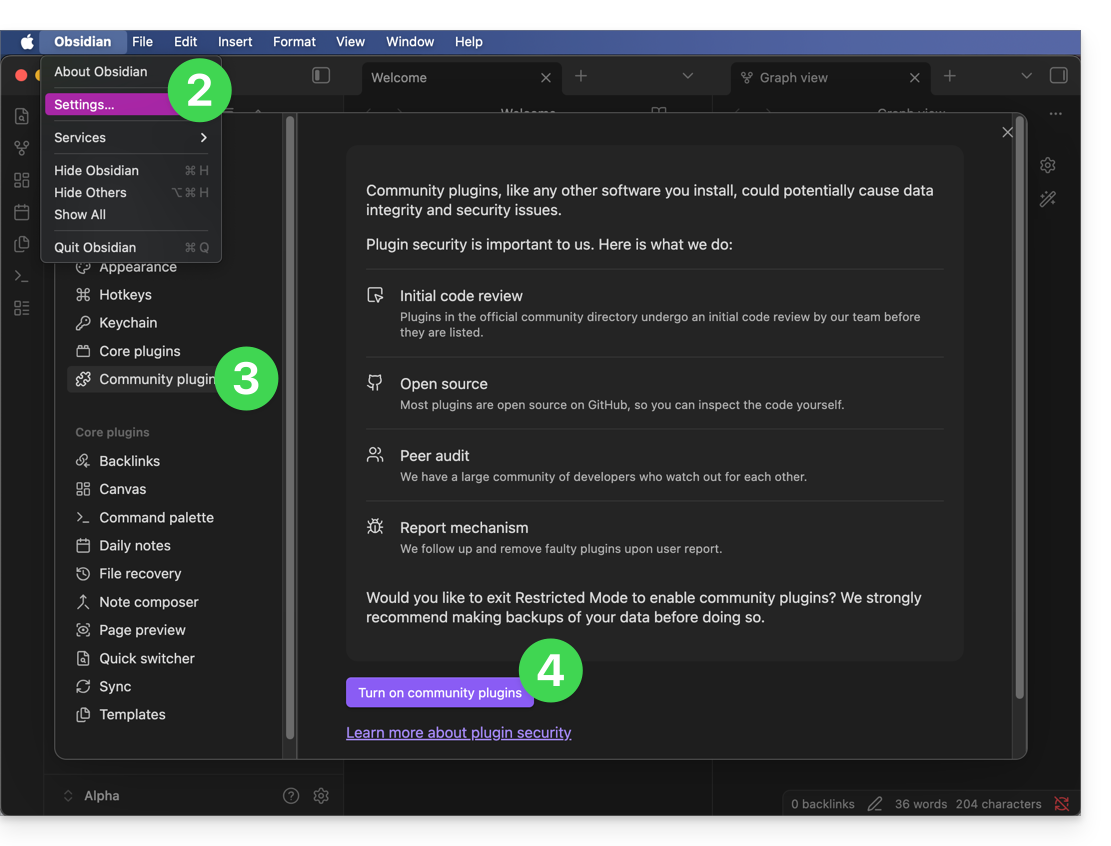
- Click on Browse:
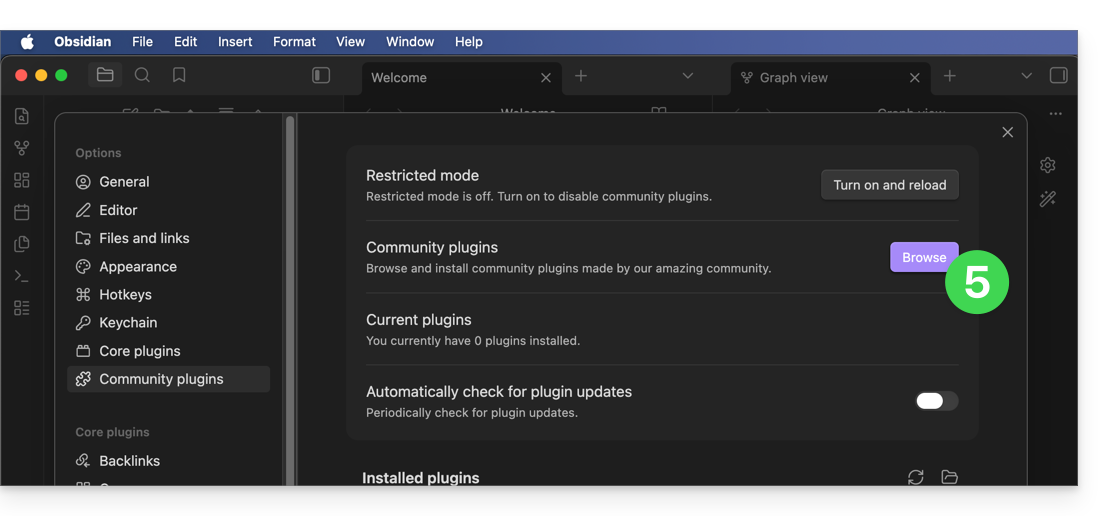
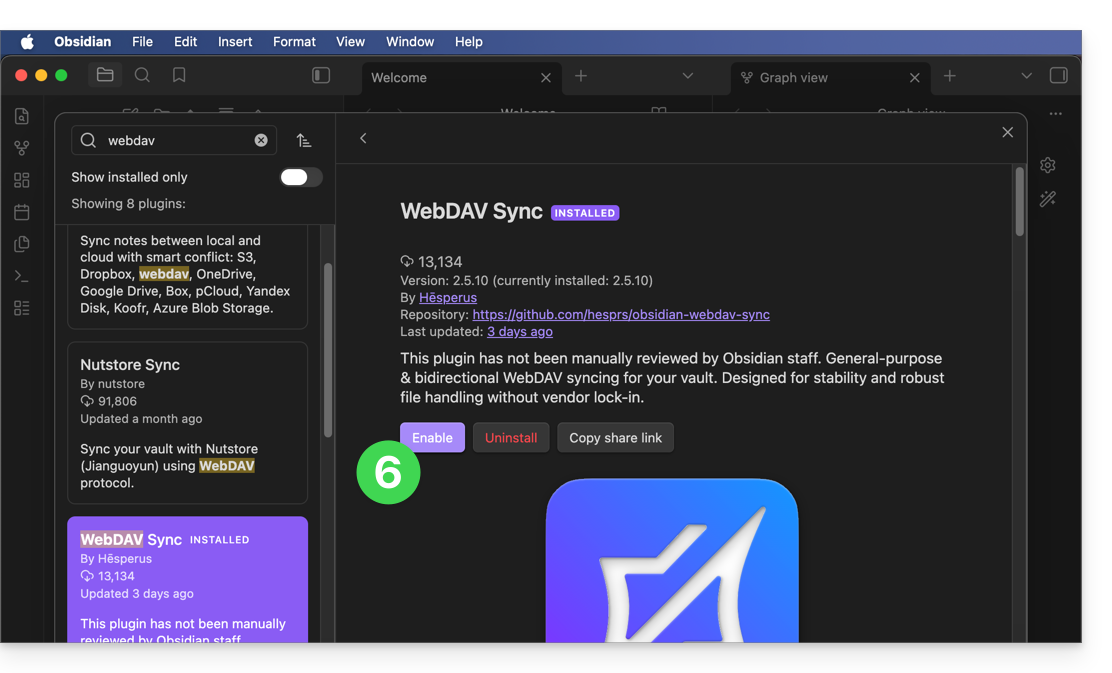
- Find the WebDAV Sync plugin, install it, and activate it:
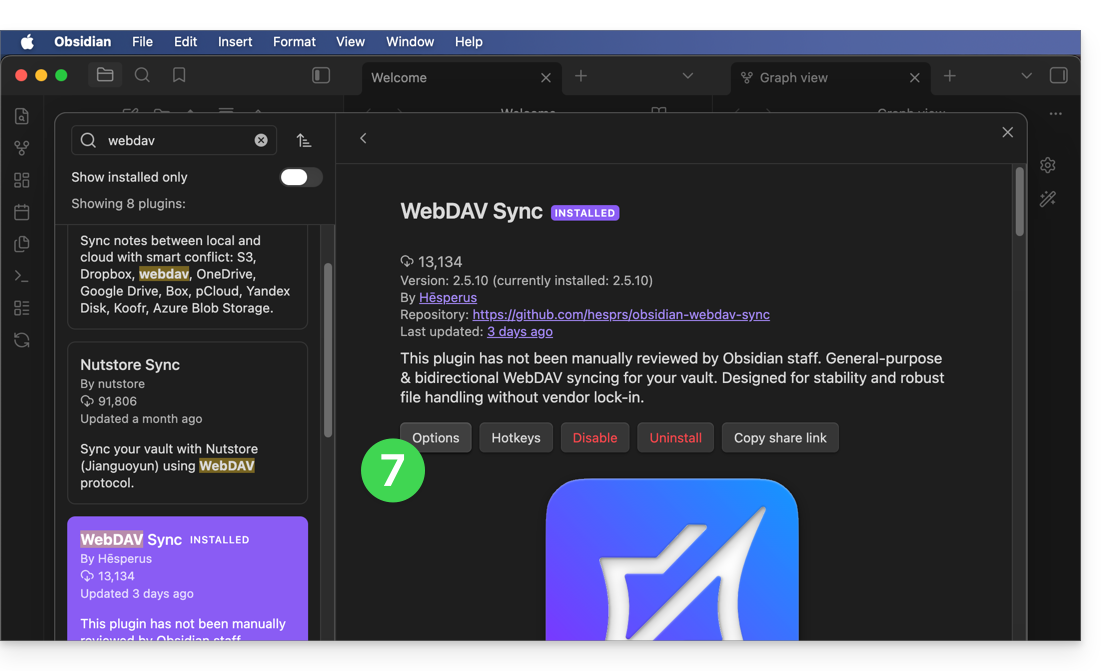
- Access the plugin settings to enter the WebDAV account parameters:
- Server address:
https://IDkDrive.connect.kdrive.infomaniak.com(❓: help), optionally followed by/folder-name(see introduction above). - Username: email address used to log in to your Infomaniak account.
- Password: create an application password (❓: help) for this specific use.
- Name of the personal folder on kDrive, for example
/obsidian/or /folder name/ (see introduction above).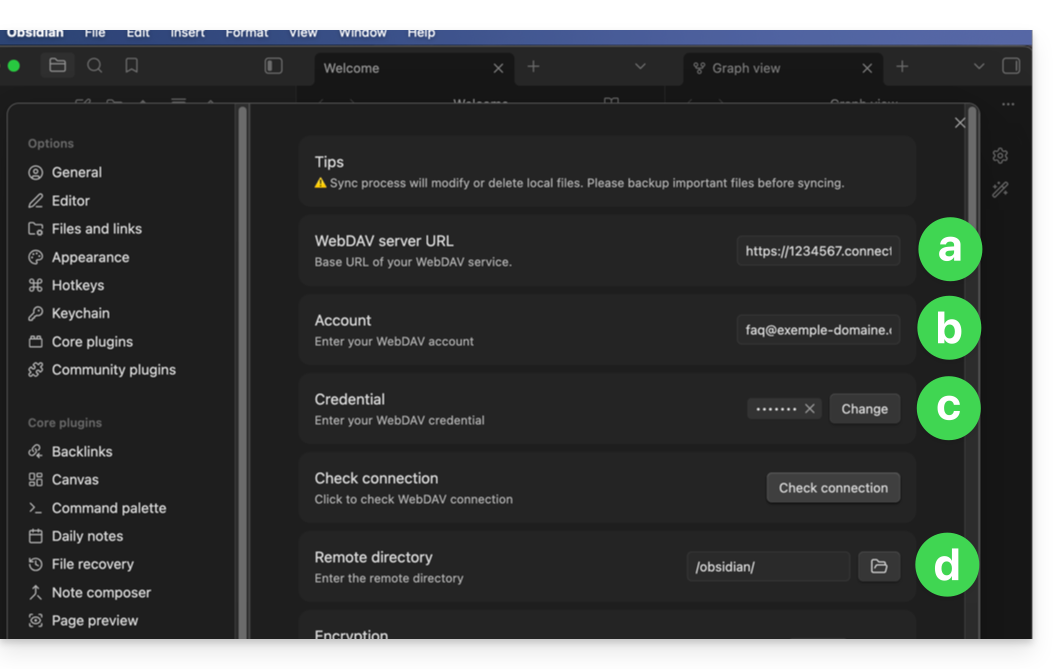
- Server address:
- Configure the plugin's behavior according to your preferences (synchronization on startup, scheduled, or in real time) and validate.
- Start a first synchronization test to validate proper communication with kDrive:
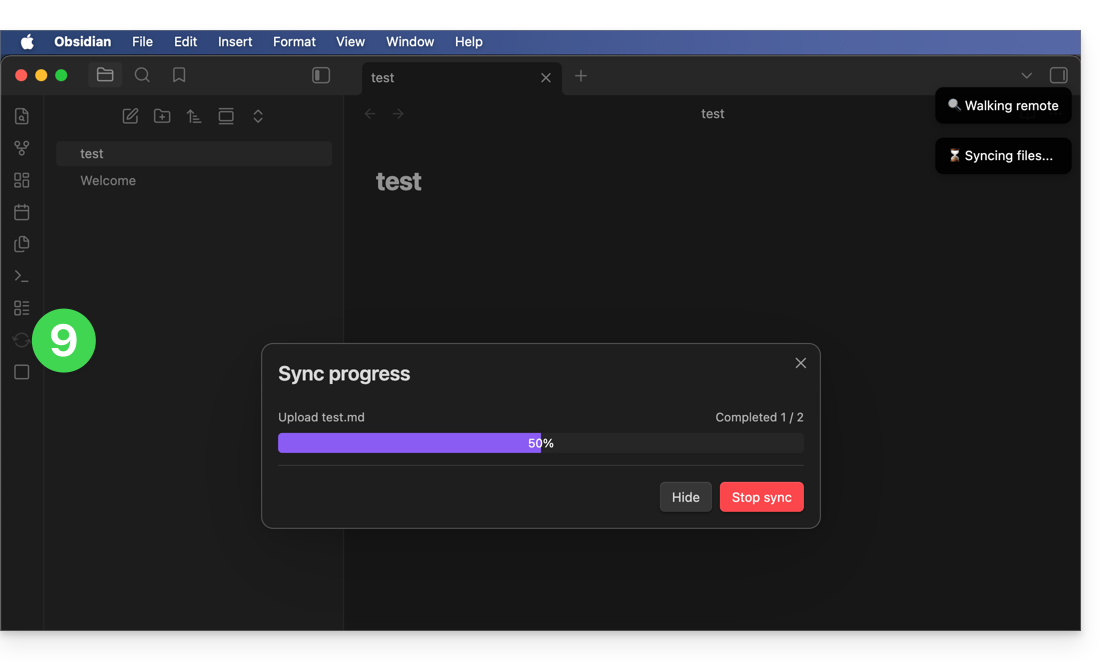
- Once the confirmation is validated, the synchronization will run in the background to protect the integrity of your notes:
Link para esta FAQ: https://faq.infomaniak.com/2910
Esta seção de perguntas frequentes foi útil?