Base de conhecimento
1000 perguntas frequentes, 500 tutoriais e vídeos explicativos. Aqui, você encontra apenas soluções!
Gerenciar as páginas de erro com o Site Creator
Este guia permite redirecionar os visitantes que chegam a páginas inexistentes (antigas páginas de um site anterior, por exemplo) caso o seu site seja atualmente gerido com o Site Creator da Infomaniak.
Pré-requisitos
- Conhecer o endereço (URL) da página que deixou de existir.
Redirecionar os visitantes para a nova página do Site Creator
Comece por iniciar sessão no Painel de Controlo Infomaniak com o seu identificador (utilizador com os direitos necessários sobre o produto em questão):
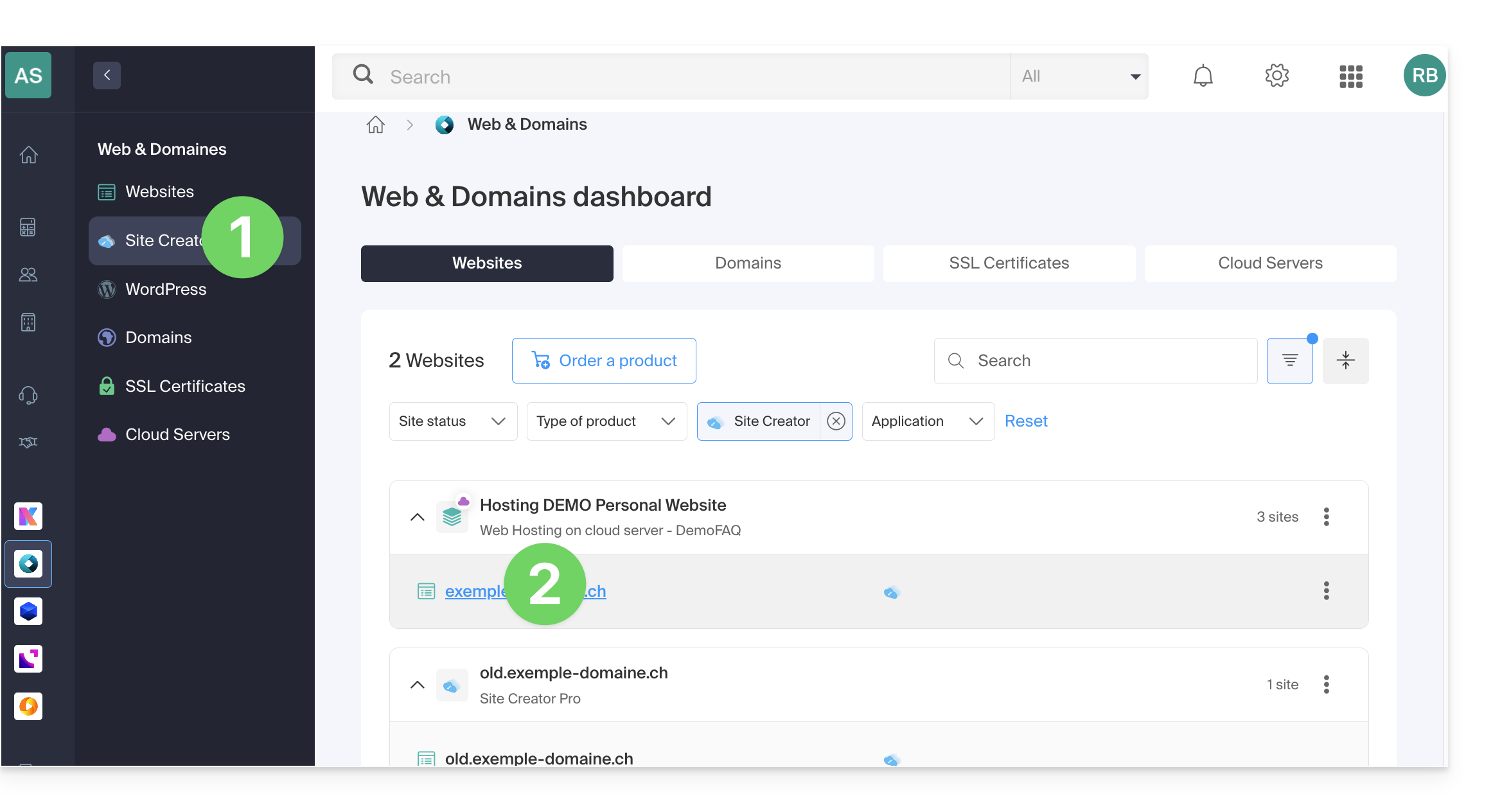
- Clique aqui para aceder à gestão de alojamentos e sites (filtrada para mostrar apenas o Site Creator).
- Se nada for exibido, poderá não estar na Organização à qual o seu site está associado (❓: ajuda).
- Clique em o nome do Site Creator em questão:
- Clique no botão para editar o seu site:
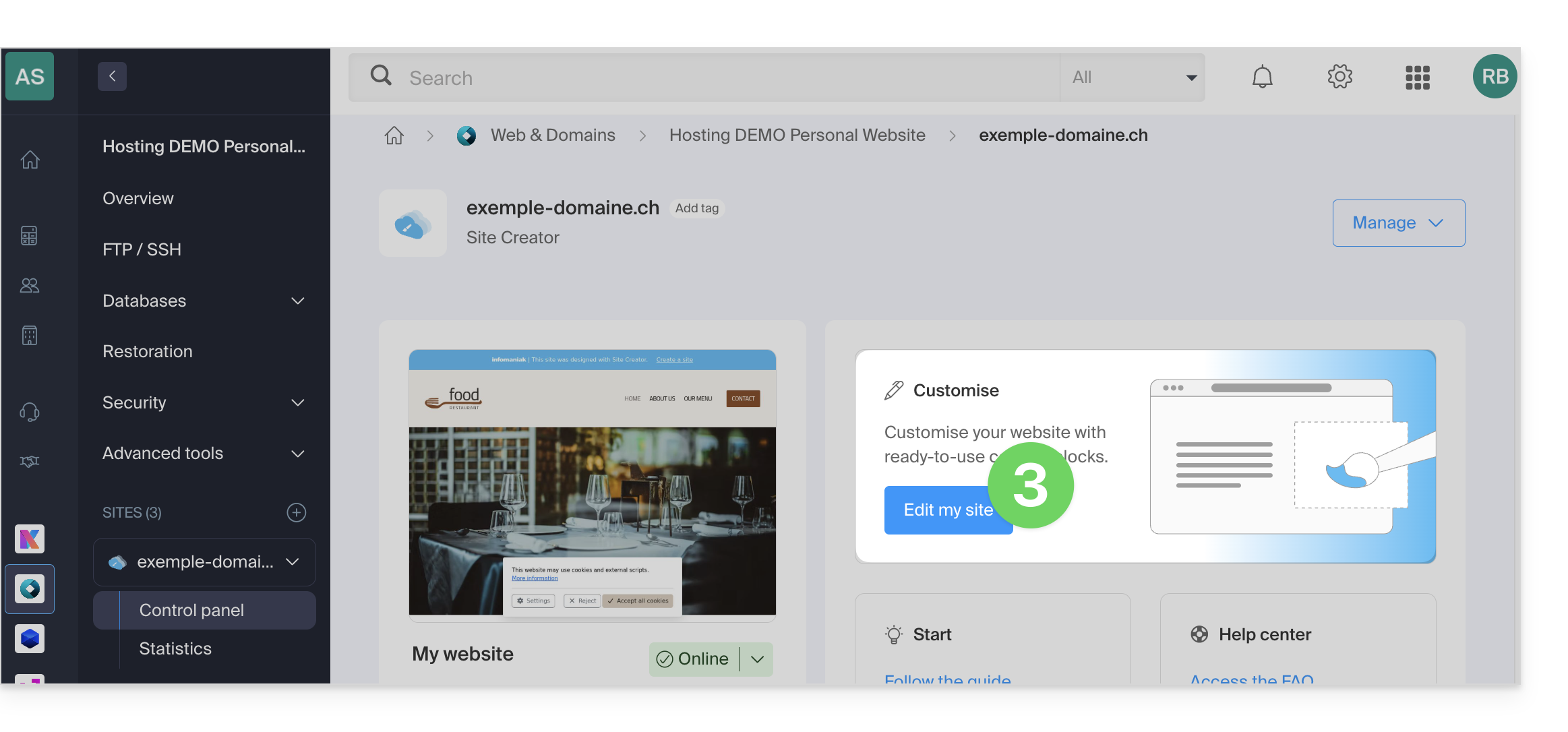
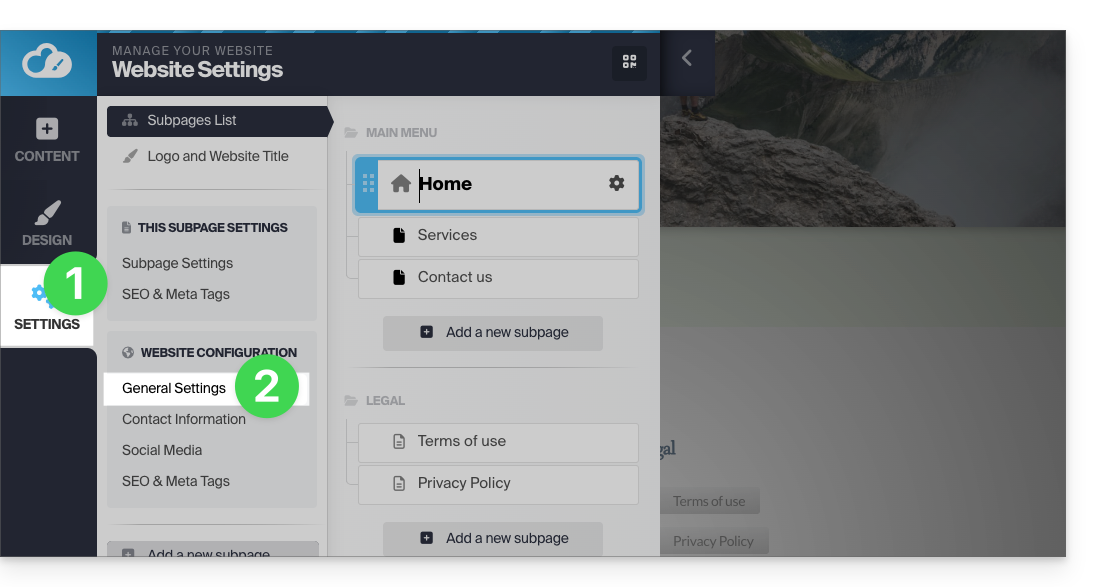
Depois de acessar o Site Creator, no menu lateral esquerdo:
- Clique em Configurações.
- Clique em Configurações gerais:
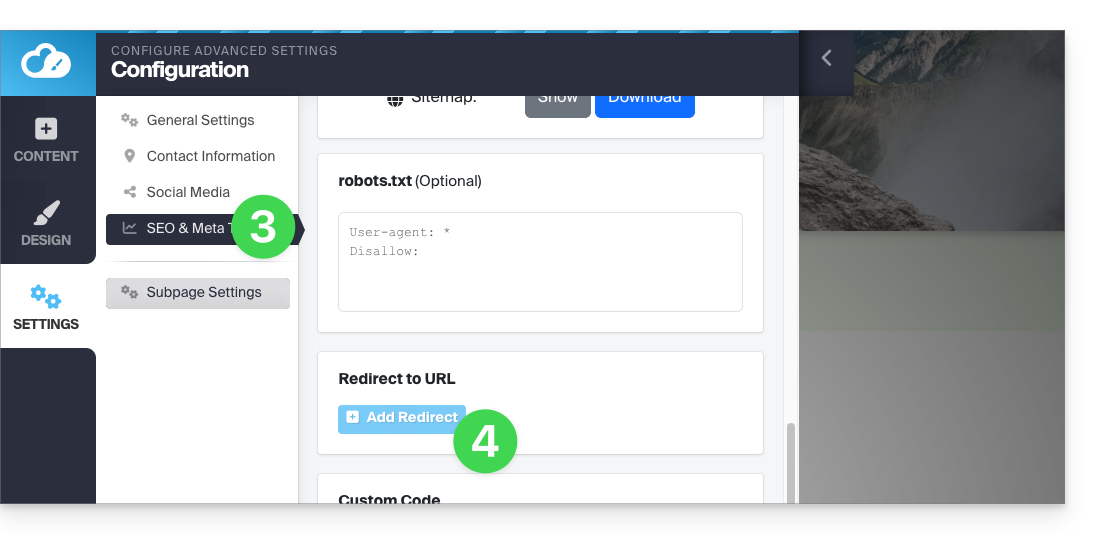
- Clique em SEO e metatags.
- Clique em Adicionar redirecionamento:
- Insira o endereço da página antiga (sem o nome do seu site) em Redirecionamento.
- Insira o endereço da nova página (ou
/para redirecionar o visitante para a raiz do seu site, ou seja, a página inicial). - Salve com o botão azul na parte inferior da página:
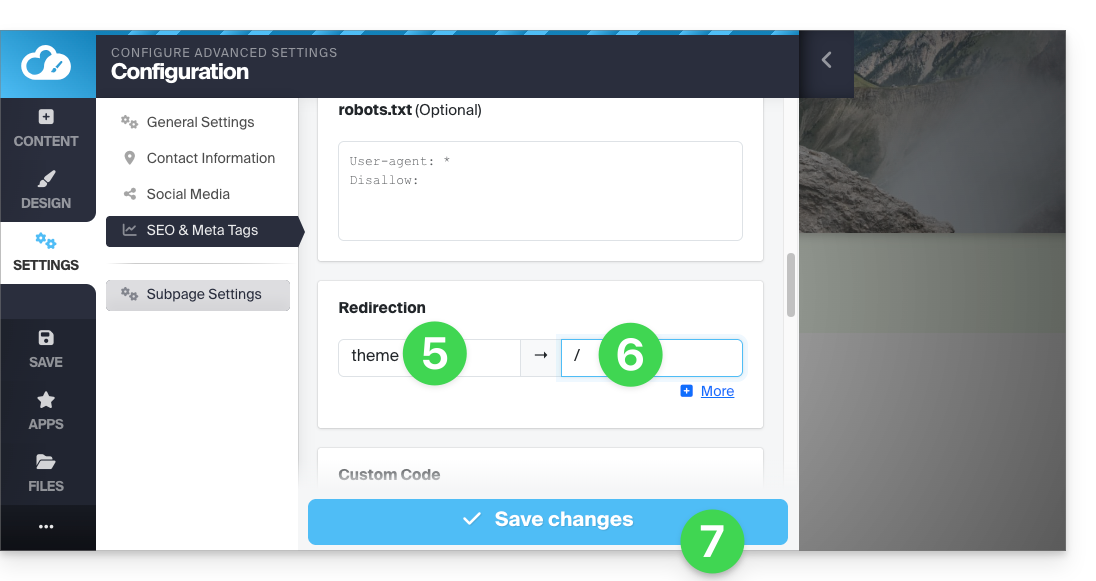
Por exemplo:
- O seu site anterior continha uma página de contacto no endereço
domainxyz.com/company/contact.html. - A partir de agora, a sua página de contacto encontra-se em
domainxyz.com/about. - Portanto, deverá inserir
company/contact.htmlno campo da esquerda… - … e
aboutno campo da direita, para que os visitantes que ainda acessarem o endereço antigo (devido a um referenciamento desatualizado ou ao clicar em um favorito, por exemplo) sejam automaticamente redirecionados para a nova página.
Um método alternativo consiste em adicionar uma nova página ao Site Creator com o nome do seu endereço de página antigo e, em seguida, especificar um redirecionamento para a URL de sua escolha e torná-la invisível usando o botão de alternância (toggle switch) localizado abaixo do campo de redirecionamento: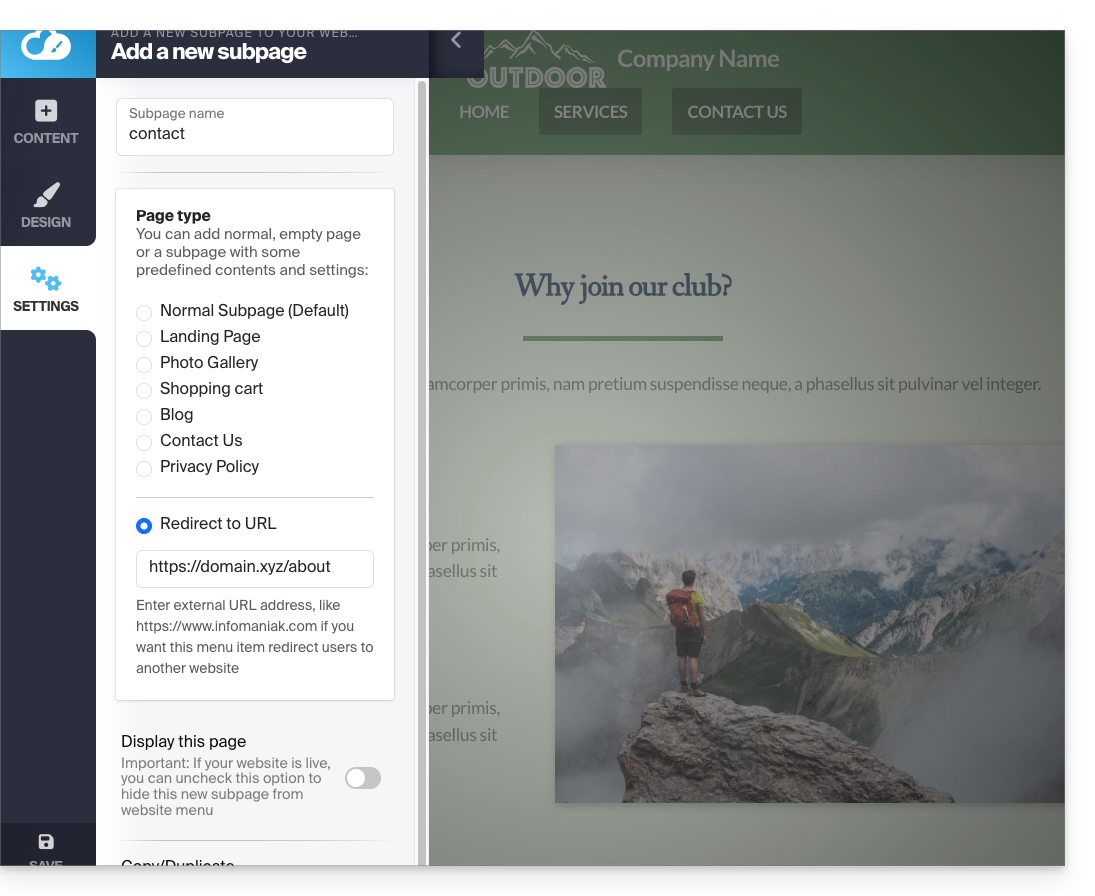
Link para esta FAQ: https://faq.infomaniak.com/2875
Esta seção de perguntas frequentes foi útil?