Base de conhecimento
1000 perguntas frequentes, 500 tutoriais e vídeos explicativos. Aqui, você encontra apenas soluções!
Manage dark mode
Infomaniak tools, such as the Web Mail app (online service at ksuite.infomaniak.com/mail) or the Calendar, Contacts, kSuite interfaces, can be displayed in light mode or dark mode, including based on the settings of your current operating system:
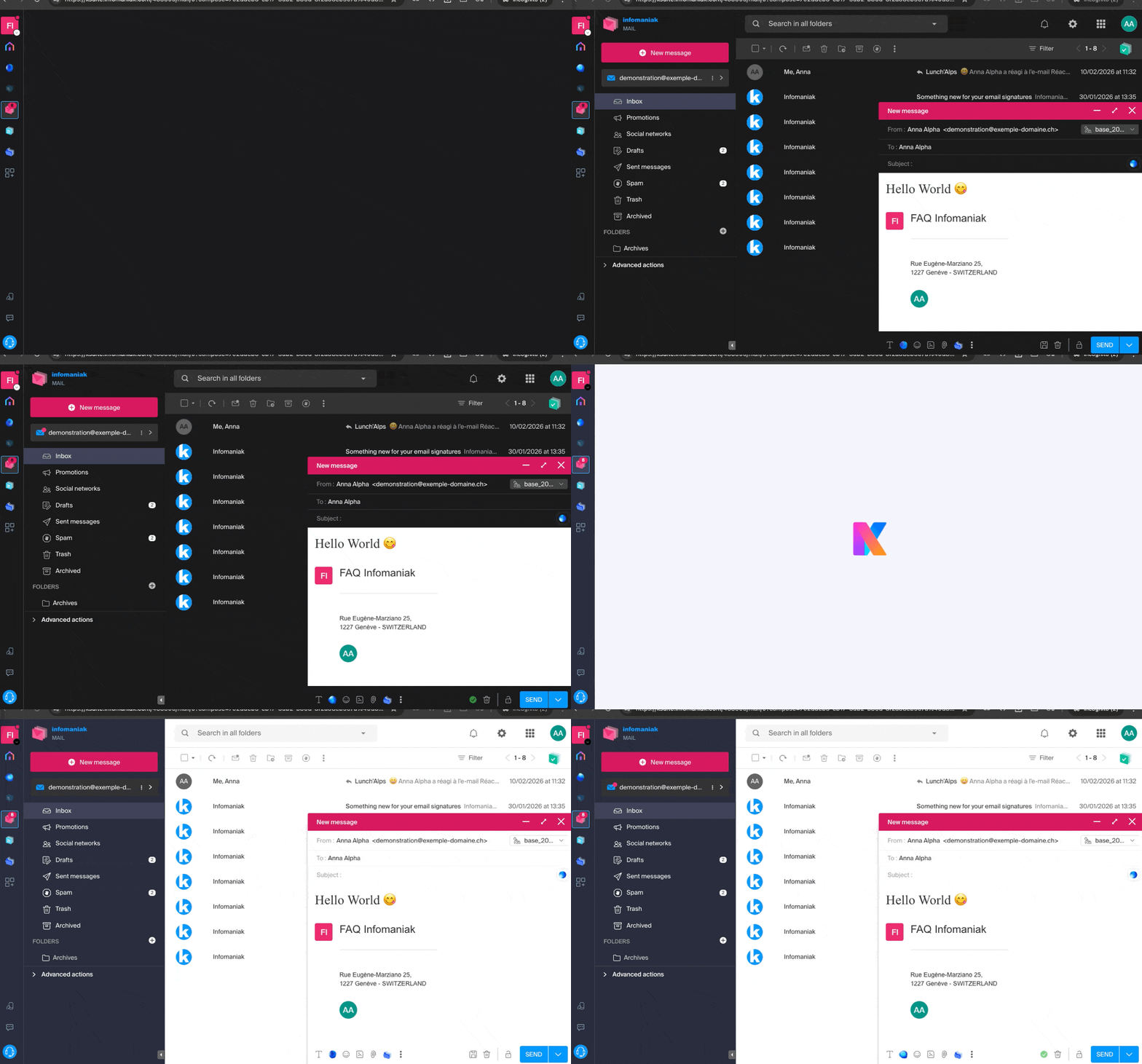
Enable manual mode
To manually choose a dark or light display, without relying on any different display setting on the operating system:
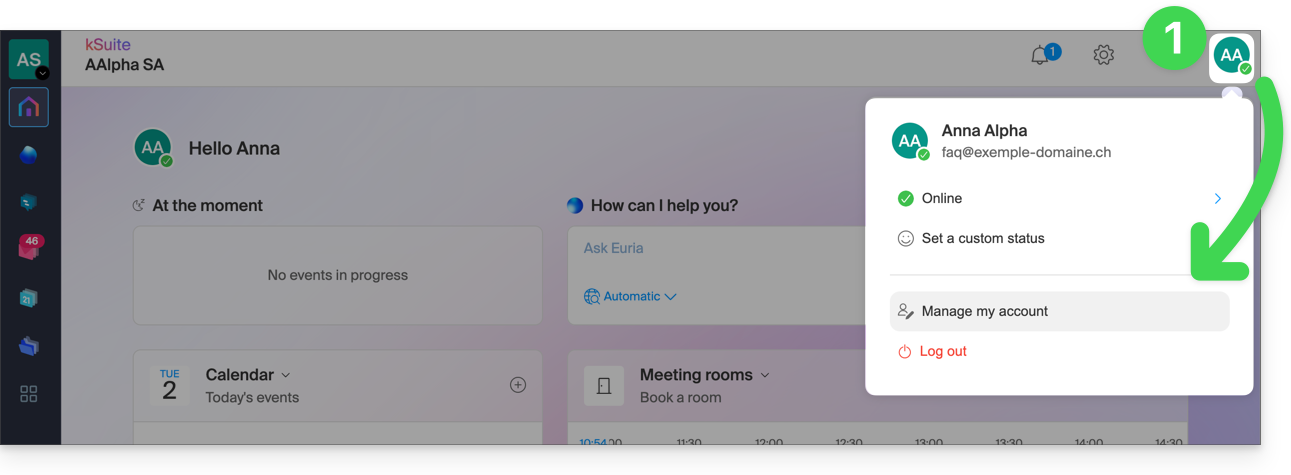
- Click here (or on the badge with your initials / avatar in the top right corner of the Infomaniak Manager) to "Manage my account":
- Then, click on Appearance in the left-hand menu.
- Click on Light to apply light mode:
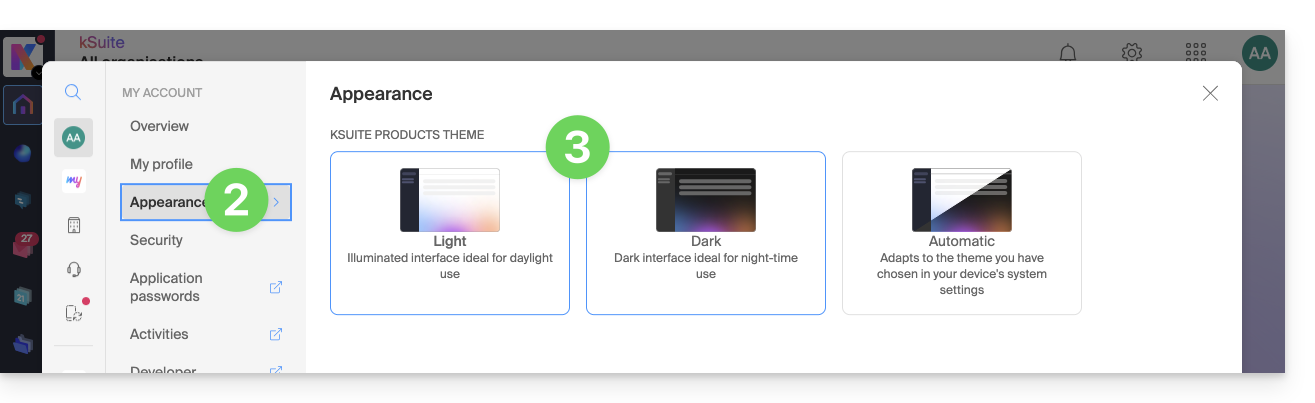
- Click on Dark to enable dark mode.
Enable automatic mode
Automatic mode is based on your operating system settings (macOS / Windows...):
- Click here or on the badge with your initials / avatar in the top right corner of the Infomaniak Manager to "Manage my account":
- Click on Appearance in the left-hand menu.
- Click on Automatic mode:
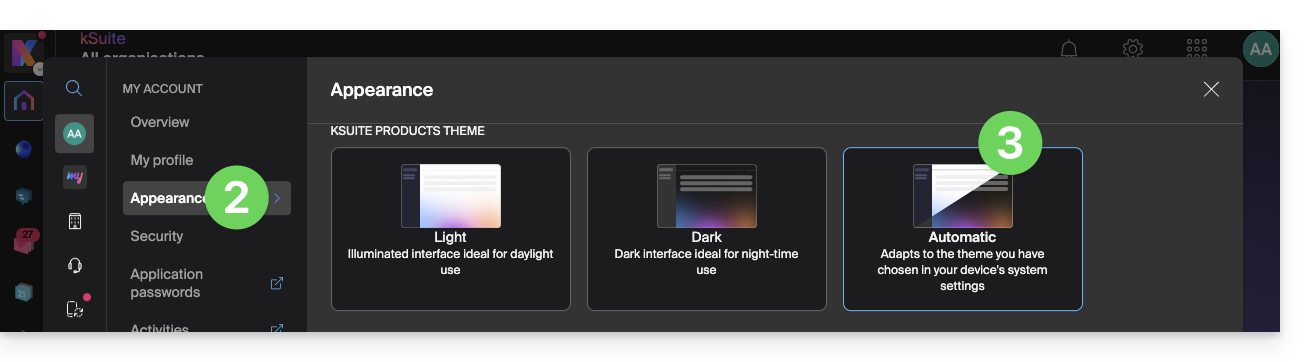
Then, if you want to change the light or dark theme of your computer, so that the automatic mode of the Manager takes your preferences into account…
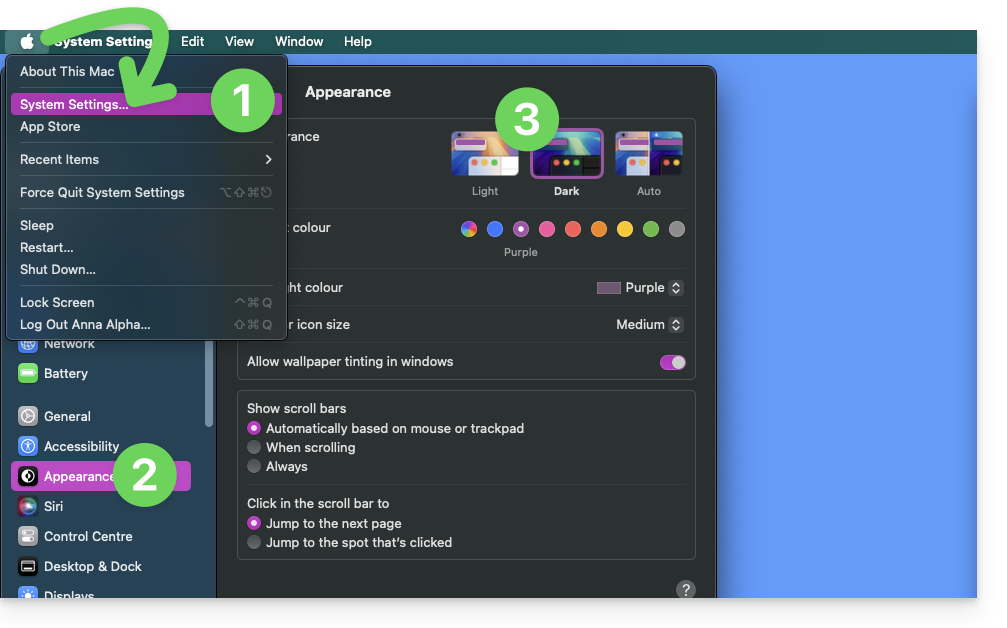
… on macOS
- Click on System Preferences…
- Click on Appearance.
- Choose the desired mode on the right:
… on Windows
- In the Start menu, open Settings > Personalization.
- Select Colors, then Choose your mode:
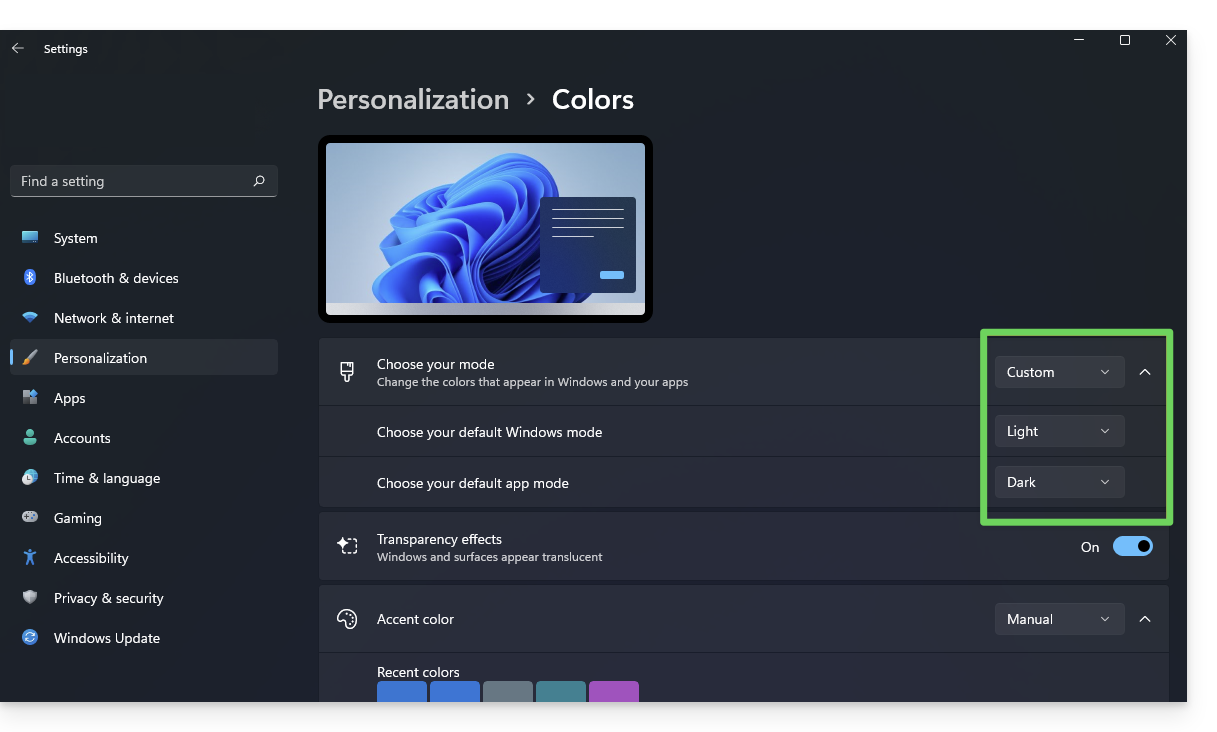
- You can choose between Light, Dark, or Custom.
- If you select Custom, you will be able to choose a default Windows mode and a different default application mode.
And on mobile?
The dark theme is enabled on mobile devices for Infomaniak login and account creation pages; it automatically adapts to the mobile system's preferences, providing a consistent visual experience between mobile applications and login/account creation.
Link para esta FAQ: https://faq.infomaniak.com/2870
Esta seção de perguntas frequentes foi útil?