Base de conhecimento
1000 perguntas frequentes, 500 tutoriais e vídeos explicativos. Aqui, você encontra apenas soluções!
Gerenciar senhas de aplicativos
Este guia aborda a gestão das palavras-passe de aplicações a partir do painel de controlo Infomaniak.
Introdução
Uma senha de aplicativo não é uma senha de dispositivo – ela não permitirá sincronizar um endereço de e-mail.
- As senhas de aplicativo permitem estabelecer uma conexão autenticada entre certas ferramentas e serviços, mesmo que a autenticação de dois fatores (2FA) esteja ativada.
- Para sincronizar, por exemplo, os contatos e as agendas da sua conta Infomaniak com um dispositivo móvel ou um software/cliente de e-mail, siga as instruções do guia abaixo para gerar uma nova senha específica para esta aplicação.
- É possível gerar várias senhas específicas (por exemplo, 1 para os contatos e 1 para as agendas) ou usar a mesma senha para a sincronização dos dois serviços.
Criar uma senha de aplicativo
Para isso:
- Clique aqui para acessar o gerenciamento de senhas de aplicativos no Manager Infomaniak.
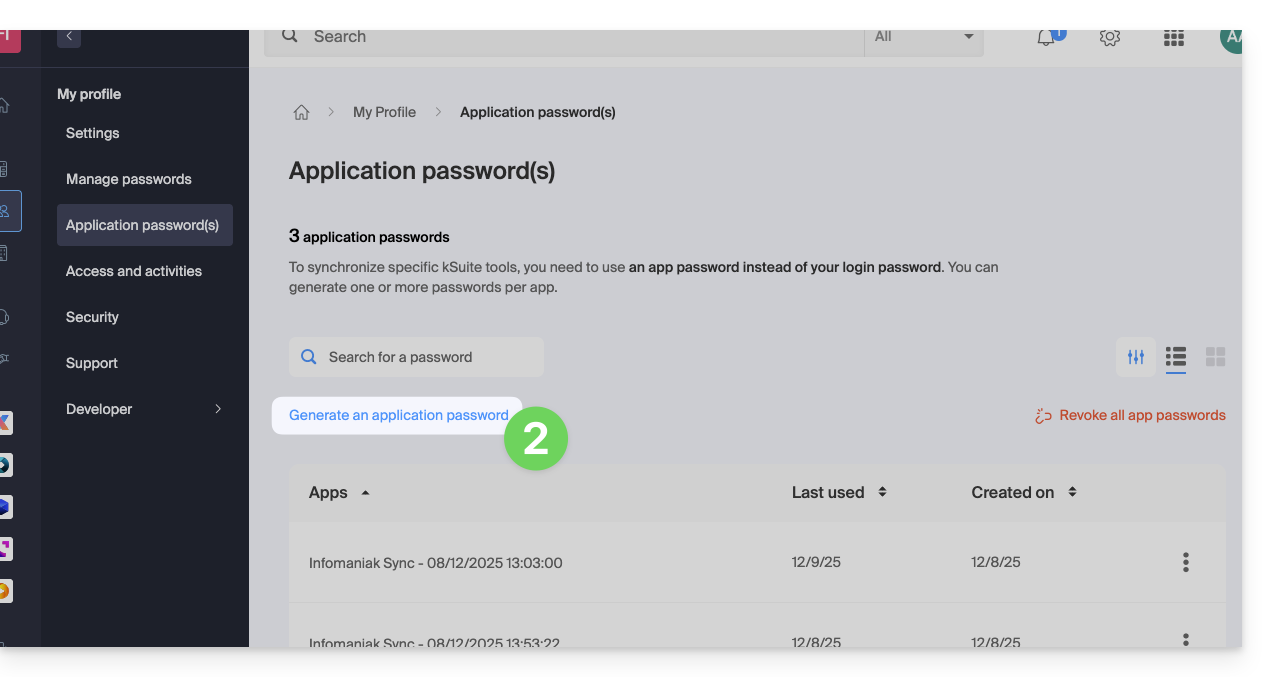
- Clique em Gerar uma senha de aplicativo:
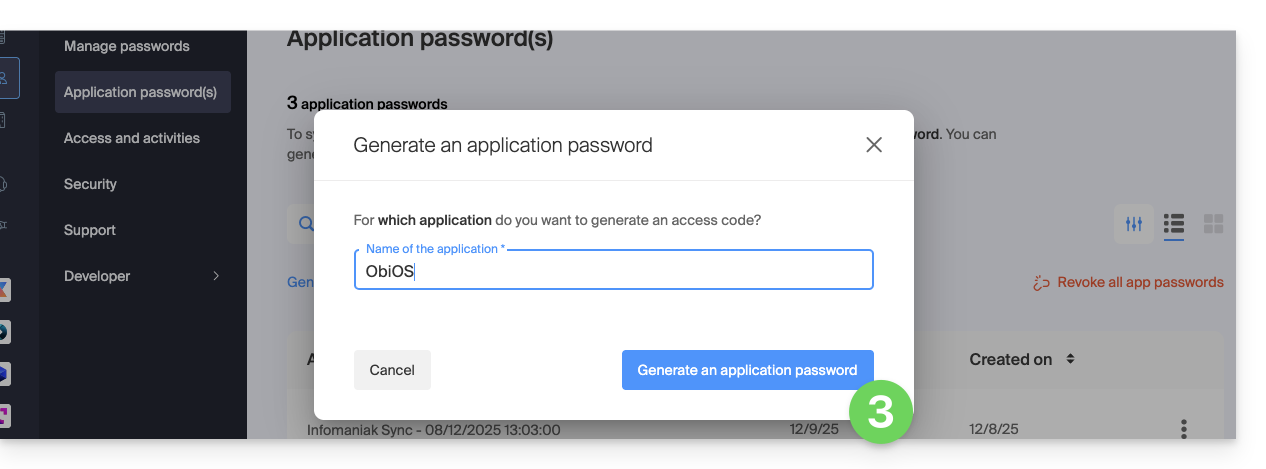
- Indique um nome para a senha do aplicativo na caixa de diálogo e, em seguida, clique em Gerar uma senha do aplicativo:
- Copie e guarde a senha do aplicativo gerada em um local seguro, mas de fácil acesso,ela não estará mais disponível após o fechamento da janela.
Revogar as senhas de aplicativos
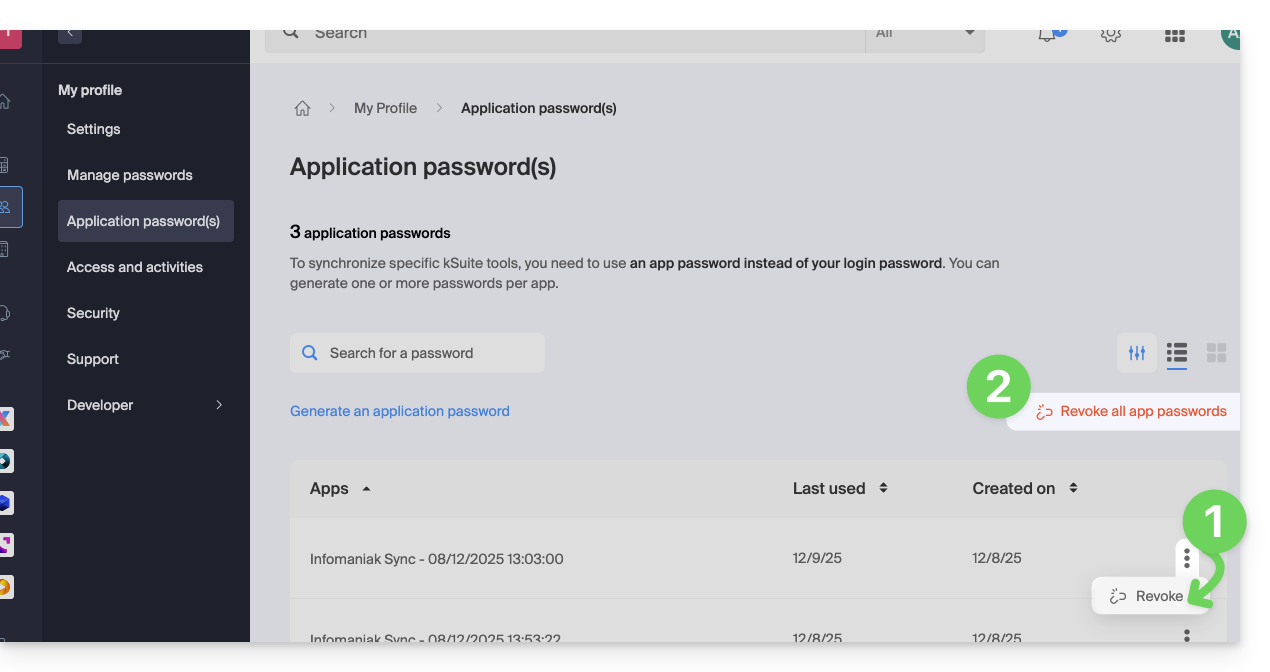
No mesmo local, você pode remover uma ou mais senhas de aplicativos quando elas se tornarem desnecessárias:
- Clique no botão de ação ⋮ à direita de cada senha e, em seguida, revogue-as…
- ou clique em Revogar tudo na parte superior da tabela:
Link para esta FAQ: https://faq.infomaniak.com/2855
Esta seção de perguntas frequentes foi útil?