Base de conhecimento
1000 perguntas frequentes, 500 tutoriais e vídeos explicativos. Aqui, você encontra apenas soluções!
Convidar um utilizador externo a usar o kChat
Este guia explica como adicionar um utilizador totalmente externo ao kChat.
Introdução
- Um administrador do kChat pode convidar um utilizador totalmente externo à sua organização, que não será contabilizado como um utilizador.
- Este utilizador será, no entanto, solicitado a criar uma conta Infomaniak caso ainda não possua uma.
- Para adicionar um utilizador kChat e conceder-lhe mais permissões (será contabilizado como um utilizador kSuite), consulte este outro guia.
Convidar um utilizador para participar numa conversa num canal privado
Pré-requisitos
- Ser administrador do kChat:
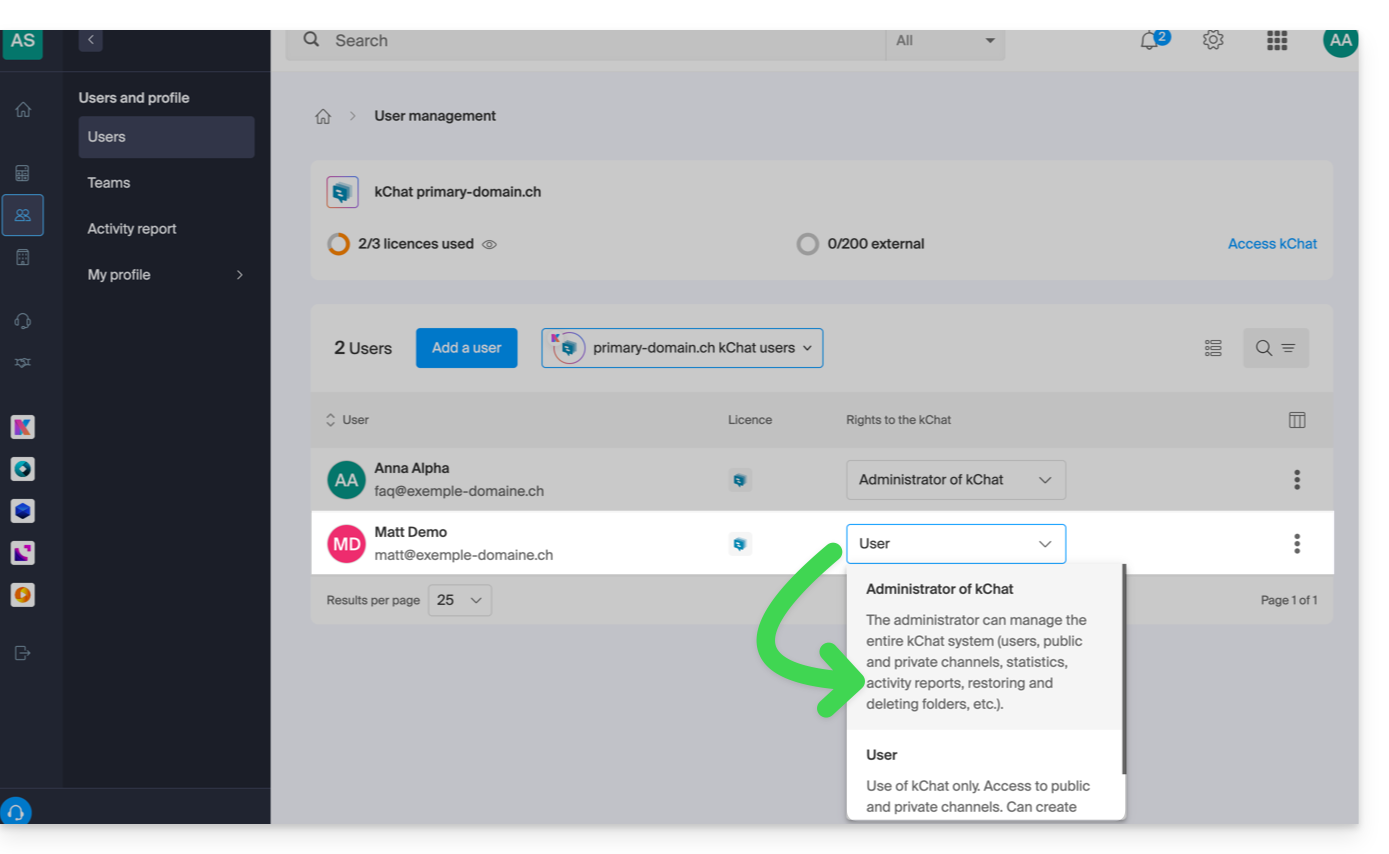
- Não importa o cargo na Organização; ser administrador da Organização na qual existe a kSuite (e, portanto, o kChat) não é obrigatório e, de qualquer forma, não é suficiente:
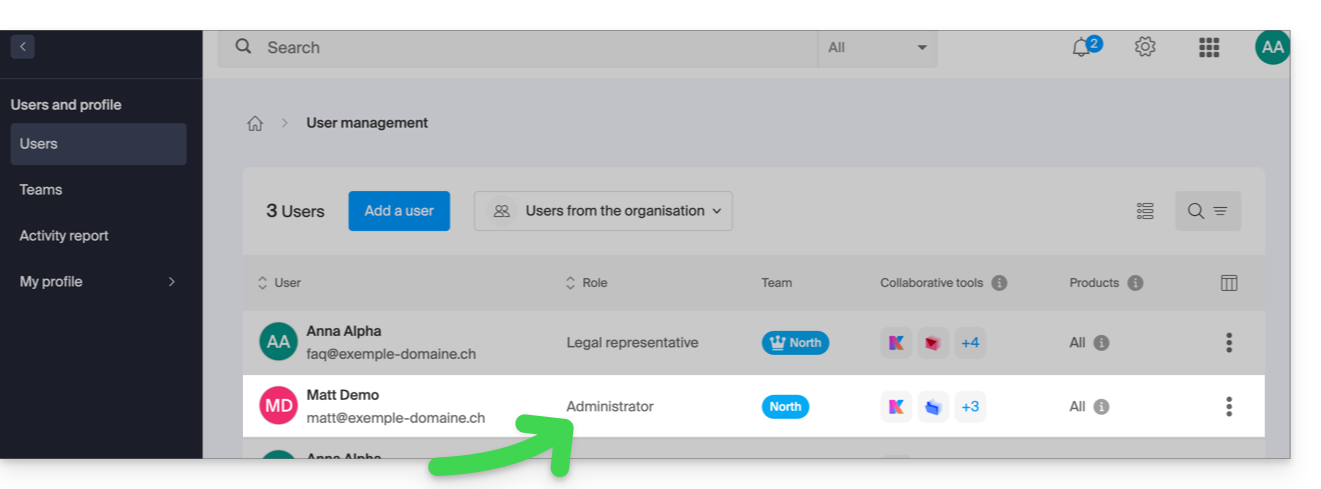
- Não importa o cargo na Organização; ser administrador da Organização na qual existe a kSuite (e, portanto, o kChat) não é obrigatório e, de qualquer forma, não é suficiente:
Em seguida, para enviar um convite por e-mail a partir do kChat:
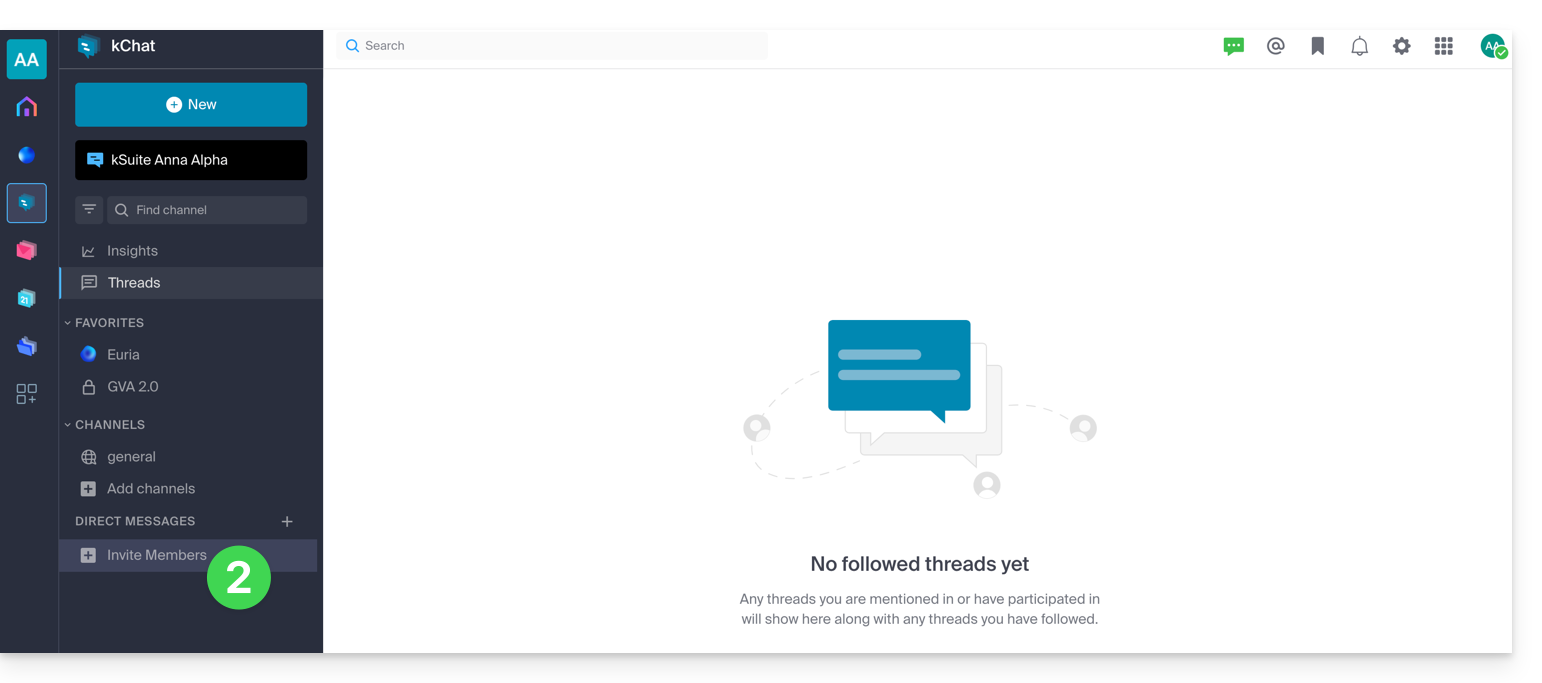
- Clique aqui para acessar o aplicativo web kChat (serviço online ksuite.infomaniak.com/kchat) ou abra o aplicativo desktop kChat (aplicativo para computador em macOS / Windows / Linux).
- Clique no botão para Convidar membros:
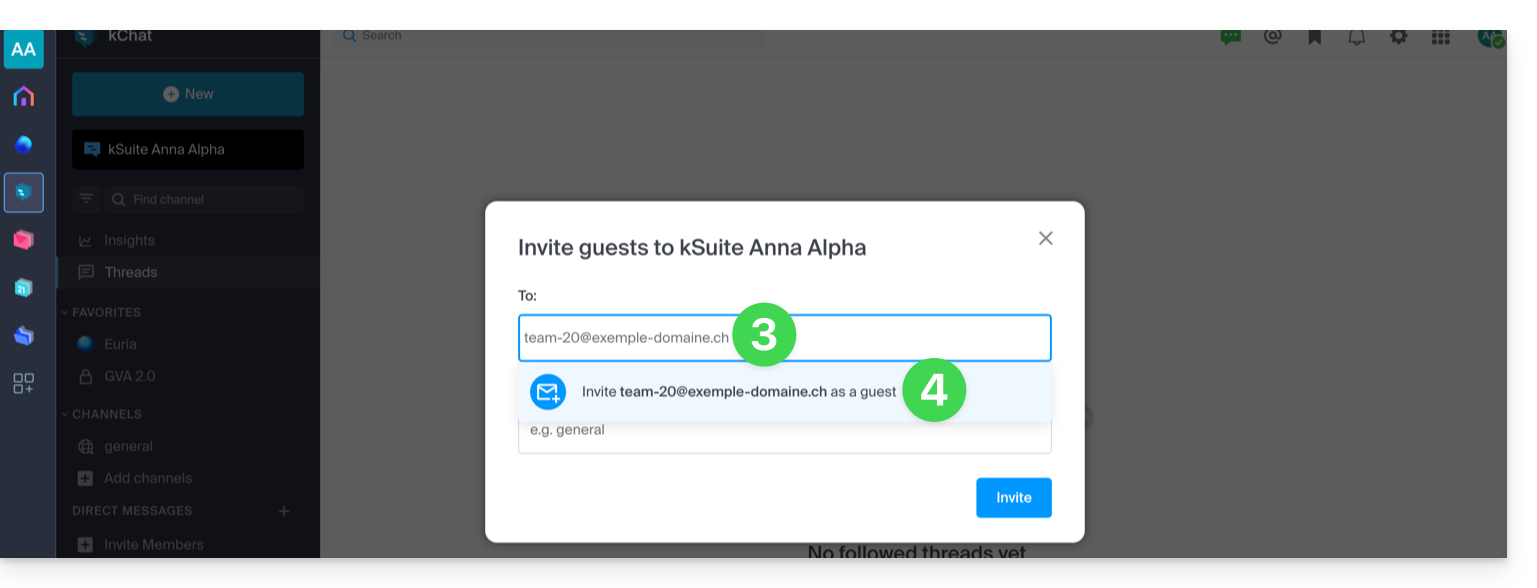
- Especifique o endereço de e-mail da pessoa que deseja convidar.
- Clique no endereço de e-mail para adicioná-lo como convidado:
- Especifique o(s) canal(is) aos quais essas pessoas poderão ter acesso.
- Clique no botão azul para enviar o convite:
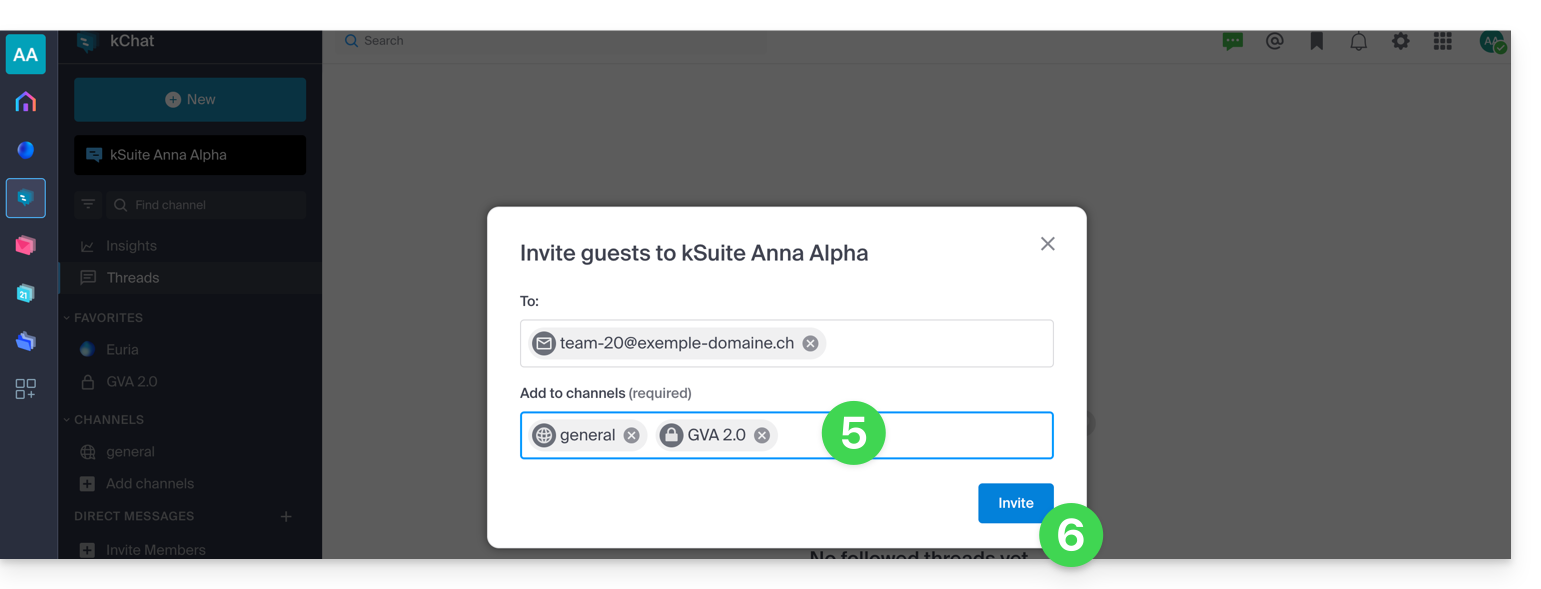
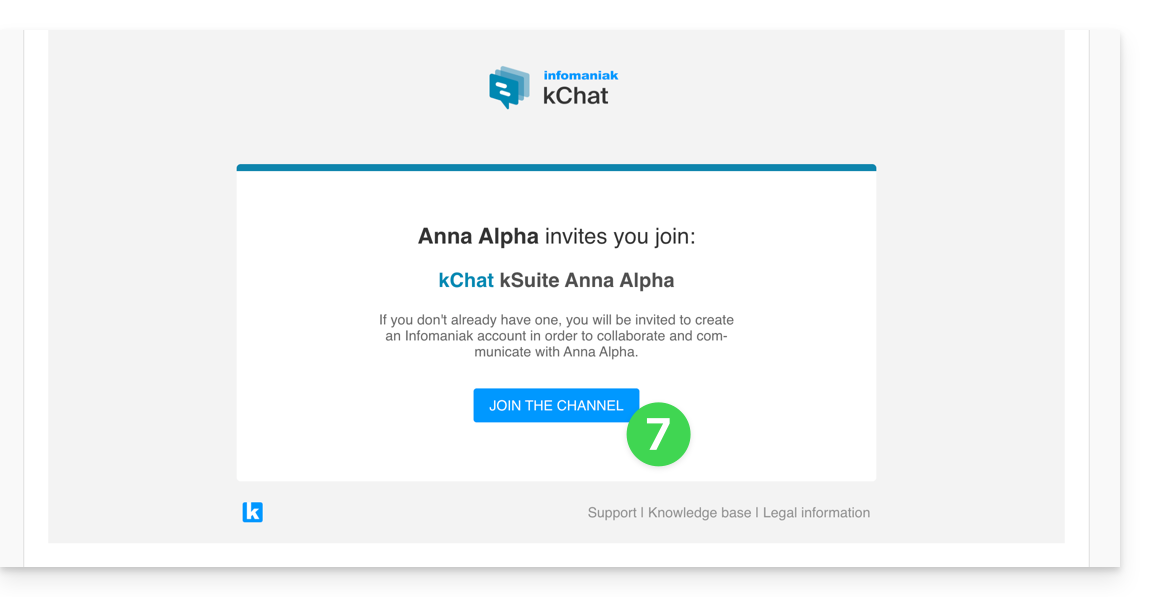
- A pessoa convidada recebe um e-mail com um link que a direciona para a interface kChat e para o canal compartilhado com ela:
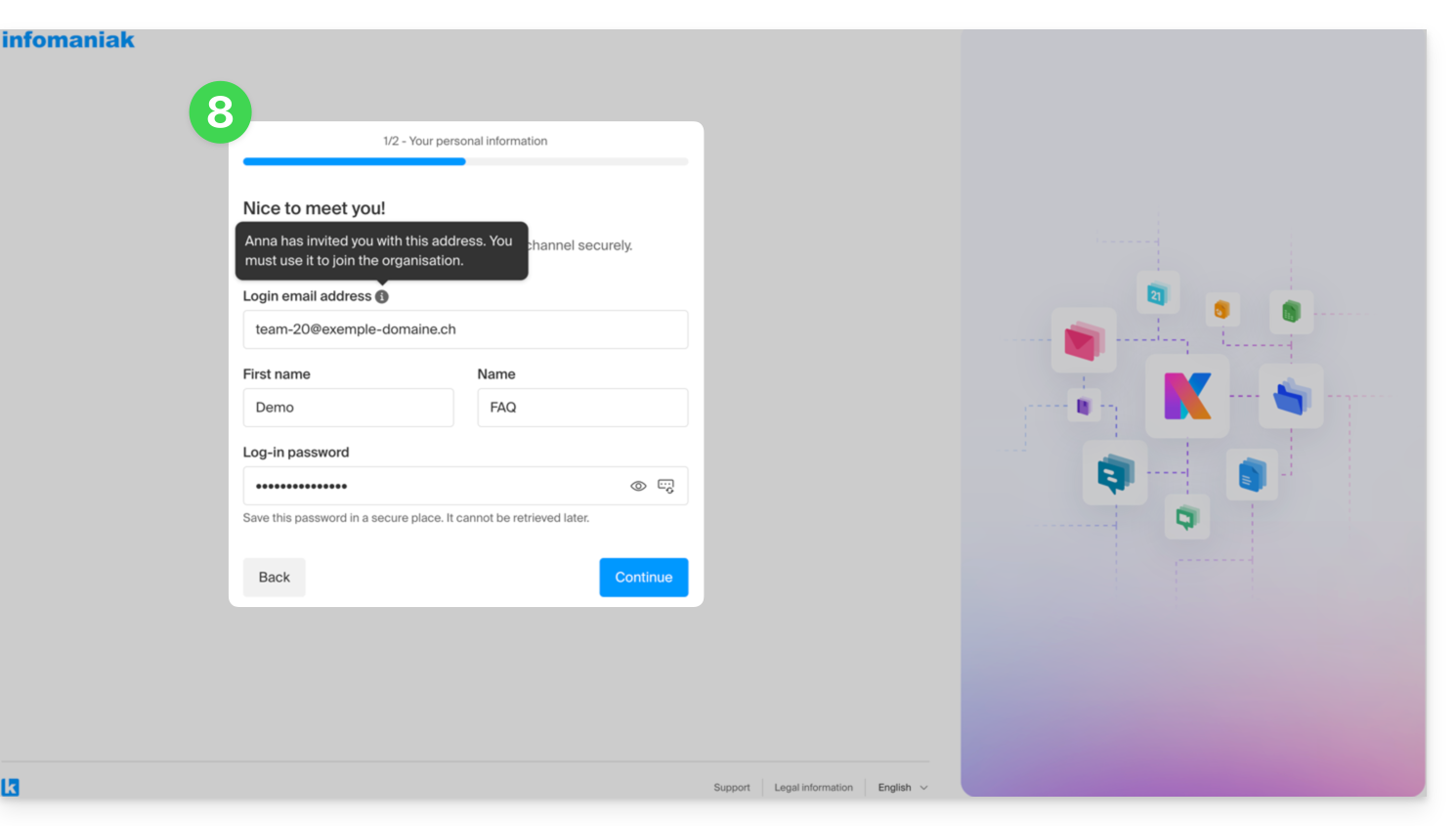
- Obviamente, existe uma fase de registo caso o utilizador ainda não tenha uma conta Infomaniak (durante esse período, o utilizador convidado é listado como em espera no canal kChat em questão):
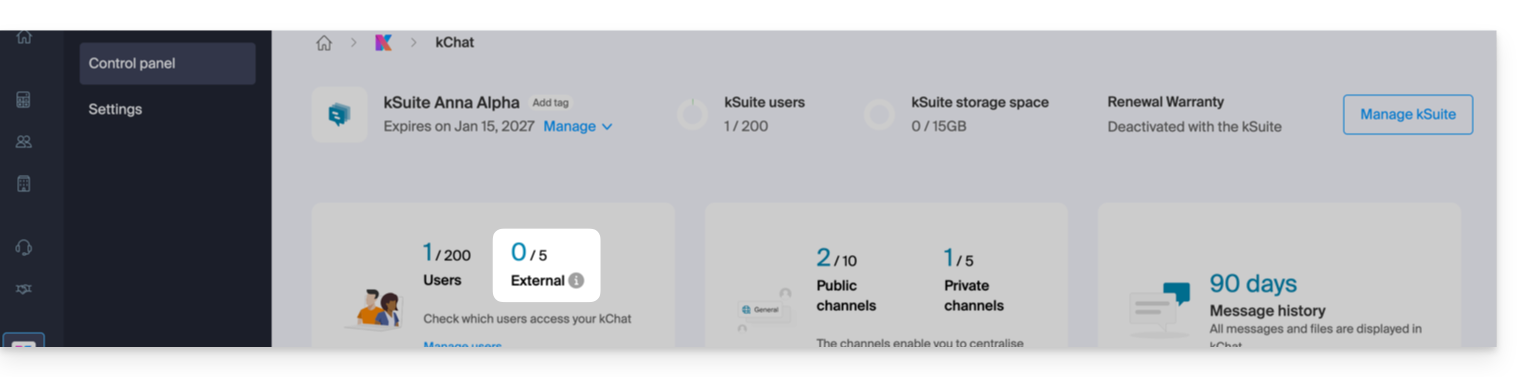
- Note que ele não será listado como em espera no kSuite ou em outro lugar, pois é um utilizador externo com acesso restrito; e, enquanto o registo não for concluído, a quota permanece em 0 utilizadores externos:
- Note que ele não será listado como em espera no kSuite ou em outro lugar, pois é um utilizador externo com acesso restrito; e, enquanto o registo não for concluído, a quota permanece em 0 utilizadores externos:
- Após a conclusão do registo, o convidado pode aceder ao kChat, uma versão restrita e limitada aos canais especificados pelo administrador durante a criação do convite:
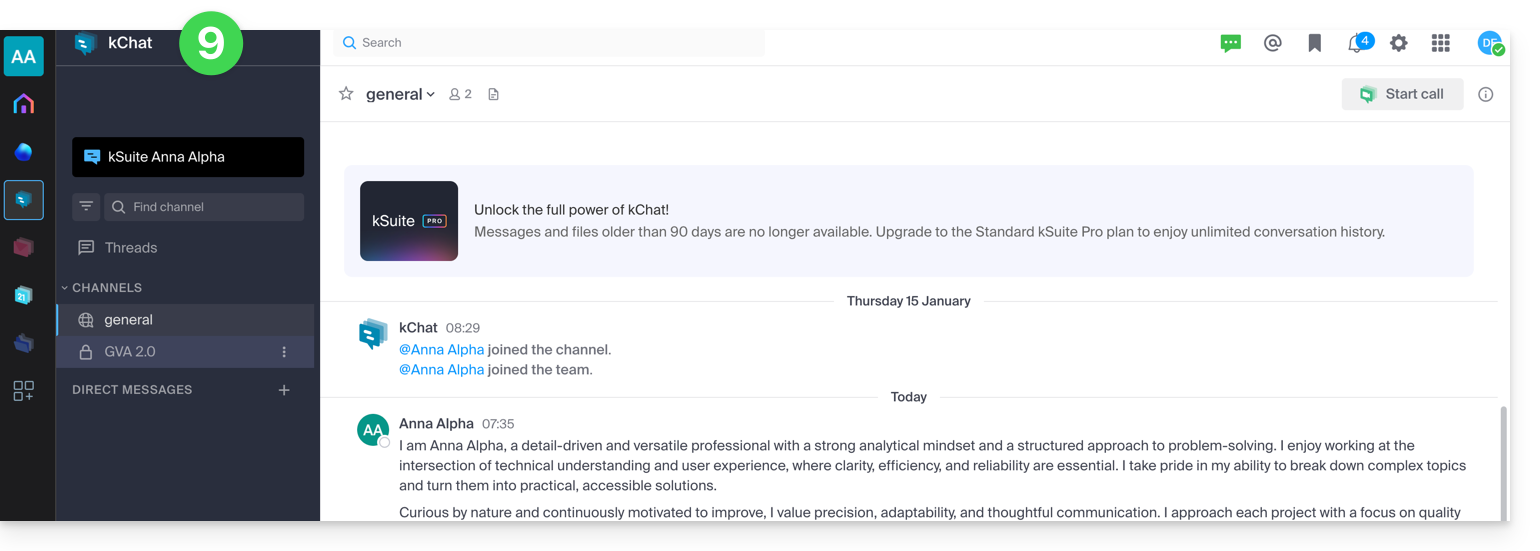
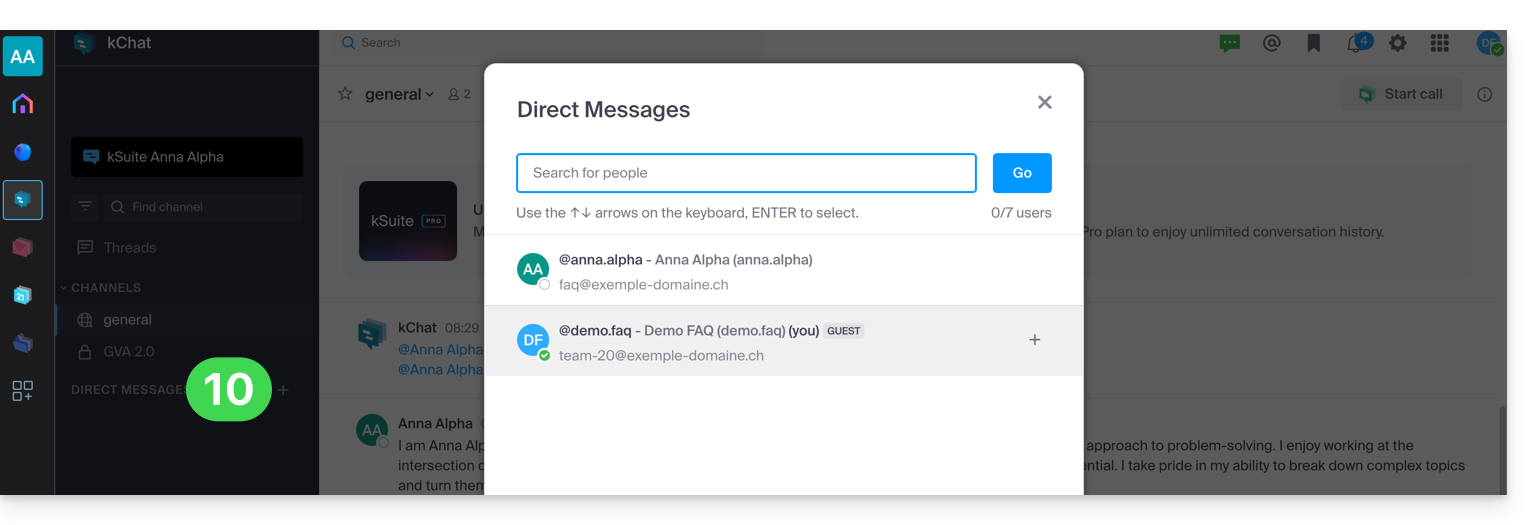
- Ele pode iniciar uma conversa privada com outros usuários:
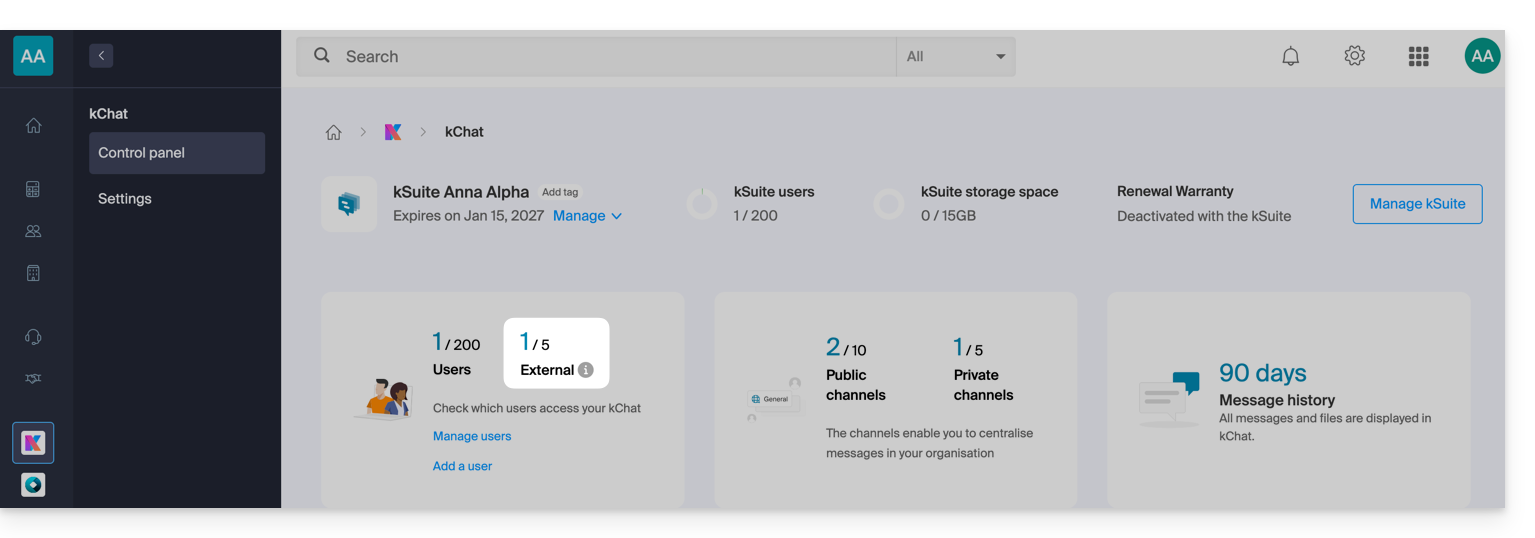
- No painel de controle do administrador, após o registro bem-sucedido do usuário externo, você verá a indicação de 1 usuário externo no seu painel de controle:
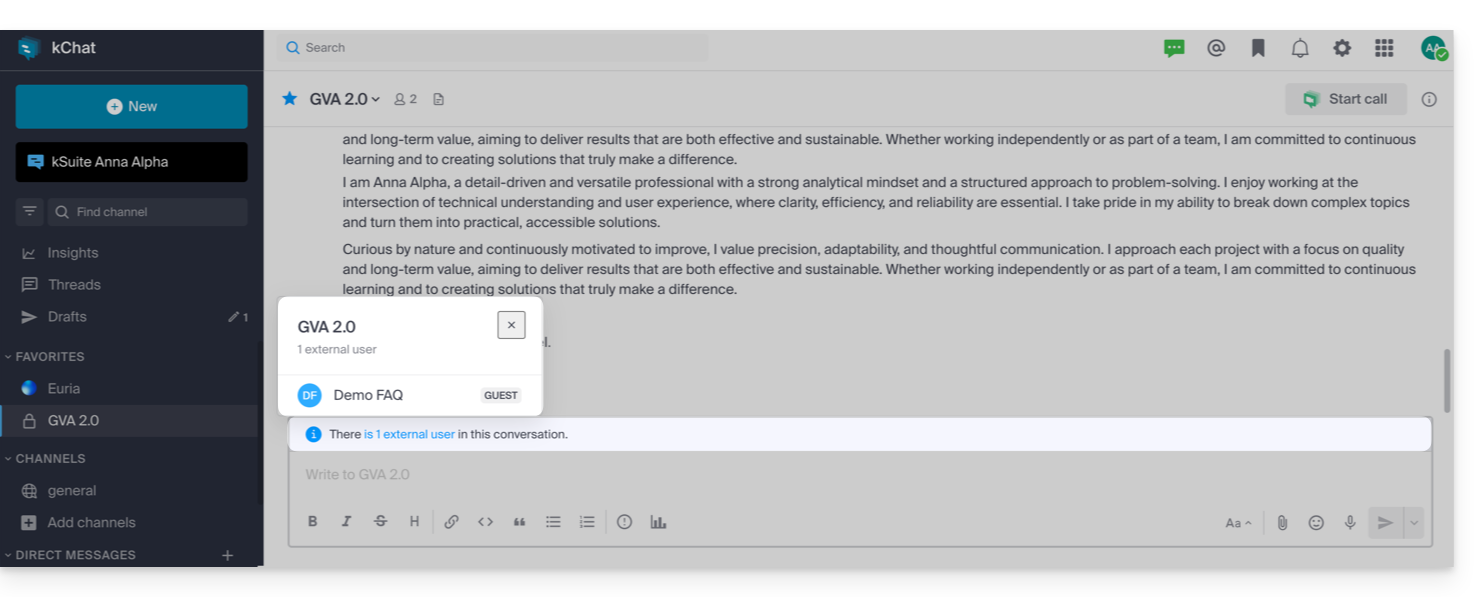
- E agora você verá a indicação no kChat de que o usuário tem acesso ao seu canal privado:
- No painel de controle do administrador, após o registro bem-sucedido do usuário externo, você verá a indicação de 1 usuário externo no seu painel de controle:
Permissões do usuário convidado
Os convidados podem…
- … fixar mensagens em canais
- … usar "comandos de barra" (com exceção de comandos restritos, como convidar membros, renomear canais, modificar cabeçalhos, etc.)
- … marcar um canal como favorito
- … silenciar um canal
- … atualizar o perfil
- … utilizar métodos de autenticação diferentes dos utilizados pelos outros utilizadores
- … utilizar a aplicação kChat: o utilizador convidado pode abrir a aplicação (Web, móvel ou desktop), quer seja já membro de um kChat ou não; este princípio de funcionamento é diferente do kDrive, por exemplo.
Os convidados não podem…
- … descobrir canais públicos
- … participar em grupos abertos
- … criar mensagens diretas ou mensagens de grupo com membros que não pertencem ao mesmo canal
- … convidar pessoas
Em caso de problema
Se você é administrador da Organização, mas ainda assim não consegue convidar um novo usuário no kChat, verifique se você é realmente administrador dentro do kChat, pois é possível ser apenas um usuário/colaborador, mesmo sendo o único usuário com licença no kSuite, por exemplo:
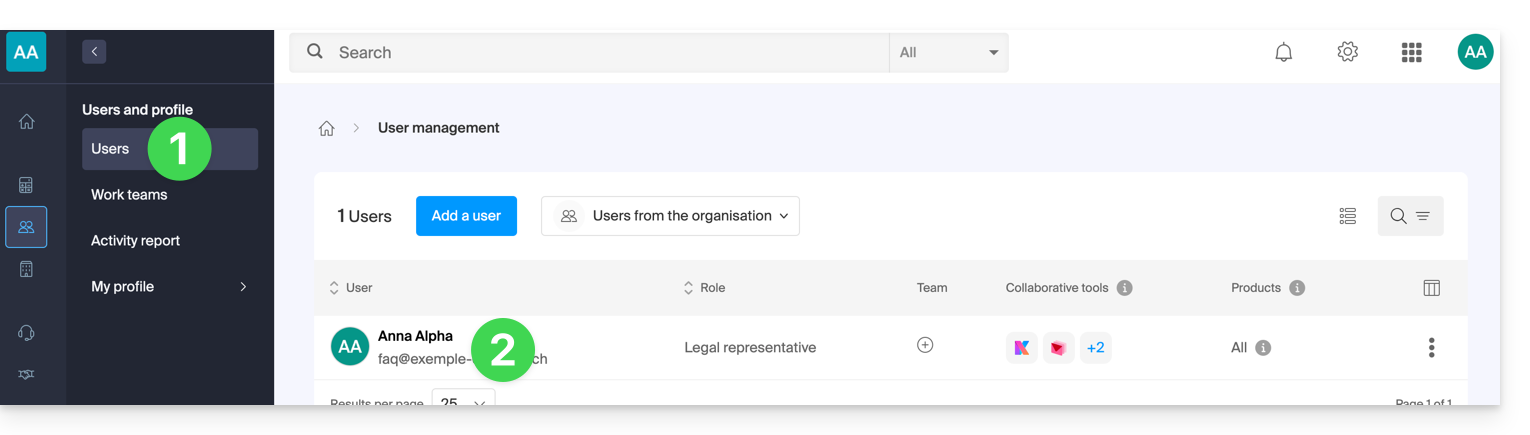
- Clique aqui para acessar o gerenciamento de usuários da Organização no Manager Infomaniak (precisa de ajuda?).
- Clique no seu nome de utilizador:
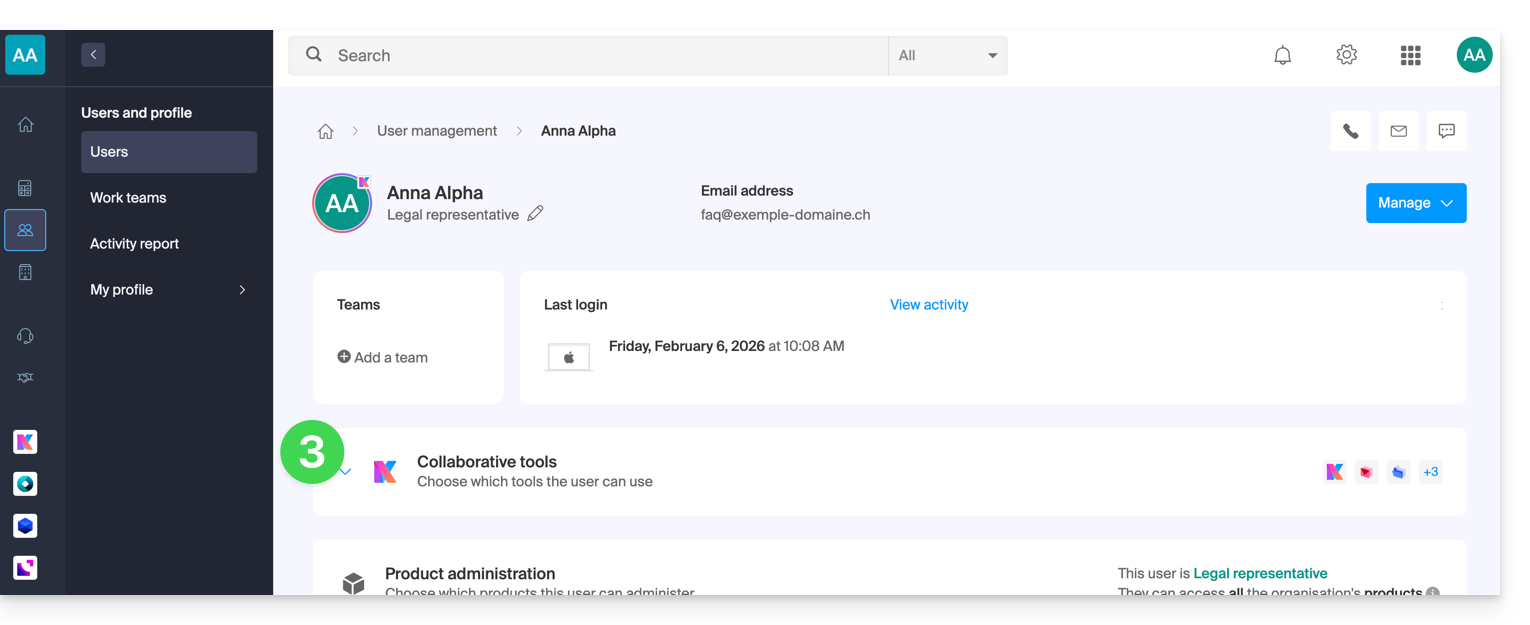
- Clique na seta para baixo para expandir as ferramentas de colaboração kSuite:
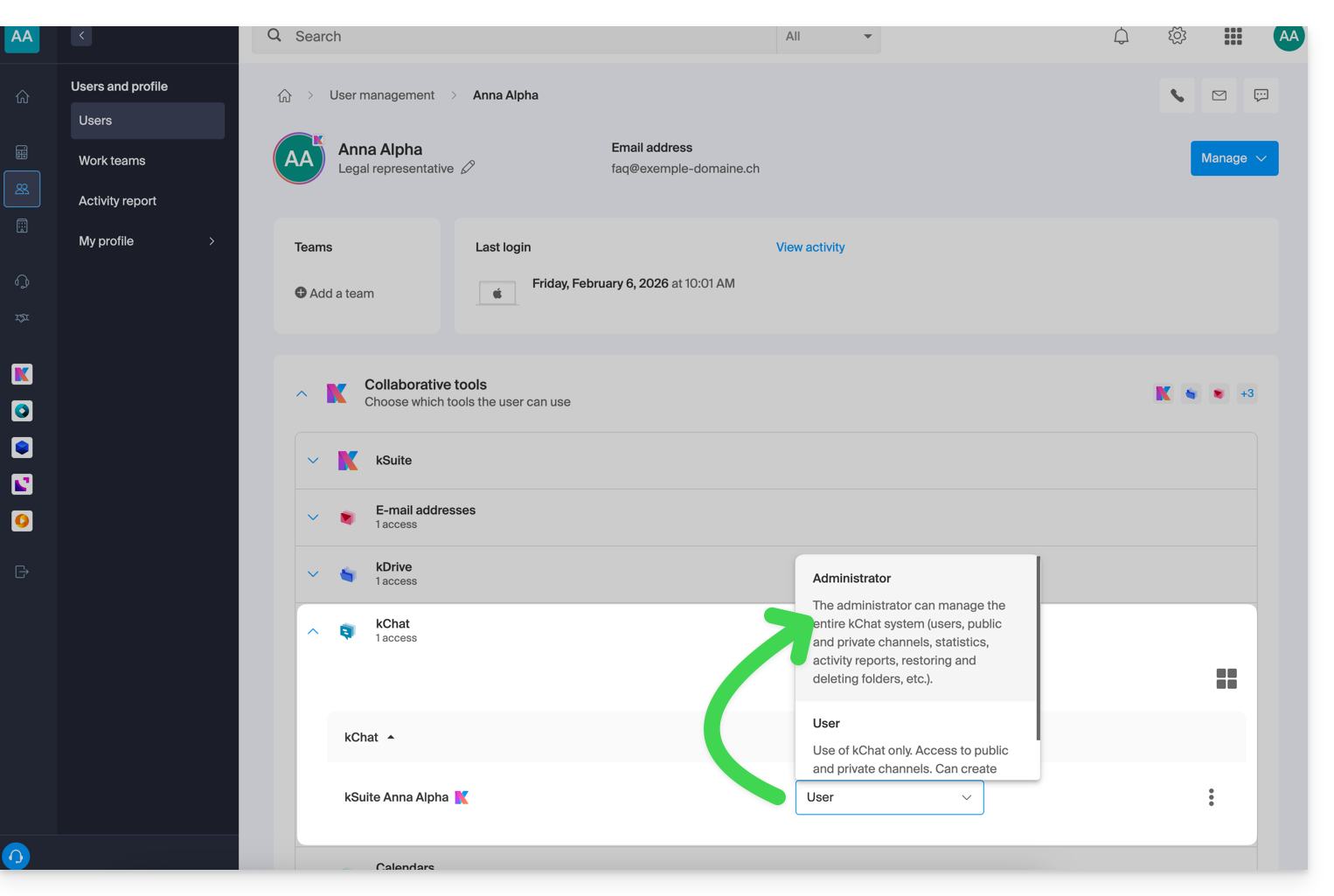
- No kChat, altere o papel de utilizador para administrador:
Link para esta FAQ: https://faq.infomaniak.com/2846
Esta seção de perguntas frequentes foi útil?