Base de conhecimento
1000 perguntas frequentes, 500 tutoriais e vídeos explicativos. Aqui, você encontra apenas soluções!
Configurar a loja do Site Creator
Este guia explica como personalizar e configurar o módulo de loja online do Site Creator.
Configurar uma loja no Site Creator
Pré-requisitos
- Aceder ao Site Creator:
- Clique aqui para aceder à gestão do seu produto no Manager Infomaniak (precisa de ajuda?).
- Clique diretamente no nome atribuído ao Site Creator em questão.
- Clique no botão Editar o meu site para iniciar o editor:
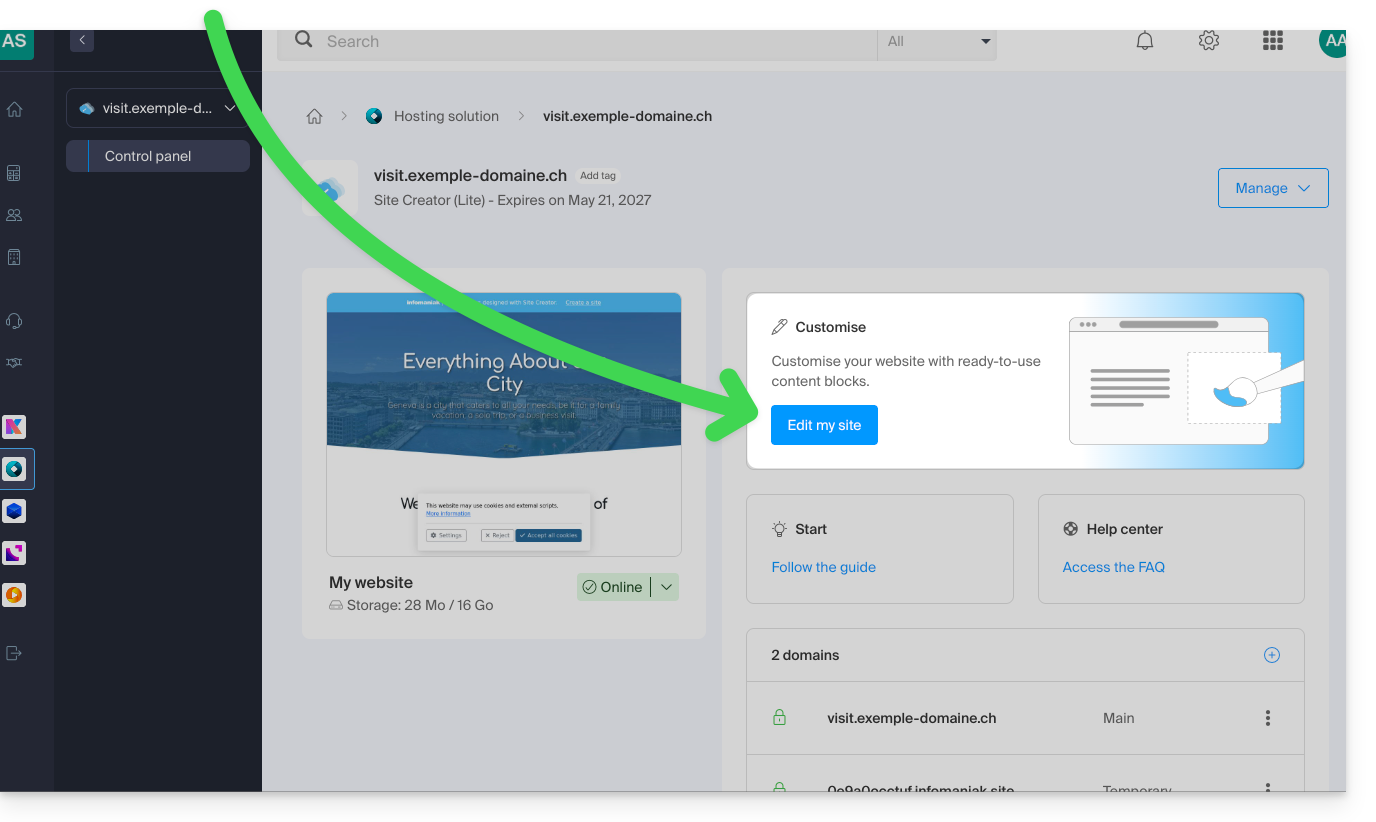
Para gerenciar as configurações gerais do sistema de e-commerce (moeda, impostos, etc.) após adicionar o módulo:
- Passe o mouse sobre o módulo da loja adicionado na sua página.
- Clique em Configuração.
Após acessar Configuração, vários submenus são exibidos no lado esquerdo, permitindo configurar outros parâmetros:
⚠️ Todos os valores inseridos devem estar no formato americano (EUA), com um ponto para os decimais, ou seja, XX.XX
Métodos de pagamento
Stripe e Mollie são fornecedores externos de serviços de pagamento e cobram taxas por cada transação. Essas taxas são independentes dos serviços da Infomaniak. Recomenda-se consultar as políticas de preços de cada um desses fornecedores para obter mais informações sobre as taxas aplicáveis.
Para utilizar os serviços da Stripe e da Mollie, é necessário ter um número de SIRET na França ou um IDE na Suíça. Além disso, é preciso ter uma empresa válida registrada no registro comercial do seu país para poder utilizar os serviços da Stripe e da Mollie.
Métodos de entrega
Pode criar vários métodos de envio:
Estas opções serão apresentadas durante a validação do carrinho de compras do cliente:
Entre os parâmetros para criar um método de envio:
- preços (+ a partir de qual valor o envio é gratuito)
- países permitidos
- custos de envio de acordo com o peso
- prazos de envio

Correio Eletrónico
Quatro mensagens estão predefinidas e não podem ser eliminadas. Elas permitem abranger toda a comunicação por e-mail relacionada com um pedido, tanto para o cliente quanto para o gestor da loja.
É possível personalizar as mensagens existentes e adicionar novas (e, posteriormente, remover essas mensagens adicionais, se necessário):
- Escolher o momento em que o e-mail deve ser enviado (ou simplesmente desativar a mensagem para mantê-la sem utilizá-la):
- e-mail de novo pedido (para notificá-lo)
- e-mail de pedido processado (personalizável)
- comprovante de entrega em formato PDF (personalizável)
- fatura também gerada e disponível em formato PDF na sua conta Stripe/Paypal/Mollie
- É possível inserir variáveis em cada um dos campos, a fim de personalizar ao máximo os textos, utilizando os elementos contidos no comando e as informações fornecidas pelo comprador:
Página inicial da loja
- Exibição das categorias de produtos, caso existam
- Apresentação de produtos aleatórios
- etc.
Gestão de produtos
Para gerenciar os produtos, adicionar ou remover:
- Passe o mouse sobre o módulo no canto superior esquerdo.
- Clique em Produtos.
Encontre os 3 primeiros produtos de exemplo:
Reorganize seus produtos movendo-os com o mouse.
Clique em um produto para ajustar seus detalhes, bem como a categoria em que ele deve estar (veja mais informações abaixo). Você pode, por exemplo:
- criar atributos (cor, por exemplo) para oferecer o mesmo produto em várias versões/preços
- definir se o produto deve ser digital (virtual), por exemplo, um PDF, um ZIP ou um MP3, e, portanto, baixável após a compra
Na parte inferior da edição da sua ficha de produto, procure outros produtos da sua lista para os vincular e oferecê-los ao visitante.
Na parte inferior da janela de edição de um produto, escolha ocultar o produto aos seus visitantes, se necessário.
Para finalizar e retornar à lista de produtos, salve as alterações usando o botão localizado na parte inferior.
Excluir ou duplicar um produto
Na página de edição de um produto, clique no menu de ações, na parte inferior, ao lado do botão de salvamento, para escolher se deseja excluir ou duplicar o produto.
Gestão de estoque / inventário
Neste mesmo menu de ações, gerencie o estoque diretamente na lista de seus produtos (para editar o estoque em massa).
Mas cada ficha de produto permite editar o estoque e também inserir o SKU (unidade de gestão de estoque) e seu código de barras (ISBN).
Categorias de produtos
Os seus produtos podem ser organizados em Categorias e subcategorias, que serão exibidas de acordo com o design do seu site.
Clique no submenu Categorias, à esquerda do painel de administração da loja, em Produtos.
Defina uma imagem para ilustrar sua categoria.
Oculte, se necessário, uma categoria (isso não oculta os produtos que ela contém).
Código promocional
Um código promocional permite aplicar um desconto (em % ou em moeda) a um pedido.
Clique no submenu Código promocional, no lado esquerdo do painel de administração da loja, em Produtos.
Pode especificar:
- a sua data de validade
- o seu valor mínimo, se aplicável
- o seu nome ("Desconto especial de Natal", por exemplo)
- sua forma ("JOYEUXNOEL")
Exportar a lista dos seus produtos
Exporte a lista dos seus produtos para um arquivo CSV (formato .csv) através do menu de ações localizado no canto superior direito da lista dos seus produtos.
Gestão de pedidos
Para gerir os pedidos efetuados e em curso:
- Passe o cursor sobre o módulo no canto superior esquerdo.
- Clique em Configuração.
- Clique no submenu Pedidos, no lado esquerdo do painel de administração da loja.
Exportar a lista dos seus pedidos
Exporte a lista dos seus pedidos para um ficheiro CSV (formato .csv) através do botão Descarregar, localizado à direita da barra de pesquisa de pedidos.
Gestão de clientes
Para gerenciar os clientes (um cliente fornece informações pessoais ao fazer um pedido):
- Passe o mouse sobre o módulo no canto superior esquerdo.
- Clique em Configuração.
- Clique no submenu Clientes, no lado esquerdo do painel de administração da loja.
Exportar a lista dos seus clientes
Exporte a lista dos seus clientes para um arquivo CSV (formato .csv) usando o botão Download, localizado à direita da barra de pesquisa de clientes.
Link para esta FAQ: https://faq.infomaniak.com/2842
Esta seção de perguntas frequentes foi útil?