Base de conhecimento
1000 perguntas frequentes, 500 tutoriais e vídeos explicativos. Aqui, você encontra apenas soluções!
Inserir mídia em uma página do Site Creator
Este guia detalha o uso de mídia no Site Creator da Infomaniak.
Note que também é possível inserir outros elementos, como por exemplo um formulário de inscrição na newsletter Infomaniak.
Adicionar uma imagem
Comece por iniciar sessão no Painel de Controle Infomaniak com o seu identificador (utilizador com os direitos necessários sobre o produto em questão):
- Clique aqui para aceder à gestão de alojamentos e sites (filtrada para mostrar apenas o Site Creator).
- Se nada for exibido, pode ser que não esteja na Organização à qual o seu site está associado (❓: ajuda).
- Clique em o nome do Site Creator em questão:
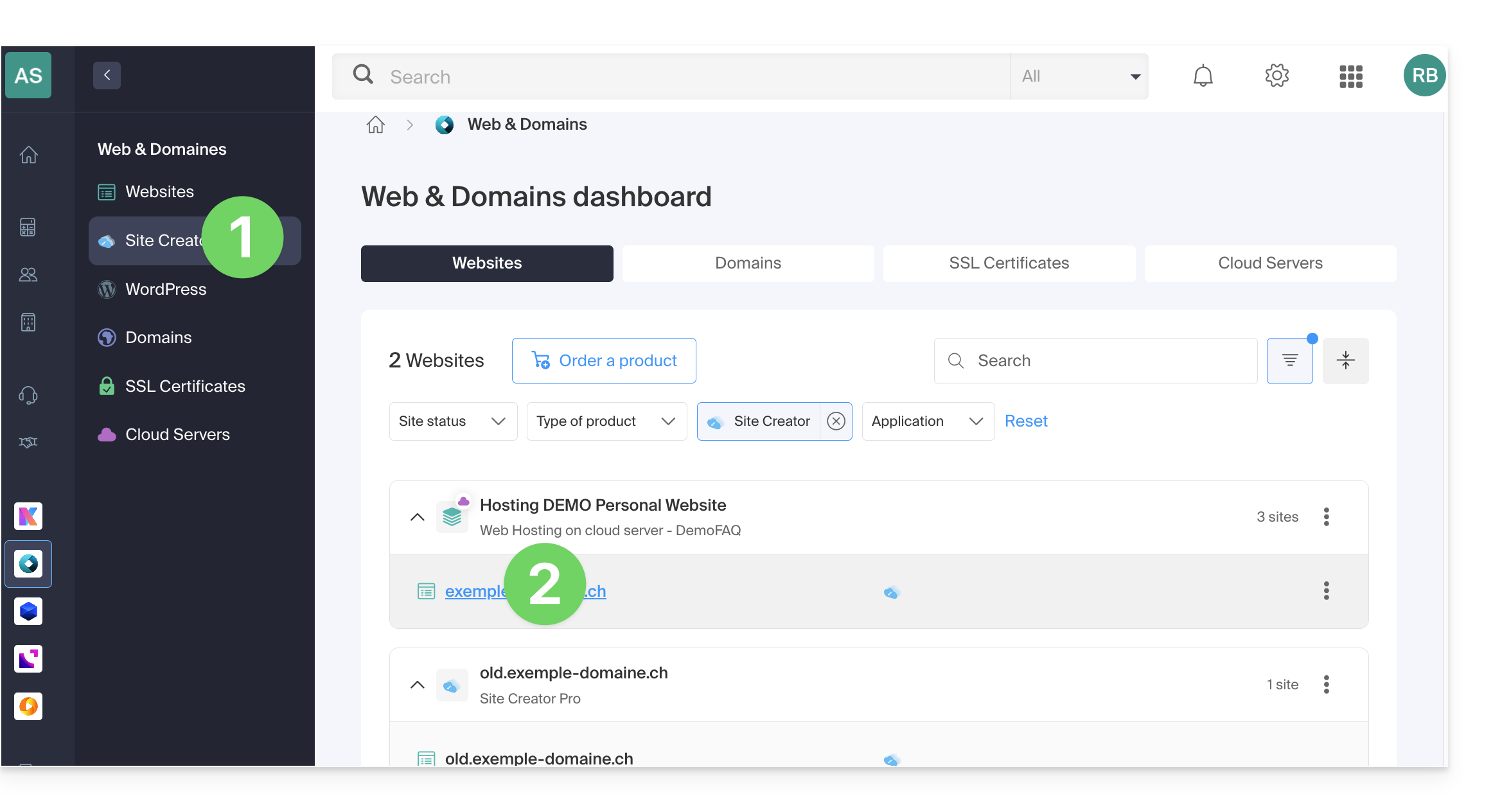
- Clique no botão para editar o seu site:
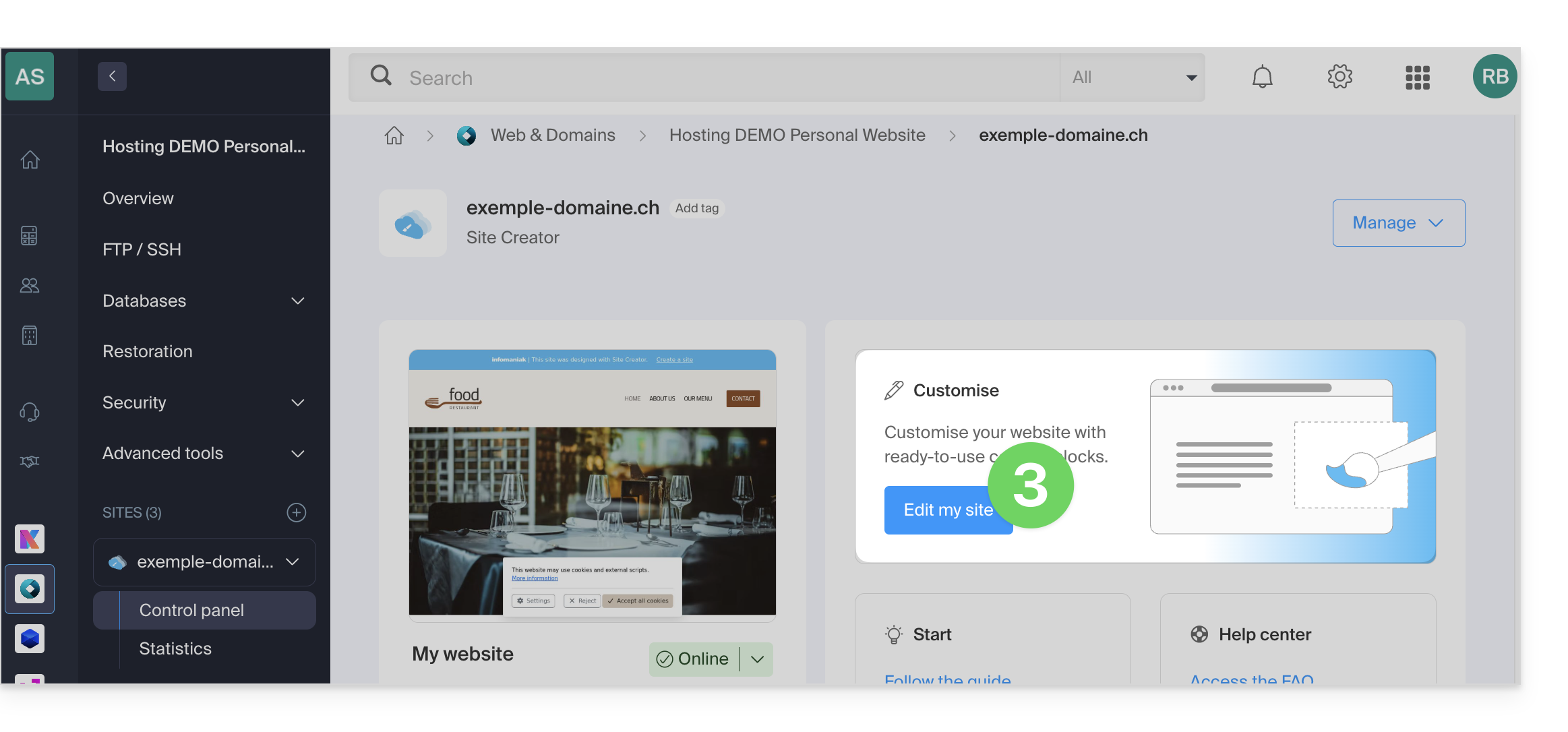
Dentro do Site Creator, os arquivos de mídia são gerenciados na biblioteca de arquivos:
- Adicione um novo bloco de conteúdo:
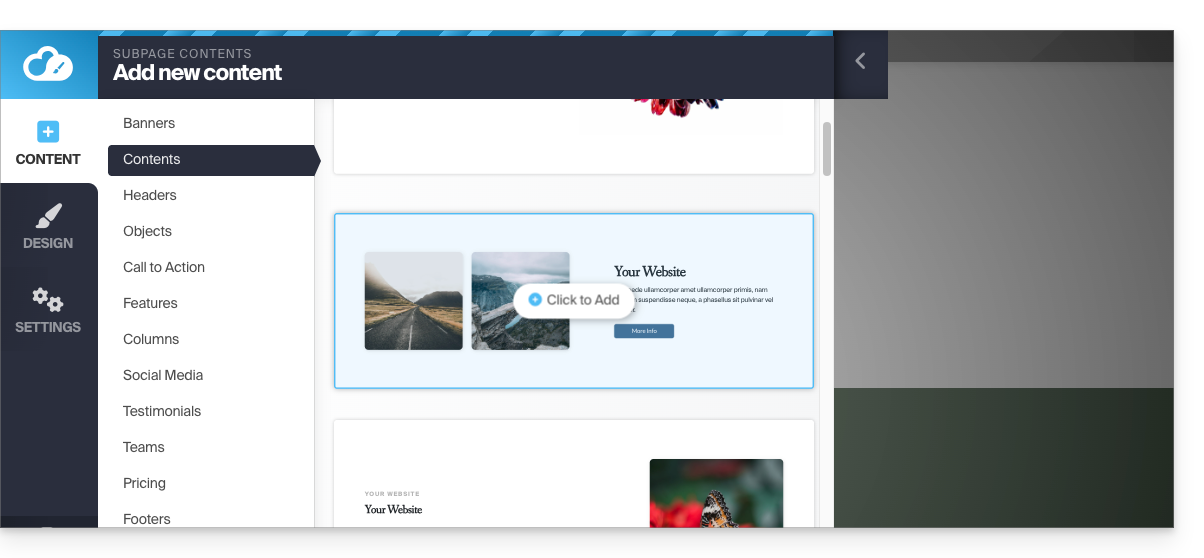
- Os arquivos multimídia podem ser substituídos ou complementados:
Além disso:
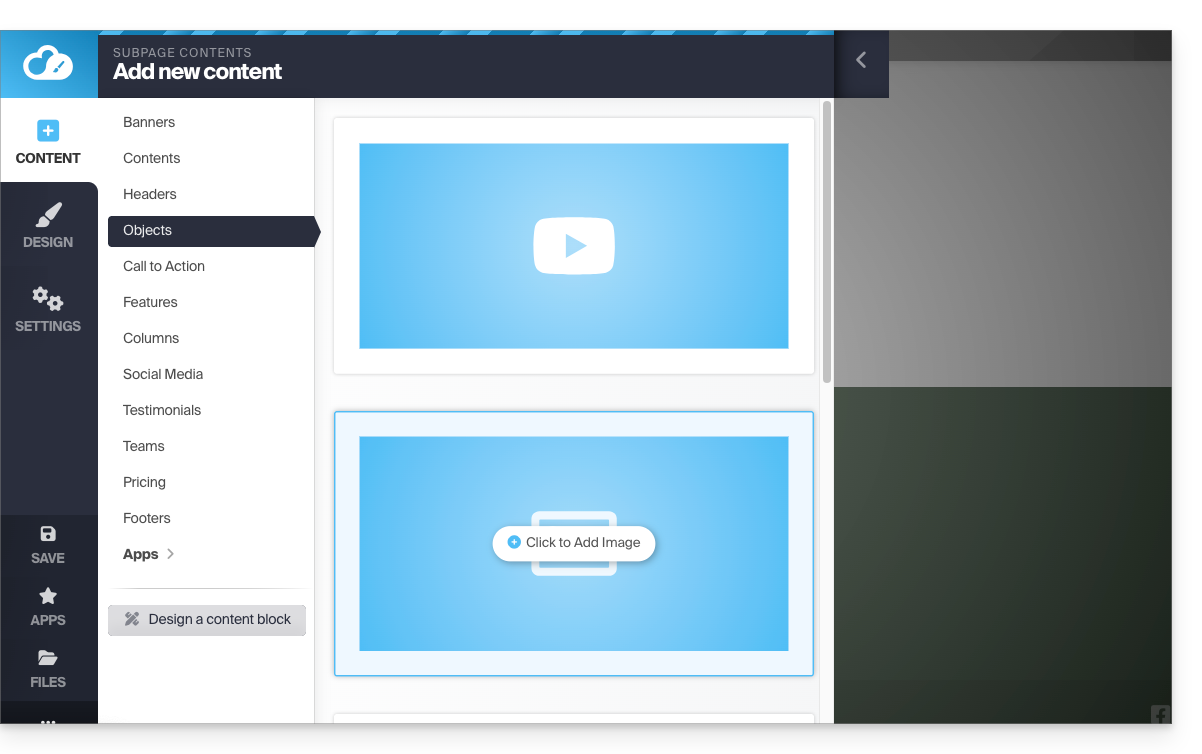
- Clique no botão Conteúdo no menu lateral esquerdo.
- Clique em Objetos na lista para inserir uma imagem.
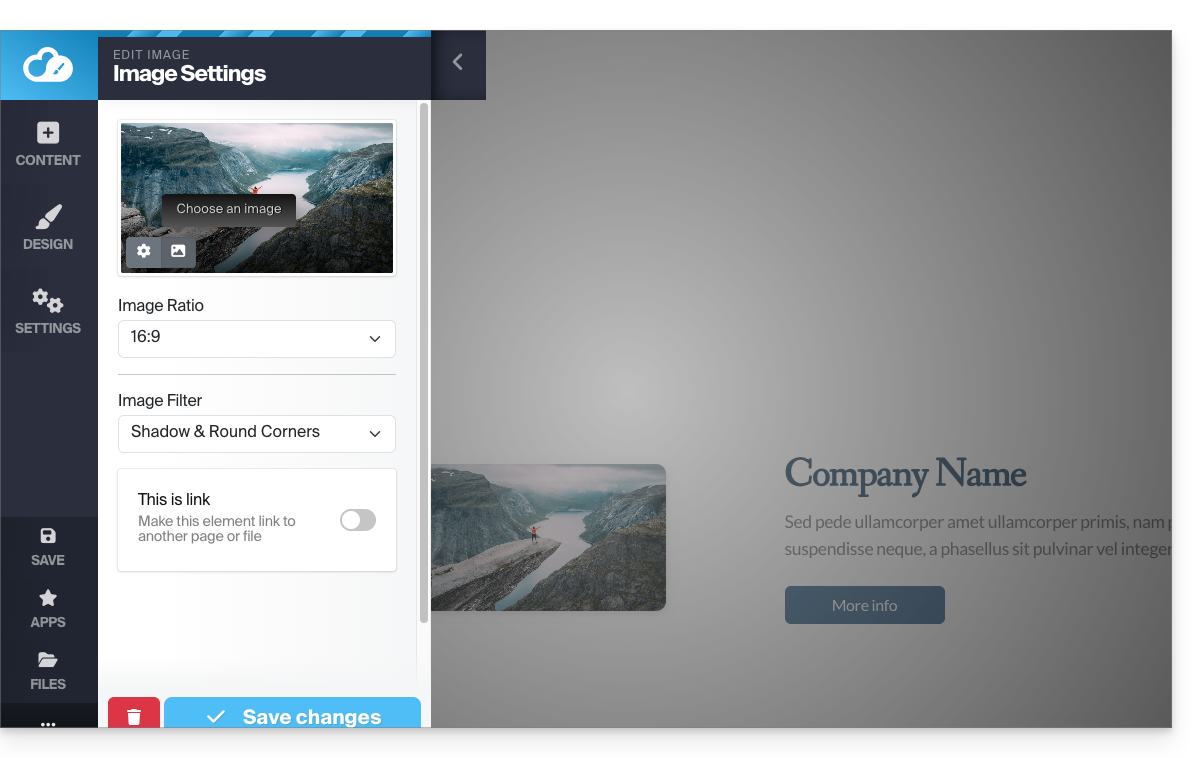
- Clique no bloco IMAGEM à direita:
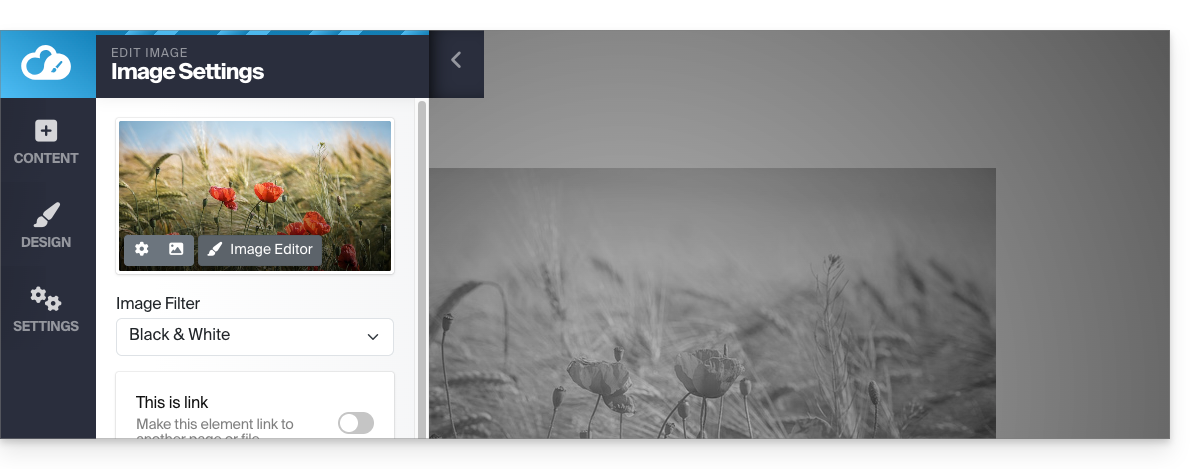
- Depois de adicionar a imagem, você também pode transformá-la em um link clicável ou modificar seu tamanho no editor de imagem:
Você também pode adicionar imagens como um módulo de Galeria de fotos.
Alterar imagem
Para substituir uma imagem inserida, que manterá as características da imagem anterior:
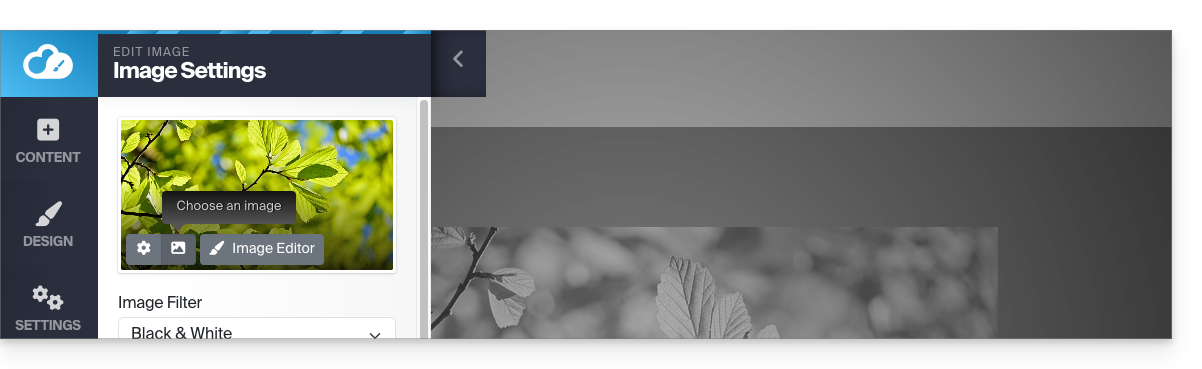
- Clique em uma imagem para editá-la.
- Clique no botão do tipo Moldura de foto na miniatura da imagem para poder selecionar uma nova imagem que substituirá a anterior:
Adicionar um vídeo
Para adicionar um vídeo:
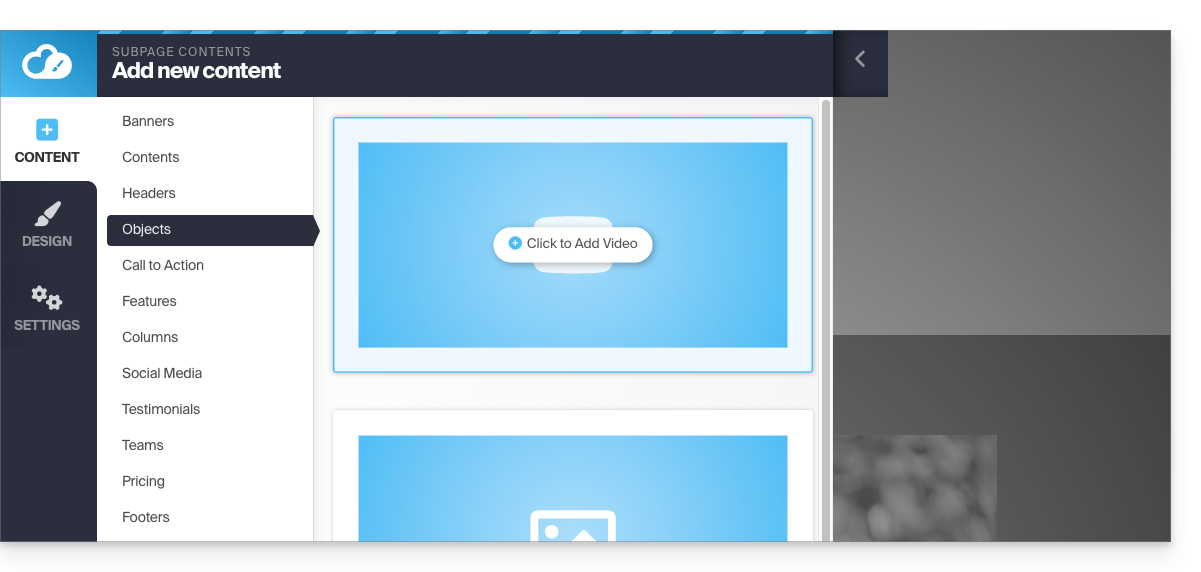
- Clique no botão Conteúdo no menu lateral esquerdo.
- Clique em Objetos na lista.
- Clique no bloco VÍDEO à direita para inserir um vídeo em tela cheia:
Você também pode aplicar um link a uma imagem usando um vídeo do YouTube como URL: isso criará automaticamente um ícone do tipo PLAY que, ao ser clicado, abrirá o vídeo em uma janela do tipo lightbox.
Adicionar um arquivo de áudio
Para adicionar um arquivo de áudio:
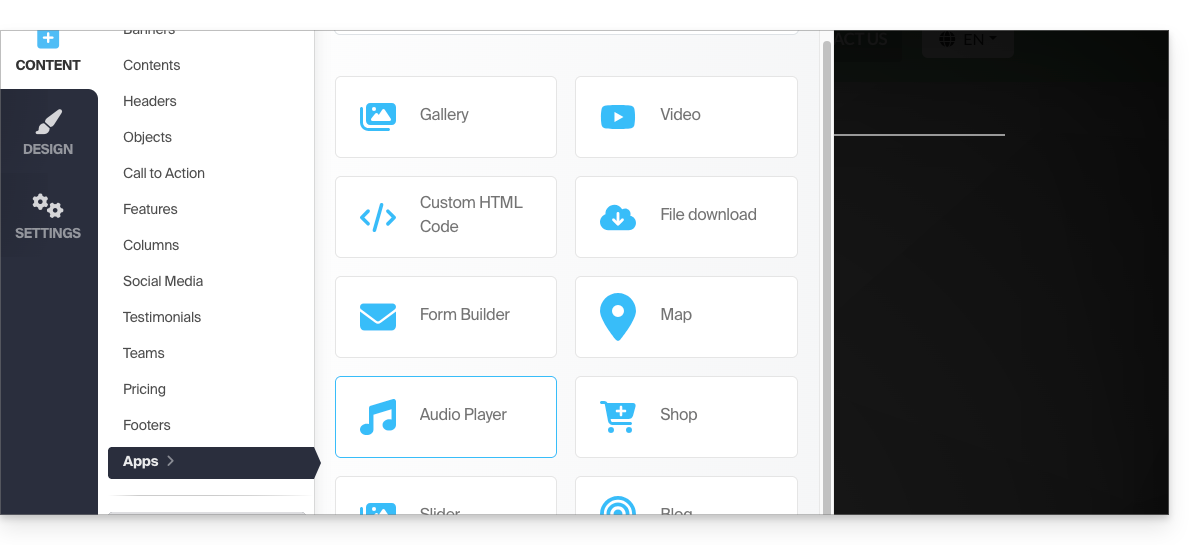
- Clique no botão Conteúdo no menu lateral esquerdo.
- Clique em Aplicações na parte inferior.
- O conteúdo disponível é exibido à direita.
- Clique no reprodutor de áudio para inseri-lo na página e escolher os arquivos:
Você pode personalizá-lo de forma avançada através da edição HTML.
Adicionar um arquivo para download
Para disponibilizar facilmente um arquivo para download:
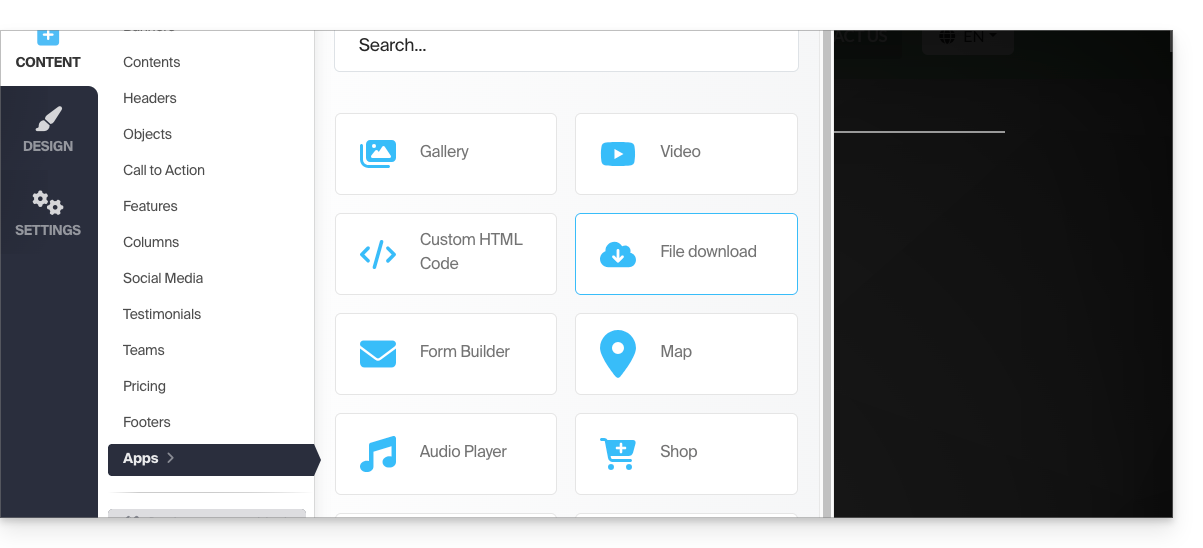
- Clique no botão Conteúdo no menu lateral esquerdo.
- Clique em Aplicações na parte inferior.
- O conteúdo disponível é exibido à direita.
- Clique no widget Download de arquivo para inseri-lo na página:
- Selecione na biblioteca o arquivo que poderá ser baixado pelos seus visitantes.
Link para esta FAQ: https://faq.infomaniak.com/2729
Esta seção de perguntas frequentes foi útil?