Base de conhecimento
1000 perguntas frequentes, 500 tutoriais e vídeos explicativos. Aqui, você encontra apenas soluções!
Salvar as alterações no modo rascunho no Site Creator
Este guia explica como evitar publicar diretamente as modificações em uma página do Site Creator Infomaniak.
Introdução
- O modo de rascunho permite não publicar as seguintes modificações:
- adição de um novo bloco de conteúdo através do menu Conteúdo
- modificações visuais ou textuais de um bloco de conteúdo
- remoção de um bloco de conteúdo
- O modo de rascunho não se aplica a:
- alterações globais de design, através do menu Design (cores, fontes…)
- modificações de conteúdos relacionados com aplicações (perguntas/respostas, comércio eletrónico…)
- modificações das configurações globais, através do menu Configurações (páginas, idiomas…)
- subpáginas da página que está a despublicar
1. Fazer backup sem publicar
Comece por iniciar sessão no Painel de controlo Infomaniak com a sua conta (utilizador com os direitos necessários sobre o produto em questão):
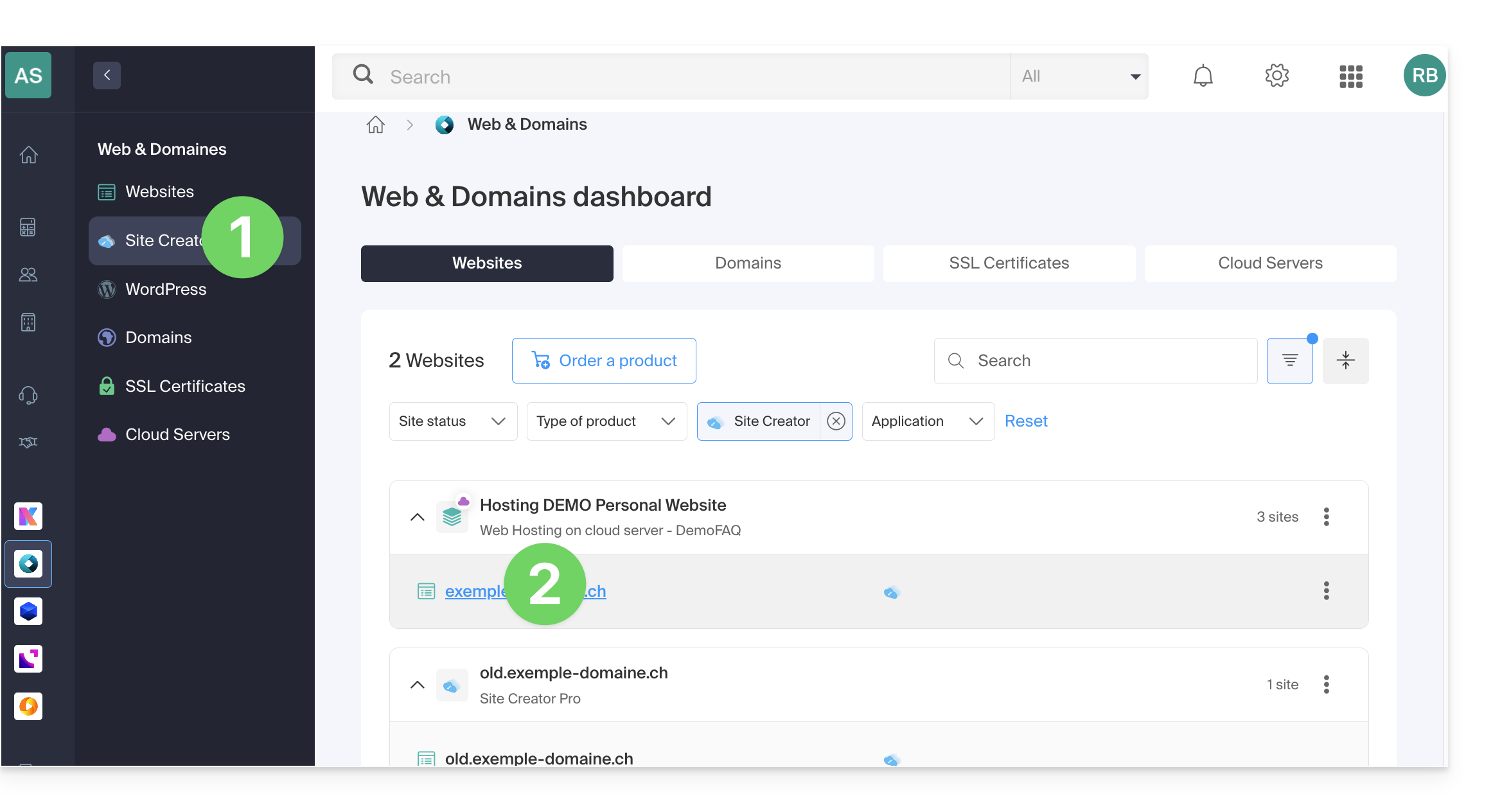
- Clique aqui para acessar o gerenciamento de hospedagens e sites (filtrado para exibir apenas o Site Creator).
- Se nada for exibido, você pode não estar na Organização à qual seu site está vinculado (❓: ajuda).
- Clique no nome do Site Creator desejado:
- Clique no botão para editar o seu site:
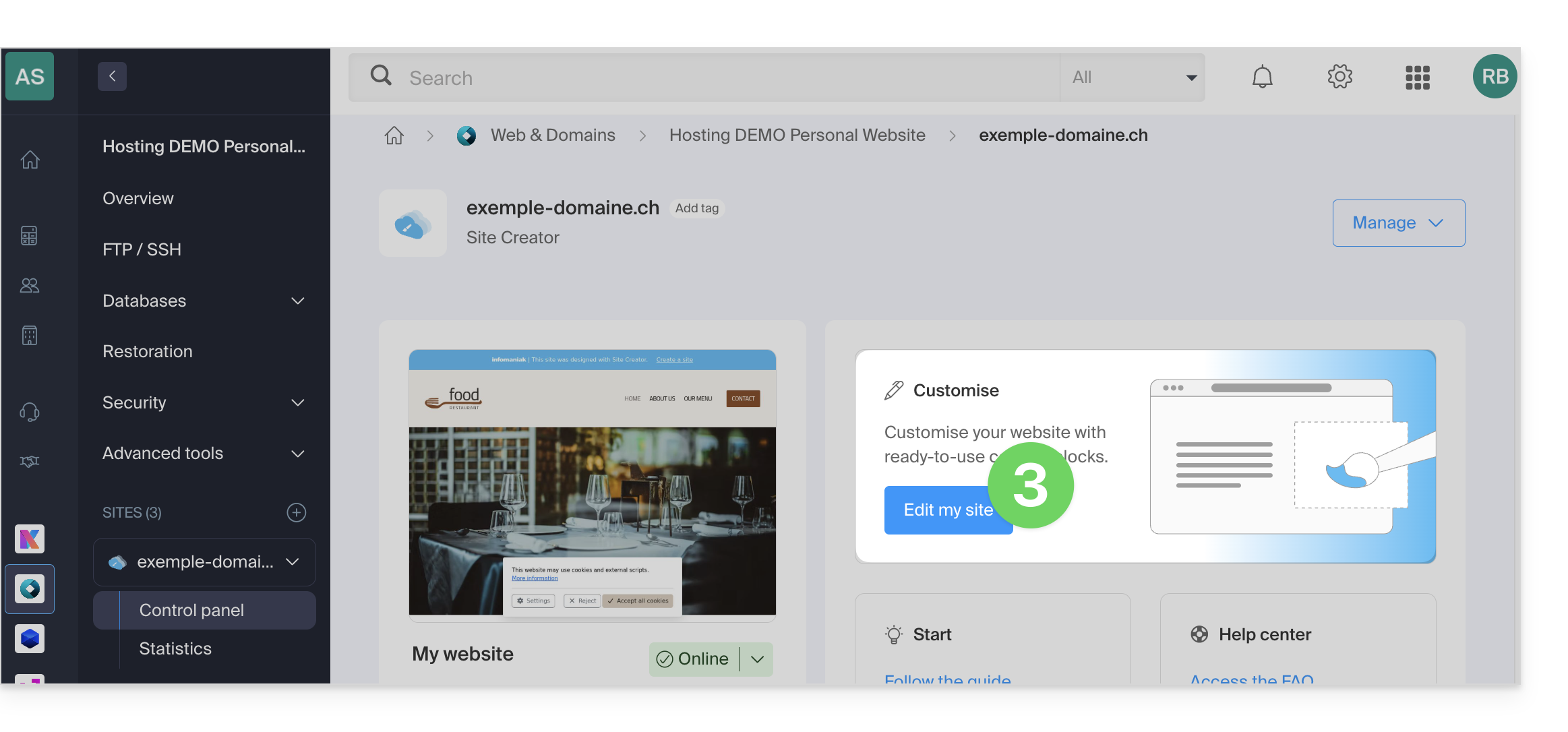
Depois de entrar no Site Creator, pode colocar uma página no modo rascunho para fazer alterações no texto ou em outros conteúdos de uma página, que não serão visíveis em tempo real, até que decida voltar a colocar o site no modo de publicação:
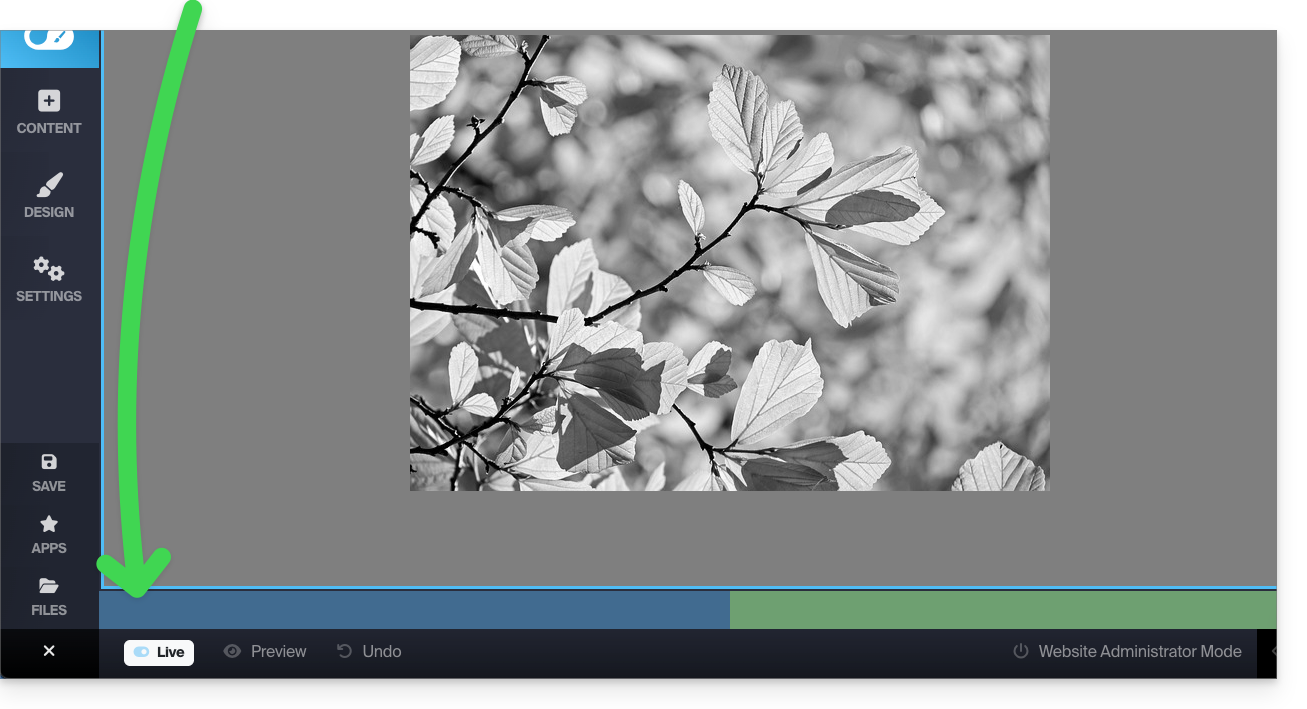
- Clique no botão ... localizado na parte inferior do menu lateral esquerdo para expandir as opções de publicação e visualização.
- Clique em Ao Vivo para alternar para o modo Não Publicado:
- Agora, o modo amarelo exibido na parte inferior indica que todas as suas modificações (apenas nesta página) não serão exibidas em tempo real (ao contrário do modo Em tempo real / Live), pois não serão publicadas automaticamente:

- As modificações serão salvas em um rascunho, mesmo que você saia da página ou do editor…
- No modo rascunho, você pode trabalhar na página, adicionar texto, salvá-lo, sair, voltar para continuar editando, e esse trabalho não será publicado até que você decida explicitamente (veja mais abaixo):
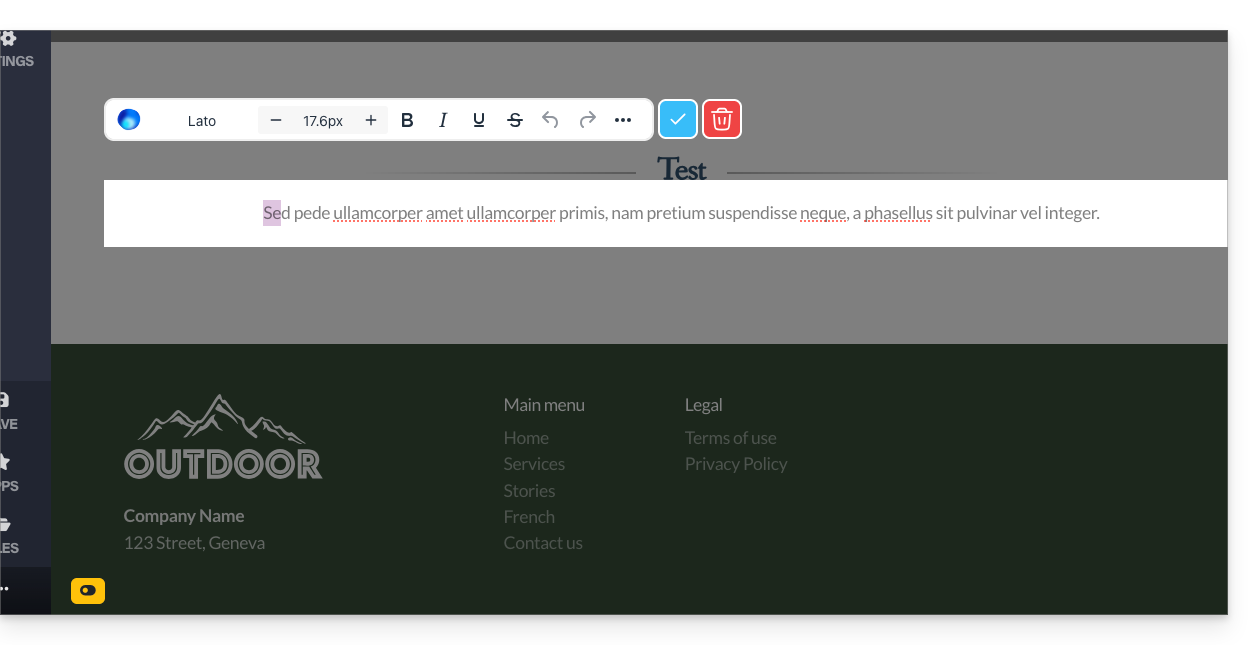
- Dependendo das modificações feitas (adição de um bloco de conteúdo, por exemplo), lembre-se de editar o texto para validar suas alterações e salvá-las.
- Para verificar e confirmar que suas modificações em andamento não estão sendo publicadas gradualmente, basta acessar o endereço do seu site a partir de outra página do navegador, no modo anônimo, por exemplo.
2. Publicar as alterações ou eliminar o rascunho
Pode sair do modo Rascunho para voltar a publicar instantaneamente:
- Quando o modo Não publicado estiver ativo, clique no botão amarelo do modo Não publicado para exibir um painel de configurações:
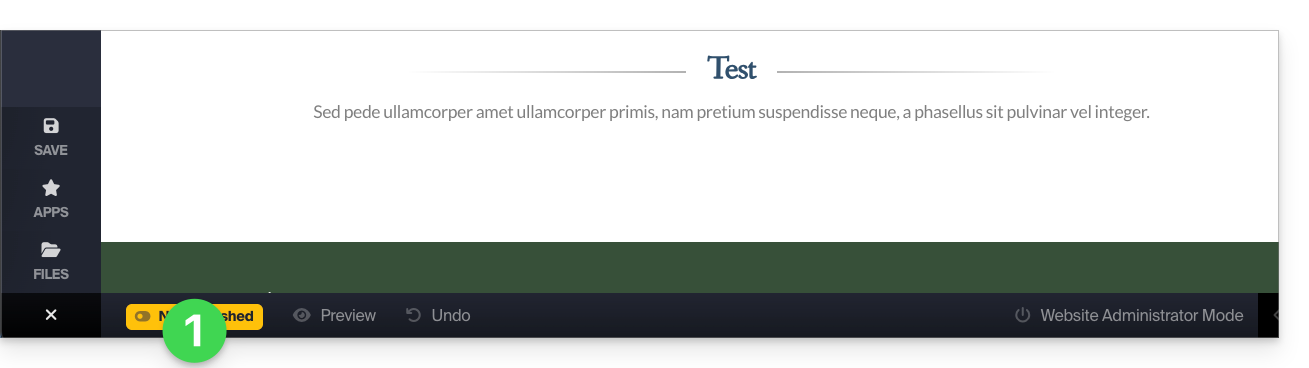
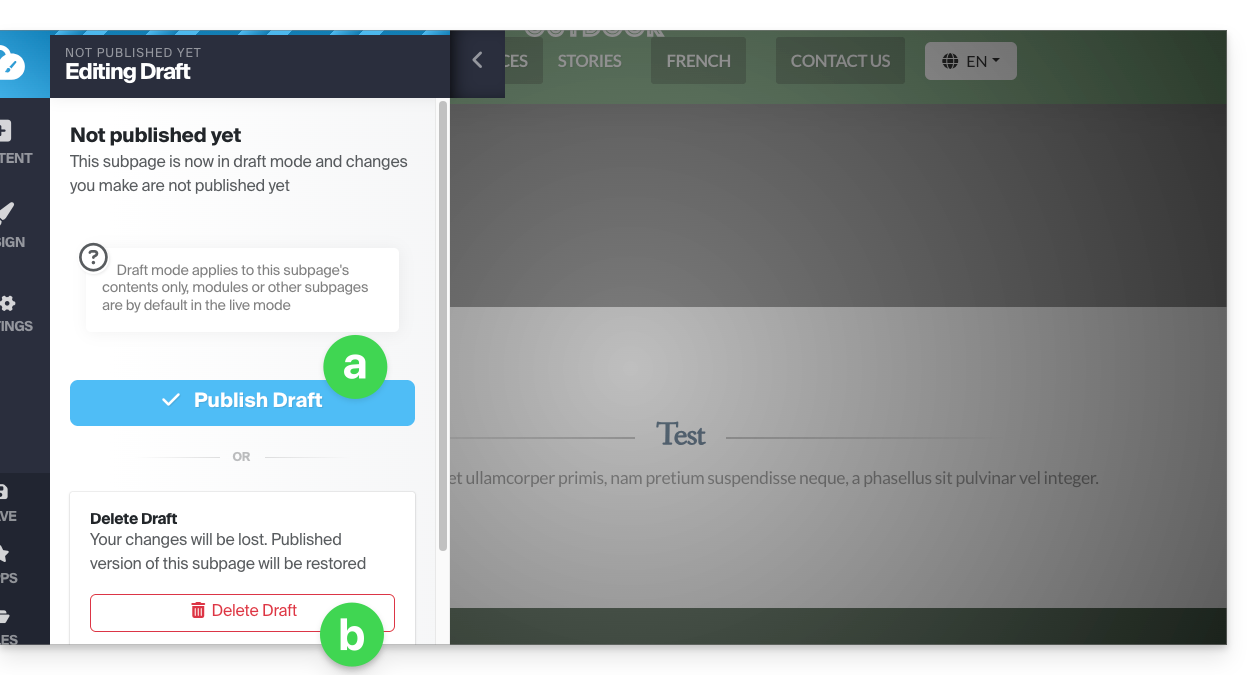
- O painel de configurações é aberto para que você possa:
- publicar suas alterações,
- ou excluir o rascunho atual e retornar ao estado inicial da página:
Exemplo
- Com o modo Em direto (visível na parte inferior do ecrã), uma modificação é visível imediatamente pelos visitantes da página.
- Com o modo Não publicado / rascunho (identificável por um símbolo amarelo na parte inferior das páginas que estão neste modo), suas modificações não são visíveis em tempo real.
- Saia da página para trabalhar em outra página; o modo retorna ao modo padrão, ou seja, o modo Em tempo real, pois a página não é a mesma e o modo se aplica apenas às páginas selecionadas.
- Volte à página que estava em rascunho; um símbolo na parte inferior indica que o modo rascunho está ativado.
- Clique nele para escolher se deseja publicar ou descartar as alterações e restaurar a página ao estado anterior às suas modificações no modo rascunho.
Link para esta FAQ: https://faq.infomaniak.com/2728
Esta seção de perguntas frequentes foi útil?