Base de conhecimento
1000 perguntas frequentes, 500 tutoriais e vídeos explicativos. Aqui, você encontra apenas soluções!
Usar um aplicativo adicional do Site Creator
Este guia aborda as “Aplicações” (ou “módulos”, “extensões”) disponíveis no Site Creator Infomaniak dependendo da versão que você possui, para criar um site institucional, um blog ou uma loja online 100% personalizável, sem nenhum conhecimento técnico.
Diferentes Aplicações
Além dos blocos de conteúdo que oferecem diferentes layouts pré-definidos, você também pode inserir blocos na forma de módulos, cada um com uma função específica:
- Vídeo
- Leitor de áudio
- Carrossel de imagens / apresentação de slides
- Download de arquivo
- Localização no mapa
- Enquete
- Base de conhecimento
- Perguntas e respostas
- Calendário
- Calendly
- Menu de subpáginas
- Mapa do site
- Adicionar ao Google
- Código HTML personalizado
- Formulário de contato
- Blog
- Loja
- Leitor de feeds RSS
- Menu de restaurante
- Google Analytics
Inserir um módulo numa página
Para inserir um módulo:
- Clique aqui para acessar a gestão do seu produto no Manager Infomaniak (precisa de ajuda?).
- Clique diretamente no nome atribuído ao Site Creator em questão.
- Clique no botão Editar meu site para iniciar o editor:
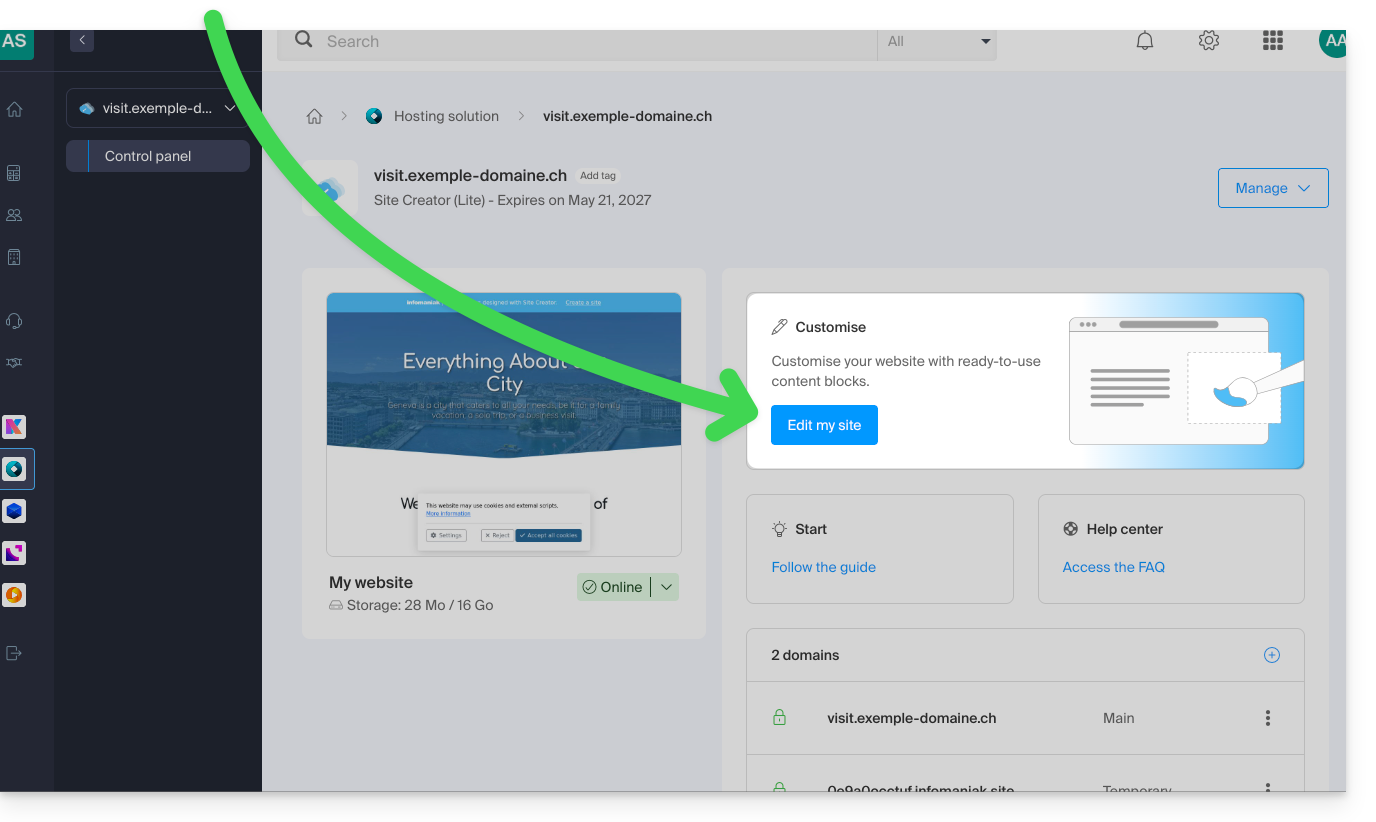
Depois de acessar o Site Creator:
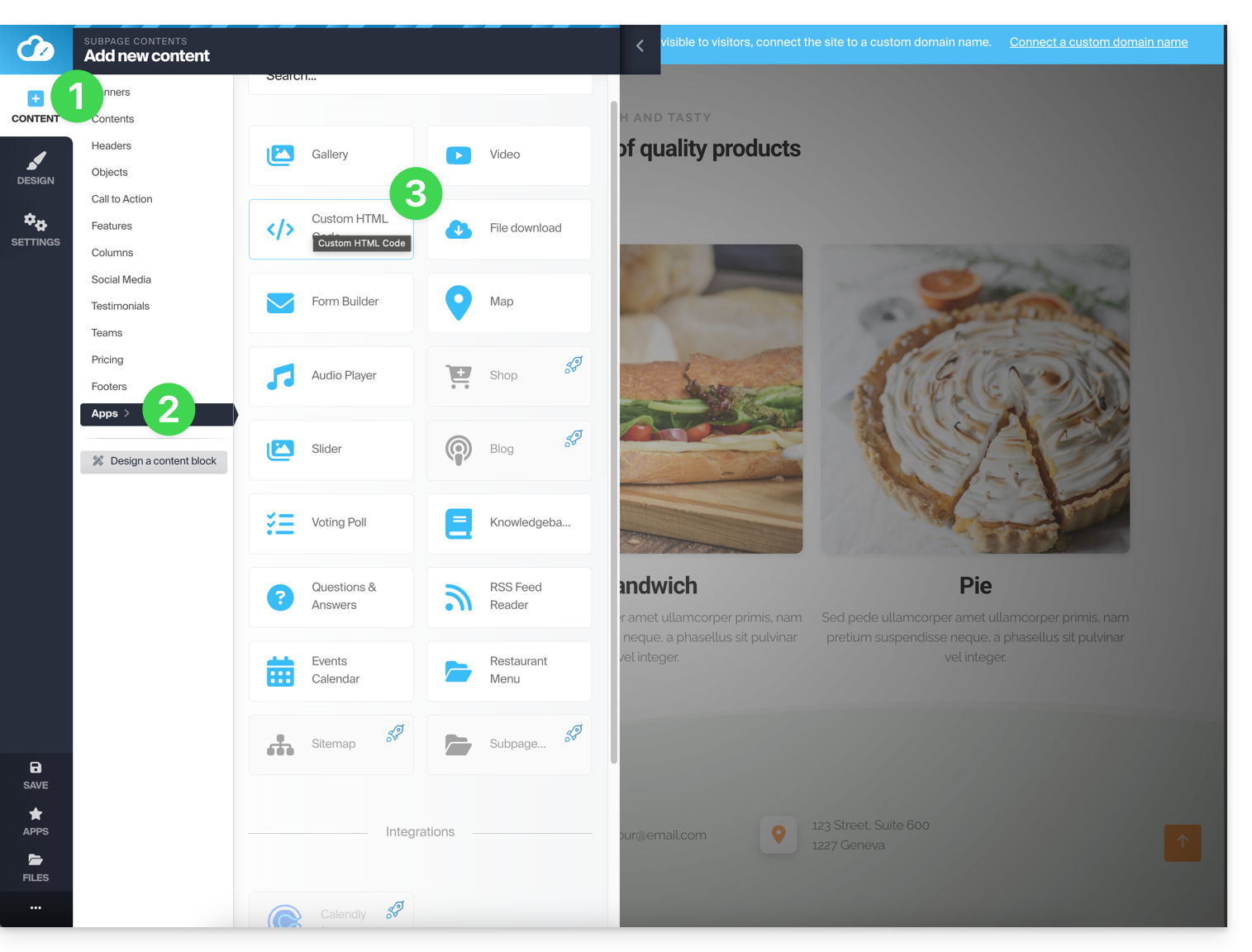
- Clique no botão Conteúdo no menu lateral esquerdo.
- Clique em Aplicações na parte inferior e o conteúdo disponível será exibido à direita.
- Clique em uma dessas aplicações para inseri-la na página:
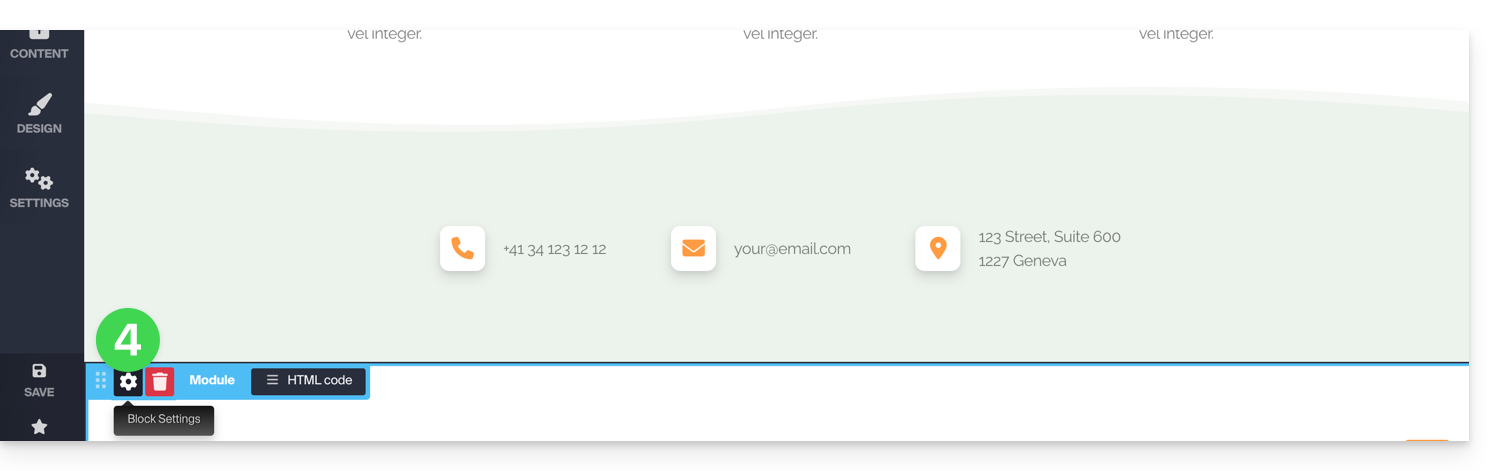
- Depois de inserido, passe o cursor sobre o módulo (ou sobre o próprio bloco, dependendo do módulo) para aceder às suas definições:
Módulo múltiplo ou módulo desaparecido
Se você excluir um dos seus módulos (como o módulo para criar uma pesquisa) já configurado e quiser reverter, clique em Cancelar imediatamente:
ou
Você também pode reinserir o módulo, que deverá retornar com as configurações anteriores.
Não é possível inserir vários módulos do mesmo tipo para personalizá-los de forma independente.
Outras integrações e widgets
Clique no botão APLICAÇÕES na barra lateral esquerda do Site Creator:
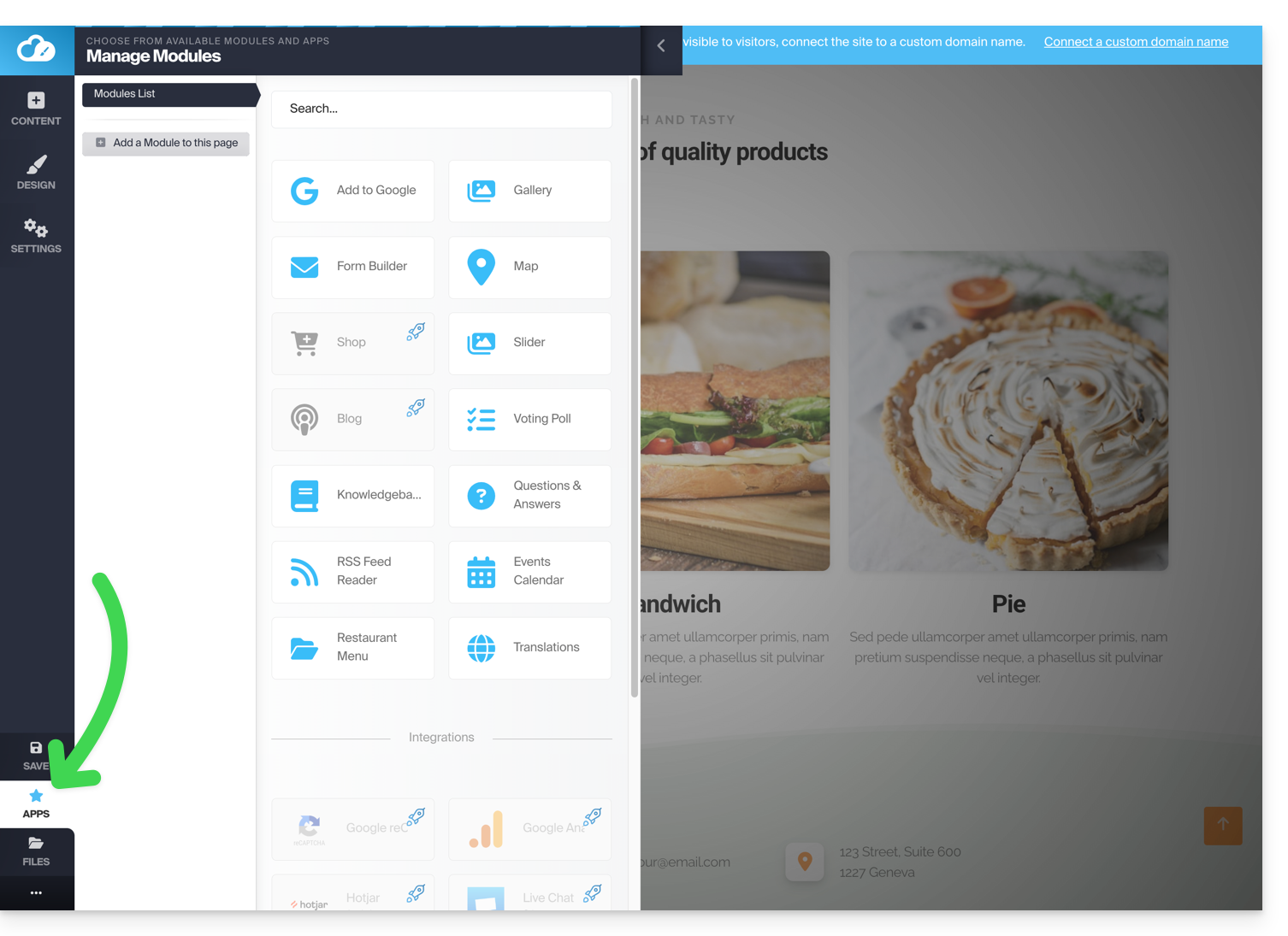
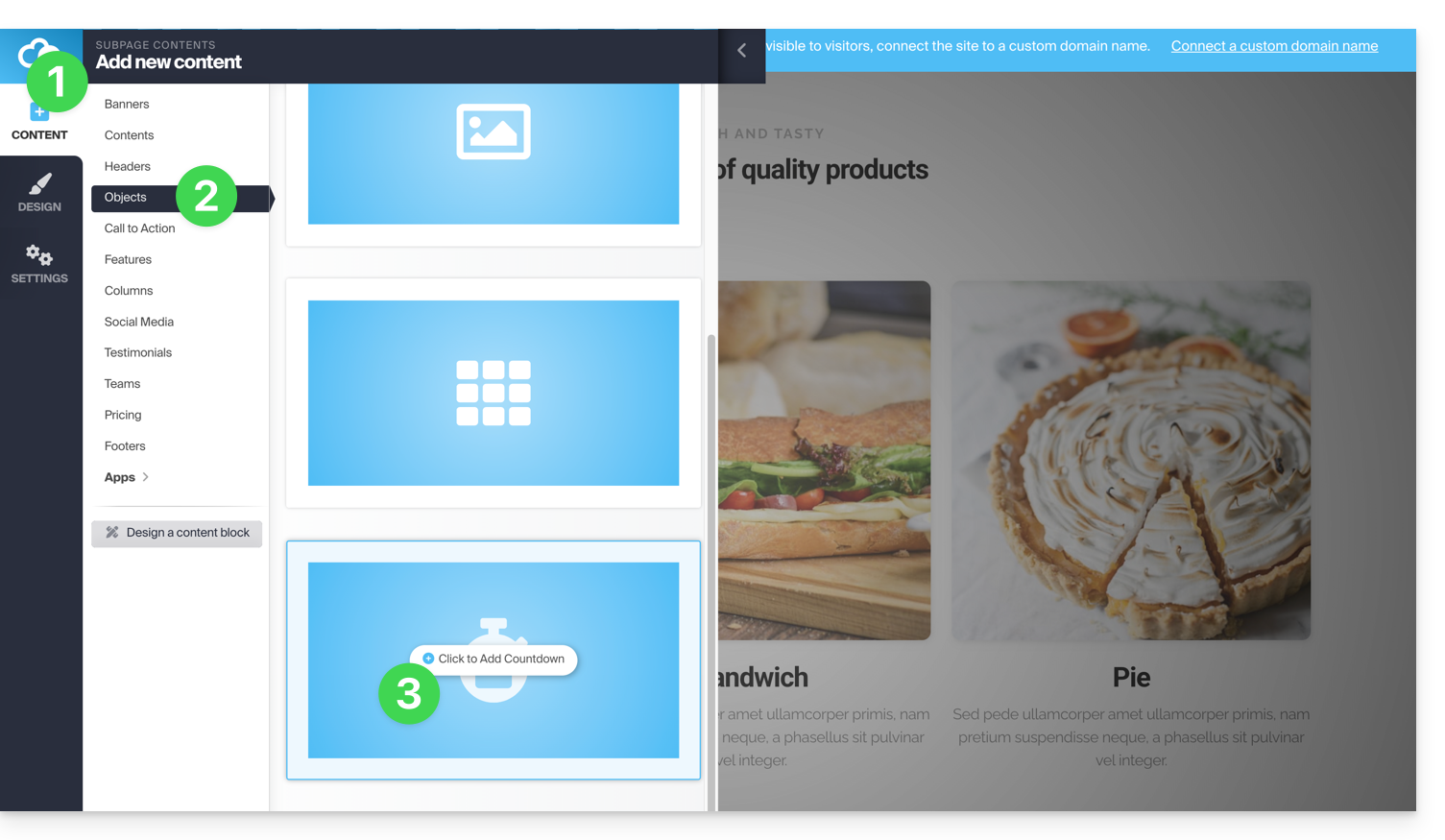
Para adicionar um contador que permita exibir uma contagem regressiva:
- No menu lateral esquerdo, clique no botão Conteúdo.
- Clique em Objetos na lista e o conteúdo disponível será exibido à direita.
- Clique em um desses objetos para inseri-lo na página:
- Depois de inserido, passe o cursor sobre o módulo para aceder às suas definições:

Link para esta FAQ: https://faq.infomaniak.com/2717
Esta seção de perguntas frequentes foi útil?