Base de conhecimento
1000 perguntas frequentes, 500 tutoriais e vídeos explicativos. Aqui, você encontra apenas soluções!
Editar o código (fonte / CSS) no Site Creator
Este guia explica como personalizar o código fonte, modificar o CSS ou alterar a parte HEAD ou BODY de um site criado com o Site Creator da Infomaniak.
Pré-requisitos
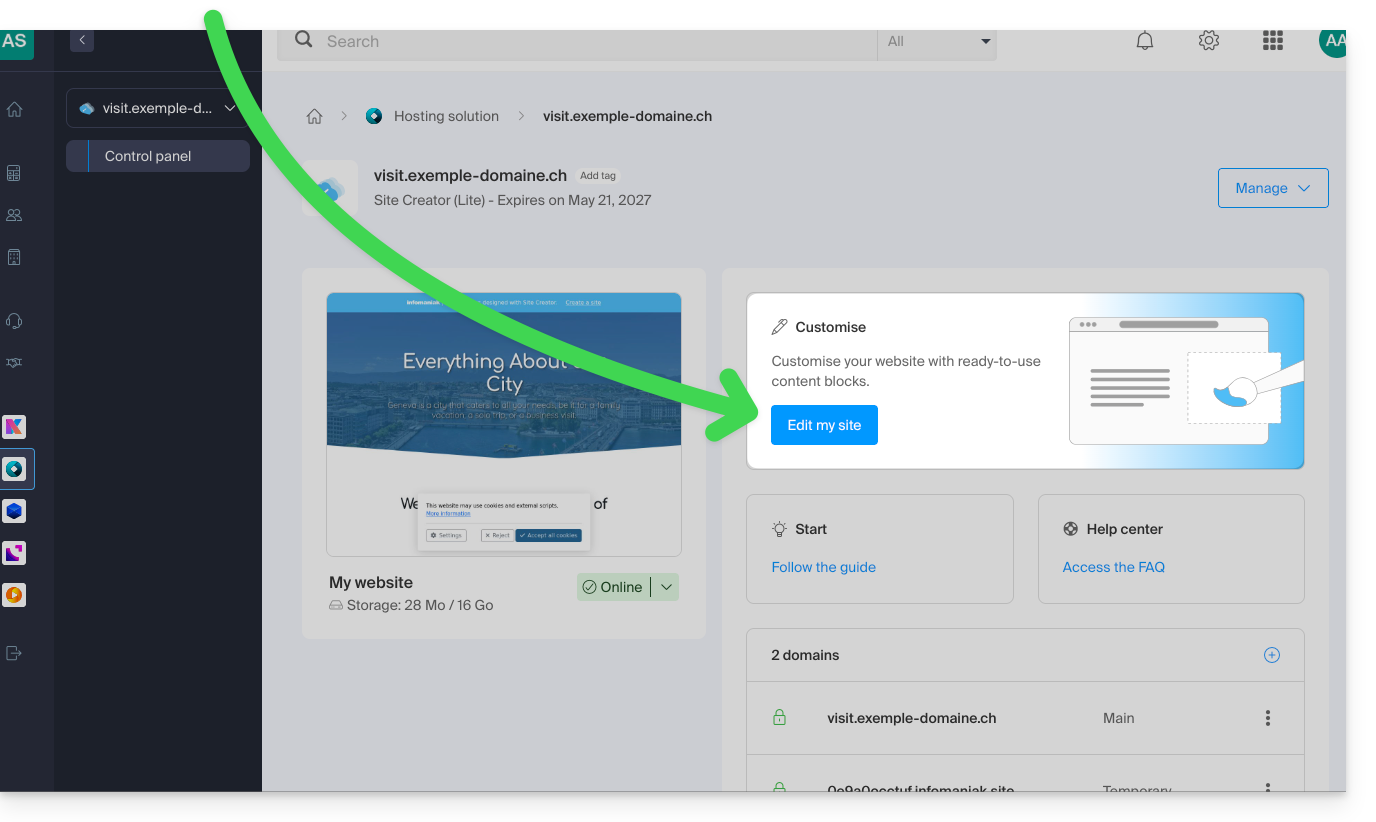
- Aceder ao Site Creator:
- Clique aqui para aceder à gestão do seu produto no Manager Infomaniak (precisa de ajuda?).
- Clique diretamente no nome atribuído ao Site Creator em questão.
- Clique no botão Editar o meu site para iniciar o editor:
Adicionar código personalizado
Depois de acessar o Site Creator:
- Clique em Design no menu lateral esquerdo.
- Clique em Mais configurações.
- Clique em Código personalizado na parte inferior:
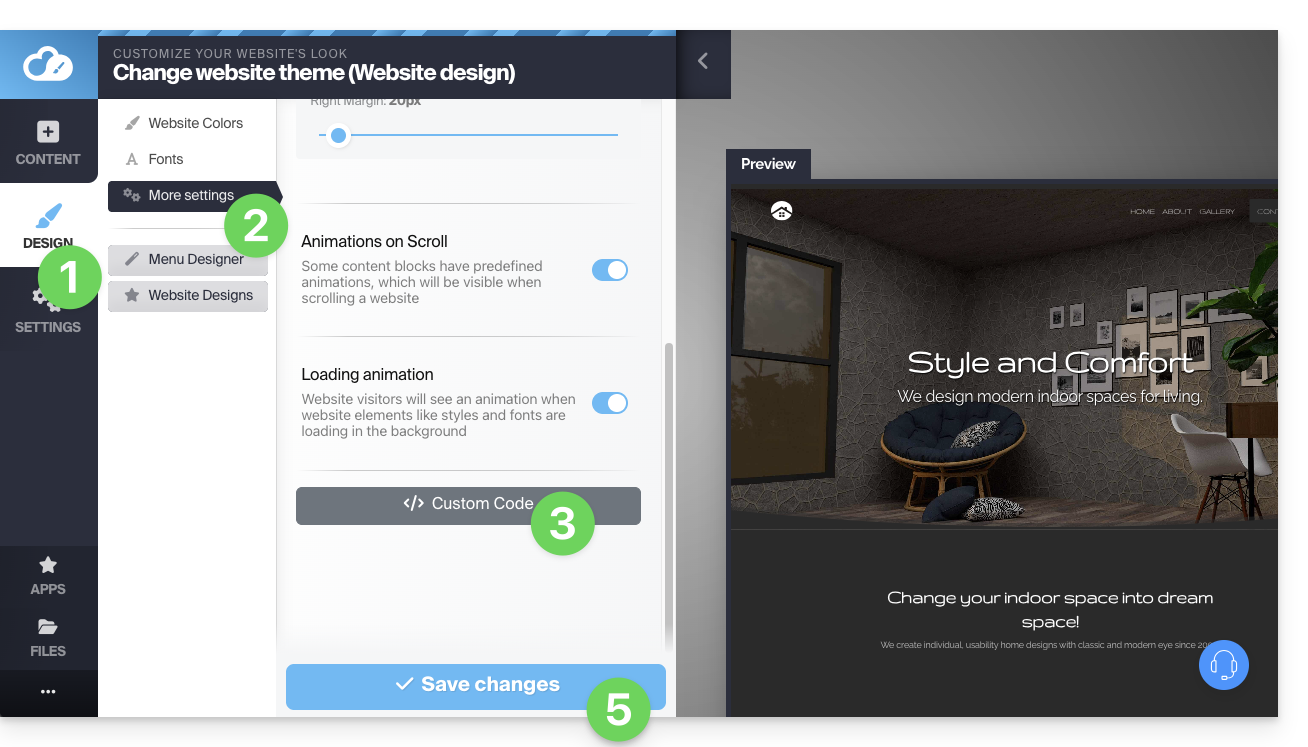
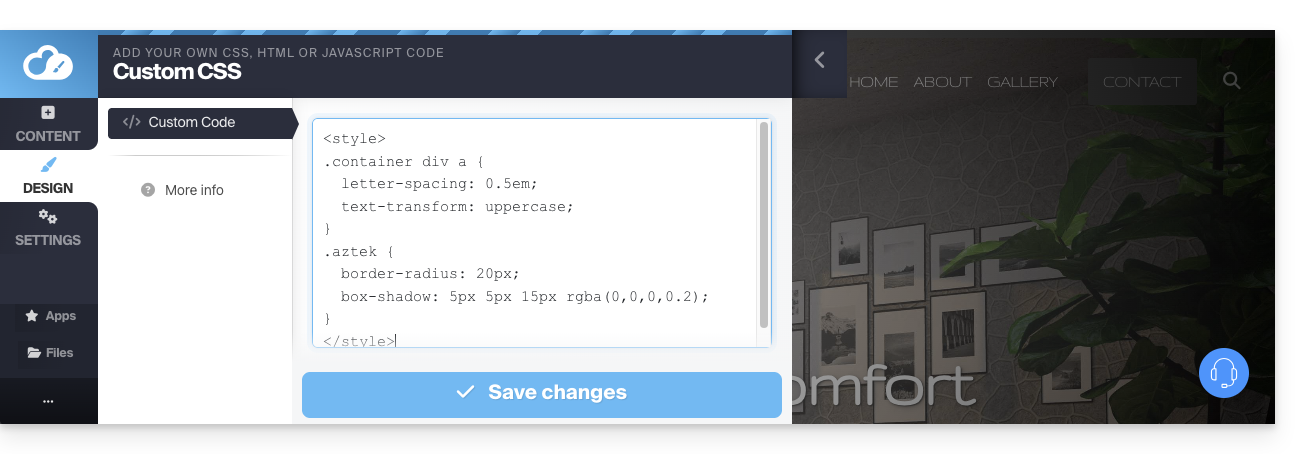
- Insira código HTML, JavaScript (com suas tags script) ou CSS personalizado (com suas tags style) – veja abaixo alguns exemplos.
- Salve as alterações na parte inferior da página.
Metadados em HEAD e BODY
Para adicionar código JavaScript ou qualquer outro código na parte HEAD ou BODY do código-fonte do seu site:
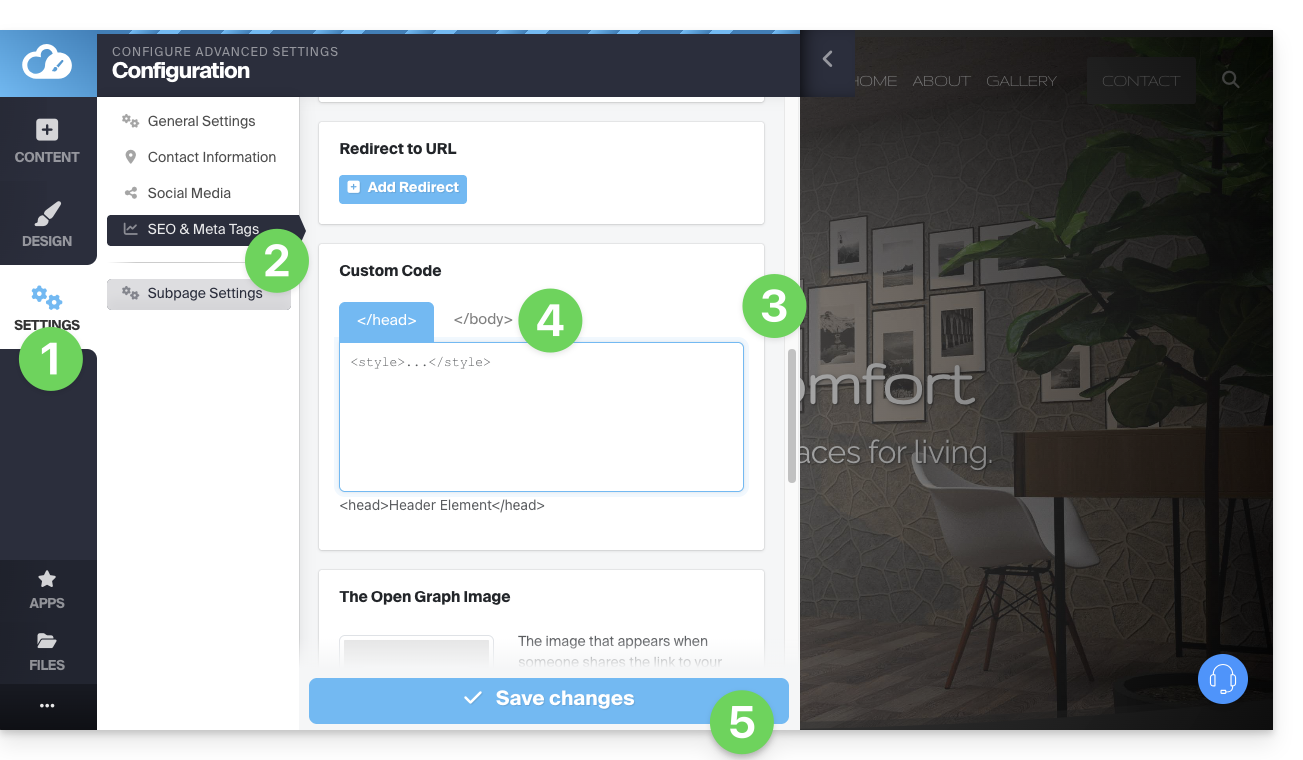
- Clique em Configurações no menu lateral esquerdo.
- Clique em SEO e Metadados na seção Configuração do site:

- Desça até à secção Código personalizado.
- Escolha adicionar o código antes ou depois das secções HEAD ou BODY.
- Salve as alterações na parte inferior da página:
Exemplos de personalização CSS
Estes exemplos permitem iniciar a personalização avançada das páginas do site. No entanto, existe o risco de, dependendo das modificações efetuadas, não conseguir aceder ao editor, o que o obrigará a começar tudo de novo.
Recomenda-se vivamente não inserir tags do tipo html, head ou body, pois estas podem entrar em conflito com o código fonte da própria aplicação.
Personalizar o fundo da página do site
Para definir a imagem de sua preferência (que deve ser carregada na biblioteca de arquivos) como fundo da página e personalizar sua exibição:
- Vá para o ponto 3, visível na primeira imagem no topo deste guia.
- Insira o código
<style>para indicar que deseja modificar o código CSS. - em seguida,
body {para indicar que você deseja modificar o corpo da página e as "{" para abrir o espaço onde as instruções podem ser inseridas, - em seguida,
background-image: url("../data/files/fond01.jpg");com o caminho e o nome exatos da imagem carregada na biblioteca, sem esquecer o ponto e vírgula para poder inserir o comando seguinte. background-repeat: repeat;para repetir a imagem inserida.background-attachment: fixed;para que a imagem de fundo permaneça fixa, mesmo que o visitante role a página para baixo ou para cima para ler o conteúdo.}para fechar o espaço de inserção aberto anteriormente.</style>para indicar que o código termina aqui.
Aumentar o espaçamento entre as letras de todos os links do site
Para aumentar (consideravelmente) o espaçamento entre as letras nas palavras clicáveis (links):
- Vá para o ponto 3, visível na primeira imagem no topo deste guia.
- Insira o código (se ainda não estiver presente)
<style>para indicar que deseja modificar o código CSS. - em seguida,
.container div a {para indicar que você deseja modificar os blocos da página e, mais especificamente, os links ("a") e o "{" para abrir o espaço onde você pode inserir os comandos; - em seguida,
letter-spacing:1em;, diminuindo o valor (0.9em, por exemplo), sem esquecer o ponto e vírgula para poder inserir o comando seguinte ou finalizar. }para fechar o espaço de inserção aberto anteriormente.</style>para indicar que o código termina aqui.
Consulte estes outros exemplos de código CSS para inserir no seu site.
Link para esta FAQ: https://faq.infomaniak.com/2716
Esta seção de perguntas frequentes foi útil?