Base de conhecimento
1000 perguntas frequentes, 500 tutoriais e vídeos explicativos. Aqui, você encontra apenas soluções!
Gerenciar arquivos de mídia no Site Creator (imagens, vídeos, documentos, etc.)
Este guia é sobre o Site Creator, a ferramenta da Infomaniak para a criação de sites, que oferece, entre outras coisas, uma biblioteca para seus arquivos multimídia (imagens, vídeos, documentos, etc.).
Pré-requisitos
- Aceder ao Site Creator:
- Clique aqui para aceder à gestão do seu produto no Manager Infomaniak (precisa de ajuda?).
- Clique diretamente no nome atribuído ao Site Creator em questão.
- Clique no botão Editar o meu site para iniciar o editor:
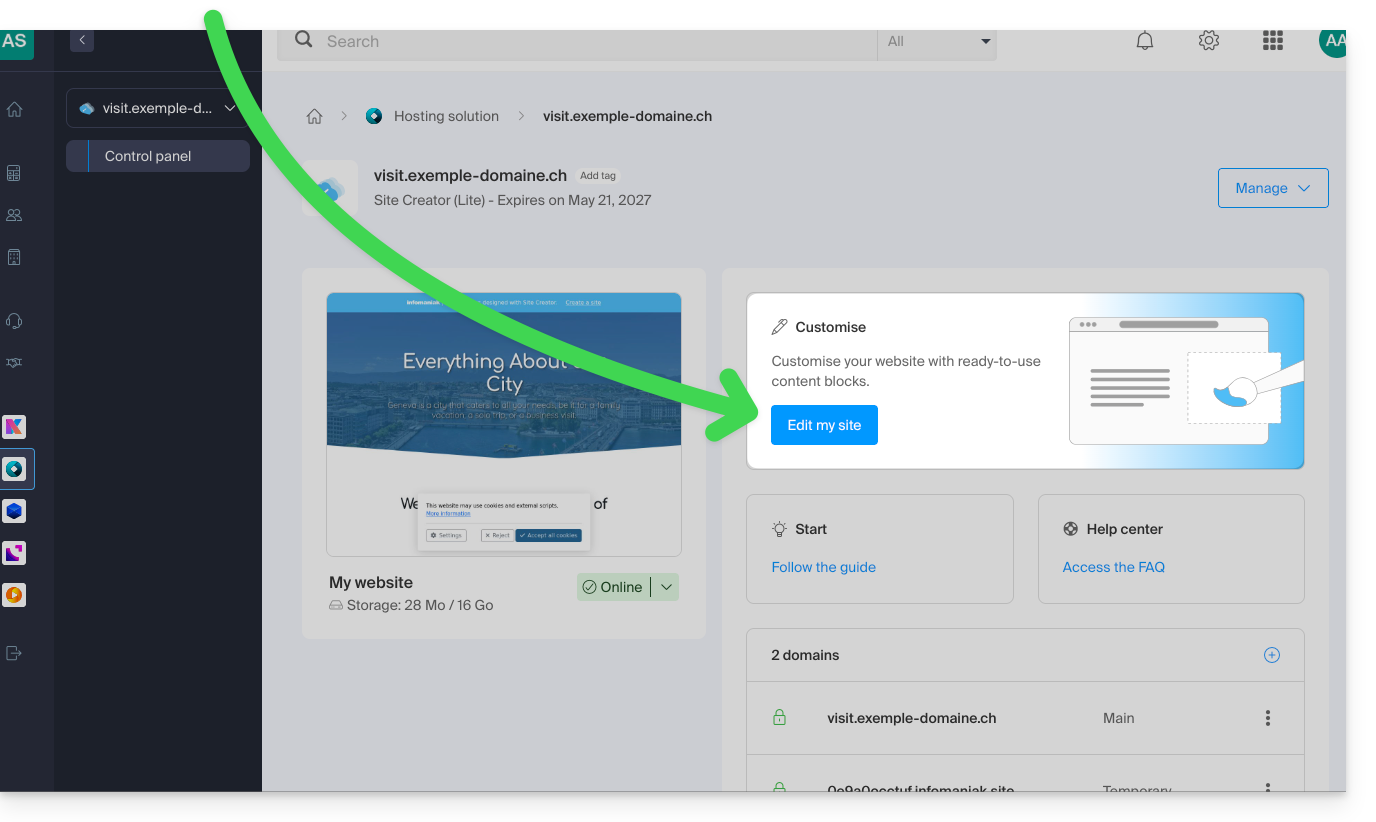
Aceder aos ficheiros
A biblioteca pode ser acessada na parte inferior do menu lateral esquerdo, em Arquivos: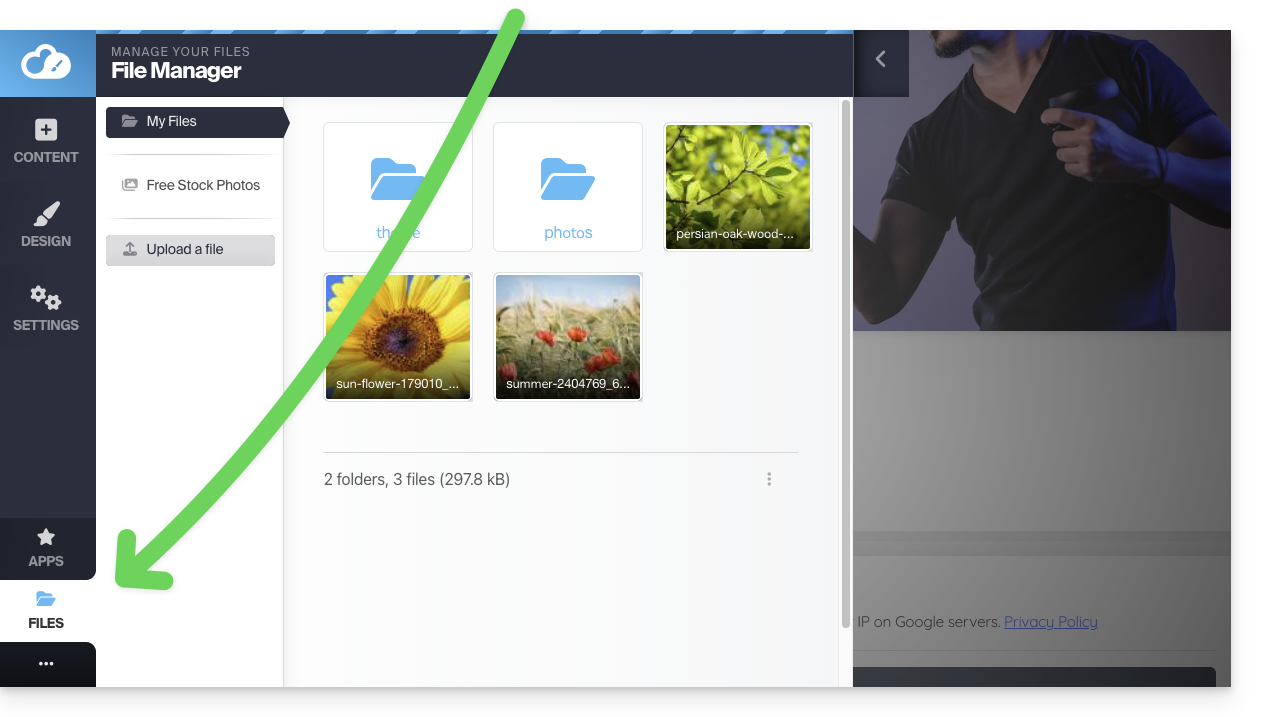
Esses arquivos estarão disponíveis quando você estiver editando suas páginas e quiser inserir conteúdo.
Organize seus arquivos, pastas e subpastas
Atenção: você não pode:
- mover arquivos/pastas
- renomear ficheiros/pastas
- eliminar uma pasta se esta não estiver completamente vazia
Portanto, pense na organização dos seus arquivos de mídia e na sua estrutura de pastas, se possível, antes de criar o site.
Criar uma nova pasta
Utilize o menu de ação ⋮ no canto inferior direito da janela: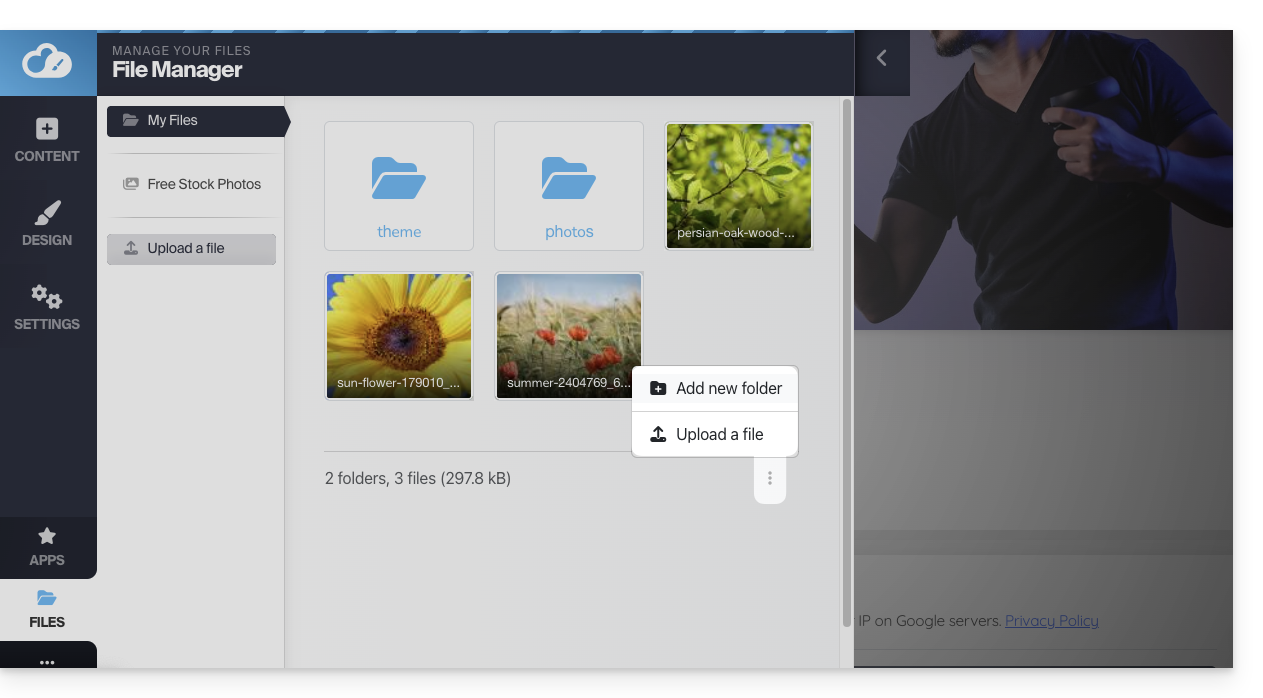
Carregar um novo arquivo na biblioteca
Clique em Enviar arquivo para navegar no seu disco rígido e carregar os arquivos desejados: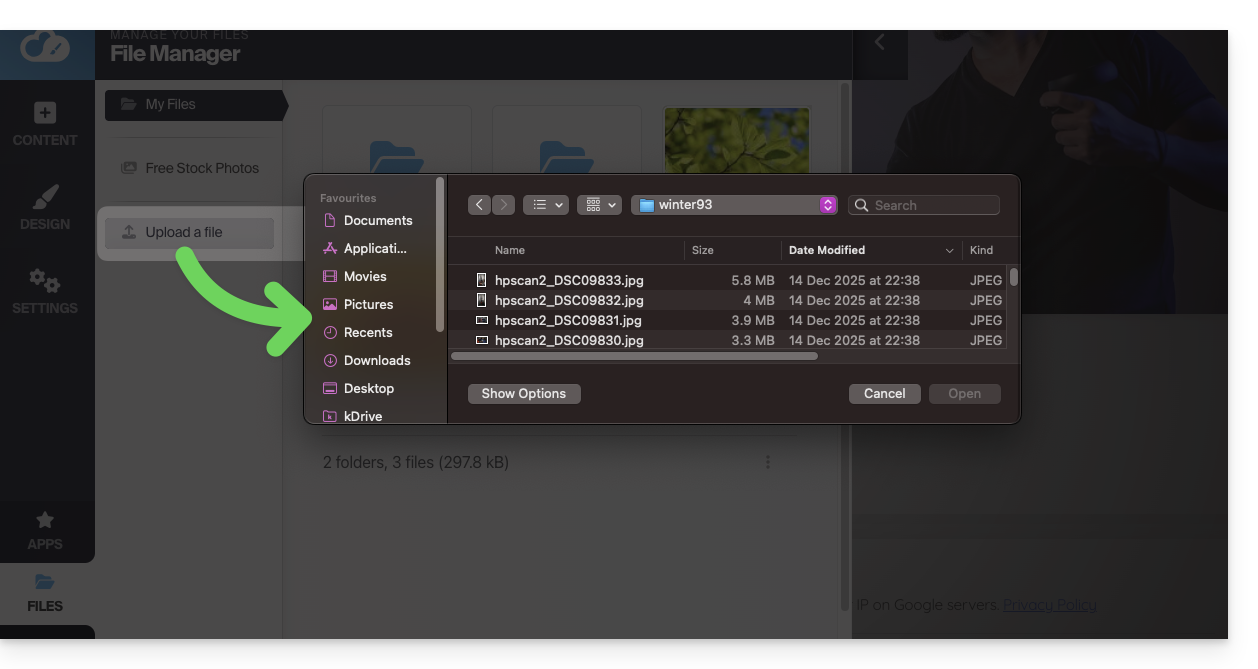
Os formatos de imagem habituais são suportados (webp, jpg, jpeg, png, gif, svg, etc.), sendo o formato webp o recomendado (oferece a melhor relação qualidade/compressão para uma exibição web ultrarrápida).
O mesmo se aplica aos vídeos (mp4, mov, etc.) e você também pode carregar arquivos (zip, pdf, etc.) para, por exemplo, disponibilizá-los aos visitantes através do módulo Download de arquivos.
Comprimir uma imagem
As imagens grandes são redimensionadas automaticamente por padrão durante a importação: as imagens com mais de 1200 px são reduzidas automaticamente para 1200 px, mas você pode gerenciar isso nas configurações gerais: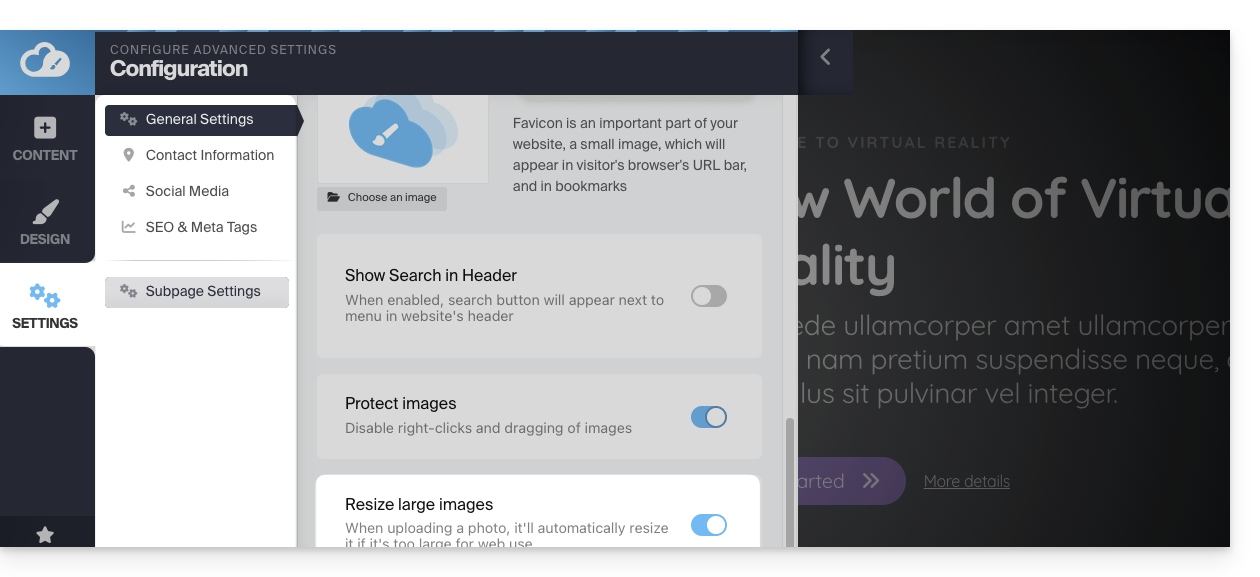
Você também pode comprimir a própria imagem usando a opção Comprimir uma imagem na biblioteca, para que seu site seja exibido mais rapidamente: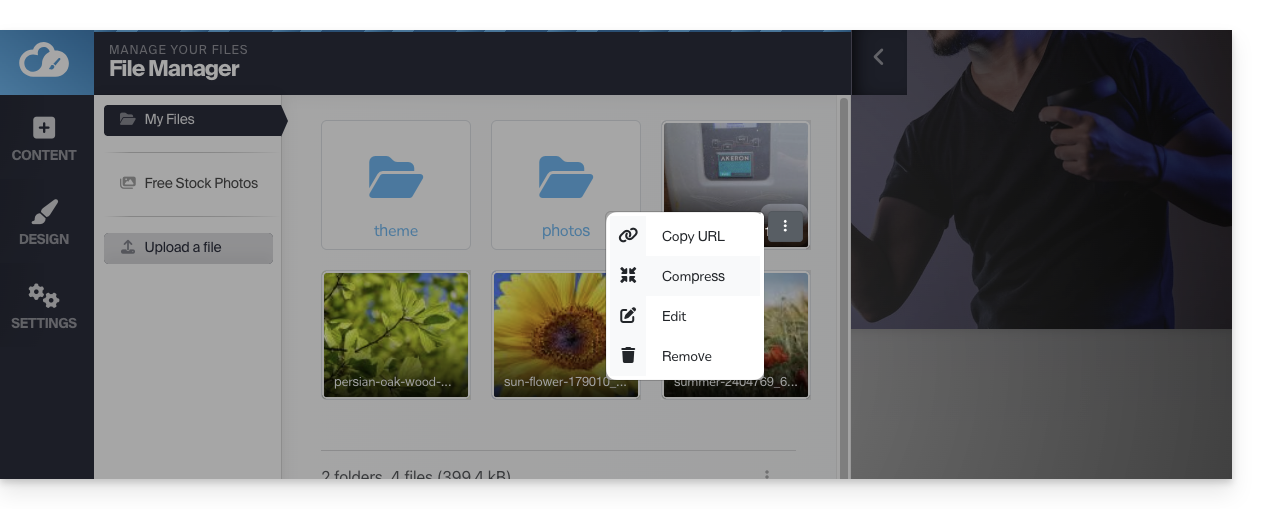
⚠ A opção Comprimir uma imagem gera o erro de chave da API TinyPNG (A chave da API TinyPNG não está definida)…
Para evitar isso, obtenha uma chave de API TinyPNG no site deles e insira-a em Aplicações > TinyPNG no SiteCreator: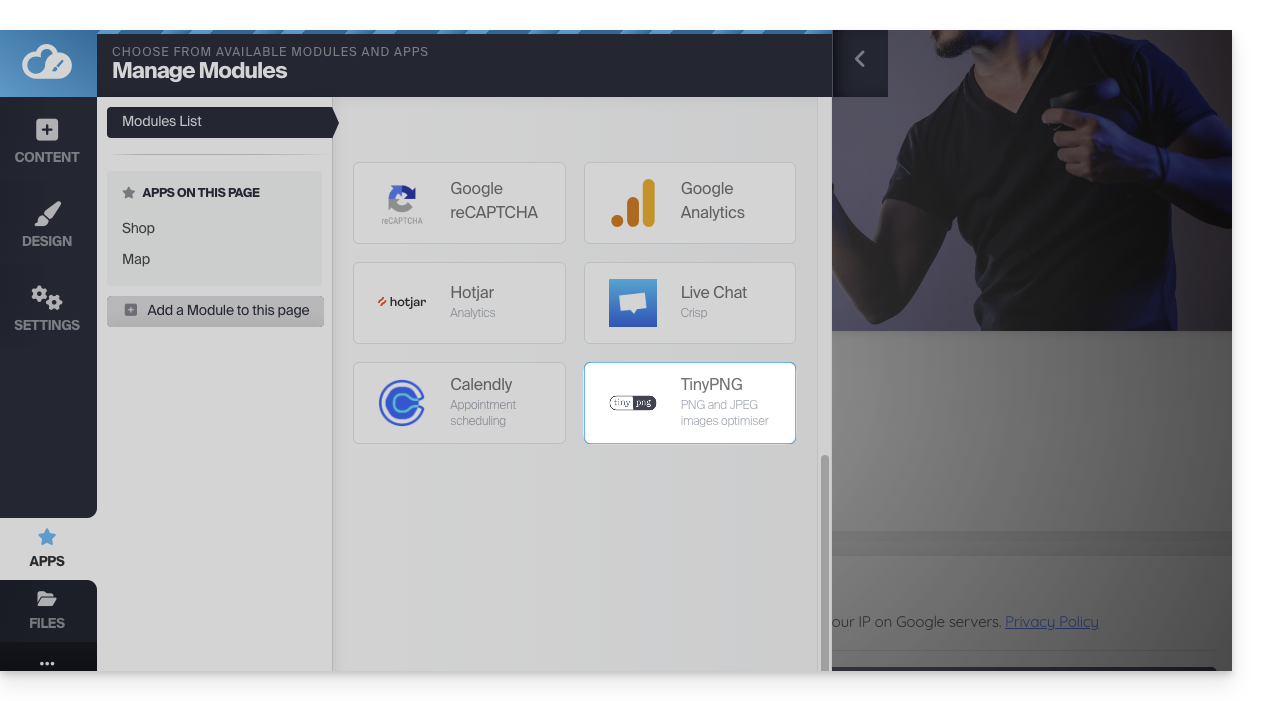
Abrir o editor de imagem
Passe o cursor sobre uma imagem da biblioteca e clique no menu de ação ⋮ para acessar o editor de imagem:
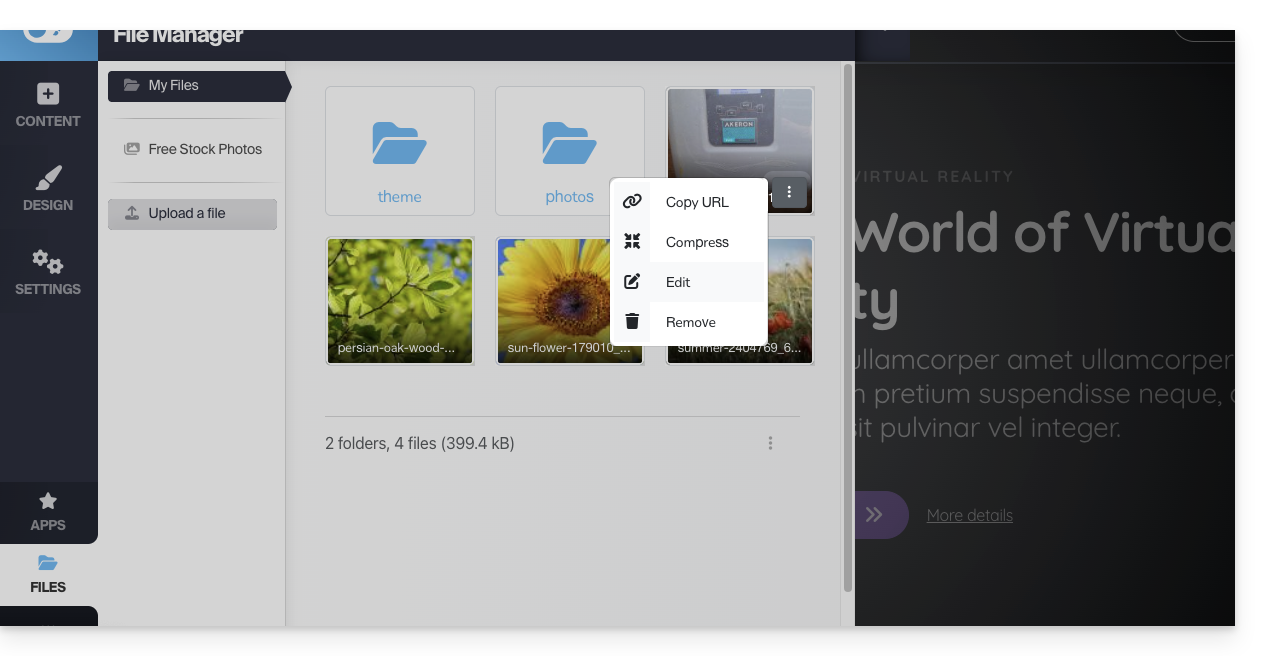
Ao salvar suas alterações, a imagem será salva como uma cópia em sua biblioteca: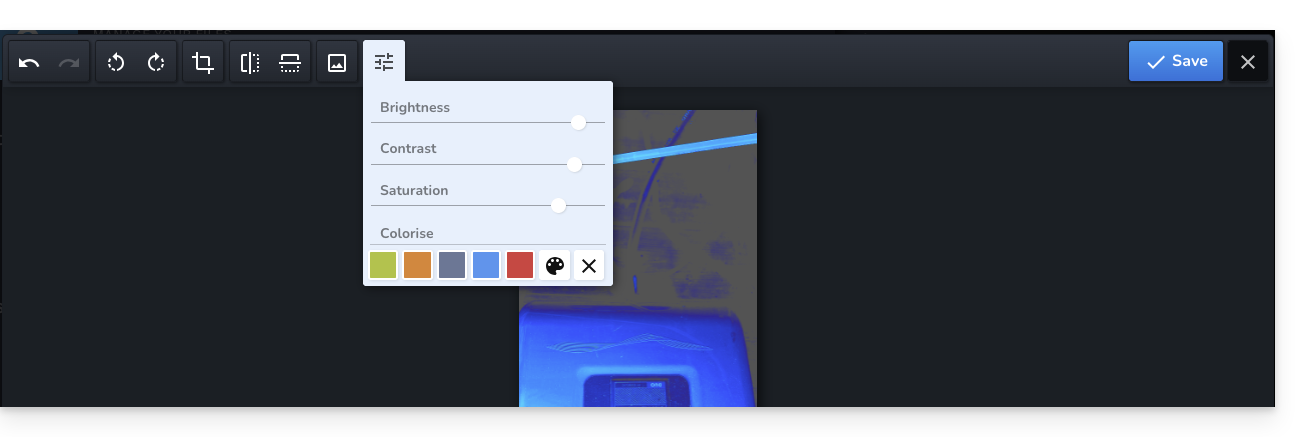
Otimizar o SEO e a acessibilidade
Depois de importar as imagens da biblioteca para as suas páginas web, não se esqueça de preencher o Texto alternativo (etiqueta Alt) nas configurações do bloco de imagem. Esta descrição textual é essencial: permite que os motores de busca (como o Google) compreendam o conteúdo das suas imagens, ao mesmo tempo que torna o seu site acessível a pessoas com deficiência visual que utilizam leitores de ecrã.
Como não é possível renomear os arquivos depois de carregados, crie o hábito de nomeá-los corretamente no seu computador antes de enviá-los. Evite nomes genéricos (ex: IMG_1234.jpg) e opte por nomes descritivos com hífens (ex: swiss-home-repair.jpg) para melhorar o seu posicionamento nos motores de busca.
Pesquisar e usar imagens de uso livre
Na barra lateral esquerda da biblioteca, você encontrará um item de menu que leva a imagens de stock (banco de imagens) livres de direitos autorais, que pode inserir na sua biblioteca para enriquecer o seu site: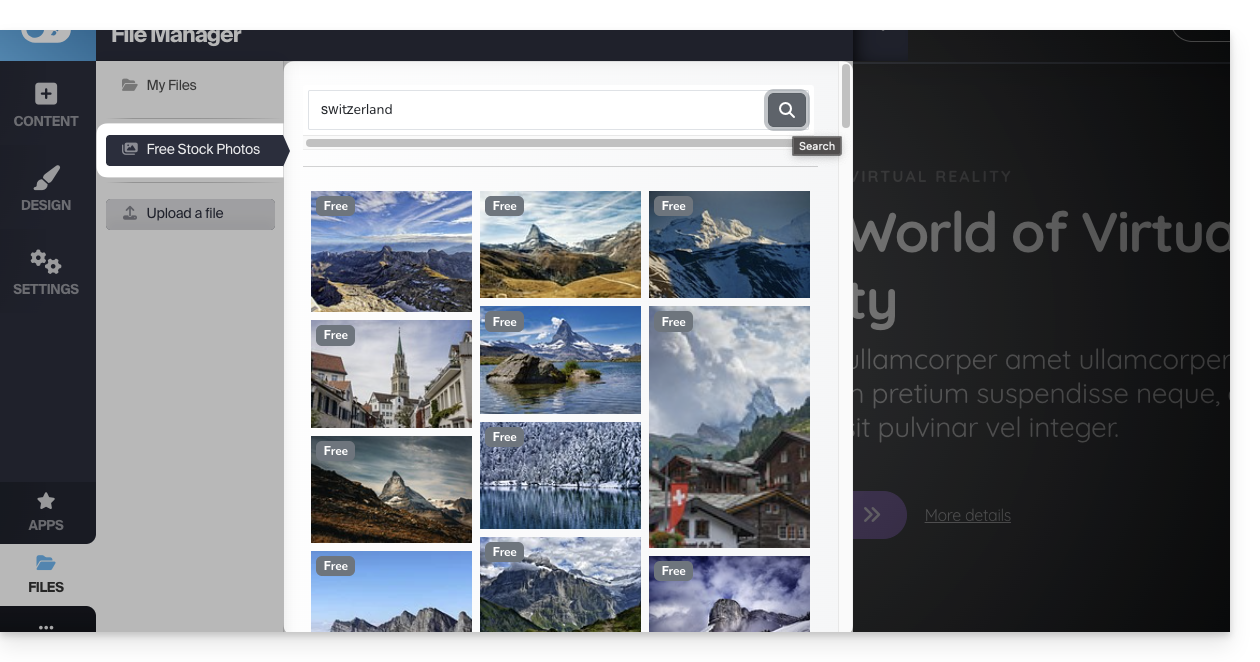
Proteger o seu conteúdo: desativar o clique com o botão direito
Clique em Configurações na barra lateral esquerda e, em seguida, em Configurações gerais. Na parte inferior, você encontrará uma opção que, quando ativada, impede que os visitantes cliquem com o botão direito no seu site: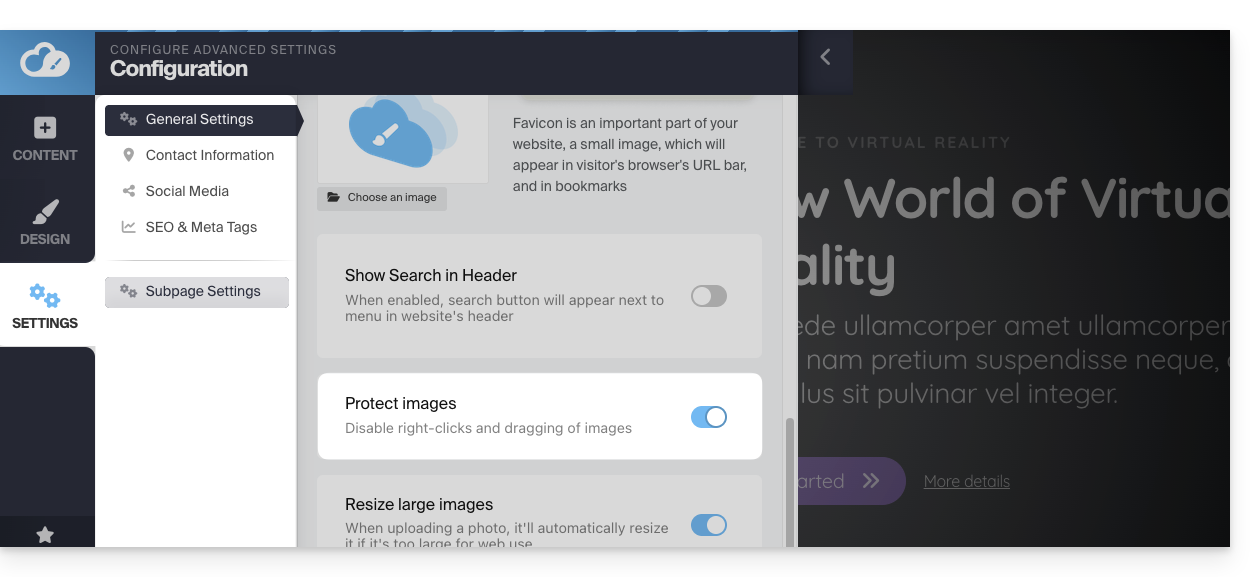
Como resolver um problema de envio de mídia
Tente fazer o upload de imagens WEBP, JPG ou PNG com o menor tamanho possível (idealmente abaixo de 500 KB); não é necessário enviar para o servidor imagens com uma largura superior a 1000-2000 pixels.
Certifique-se também de que os seus ficheiros de imagem sejam guardados com o perfil de cor RGB, que é o padrão para visualização em ecrã. Evite o perfil CMYK, que é muito pesado e reservado exclusivamente para impressão em papel, pois pode causar erros de visualização ou impedir a importação.
Se estiver a tentar fazer o upload de ficheiros diretamente a partir da sua câmara ou smartphone, tente redimensioná-las antes de fazer o upload; por exemplo, a partir do seu iPhone, a imagem pode estar no formato HEIF/HEIC, que não é suportado nativamente pelos navegadores web – tente convertê-la para JPG primeiro.
Link para esta FAQ: https://faq.infomaniak.com/2705
Esta seção de perguntas frequentes foi útil?