Base de conhecimento
1000 perguntas frequentes, 500 tutoriais e vídeos explicativos. Aqui, você encontra apenas soluções!
Sistema de tickets: exportar as informações dos clientes e participantes
Este guia explica como exportar as informações dos clientes e participantes dos eventos (no âmbito do sistema de bilheteira Infomaniak).
Introdução
- As exportações consistem em disponibilizar para download um arquivo no formato
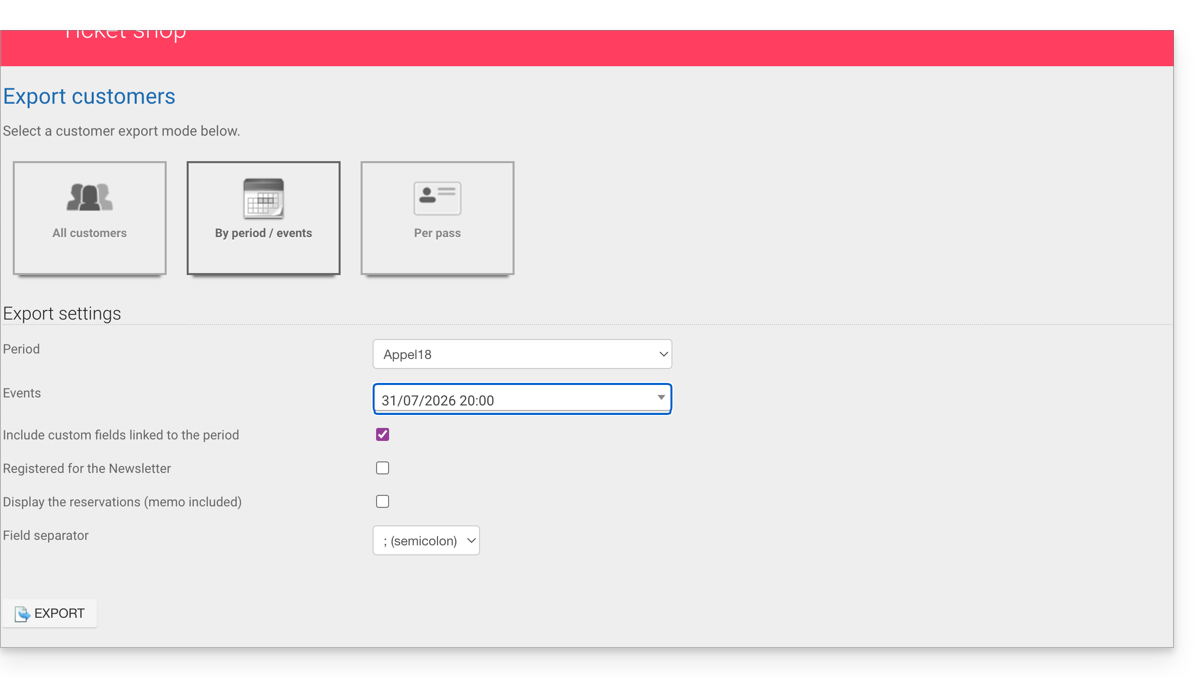
CSVque reúne as informações coletadas; em alguns casos, como no exemplo ilustrado abaixo, o tipo de separador de campo poderá ser modificado (ponto e vírgula, por exemplo). - Para obter informações sobre a proteção de dados pessoais, consulte este outro guia.
Recuperar as informações dos clientes
Os clientes são as pessoas que forneceram informações ao efetuar o pedido através do seu sistema de bilheteira online:
- Clique aqui para acessar o gerenciamento do seu produto no Manager Infomaniak (precisa de ajuda?).
- Clique diretamente no nome atribuído à bilheteria relacionada ao evento.
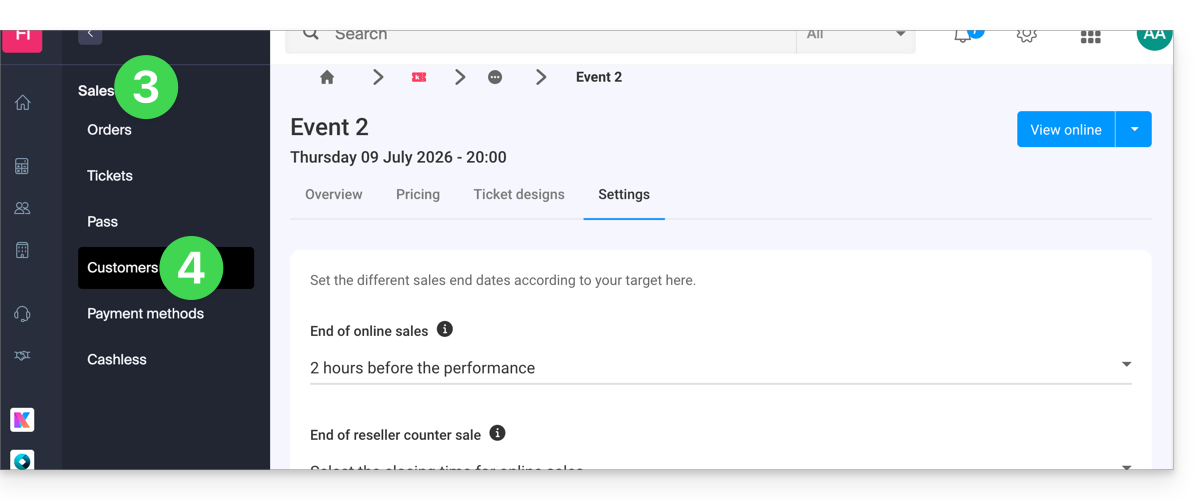
- Clique em Vendas no menu lateral esquerdo.
- Clique em Clientes no menu lateral esquerdo:
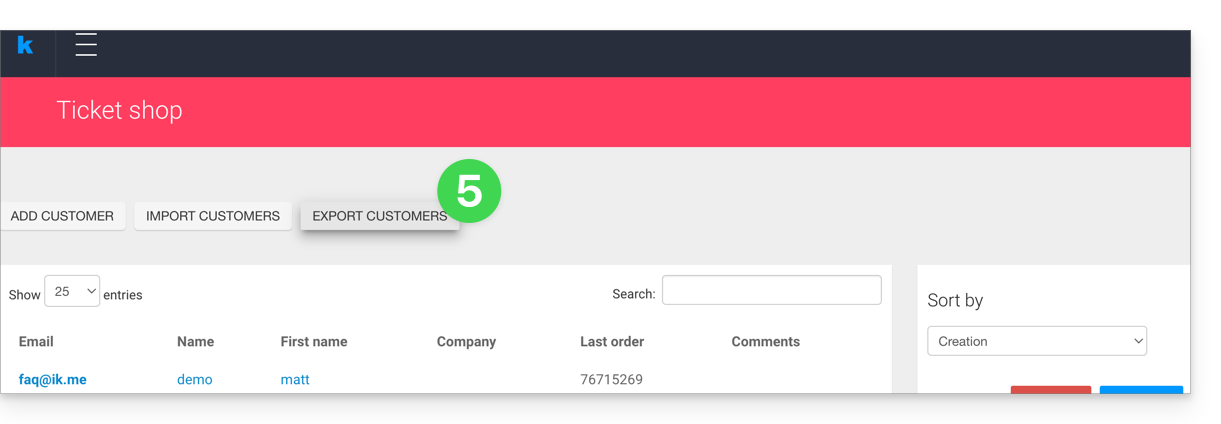
- Clique em Exportar clientes
- Escolha os critérios para a exportação:
Recuperar as informações dos participantes
As informações dos participantes podem ser recuperadas em dois locais:
- no nível do formulário por tarifa: permite obter um arquivo Excel com todas as respostas dos participantes, independentemente da data.
- no nível de um evento, data ou sessão específica: permite obter todos os formulários utilizados para o evento ou a data escolhida.
Para um formulário
Para isso:
- Clique aqui para acessar o gerenciamento do seu produto no Manager Infomaniak (precisa de ajuda?).
- Clique diretamente no nome atribuído ao sistema de bilheteria relacionado ao evento.
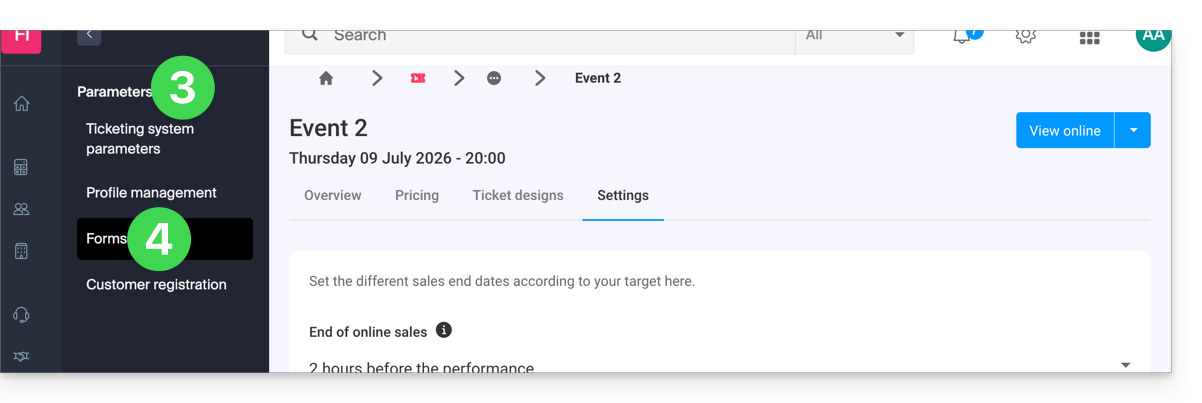
- Clique em Configurações no menu lateral esquerdo.
- Clique em Formulários no menu lateral esquerdo:
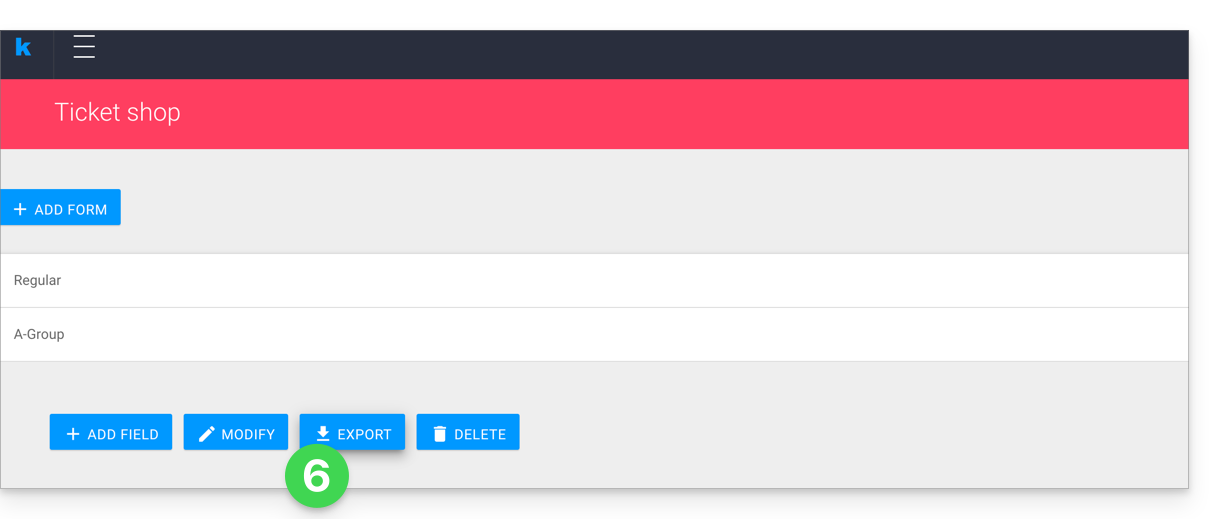
- Selecione o formulário a ser exportado.
- Clique em Exportar:
Para uma data específica
Para isso:
- Clique aqui para acessar o gerenciamento do seu produto no Manager Infomaniak (precisa de ajuda?).
- Clique diretamente no nome atribuído ao sistema de bilheteira relacionado ao evento.
- Clique em Programação no menu lateral esquerdo.
- Clique em Eventos no menu lateral esquerdo.
- Escolha o evento para o qual deseja exportar as informações; no caso de um evento com várias datas, selecione a data desejada.
- Na parte inferior da página, clique no link Exportar os dados dos formulários de preços para obter um arquivo no formato
csv: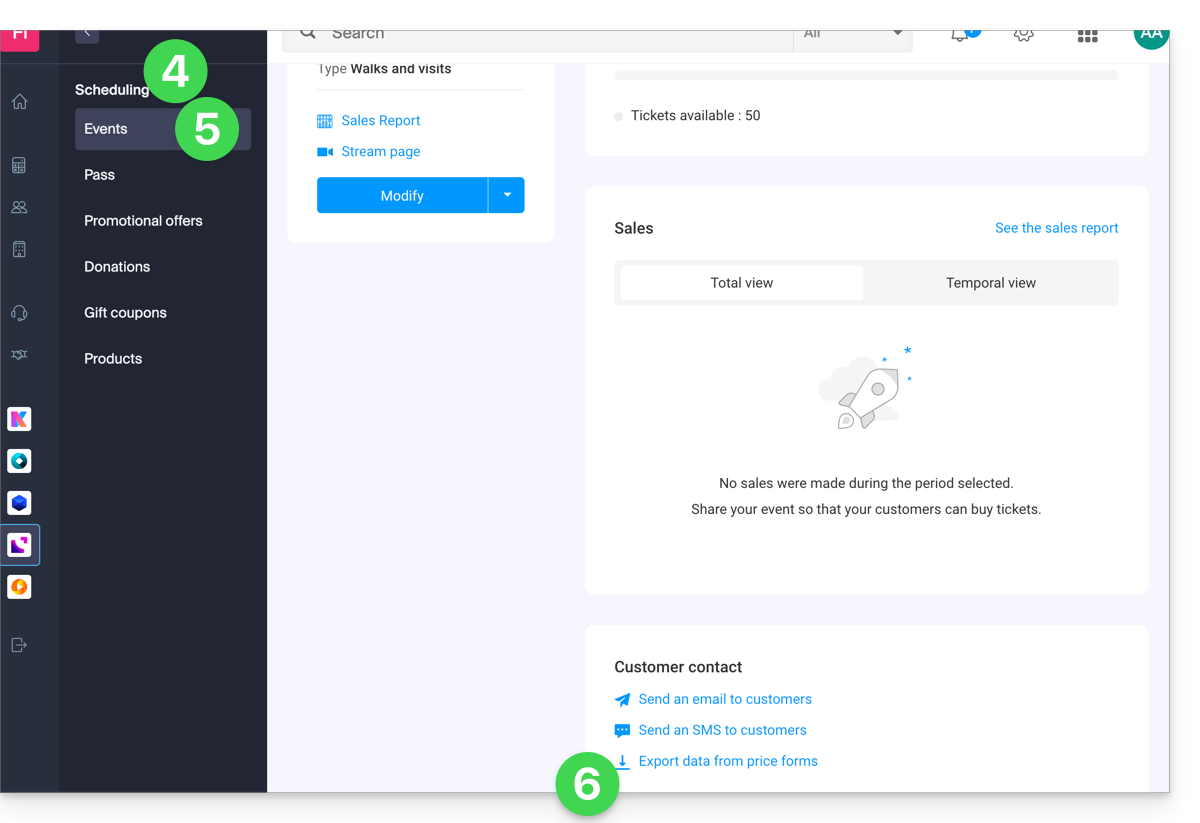
Link para esta FAQ: https://faq.infomaniak.com/2699
Esta seção de perguntas frequentes foi útil?