Base de conhecimento
1000 perguntas frequentes, 500 tutoriais e vídeos explicativos. Aqui, você encontra apenas soluções!
Ticketing: Customize the appearance and information displayed on tickets
This guide explains how to configure the information and images that will appear on the tickets that visitors to your events will receive (as part of the Infomaniak ticketing system).
Prerequisites
- Create an event to access the mobile ticket visual options.
Accessing Ticket Visuals
To do this:
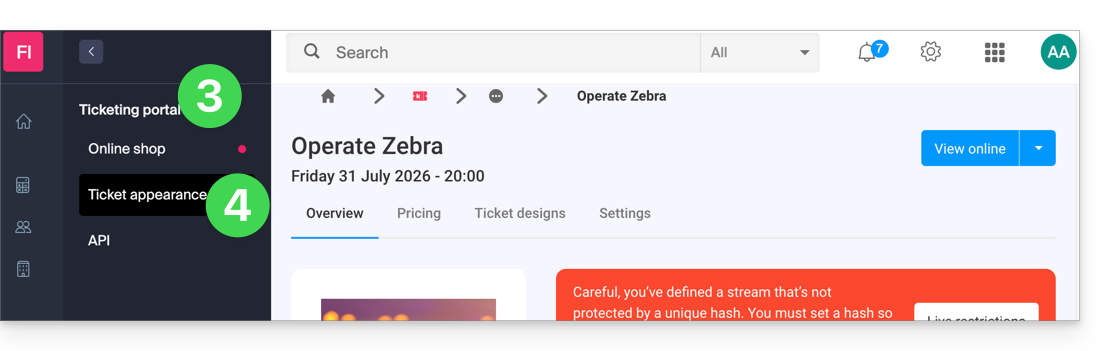
- Click here to access the management of your product in the Infomaniak Manager (need help?).
- Click directly on the name assigned to the ticketing system for the event.
- Click on Ticketing Portal in the left-hand menu.
- Click on Ticket Visual:
Customizing Basic Information
The tickets contain the following information, which will be retrieved from the event settings and the information provided by the customer: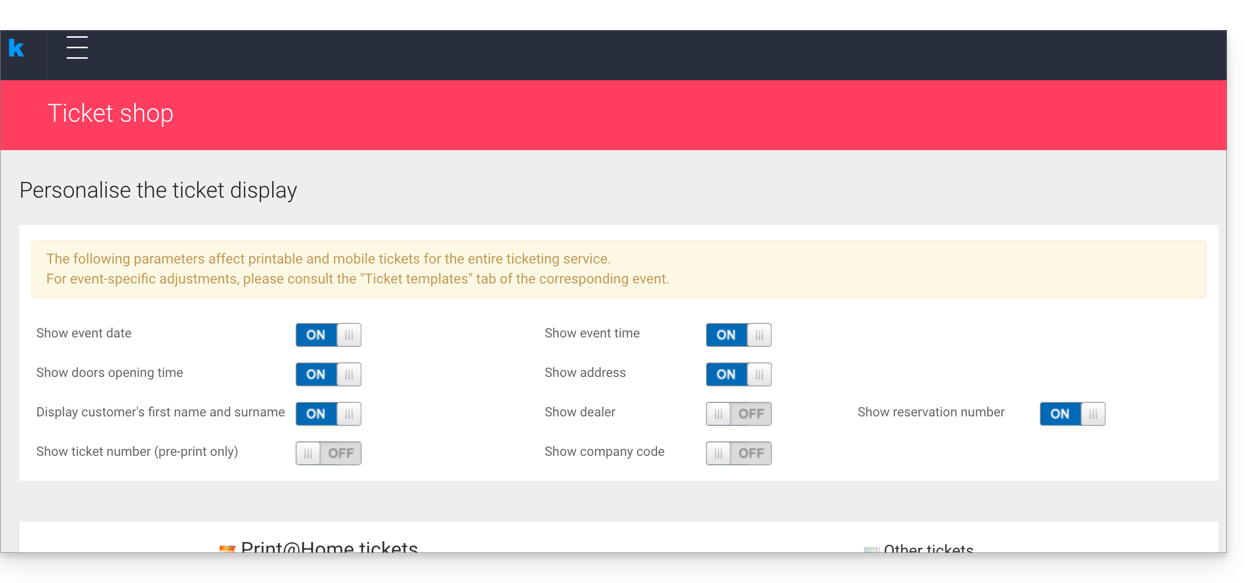
- Designation: the name of the event.
- This option cannot be disabled, but the text can be modified at the event level in the Ticket Template option of the event in question.
- The date of the event.
- The time of the event.
- The time the doors open, if defined in the event.
- The address of the event.
- The customer’s and/or reseller’s first and last name, if provided.
- The reservation number.
- The ticket number (for pre-printed tickets).
- The company name, if provided.
Modify the ticket design
Default image size
The minimum image size is 1138x524 px, but the recommended size is 1307x605 px (+ 9:4.17 ratio).
Print@home tickets
These tickets are intended to be printed directly by customers using a standard printer. To modify the ticket content:
- Top image: the background image of the ticket can be modified here. Please note that the text may not be legible if the image has contrasts that do not allow the letters to be distinguished.
- Text in the middle of the ticket: it is possible to modify the text in the middle of the ticket. If the text overflows onto the image at the bottom of the page, it will not be displayed.
- Bottom image: this will, by default, contain the general terms and conditions of sale, but they can be replaced with a custom image.

Other formats
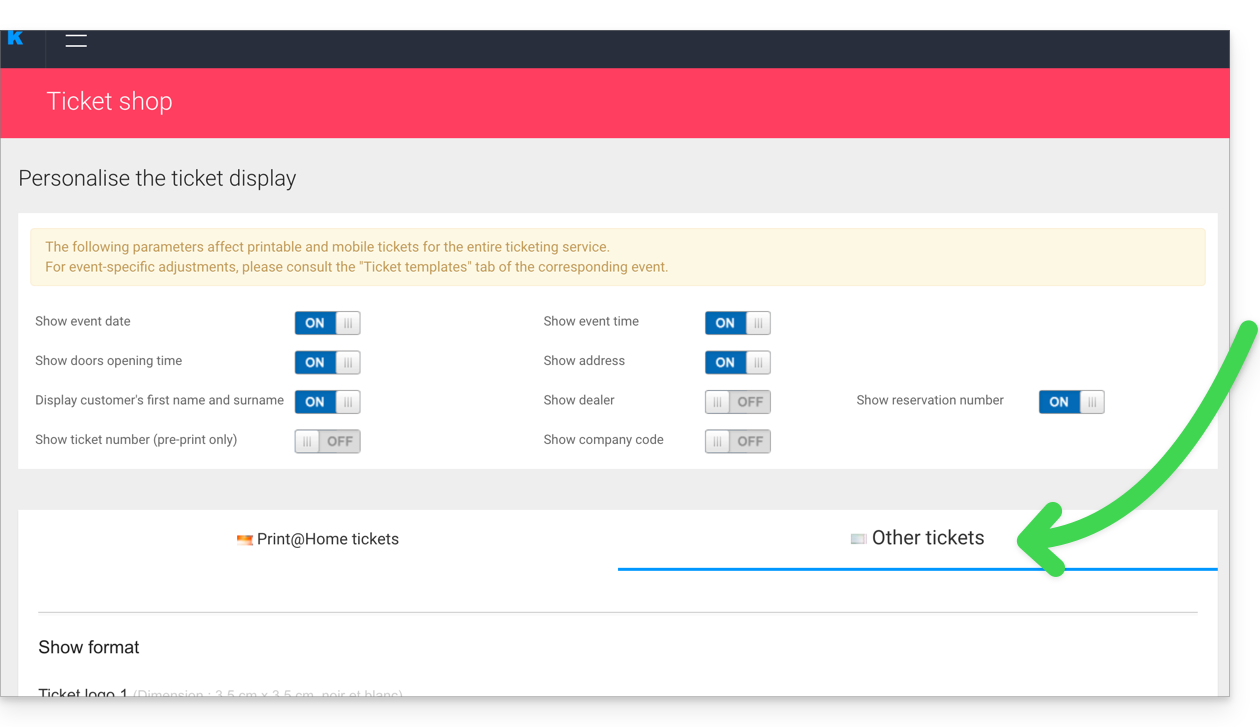
The other formats are intended to be used by the organizer and cannot therefore be sent to customers automatically by email:
- Show format: For printing with a thermal printer (available for rent).

- Cinema Format: The format used in cinemas for printing with a thermal printer (available for rent).

Save and use ticket templates
It is possible, and recommended, to save the ticket design as a new template. The button for saving is at the bottom of the ticket design customization page:
You can then select it to rework it, or set it as the default ticket:
apply a default template for ALL ticketing
apply a default template for a SPECIFIC event
apply a default template for a SPECIFIC price
Also, please refer to this other guide regarding passes.
Link para esta FAQ: https://faq.infomaniak.com/2689
Esta seção de perguntas frequentes foi útil?