Base de conhecimento
1000 perguntas frequentes, 500 tutoriais e vídeos explicativos. Aqui, você encontra apenas soluções!
Ticketing: print a pass from the tablet
This guide explains how to print passes from the Infomaniak tablet kiosk (as part of the Infomaniak ticketing system).
Introduction
- The hardware is already configured to connect automatically to the network and the tablet.
- The tablet will then be automatically detected when a pass is ready to be printed.
- It is recommended to use computer printing if possible.
Connect the printer to the network
To do this:
- Turn on the printer.
- Connect the printer to your internet network using the RJ45 Ethernet cable.
- Connect the Wi-Fi hotspot to the network.
Printing passes from the tablet
To do this:
- Log in to the ticketing account from the tablet using the Infomaniak account username and password.
- The tablet will automatically connect to the ticket office interface.
- Create a new order on the tablet or search for an existing order.
- Tap the printer icon:
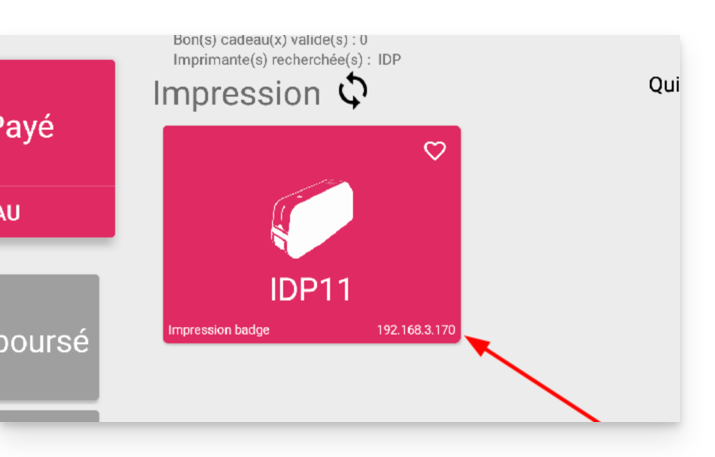
If the printer does not appear in the list on the right
- Try refreshing the list by clicking on the rotating arrows.
- Make sure the printer is properly connected to your network with the RJ45 cable.
- Make sure the Infomaniak Wi-Fi hotspot is properly connected and turned on.
- Make sure the printer and tablet are connected to the Infomaniak network.
- To ensure the printer is properly connected to the network, click the button on the left side of the printer's screen and check if it has been assigned an IP address.
- Otherwise, restart the printer.
Warning: if two Wi-Fi access points are connected nearby, this may create interference. Please ensure that only one access point is connected when using the printer.
Learn more
Link para esta FAQ: https://faq.infomaniak.com/2654
Esta seção de perguntas frequentes foi útil?