Base de conhecimento
1000 perguntas frequentes, 500 tutoriais e vídeos explicativos. Aqui, você encontra apenas soluções!
Gerencie as categorias do kDrive para organizar os dados dos seus dispositivos
Atualização 13/10/2026
Este guia explica como adicionar e personalizar as categorias dos seus documentos, para organizar e classificar os seus documentos na aplicação web kDrive Infomaniak (serviço online ksuite.infomaniak.com/kdrive) e na aplicação móvel kDrive (aplicação para smartphone ou tablet iOS / Android).
Introdução
- Uma categoria (ou várias ao mesmo tempo) pode ser atribuída aos ficheiros e pastas do kDrive.
- A atribuição de uma categoria é diferente da definição de uma cor, cor que também pode ser atribuída às pastas e visualizada na aplicação web e móvel (apenas nas ofertas kDrive pagas).
- No entanto, não haverá sincronização das cores entre uma pasta do kDrive sincronizada pela aplicação de ambiente de trabalho no macOS e a aplicação web ou móvel:

- No entanto, não haverá sincronização das cores entre uma pasta do kDrive sincronizada pela aplicação de ambiente de trabalho no macOS e a aplicação web ou móvel:
Adicionar uma categoria a um documento…
Pré-requisitos
- O utilizador deve ter permissões suficientes, incluindo permissões de gestão de categorias.
… na aplicação web kDrive Infomaniak
Para atribuir uma categoria a um ficheiro ou pasta do kDrive:
- Clique aqui para aceder à aplicação web kDrive da Infomaniak (serviço online ksuite.infomaniak.com/kdrive).
- A estrutura do kDrive é exibida no menu lateral esquerdo:
- Selecione o(s) arquivo(s).
- Clique no ícone de etiqueta na parte superior da tabela.
- Clique na categoria na qual o(s) arquivo(s) devem ser classificados:
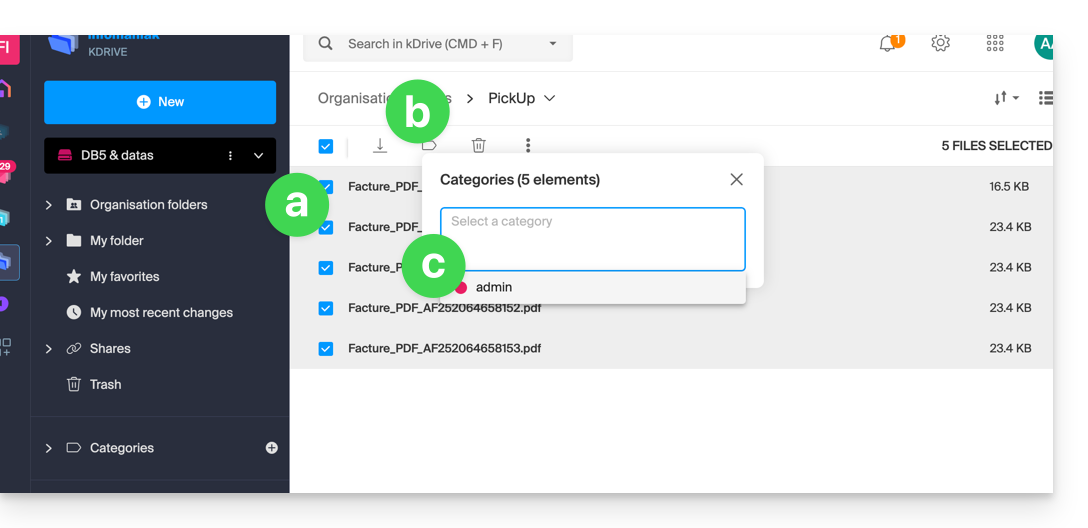
- Você também pode criar uma nova categoria com o nome de sua escolha:
- Selecione o(s) arquivo(s).
- Clique no ícone de etiqueta na parte superior da tabela.
- Insira o nome da categoria na qual o(s) arquivo(s) devem ser classificados.
- Clique no ícone para criar sua categoria e poder selecioná-la:
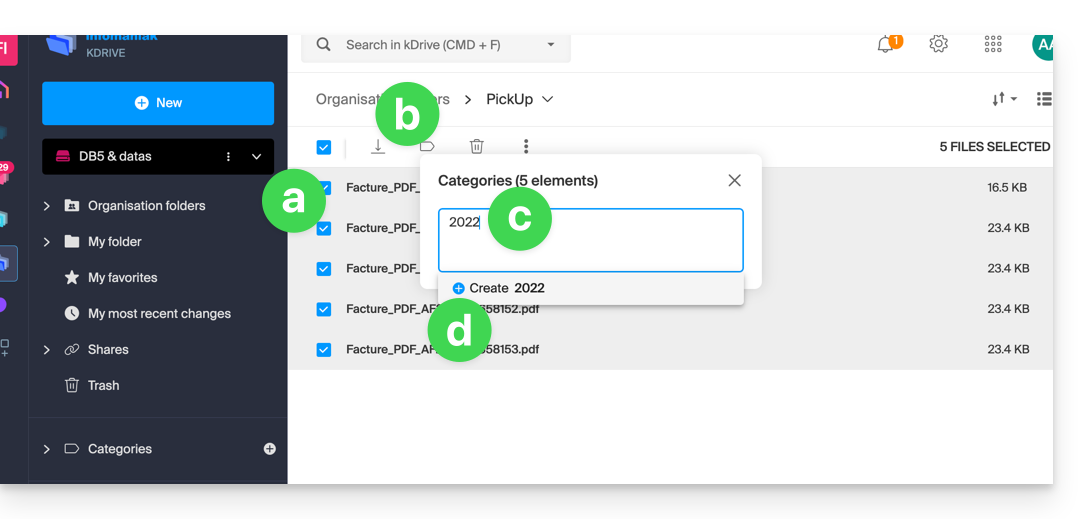
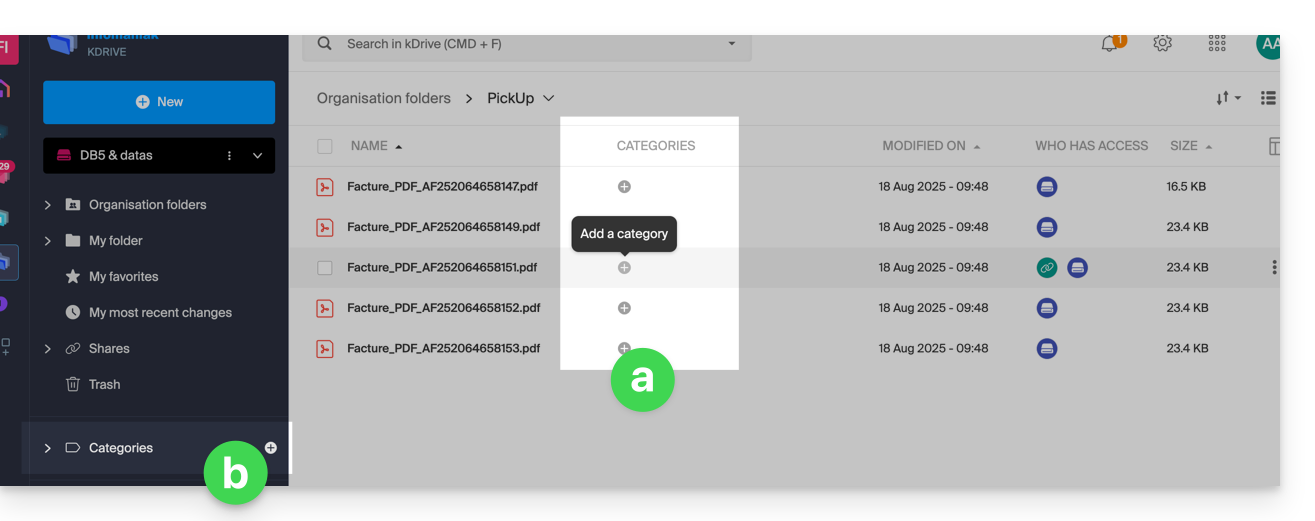
- Você também pode clicar em…
- … o ícone na coluna CATEGORIAS do seu arquivo (a janela deve ser suficientemente grande).
- … o ícone no menu lateral esquerdo:
…. no aplicativo móvel kDrive
Para atribuir uma categoria a um arquivo do kDrive:
- Toque no menu de ações ⋮ localizado à direita do item em questão.
- Clique em Gerenciar categorias.
- Clique na(s) categoria(s) desejada(s).
- Volte ao conteúdo usando a seta de retorno no canto superior esquerdo:

Organize seus documentos por categoria em…
… no aplicativo web kDrive da Infomaniak
Para exibir apenas os arquivos do seu kDrive que pertencem a uma categoria específica:
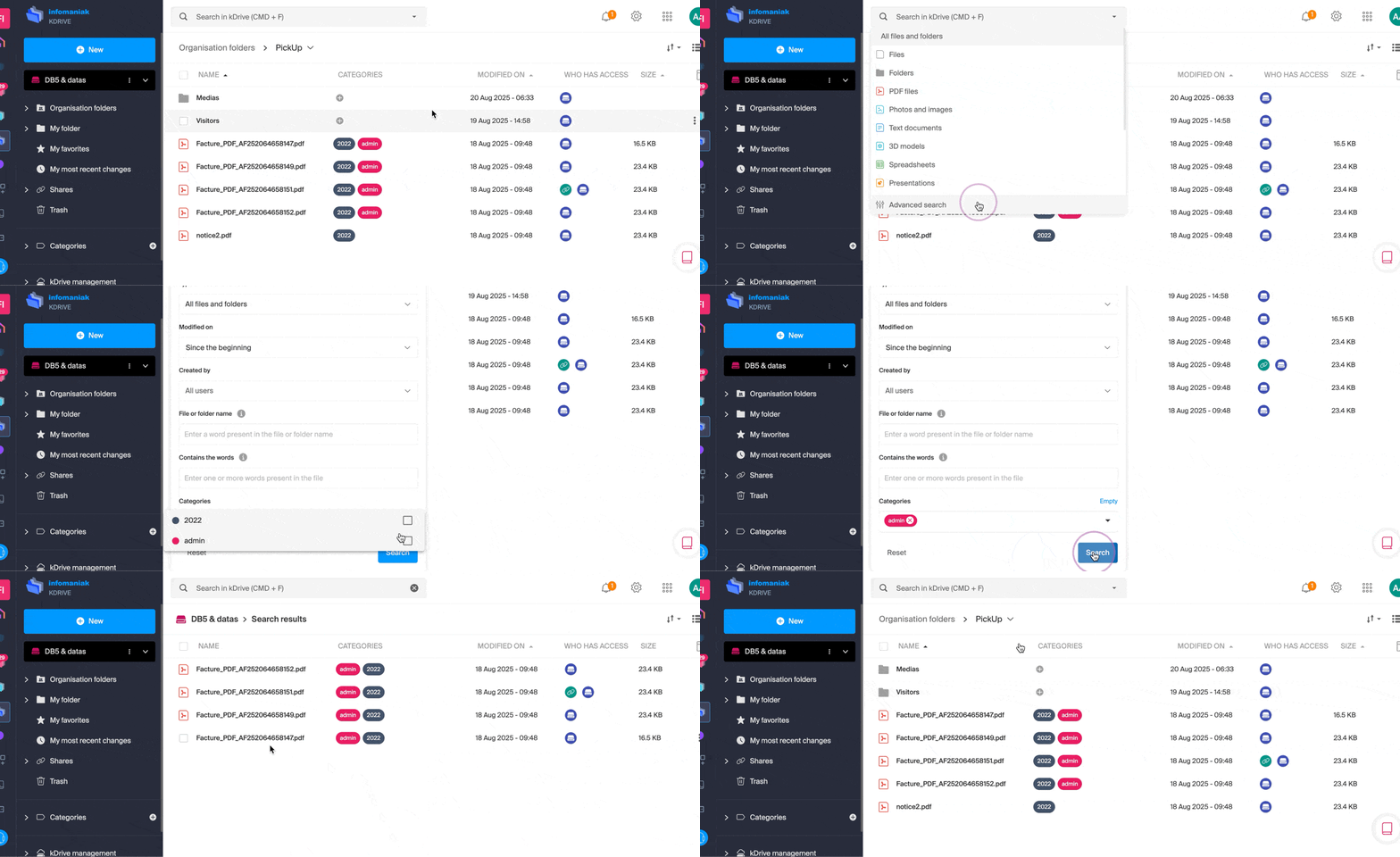
Link para esta FAQ: https://faq.infomaniak.com/2628
Esta seção de perguntas frequentes foi útil?