Base de conhecimento
1000 perguntas frequentes, 500 tutoriais e vídeos explicativos. Aqui, você encontra apenas soluções!
Controlar remotamente um dispositivo com o kMeet
Este guia explica como usar a funcionalidade de controle remoto de um dispositivo, cujo ecrã é partilhado, com kMeet, a solução ética de videoconferência gratuita da Infomaniak.
Pré-requisitos
- Ter a aplicação de ambiente de trabalho kMeet (aplicação para macOS/Windows).
- Partilhar todo o ecrã e não apenas uma janela de aplicação.
Assumir o controle de um dispositivo
Para que o usuário A possa assumir o controle do computador do usuário B:
- Inicie o aplicativo kMeet e crie ou participe de uma sala de reunião na qual os usuários A e B devem estar.
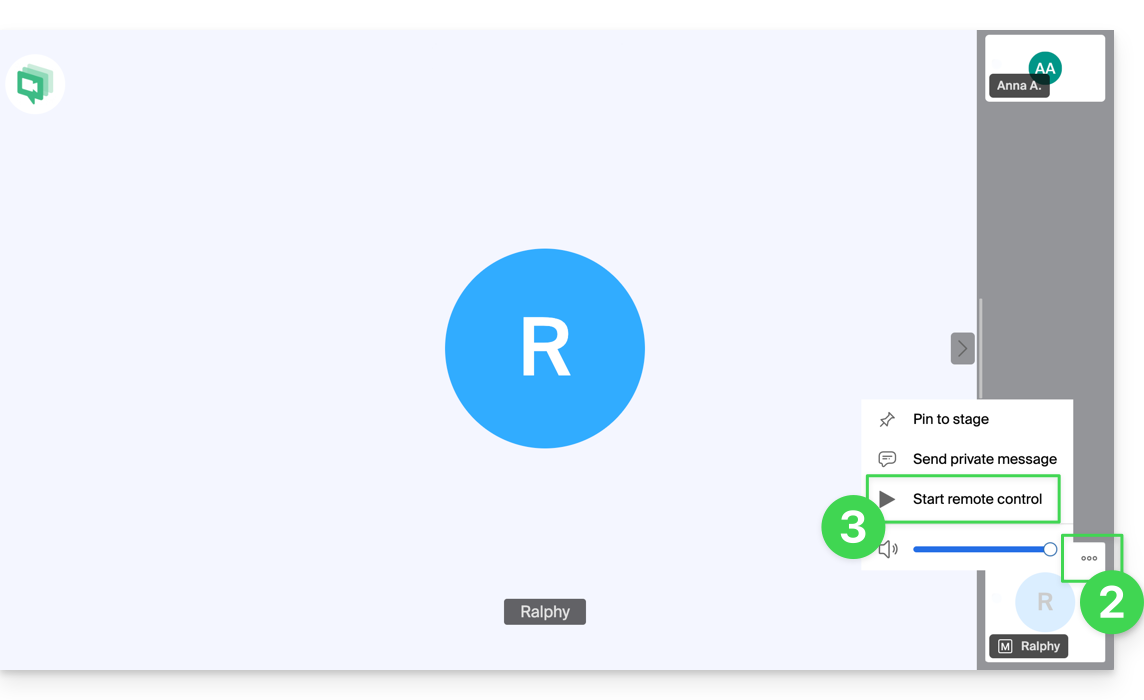
- O usuário A deve clicar no menu de ações.○○○ no canto superior direito da miniatura do utilizador B.
- O utilizador A deve clicar em Iniciar o controlo remoto e seguir o mesmo caminho para parar o controlo:
- O utilizador B recebe uma notificação na aplicação para validar e aceitar o pedido de controlo do dispositivo.
Também é possível simplesmente adicionar anotações a um compartilhamento de tela sem assumir o controle do dispositivo.
Link para esta FAQ: https://faq.infomaniak.com/2622
Esta seção de perguntas frequentes foi útil?