Base de conhecimento
1000 perguntas frequentes, 500 tutoriais e vídeos explicativos. Aqui, você encontra apenas soluções!
Desenhar no kMeet
Atualização 13/10/2026
Este guia explica como usar a funcionalidade de desenho com o kMeet, a solução ética de videoconferência gratuita da Infomaniak, que permite a colaboração visual entre os participantes.
Exibir um quadro branco colaborativo
É possível exibir uma área branca onde todos os participantes poderão inserir informações:
- Inicie o aplicativo kMeet e, em seguida, inicie uma reunião (❓: ajuda) ou participe de uma (❓: ajuda) na qual os usuários deverão estar presentes.
- Após entrar na reunião, clique no menu de ação ○○○ na barra de ferramentas do kMeet.
- Clique em Exibir o quadro branco:
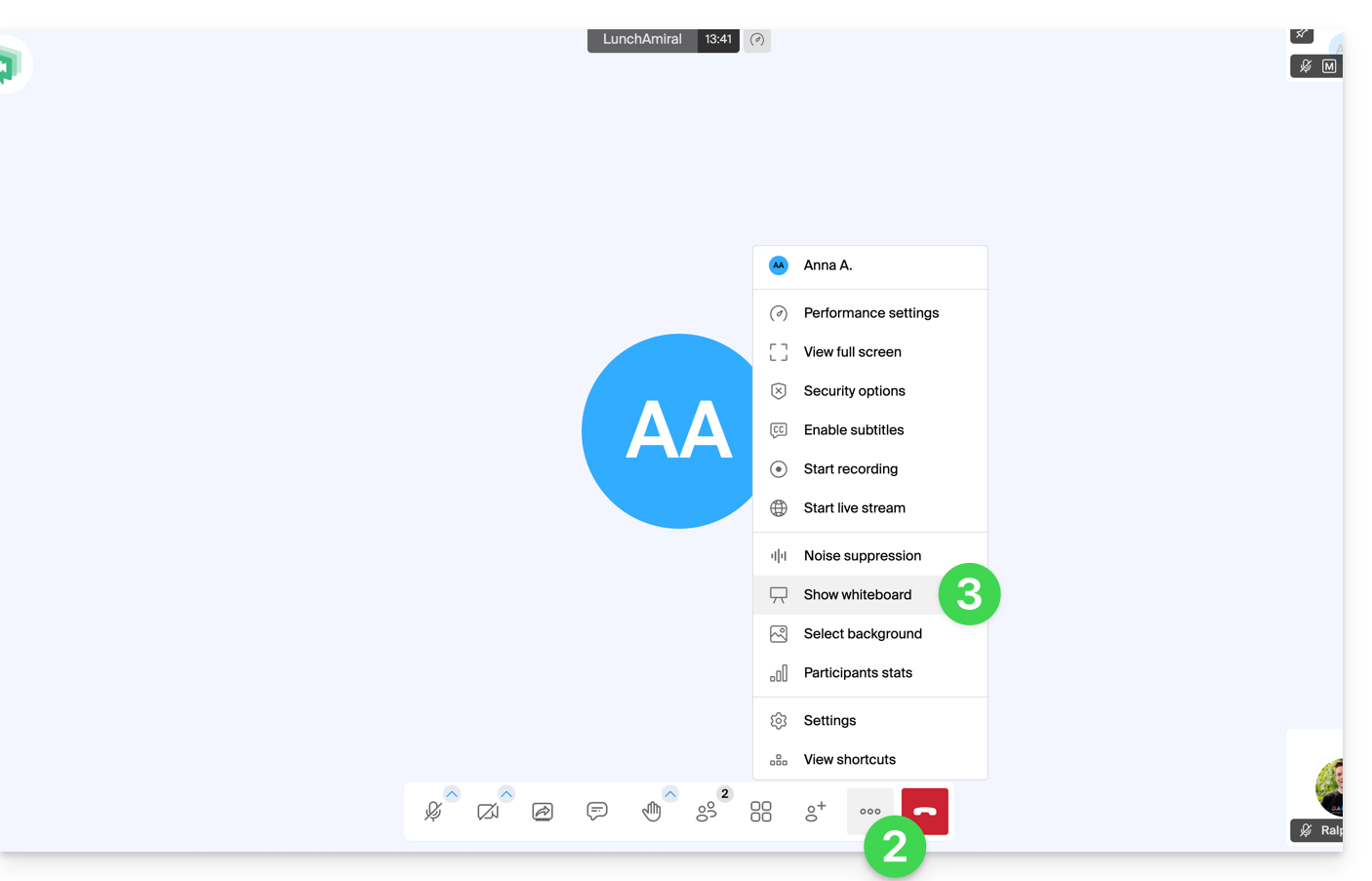
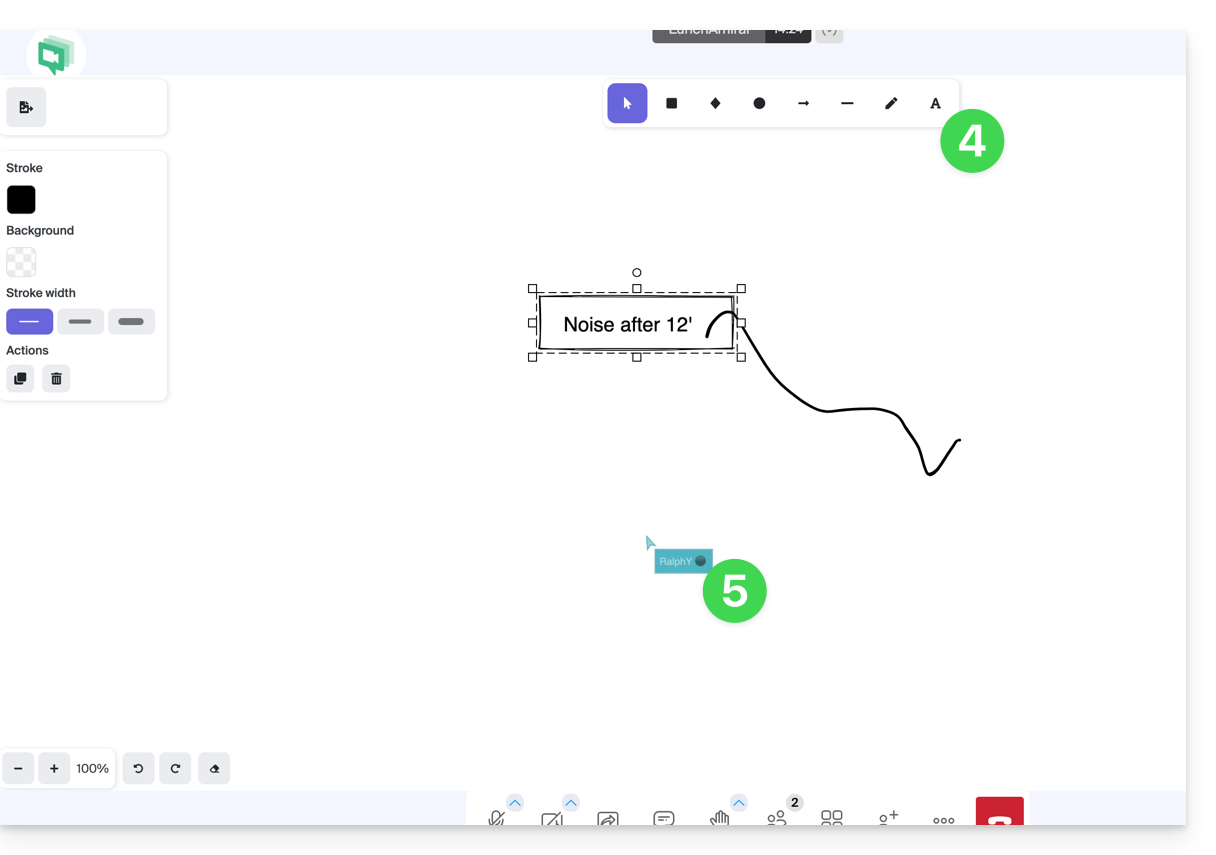
- A área de desenho será exibida para todos os participantes, e cada um poderá inserir o que desejar.
- O cursor de cada participante é exibido:
Desenhar em uma tela compartilhada
Pré-requisitos
- Ter a aplicação de ambiente de trabalho kMeet (aplicação para macOS / Windows / Linux).
- Partilhar o ecrã inteiro e não apenas uma janela da aplicação (ponto 2 abaixo).
Em seguida:
- Inicie o aplicativo kMeet e crie ou participe de uma sala de reunião na qual os usuários deverão estar.
- Um dos participantes inicia o compartilhamento da tela (apenas na versão para desktop – consulte os pré-requisitos).
- A partir daí, os outros participantes da reunião podem desenhar colaborativamente na tela compartilhada:
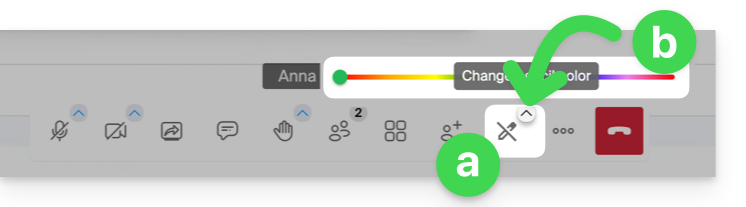
- Clique no ícone de lápis na barra de ferramentas inferior para desenhar na tela.
- Altere a cor da caneta, se necessário:
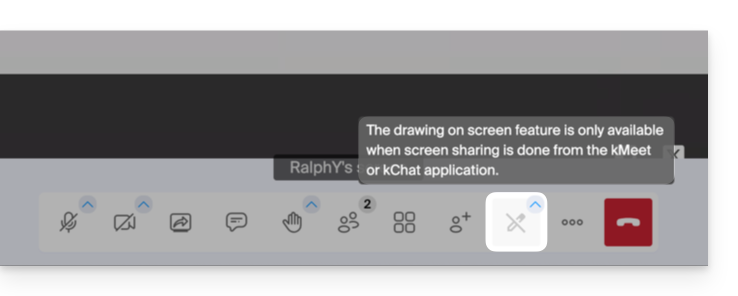
- Se o compartilhamento de tela não for iniciado a partir do aplicativo kMeet (versão para computador), esta mensagem será exibida para os participantes que desejam ativar a função de desenho:
Também é possível assumir o controle do dispositivo durante uma sessão de compartilhamento de tela.
Link para esta FAQ: https://faq.infomaniak.com/2620
Esta seção de perguntas frequentes foi útil?