Base de conhecimento
1000 perguntas frequentes, 500 tutoriais e vídeos explicativos. Aqui, você encontra apenas soluções!
Draw on kMeet
This guide explains how to use the drawing feature with kMeet, Infomaniak's ethical and free video conferencing solution, which allows participants to collaborate visually.
Display a collaborative whiteboard
It is possible to display a blank area where all participants can enter information:
- Start the kMeet desktop app, then start a meeting (❓: help) or join one (❓: help) in which the users will be present.
- Once in the meeting, click on the action menu ○○○ in the kMeet toolbar.
- Click on Show whiteboard:
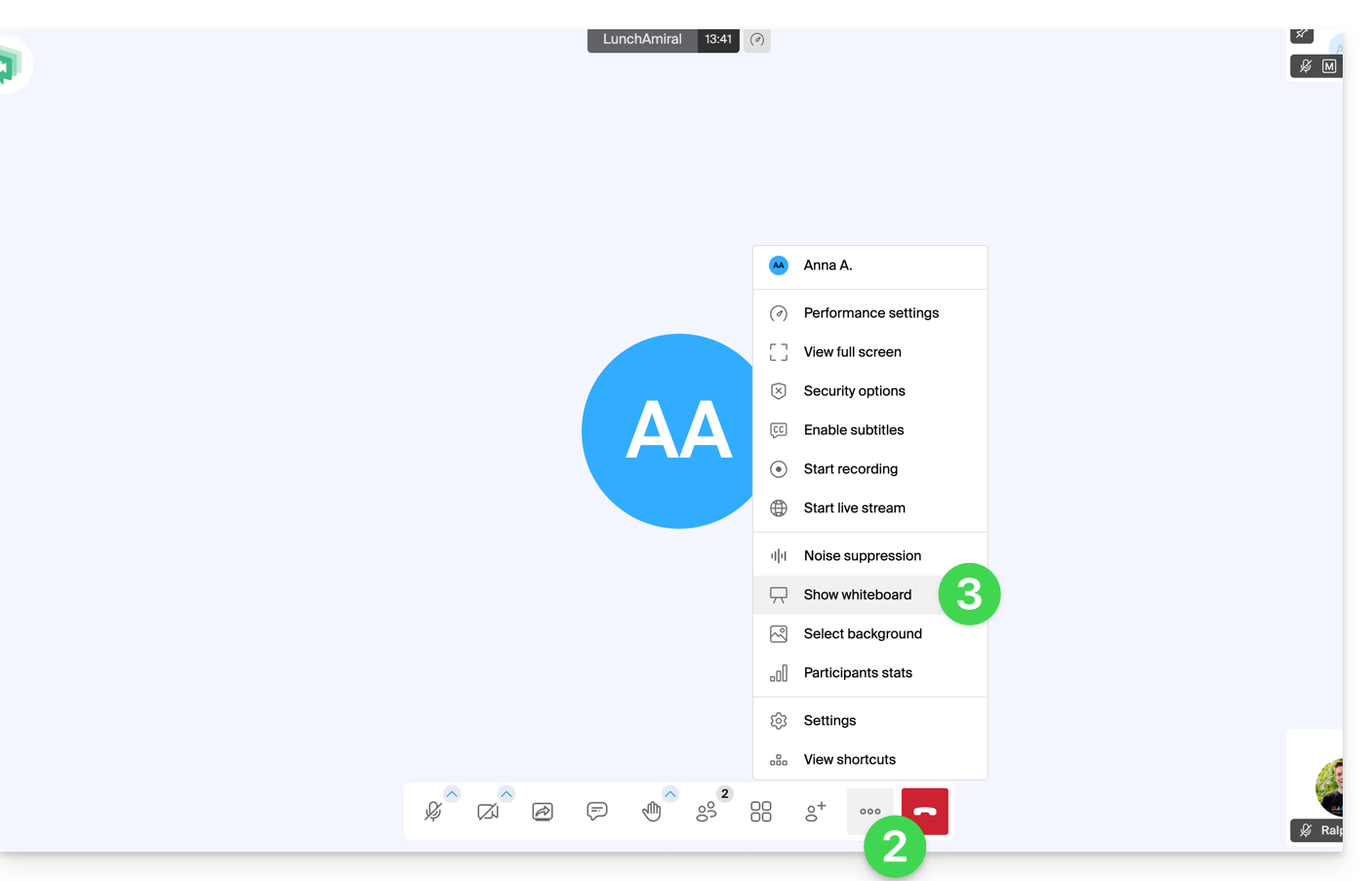
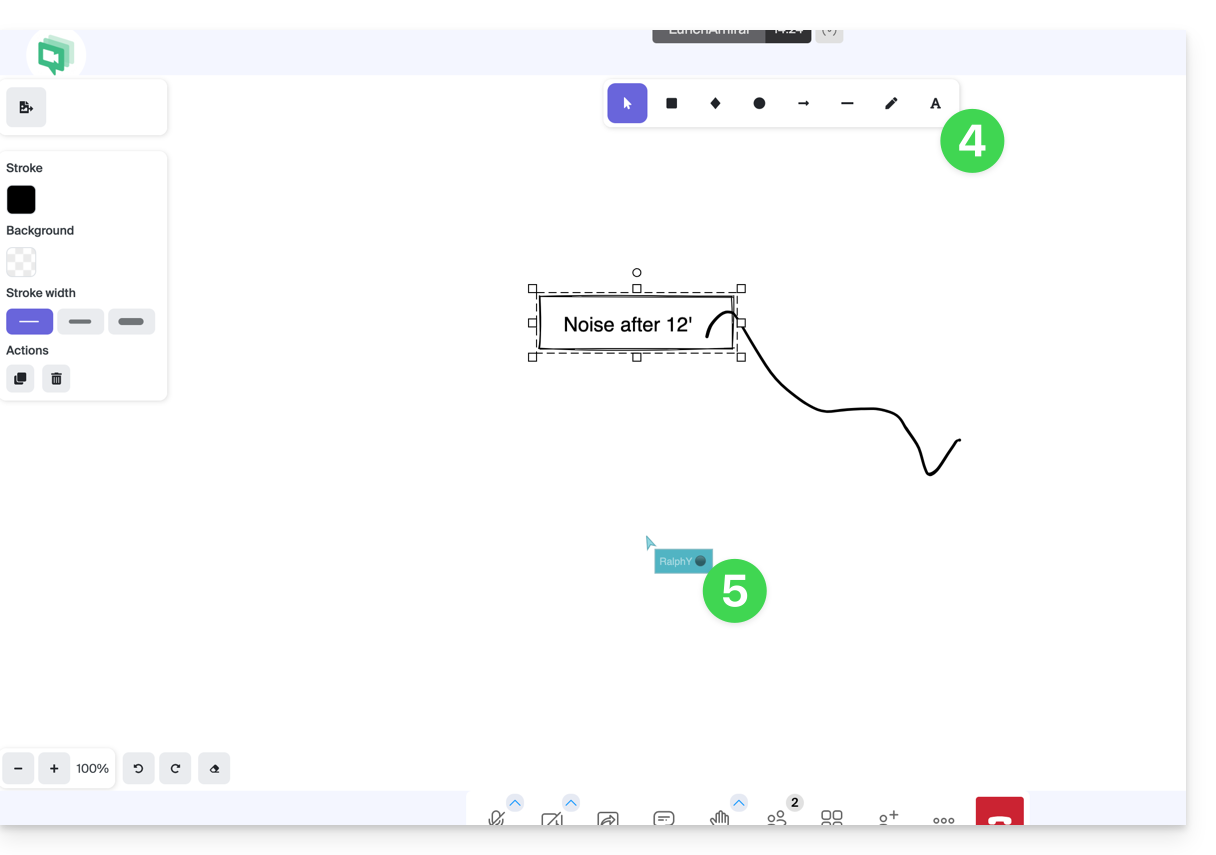
- The drawing area will be displayed for all participants, and each person can write what they want in it.
- Each participant's cursor is displayed:
Drawing on a screen sharing session
Prerequisites
- Have the desktop app kMeet (desktop application for macOS / Windows / Linux).
- Share your entire screen, not just a single application window (see point 2 below).
Next:
- Start the kMeet desktop app, then create or join a meeting room where the users will be.
- One of the participants initiates a screen sharing session (desktop app only - see prerequisites).
- The other participants can then collaboratively draw on the shared screen:
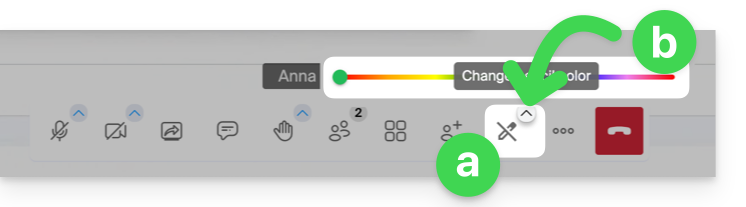
- Click the pencil icon in the bottom toolbar to draw on the screen.
- Change the pen color if needed:
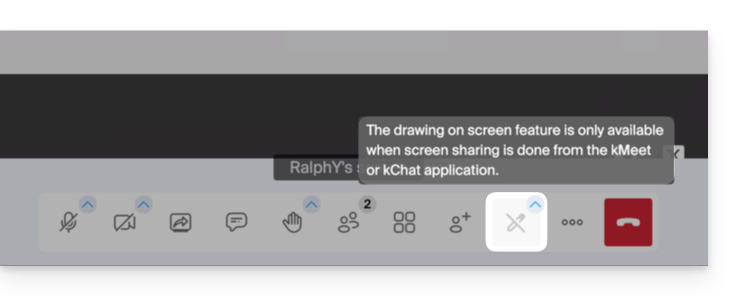
- If the screen sharing is not initiated from the kMeet application (desktop version), this message will appear for participants who want to enable the drawing feature:
It is also possible to take control of the device during a screen sharing session.
Link para esta FAQ: https://faq.infomaniak.com/2620
Esta seção de perguntas frequentes foi útil?