Base de conhecimento
1000 perguntas frequentes, 500 tutoriais e vídeos explicativos. Aqui, você encontra apenas soluções!
Atualize o aplicativo kDrive no seu computador
Este guia explica como verificar e atualizar a versão do aplicativo para desktop kDrive (aplicativo para macOS / Windows / Linux).
Acessar as informações da versão instalada…
… no macOS / Windows / Linux
Para identificar o número da versão do aplicativo kDrive:
- Clique com o botão esquerdo do rato no ícone do aplicativo de ambiente de trabalho kDrive na área de notificação do seu computador (no canto superior direito no macOS, no canto inferior direito no Windows e um duplo clique com o botão esquerdo na barra de tarefas no Linux).
- Clique no ícone ⋮ no canto superior direito do aplicativo e, em seguida, em Preferências:
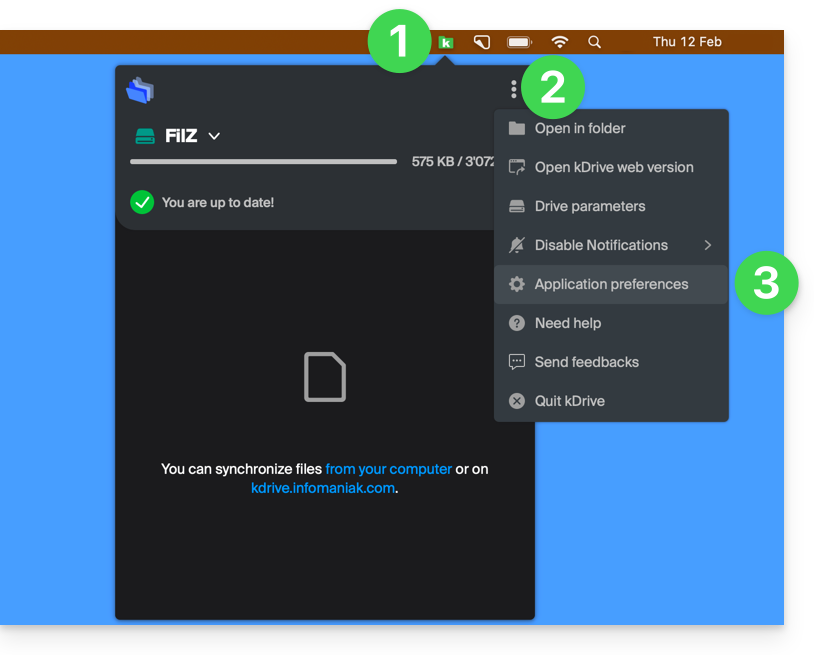
ou diretamente em Preferências se a janela kDrive já estiver aberta: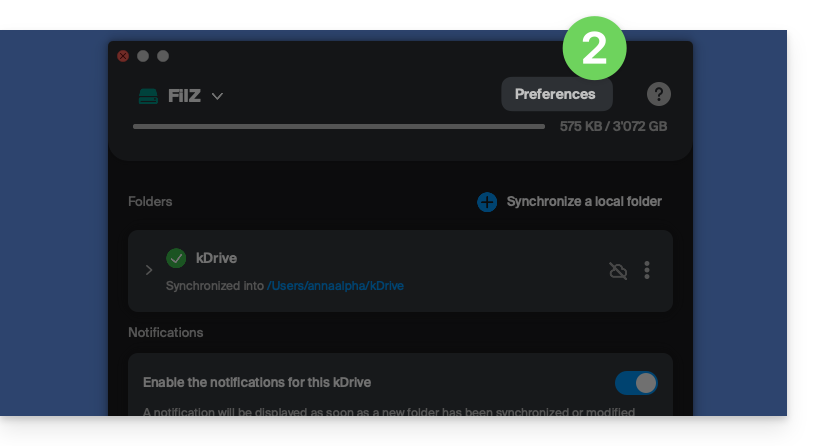
- Role até o final e, na categoria Versão, será indicada a versão atualmente instalada no seu computador:
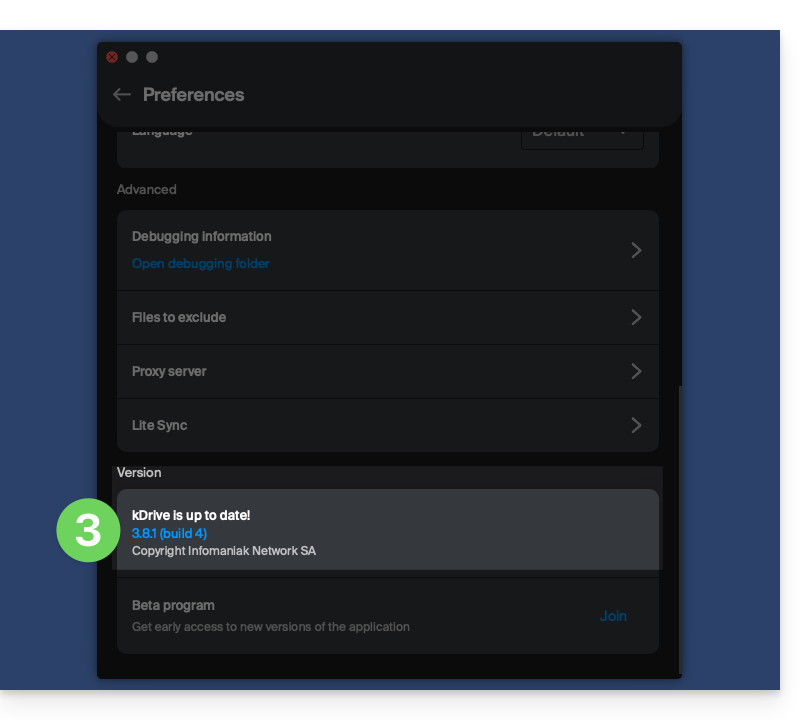
Atualizar a versão instalada
… no macOS / Windows
A cada nova versão do aplicativo kDrive oferecido pela Infomaniak, uma mensagem será exibida na primeira vez que o software for aberto após uma reinicialização ou alguns minutos depois, caso não tenha sido reiniciado, oferecendo a possibilidade de instalar a atualização automaticamente.
Caso contrário:
- Leia as etapas acima e clique no botão que oferece a atualização:
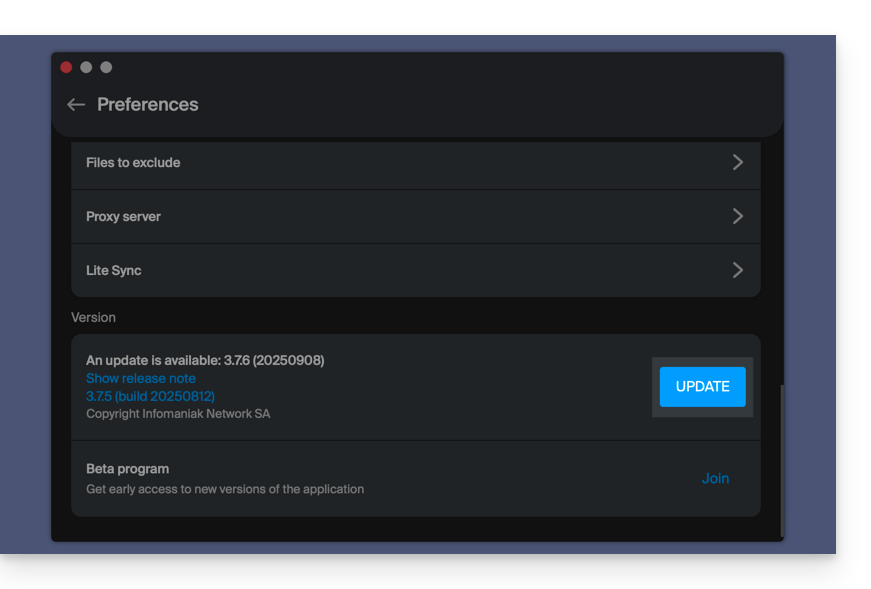
Se o botão não estiver visível ou se a versão do aplicativo for muito antiga:
- Descarregue a versão mais recente a partir da página oficial (o número da versão mais recente aparece no nome do arquivo):

- Se este número de versão for mais recente do que a sua versão atual, aguarde até que o download seja concluído.
- Enquanto isso, desinstale o seu aplicativo sem tocar na pasta que contém os seus arquivos sincronizados e, principalmente, sem movê-la.
- Instale a nova versão que você baixou.
Link para esta FAQ: https://faq.infomaniak.com/2580
Esta seção de perguntas frequentes foi útil?