Base de conhecimento
1000 perguntas frequentes, 500 tutoriais e vídeos explicativos. Aqui, você encontra apenas soluções!
Update the password for your email address in Apple Mail (macOS / iOS)
This guide explains how to update the password for a mail address on your device after you have changed it from the Infomaniak Mail Service.
Introduction
- Also, please refer to the official Apple help on this topic.
Apple Mail (macOS)
To access the password settings (refer to the complete guide if needed):
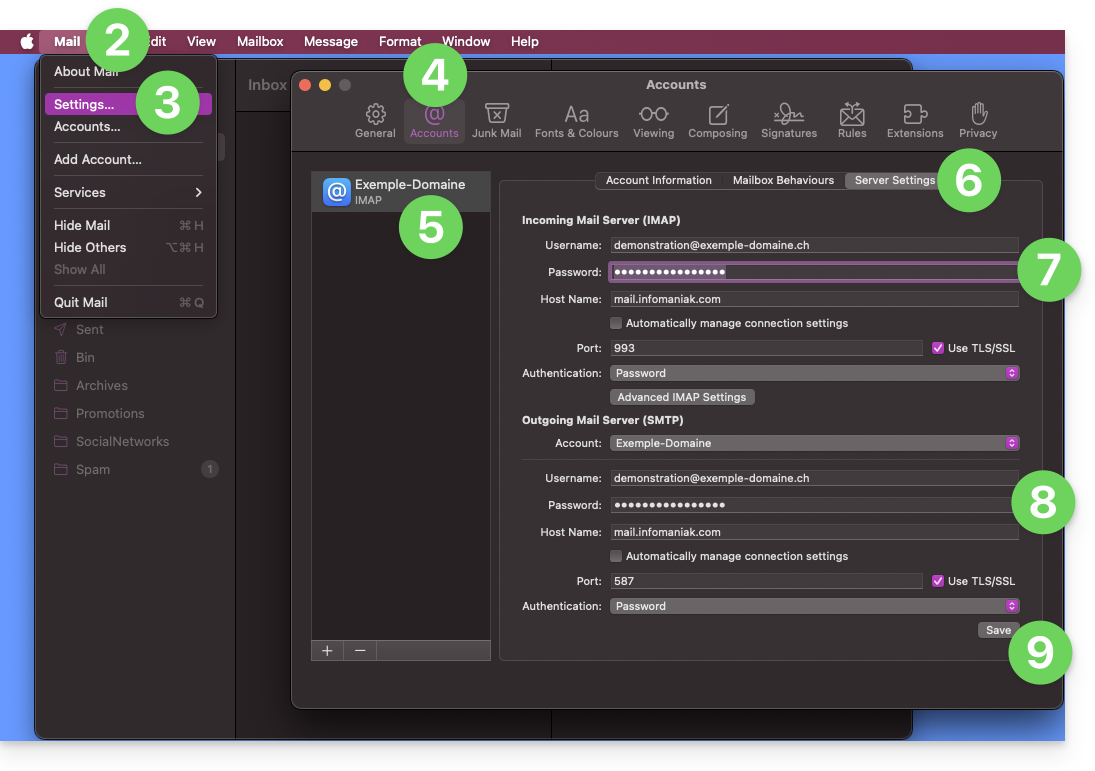
- Open the Mail application.
- Click on the Mail menu in the upper left corner.
- Click on Settings.
- Click on Accounts.
- Make sure the relevant account is selected.
- Click on the Server Settings tab.
- Enter the IMAP password.
- Enter the SMTP password, then check the rest of the settings, port number, etc.
- Click the Save button:
iOS (iPhone, iPad, etc.)
Here's how to access the password settings (refer to the complete guide if needed):
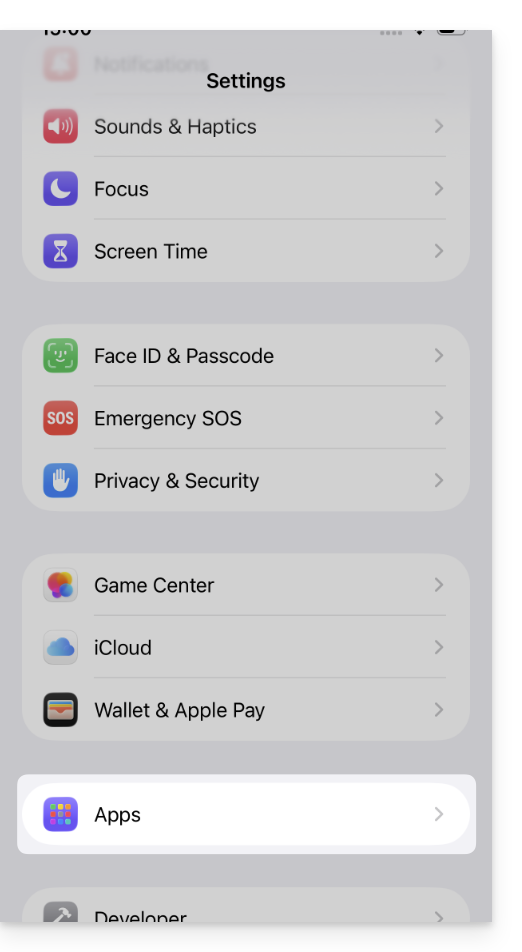
- Open the Settings app on your iPhone and tap Apps:
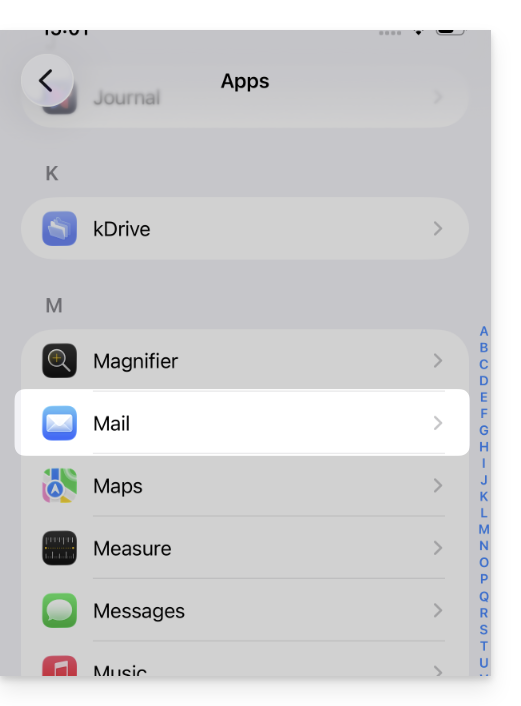
- In Apps, tap Mail:
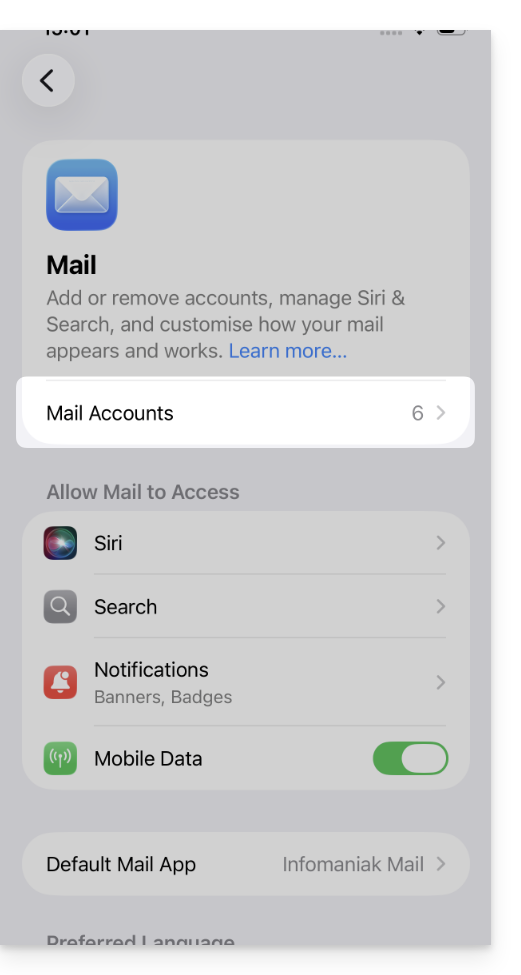
- Tap Mail Accounts:
- Tap the account associated with your Infomaniak email address:
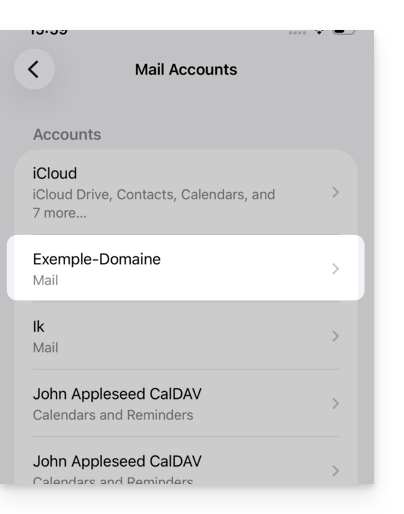
- Tap Account Settings:
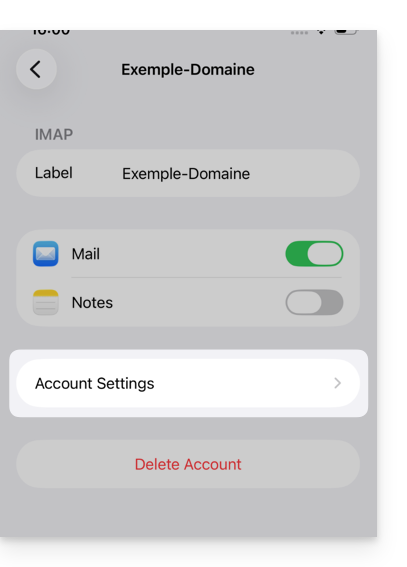
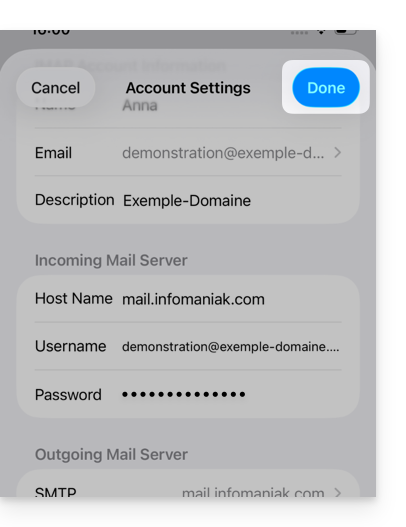
- Update the password in the Incoming Server section.
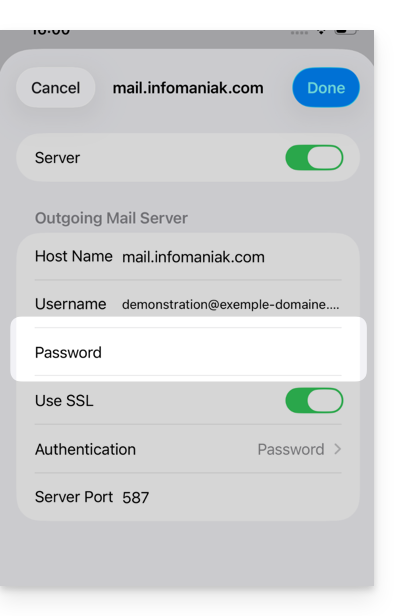
- Tap the SMTP server in the Outgoing Server section to update the password or resolve an issue such as a missing SMTP server:
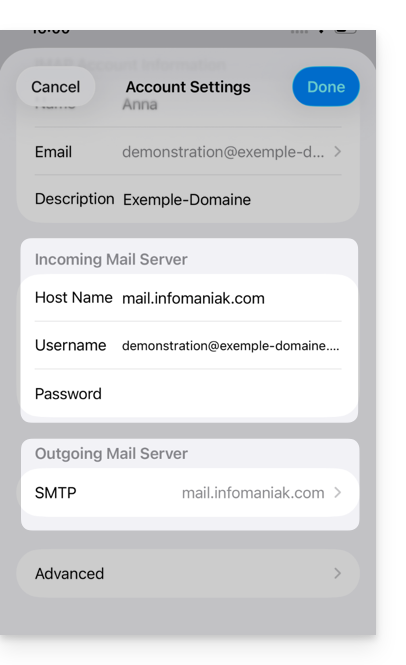
- Tap the server associated with your Infomaniak email address (or if it is missing, tap Add Server below and configure it according to these instructions):
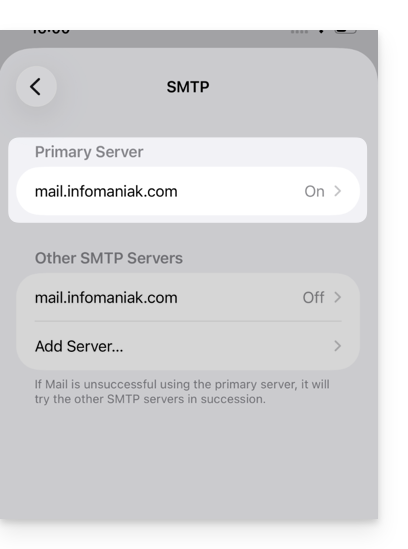
- Tap ON to enable the SMTP server if necessary.
- Update the password and check all settings, including password authentication.
- Click Confirm in the top right corner:
- The SMTP account is now correctly activated:
Link para esta FAQ: https://faq.infomaniak.com/2556
Esta seção de perguntas frequentes foi útil?