Base de conhecimento
1000 perguntas frequentes, 500 tutoriais e vídeos explicativos. Aqui, você encontra apenas soluções!
Atualizar a senha do endereço de e-mail no Apple Mail (macOS / iOS)
Atualização 08/10/2026
Este guia explica como atualizar a senha de um endereço de e-mail no seu dispositivo após tê-la alterado em um Serviço de E-mail Infomaniak.
Introdução
- Consulte também a documentação oficial da Apple sobre este assunto.
Apple Mail (macOS)
Para acessar as configurações da senha (consulte o guia completo, se necessário):
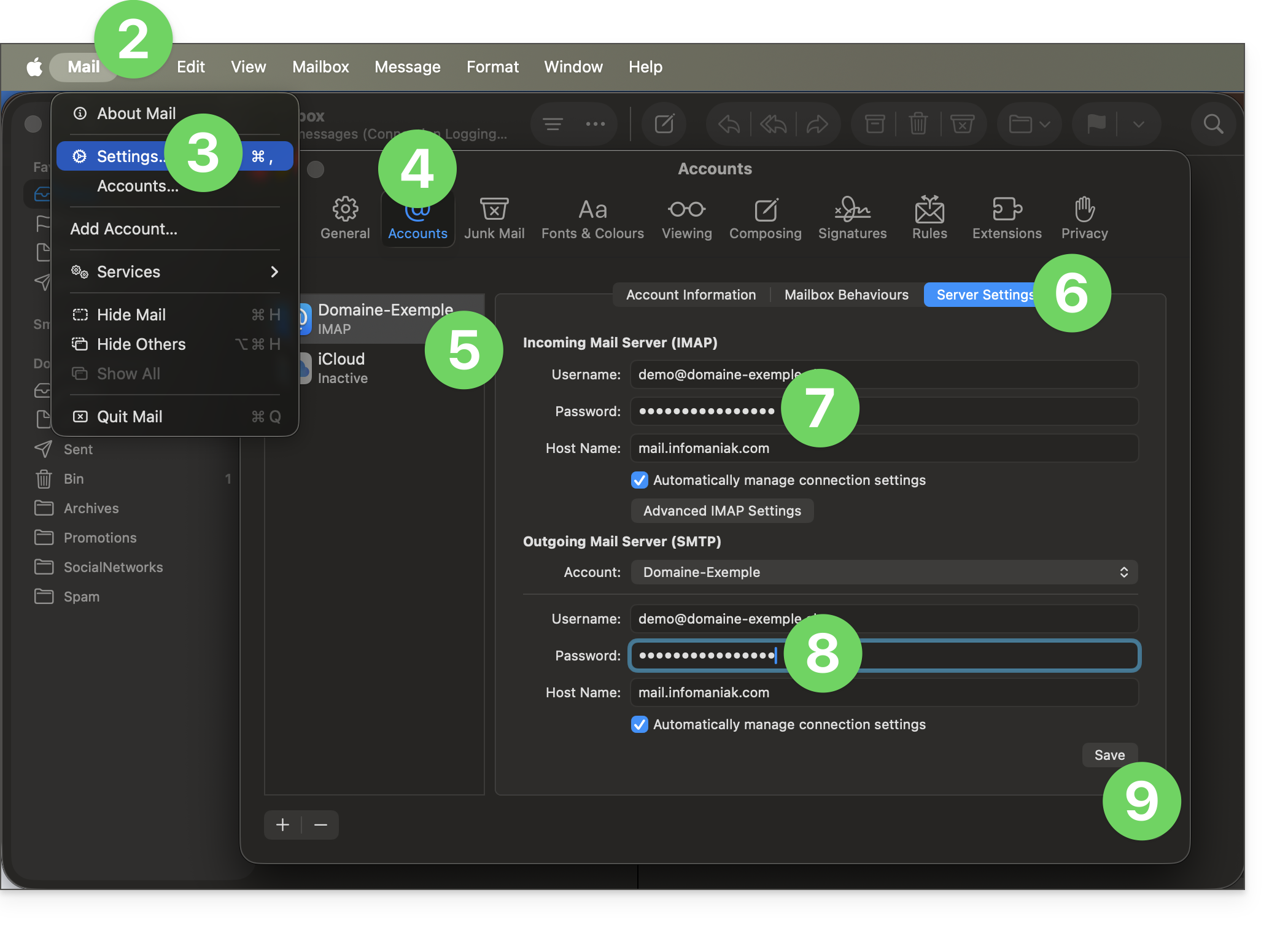
- Abra o aplicativo Mail.
- Clique no menu Mail no canto superior esquerdo.
- Clique em Configurações.
- Clique em Contas.
- Verifique se a conta em questão está selecionada.
- Clique na aba Configurações do servidor.
- Insira a senha IMAP.
- Insira a senha SMTP e, em seguida, verifique o restante das configurações, como o número da porta, etc.
- Clique no botão Salvar:
iOS (iPhone, iPad, etc.)
Veja como acessar as configurações da senha (consulte o guia completo, se necessário):
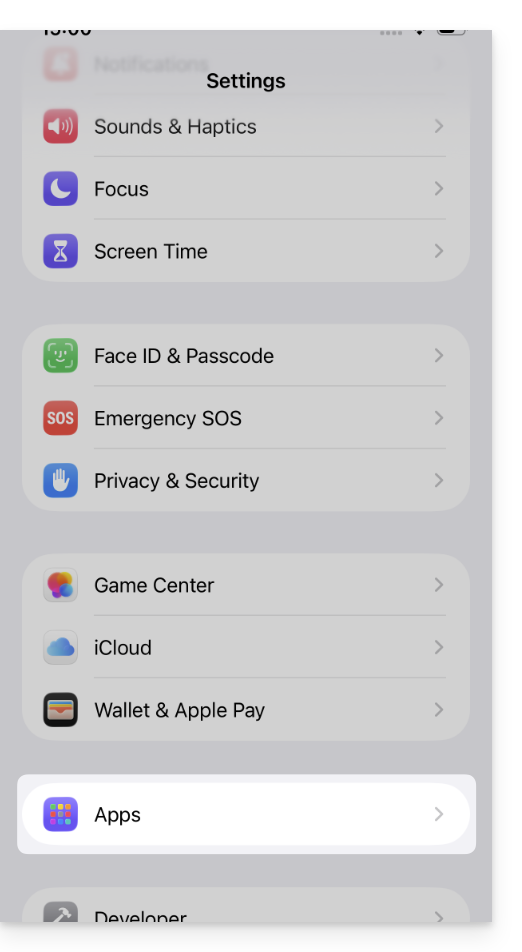
- Abra as configurações do iPhone e toque em Apps:
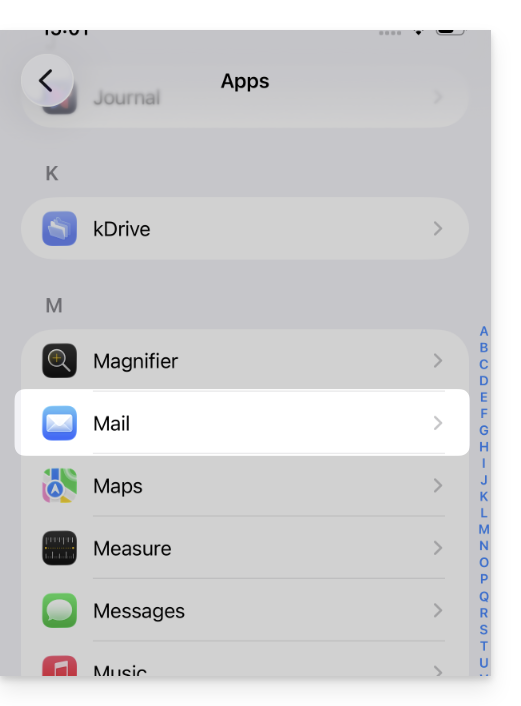
- Em Apps, toque em Mail:
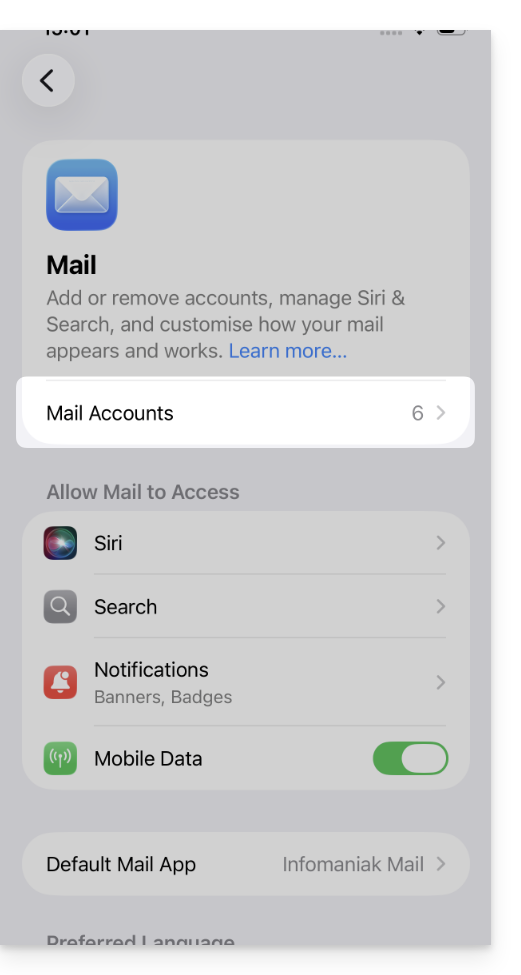
- Toque em Contas de Email:
- Toque na conta associada ao endereço de email Infomaniak:
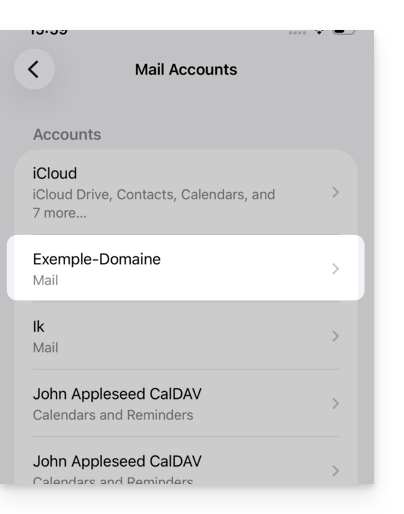
- Toque em Configurações da conta:
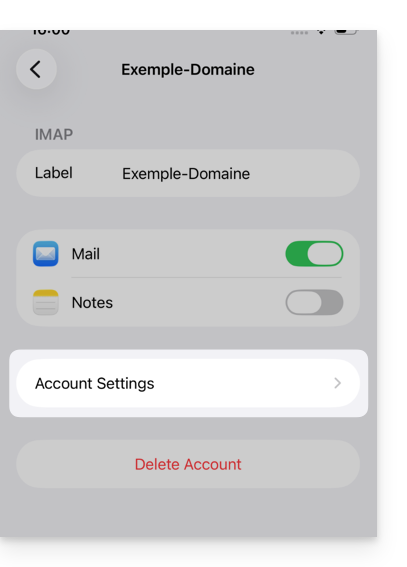
- Atualize a senha na seção Servidor de entrada.
- Clique em Servidor SMTP na secção Servidor de saída para atualizar a palavra-passe ou resolver um problema de servidor SMTP ausente, por exemplo:
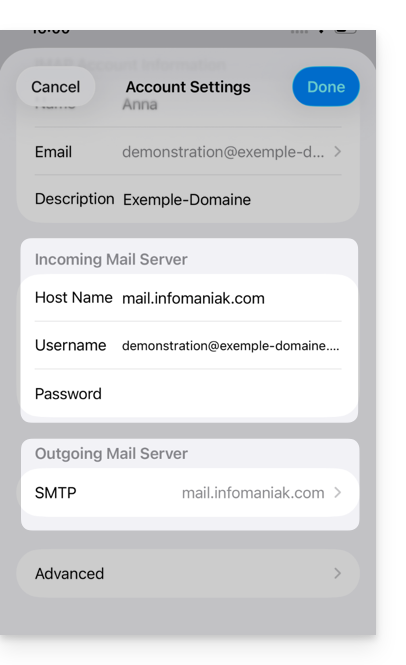
- Clique no servidor associado ao endereço de e-mail Infomaniak (ou, se este estiver ausente, clique em Adicionar servidor abaixo e configure-o de acordo com estas instruções):
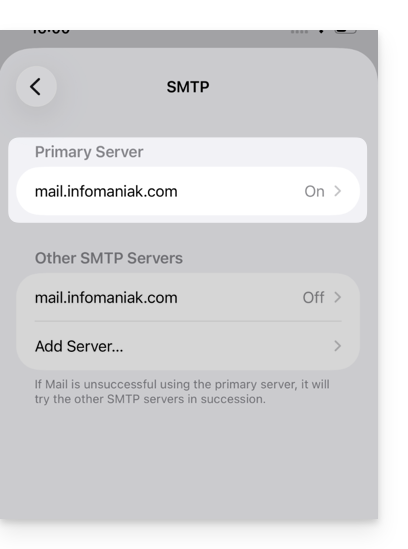
- Toque em ON para ativar o servidor SMTP, se necessário.
- Atualize a senha e verifique todas as configurações, incluindo a autenticação por senha.
- Clique em Confirmar no canto superior direito:
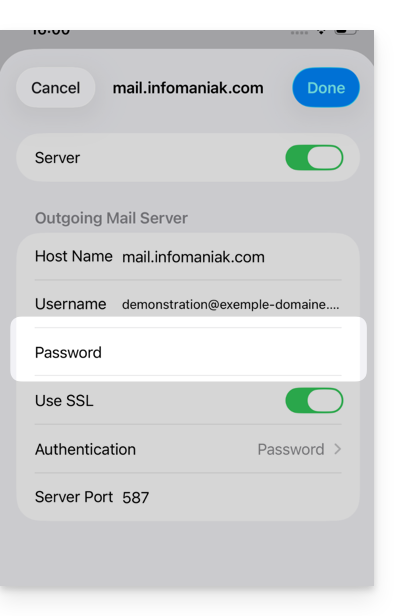
- A conta SMTP está agora ativada corretamente:
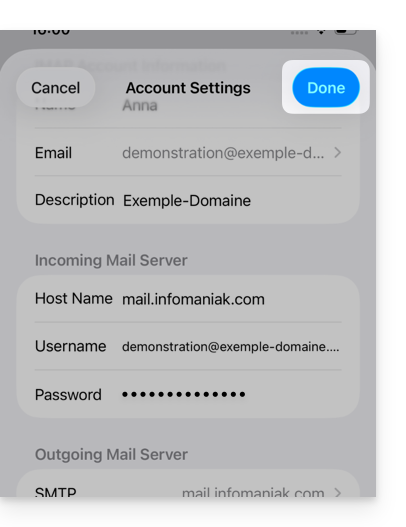
Link para esta FAQ: https://faq.infomaniak.com/2556
Esta seção de perguntas frequentes foi útil?