Base de conhecimento
1000 perguntas frequentes, 500 tutoriais e vídeos explicativos. Aqui, você encontra apenas soluções!
Atualizar a senha do endereço de e-mail no Outlook
Este guia explica como atualizar a senha de um endereço de e-mail no seu dispositivo após tê-la alterado no Serviço de E-mail Infomaniak.
Introdução
- Consulte também a documentação oficial da Microsoft sobre o assunto.
Novo Outlook 2023-2024 (Windows)
Veja como acessar as configurações de senha (consulte o guia completo, se necessário):
- Abra o aplicativo Novo Outlook.
- Clique no ícone de engrenagem no canto superior direito:
- Clique no botão azul para inserir a nova senha e, assim, reconectar-se à conta:
Outlook para Mac
Veja como acessar as configurações de senha (consulte o guia completo, se necessário):
- Abra o aplicativo Outlook.
- Vá para Microsoft Outlook > Preferências.
- Clique em Contas:
Outlook 365
Veja como acessar as configurações de senha (consulte o guia completo, se necessário):
- Abra o aplicativo Outlook.
- Vá para Outlook > Preferências.
- Clique em Contas.
- No menu lateral esquerdo, selecione a conta Infomaniak e insira a nova senha no campo correspondente.
O aplicativo pode simplesmente solicitar que você insira a nova senha na próxima vez que for aberto. Outlook 2019 (Windows)
Veja como acessar as configurações de senha (consulte o guia completo, se necessário):
- Abra o aplicativo Outlook.
- Clique em Arquivo:
- Clique em Configurações do servidor, abaixo das configurações da conta:
- Insira as novas informações da conta selecionada:
Outlook 2016 (Windows)
Veja como acessar as configurações de senha (consulte o guia completo, se necessário):
- Abra o aplicativo Outlook.
- Clique em Arquivo:
- Clique em Configurações do servidor, abaixo das configurações da conta:
- Insira as novas informações da conta selecionada:
Outlook 2013 (Windows)
Veja como acessar as configurações de senha (consulte o guia completo, se necessário):
- Abra o aplicativo Outlook.
- Clique em Arquivo:
- Clique em Configurações da conta:
- Clique em Editar para inserir as novas informações da conta selecionada:
Microsoft Outlook (Android / iOS)
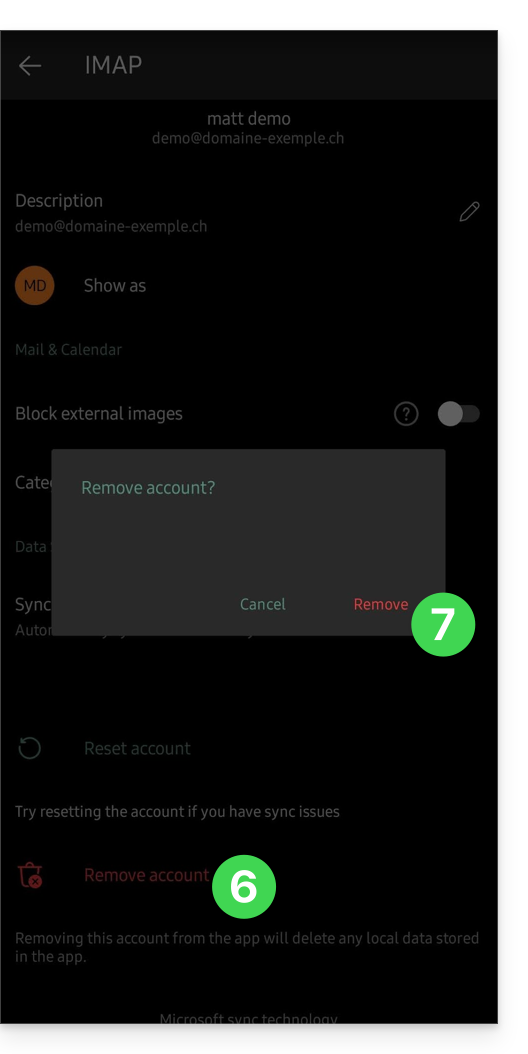
Veja como remover sua conta para reconfigurá-la com as informações corretas (consulte o guia completo, se necessário – o aplicativo também pode simplesmente solicitar que você insira a nova senha na próxima vez que for aberto):
- Abra o aplicativo Outlook no seu smartphone.
- Clique no ícone da sua conta no canto superior esquerdo:
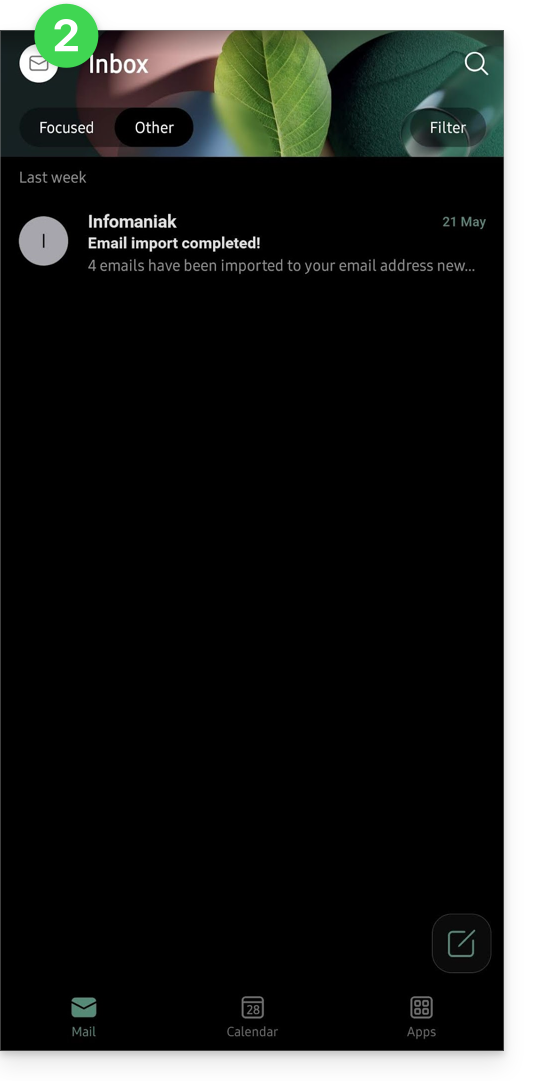
- Clique no ícone
no canto inferior esquerdo da interface:
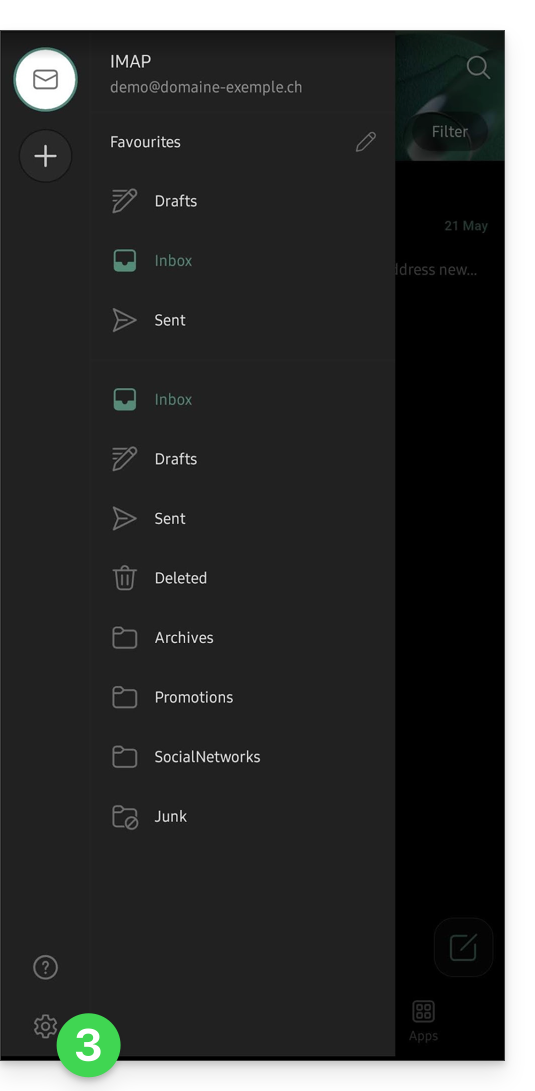
- Clique em Contas:
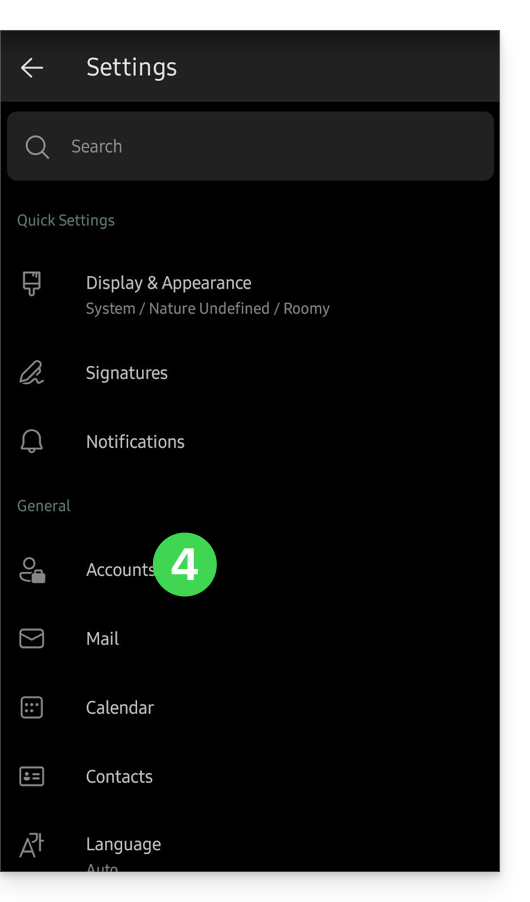
- Clique no nome da sua conta de e-mail:
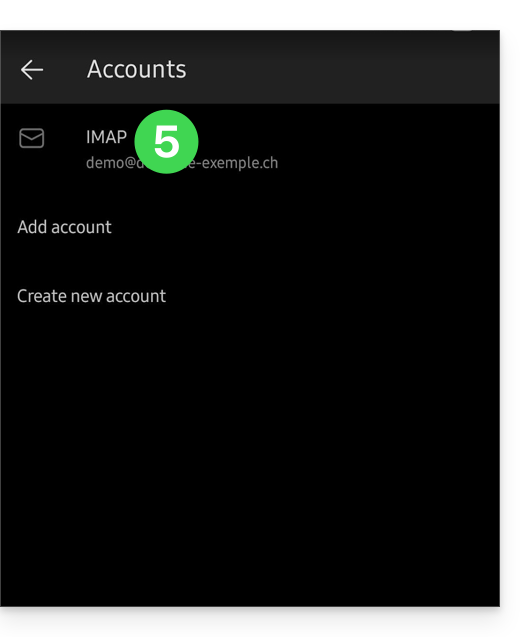
- Clique em Remover conta.
- Clique em Remover para confirmar:
Link para esta FAQ: https://faq.infomaniak.com/2552
Esta seção de perguntas frequentes foi útil?