Base de conhecimento
1000 perguntas frequentes, 500 tutoriais e vídeos explicativos. Aqui, você encontra apenas soluções!
Manage your my kSuite signature (ik.me, etik.com, ikmail.com)
Atualização 23/11/2026
This guide details the Signature section found in the emails you send from the Web Mail app of my kSuite (ik.me, etik.com, ikmail.com) (online service ksuite.infomaniak.com/mail).
Introduction
- It is not possible to remove the automatic addition of the Infomaniak mention in the lower part of your my kSuite emails.
- It is possible to delete the Infomaniak mention that is automatically inserted when composing a new message.
- You can also add your contact details or any information of your choice to the signature that is automatically inserted into each new message.
- If needed, my kSuite+ offers even more flexibility.
Manage your email signature
To add your name or any other information above the Infomaniak mention at the bottom of each of your messages:
- Click here to access your emails on your Infomaniak kSuite (❓: help).
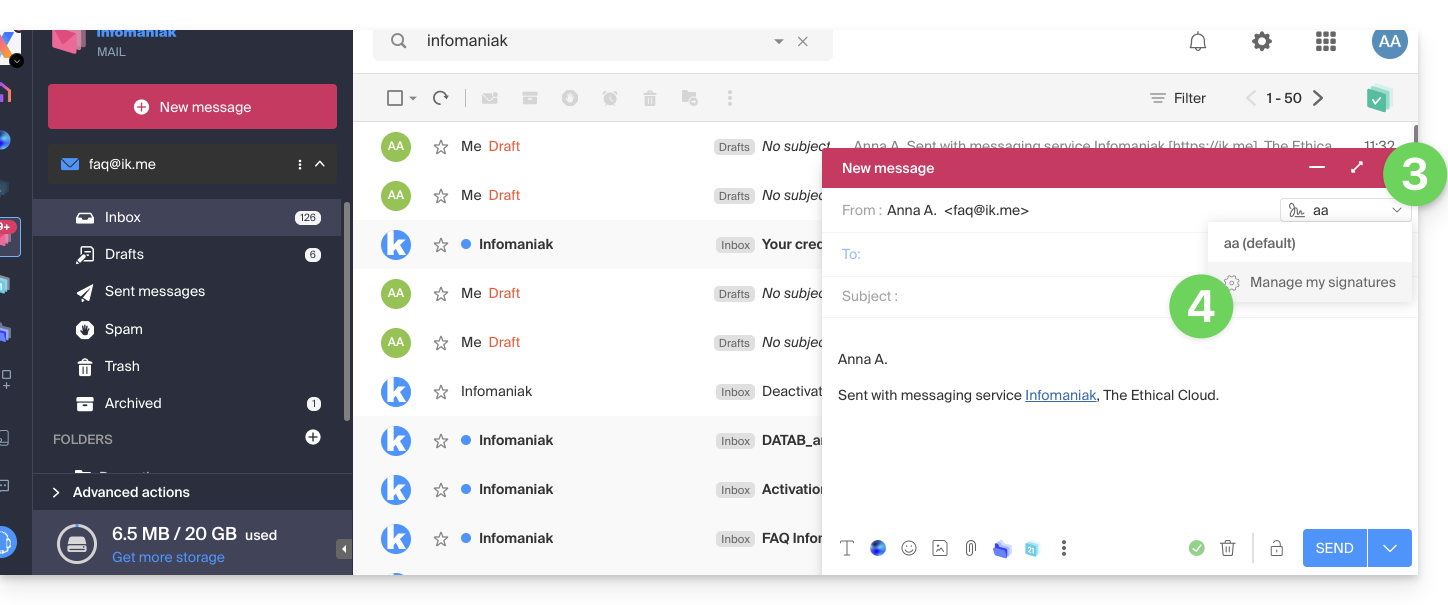
- Click on New message; the composition window will open with a pre-written signature that cannot be removed or modified without upgrading your plan (my kSuite+).
- Click on the chevron to the right of the signature selection menu.
- Click on Manage my signatures:
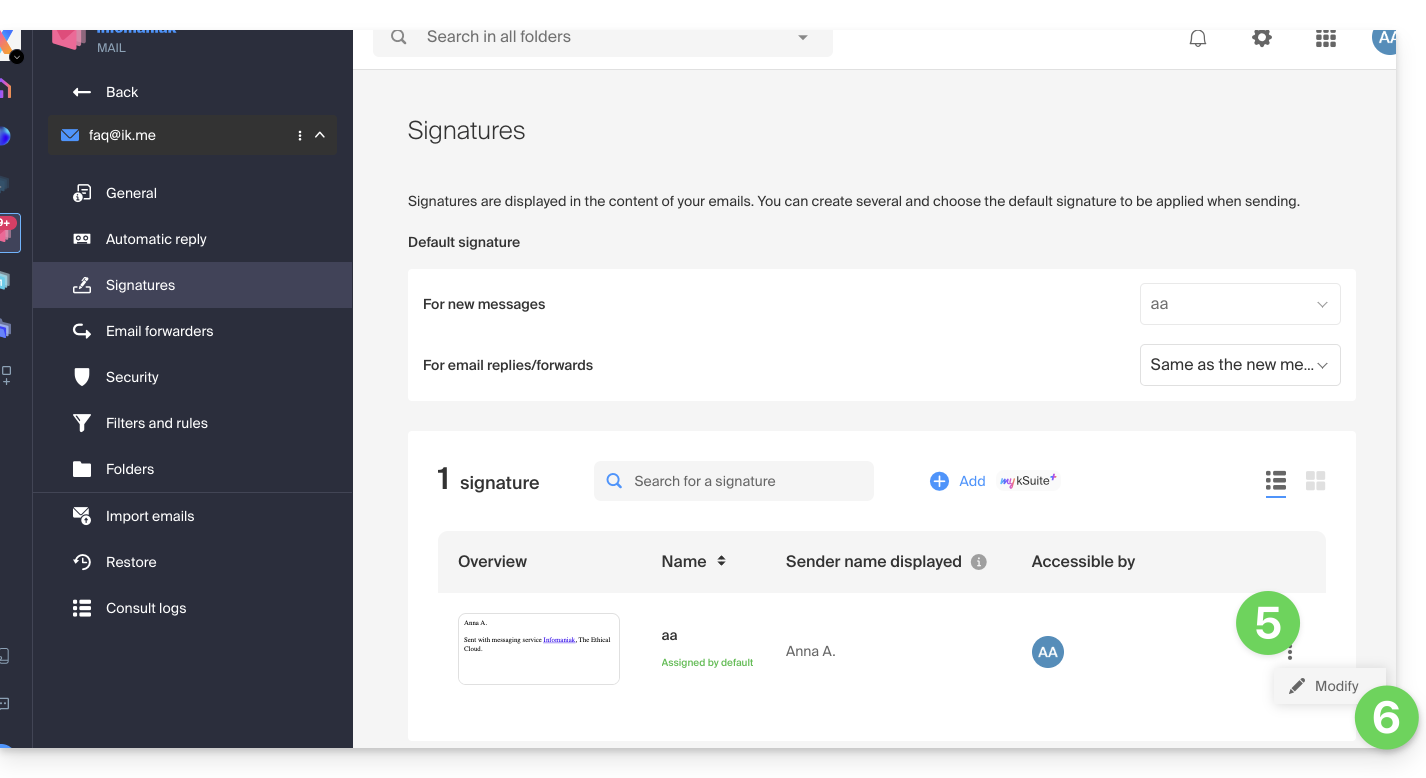
- Click on the action menu ⋮ located to the right of the signature in question.
- Click on Edit:
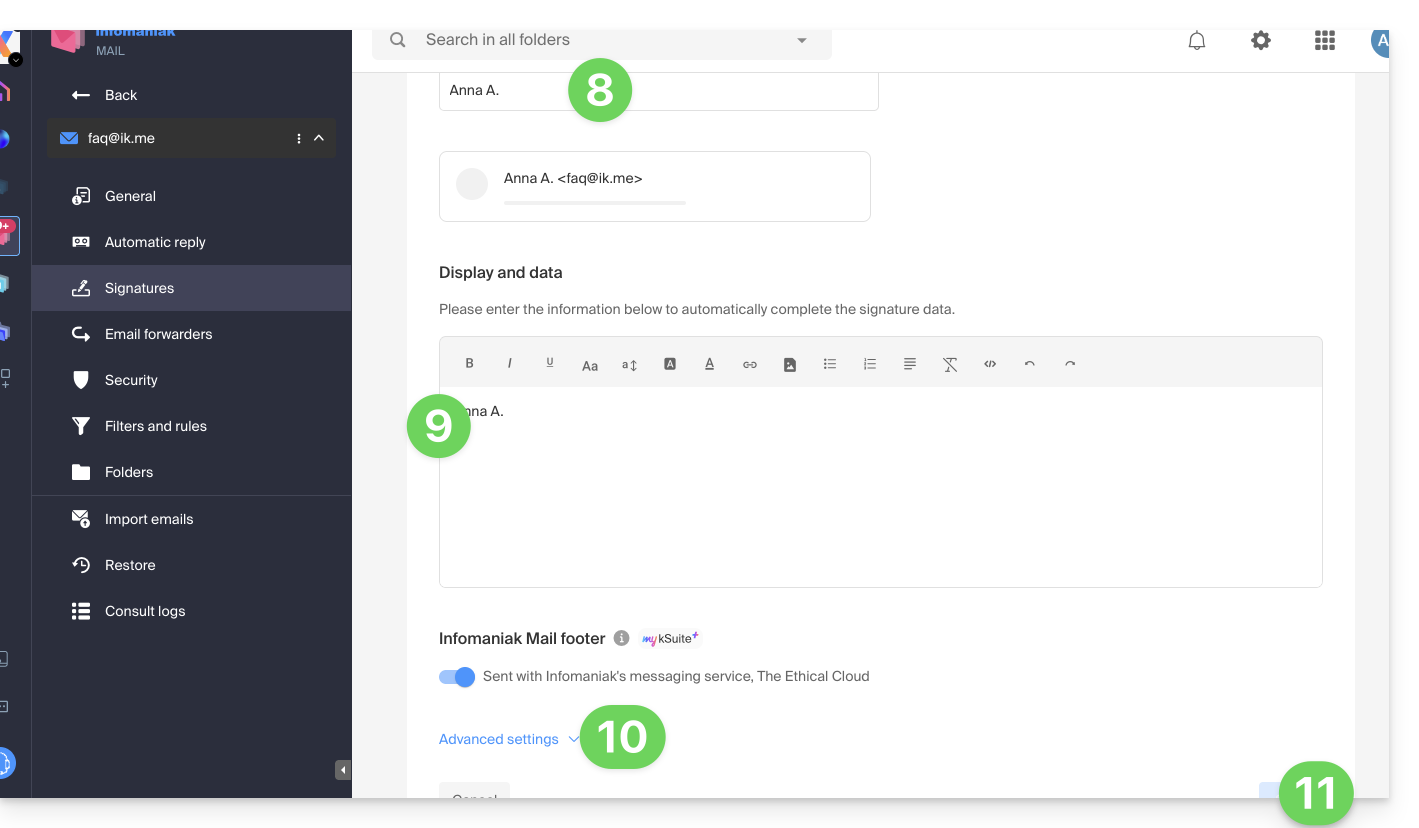
- Enter a name for your custom signature.
- Enter the name you want to display for your message when it reaches your recipients' inbox.
- Enter the content of your signature (formatted text, image, etc.).
- Manage the advanced settings if necessary (signature position).
- Click the button to save:
That's it, every new message you write will now include your new signature, in addition to the mandatory Infomaniak mention, and you can remove it on hover if needed: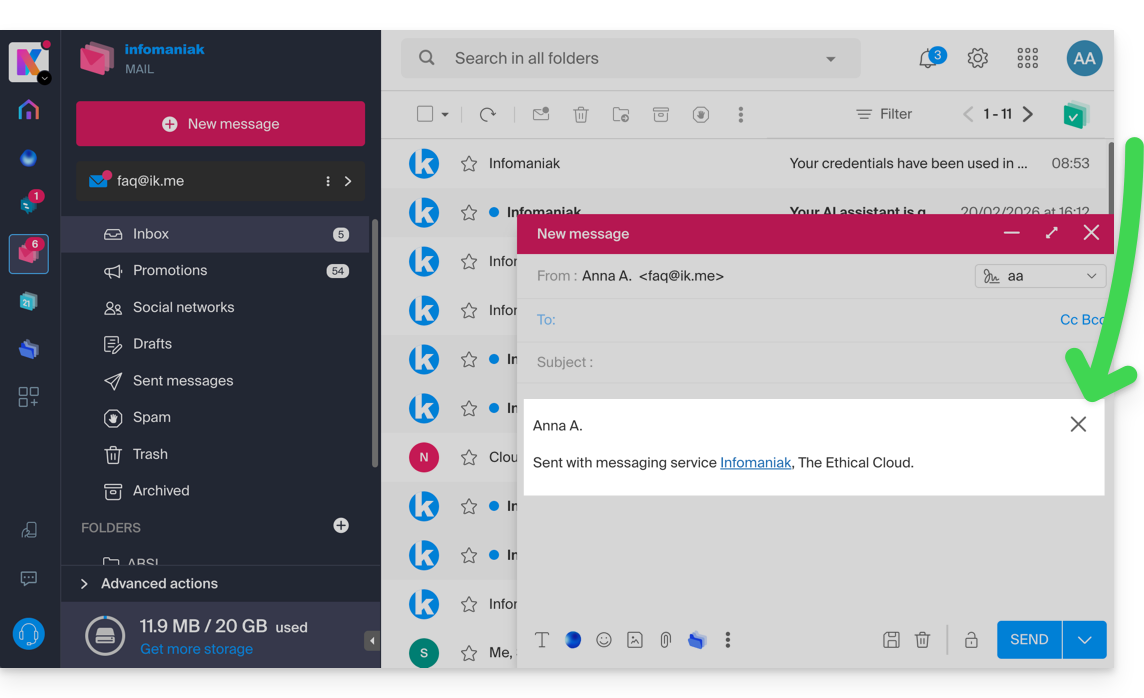
Link para esta FAQ: https://faq.infomaniak.com/2538
Esta seção de perguntas frequentes foi útil?