Base de conhecimento
1000 perguntas frequentes, 500 tutoriais e vídeos explicativos. Aqui, você encontra apenas soluções!
Sincronizar o Google Agenda (aplicativo móvel) via kSync (CalDAV)
Este guia explica como gerir um calendário e os seus eventos na aplicação móvel Google Agenda (aplicação para smartphone ou tablet iOS/Android) e/ou na aplicação web Calendar Infomaniak (serviço online ksuite.infomaniak.com/calendar), mantendo todos os dados totalmente sincronizados através da aplicação móvel Infomaniak kSync (aplicação para smartphone ou tablet Android).
Introdução
- Consulte este outro guia se desejar apenas exibir um calendário Infomaniak em modo de somente leitura no Google Agenda (aplicativo web e móvel).
- O inverso também é possível se desejar apenas exibir um calendário Google em modo de somente leitura no aplicativo web Calendar Infomaniak (serviço online ksuite.infomaniak.com/calendar).
- O procedimento abaixo permite editar os eventos do calendário em ambos os lados, mas apenas na versão móvel do aplicativo Google Agenda.
Sincronizar o calendário Infomaniak e o dispositivo móvel
Pré-requisitos
- Descarregue a aplicação móvel Android Google Agenda.
- Descarregue a aplicação móvel Infomaniak kSync (aplicação para smartphone ou tablet Android) aqui:

- A aplicação kSync também está disponível em F-droid.
- Instale o kSync.
Em seguida, inicie o aplicativo kSync no seu dispositivo Android. Um assistente passo a passo o ajudará a configurar o aplicativo de acordo com suas necessidades:
- Decida se deseja sincronizar as tarefas.
- Permita que o kSync acesse os elementos necessários no dispositivo, principalmente o calendário.
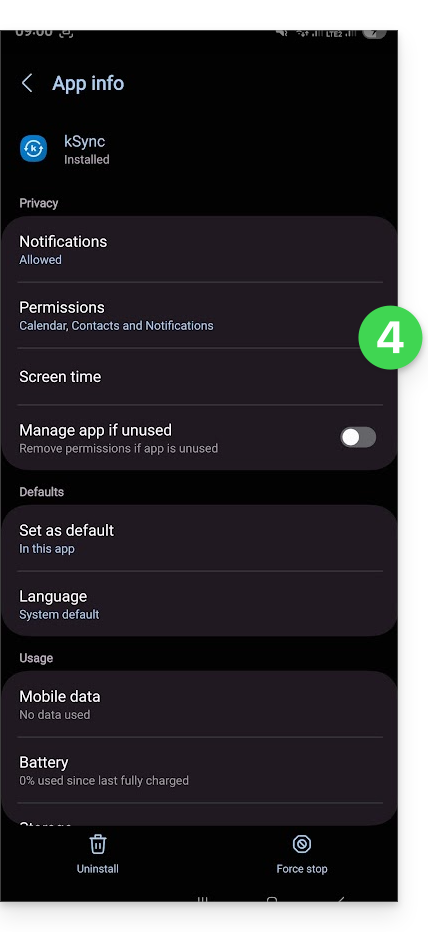
- Permita que o aplicativo seja executado em segundo plano para uma melhor sincronização (consome mais bateria); as configurações também podem ser ajustadas no próprio aplicativo:
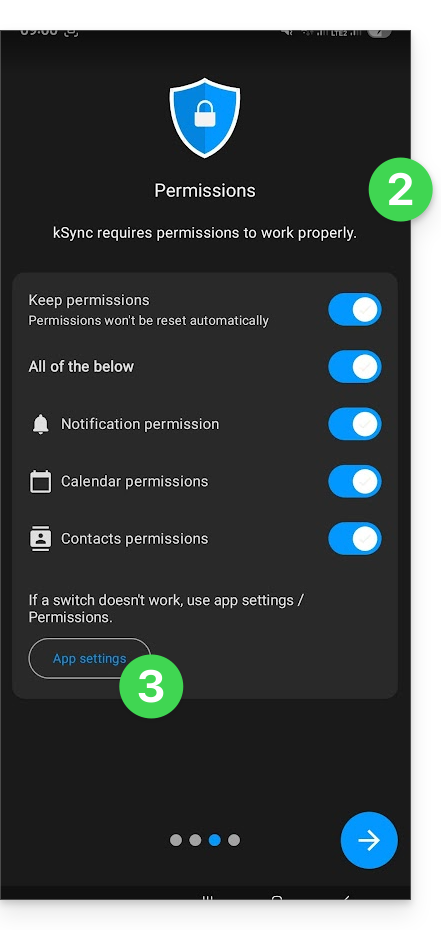
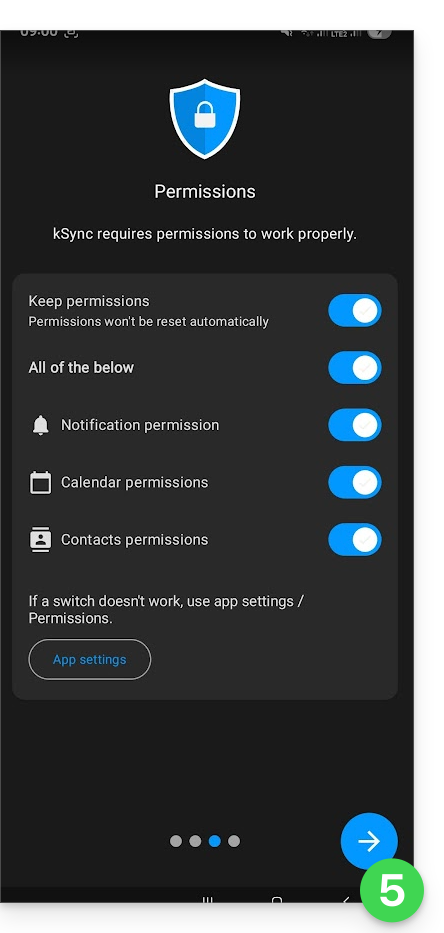
- O importante é conceder as permissões de acesso aos serviços que você deseja sincronizar:
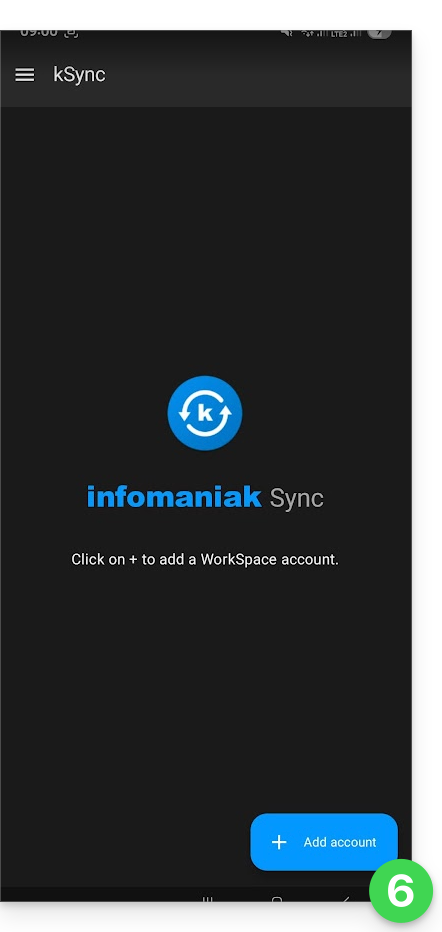
- Volte para o aplicativo kSync e continue a configuração:
- Toque para adicionar uma conta de usuário Infomaniak (aquela com a qual você acessa seus serviços Infomaniak):
- Por exemplo, no aplicativo Web Calendar, o menu do usuário no canto superior direito informa o e-mail de login utilizado.
- É então possível acessar os calendários da Organização à qual o usuário atual está vinculado:
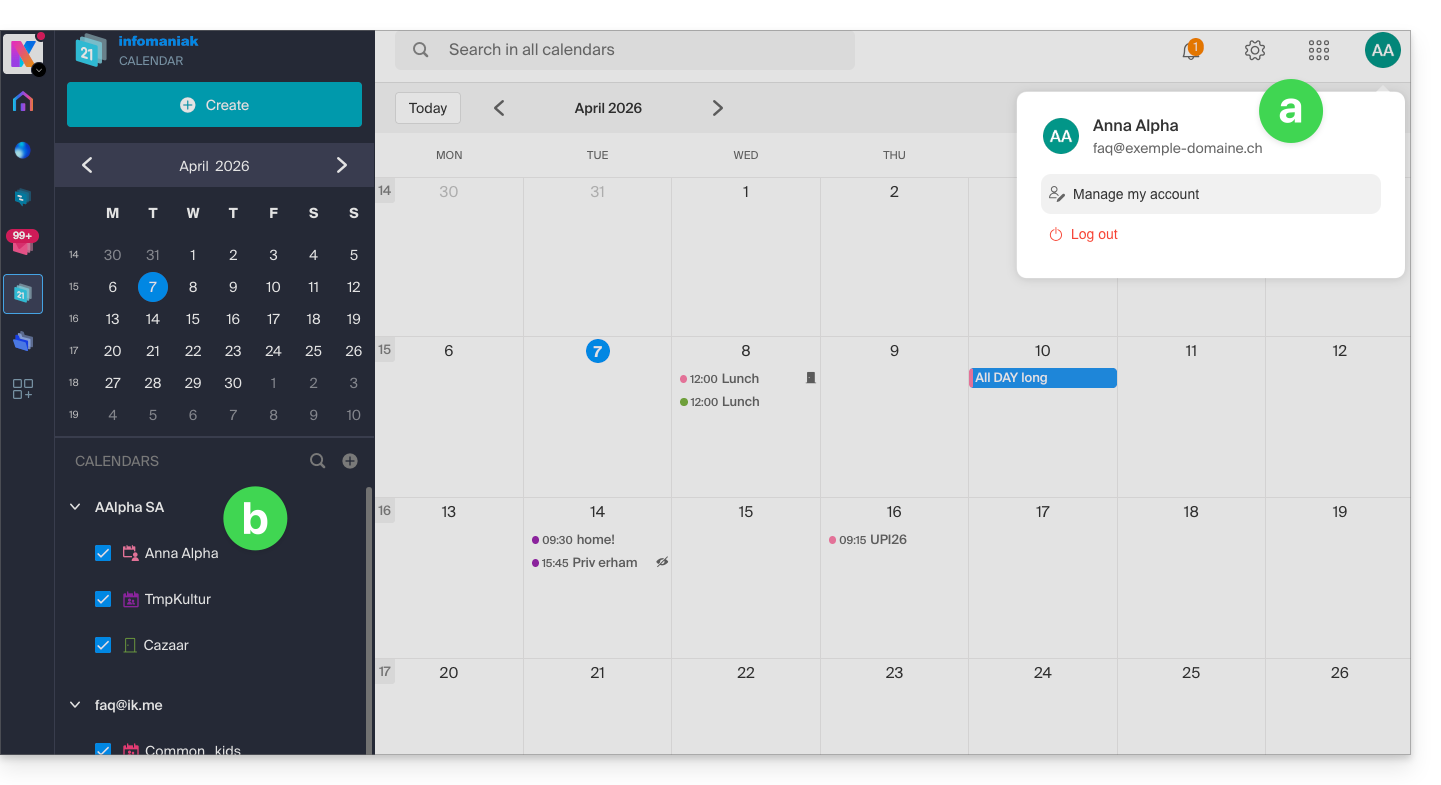
- São esses dados que serão sincronizados no seu dispositivo quando você fizer login na mesma conta Infomaniak no kSync…
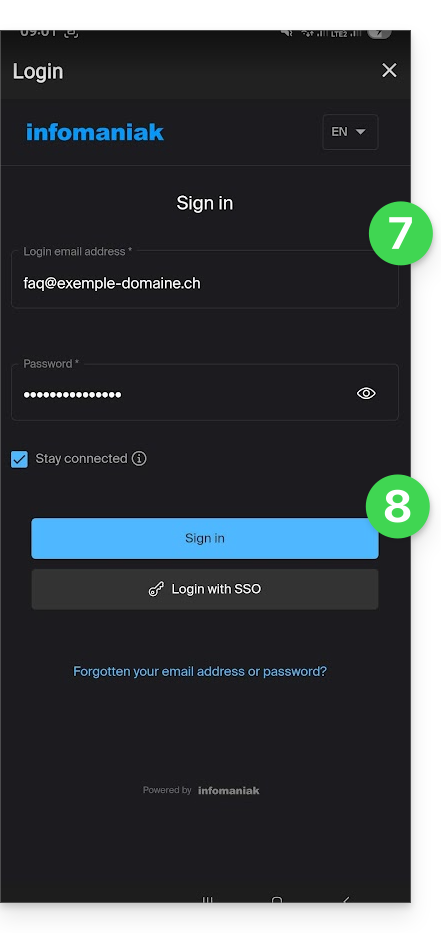
- Insira suas credenciais de login da Infomaniak (consulte o item a acima).
- Pressione o botão para fazer login:
- Efetue os passos da autenticação de dois fatores, tal como faz nas suas sessões habituais.
- Após iniciar sessão no kSync, ative os calendários que pretende sincronizar (entre os que são exibidos, selecione os que estão associados à sua conta Infomaniak) na secção CALDAV:
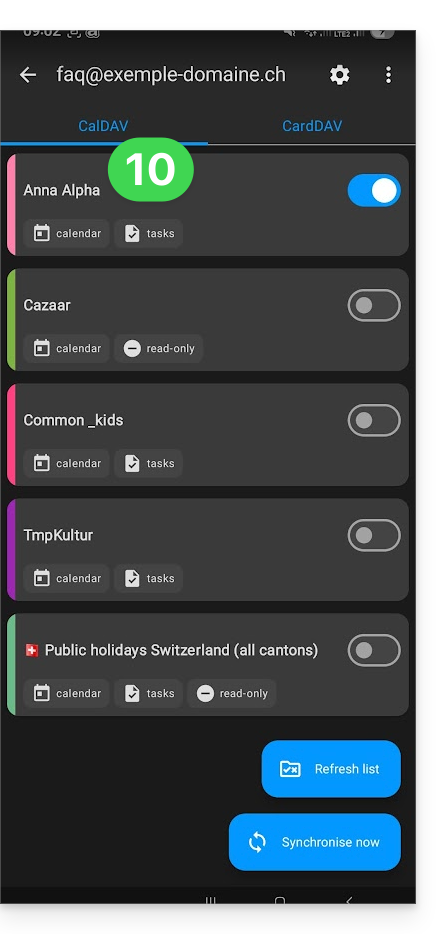
- Inicie a sincronização com o botão localizado no canto inferior direito.
Sincronização automática do calendário nativo
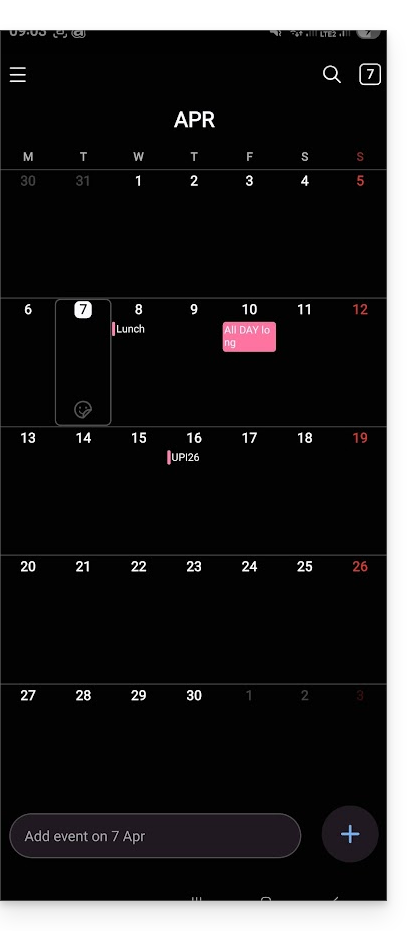
- Neste momento,é a aplicação nativa do seu dispositivo Android queCalendário Samsungpor exemplo, em dispositivos da marca Samsungque será sincronizada e exibirá os eventos do seu calendário Infomaniak (por vezes, é necessário ativar a conta na aplicação em questão):
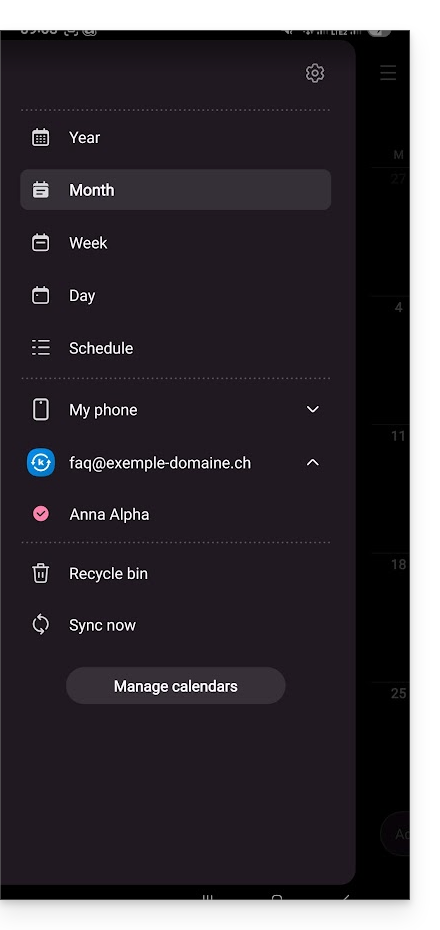
- Um evento adicionado e/ou modificado em uma ou outra interface será automaticamente sincronizado em todos os lugares:
Ativar o calendário no Google Agenda
Para encontrar o seu calendário Infomaniak no Google Agenda e poder editar os seus eventos:
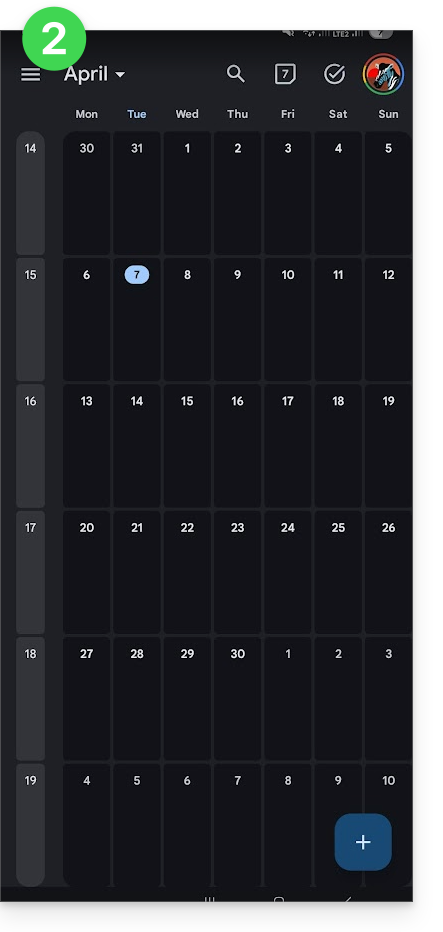
- Abra o Google Agenda no seu dispositivo Android.
- Toque no botão de menu com três linhas horizontais ☰ no canto superior esquerdo da interface:
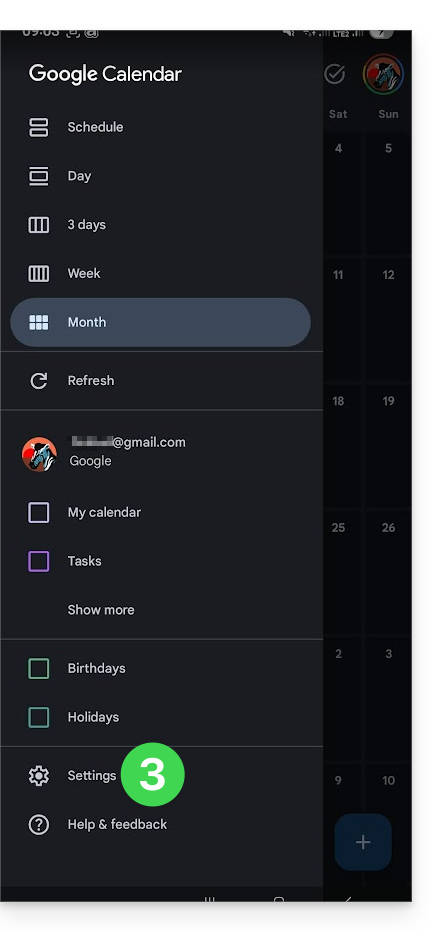
- Toque em Configurações na parte inferior do menu:
- Toque em Gerenciar contas:
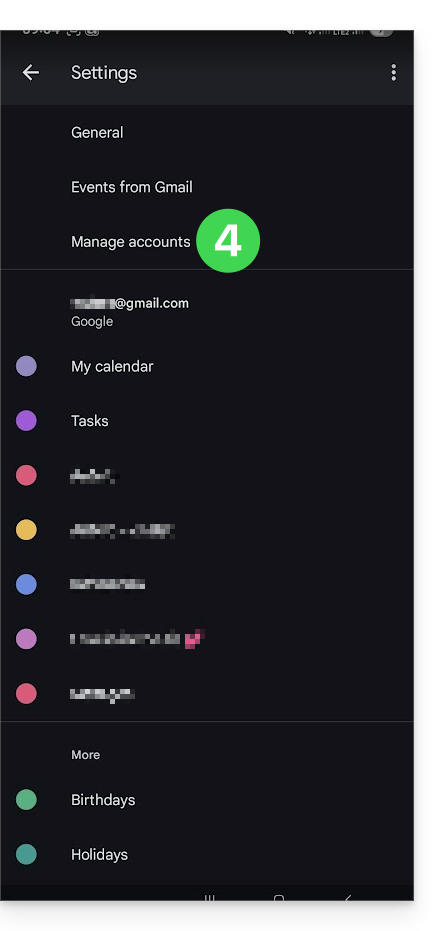
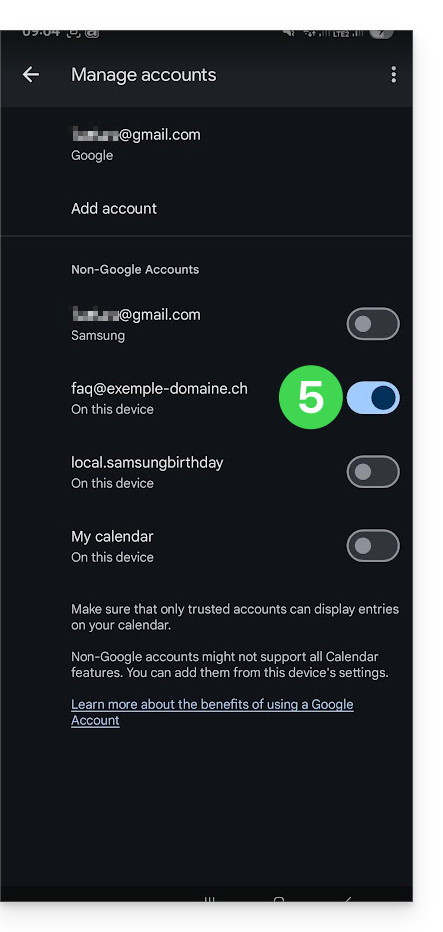
- Ative a conta correspondente ao seu calendário Infomaniak:
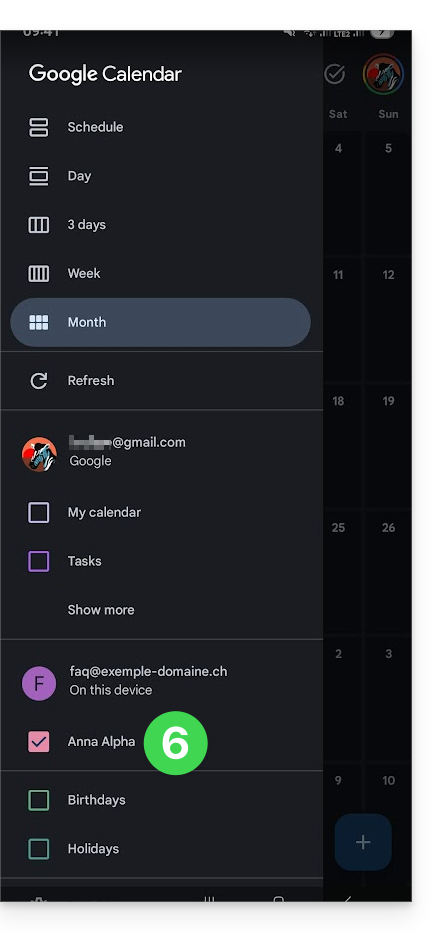
- Volte à página anterior e verifique se o calendário Infomaniak aparece entre as contas e, se necessário, altere a cor:
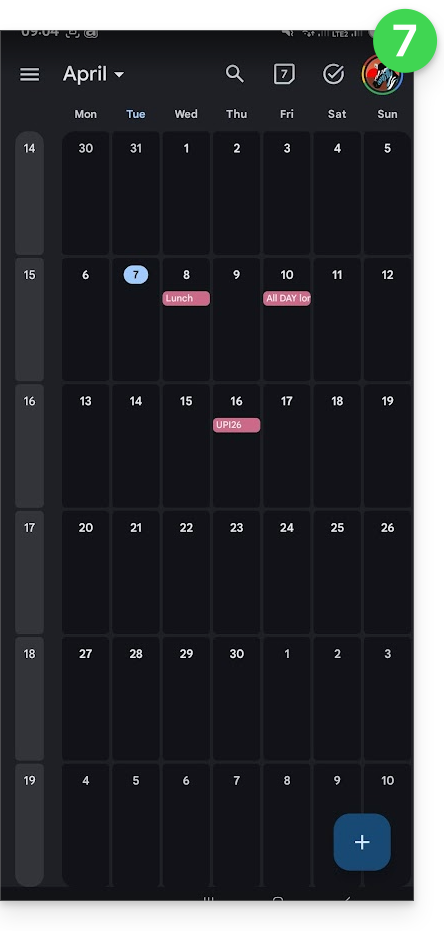
- Pronto, o Google Agenda está sincronizado com o calendário Infomaniak. Qualquer evento adicionado e/ou modificado em uma das interfaces será automaticamente sincronizado em todos os lugares:
Link para esta FAQ: https://faq.infomaniak.com/2486
Esta seção de perguntas frequentes foi útil?