Base de conhecimento
1000 perguntas frequentes, 500 tutoriais e vídeos explicativos. Aqui, você encontra apenas soluções!
Gerenciar um IP dinâmico com o DynDNS Infomaniak
Atualização 05/10/2026
Este guia explica como configurar um registro DNS dinâmico (Dynamic DNS, DDNS) para um nome de domínio cuja zona DNS é gerenciada na Infomaniak. Esta alternativa gratuita ao Dyn e DynHost é muito útil se você deseja acessar, a partir do exterior, dispositivos conectados à Internet com um endereço IP dinâmico (por exemplo, um NAS, uma câmera de vigilância, um roteador/box de Internet/domótica, etc.).
Pré-requisitos
- A zona DNS do nome de domínio deve ser gerenciada na Infomaniak.
- Se necessário, transfira seus domínios para a Infomaniak. (❓: ajuda).
- O seu dispositivo ou aplicação deve suportar os registos DNS dinâmicos.
Guias específicos
Os seguintes guias permitem associar um nome de domínio a:
- … um NAS Synology
- … um NAS Qnap
- … Zyxel / Sunrise Internet Box / soluções TP-Link
- … um dispositivo UniFI
- … Swisscom Internet Box
- … Fritzbox
- … Jeedom
- … Linux via ddclient
- … potencialmente tudo através da API
Adicionar um DNS dinâmico
Para criar um DNS dinâmico no seu domínio:
- Clique aqui para aceder à gestão de domínios no seu Painel de controlo Infomaniak (❓: ajuda).
- Clique em o nome do domínio em questão.
- Clique em DNS Dinâmico no menu lateral esquerdo.
- Clique no botão azul Adicionar um Dynamic DNS.
- Insira as informações necessárias:
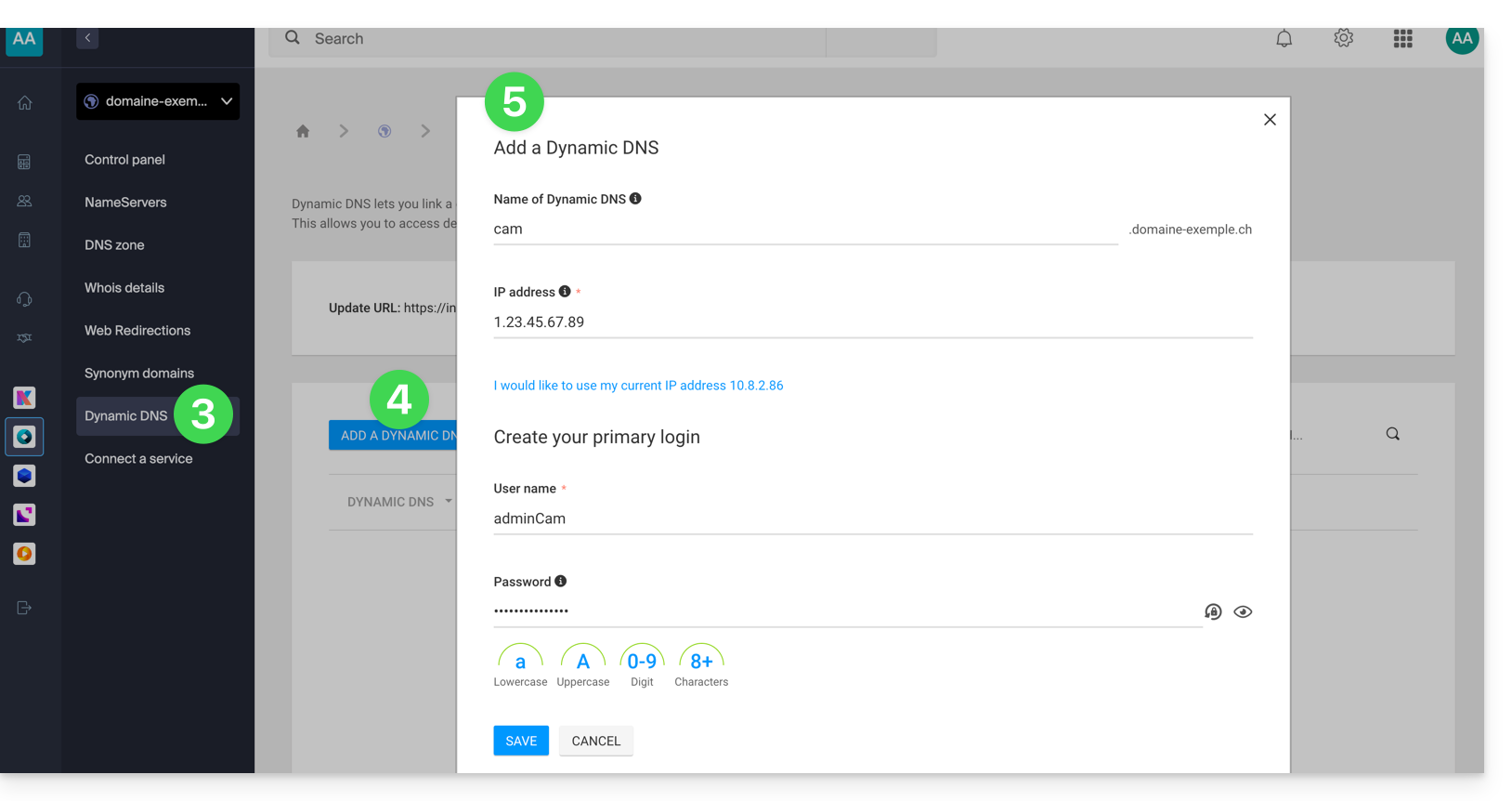
- Escolha o subdomínio desejado ou deixe o campo Nome do Dynamic DNS vazio para usar o domínio principal.
- Insira um endereço IP; este será atualizado dinamicamente pelo seu dispositivo/aplicativo.
- Defina um par identificador / senha (maiúsculas, minúsculas + números, sem símbolos especiais); este último deverá ser inserido na configuração do seu dispositivo/aplicativo.
Link para esta FAQ: https://faq.infomaniak.com/2357
Esta seção de perguntas frequentes foi útil?