Base de conhecimento
1000 perguntas frequentes, 500 tutoriais e vídeos explicativos. Aqui, você encontra apenas soluções!
Cancelar uma correção automática da análise de vulnerabilidades
Atualização 05/10/2026
Este guia explica como aplicar ou cancelar um patch, colocar em quarentena ou bloquear uma ameaça detectada pela ferramenta de detecção de vulnerabilidades, a proteção gratuita e complementar ao antivírus que protege automaticamente os Serviços de Hospedagem Web contra malware e falhas de segurança.
Introdução
- Caso não tome nenhuma ação, a ferramenta corrigirá automaticamente as vulnerabilidades detectadas em um prazo de 7 dias.
- É fortemente recomendado não cancelar uma correção ou colocar em quarentena a menos que tenha certeza do que está fazendo.
Aplicar ou cancelar uma correção
Para isso:
- Clique aqui para acessar o gerenciamento de hospedagens e sites no seu Painel de Controle Infomaniak (❓: ajuda).
- Clique no nome da hospedagem desejada.
- Clique em Segurança no menu lateral esquerdo.
- Clique em Análise de vulnerabilidades no menu lateral esquerdo:
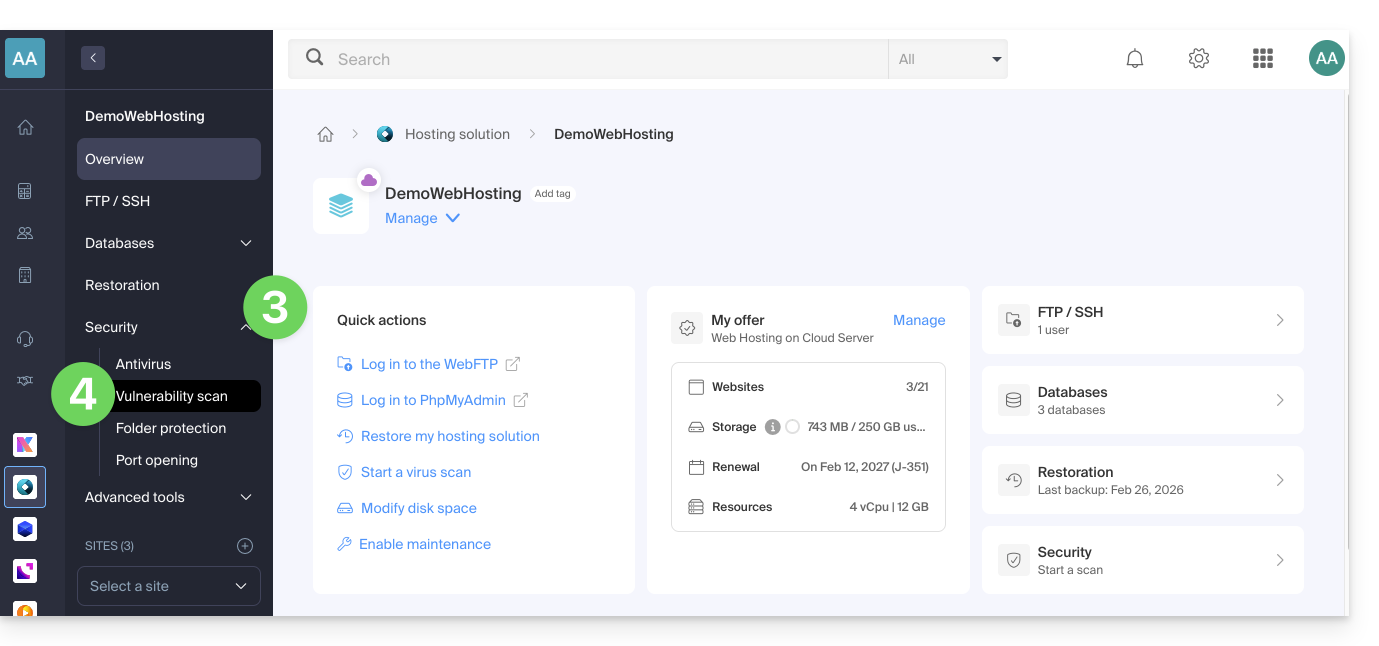
- Se nada for exibido, clique primeiro no botão para Ver o histórico.
- Se existir um histórico de eventos, clique no menu de ação ⋮ à direita da vulnerabilidade correspondente na tabela que é exibida.
- Clique em Cancelar a correção.
- Em alguns casos, outras ações são possíveis:
- Aplicar o patch: corrige imediatamente a vulnerabilidade.
- Cancelar o patch: desfaz a correção e restaura o arquivo original vulnerável (não recomendado).
- Excluir o arquivo: remove permanentemente o malware do seu alojamento (pode afetar o funcionamento do seu site).
- Colocar em quarentena: isola o arquivo vulnerável e permite restaurá-lo, se necessário (pode afetar o funcionamento do seu site).
- Cancelar a quarentena: restaura o arquivo isolado para o seu local original (não recomendado).
- Adicionar uma exceção: permite indicar à ferramenta que o arquivo vulnerável está íntegro; este último não será mais analisado.
- Remover uma exceção: remove o estado Autorizado do arquivo; este último será analisado novamente.
Detalhes dos diferentes estados
- VULNERÁVEL: uma vulnerabilidade foi detetada num ficheiro; a coluna caminho de acesso indica a localização do ficheiro.
- RESOLVIDO: a vulnerabilidade foi corrigida pela ferramenta.
- AUTORIZADO: o arquivo vulnerável foi autorizado manualmente; este último não será mais analisado pela ferramenta.
- RESOLVIDO: uma correção manual externa à ferramenta foi aplicada ao arquivo (atualização do CMS, modificação do código-fonte, remoção manual do arquivo, etc.).
- CORREÇÃO DESFEITA: a correção da ferramenta foi desfeita manualmente; é possível reaplicar o patch.
Link para esta FAQ: https://faq.infomaniak.com/2343
Esta seção de perguntas frequentes foi útil?