Base de conhecimento
1000 perguntas frequentes, 500 tutoriais e vídeos explicativos. Aqui, você encontra apenas soluções!
Search and query data on kDrive (RAG)
This guide covers how to find information within the data stored on kDrive Infomaniak; it is divided into 2 parts: first, advanced search (in “RAG” mode), then simple search (at the end of this guide).
Advanced search / RAG
✘ UNAVAILABLE with
kSuite Free / kSuite Standard
my kSuite / my kSuite+ (ik.me, etik.com, ikmail.com)
kDrive Solo / kDrive Team
Requirements
- Advanced search and querying are powered by Euria and require your consent for data analysis (❓: help).
- Read and understand this other guide about the model used and the responsibilities of each party.
RAG mode (Retrieval-Augmented Generation) allows you to search for information in your stored data and generate responses based on its content. Only files that the user has access to are taken into account.
Euria is also available to help you work specifically on certain documents.(❓: help) but the advantage here is that the AI queries all the files (and no longer just one document at a time); for each question, Euria finds the most relevant passages, and it drafts the answer based on these passages, with a direct link to the sources.
An indexing phase may take place on your kDrive, indicated by an information message at the top of the page: in this case, data search is temporarily incomplete during its update; some files may not appear in the results, but remain accessible from your folders.
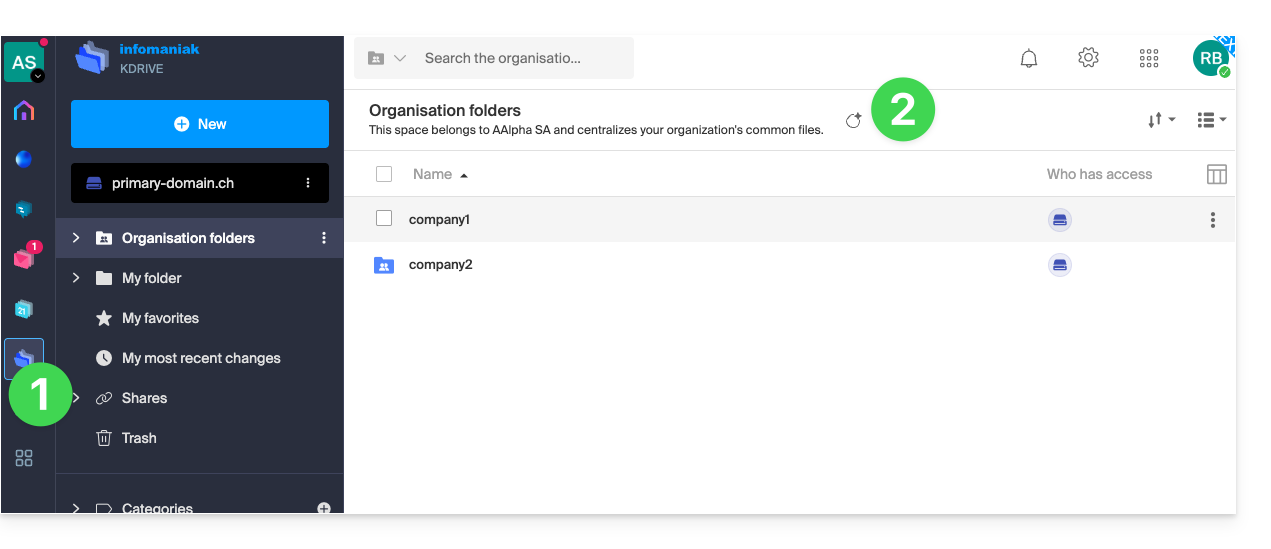
- Click here to access kDrive on your Infomaniak kSuite (❓: help).
- Click on the Euria icon to the right of the desired location name:
- The icon is always visible to the right of the location, even if you navigate further into the kDrive tree or if the display is different:
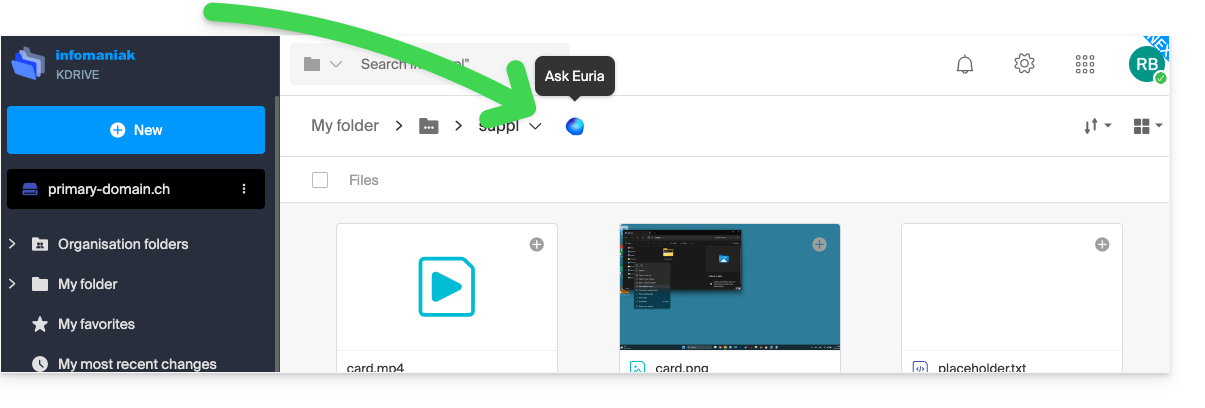
- The icon is always visible to the right of the location, even if you navigate further into the kDrive tree or if the display is different:
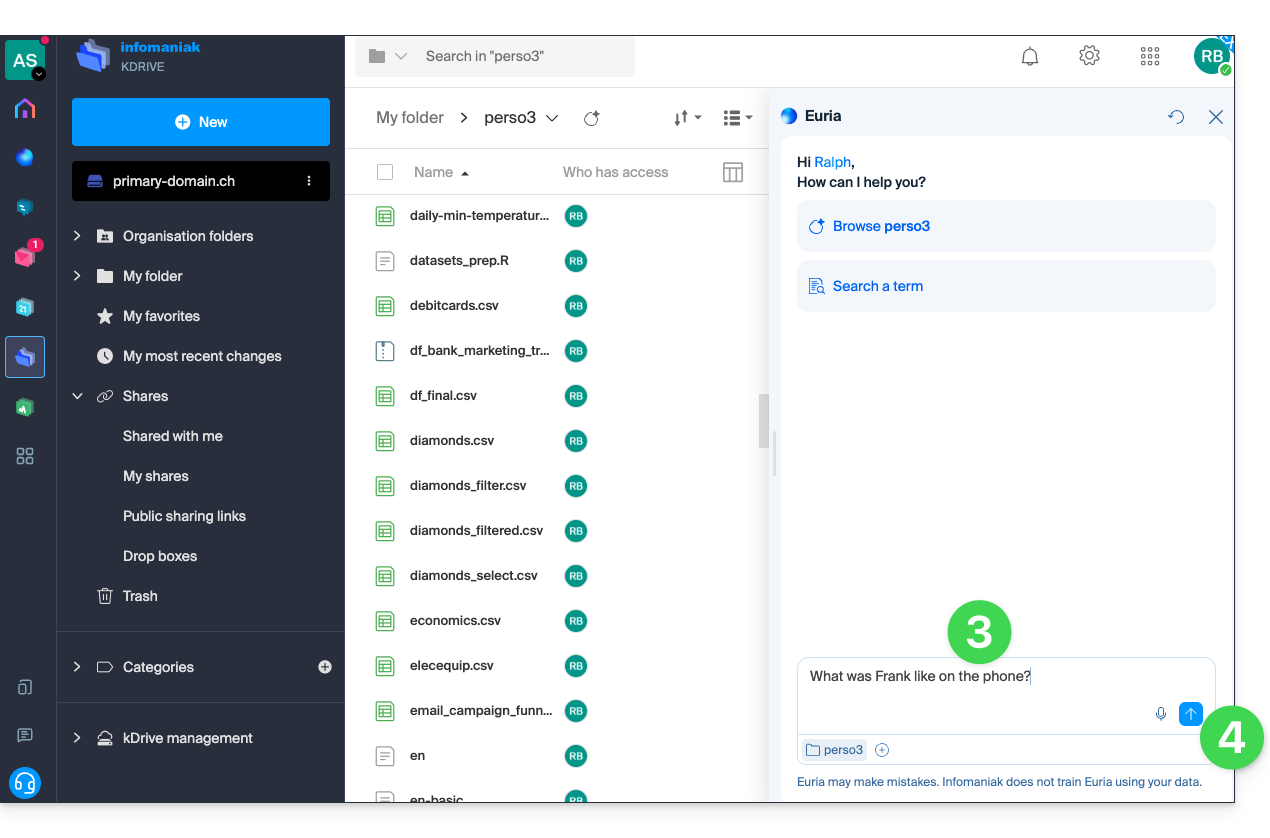
- Ask a question.
- Click to submit the request:
- If the search requires more details, continue as needed:
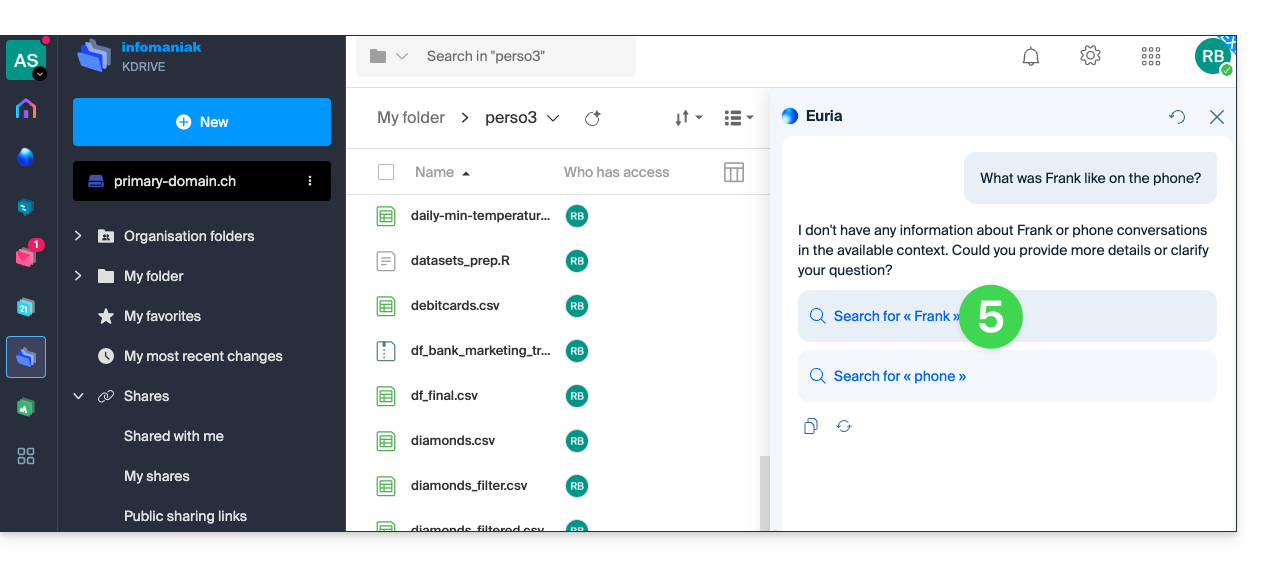
- This time, the appropriate answer is returned to you in the conversation.
- The source is accessible with a single click.
- The document is displayed, allowing you to verify the information:
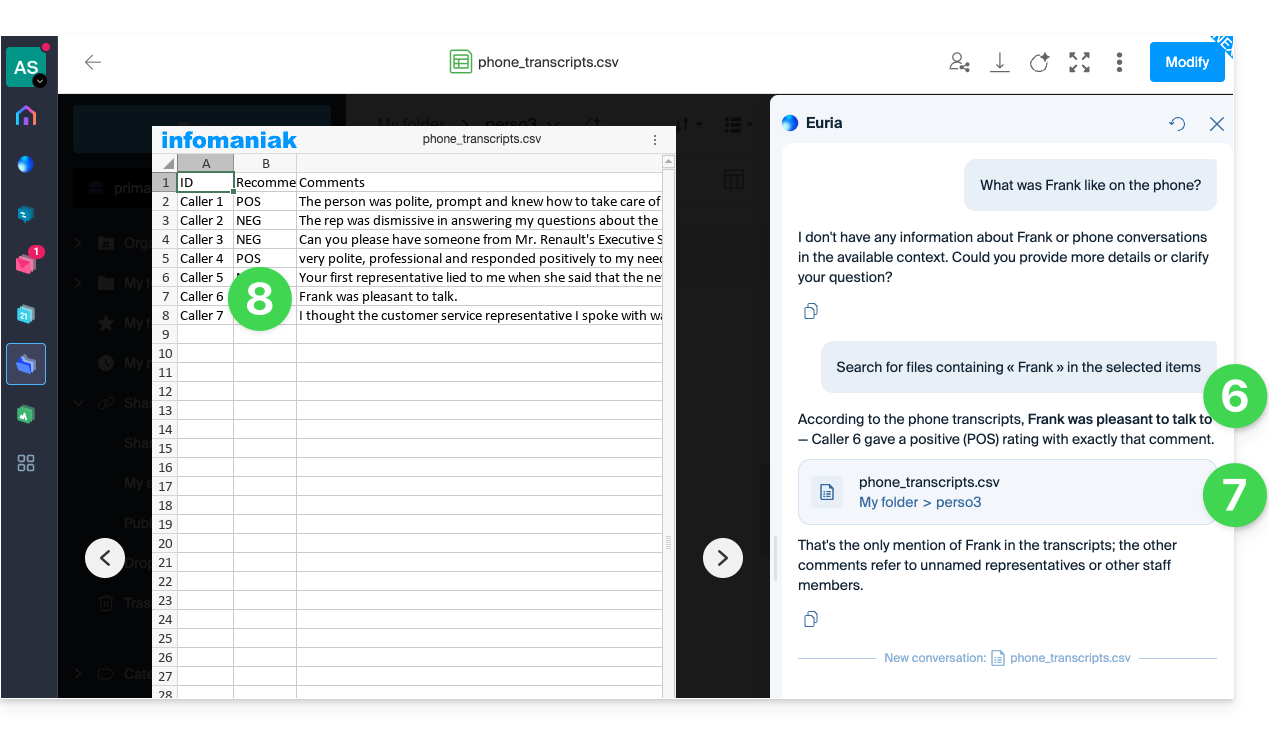
- You can close the document and continue your search among the kDrive data within the same conversation; you can also delete the conversation history if needed:
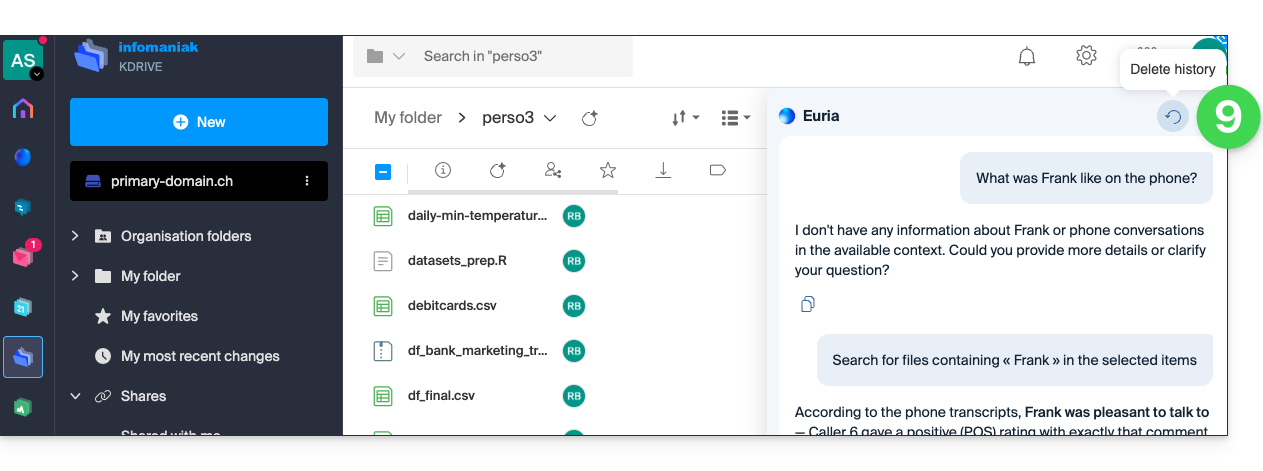
- If necessary, add other kDrive locations so that Euria can take other data into account.
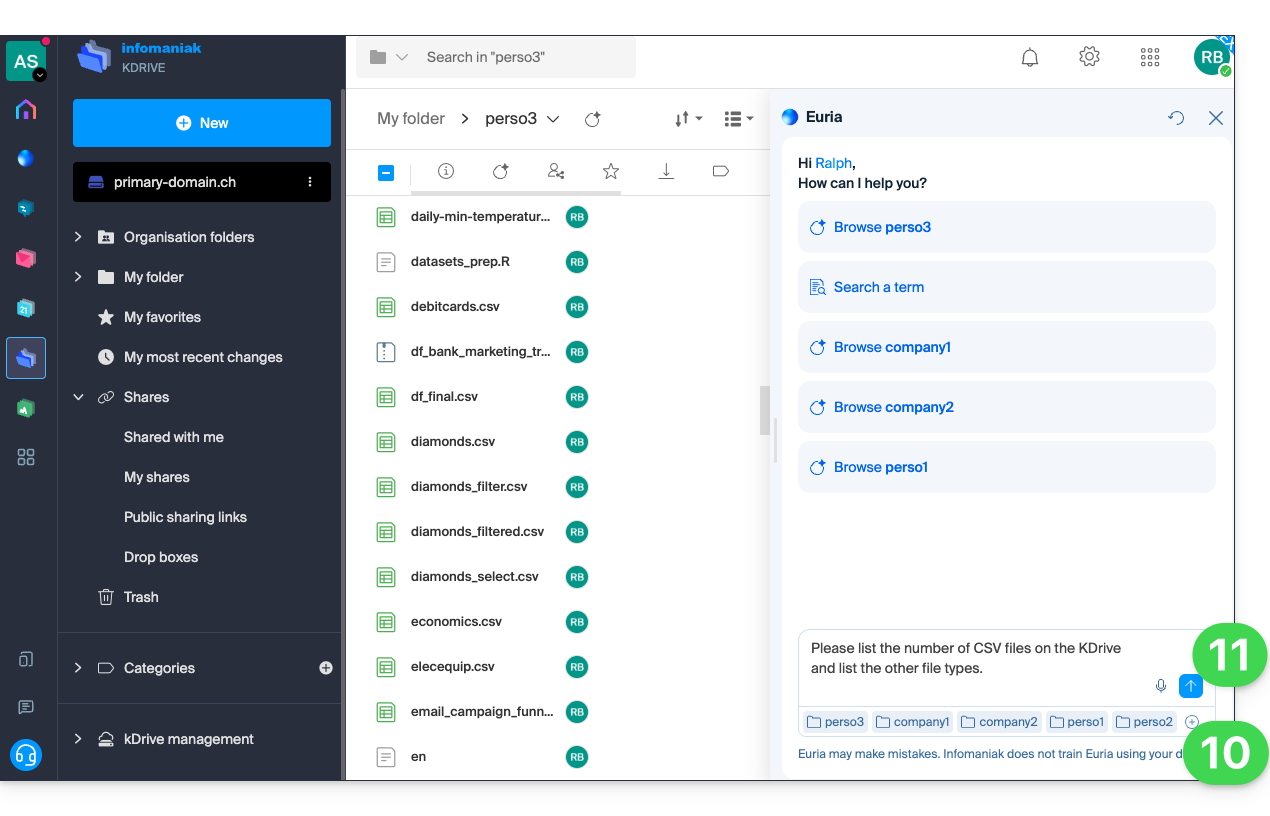
- Start your new search (the goal here is to list all the different types of files present in the main folders of kDrive):
Simple search in the kDrive web app
Simple search is available with all kDrive plans. The search bar is always located at the top of the screen:
- Click here to access kDrive in your Infomaniak kSuite (❓: help).
- When searching for a file using the field at the top of the screen, the search will, by default, be performed in the folder you are currently in.
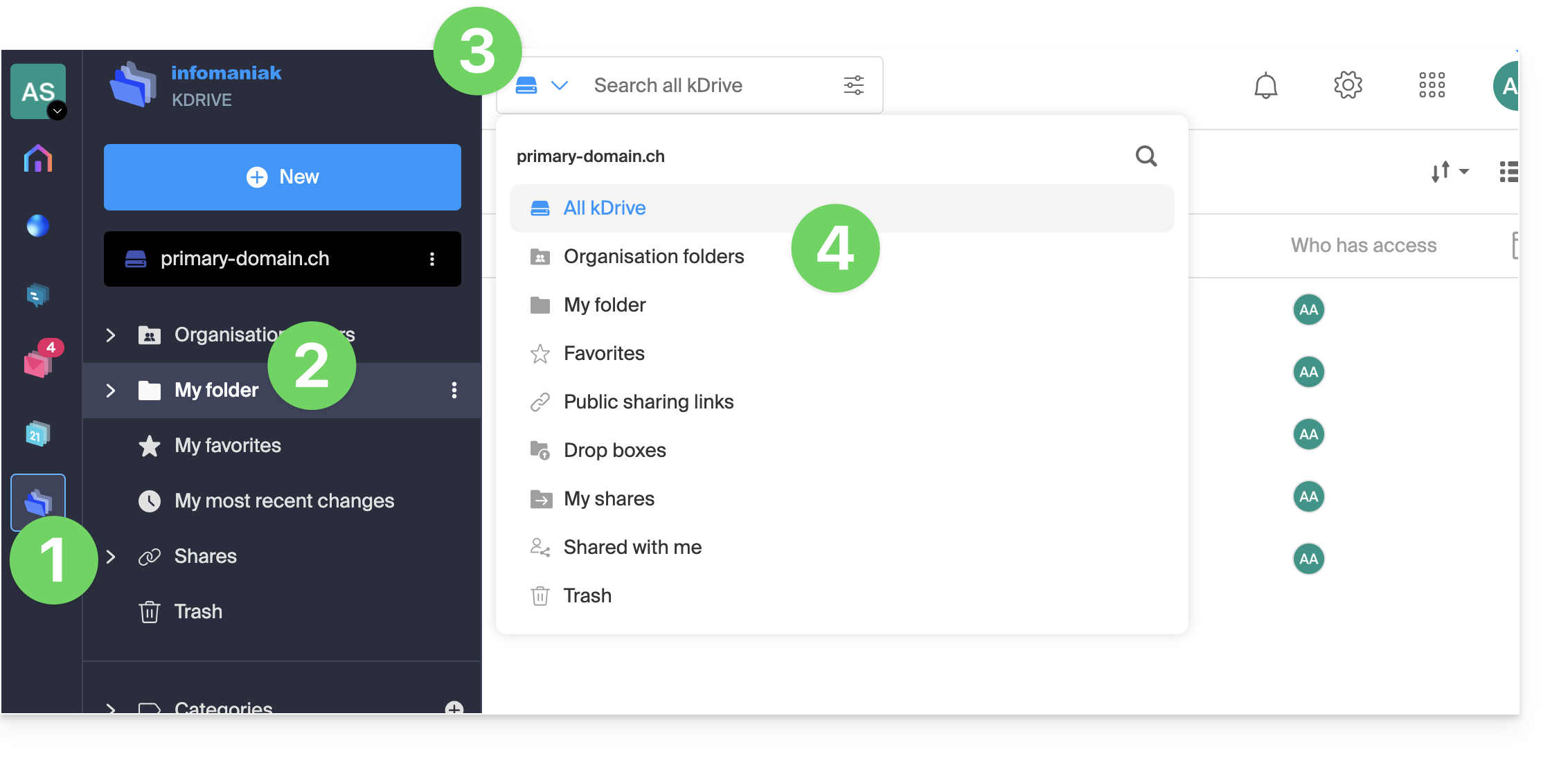
- To change the folder(s) in which to search, click to the left of the search field.
- Then, choose the location where you want to search:
- The keyboard shortcut
CMD-ForCTRL-Fallows you to quickly place the focus in the field to enter the text to be found.
- The keyboard shortcut
- Enter the search terms:
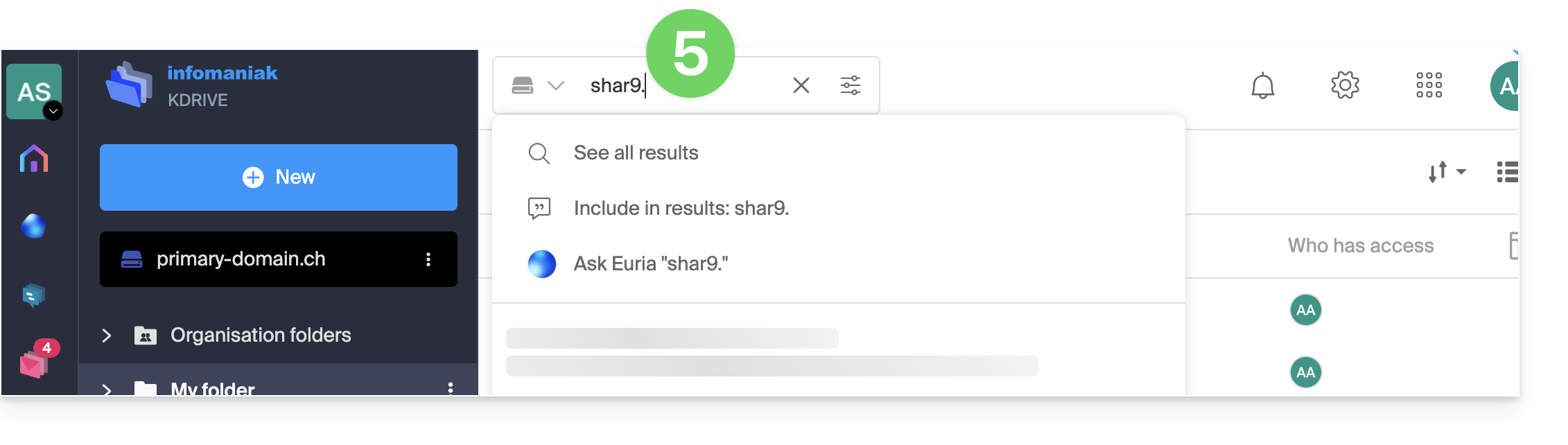
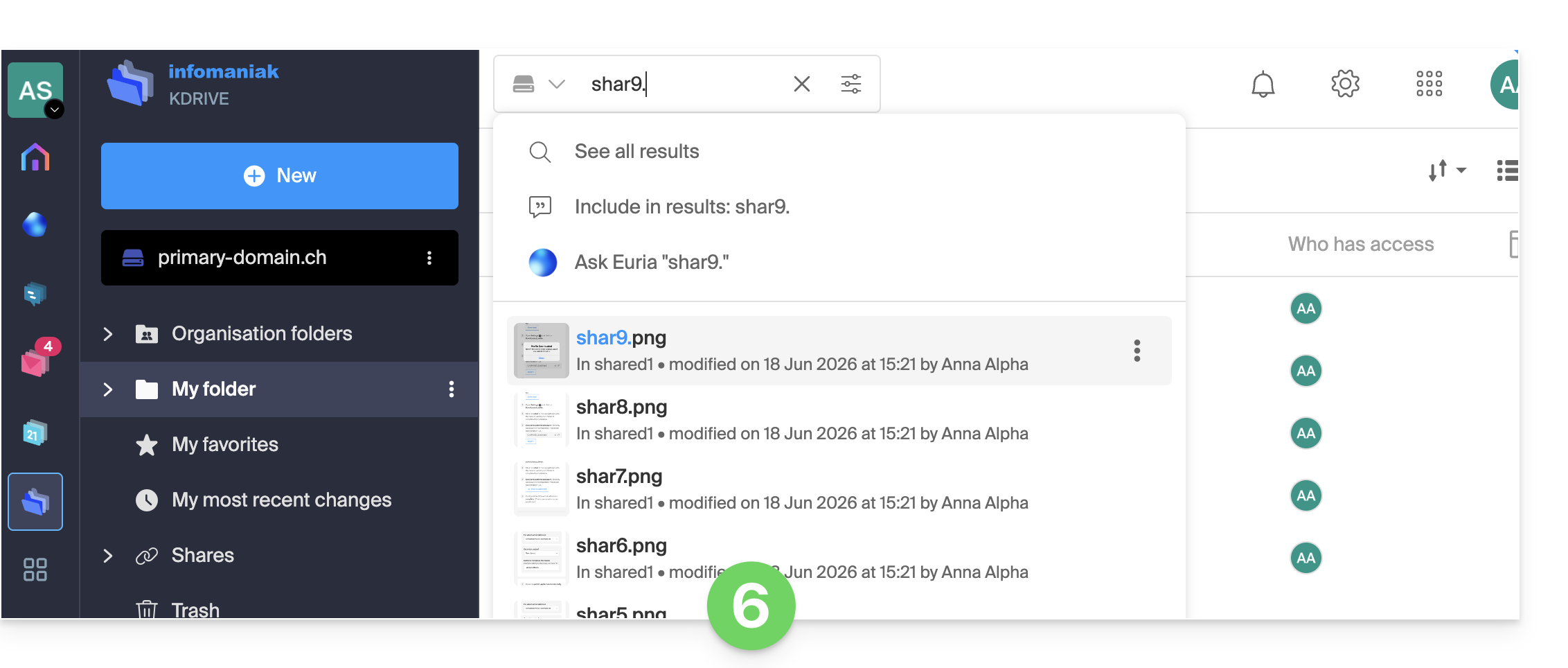
- Exact or approximate results are displayed in real time below the search field:
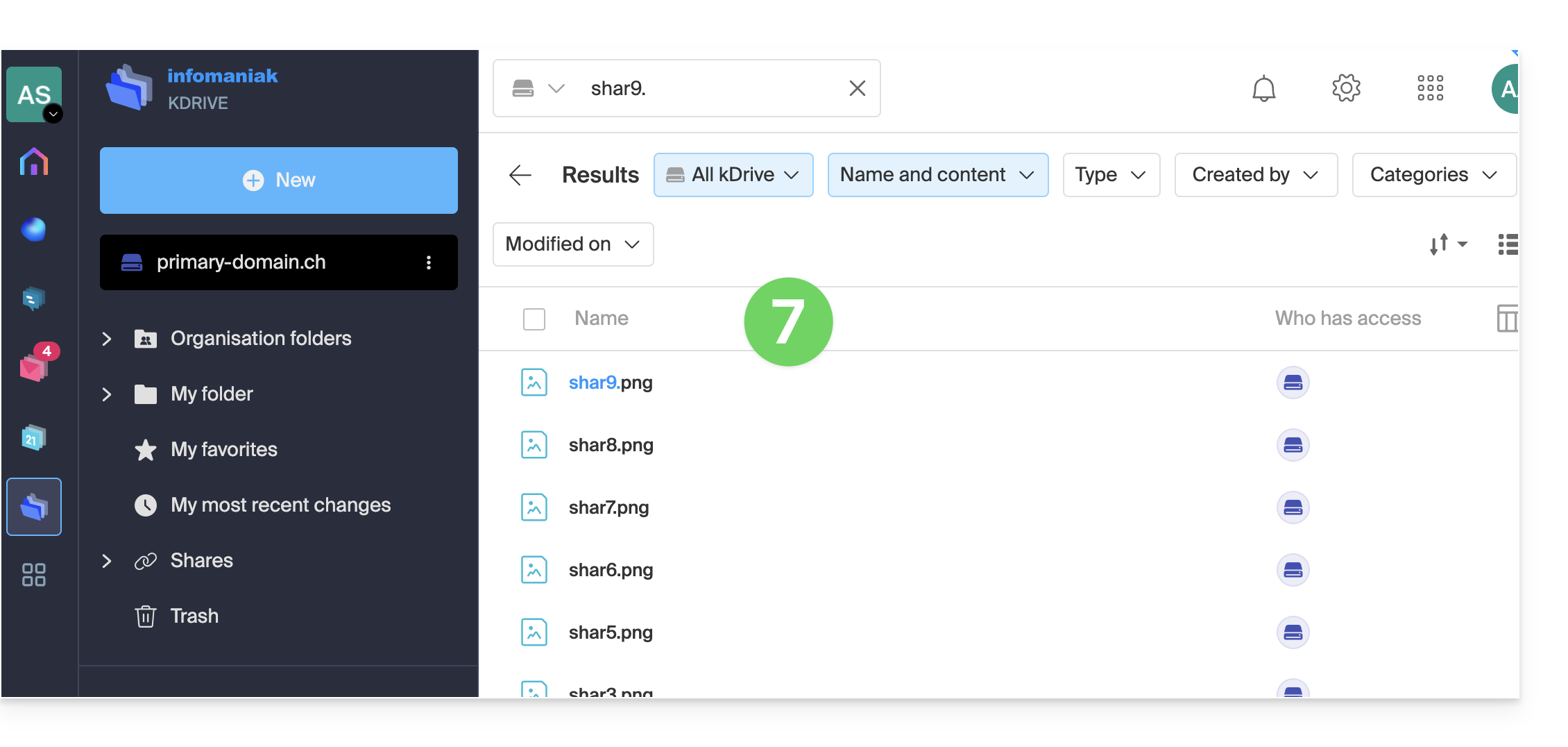
- You can also press the ENTER key to display the results directly on the page and filter them by type, date, location, etc.:
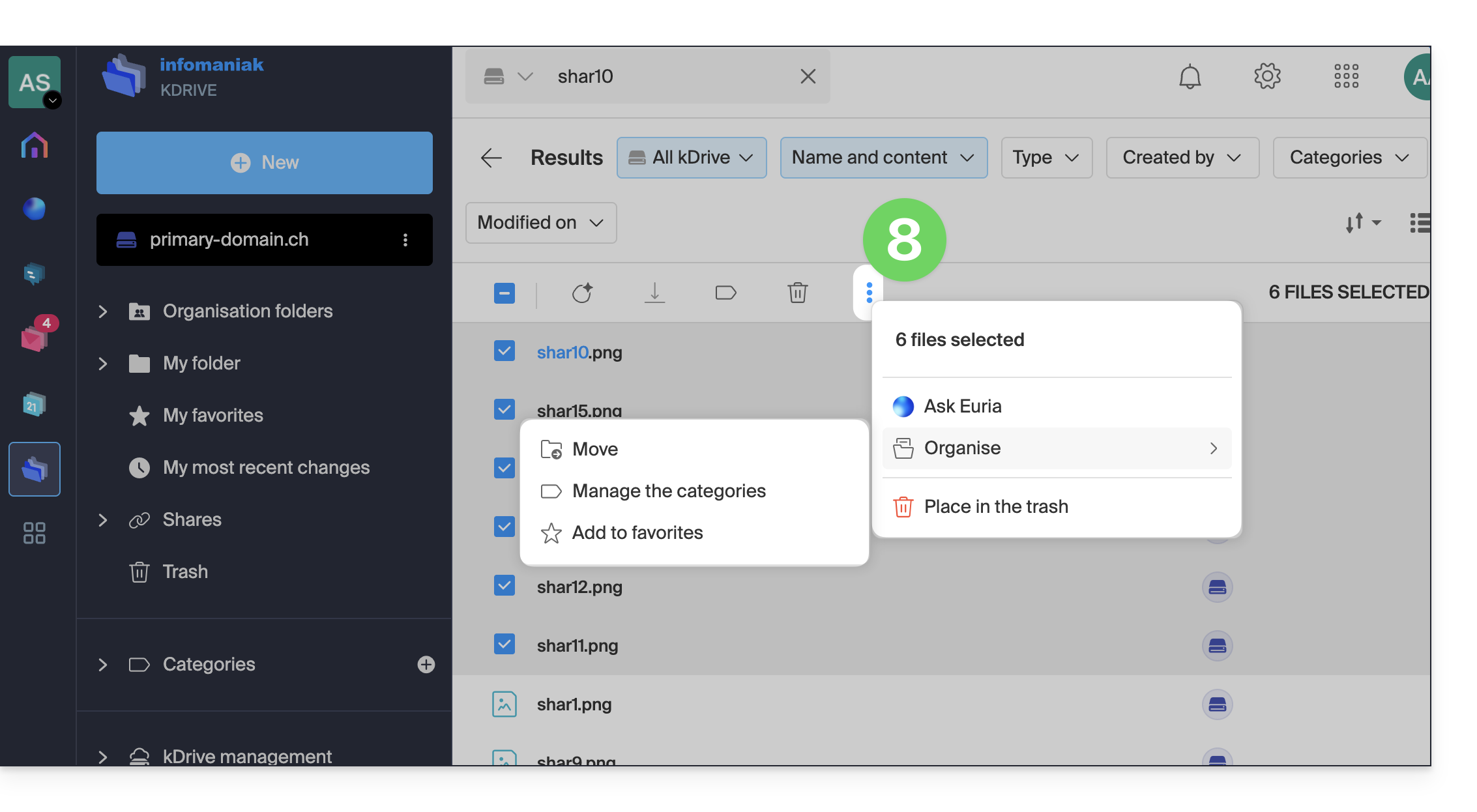
- Once the results are displayed, select them to perform certain actions, such as moving them:
Simple search in the kDrive mobile app
In the kDrive iOS/Android mobile app, the principle is as follows:
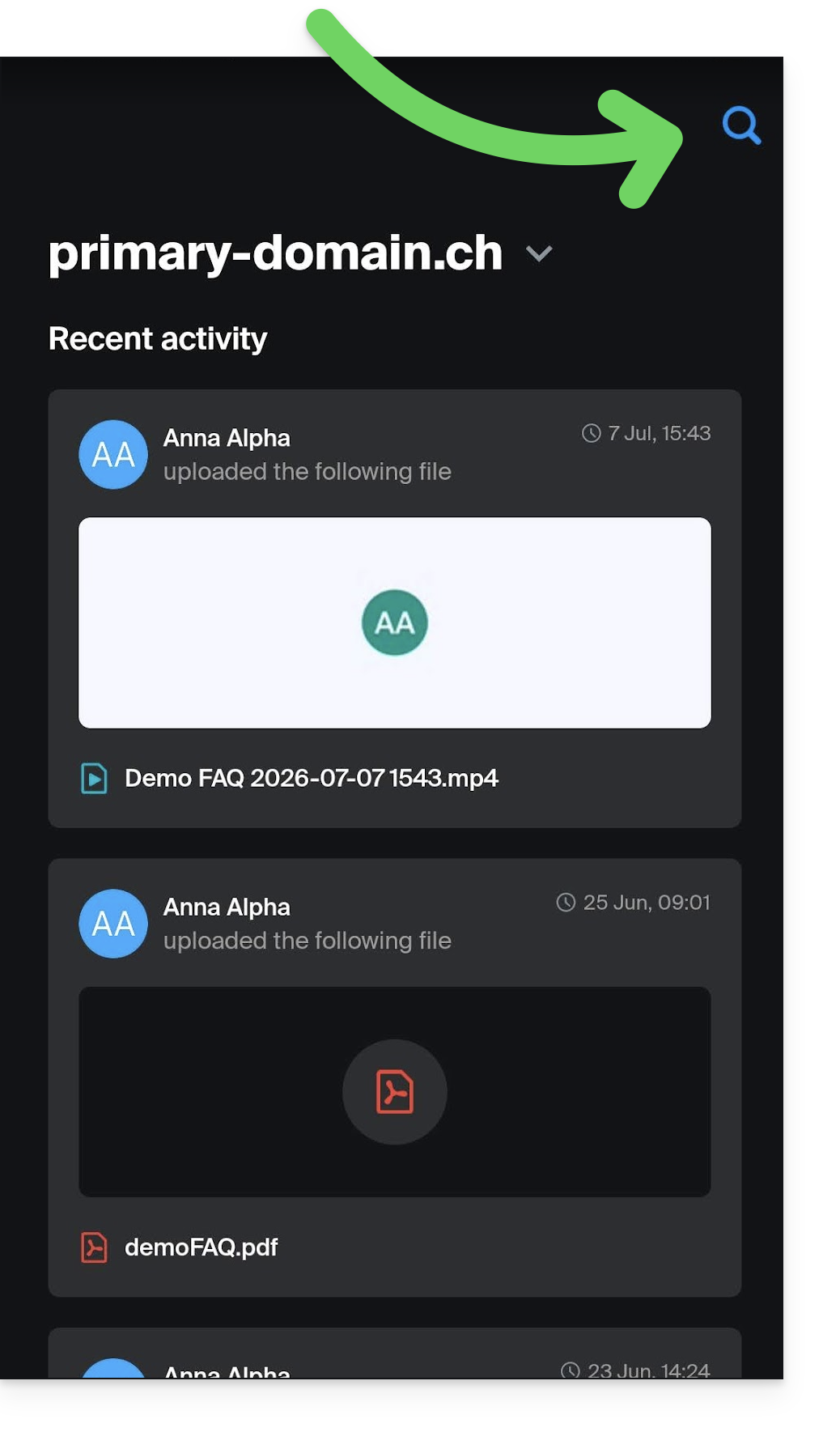
- Search is accessible via the magnifying glass visible in the top right corner of the app:
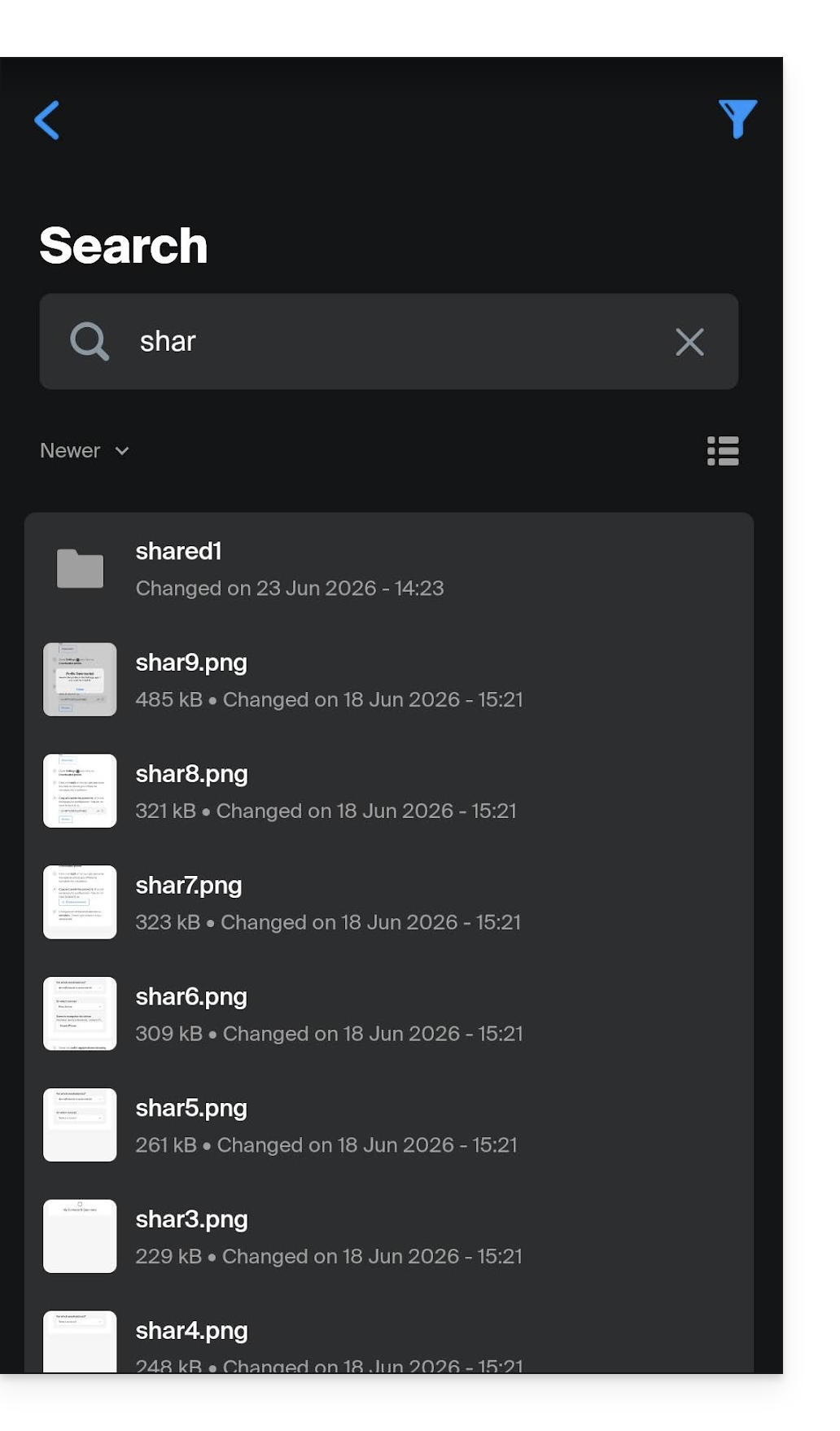
- The search is performed in the same way as on the web app, and the results are displayed below:
Link para esta FAQ: https://faq.infomaniak.com/2320
Esta seção de perguntas frequentes foi útil?