Base de conhecimento
1000 perguntas frequentes, 500 tutoriais e vídeos explicativos. Aqui, você encontra apenas soluções!
Fazer backup do Linux com o rClone no Swiss Backup (Swift)
Este guia detalha como fazer o backup de um servidor equipado com a distribuição Linux de sua escolha em Swiss Backup, a solução de backup em uma nuvem suíça independente.
Configurar o rClone para o Swiss Backup
Pré-requisitos
- Ter um espaço Swiss Backup Infomaniak com uma quota de dispositivo disponível (mínimo 1) para uma cópia de segurança na nuvem.
- Instale o aplicativo rClone através do gerenciador de pacotes da sua distribuição Linux.
- Adicionar 1 dispositivo, mas do tipo Servidor, para obter as configurações rClone
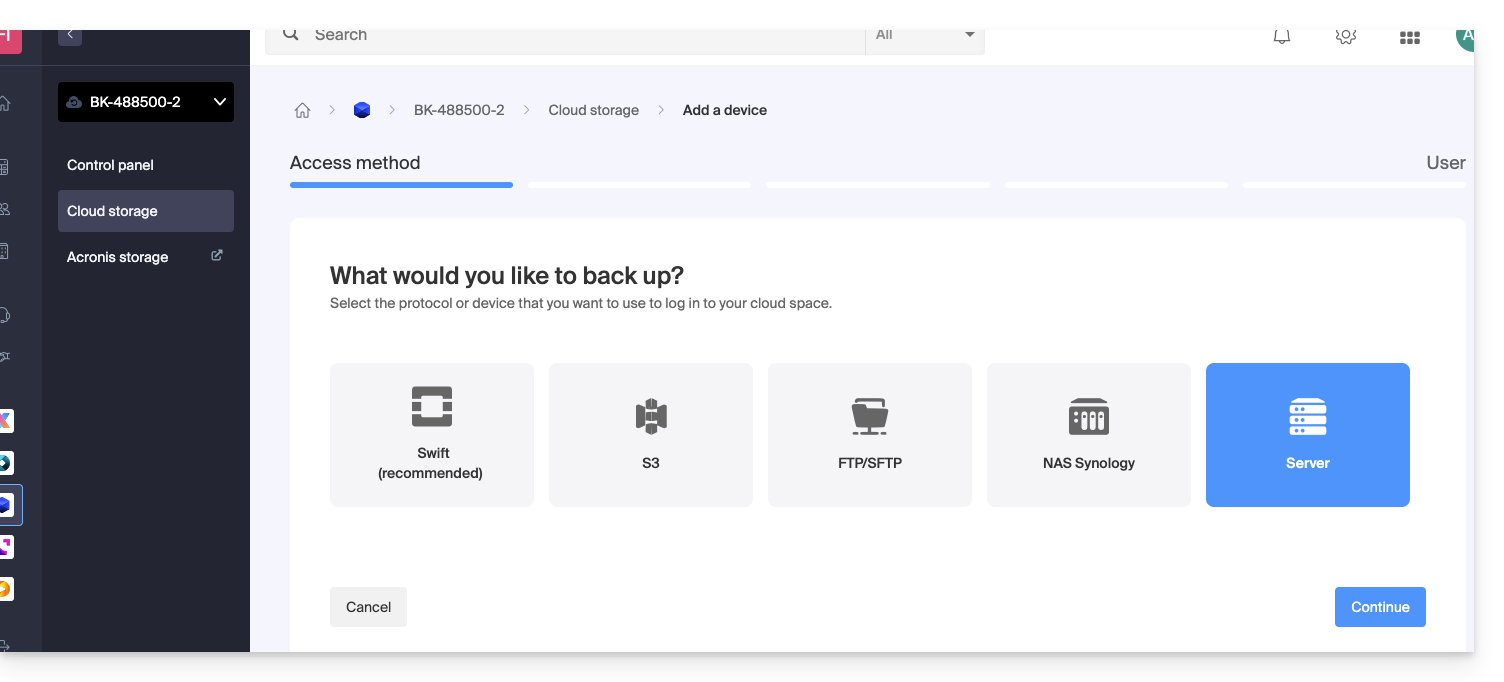
Para configurar uma nova cópia de segurança:
- Descarregue o ficheiro rclone que recebeu por e-mail após adicionar o dispositivo:
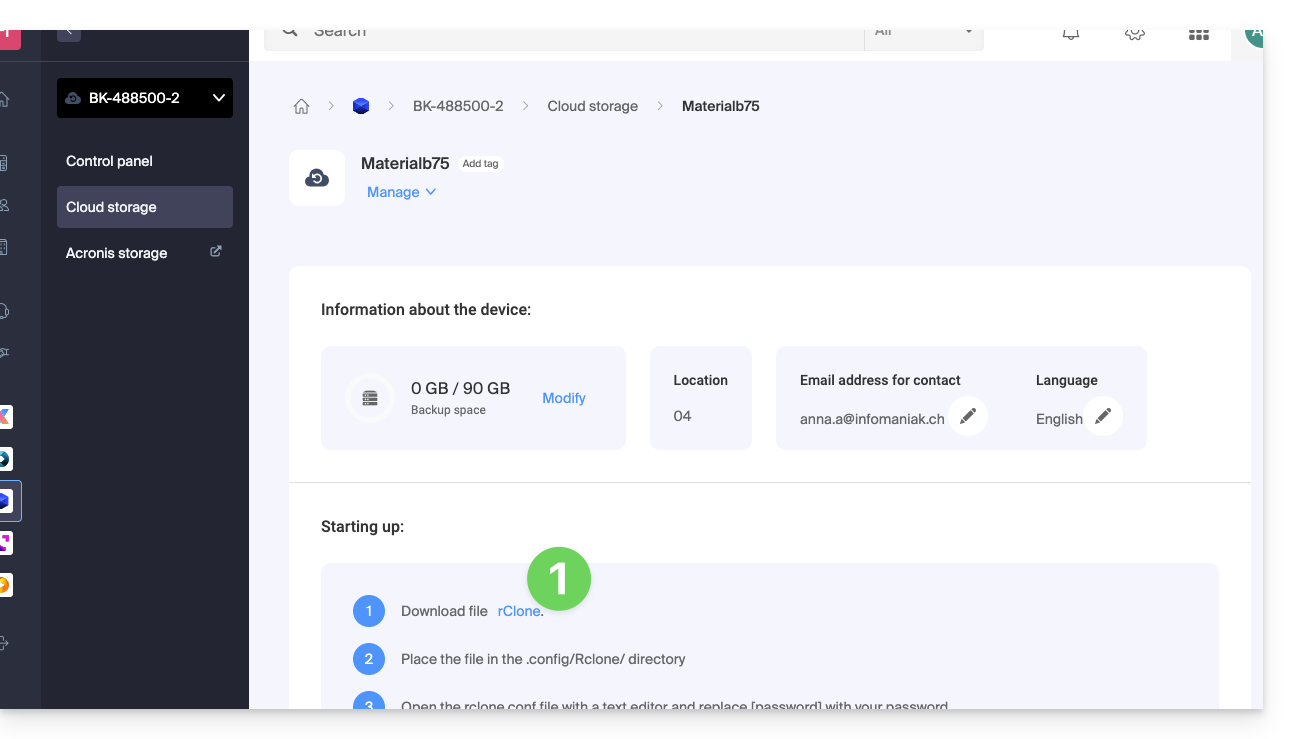
- Coloque o arquivo no diretório
~/.rclone.conf.config/rclone/ou adicione o conteúdo do arquivo ao final do arquivo~/.rclone.conf.config/rclone/rclone.confexistente (no Debian Stretch, este arquivo está localizado em:~/.rclone.conf) — consulte também a documentação do rClone. - Abra o arquivo
rclone.confcom um editor de texto e substitua[password]pela senha gerada: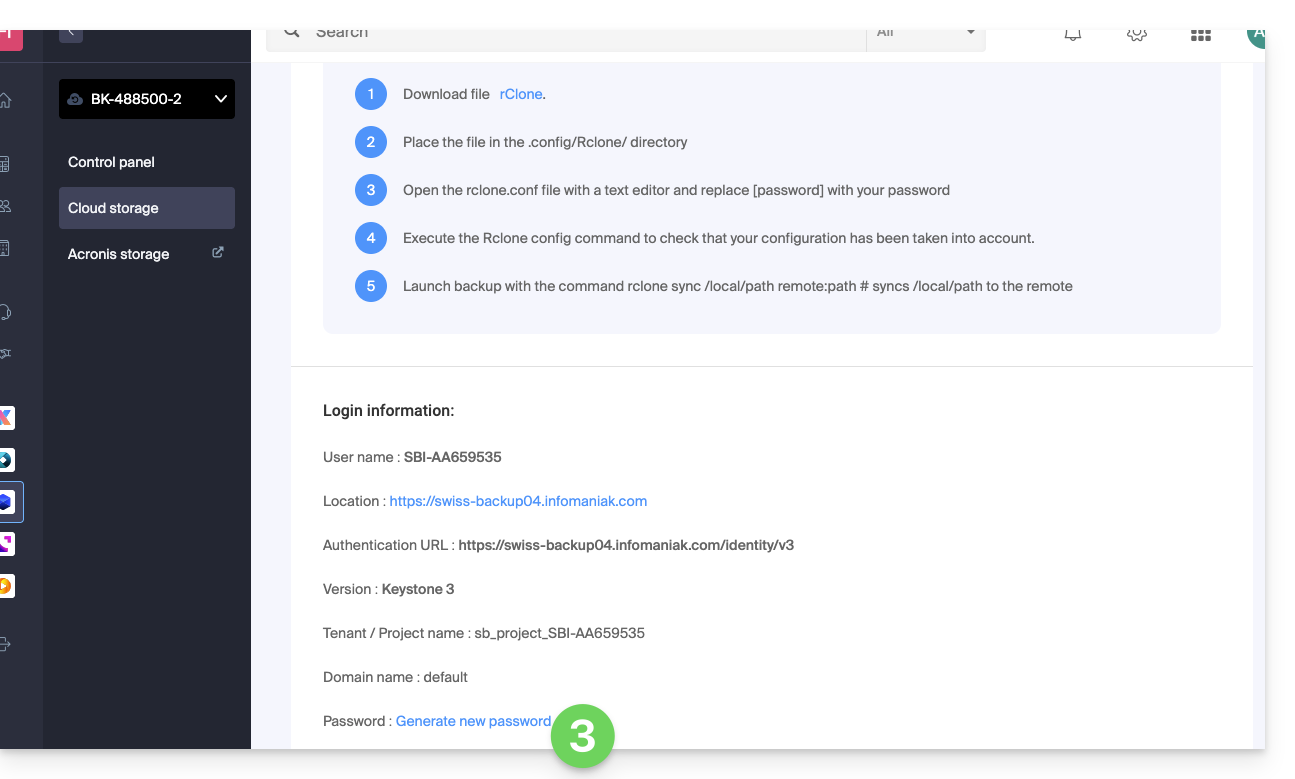
- Execute o comando
rclone configpara verificar se a configuração foi aplicada corretamente. - Inicie a cópia de segurança com o comando
rclone sync /local/path project_name:default.
Se necessário, pode consultar as informações de acesso no painel de controlo.
Exemplo de configuração do rClone
[sb_project_SBI-AB123456]
type = swift
user = SBI-AB123456
key = [password]
auth (1) = {{URL_8}}
domain = default
tenant = sb_project_SBI-AB123456
tenant_domain = default
region = RegionOne
storage_url =
auth_version =
(1) A indicação "//swiss-backup02", "//swiss-backup03", etc., muda de acordo com o número do cluster indicado no Manager, nas informações de armazenamento em nuvem, em "Localização"; e se o seu dispositivo Swiss Backup foi criado antes de outubro de 2020, deverá usar https://swiss-backup.infomaniak.com/identity/v3.
Pode alterar [sb_project_SBI-AB123456] pela indicação de sua preferência para facilitar.
Por exemplo, a indicação [swissbackup] resultará em:
rclone sync /local/folder swissbackup:remote/folderem vez de:
rclone sync /local/folder sb_project_SBI-AB123456:remote/folder
Iniciar uma cópia de segurança ou uma restauração
Inicie uma cópia de segurança com o seguinte comando:
rclone sync /local/folder sb_project_SBI-AB123456:remote/folderInicie a restauração com o seguinte comando:
rclone sync sb_project_SBI-AB123456:remote/folder /local/folderLink para esta FAQ: https://faq.infomaniak.com/2285
Esta seção de perguntas frequentes foi útil?