Base de conhecimento
1000 perguntas frequentes, 500 tutoriais e vídeos explicativos. Aqui, você encontra apenas soluções!
Fazer backup do macOS com o Acronis no Swiss Backup
Este guia detalha como fazer o backup de um computador Apple macOS usando o Acronis no Swiss Backup, a solução de backup em nuvem de um provedor suíço independente.
Pré-requisitos
- Verificar as versões do macOS suportadas pelo Agente Acronis.
- Ter um espaço Swiss Backup Infomaniak com uma quota de dispositivo disponível (mínimo 1) para macOS:
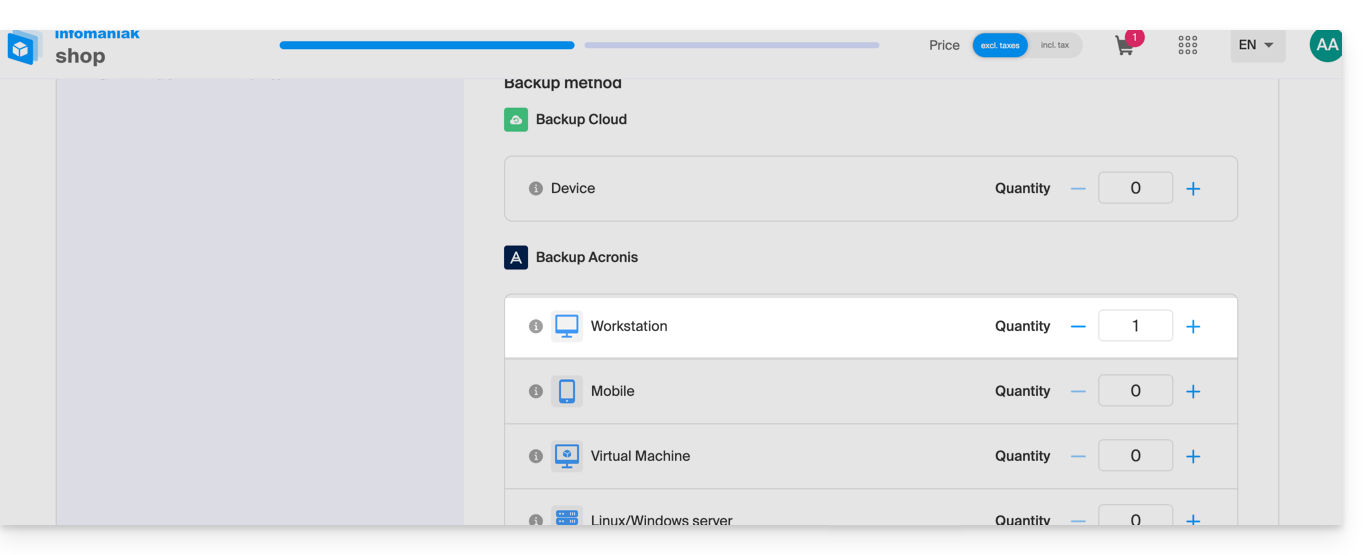
- Se necessário, aumente a quota do dispositivo de acordo com as suas necessidades.
- Adicione o dispositivo no Gerenciador Infomaniak para receber as credenciais de acesso.
Configurar a cópia de segurança
Para configurar a cópia de segurança com o Acronis:
- Clique aqui para acessar o Console Acronis com as credenciais obtidas após adicionar o dispositivo (precisa de ajuda?).
- Faça o download e instale o Agente Acronis para macOS (precisa de ajuda?):
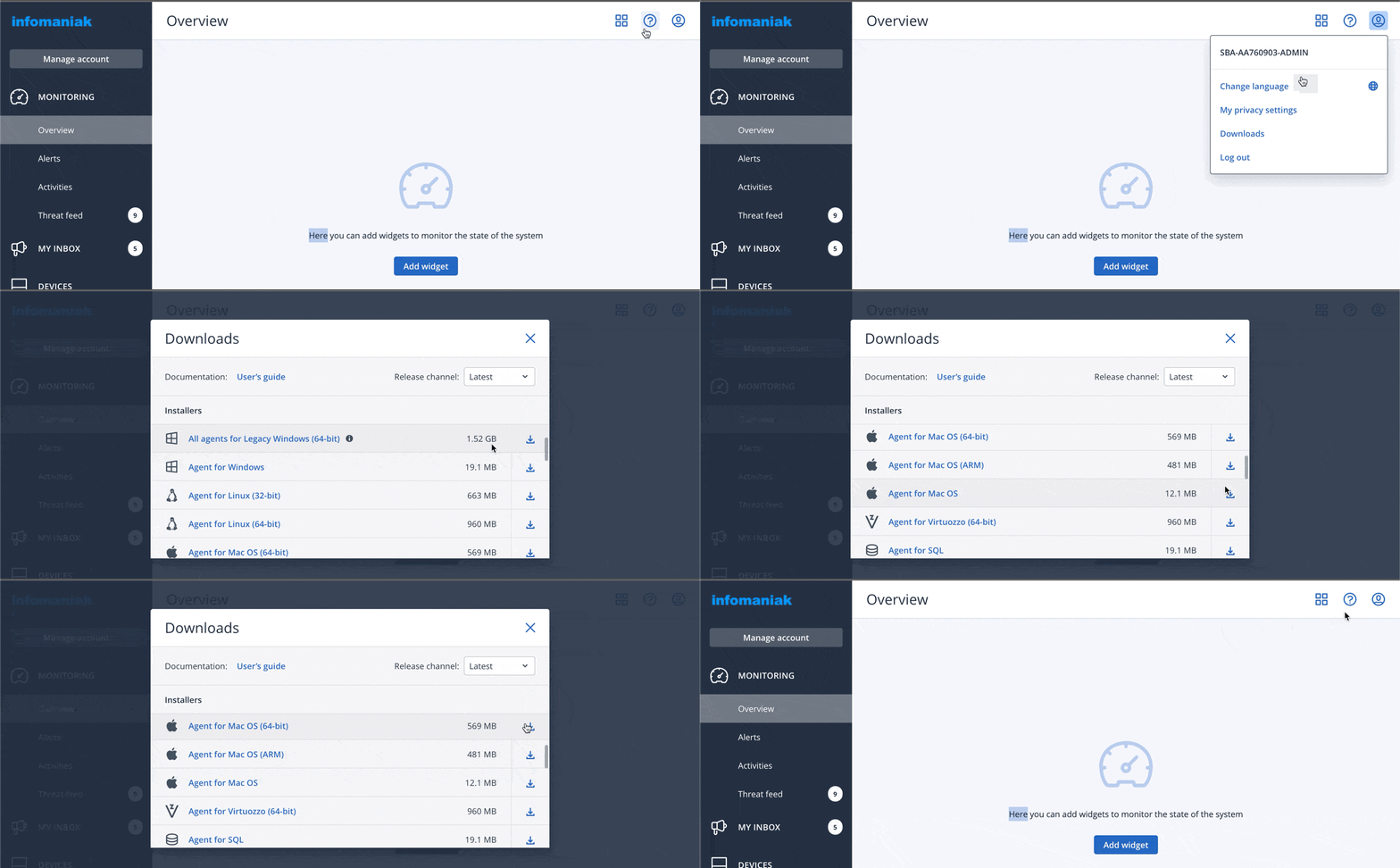
- Consulte também o capítulo abaixo sobre as permissões de acesso ao disco solicitadas pelo instalador.
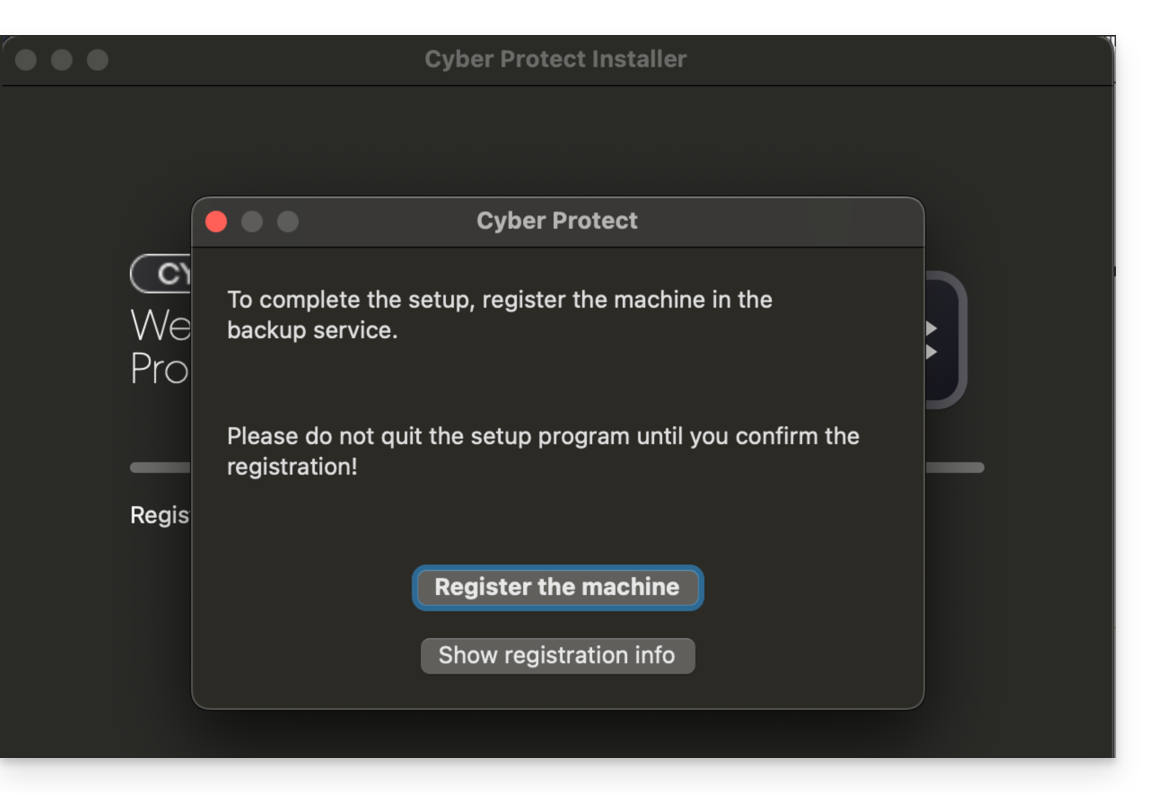
- Clique em Registar o dispositivo no final da instalação do Cyber Protect:
- Não altere o código proposto, selecione o utilizador em questão, se necessário, e clique em Verificar código:
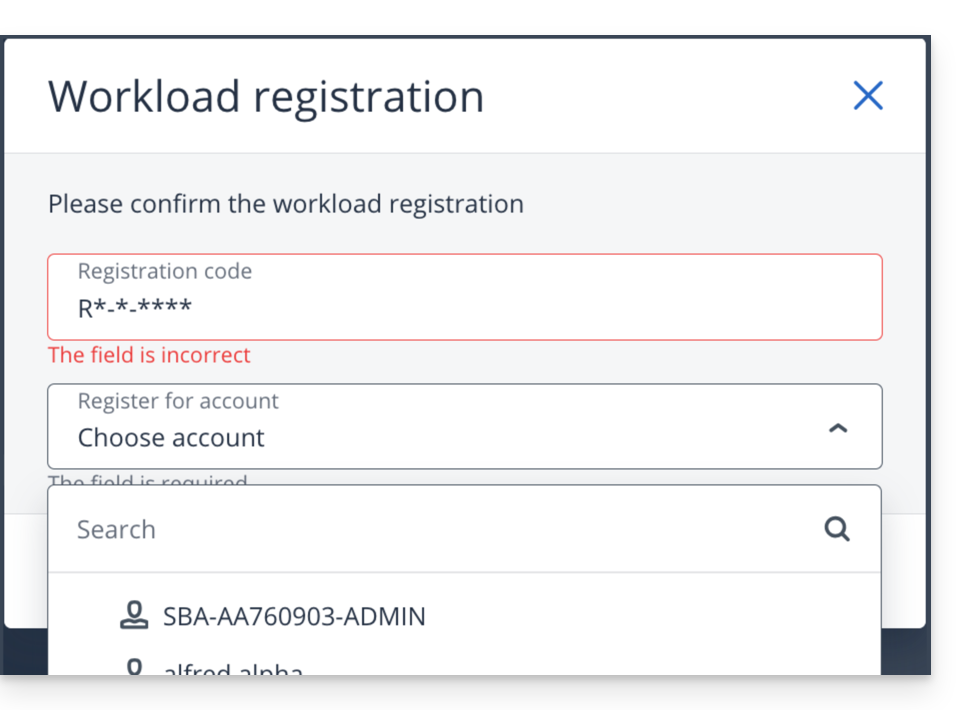
- Consulte este outro guia se o registo do dispositivo falhar.
- Crie um plano de backup.
Senha e permissões de acesso
Durante a instalação da aplicação para desktop (item 2 acima), a senha solicitada é a do seu Mac (conta de usuário).
Além disso, você deverá conceder (nas configurações do macOS) acesso total ao disco ao Agente Cyber-Protect-Service da Acronis: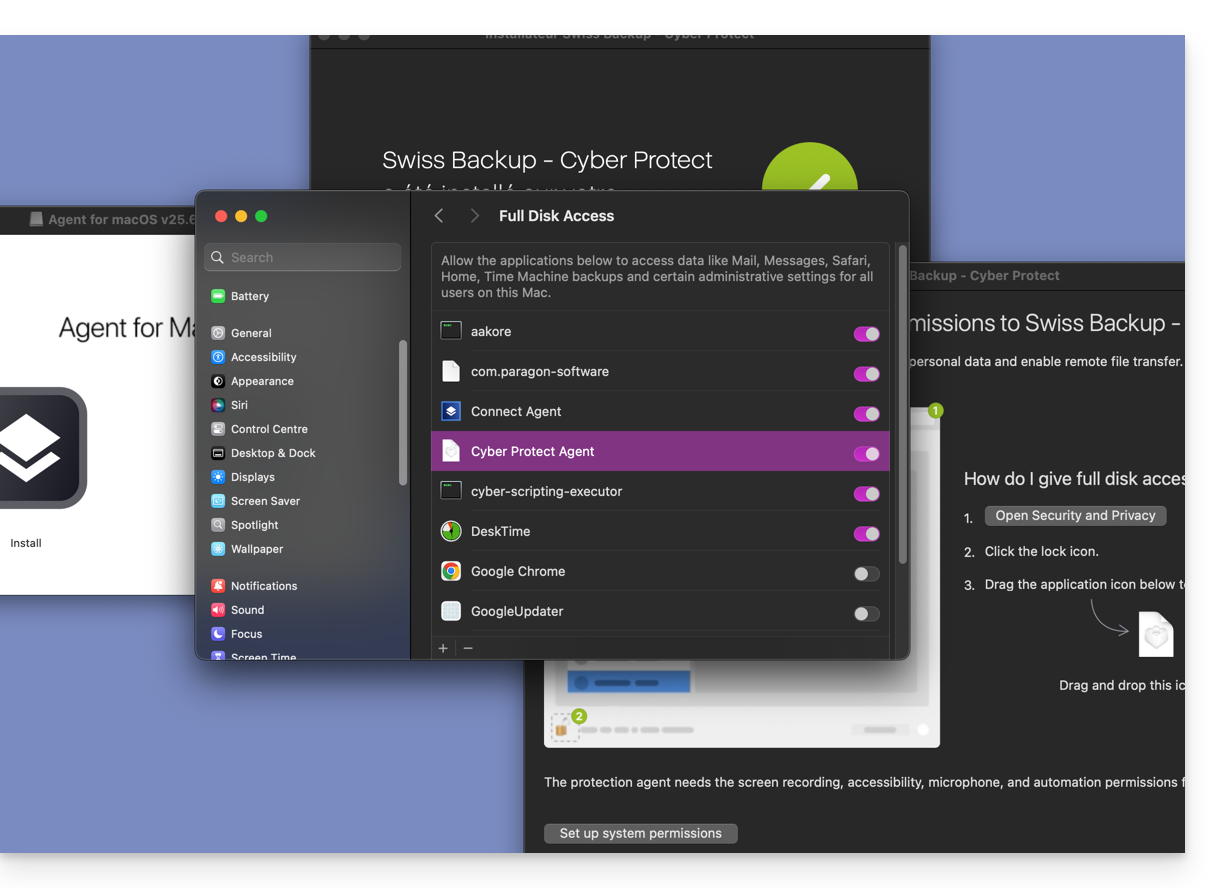
Aceder aos ficheiros guardados e restaurá-los
Consulte este outro guia para restaurar os seus dados.
Link para esta FAQ: https://faq.infomaniak.com/2281
Esta seção de perguntas frequentes foi útil?