Base de conhecimento
1000 perguntas frequentes, 500 tutoriais e vídeos explicativos. Aqui, você encontra apenas soluções!
Gravar um fluxo de vídeo ao vivo
Este guia explica como gravar ou arquivar todas as suas transmissões de vídeo em streaming, o que pode ser útil para criar reprises de programas de TV ou rever vídeos gravados por câmeras de vigilância, por exemplo.
Gerenciar a gravação automática de transmissões ao vivo
Para ativar esta opção:
- Clique aqui para acessar o gerenciamento do seu produto no Manager Infomaniak (precisa de ajuda?).
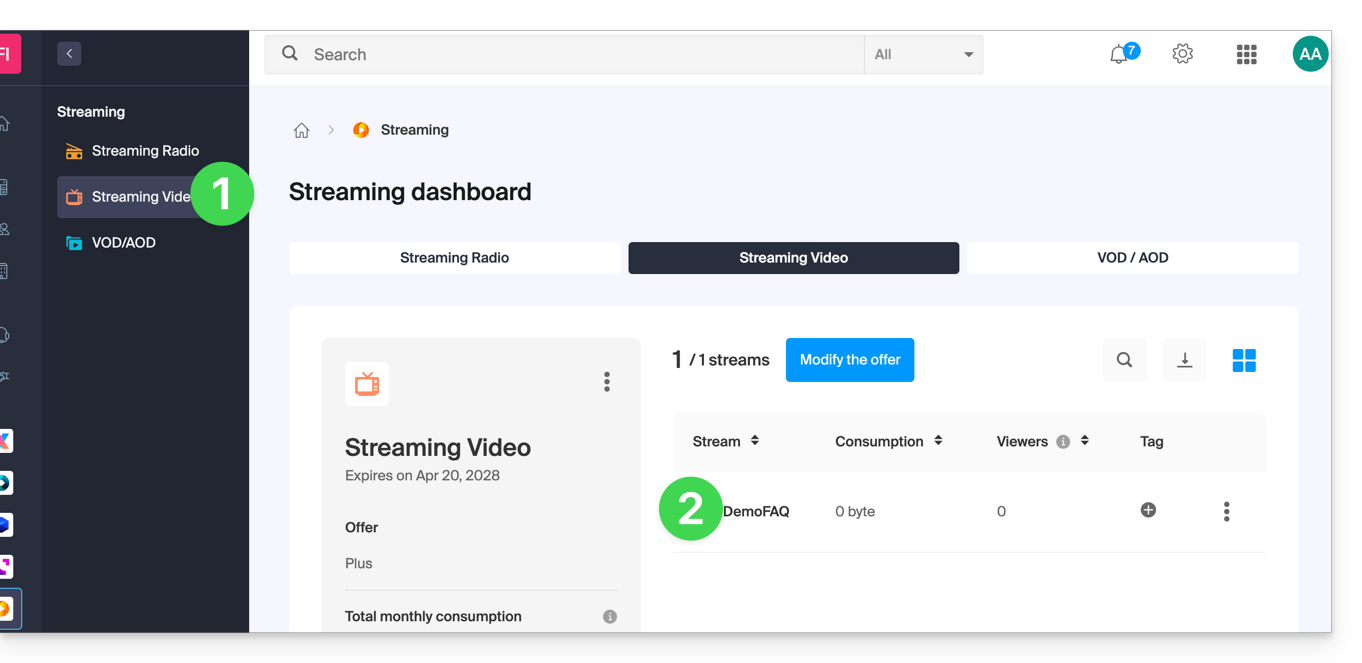
- Clique diretamente no nome atribuído ao produto em questão:
- Ative a gravação das transmissões ao vivo através do botão de alternância no painel de controle da transmissão:
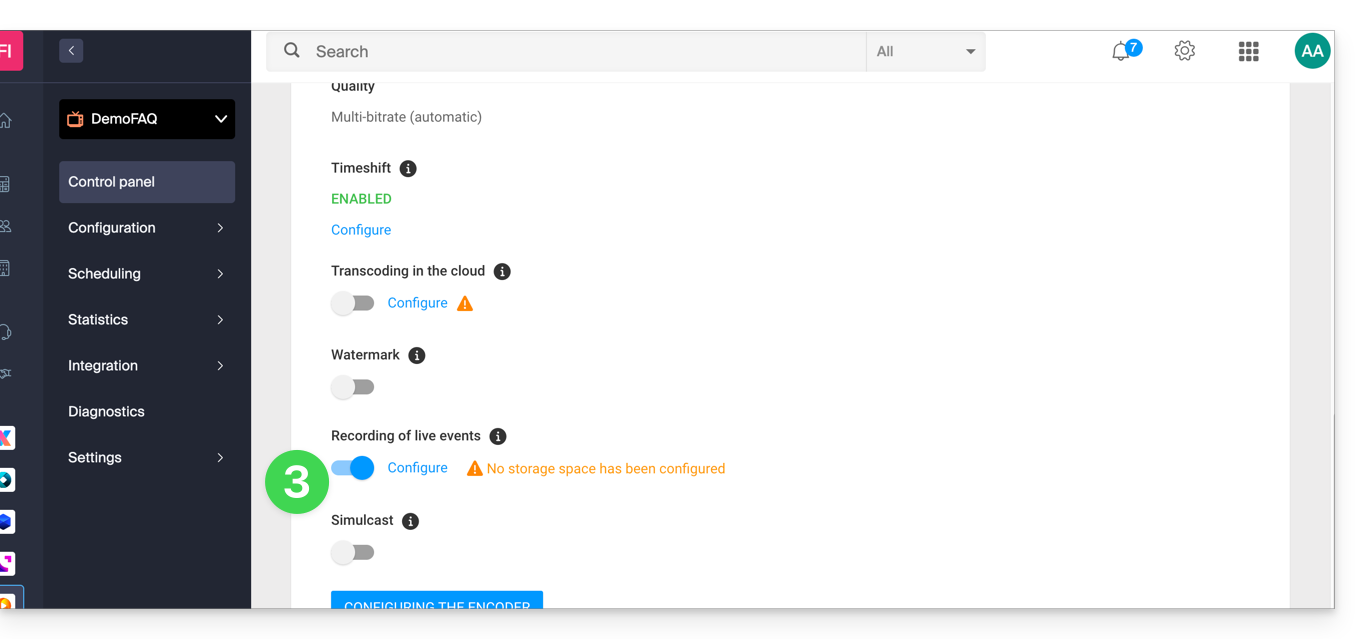
Após ativar esta funcionalidade e configurar a sua conexão FTP, o fluxo será automaticamente e continuamente registado a partir do momento em que for enviado para (ou obtido de) a plataforma Infomaniak.
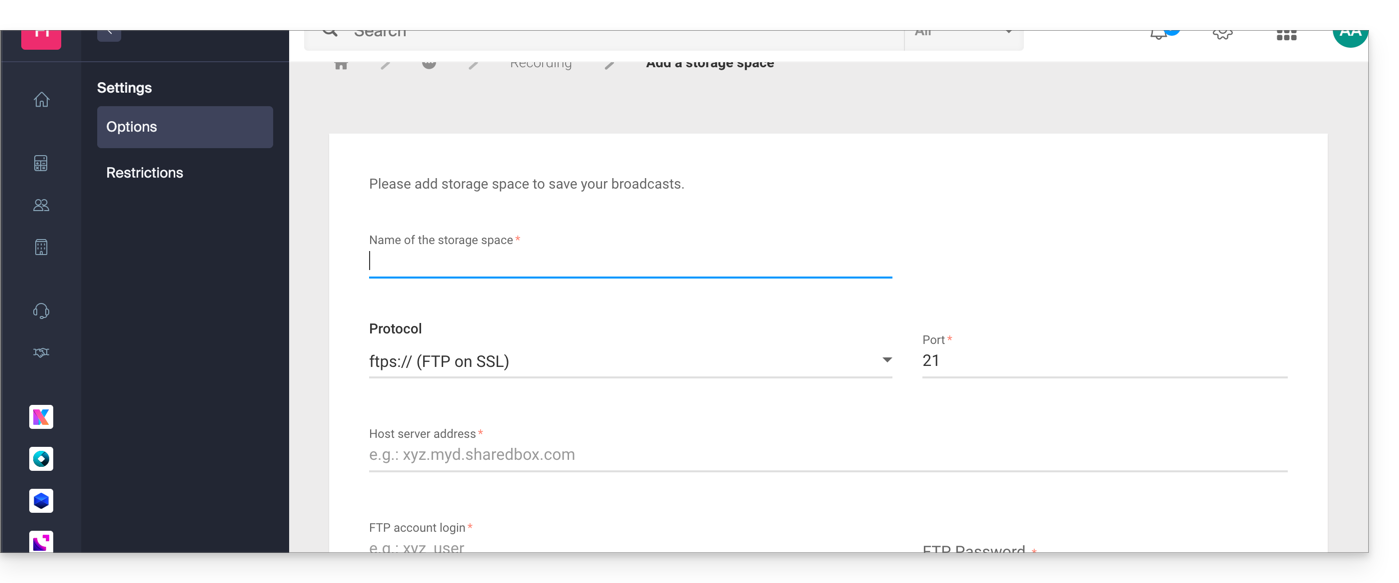
Mantenha-se atento ao seu espaço FTP, pois este poderá ficar rapidamente saturado.
Se necessário, você também pode agendar gravações manualmente através da ferramenta de agendamento.
Como funcionam as gravações automáticas
Após ativar esta opção, um arquivo MP4 será gerado automaticamente após cada transmissão, o qual será transferido para o espaço FTP ou VOD configurado por você.
Informações importantes:
- Uma transmissão é definida como o período entre a conexão e a desconexão até o codificador de vídeo.
- Qualidade das gravações: no caso de um fluxo com várias taxas de bits, a qualidade original máxima será preservada.
- Limitação do tamanho dos arquivos: no caso de transmissão contínua, você tem a possibilidade de definir a duração máxima de cada arquivo MP4. Essa opção permite evitar a geração de arquivos muito grandes e garantir o registro de seus arquivos no espaço FTP ou VOD de sua escolha (e, uma vez que a duração seja atingida, o registro é interrompido automaticamente e enviado por FTP, e um novo registro é iniciado).
Personalização dos nomes dos registros
Para que possa identificar e classificar facilmente os seus arquivos, o nome dos registos pode ser personalizado de forma dinâmica através de parâmetros especificados entre chaves.
Exemplo:
template_{stream_id}_{date|format:YYYY-MM-dd_hh:mm:ss}_{fragment_id|from:1|prefix:fragment_(|suffix:)}.{extension}stream_id= representa o identificador do fluxo como uma cadeia de caracteres.date|format: ISO 8601 = data do dia do registo.time|format: ISO 8601 = hora do registro.datetime|format: ISO 8601 = data e hora do registro.fragment_id|from:number|prefix:string|suffix:string: = número do fragmento no caso em que um registo é dividido, com a possibilidade de adicionar um prefixo e/ou um sufixo.- Cada fragmento será incrementado, e "
from" permite indicar qual será o primeiro fragmento de referência.
- Cada fragmento será incrementado, e "
extension= extensão final do ficheiro.
Esses parâmetros e suas opções são opcionais, e a ordem em que são definidos é totalmente livre. Eles podem ser usados quantas vezes forem necessárias. Se você fornecer a mesma opção várias vezes, apenas a última será considerada. Qualquer opção não reconhecida será simplesmente ignorada.
Exemplo 1
Situação: você tem duas programações diárias, a primeira começa às 10h00 e a segunda às 20h05. Ao configurar a nomenclatura dos arquivos desta forma template_{date|format:hh:mm:ss}, você obterá os seguintes nomes de arquivo:
Para o dia 5 de dezembro de 2019:
- A primeira gravação, às 10h00, terá o nome:
template-10:00:00.mp4 - A segunda gravação, às 20h05, terá o nome:
template-20:05:00.mp4
Para o dia 6 de dezembro de 2019:
- O primeiro registo, às 10h00, terá o nome:
template-10:00:00.mp4
O registo do dia anterior com o mesmo nome será substituído por este. - A segunda gravação, às 20h05, terá o nome:
template-20:05:00.mp4
A gravação do dia anterior com o mesmo nome será substituída por esta. - etc.
Essa lógica pode ser particularmente útil para ter um sistema de gravação em loop, por exemplo, para um sistema de videovigilância. O usuário poderá recuperar o vídeo apenas quando necessário, evitando assim o armazenamento de um número potencialmente infinito de vídeos, o que poderia levar à saturação do espaço FTP.
Exemplo 2
Situação: desta vez, você terá um registro contínuo, 24 horas por dia, 7 dias por semana, com uma limitação na duração dos arquivos, definida em 360 minutos. Ao configurar a nomenclatura dos arquivos desta forma template_{date|format:YYYY-MM-dd}_{fragment_id|from:1|prefix:fragment_(|suffix:)}.{extension}, você obterá os seguintes nomes de arquivo:
- O primeiro arquivo do dia, às 0h00, terá o nome:
template_2019-02-05.mp4 - O segundo arquivo do dia, às 6h00, terá o nome:
template_2019-02-05_fragment(1).mp4 - O terceiro arquivo do dia, ao meio-dia (12h00), terá o nome:
template_2019-02-05_fragment(2).mp4 - O quarto ficheiro do dia, às 18h00, terá o seguinte nome:
template_2019-02-05_fragment(3).mp4
Ao configurar a nomenclatura dos ficheiros desta forma template_{date|format:YYYY-MM-dd}_{fragment_id|from:0|prefix:fragment_(|suffix:)}.{extension}, obterá os seguintes nomes:
- O primeiro ficheiro do dia, às 0h00, terá o nome:
template_2019-02-05_fragment(0).mp4 - O segundo ficheiro do dia, às 6h00, terá o nome:
template_2019-02-05_fragment(1).mp4 - O terceiro arquivo do dia, às 12h00, terá o nome:
template_2019-02-05_fragment(2).mp4 - O quarto arquivo do dia, às 18h00, terá o nome:
template_2019-02-05_fragment(3).mp4
Link para esta FAQ: https://faq.infomaniak.com/2270
Esta seção de perguntas frequentes foi útil?