Base de conhecimento
1000 perguntas frequentes, 500 tutoriais e vídeos explicativos. Aqui, você encontra apenas soluções!
Criar um lembrete de evento no Calendar Infomaniak
Este guia explica o funcionamento dos lembretes e alertas de eventos no aplicativo web Calendar Infomaniak (serviço online ksuite.infomaniak.com/calendar).
Adicionar um lembrete ou alerta a um evento
Para adicionar um lembrete a um evento (por exemplo, uma reunião):
- Clique aqui para acessar o aplicativo web Calendar da Infomaniak (serviço online ksuite.infomaniak.com/calendar).
- Clique no botão Criar no canto superior esquerdo.
- Clique em Evento:
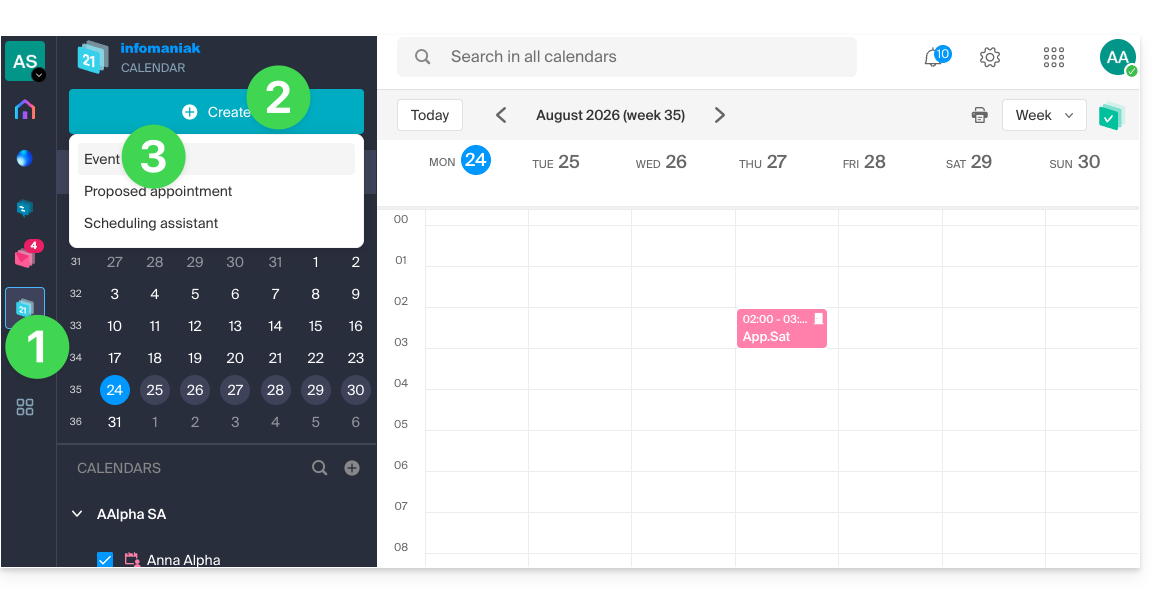
- Você também pode clicar em um evento existente no calendário para modificá-lo.
- Clique em Adicionar lembrete para configurá-lo:
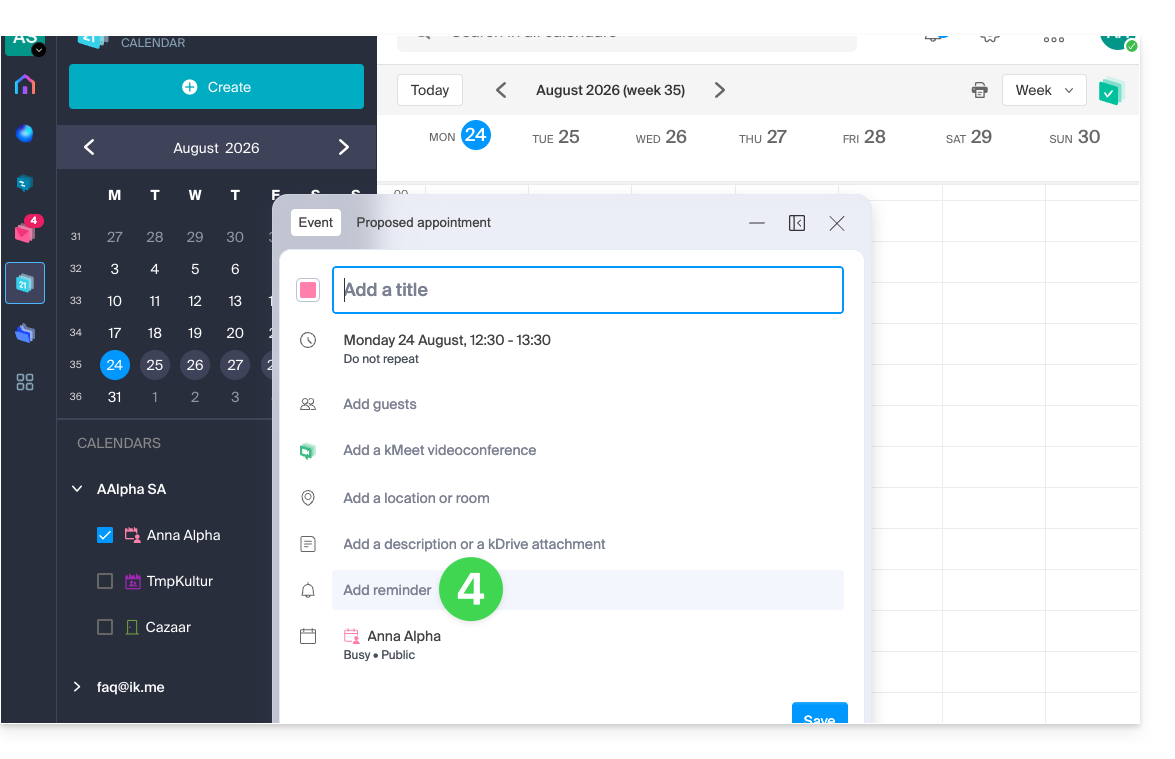
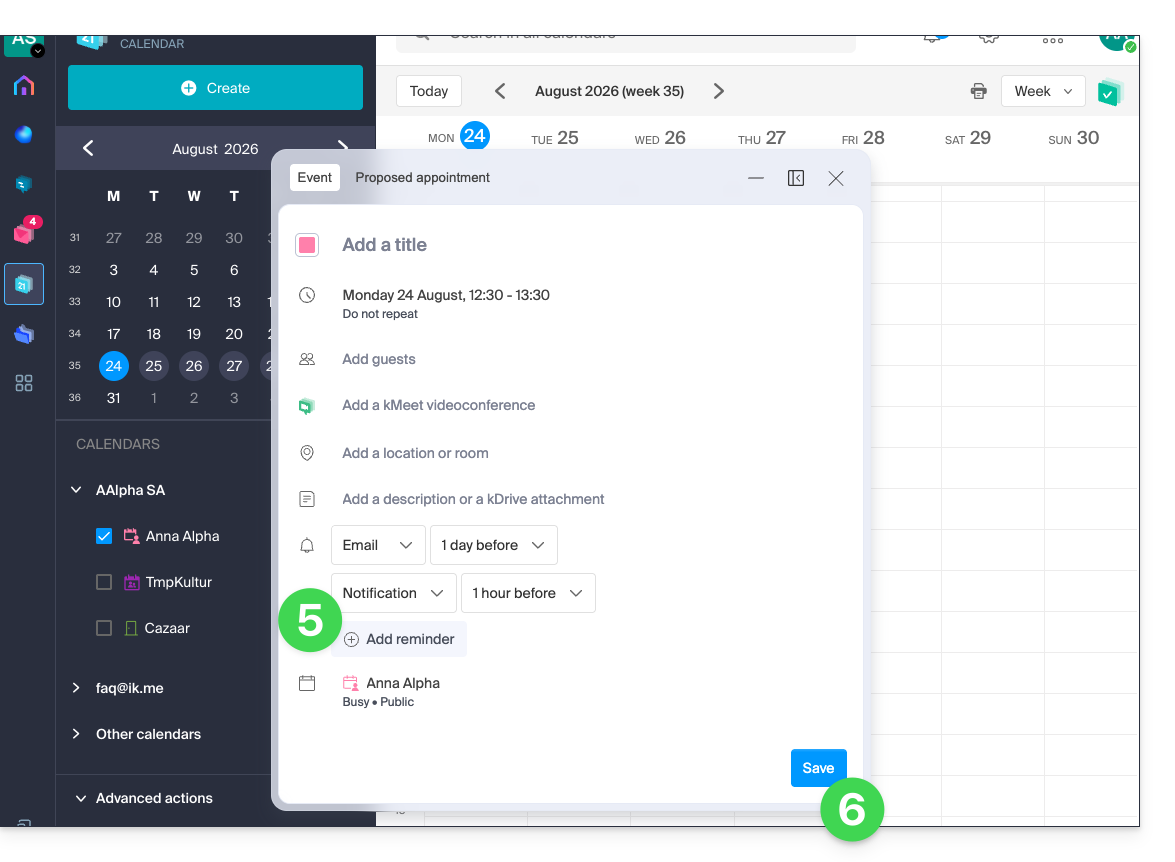
- Para receber várias notificações, é preciso adicionar vários lembretes (pressione ).
- Salve o evento na parte inferior da página:
Tipos de lembrete
Você pode receber notificações por 3 canais diferentes:
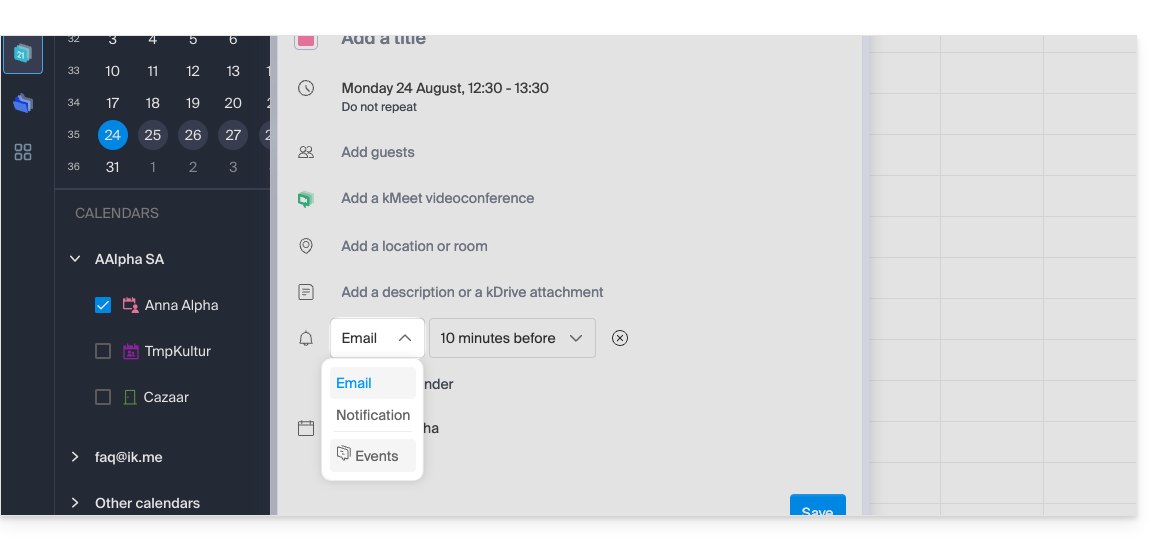
- Por e-mail: o lembrete será enviado por e-mail no momento escolhido.
- Por meio de uma notificação de um navegador como Brave, Chrome, Edge, Firefox, Opera, Safari…: o lembrete será exibido por meio de uma notificação gerenciada pelo seu navegador, desde que o kSuite esteja conectado; esta também é a opção a ser escolhida se você sincronizar sua agenda com seu telefone para receber um alerta no seu dispositivo.
- Por meio de um sistema de bate-papo como o kChat: o lembrete será enviado para o canal de bate-papo escolhido.
Os eventuais convidados de um evento não serão notificados pelos lembretes.
Definir um ou mais lembretes padrão
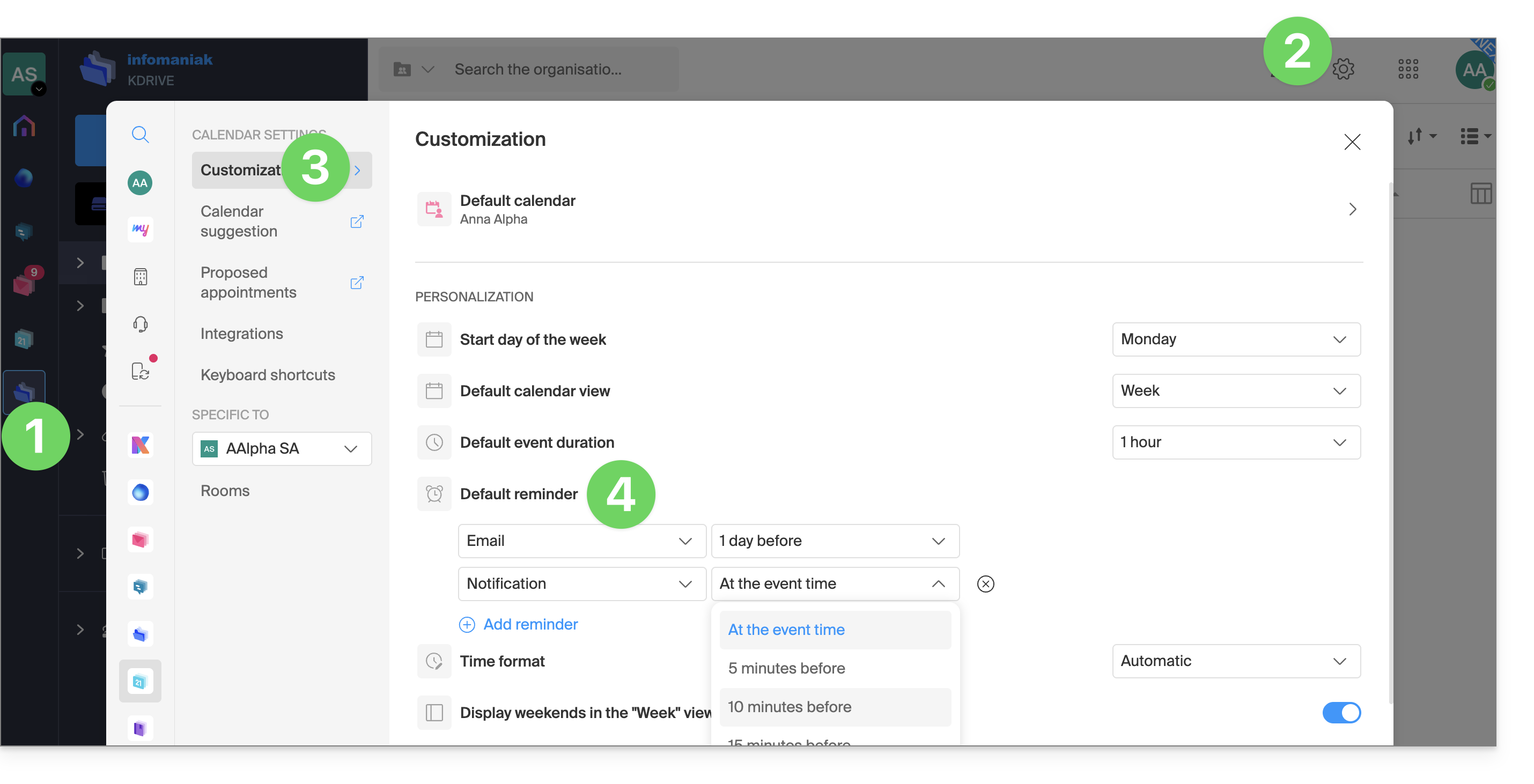
Programar um alerta manual para cada evento rapidamente se torna repetitivo. Defina lembretes para todos os seus compromissos nas configurações do seu calendário: um e-mail 15 minutos antes ou uma notificação no dia anterior, a escolha é sua. Essas regras são aplicadas por padrão e podem ser modificadas caso a caso:
- Clique aqui para acessar o aplicativo web Calendar da Infomaniak (serviço online ksuite.infomaniak.com/calendar).
- Clique em Configurações no canto superior direito.
- Clique em Personalização.
- Configure um ou mais lembretes que serão aplicados a cada um dos seus eventos recém-criados:
Link para esta FAQ: https://faq.infomaniak.com/2248
Esta seção de perguntas frequentes foi útil?