Base de conhecimento
1000 perguntas frequentes, 500 tutoriais e vídeos explicativos. Aqui, você encontra apenas soluções!
Restaurar uma Aplicação Web
Atualização 05/10/2026
Este guia explica como restaurar uma cópia de segurança automática de uma Aplicação Web Infomaniak (Joomla, Drupal, Typo3, PrestaShop, ownCloud, etc.) incluída nas ofertas de Hospedagem Web pagas.
Introdução
- Isto não se aplica ao WordPress, que pode ser guardado e restaurado através de:
- a cópia de segurança automática do alojamento,
- extensões que permitem fazer manualmente uma cópia de segurança completa, incluindo até um ficheiro de reinstalação facilitada.
- No servidor FTP, os ficheiros correspondentes às diferentes cópias de segurança estão disponíveis em
/application-backups/.
Restaurar uma Aplicação Web
Para aceder às cópias de segurança das aplicações:
- Clique aqui para acessar o gerenciamento de hospedagens e sites no seu Painel de Controle Infomaniak (❓: ajuda).
- Clique no menu de ações ⋮ localizado à direita do elemento em questão.
- Clique em Restaurar um backup:
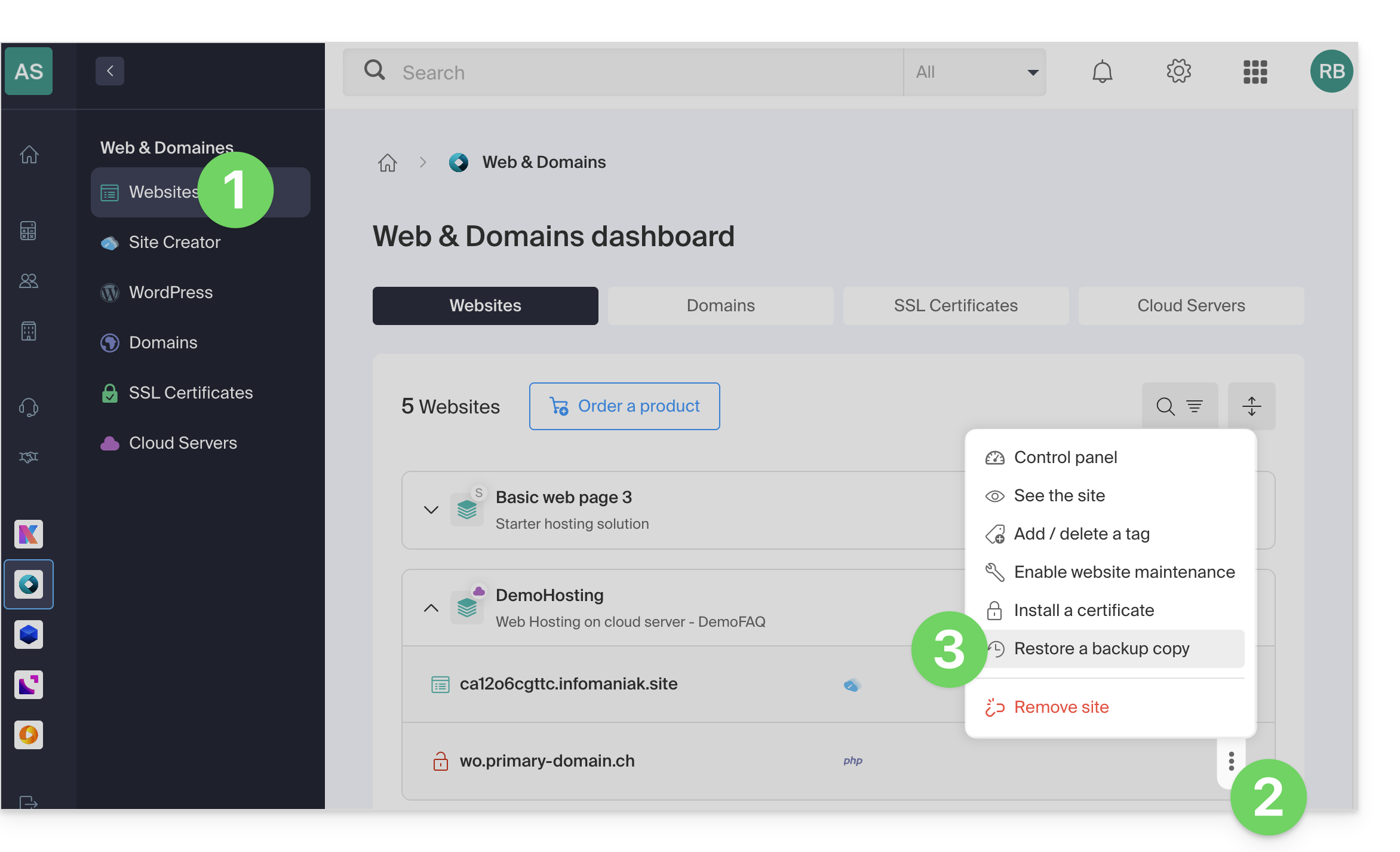
- Clique no tipo de restauração desejada (Aplicação Web).
- Clique no botão Seguinte:
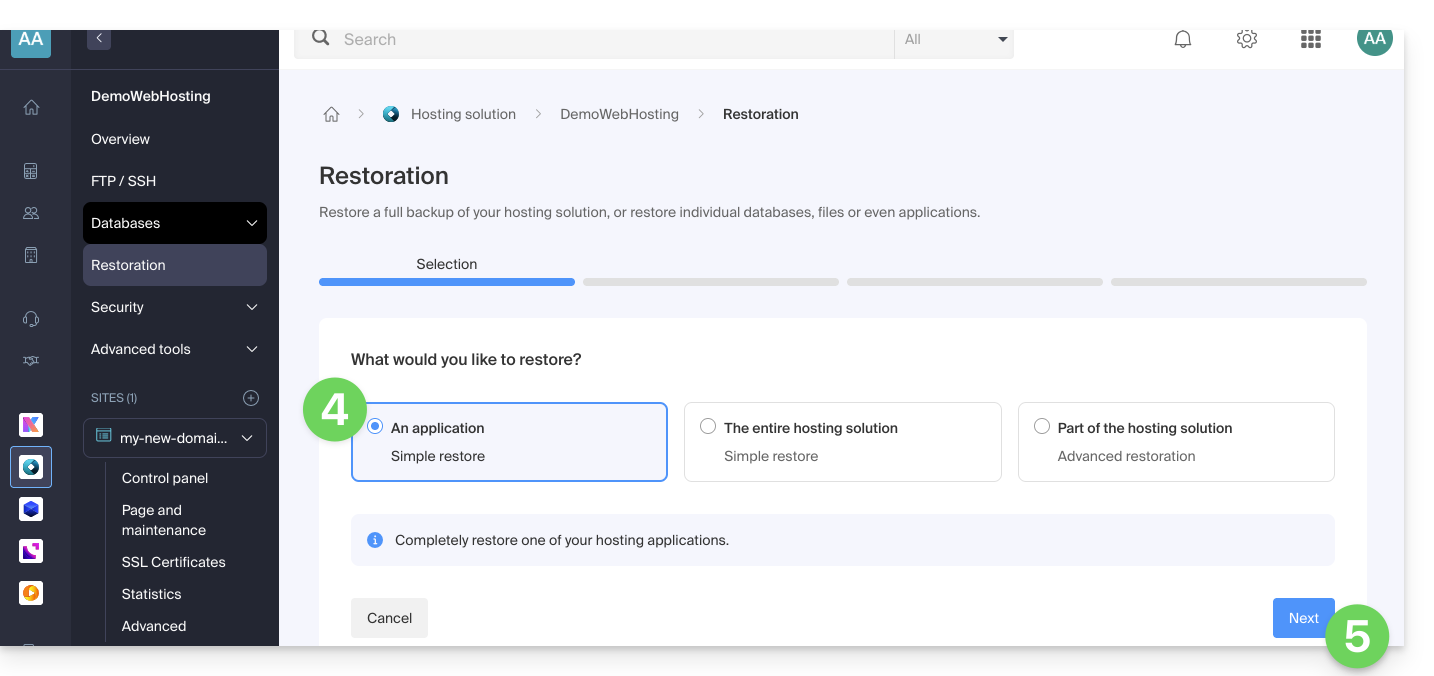
- Escolha a aplicação que deseja restaurar e clique no botão Seguinte:
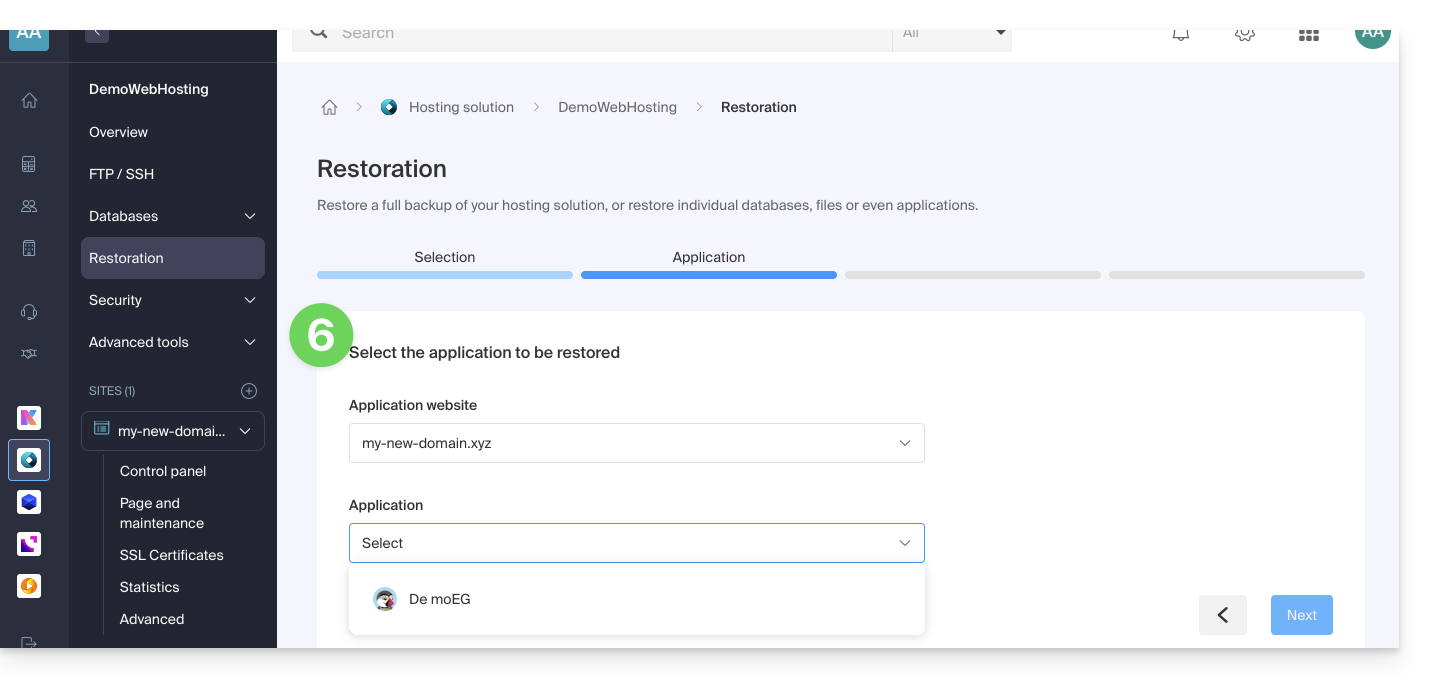
- Escolha a data para a qual deseja retornar e clique no botão Seguinte.
- Se a página de Backups estiver vazia, isso provavelmente significa que os backups estão desativados ou que a instalação é muito recente.
- Escolha se prefere…
- …apagar os arquivos existentes antes de restaurar o backup (recomendado).
- …substituir os arquivos com o mesmo nome e manter os novos arquivos criados após a data do backup.
- Clique no botão Restaurar para iniciar a restauração dos dados da Aplicação Web.
Saiba mais
Link para esta FAQ: https://faq.infomaniak.com/2175
Esta seção de perguntas frequentes foi útil?