Base de conhecimento
1000 perguntas frequentes, 500 tutoriais e vídeos explicativos. Aqui, você encontra apenas soluções!
Migrar um serviço de hospedagem web compartilhada para um Servidor Cloud
Atualização 05/10/2026
Este guia explica como migrar um alojamento web partilhado para um Servidor Cloud, recuperando todos os seus dados, sites, bases de dados, etc.
Introdução
- Observação:
- Os nomes das bases de dados e dos utilizadores das bases de dados são mantidos.
- As contas FTP são mantidas com os mesmos nomes, mas o servidor de alojamento é alterado para um endereço do tipo
xxxx.ftp.infomaniak.com. - O endereço IP dos sites será alterado, exceto os endereços IP dedicados.
- Durante esta operação, as estatísticas são redefinidas.
- Se já tiver um Servidor Cloud, avance diretamente para o passo 2 deste guia.
- Para migrar um serviço de hospedagem web de um Servidor Cloud para outro Servidor Cloud, consulte este outro guia.
- Para migrar um serviço de hospedagem web de um Servidor Cloud para uma hospedagem web compartilhada, consulte este outro guia; atenção, esta é uma operação que você deverá realizar manualmente.
1. Encomendar um Servidor Cloud
Para isso:
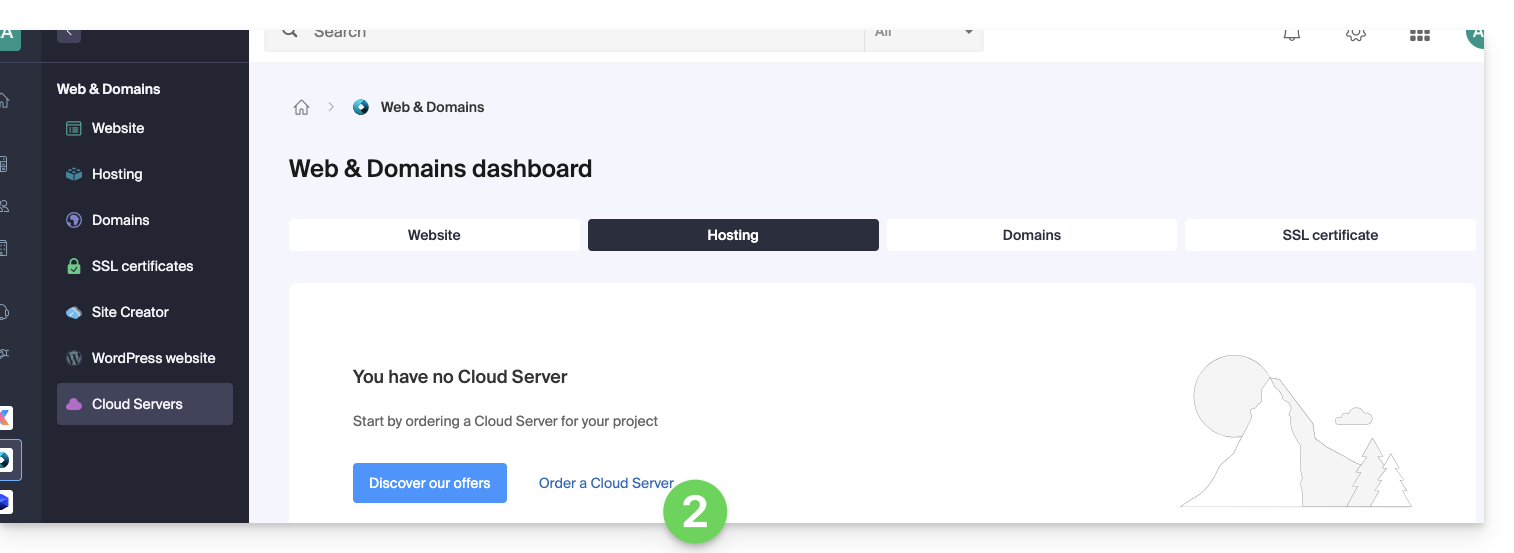
- Clique aqui para acessar o gerenciamento dos Servidores Cloud no painel de controle Infomaniak (precisa de ajuda?).
- Clique em Encomendar, escolha um Servidor Cloud gerenciado e siga o assistente para concluir a encomenda:
2. Migrar a hospedagem para o Servidor Cloud
Depois que o Servidor Cloud estiver em funcionamento:
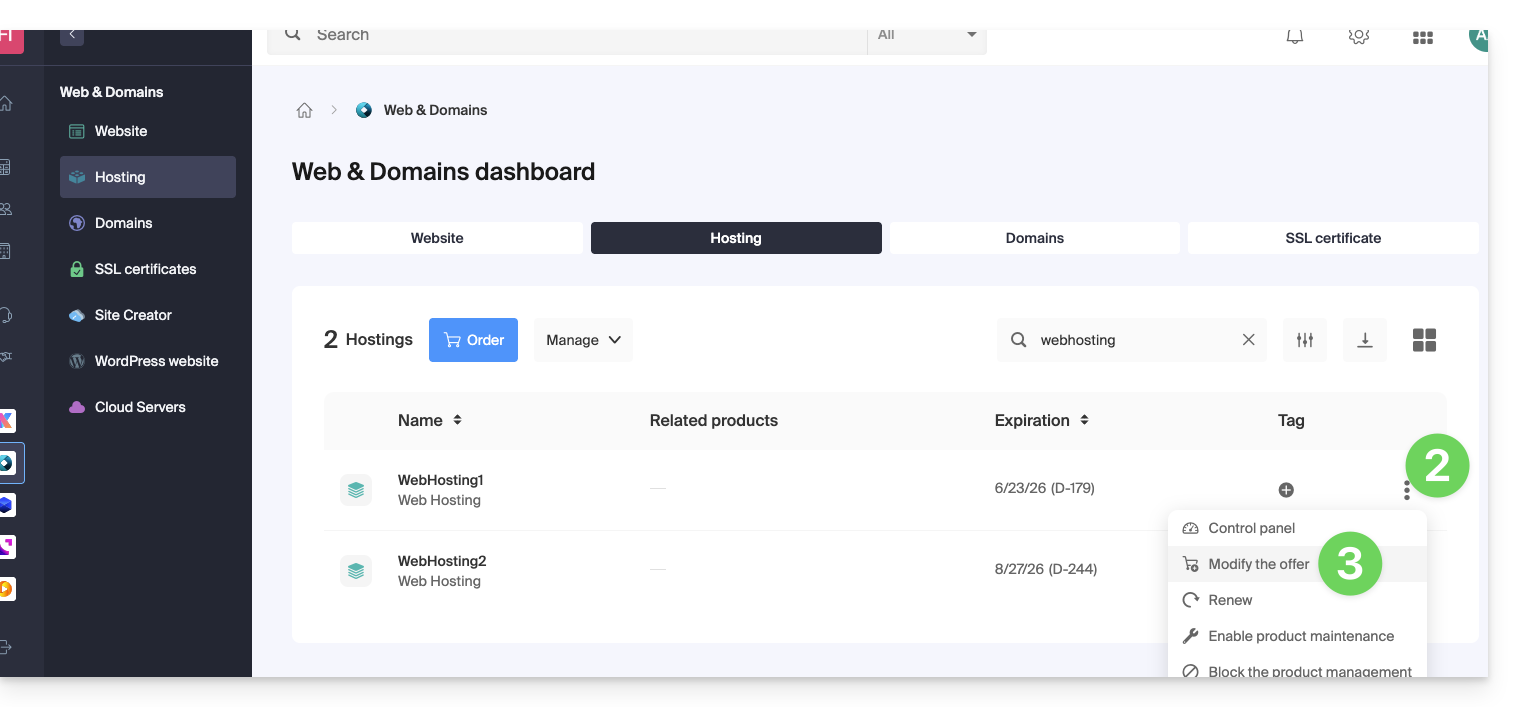
- Clique aqui para acessar o gerenciamento de hospedagens e sites no seu Painel de Controle Infomaniak (❓: ajuda).
- Clique no menu de ações ⋮ localizado à direita do item em questão.
- Clique em Modificar a oferta:
- Selecione a oferta de transferência gratuita.
- Selecione o Servidor Cloud para o qual deseja migrar sua hospedagem:
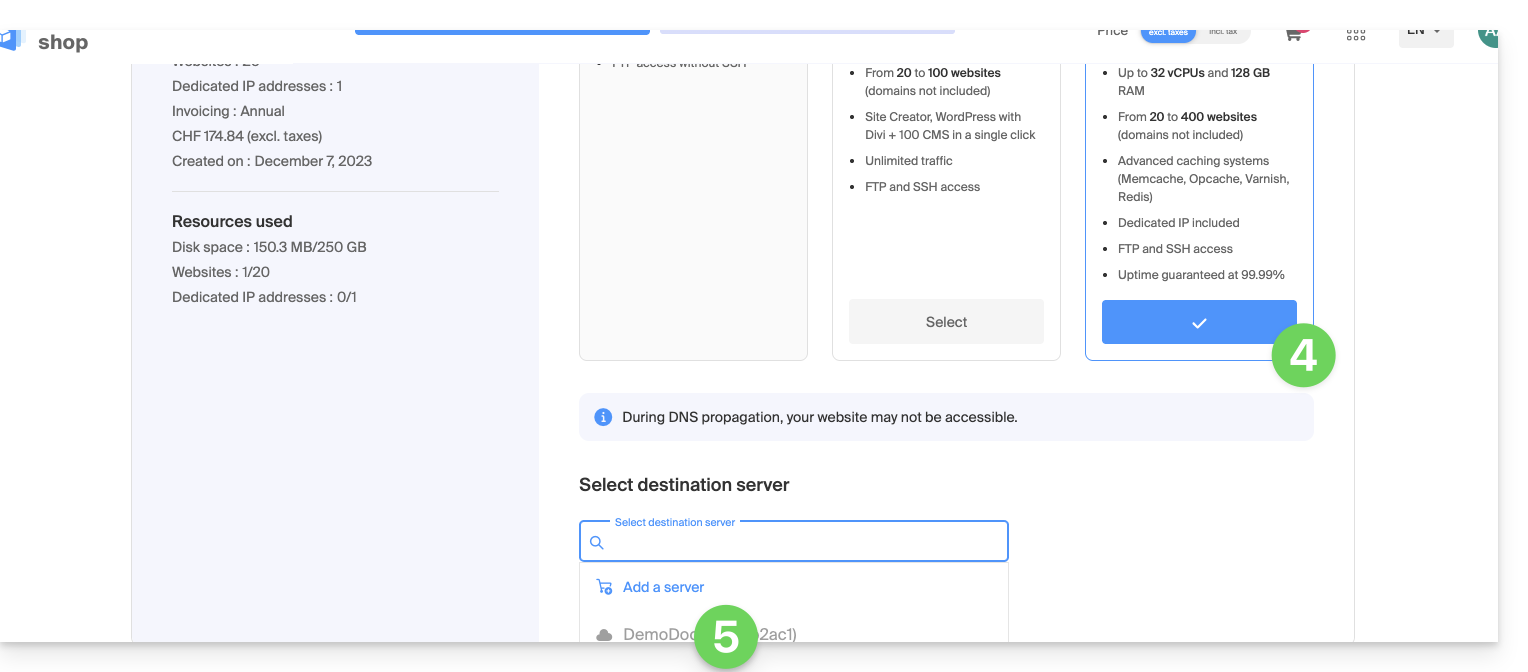
- Clique no botão Avançar na parte inferior da página e conclua todo o processo.
- Aguarde durante a migração da hospedagem, haverá uma interrupção do serviço durante o processo.
Link para esta FAQ: https://faq.infomaniak.com/2127
Esta seção de perguntas frequentes foi útil?