Base de conhecimento
1000 perguntas frequentes, 500 tutoriais e vídeos explicativos. Aqui, você encontra apenas soluções!
Utilizar o envio autenticado de e-mail a partir de um site hospedado na Infomaniak
Este guia detalha o envio de e-mails autenticados a partir de um site/CMS hospedado pela Infomaniak.
Introdução
- Configurar o envio de e-mails do seu site através de um servidor SMTP autenticado permite melhorar a fiabilidade e a segurança dos envios, em comparação com a função PHP
mail()utilizada sem autenticação:- maior fiabilidade na entrega de e-mails,
- segurança reforçada,
- detecção mais precisa dos erros de envio,
- melhor compatibilidade com os serviços de mensagens,
- e melhor rastreabilidade dos envios.
Exemplos de configuração SMTP
Pré-requisitos
- Ter um serviço de e-mail.
- Você pode usar o Serviço de E-mail oferecido pela Infomaniak ou qualquer outro serviço de e-mail de sua preferência.
- Criar uma senha para o dispositivo (❓: ajuda my kSuite | Serviço de Email/kSuite).
- Utilizar as configurações recomendadas:
- Servidor SMTP de saída =
mail.infomaniak.com - Porta SMTP e protocolo de criptografia e comando/método para ativar este protocolo:
587+ STARTTLS - Nome de usuário/username = o endereço de email completo
- Senha/password = a senha gerada para o endereço de email que você deseja usar
- Autenticação obrigatória para o envio de emails:
- Ela é ativada nas configurações SMTP do seu CMS.
- Marque "usar as mesmas configurações do servidor de entrada" ou, dependendo do CMS, insira um nome de usuário (= endereço de email completo) e a senha gerada.
- Servidor SMTP de saída =
WordPress
Para permitir que o seu site envie e-mails, utilize um endereço de e-mail do seu domínio (por exemplo, e-mail@dominio-site.xyz) e preencha as configurações SMTP (consulte os pré-requisitos):
- Aceda ao painel de administração do WordPress.
- Instale uma extensão SMTP (WP Mail SMTP funciona).
- Configure a extensão, por exemplo:
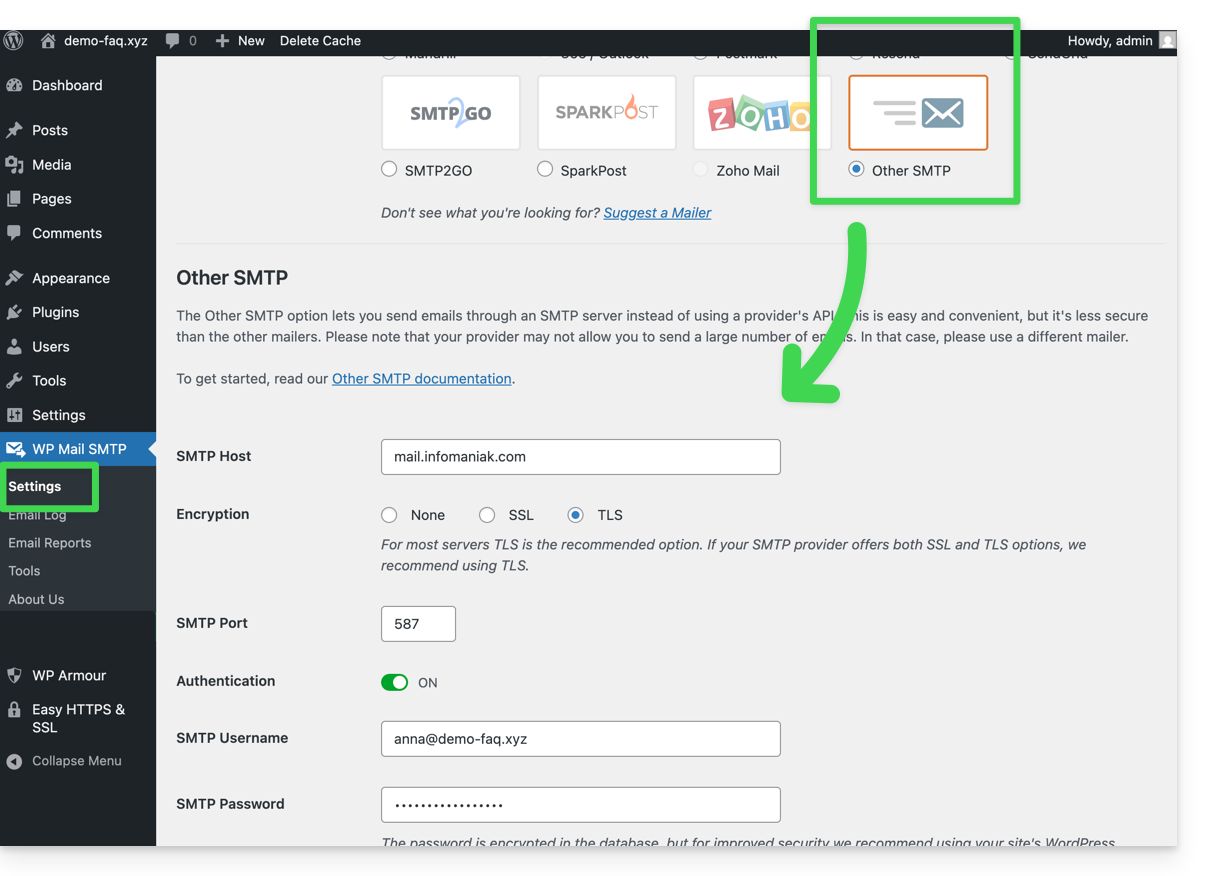
A partir desse momento, um e-mail enviado a partir de um formulário de contato presente no site (formulário padrão Divi, por exemplo) será enviado por meio de um método SMTP.
Para confirmar isso, basta verificar os cabeçalhos de uma mensagem recebida por este meio, nomeadamente a linha x-mailer, que pode indicar, por exemplo, WPMailSMTP/Mailer/smtp em vez de PHPMailer.
Observação: o x-mailer pode ser qualquer indicação, não necessariamente representativa do método de envio real!
Prestashop
Para permitir que o seu site envie e-mails, utilize um endereço de e-mail do seu domínio (por exemplo, e-mail@dominio-site.xyz) e preencha as configurações SMTP (consulte os pré-requisitos):
- Faça login no painel de administração do Prestashop.
- Acesse Configurações avançadas e, em seguida, E-mail.
- Configure o envio via SMTP:
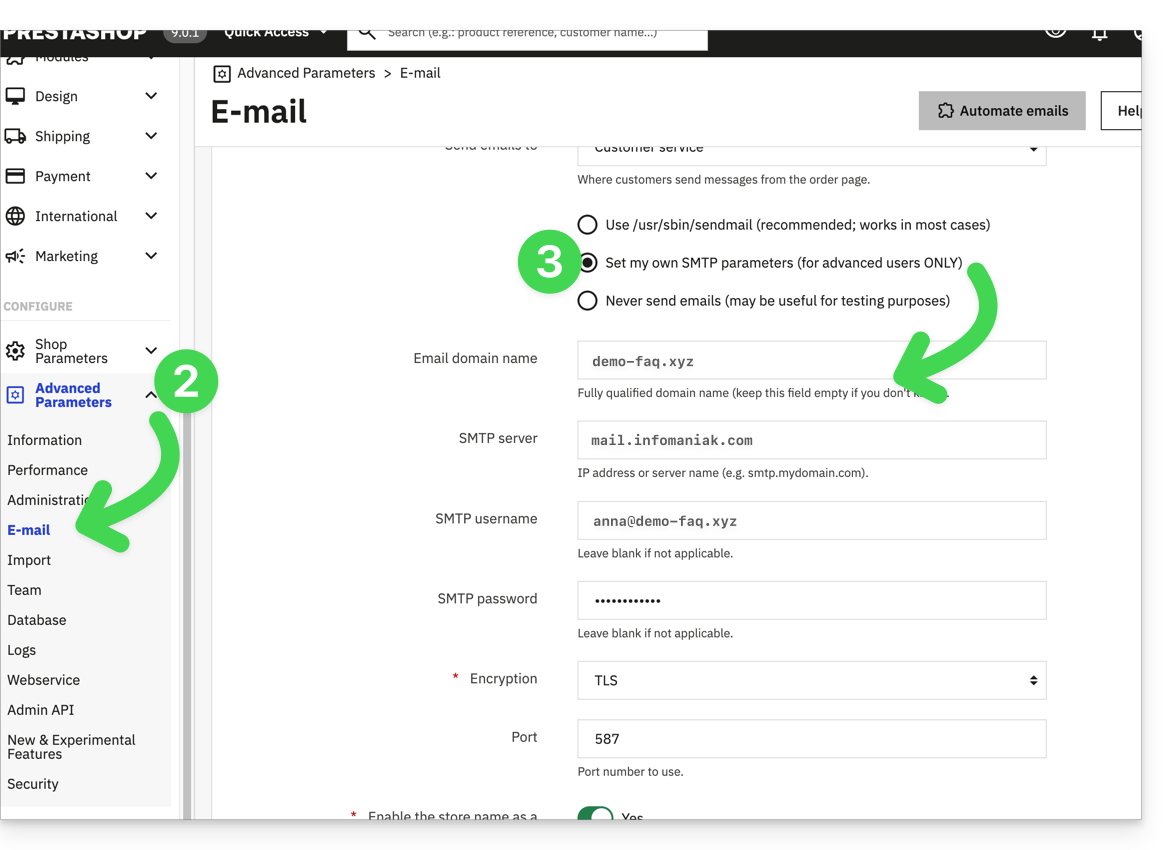
Em seguida, verifique (para evitar um erro como Could not instantiate mail function ou sender mismatch) se o endereço que você configurou nestas configurações avançadas corresponde ao endereço que o Prestashop utiliza para os envios. Para isso:
- Faça login no painel de administração do Prestashop.
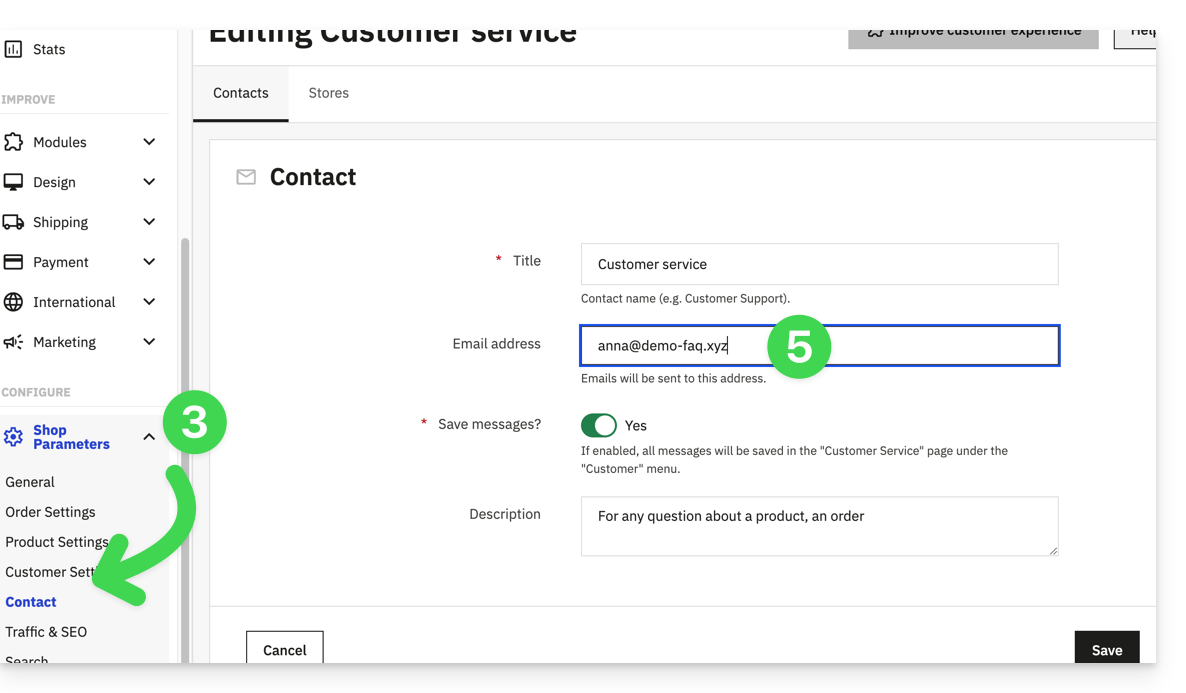
- Acesse Configurações da loja.
- Clique em Contato no menu lateral esquerdo.
- Na aba Contatos, verifique se o endereço de e-mail mencionado é o mesmo que o configurado anteriormente.
- Edite os endereços de e-mail, se necessário:
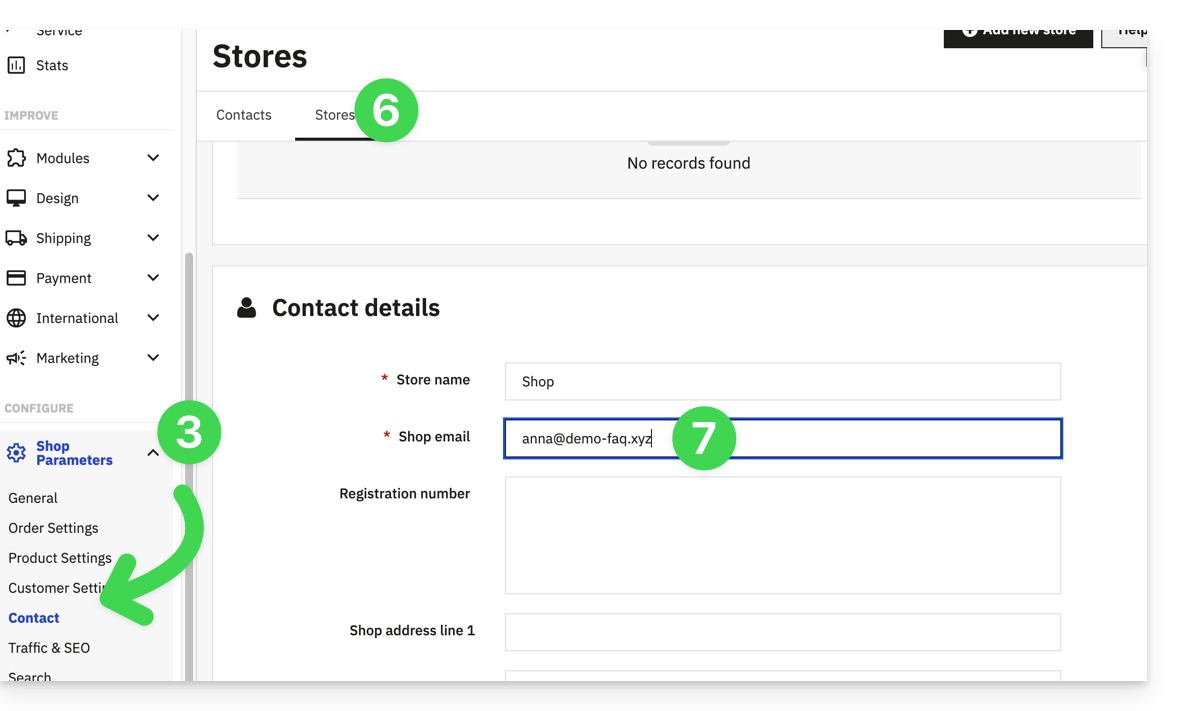
- Clique na aba Lojas.
- Verifique (e corrija, se necessário) se o endereço de e-mail indicado é o mesmo que o configurado anteriormente:
Joomla
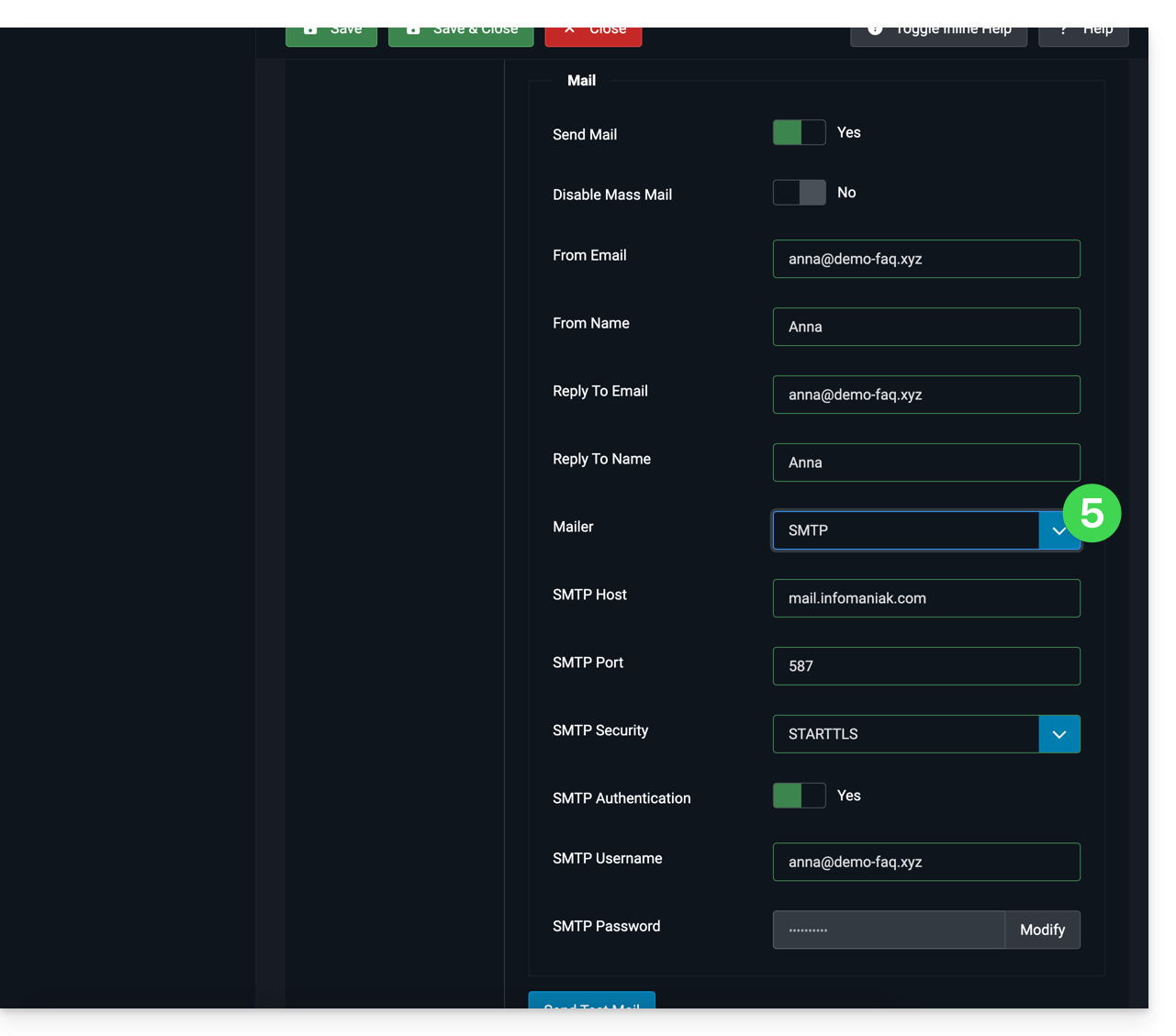
Para permitir que o seu site envie e-mails, utilize um endereço de e-mail do seu domínio (por exemplo, e-mail@dominio-site.xyz) e configure as definições SMTP (consulte os pré-requisitos):
- Inicie sessão no painel de administração do Joomla.
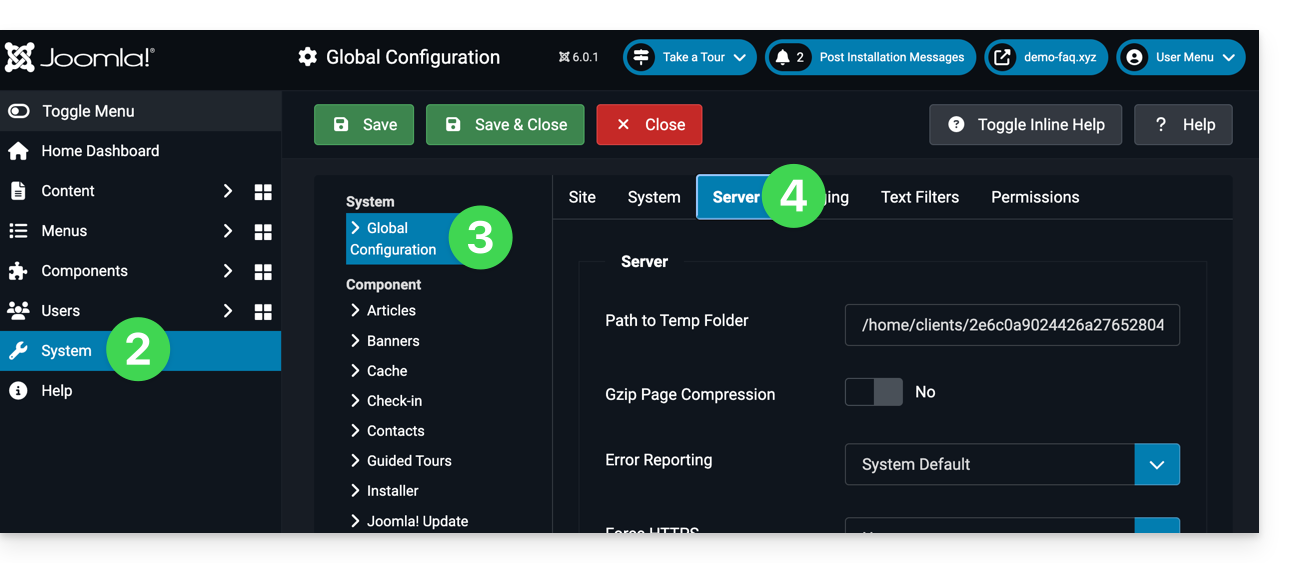
- Clique em Sistema no menu lateral esquerdo.
- Clique em Configuração geral.
- Clique na aba Servidor:
- Configure o envio através do método SMTP:
Link para esta FAQ: https://faq.infomaniak.com/2023
Esta seção de perguntas frequentes foi útil?