Base de conhecimento
1000 perguntas frequentes, 500 tutoriais e vídeos explicativos. Aqui, você encontra apenas soluções!
Change the domain name of an Infomaniak WordPress site
This guide explains how to change the URL of your website from the WordPress app installed on your Infomaniak Web Hosting (only if you installed WordPress using the dedicated tools provided by Infomaniak).
This allows you to assign a different domain name to your WordPress site.
Prerequisites
- The domain name you wish to use must first be added as an alias of the main domain on the relevant website.
Change a WordPress site's address
To change the address of a site created with Infomaniak WordPress to another domain name that is already in the same Organization:
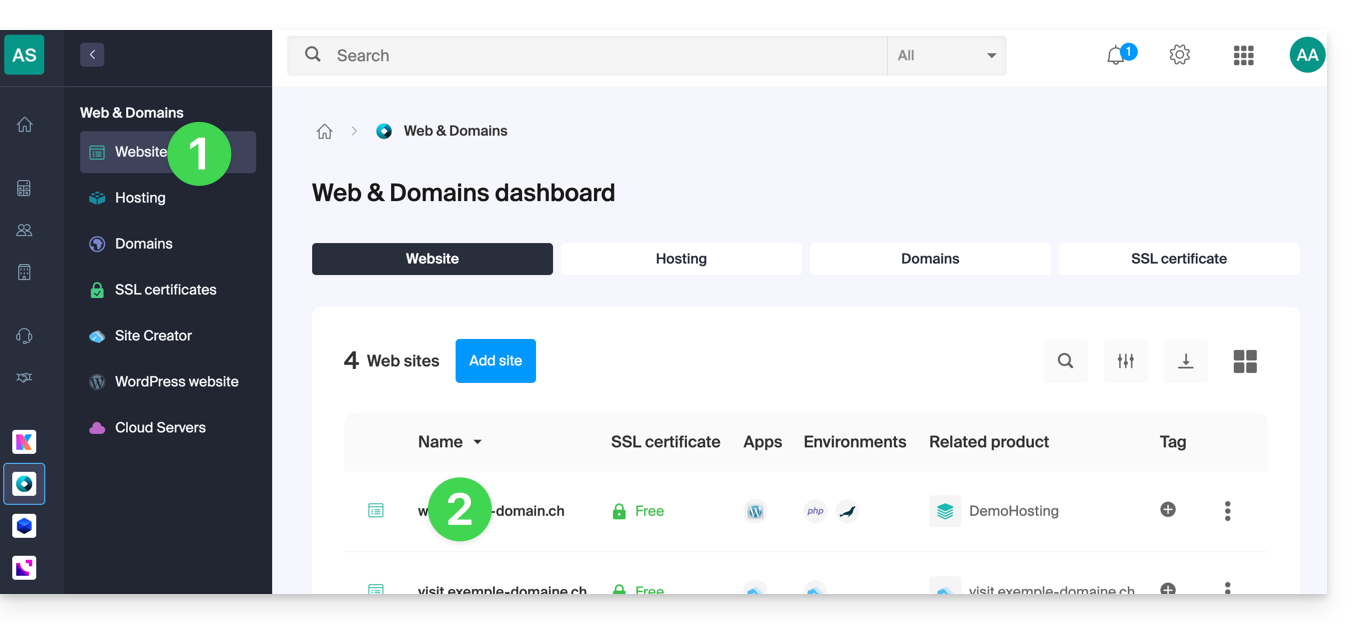
- Click here to access the management of your WordPress site in the Infomaniak Manager (need help?).
- If your site does not appear here, it means it was not installed using the Infomaniak tools... please refer to the official documentation.
- Click directly on the name assigned to the site in question:
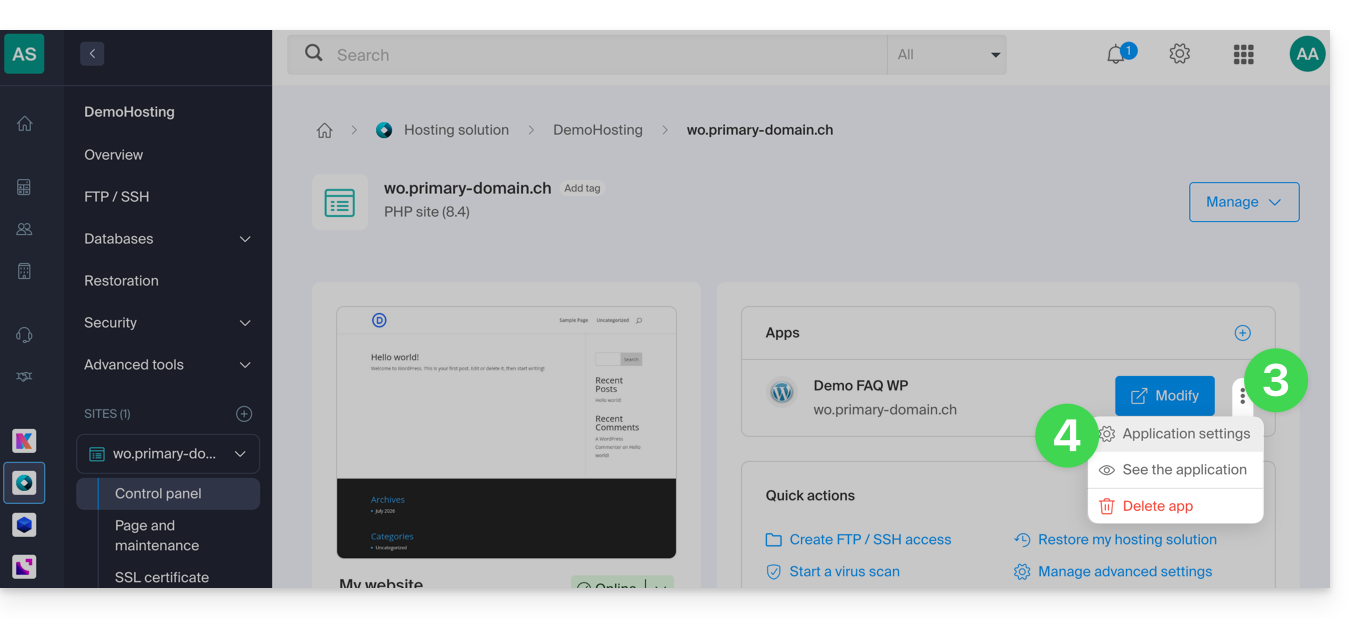
- Click on the action menu ⋮ located to the right of the relevant Web Application.
- Click on the application's Settings:
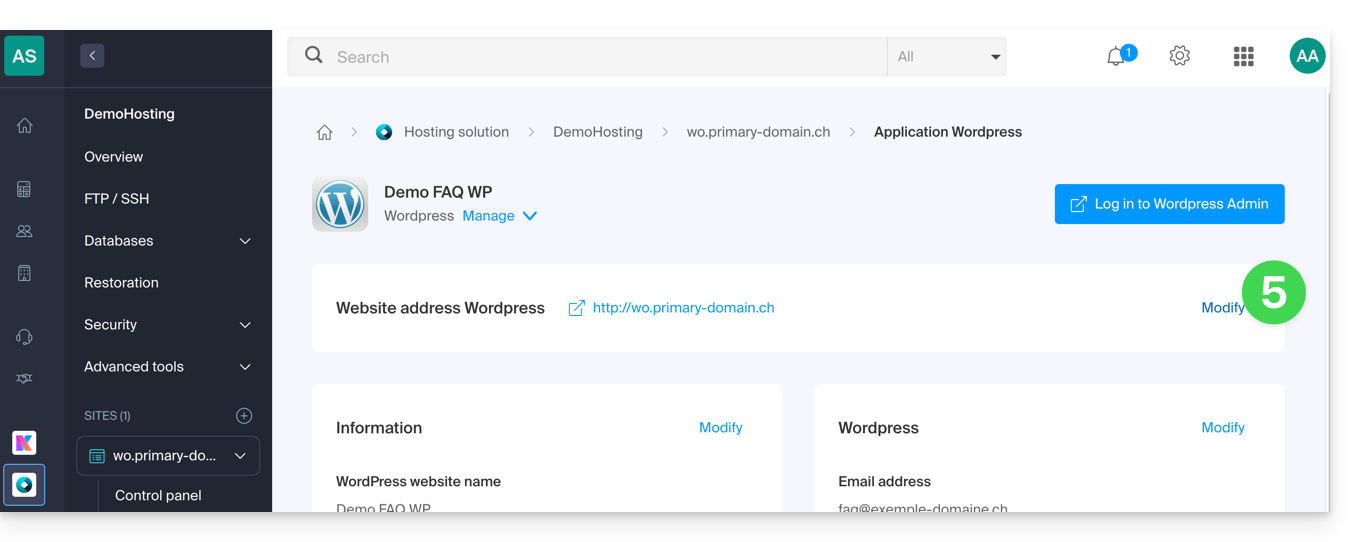
- Click on Edit to the right of WordPress:
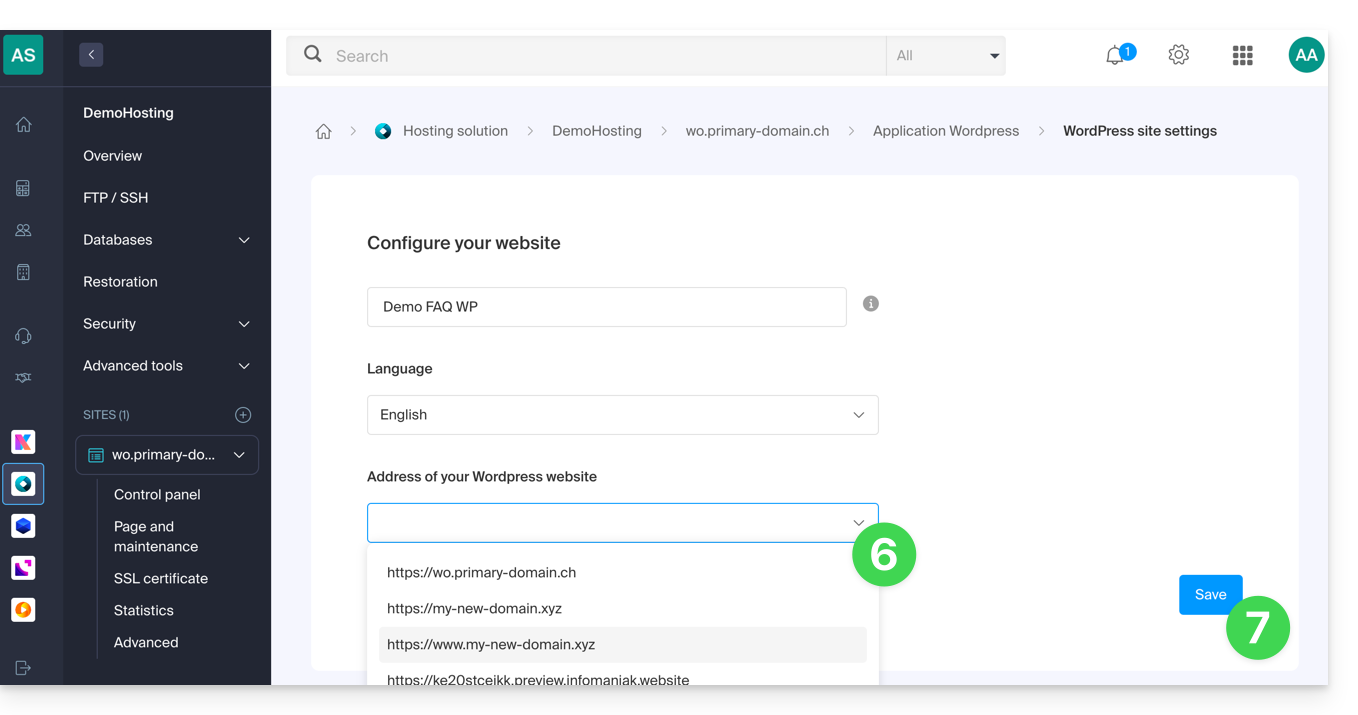
- Under Website URL, select the desired address from the dropdown menu:
- If you have not followed the prerequisites above, the desired domain will not appear even if it is registered in the same Organization.
- If you have added the domain as an alias for the site, the desired domain will appear and you can select it to replace the previous domain.
- Click the Save button:
Domain… .preview.infomaniak.website ?
Among the URLs in the dropdown menu, the preview URL allows you to access your WordPress site in case the site's domain name is not yet correctly configured to point to your WordPress app.
Link para esta FAQ: https://faq.infomaniak.com/2016
Esta seção de perguntas frequentes foi útil?