Base de conhecimento
1000 perguntas frequentes, 500 tutoriais e vídeos explicativos. Aqui, você encontra apenas soluções!
Personalizar a exibição do Calendário Infomaniak
Atualização 12/10/2026
Este guia explica como alterar a cor dos eventos nos seus calendários no aplicativo web Calendar Infomaniak (serviço online ksuite.infomaniak.com/calendar) e personalizar o período exibido.
Definir as configurações padrão
Para isso:
- Clique aqui para acessar o aplicativo web Calendar da Infomaniak (serviço online ksuite.infomaniak.com/calendar).
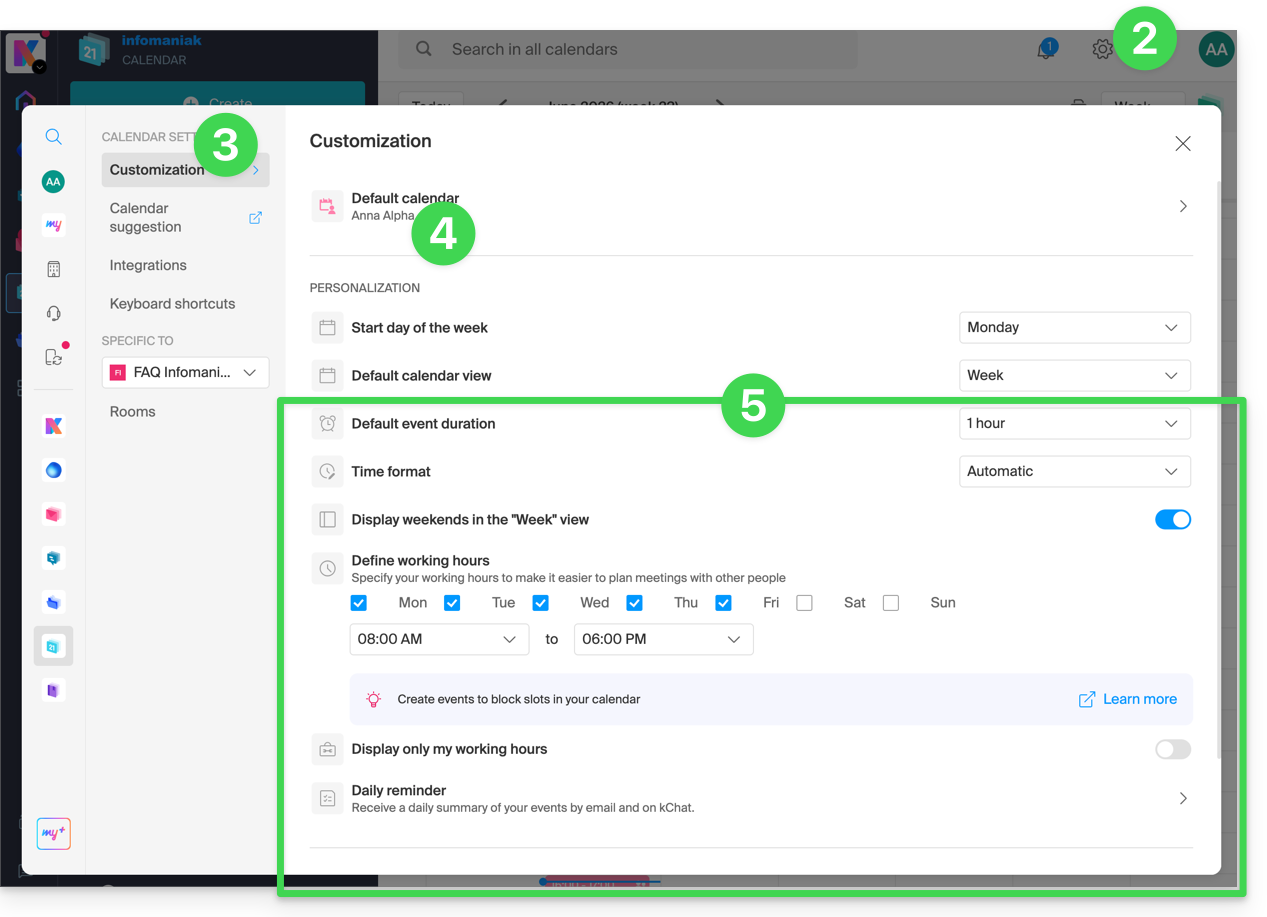
- Clique em Configurações no canto superior direito.
- Clique em Personalização.
- Consulte este outro guia sobre o elemento calendário padrão.
- As configurações, como a duração padrão de um evento ou as horas de trabalho a serem exibidas no calendário, ajudarão a melhorar o uso do assistente de agendamento de compromissos:
- Em relação a estes itens do menu:
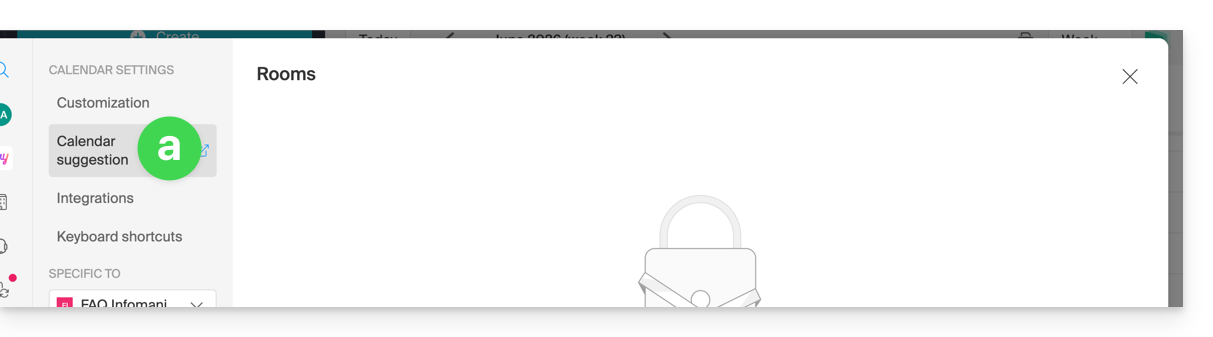
Consulte este outro guia.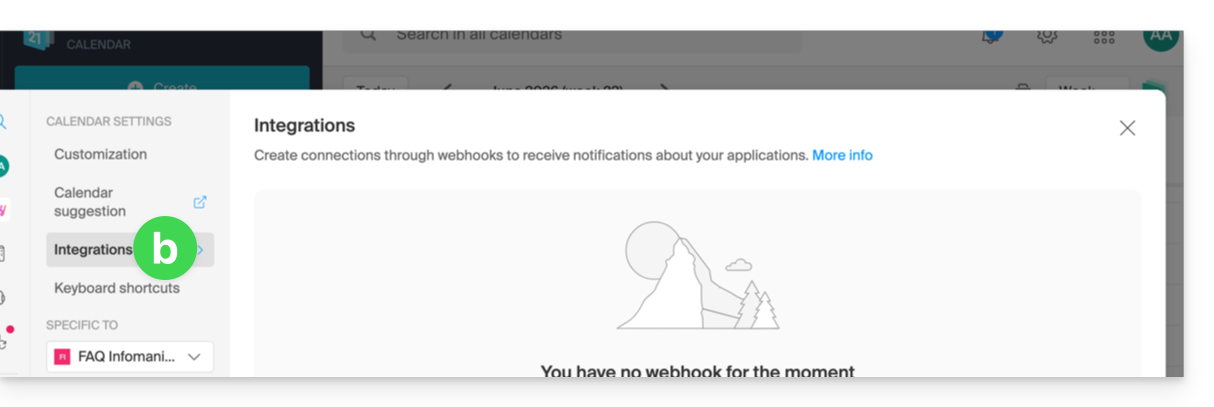
Consulte este outro guia.
Definir a cor de um calendário/agenda
Para isso:
- Clique aqui para acessar o aplicativo web Calendar da Infomaniak (serviço online ksuite.infomaniak.com/calendar).
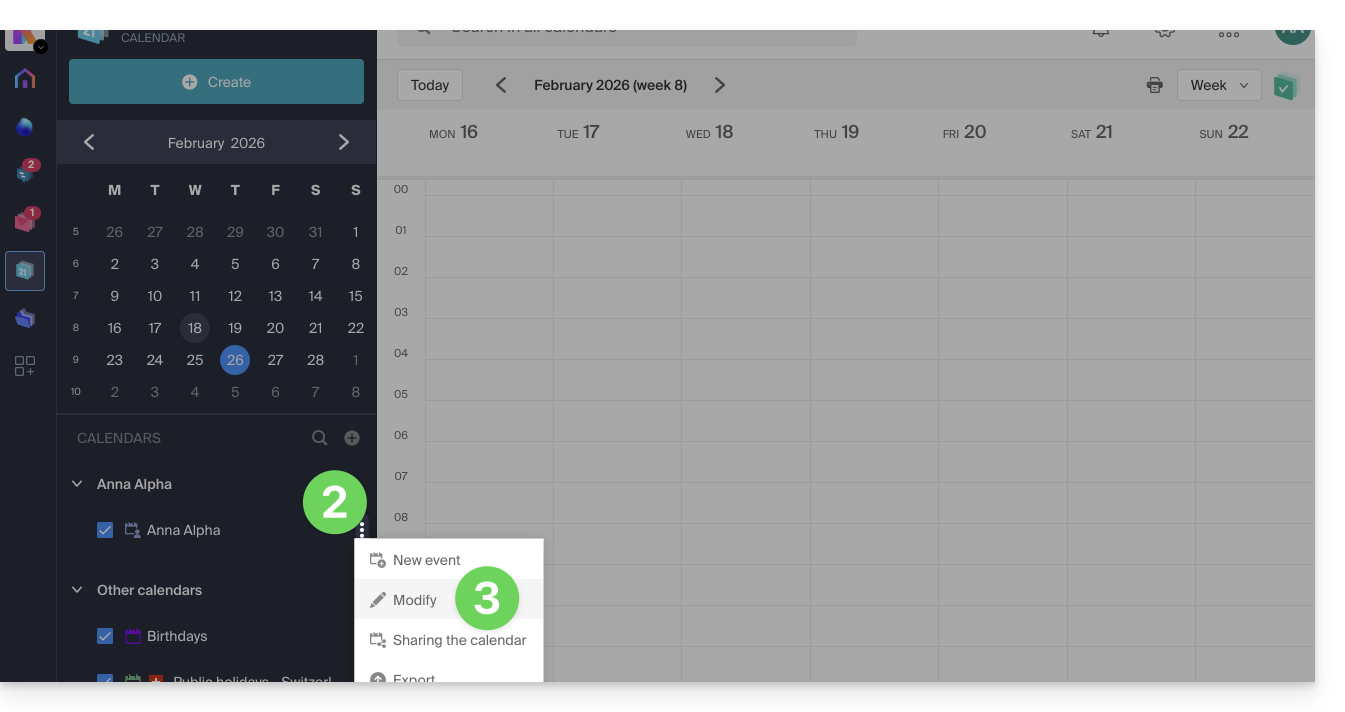
- Clique no menu de ação ⋮ à direita do calendário em questão.
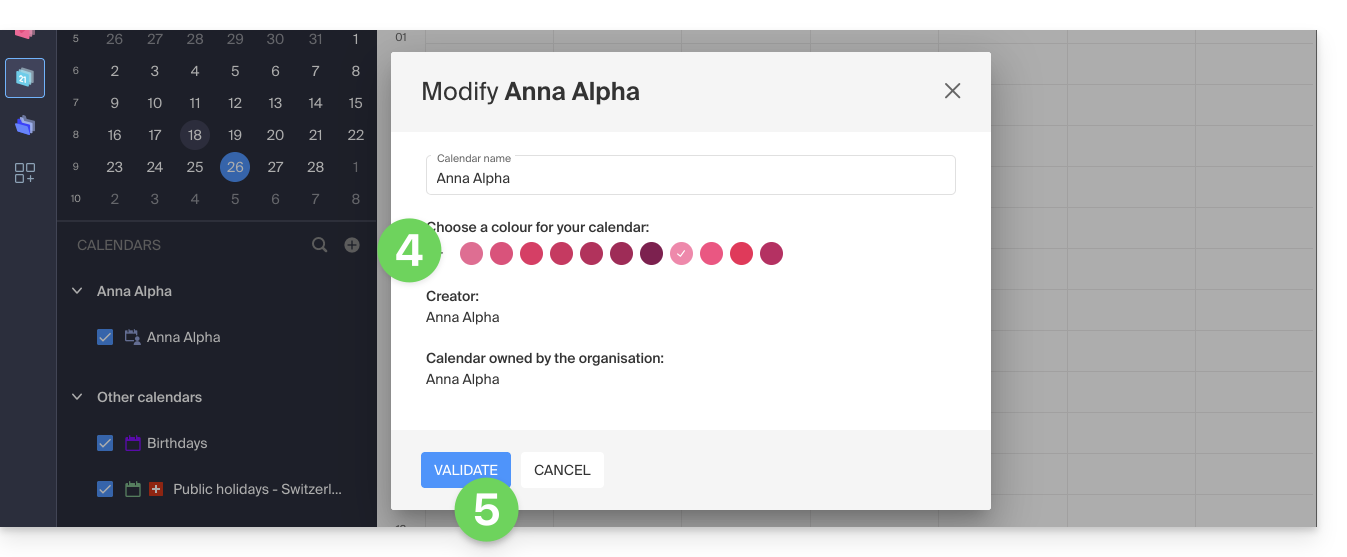
- Clique em Editar:
- Escolha a cor desejada.
- Clique no botão para Confirmar:
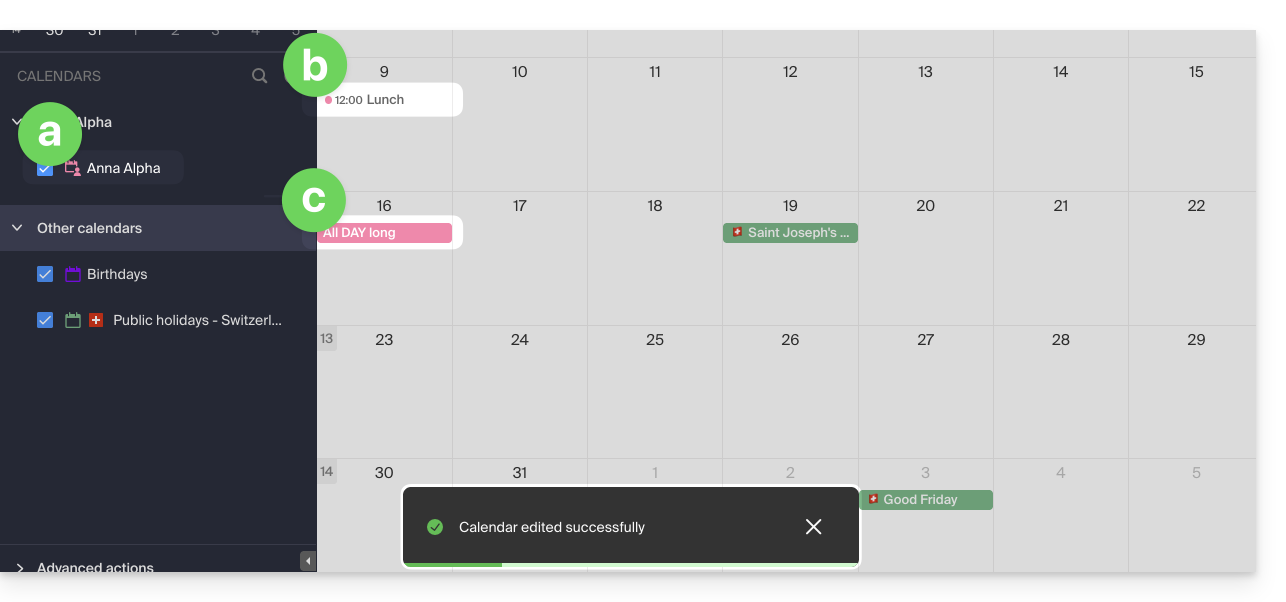
- A cor especificada será então visível:
- no nome do Calendário,
- para os eventos com horário fixo na visualização mensal,
- para os eventos de dia inteiro na visualização mensal,
- na visualização diária:

- na visualização de agenda:
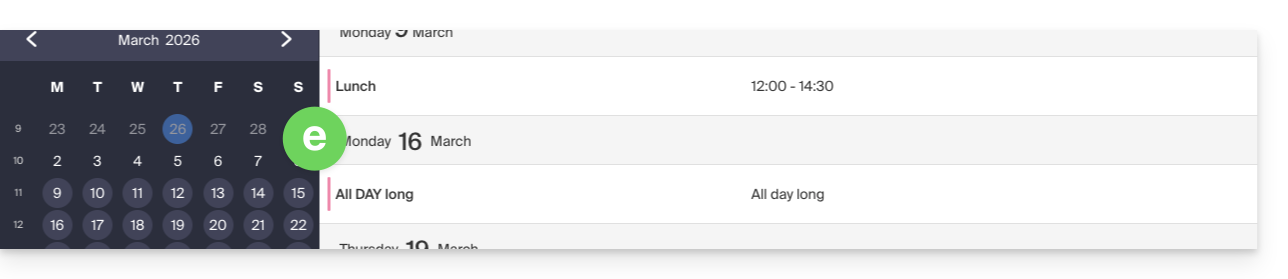
etc.
Definir a cor de um evento
Para modificar manualmente a cor de um evento específico, cor que terá precedência sobre a cor do calendário:
- Clique aqui para acessar o aplicativo web Calendar da Infomaniak (serviço online ksuite.infomaniak.com/calendar).
- Crie um evento e escolha a cor, ou clique em um evento existente e, em seguida, no ícone lápis ✎ para editar os detalhes, incluindo a cor:
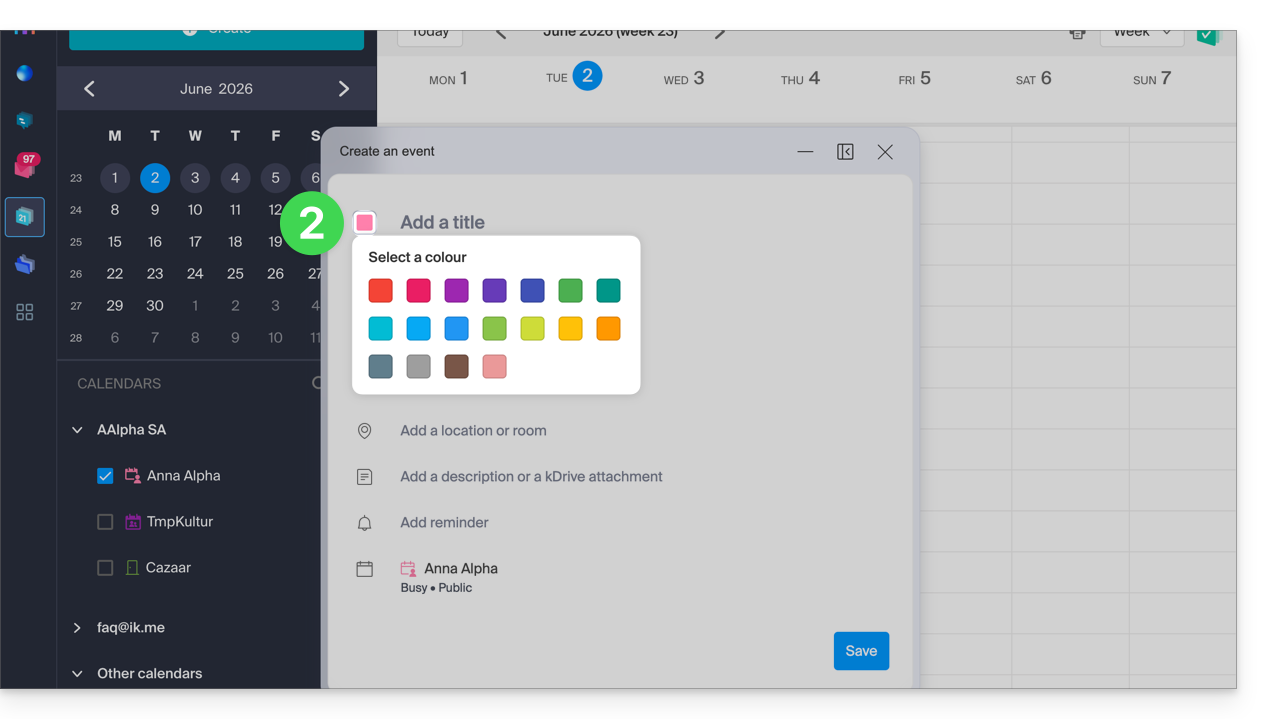
- Confirme na parte inferior da página.
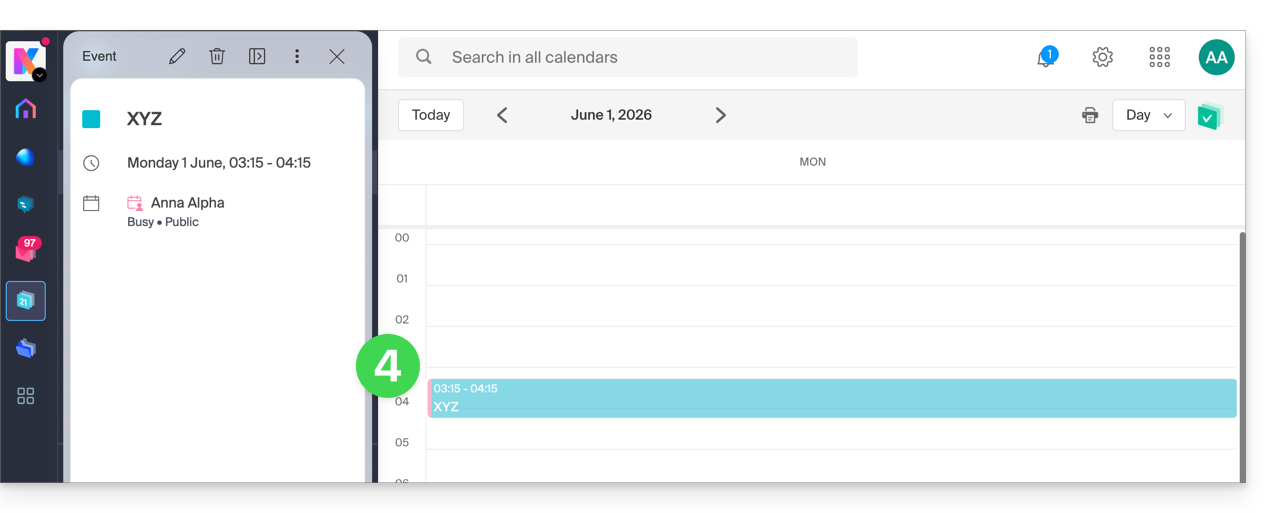
- A cor especificada será então visível no próprio evento:
Personalizar o período exibido
Para isso:
- Clique aqui para acessar o aplicativo web Calendar da Infomaniak (serviço online ksuite.infomaniak.com/calendar).
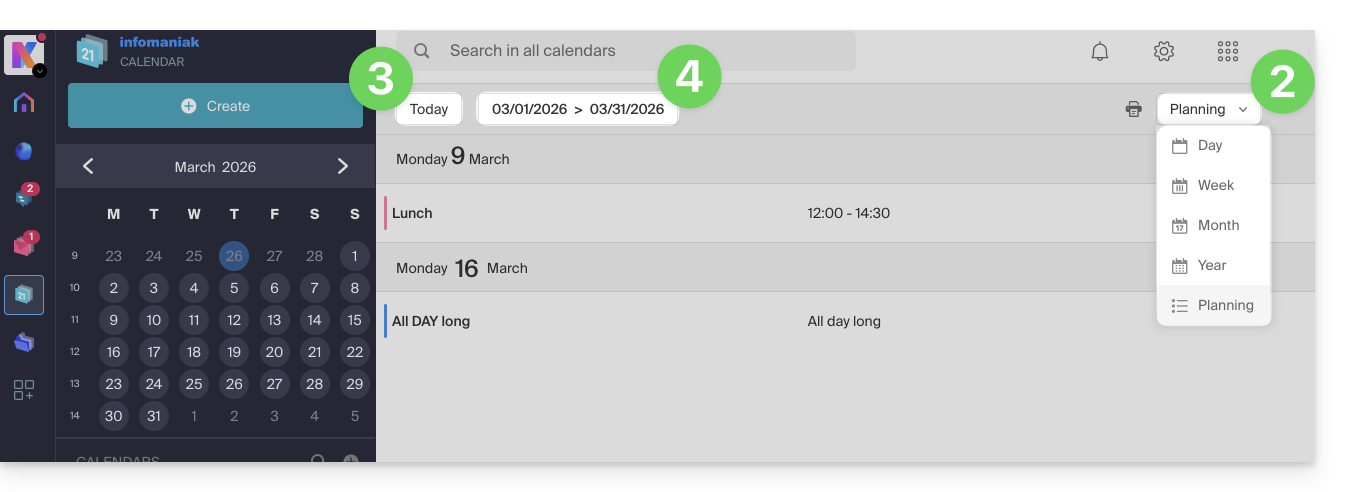
- Escolha como exibir a agenda: Dia, Semana, Mês, Ano ou na visualização Calendário.
- A qualquer momento, clique em Hoje para retornar à visualização atual.
- Na vista Planeamento, pode escolher o período a exibir ("esta semana", "próximo mês", etc.):
Link para esta FAQ: https://faq.infomaniak.com/1771
Esta seção de perguntas frequentes foi útil?