Base de conhecimento
1000 perguntas frequentes, 500 tutoriais e vídeos explicativos. Aqui, você encontra apenas soluções!
Agrupar contactos no Contacts Infomaniak
Este guia detalha a possibilidade de agrupar contactos nas listas de contactos Infomaniak na aplicação web Contactos Infomaniak (serviço online ksuite.infomaniak.com/contacts).
Introdução
- Criar um grupo de contactos permite contactá-los mais facilmente.
- Também facilita o envio de e-mails destinados a um tipo específico de contactos.
Criar o grupo
Para gerir os grupos de contactos:
- Clique aqui para aceder à aplicação web Contactos Infomaniak (serviço online ksuite.infomaniak.com/contacts).
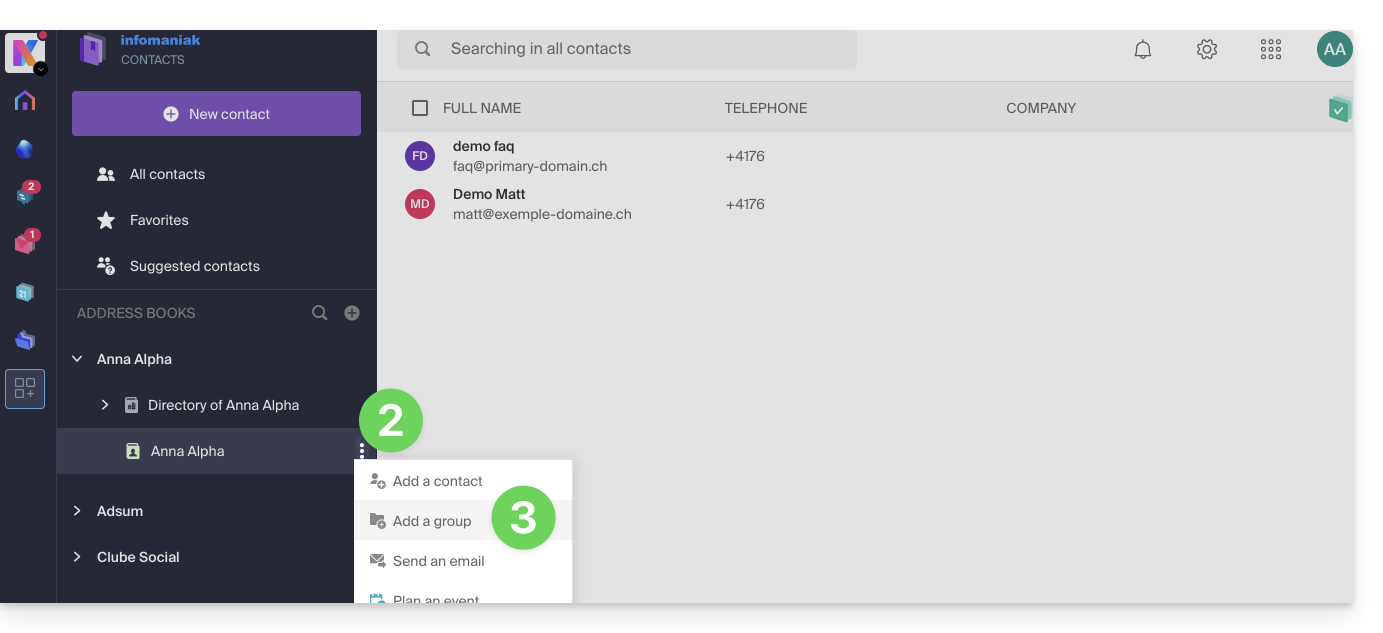
- Clique no menu de ação ⋮ localizado à direita da lista de contactos.
- Clique em Adicionar grupo:
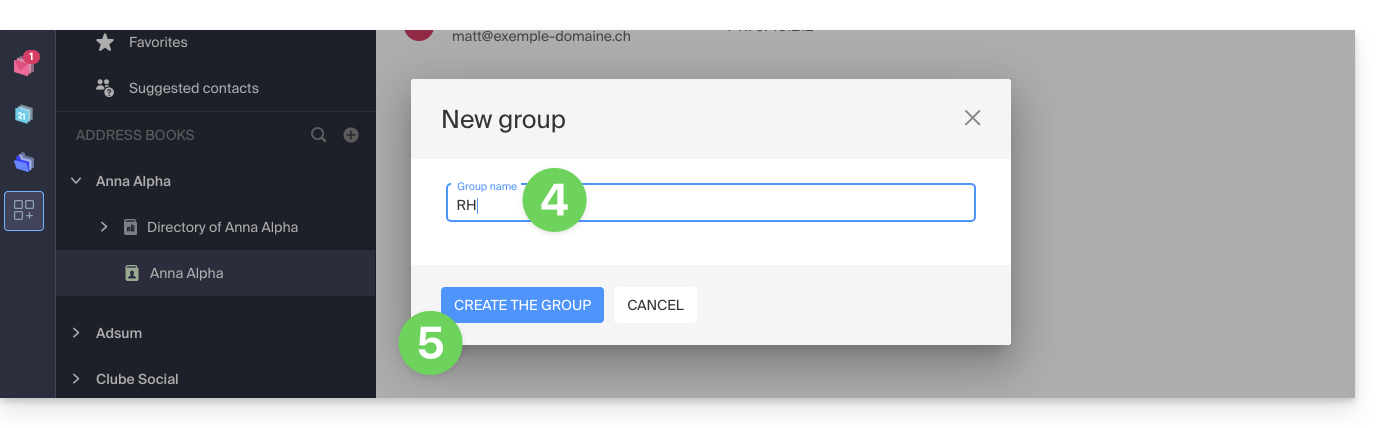
- Introduza o nome do grupo.
- Clique no botão azul para validar (e assim criar automaticamente a “pasta” com o nome do grupo escolhido, bem como uma segunda “pasta” obrigatória que irá agrupar todos os contactos que não estiverem classificados no seu novo grupo, denominada “Contactos sem grupo”):
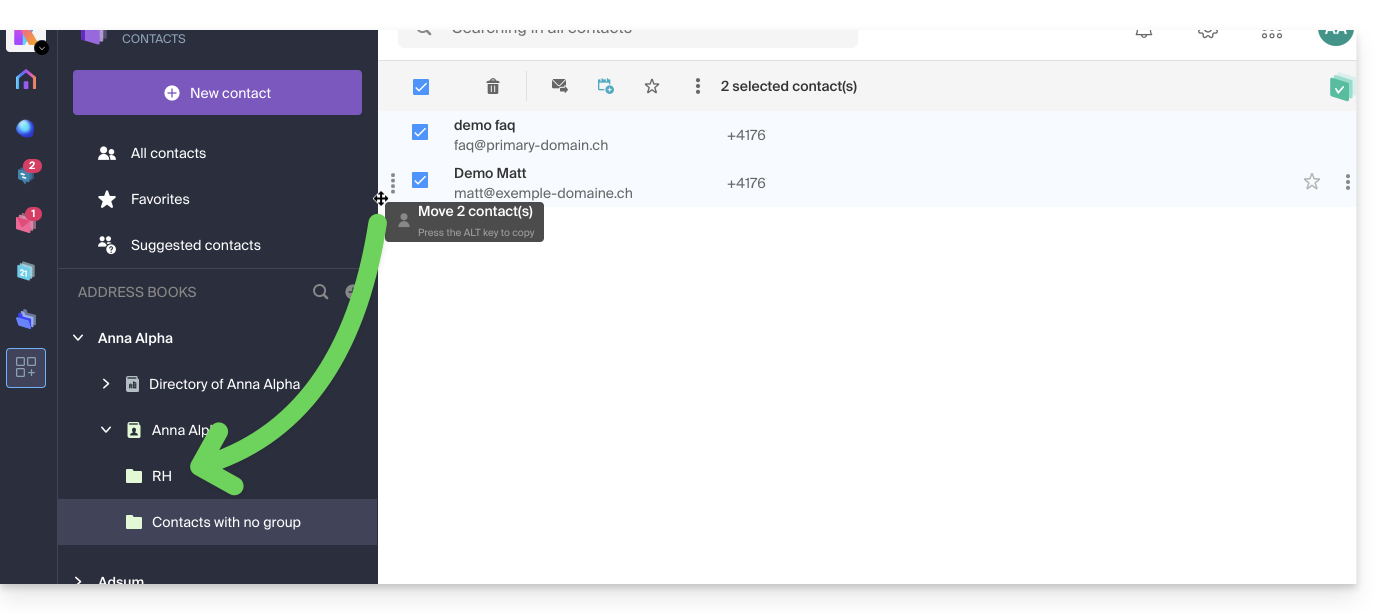
- Na agenda principal ou em “Contactos sem grupo”, arraste e solte os contactos que devem ser associados a este novo grupo:
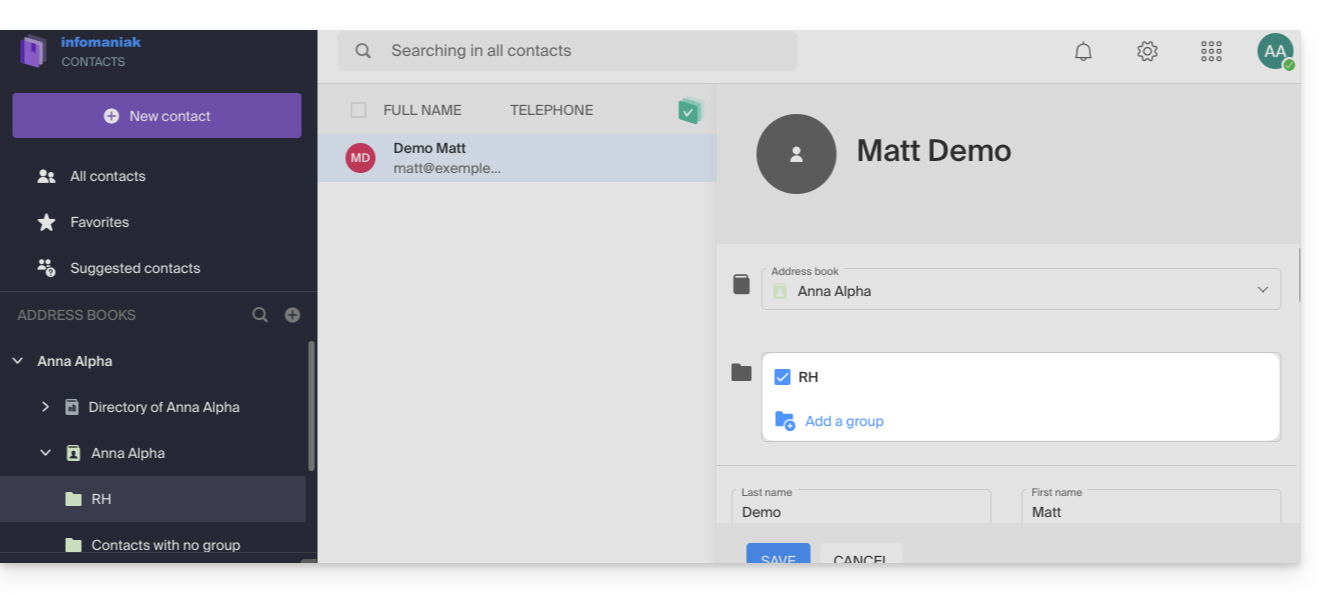
- Também pode atribuir a pertença a um determinado grupo ao editar um contacto.
- Para modificar a pertença de um contacto a uma agenda ou grupo, basta marcar/desmarcar as caixas correspondentes e guardar as alterações:
Grupos de trabalho
Se definiu um ou mais grupos de trabalho…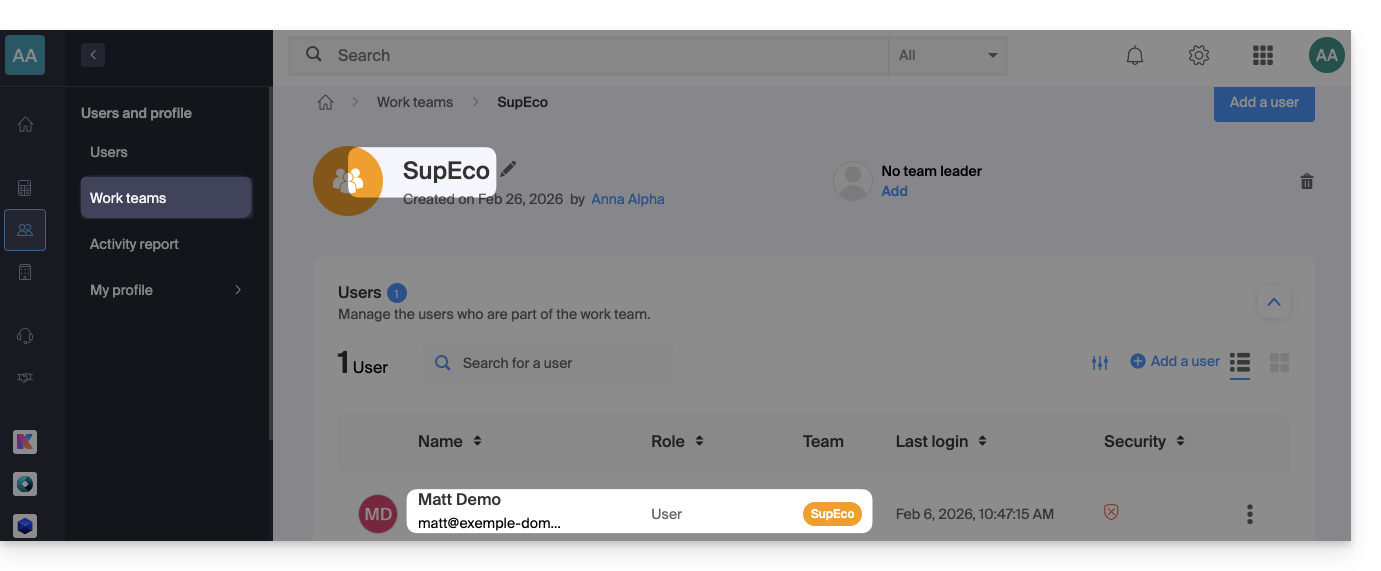 … então os utilizadores que fazem parte desses grupos serão automaticamente visíveis na secção das agendas da Organização: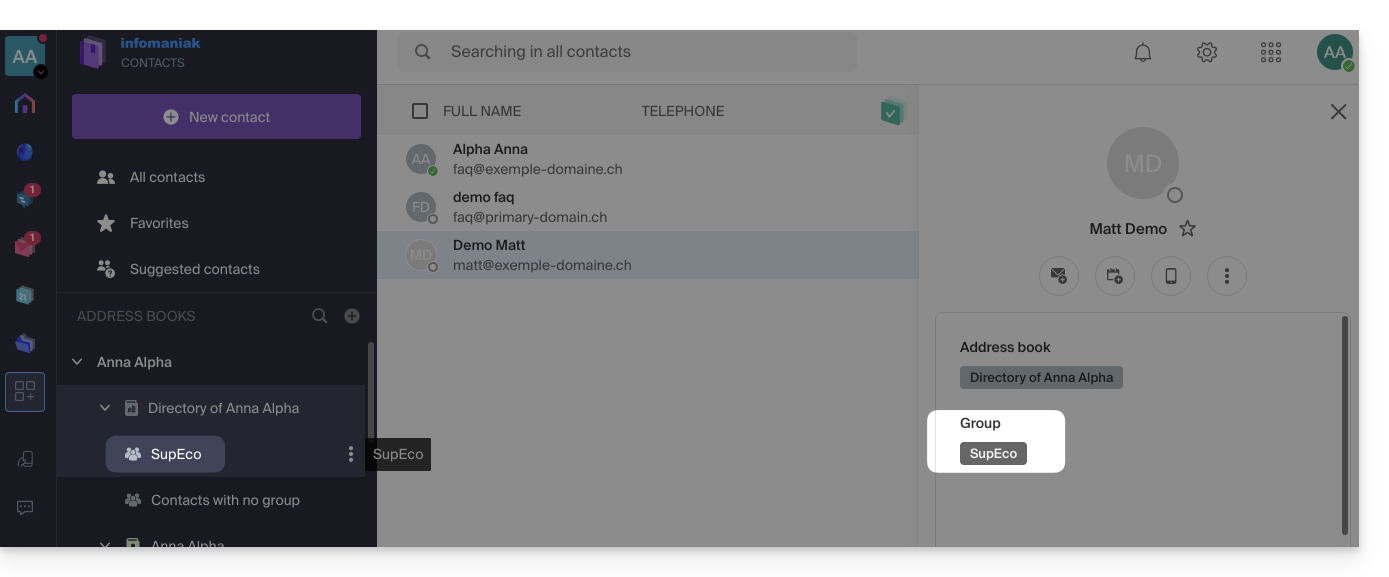
Eliminar um grupo com ou sem os contactos
Ao escolher eliminar um grupo de contactos, pode decidir se os contactos contidos também devem ser eliminados ou não: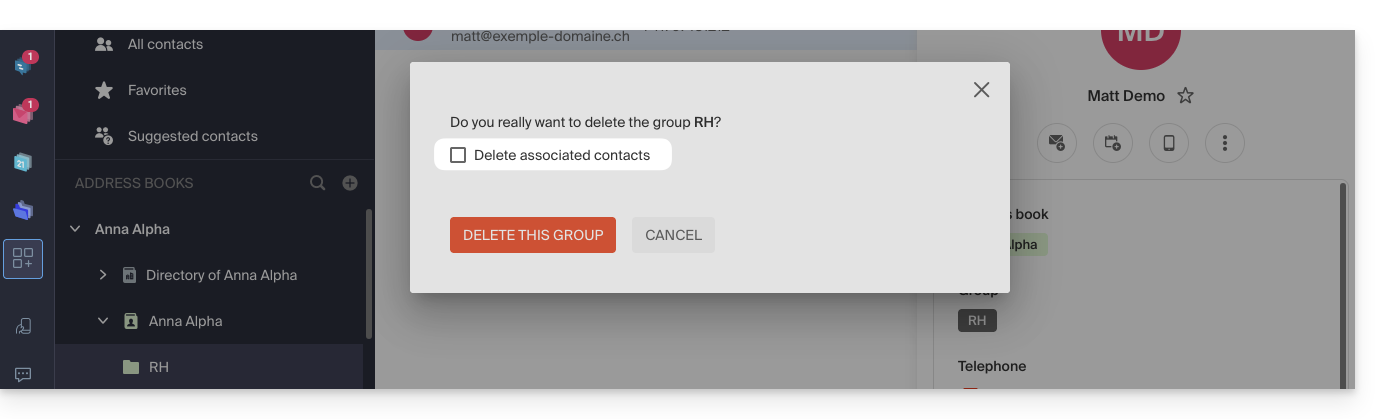
Envio em massa
Para enviar um e-mail para todo o grupo:
- Clique aqui para aceder à aplicação Web Mail da Infomaniak (serviço online ksuite.infomaniak.com/mail).
- Redija uma nova mensagem.
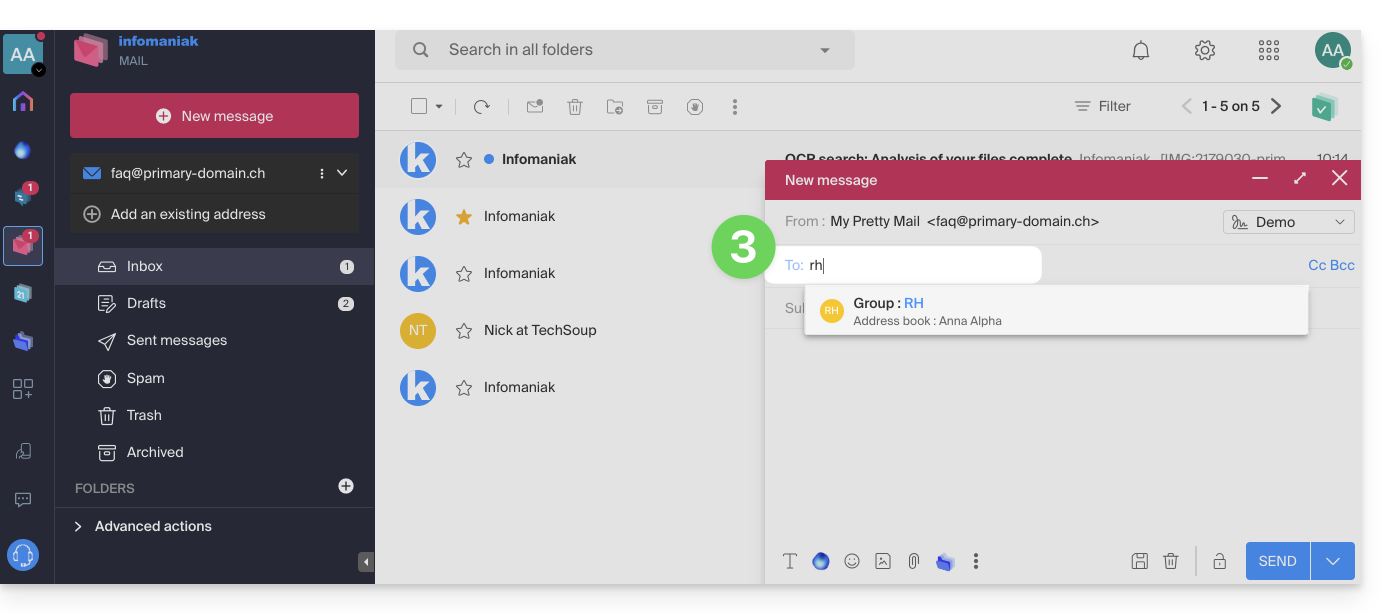
- Digite o início do nome do catálogo de endereços para que ele apareça e possa ser selecionado:
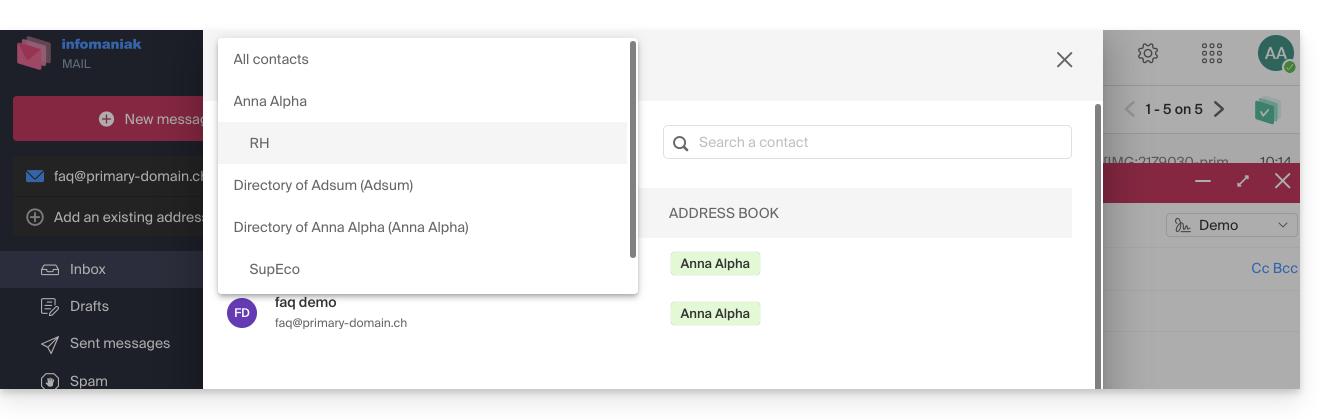
- Você também pode clicar no "A" à esquerda do campo do endereço do destinatário para acessar seu catálogo de endereços e suas subpastas (grupos de contatos):
- Claro, também é possível usar os contatos que já estão em seu catálogo de endereços para enviar uma mensagem individual ou em grupo, digitando as primeiras letras dos nomes.
- Você também pode clicar no "A" à esquerda do campo do endereço do destinatário para acessar seu catálogo de endereços e suas subpastas (grupos de contatos):
Você pode compartilhar todo um catálogo de endereços com outros usuários (usuários que você convidou e selecionou, obviamente), mas não apenas um grupo específico.
Link para esta FAQ: https://faq.infomaniak.com/1760
Esta seção de perguntas frequentes foi útil?