Base de conhecimento
1000 perguntas frequentes, 500 tutoriais e vídeos explicativos. Aqui, você encontra apenas soluções!
Modificar a configuração do aplicativo móvel Infomaniak Mail
Este guia aborda a configuração do aplicativo móvel Infomaniak Mail (aplicativo para smartphone ou tablet iOS / Android).
O idioma do aplicativo é baseado no idioma do seu dispositivo no qual o aplicativo móvel Infomaniak Mail está instalado, e não no idioma configurado na sua conta de usuário.
Aceder às configurações da aplicação
Para abrir as configurações da aplicação móvel Infomaniak Mail (aplicação para smartphone ou tablet iOS/Android) no seu dispositivo:
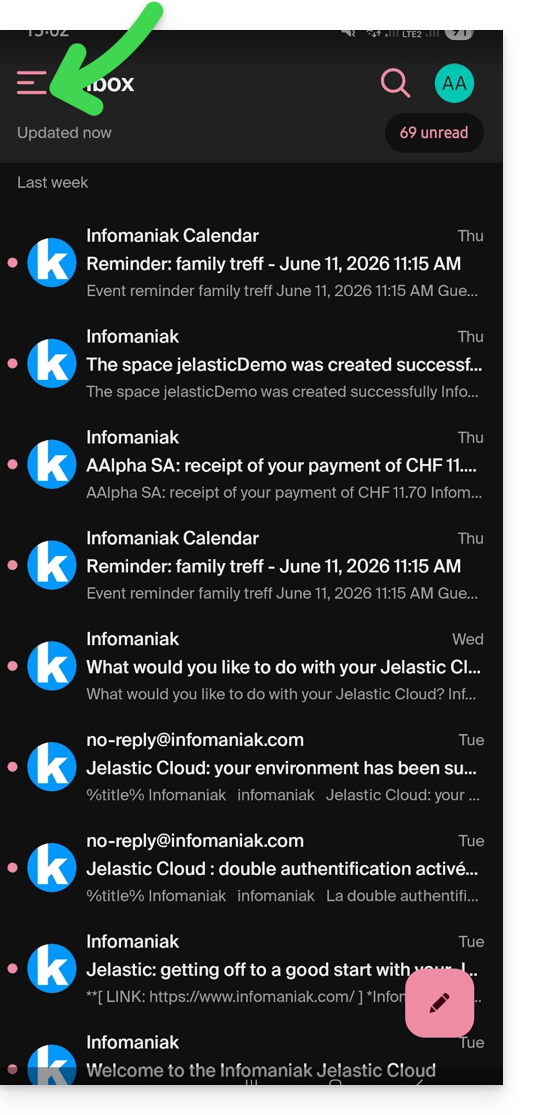
- Toque no canto superior esquerdo da sua caixa de entrada:
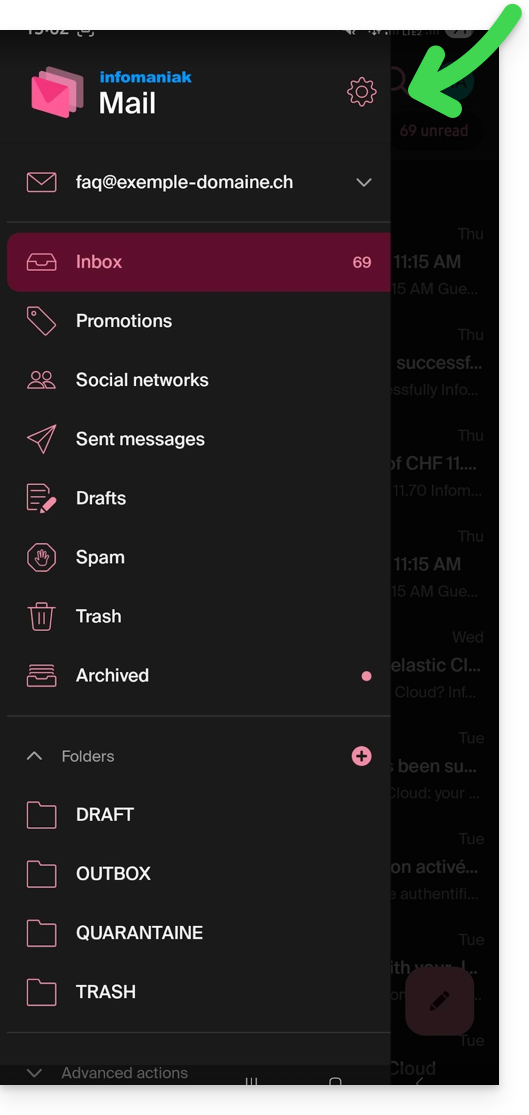
- Clique em Configurações no canto superior direito do painel que foi aberto:
- Você pode gerenciar as configurações na tela exibida:
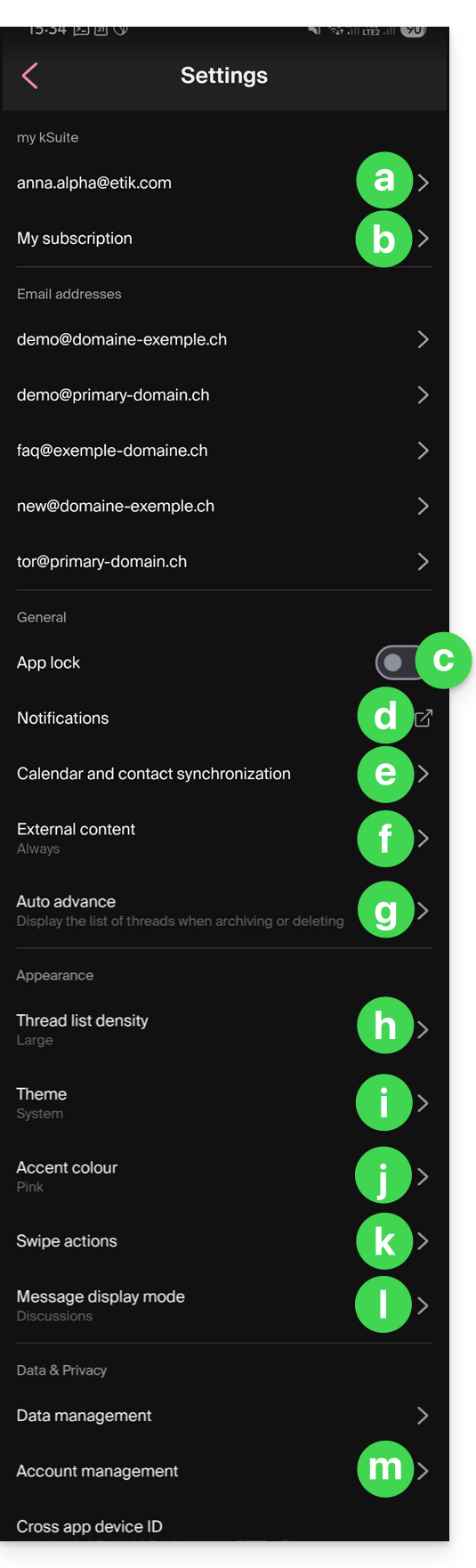
a. Escolha da assinatura
Se tiver vários endereços de e-mail associados à sua conta, toque no endereço de e-mail cuja assinatura deseja alterar. Em seguida, escolha outra assinatura entre as assinaturas configuradas.
No iOS, também pode gerir os seus pedidos de confirmação de leitura.
b. Apenas o meu kSuite
Permite obter informações sobre a subscrição atual. Exemplo: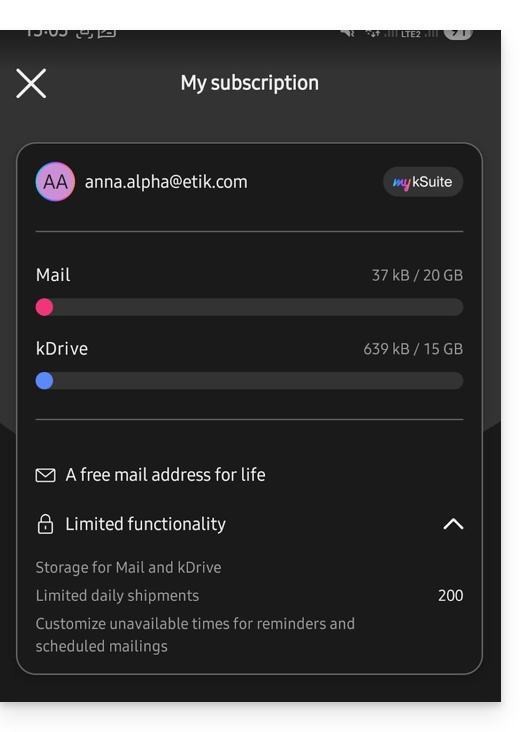
c. Bloqueio do aplicativo
Esta opção permite proteger o aplicativo por meio de um dos métodos de bloqueio do seu dispositivo, o que permite que você permaneça conectado à sua conta de usuário no serviço de e-mail Infomaniak, mas impede que terceiros acessem o Infomaniak Mail quando o aplicativo não estiver entre os aplicativos abertos.
Se o seu dispositivo tiver um leitor de impressão digital, pode usar este método para ativar o bloqueio. O mesmo se aplica ao Face ID no iOS.
Ao reabrir a aplicação, será solicitada uma autenticação.
d. Notificações no dispositivo
Pode configurar as notificações para cada um dos endereços de e-mail associados na aplicação.
e. Sincronização de contactos e calendários
Por enquanto, esta sincronização é gerida externamente; consulte o guia https://config.infomaniak.com/.
f. Conteúdo externo
Esta secção permite escolher se deve exibir automaticamente todo o conteúdo externo presente num e-mail que está a ler, ou se prefere ocultá-lo e exibi-lo apenas quando solicitado.
g. Avanço automático
Esta secção permite escolher a ação a ser executada após o arquivamento ou a eliminação de um e-mail: abrir a mensagem seguinte, ou a mensagem anterior, ou retornar à lista de mensagens.
h. Densidade da lista de conversão
O modo de exibição pode ser compacto, normal ou amplo.
i. Tema
O tema permite escolher um tipo de visualização, como o modo escuro ou, inversamente, uma visualização clara, com texto preto sobre fundo branco. Essa visualização também pode ser definida com base no tema do dispositivo (permitindo, assim, que a visualização seja alterada de acordo com a hora, caso haja uma configuração de sistema que faça isso).
j. Cor de destaque
A cor de destaque pode ser azul ou rosa.
k. Ações de deslizar
As ações de deslizar permitem definir qual operação o Infomaniak Mail deve executar se você deslizar o dedo em uma mensagem da lista da direita para a esquerda ou da esquerda para a direita (incluindo o “deslize longo” no iOS):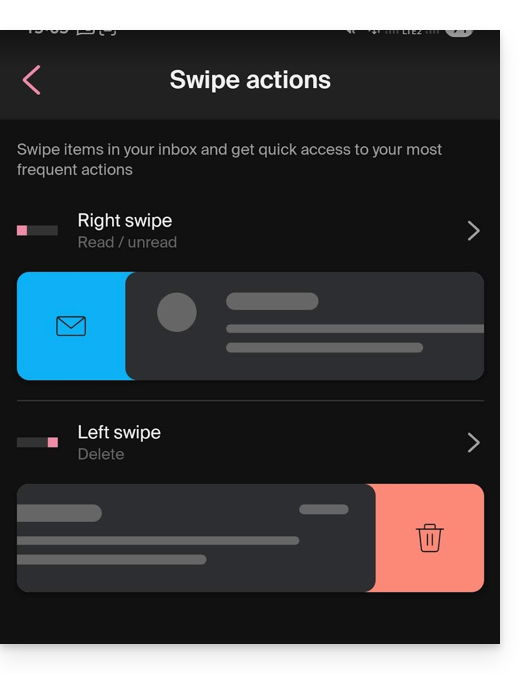
As ações possíveis são:
- excluir a mensagem (ela será movida para a lixeira)
- arquivar a mensagem (ela será movida para uma pasta de arquivo)
- marcar a mensagem como lida ou não lida
- mover a mensagem (e, neste caso, a lista de pastas é exibida após uma pesquisa)
- favoritos (para ativar um acompanhamento da mensagem)
- denunciar como spam
- menu de ações rápidas (acessível também durante a leitura da mensagem e que oferece a opção de escrever uma resposta, efetuar um encaminhamento, uma exclusão, uma impressão, etc.)
e também é possível escolher "nenhuma" para evitar operações que não seriam desejadas se o seu dispositivo não for adequado para a digitalização: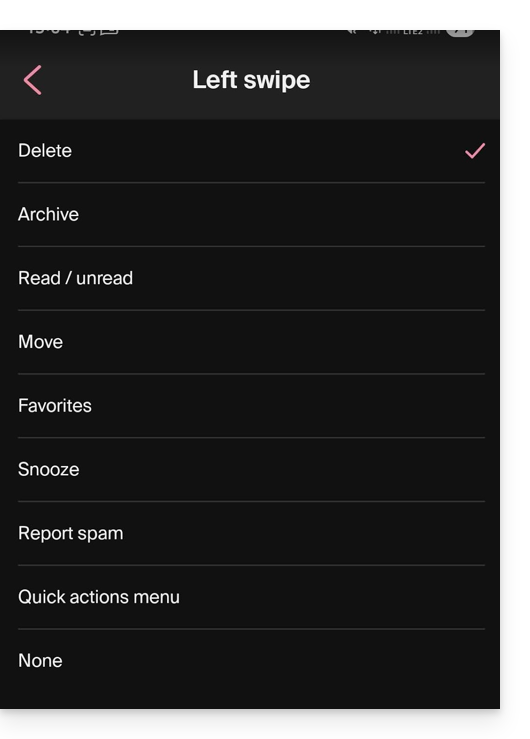
l. Modo de exibição das mensagens
Escolha entre uma exibição individual das mensagens ou um modo “conversa”, que permite agrupar seus e-mails por tópicos/remetentes, ou seja, agrupar os e-mails recebidos de acordo com o tópico da conversa. Assim, a exibição da caixa de entrada fica mais organizada e o acompanhamento das mensagens dos diferentes participantes da conversa fica mais fácil:
m. Gerenciamento da conta
Permite eliminar a conta Infomaniak (após confirmar que leu o aviso importante). Consulte também este outro guia: aqui: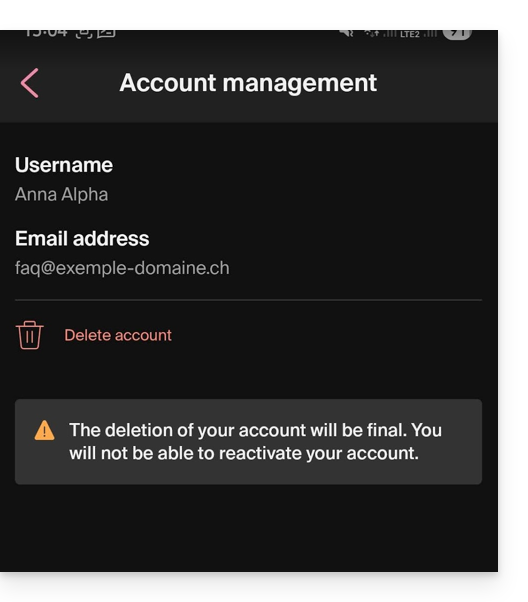
Link para esta FAQ: https://faq.infomaniak.com/1696
Esta seção de perguntas frequentes foi útil?