Base de conhecimento
1000 perguntas frequentes, 500 tutoriais e vídeos explicativos. Aqui, você encontra apenas soluções!
Migrate a WordPress site (using All-in-One WP Migration)
Atualização 03/11/2026
This guide explains how to transfer a website on which WordPress is installed, using one of its extensions, All-in-One WP Migration.
Prerequisites
- Order a Web Hosting / Cloud Server if you don't already have one (❓: help).
- Create a website (❓: help) on your new hosting.by choosing to install WordPress on Infomaniak(this option is offered when adding a website - you can also install a WordPress website after creating a blank website).
Complete WordPress site backup
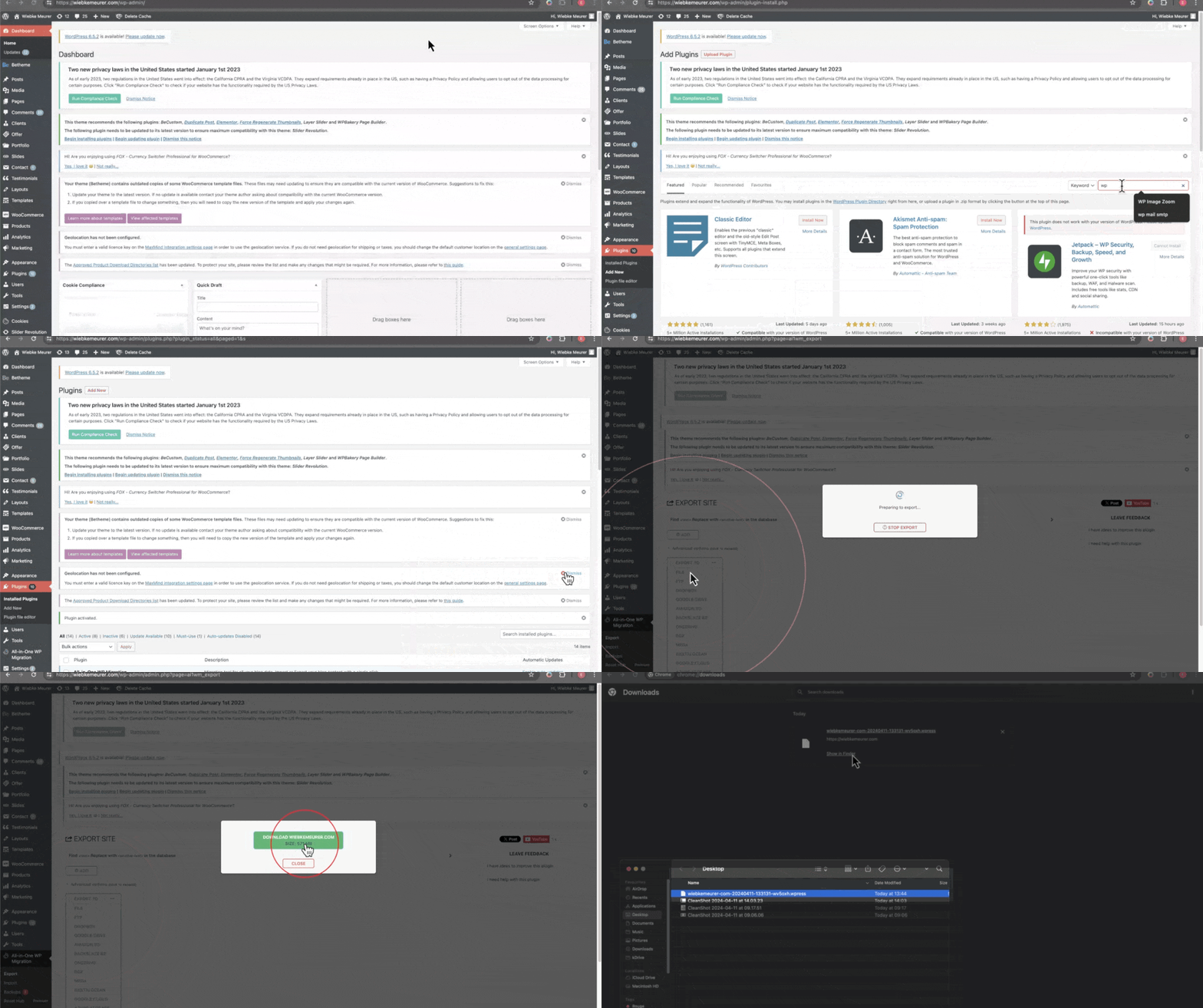
To back up all files and the database of an existing WordPress site:
- Install and then activate the All-in-One WP Migration extension from the WordPress administration interface of the current site.
- Go to the dashboard of the newly installed extension.
- Click on Export.
- Download the exported archive:
Website Restoration
As specified in the prerequisites above, install a new WordPress on your Infomaniak web hosting and then:
- Install and activate the All-in-One WP Migration plugin from the administration interface of the new WordPress (it may be necessary to use the preview URL to connect to the new site, for example if the domain is being transferred).
- Go to the plugin's dashboard.
- Click to import a file, in this case, the archive exported from your previous WordPress site.
- If the archive is large, increase the maximum allowed size for imports on the server in the site settings (❓: help).
- Once the site has been re-imported, reconfigure the main site address on the Infomaniak side.
- When conditions allow (e.g., domain name transfer is complete), install an SSL certificate and check point 4 above again to select the
httpS://address.
Link para esta FAQ: https://faq.infomaniak.com/1643
Esta seção de perguntas frequentes foi útil?