Base de conhecimento
1000 perguntas frequentes, 500 tutoriais e vídeos explicativos. Aqui, você encontra apenas soluções!
Gerenciar legendas de vídeos sob demanda
Este guia explica como adicionar legendas aos vídeos do seu espaço VOD Infomaniak.
Introdução
- As legendas dos seus vídeos não alteram o vídeo em si; o vídeo não é modificado, trata-se apenas de um ficheiro *
.srtcarregado pelo Player. - Pode gerir a reprodução automática das legendas diretamente no Player (separador #1).
Gerenciar legendas
Para acessar um arquivo de mídia no espaço VOD:
- Clique aqui para acessar o gerenciamento do seu VOD/AOD no Gerenciador Infomaniak (precisa de ajuda?).
- Clique diretamente no nome atribuído ao produto em questão:
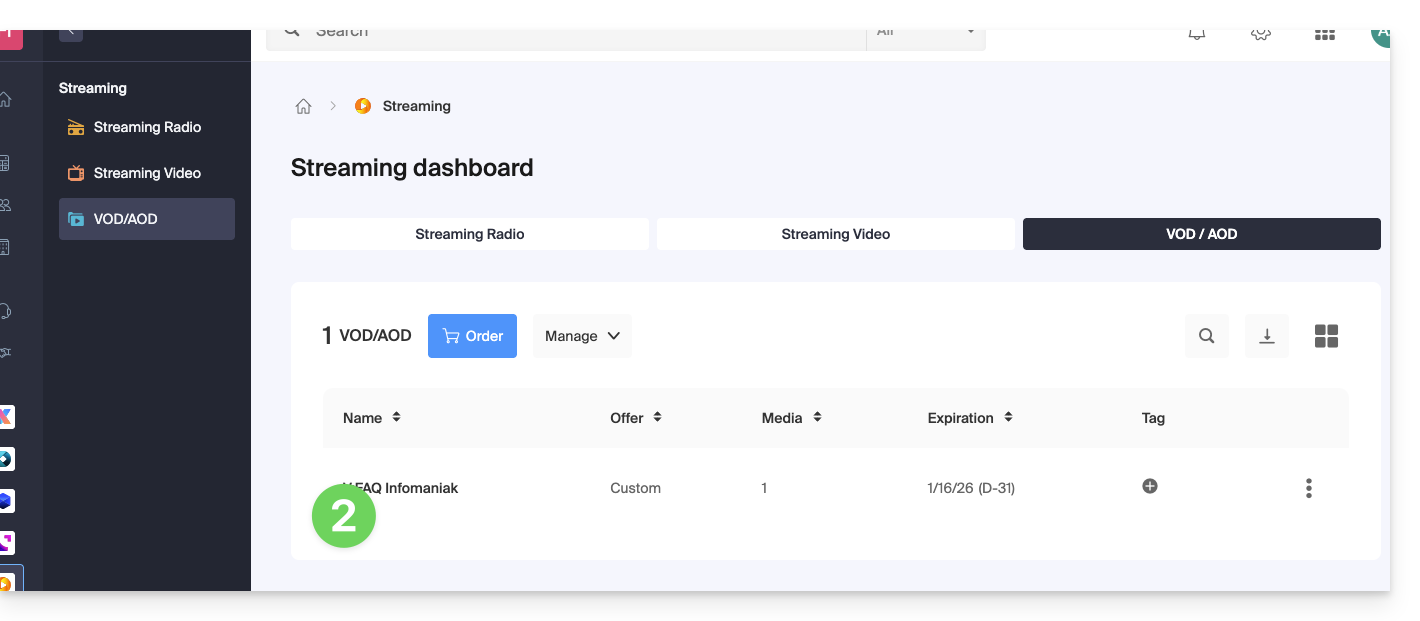
- Clique em Mídia no menu lateral esquerdo.
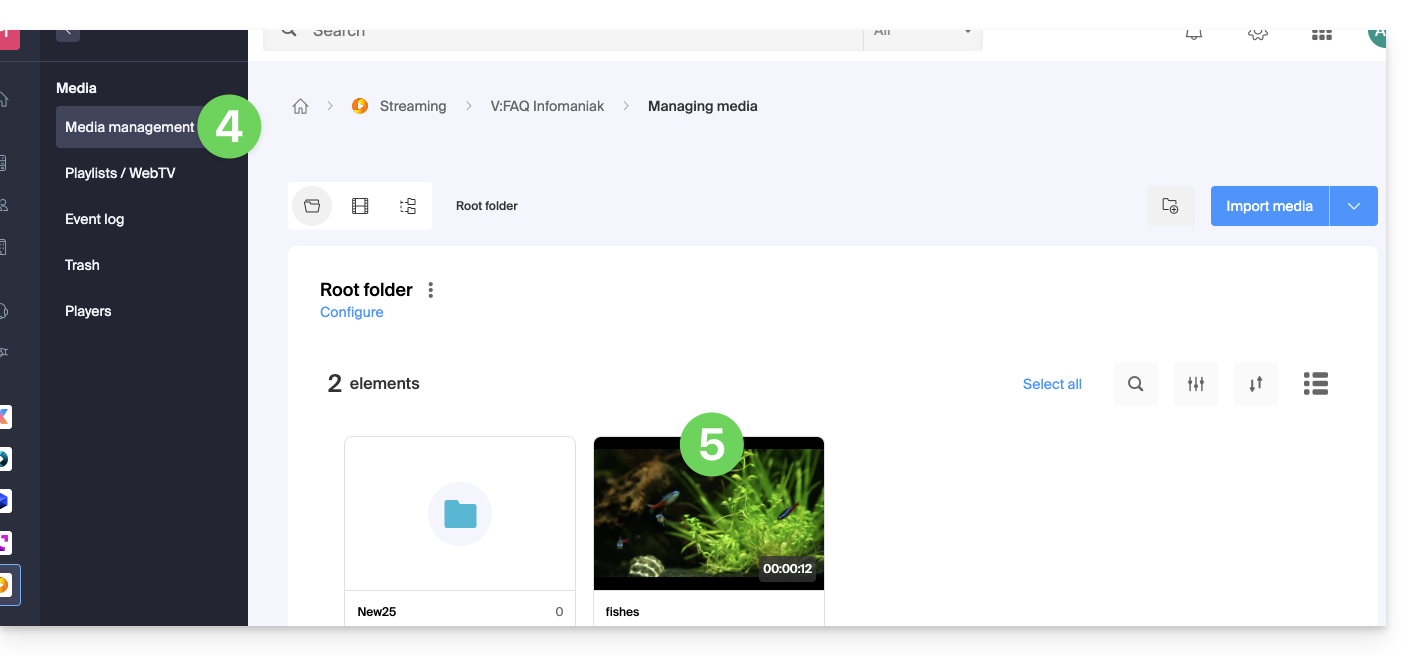
- Clique em Gerenciamento de mídia no menu lateral esquerdo.
- Clique no elemento multimídia em questão:
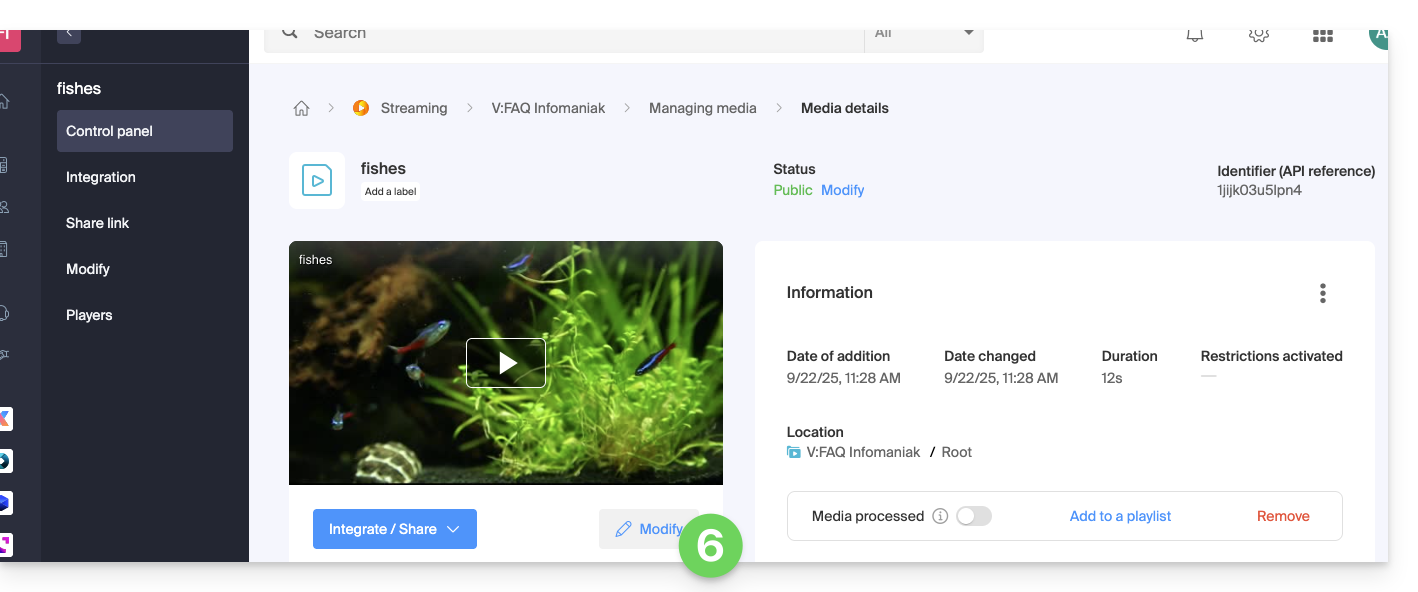
- Clique no botão Editar:
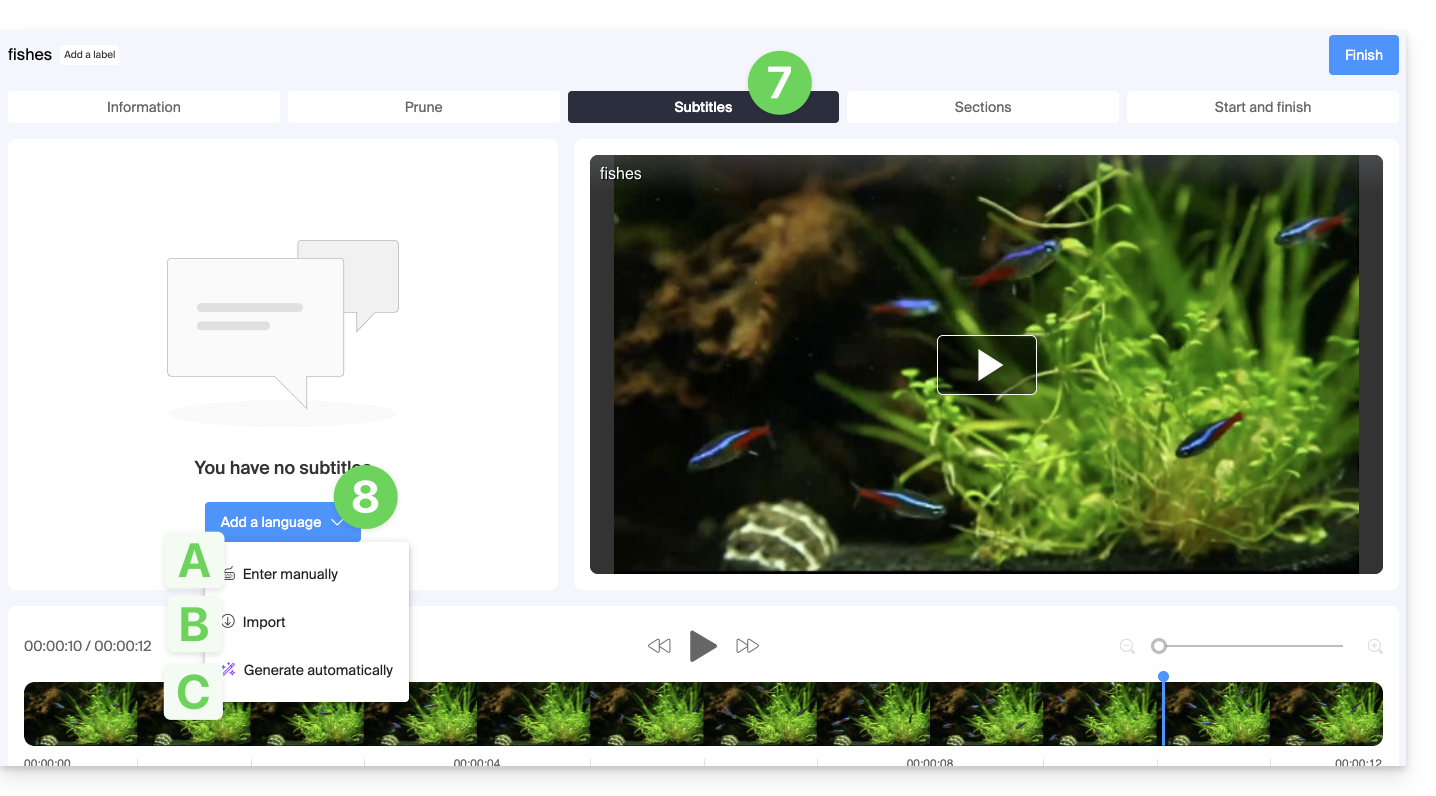
- Clique na aba Legendas.
- Clique no botão Adicionar idioma para escolher um dos 3 métodos de geração de legendas:
A. Criação de legendas de forma manual
Com este modo de legendagem, você insere manualmente cada um dos textos que devem ser exibidos no código de tempo especificado, e isso para cada um dos idiomas: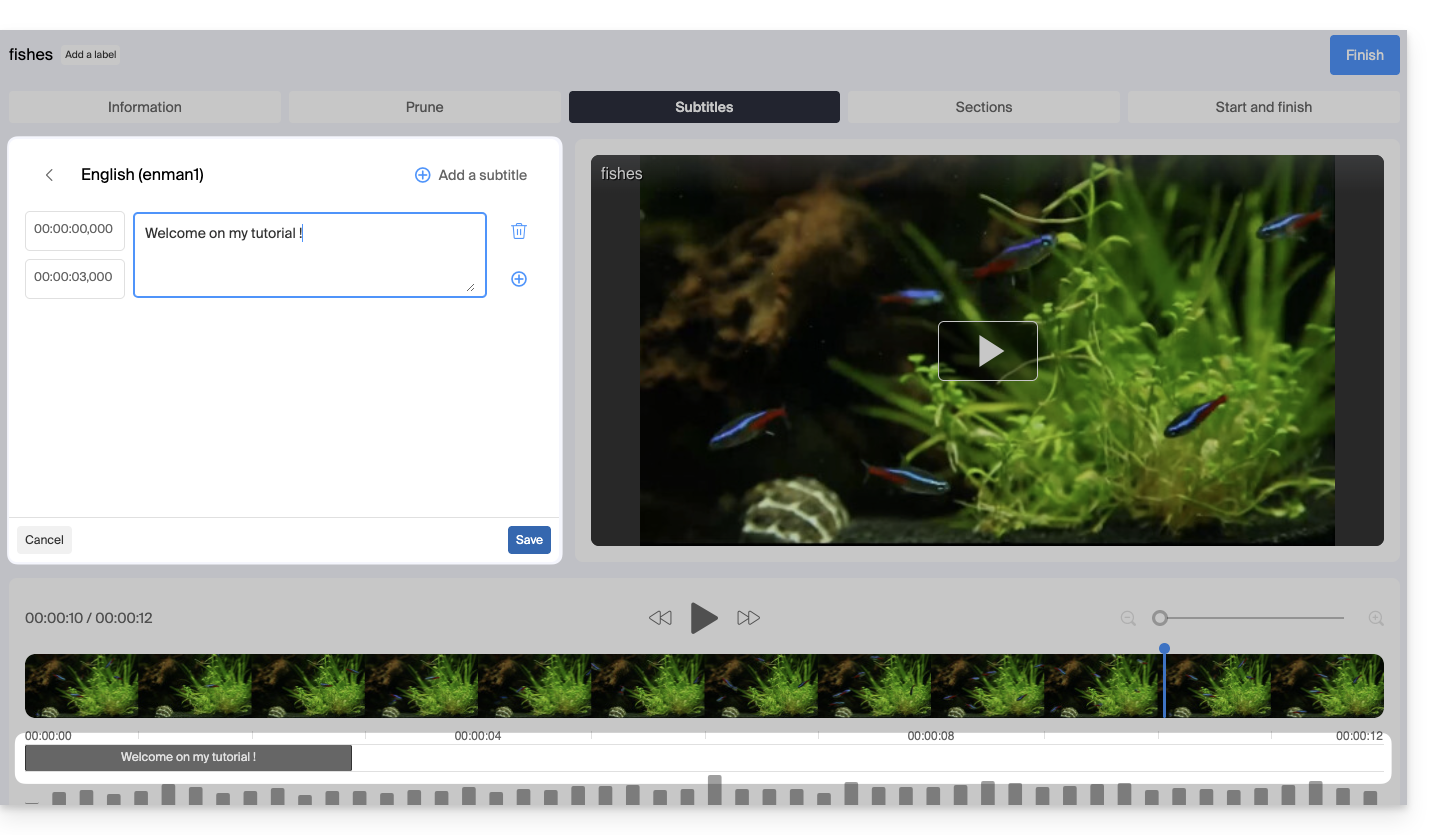
B. Importação de um arquivo de legendas
Você pode importar um arquivo do tipo SubRip (*.srt) ou SubViewer (*.sbv e *.sub) para adicionar legendas ao seu vídeo, utilizando um arquivo separado com as legendas já preparadas: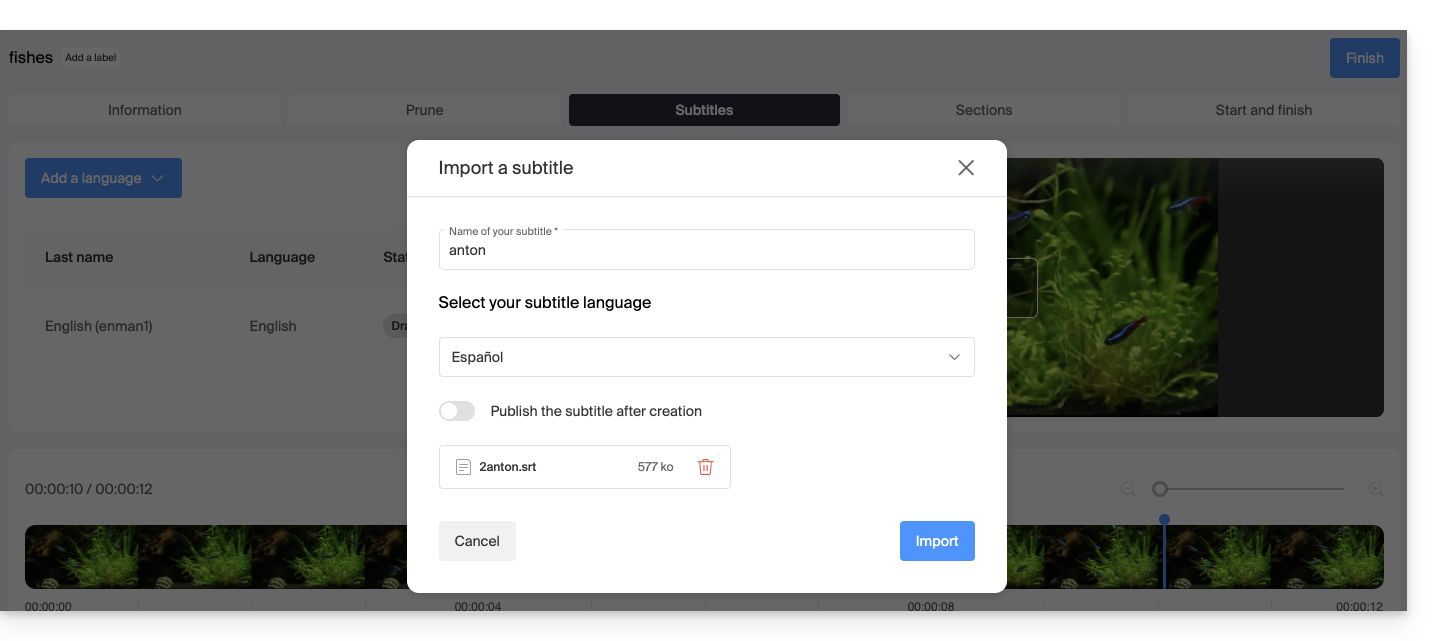
O botão de alternância permite ativar ou desativar a publicação das legendas no reprodutor. Isso permite, em particular, verificar se o conteúdo está correto antes de publicar e compartilhar o vídeo.
C. Gerar legendas automaticamente
Pode criar legendas diretamente a partir do áudio disponível no seu ficheiro multimédia. Os textos são gerados através de inteligência artificial (IA).
Leia e compreenda este outro guia sobre o modelo utilizado e as responsabilidades de cada um. Recomenda-se também verificar manualmente o conteúdo gerado, especialmente os nomes próprios, que por vezes podem estar mal escritos.
Traduzir legendas automaticamente
Quando uma legenda já existe, você pode adicionar um idioma adicional no mesmo local, fazendo com que o texto seja traduzido automaticamente (especifique o idioma atual):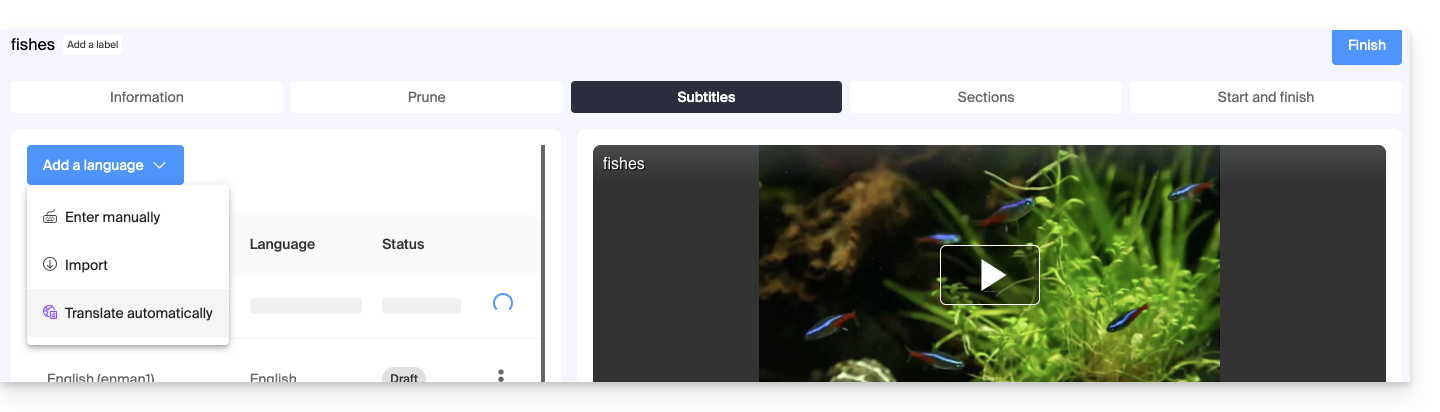 Isso irá gerar a legenda adequada no idioma desejado: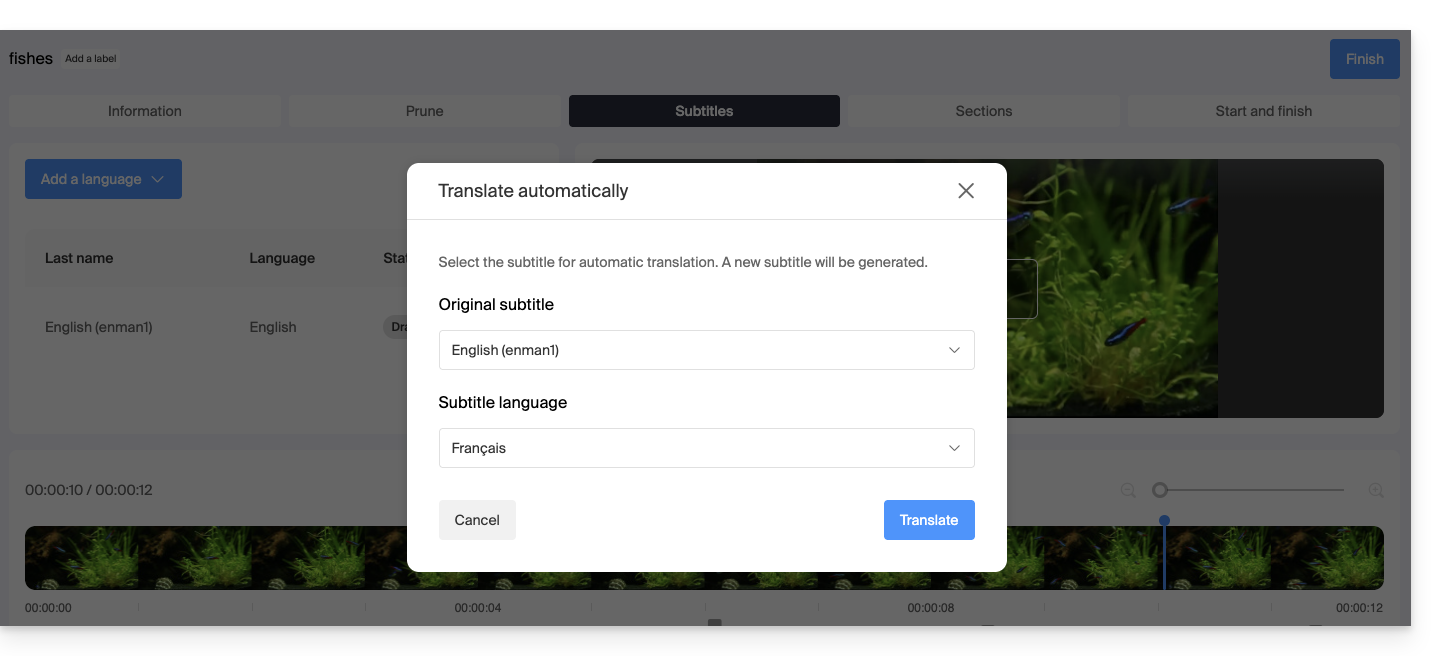
Ações em uma legenda
Clique no menu de ações ⋮ localizado à direita de uma legenda para obter opções adicionais, como duplicação ou tradução automática: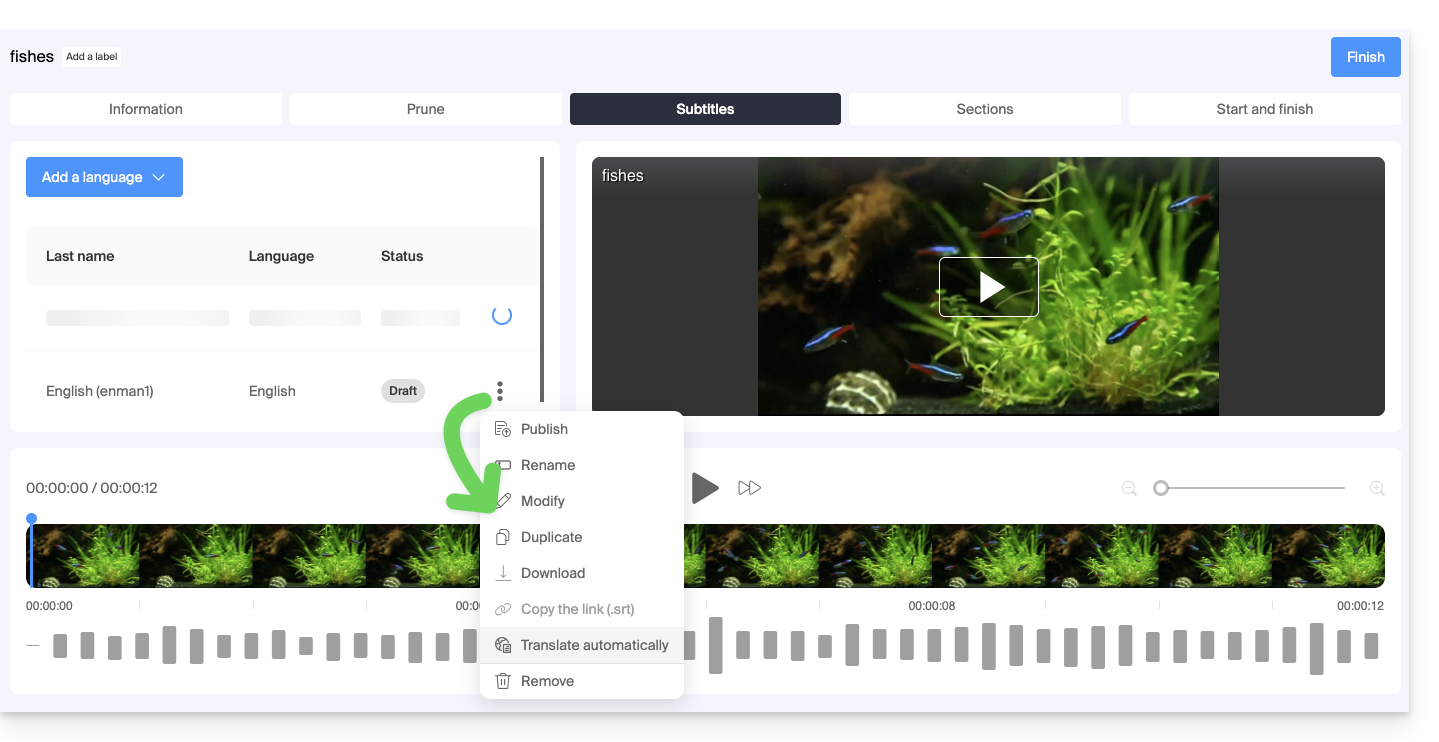
Legendar automaticamente os novos vídeos
A pasta Raiz ou as subpastas do seu espaço VOD podem ter regras que são executadas sempre que um novo arquivo de mídia é adicionado. Uma dessas regras pode ser configurada para gerar automaticamente as legendas usando o método C descrito acima. Para configurar esta regra:
- Clique aqui para acessar o gerenciamento do seu VOD/AOD no Manager Infomaniak (precisa de ajuda?).
- Clique diretamente no nome atribuído ao produto em questão.
- Clique em Mídia no menu lateral esquerdo.
- Clique em Gerenciamento de mídia no menu lateral esquerdo.
- Clique em Configurar na página da pasta Raiz ou da pasta de sua escolha:
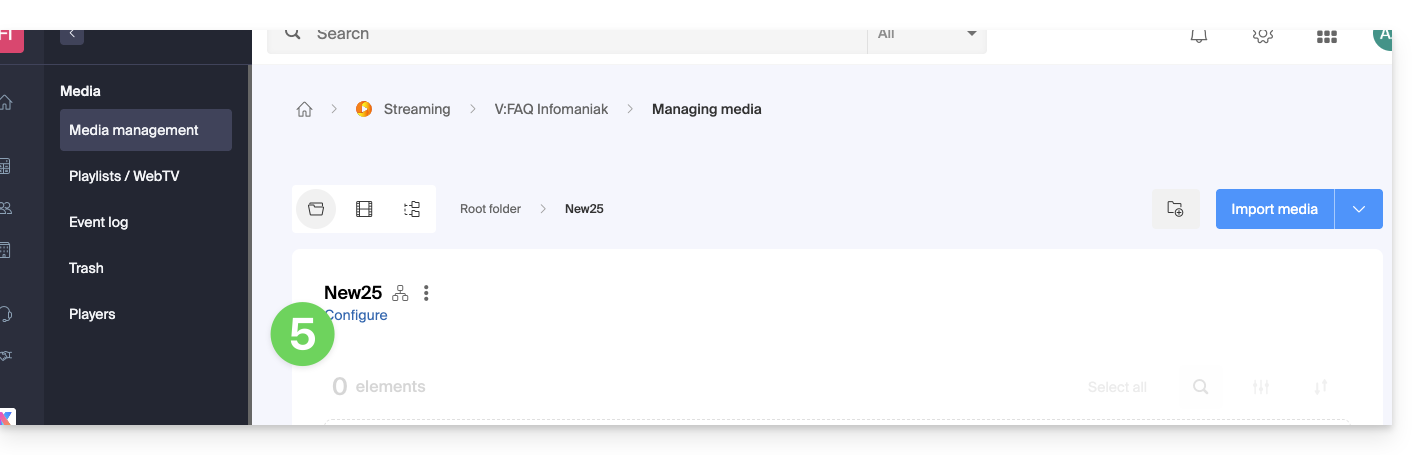
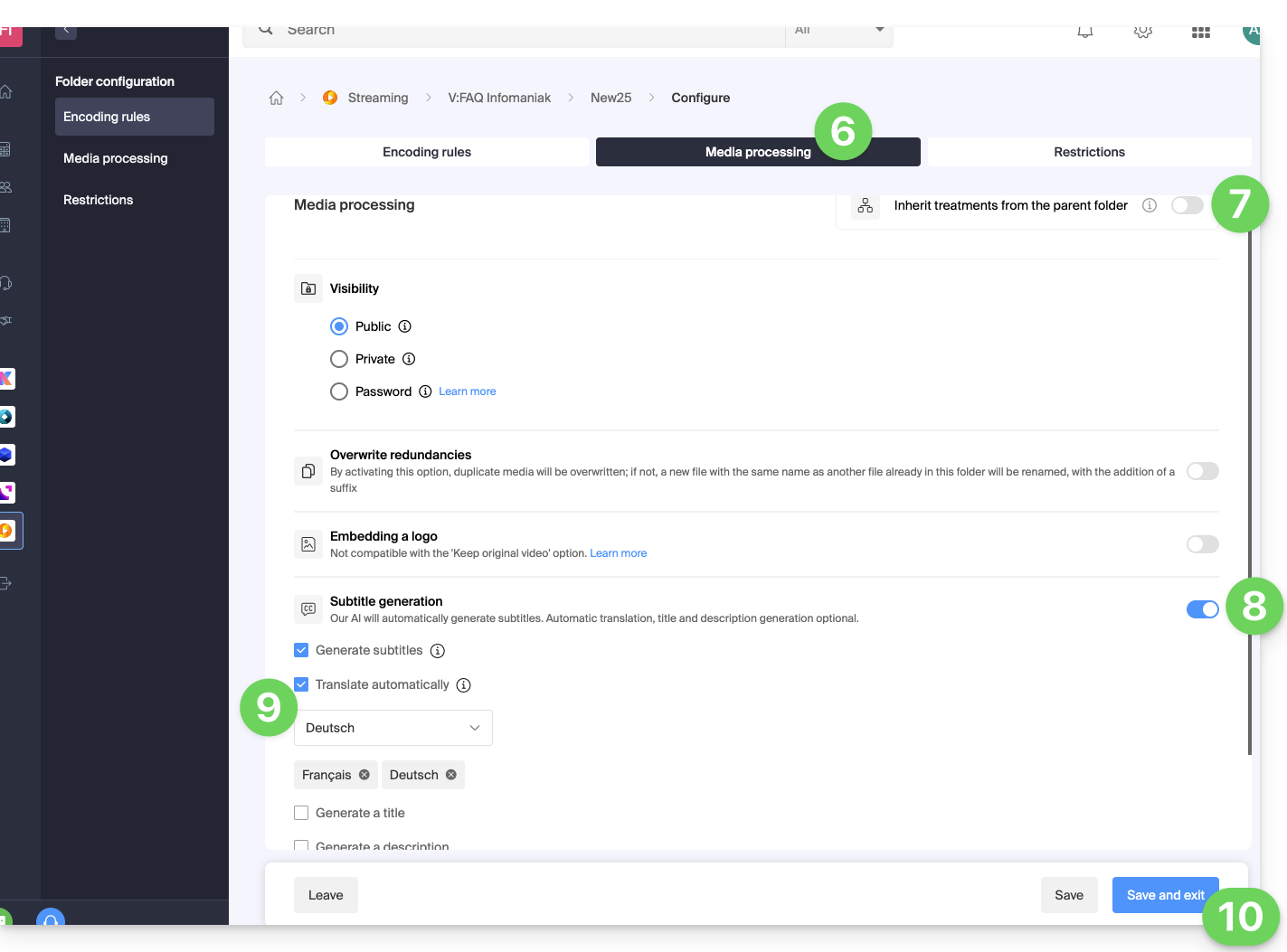
- Clique na aba Processamento de mídia.
- Verifique se as configurações não estão definidas para serem herdadas da pasta pai (ou configure a pasta pai diretamente) e, em seguida, salve as alterações, se necessário (item 10 abaixo).
- Ative a geração de texto.
- Configure o que deve ser gerado (legendas, título do vídeo, resumo/descrição, bem como as possíveis traduções, dependendo do idioma do visitante).
- Salve as alterações:
Link para esta FAQ: https://faq.infomaniak.com/1628
Esta seção de perguntas frequentes foi útil?