Base de conhecimento
1000 perguntas frequentes, 500 tutoriais e vídeos explicativos. Aqui, você encontra apenas soluções!
Manage DMARC records
This guide explains how to configure a DMARC policy for your email hosted with Infomaniak.
This protection is now essential to guarantee the deliverability of your emails and prevent any rejection of delivery.
Introduction
- The DMARC (Domain-based Message Authentication, Reporting, and Conformance) protocol enhances the security of your domain by relying on SPF and DKIM checks.
- It indicates to the recipient servers how to proceed in the event of authentication failure, via three protection policies (None, Quarantine, Reject) detailed below.
- In the event of failure, the recipient server may send you a DMARC report (❓: help); this data is valuable for correcting your configurations or countering any attempt to impersonate your domain.
- If you do not set up DMARC for your Mail service, third-party servers may reject your messages (❓: help).
DMARC policy and enforcement level (percentage)
Three processing policies (p = policy) allow you to specify how recipient servers should handle unauthenticated messages. These can be adjusted using an application percentage (pct):
None: observation mode (normal delivery)
With the p=none policy, no messages are rejected or placed in quarantine. This mode is ideal for observation purposes, allowing you to collect statistical reports. The pct parameter allows you to target a fraction of the traffic: for example, p=none; pct=10 applies the analysis to 10% of unauthenticated emails, while the remaining 90% are delivered without restriction.
Quarantine: isolation in spam
With the p=quarantine policy, unauthenticated messages are routed to the recipient's spam folder. The pct percentage defines the proportion of messages affected: for example, p=quarantine; pct=50 places half of the non-compliant emails in quarantine, while the rest are delivered normally.
Reject: complete blocking of the message
With the p=reject policy, unauthenticated emails are immediately blocked and rejected by the recipient server. The pct percentage modulates this application: for example, p=reject; pct=20 rejects 20% of non-compliant emails, while the remaining 80% are accepted.
Create a DMARC record
You have two methods for configuring your DMARC record:
Recommended method: if your Mail service is hosted with Infomaniak, use the Global Security tool (❓: help) to easily manage your DMARC policy and centralize your reports: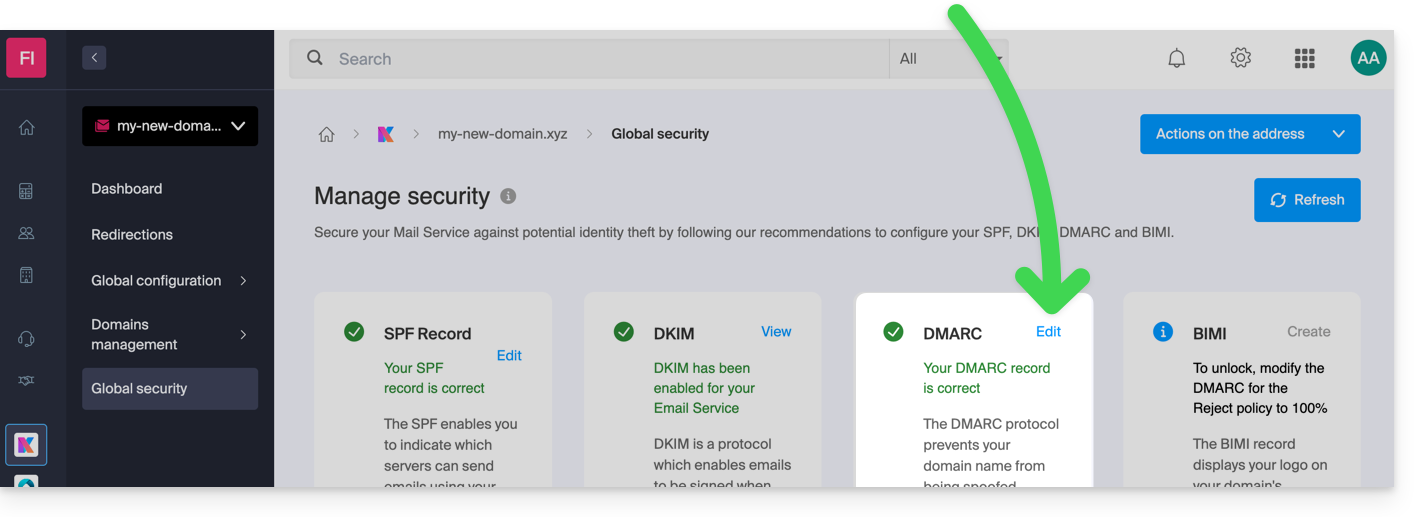
Alternative method: since this involves a DNS record (usually of the TXT type), you can also configure it directly from the DNS zone of your domain name:
- Click here to access the domain management section in your Infomaniak Manager (❓: help).
- Click on the name of the domain in question.
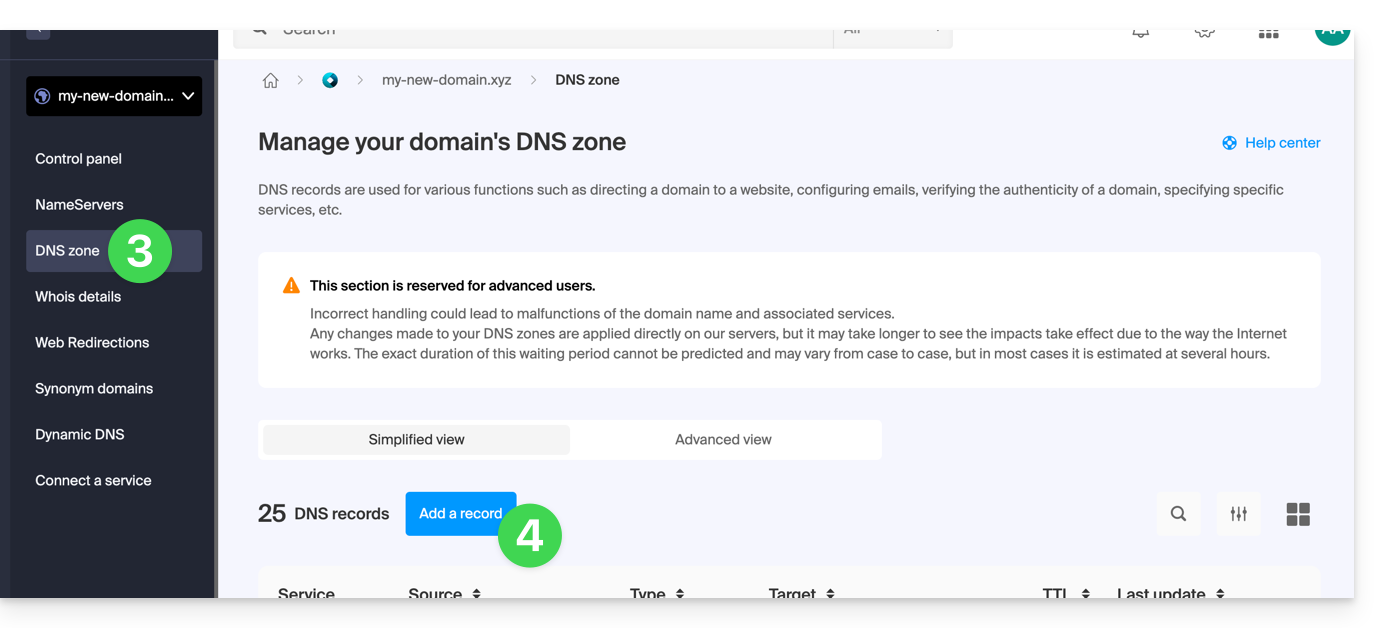
- Click on DNS Zone in the left-hand menu.
- Click the button to add a record:
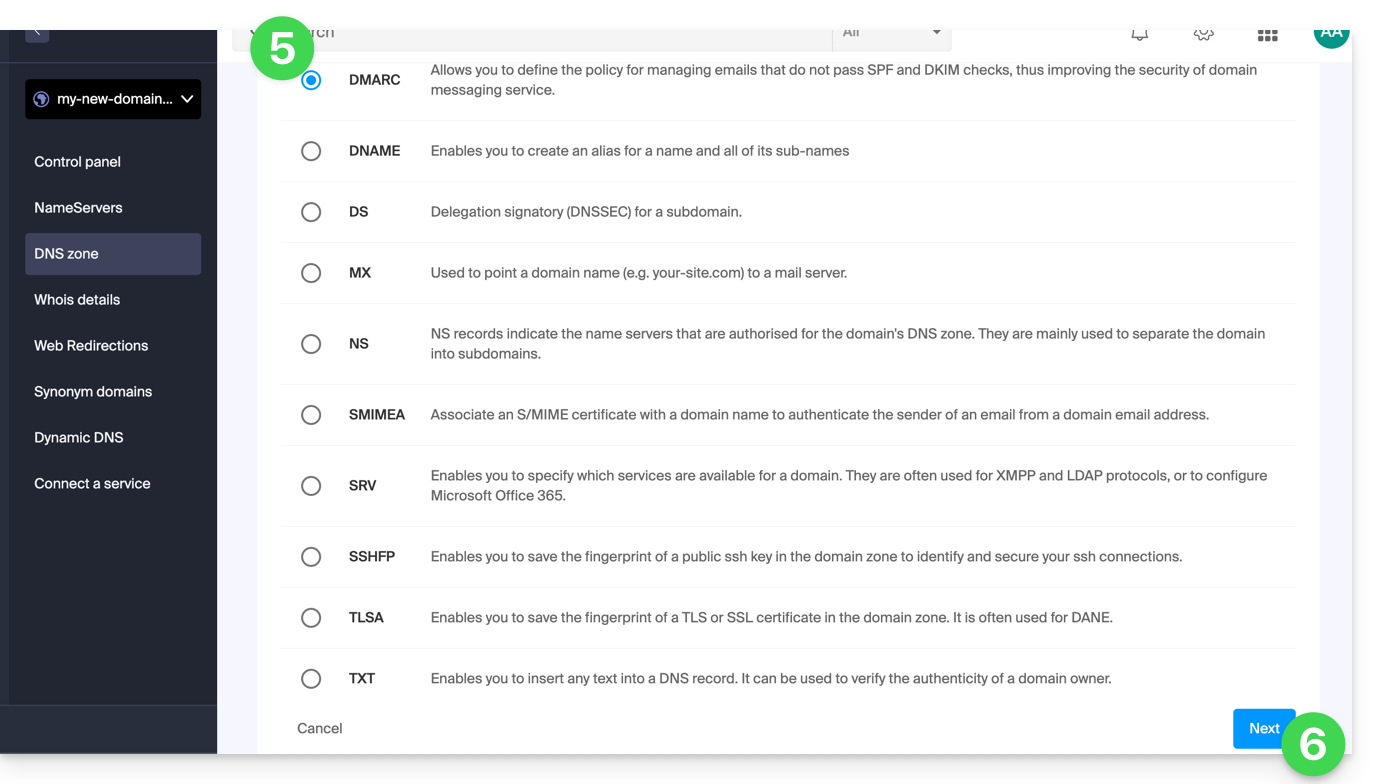
- Select the DMARC radio button to configure the entry.
- Click on the Next button:
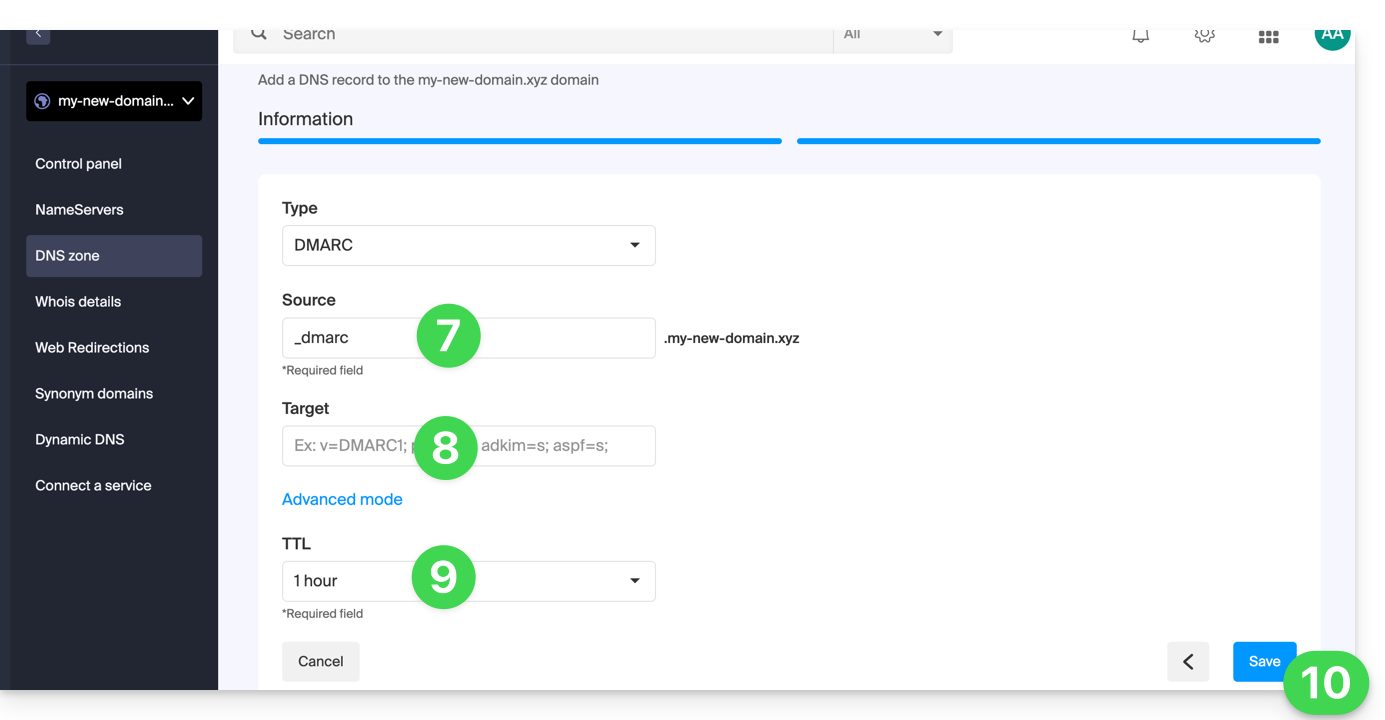
- Leave (or add if necessary) the
_dmarcvalue in the Source field. The Target field must contain the desired parameters, separated by
;:Tag Name Purpose Example vProtocol version v=DMARC1pctPercentage of messages subject to filtering pct=20rufReporting URI for forensic reports ruf=mailto:authfail@domain.xyzruaReporting URI for aggregate reports rua=mailto:aggrep@domain.xyzpPolicy for the organizational domain p=quarantinespPolicy for subdomains of the organizational domain sp=rejectadkimAlignment mode for DKIM adkim=saspfAlignment mode for SPF aspf=rExample of a complete configuration:
v=DMARC1;p=reject;pct=100;rua=mailto:postmaster@dmarcdomain.com(❓: help).- Leave the default value for the TTL.
- Click on the Save button:
Any addition or modification of a DNS record may take up to 48 hours to propagate completely across the network (❓: help).
Link para esta FAQ: https://faq.infomaniak.com/1552
Esta seção de perguntas frequentes foi útil?