Base de conhecimento
1000 perguntas frequentes, 500 tutoriais e vídeos explicativos. Aqui, você encontra apenas soluções!
Adicionar-se como utilizador de um endereço de e-mail a partir do Serviço de E-mail
Este guia explica como, a partir de um Serviço de Email, permitir que você (com suas credenciais de login da sua conta Infomaniak) acesse um endereço de email no ecossistema Infomaniak, ou seja, utilizando apenas o aplicativo web Mail da Infomaniak (serviço online ksuite.infomaniak.com/mail) e/ou o aplicativo móvel Infomaniak Mail (aplicativo para smartphone ou tablet iOS / Android), sem criar uma senha específica para o endereço.
As outras possibilidades de acesso e gerenciamento são apresentadas no guia principal.
Pré-requisitos
- Contratar um Serviço de Email junto da Infomaniak.
- Criar um ou mais endereços neste Serviço de Email.
- Ter, no mínimo, o direito de gerir o Serviço de Email em questão (ou ser Administrador / Responsável legal na Organização).
Aceder a um endereço de e-mail
Para utilizar o endereço de e-mail existente demonstration@exemple-domaine.ch:
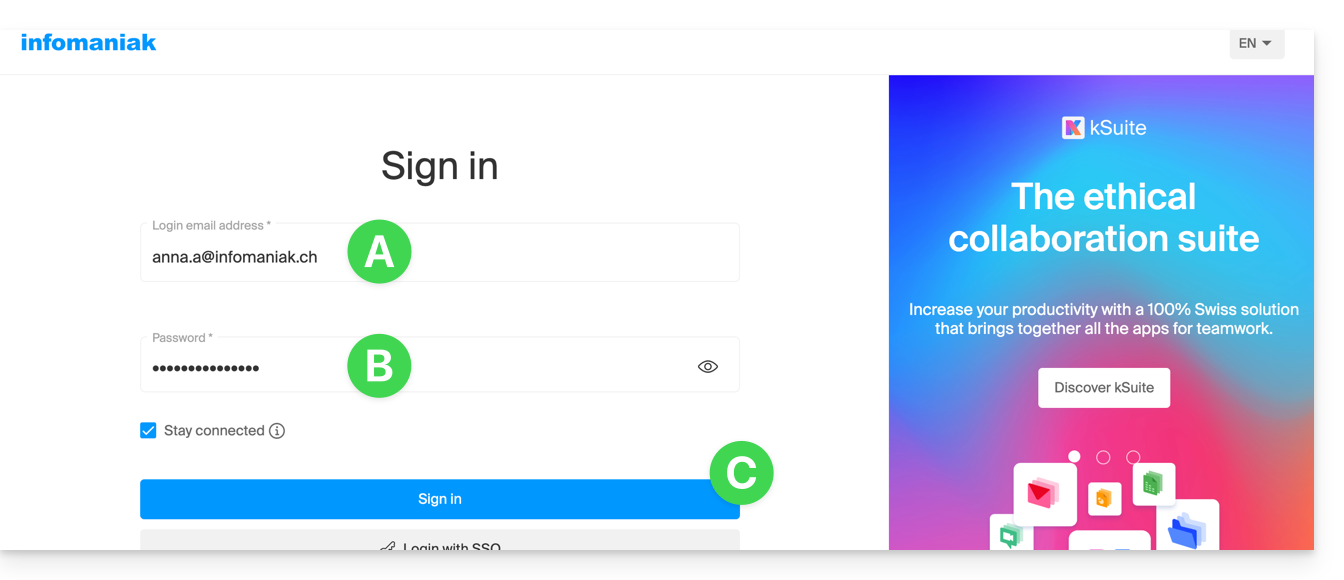
- Insira o ID de login da sua conta Infomaniak e a senha na página https://manager.infomaniak.com/:
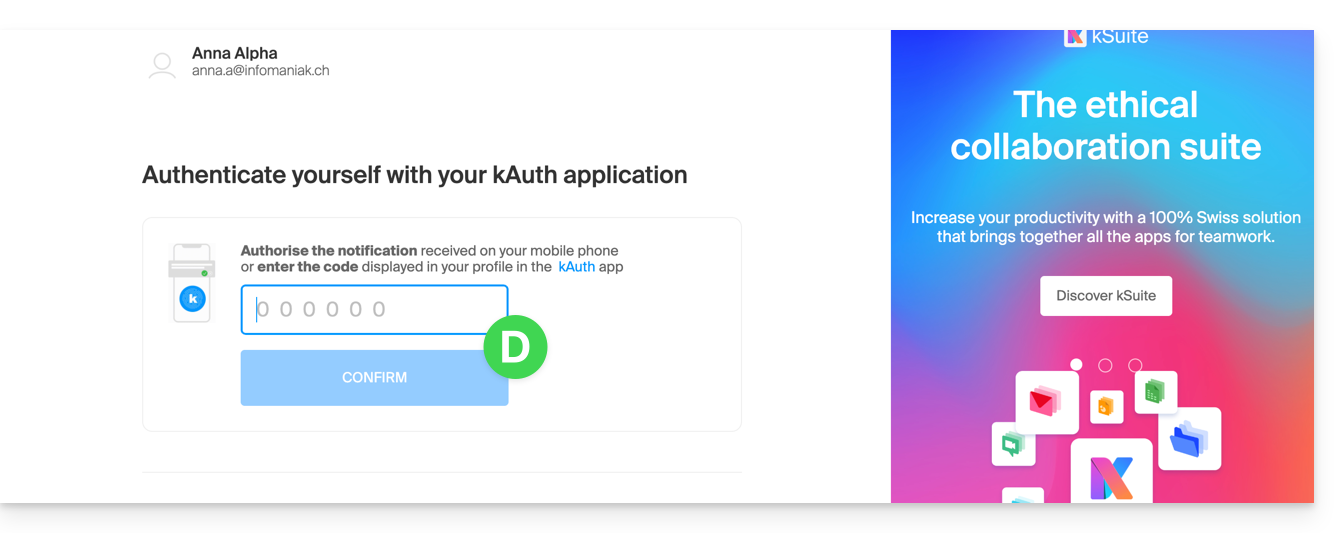
- Confirme o acesso no painel de controle usando o método de autenticação de dois fatores (2FA) definido inicialmente:
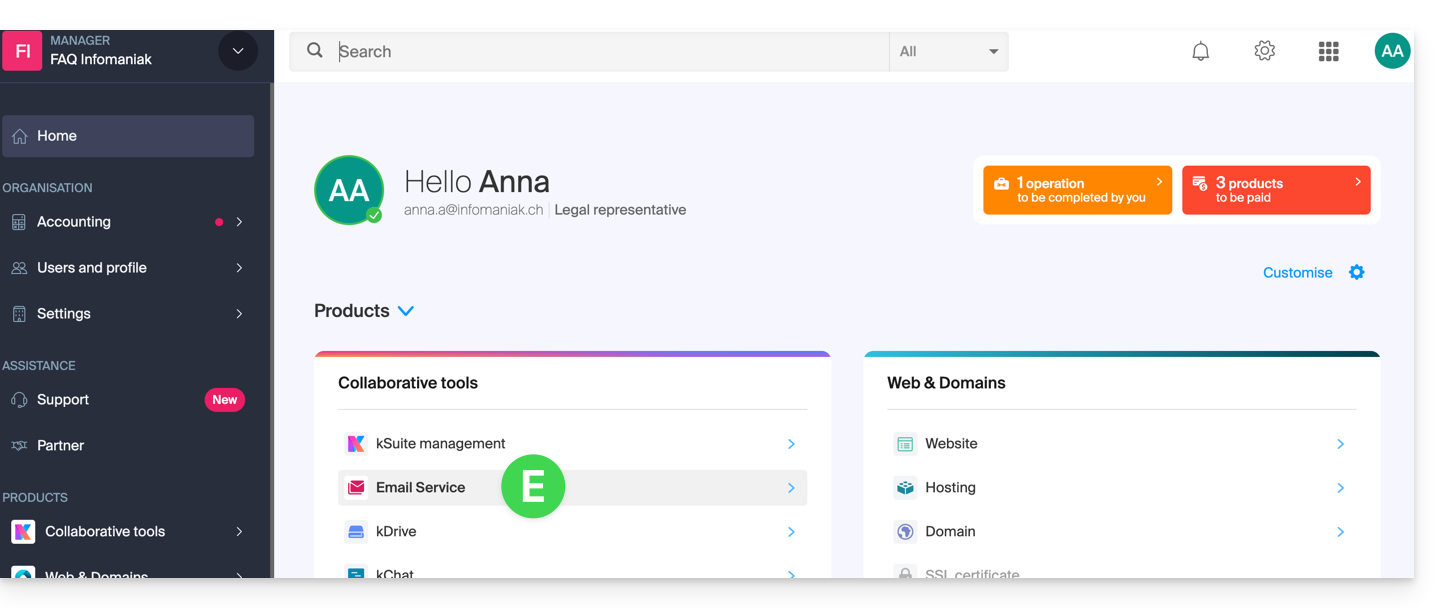
- Após acessar o painel de controle, clique em Serviço de E-mail:
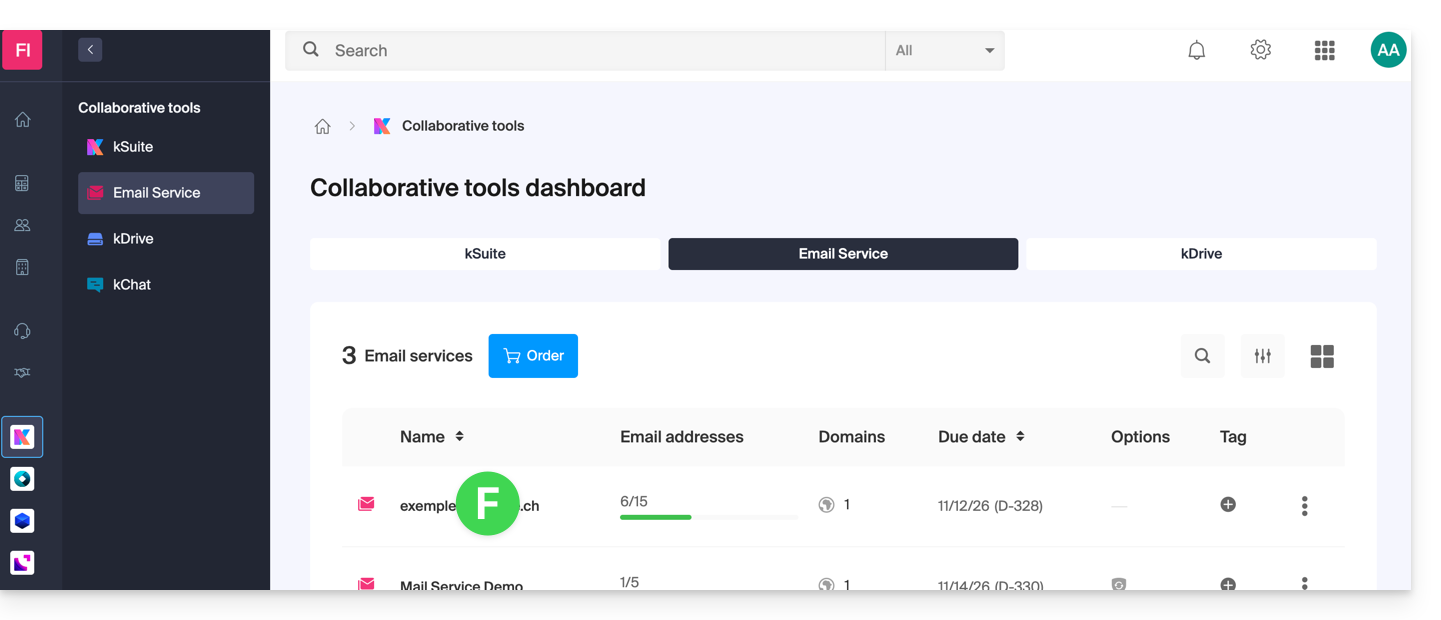
- Após acessar seus Serviços de E-mail, clique no nome / nome de domínio ao qual pertence o endereço de e-mail em questão:
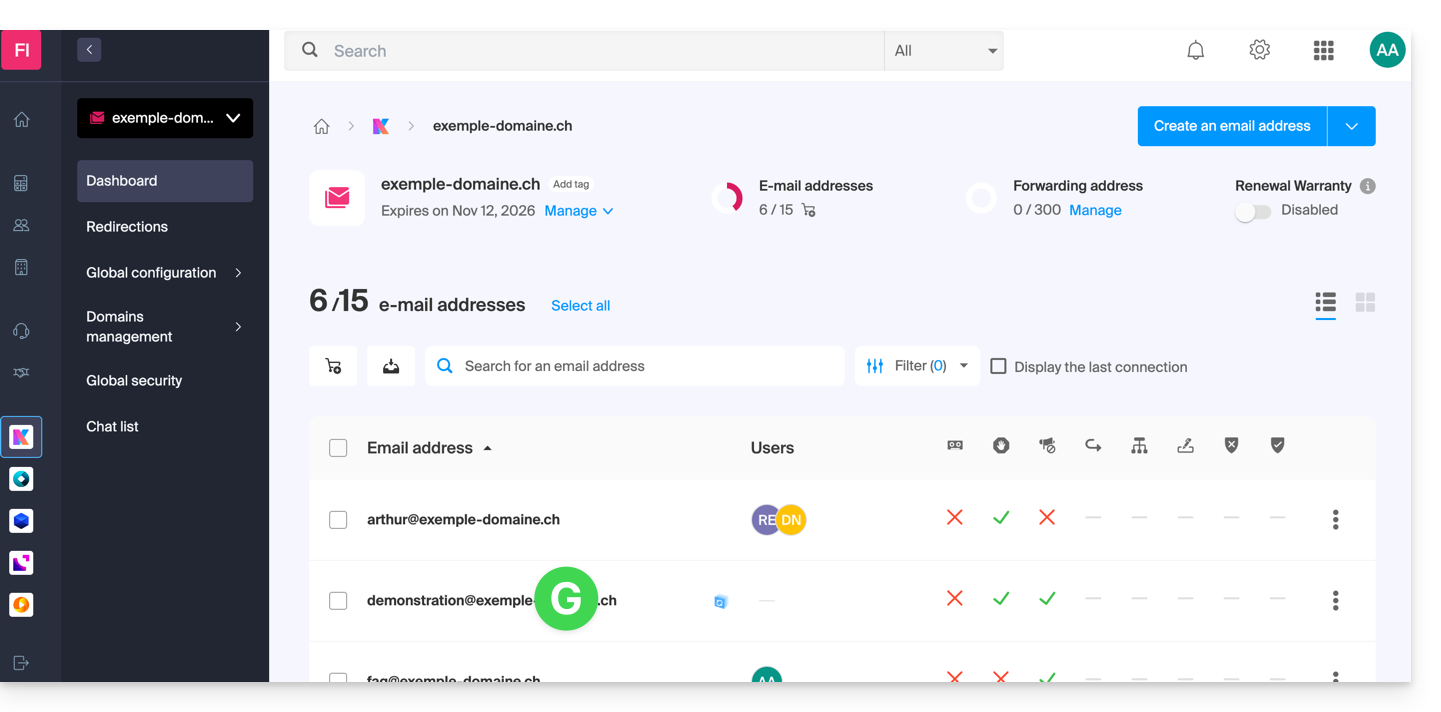
- Depois de acessar o Serviço de E-mail ao qual o endereço pertence, clique no endereço de e-mail em questão:
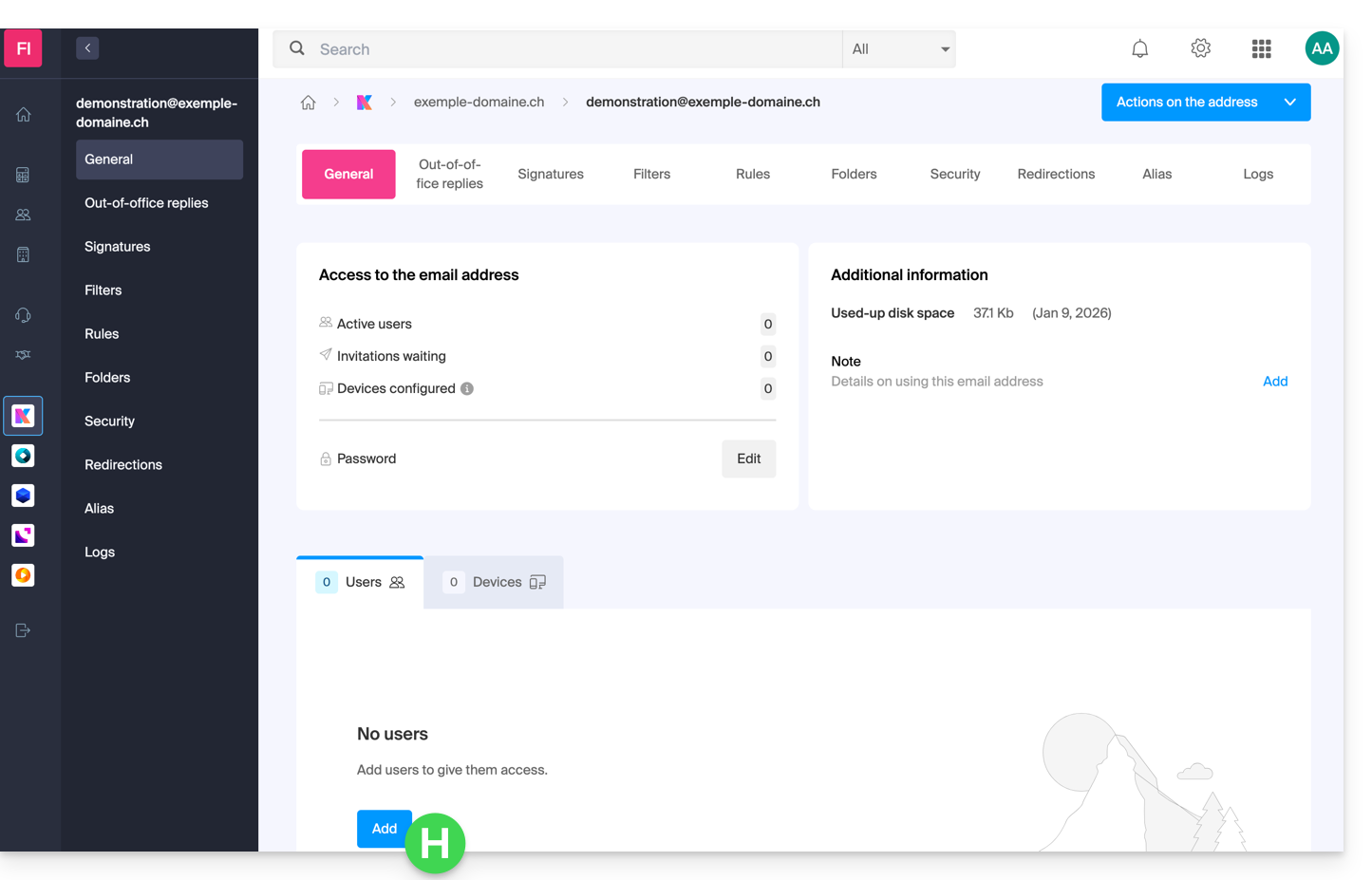
- Depois de acessar o endereço de e-mail em questão, clique no botão Adicionar um usuário:
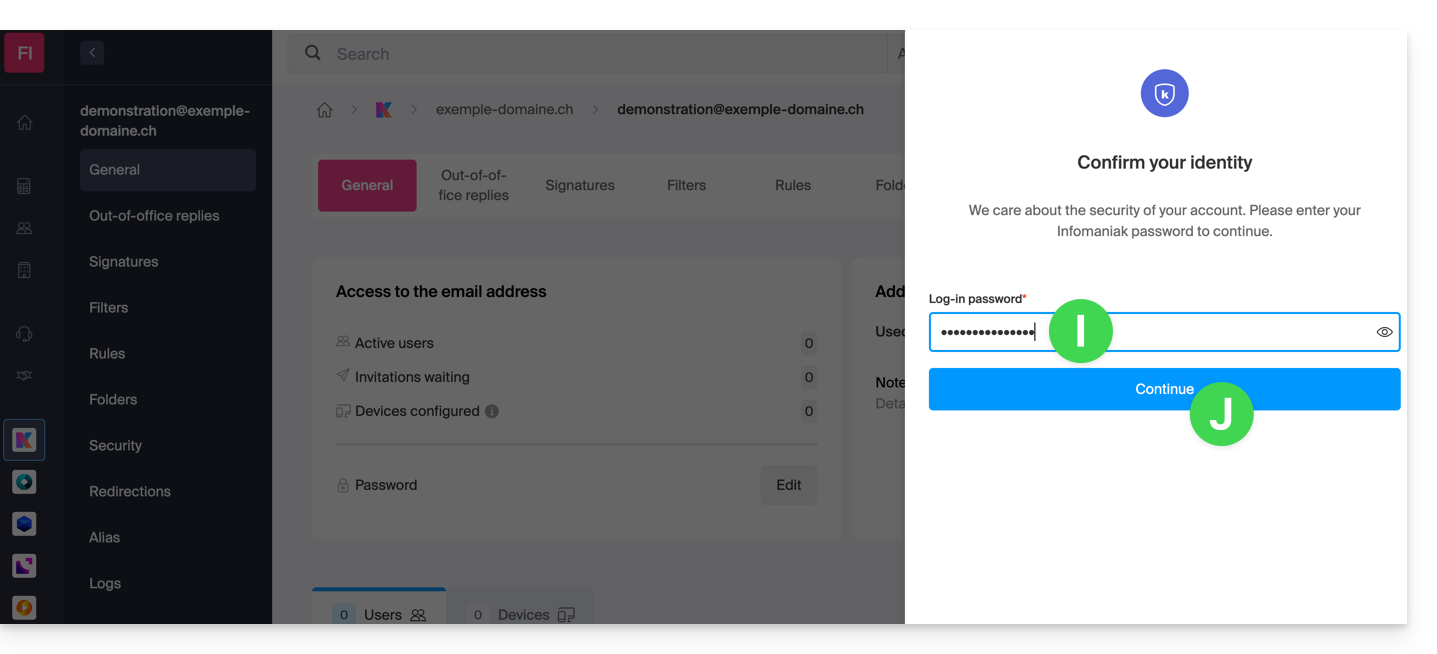
- Neste momento, pode ser necessário inserir novamente a senha de login (a mesma do ponto B acima):
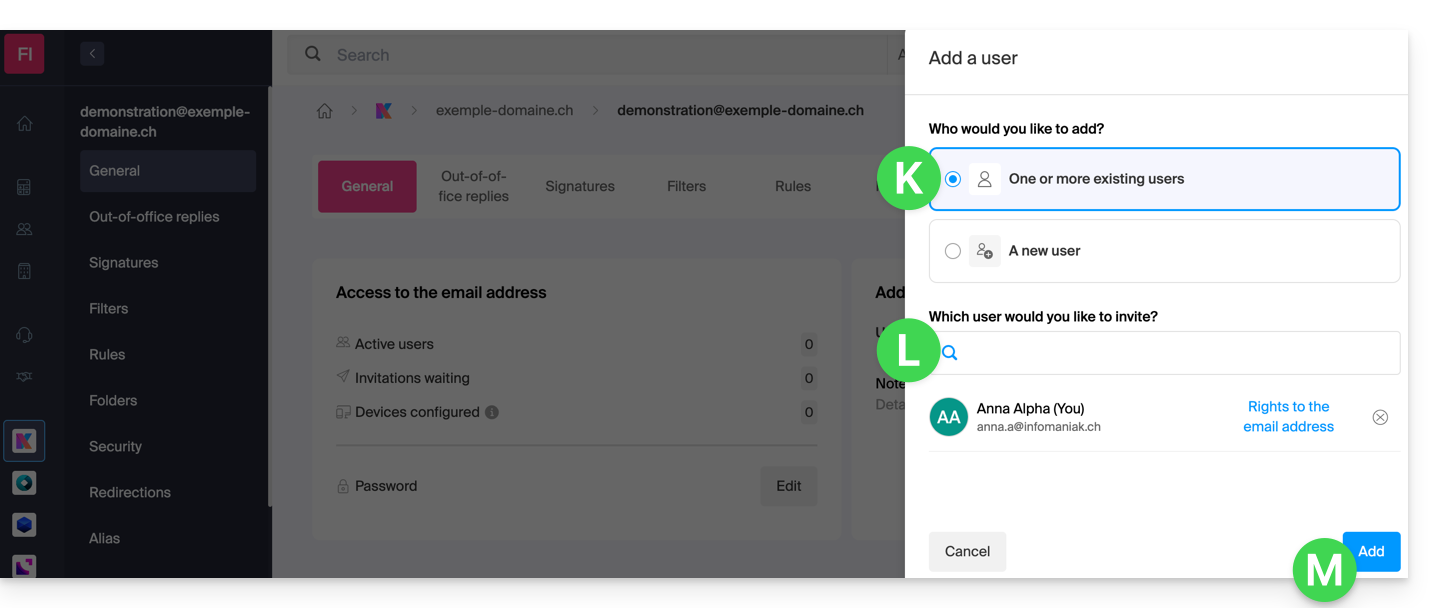
- Em seguida, escolha a opção para adicionar um usuário existente e, em seguida, clique no campo abaixo, o que fará com que a lista de usuários da organização em que você está conectado apareça. Clique em seu usuário (seu identificador de login na conta Infomaniak). Confirme a adição com o botão no canto inferior direito:
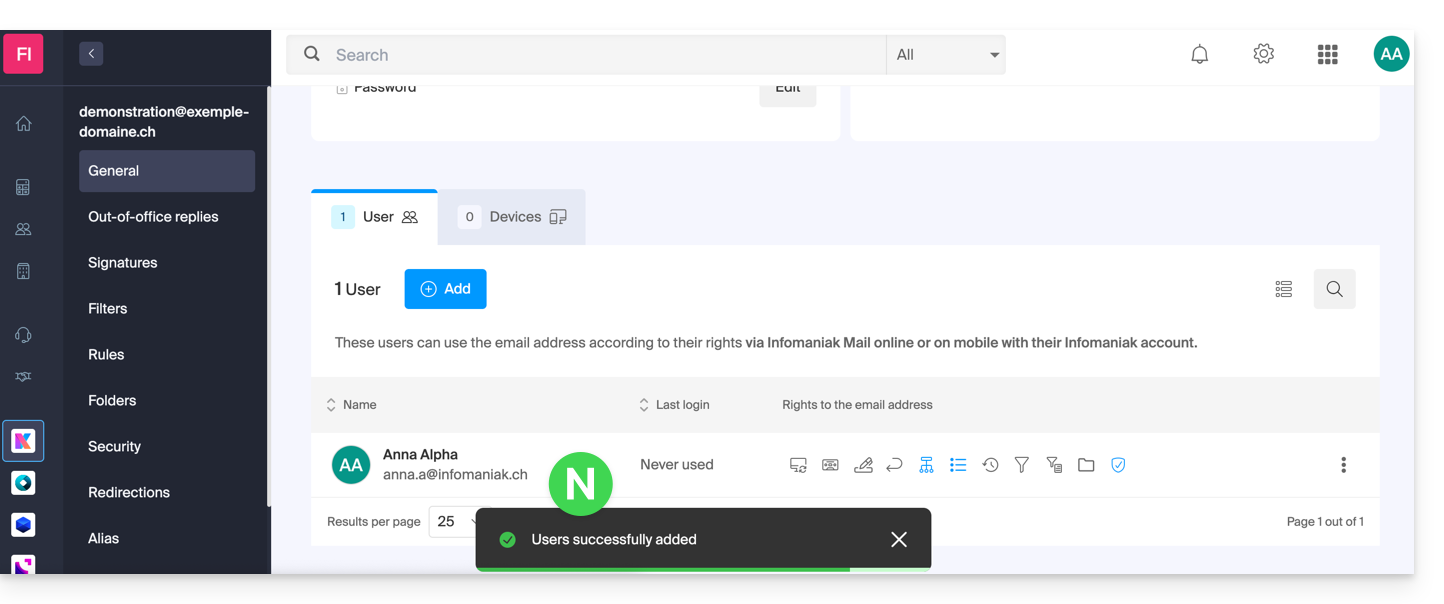
- Pronto, o seu novo utilizador foi adicionado:
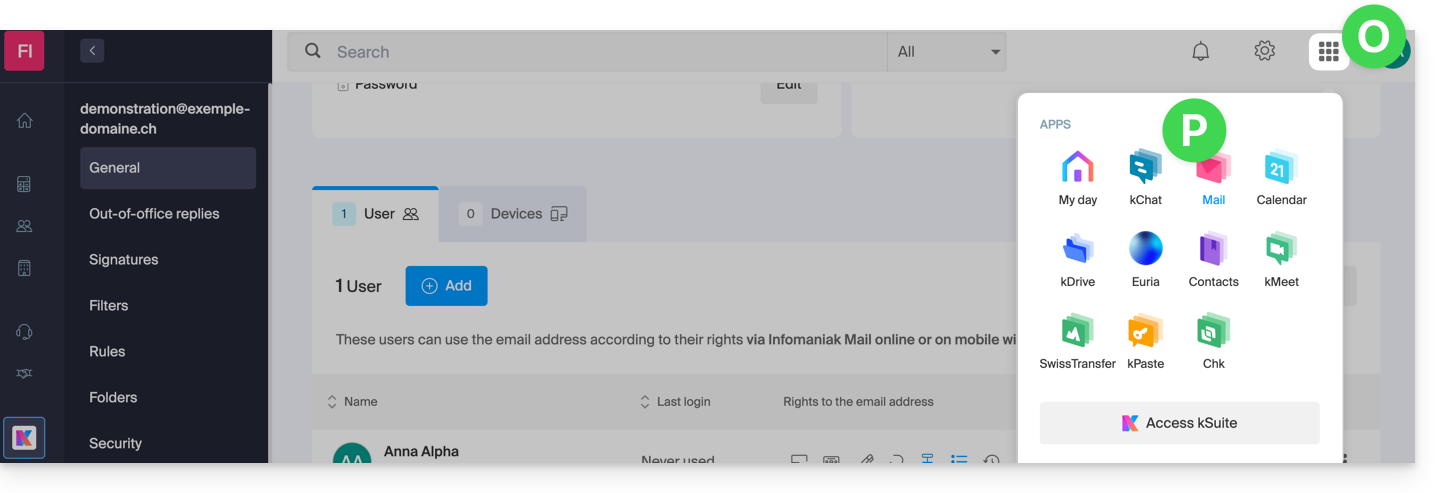
- Clique, em seguida, no ícone na parte superior do ecrã para abrir as ferramentas kSuite e clique na aplicação Web Mail da Infomaniak:
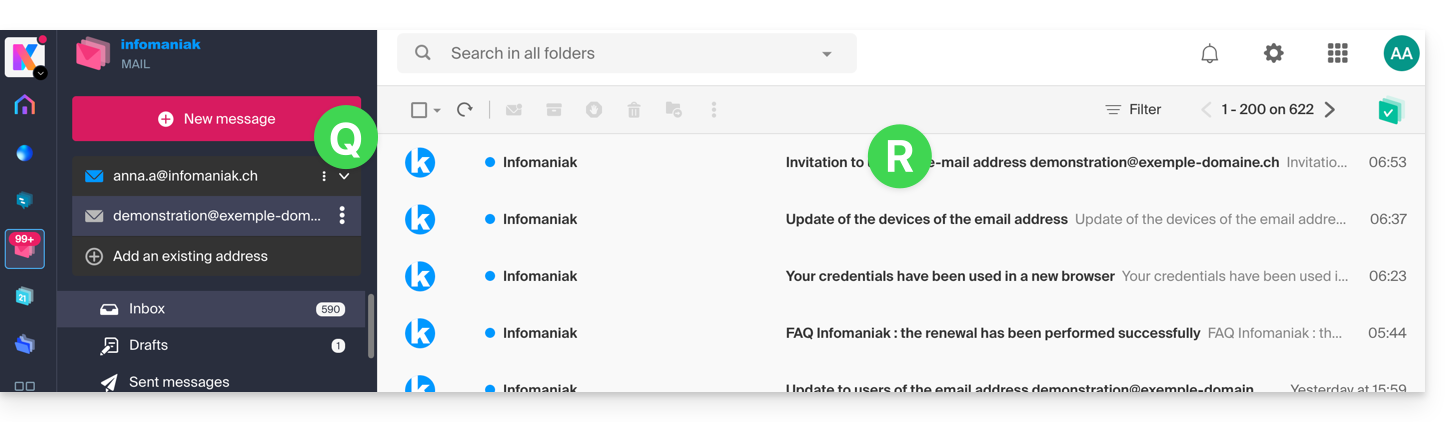
- O endereço de e-mail foi adicionado com sucesso ao aplicativo web Mail (clique, se necessário, na seta para baixo para expandir o menu de endereços e acessá-lo). Um e-mail de notificação foi enviado ao usuário (você, neste caso) para informá-lo sobre a operação:
Quando seu identificador é adicionado como um usuário com acesso ao endereço de e-mail, a caixa de correio é adicionada automaticamente aos seus aplicativos Mail Infomaniak: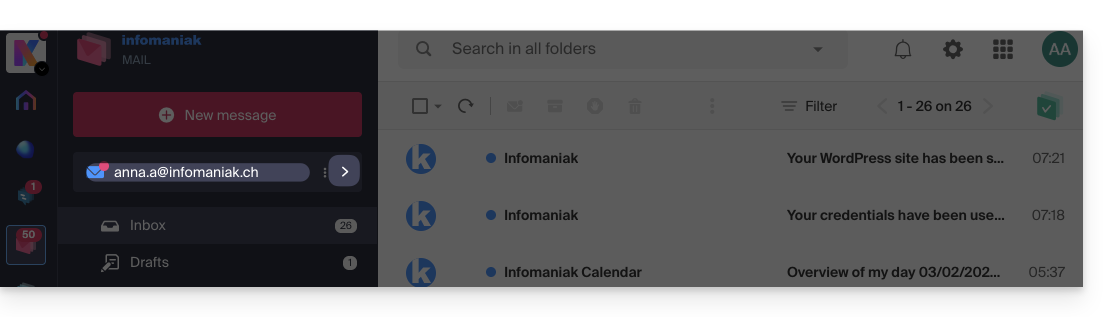
Pode alternar entre os seus endereços a qualquer momento através da seta localizada no canto superior esquerdo do ecrã: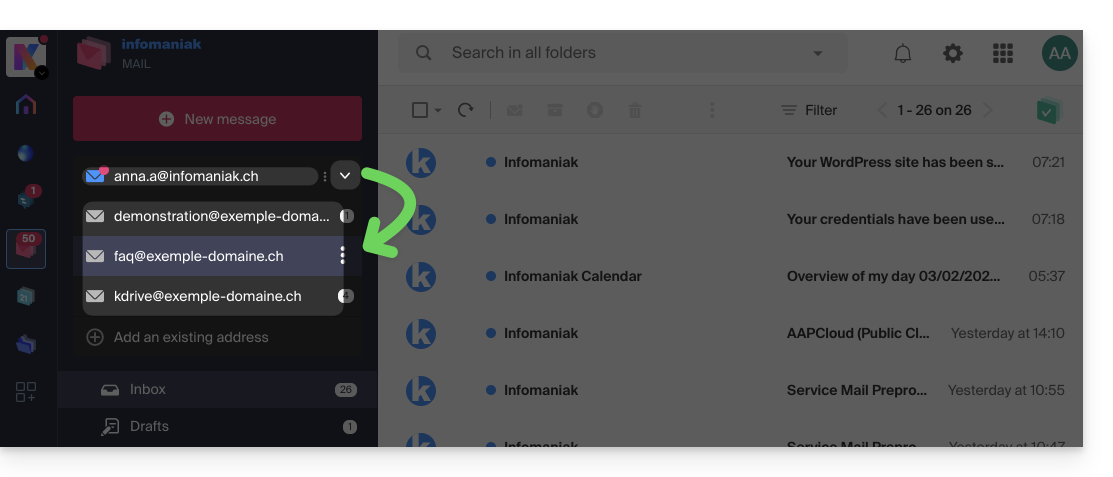
Se o endereço não for exibido, tente atualizar a página do navegador (Command ⌘ + R no macOS e Ctrl + F5 no Windows).
Link para esta FAQ: https://faq.infomaniak.com/1547
Esta seção de perguntas frequentes foi útil?