Base de conhecimento
1000 perguntas frequentes, 500 tutoriais e vídeos explicativos. Aqui, você encontra apenas soluções!
Create groups to organize newsletter subscribers
This guide explains how to create groups to distribute your Newsletter subscribers.
Introduction
- You must create at least one group to store your future contacts/subscribers.
- This will be useful, in particular, for creating a subscription form for your newsletter.
- Without a group, it is impossible to create the form; the button will remain disabled:
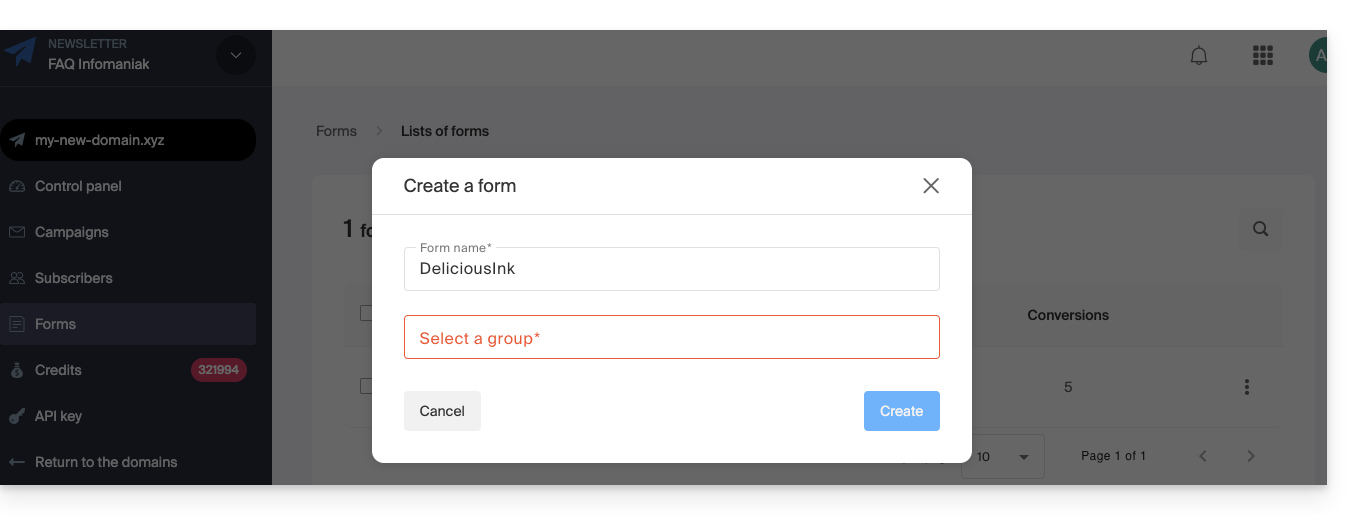
- Without a group, it is impossible to create the form; the button will remain disabled:
Create a subscriber group
To access the newsletter group management:
- Click here to access the Newsletter management section in your Infomaniak Manager.
- If nothing is displayed, you may not be in the Organization to which your Newsletter is linked (❓: help).
- Click on the domain name associated with your mailings:
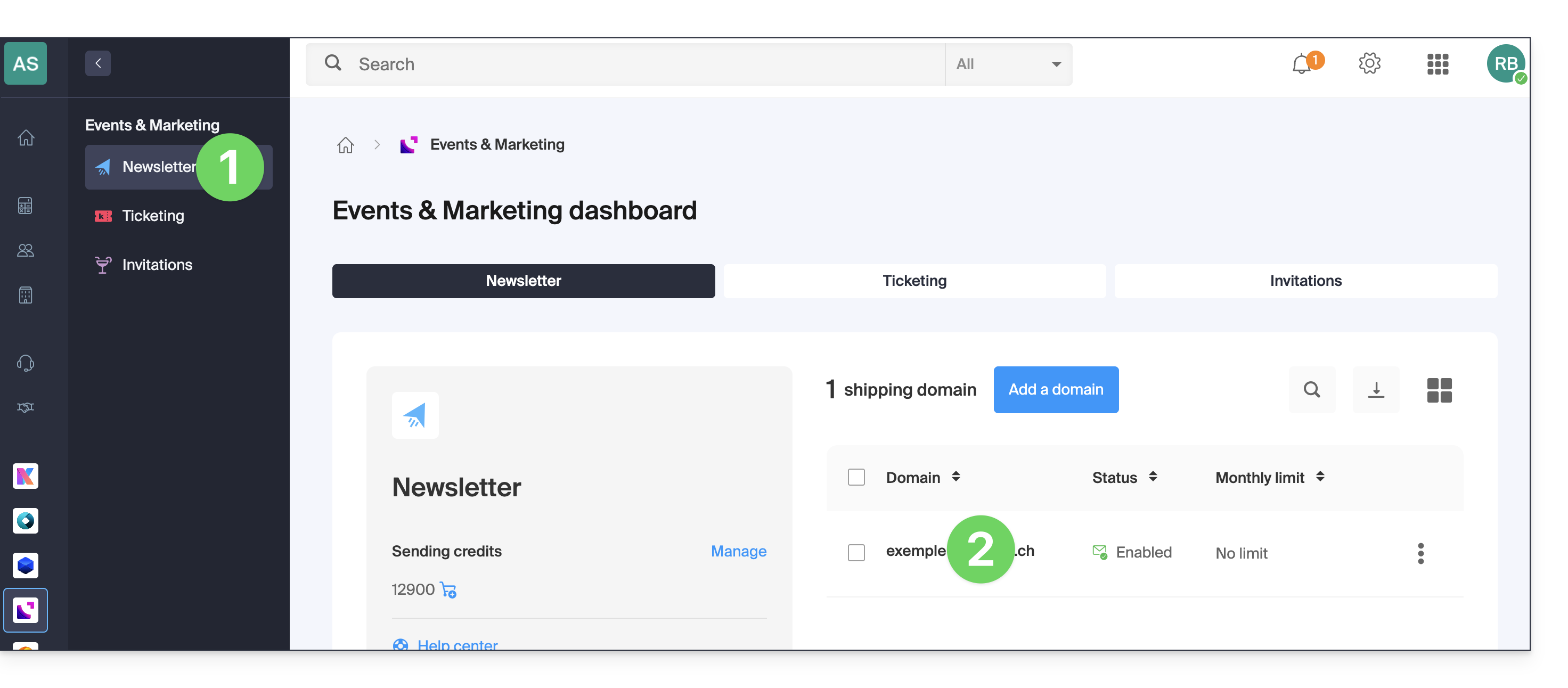
- Click on Subscribers in the left-hand menu.
- Click on the Groups tab.
- Click the button to Create a group.
- Enter a name for your group.
- Click on the Create button:
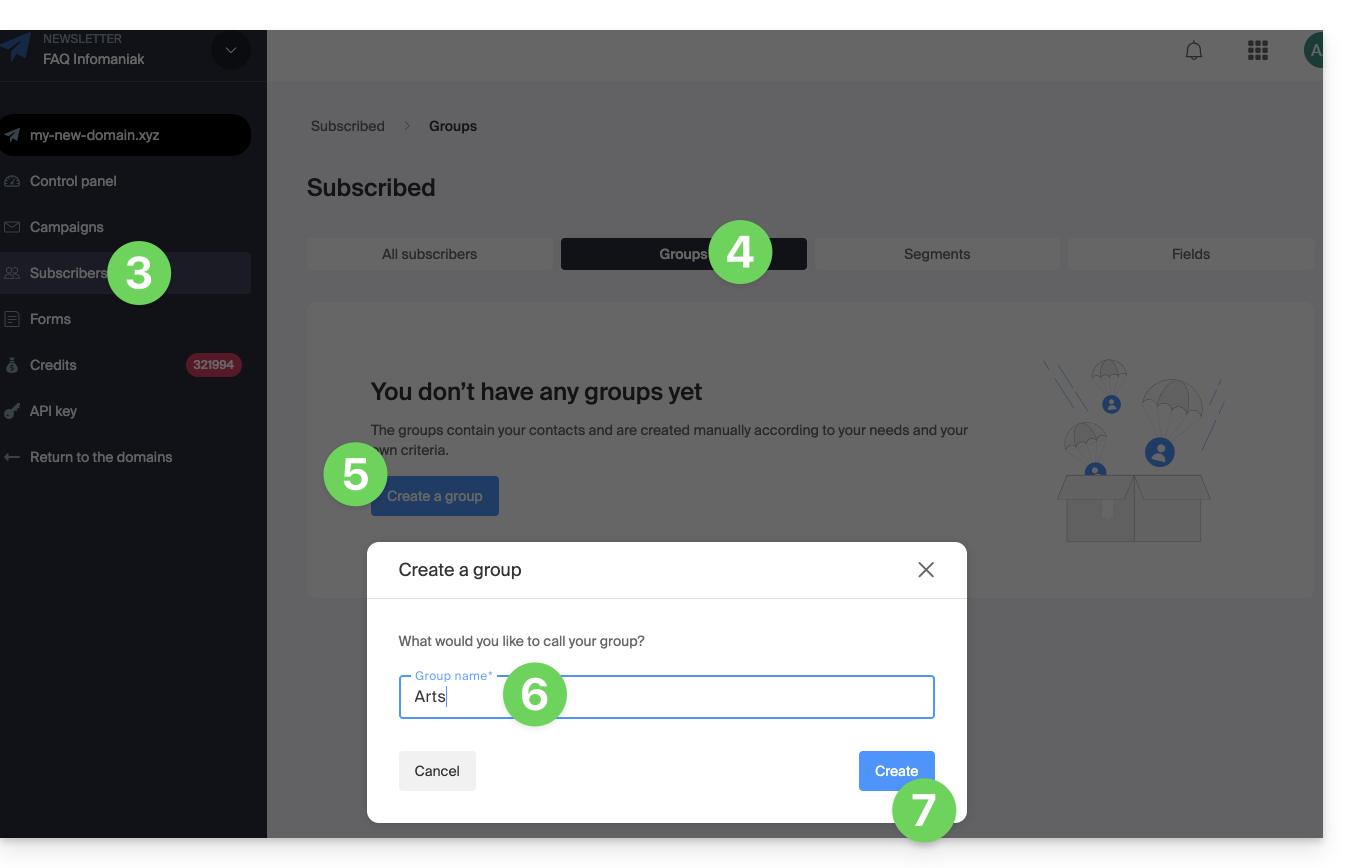
Once the group is created, you can now easily add a new subscription form and specify which group should be used to store future subscribers: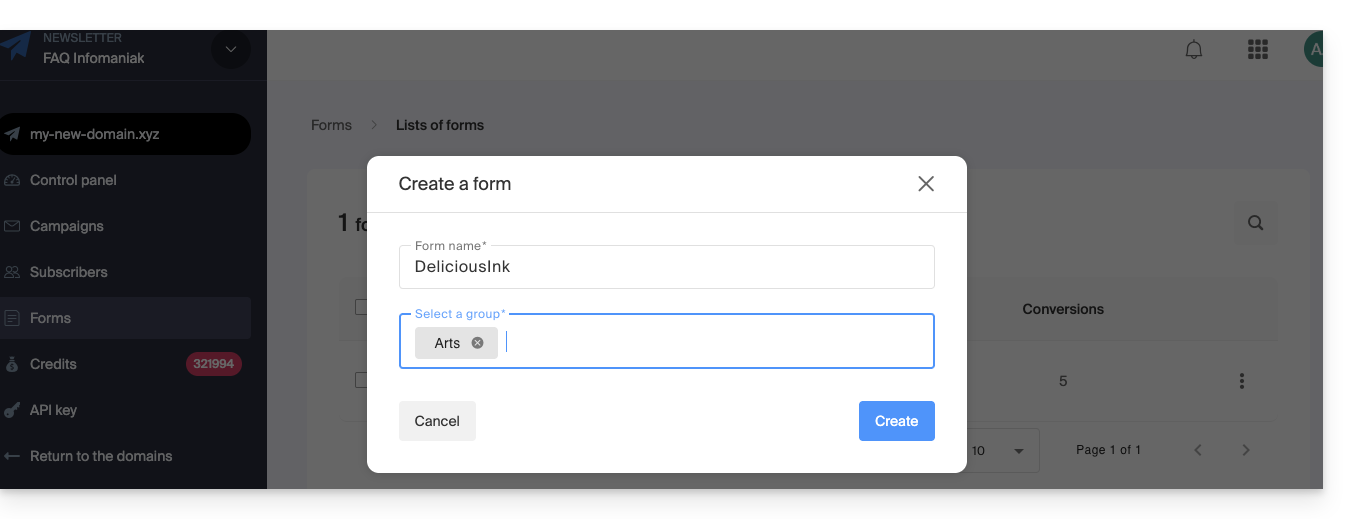
Creating multiple groups allows you, for example, to send newsletters only to one of them and not to the others. It also allows you to have a registration form in one location that corresponds to filling a specific contact list, and then another form elsewhere that corresponds to a different list, so that you can subsequently send an even more personalized newsletter.
Add subscribers to the group
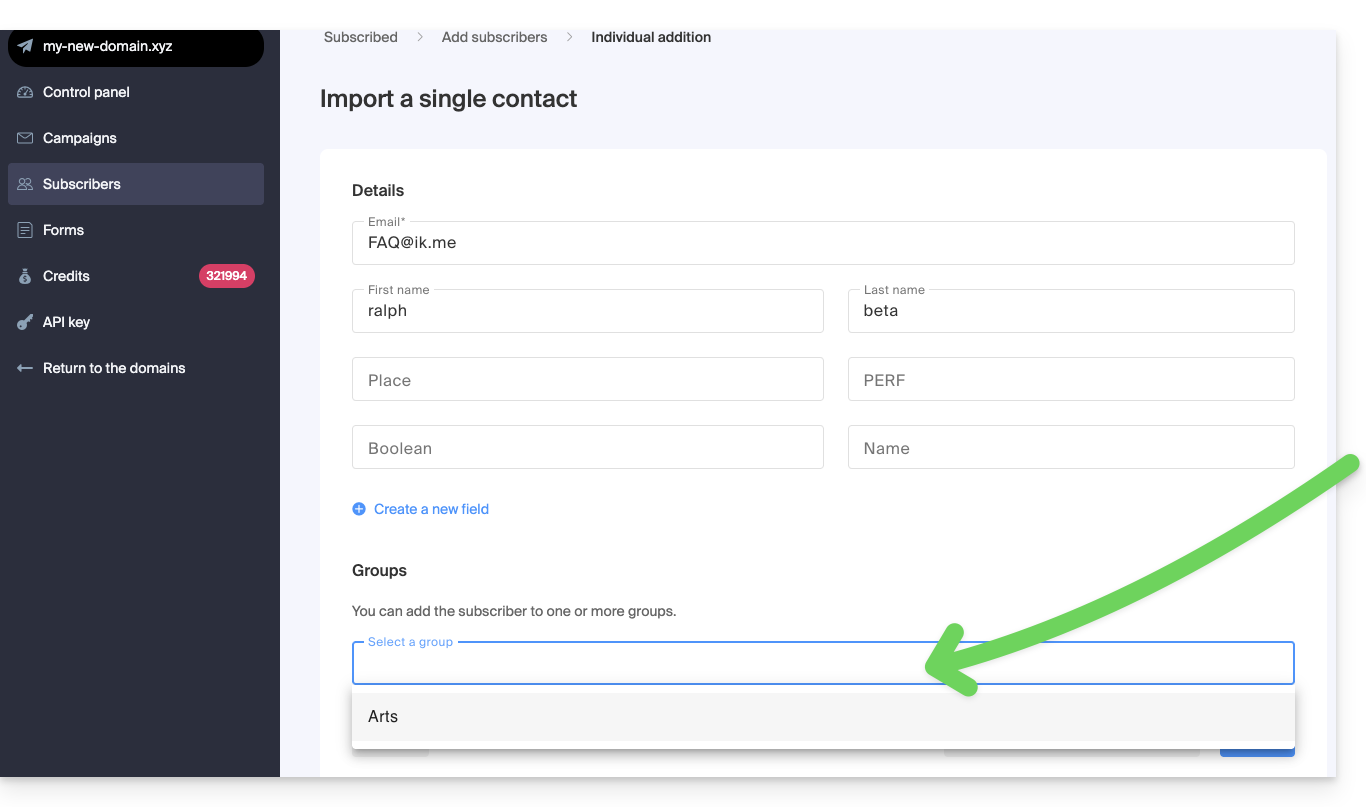
You can select the group created when creating/importing a new contact:
- Click here to access the Newsletter management section in your Infomaniak Manager.
- If nothing is displayed, you may not be in the Organization to which your Newsletter is linked (❓: help).
- Click on the domain name associated with your emails.
- Click on Subscribers in the left-hand menu.
- Click on Add a subscriber.
- Click, for example, on the box for individual addition.
- Select the appropriate group at the bottom of the form:
To add existing subscribers to the created group:
- Click here to access the Newsletter management section in your Infomaniak Manager.
- If nothing is displayed, you may not be in the Organization to which your Newsletter is linked (❓: help).
- Click on the domain name associated with your mailings.
- Click on Subscribers in the left-hand menu.
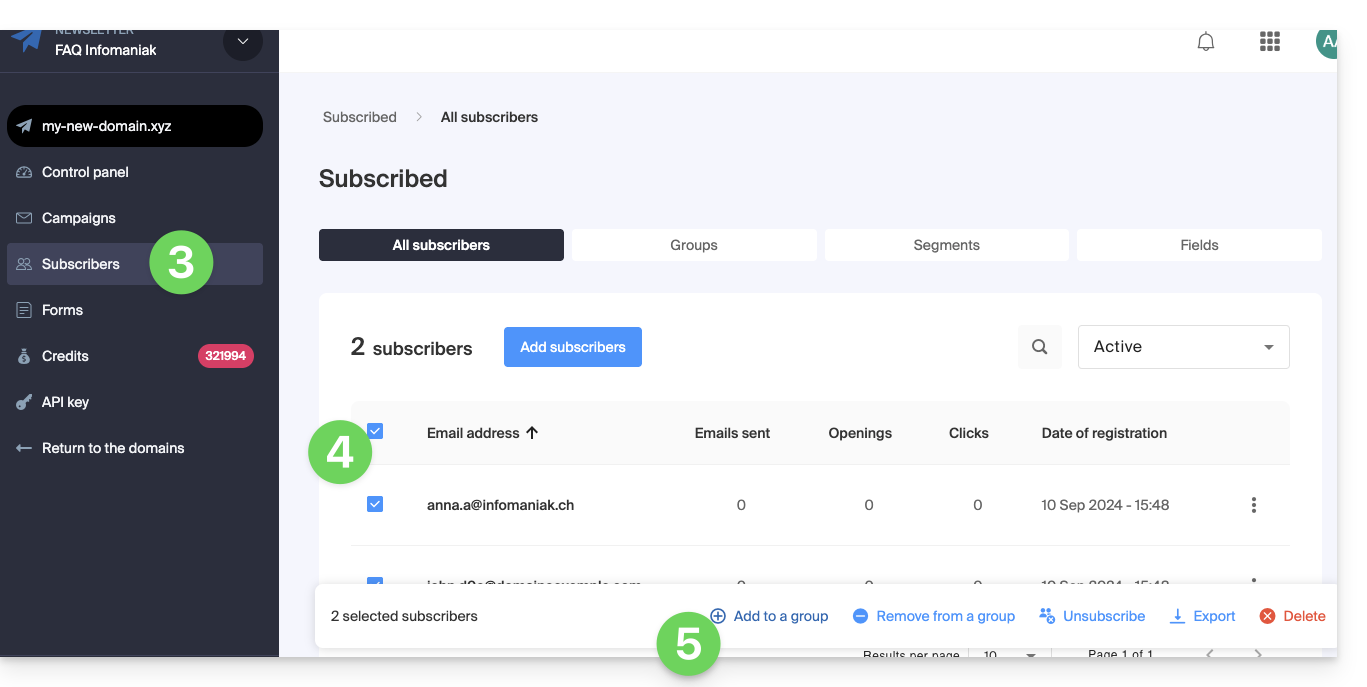
- Select the subscribers to group.
- Click on Add to a group from the action menu that appears at the bottom of the screen:
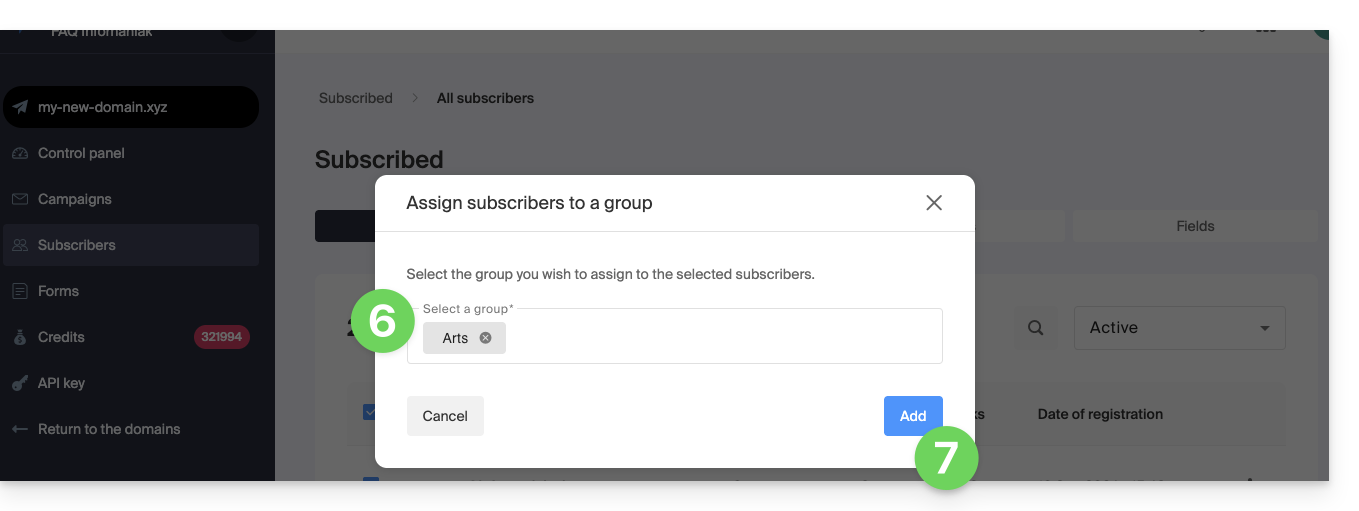
- Enter the name(s) of the existing group(s).
- Click on the Add button:
To remove subscribers from certain groups, choose Remove from a group in step 5 above.
Link para esta FAQ: https://faq.infomaniak.com/1525
Esta seção de perguntas frequentes foi útil?