Base de conhecimento
1000 perguntas frequentes, 500 tutoriais e vídeos explicativos. Aqui, você encontra apenas soluções!
Criar um snapshot no VPS Cloud
Este guia explica como fazer uma cópia de segurança de um VPS Cloud na forma de um snapshot.
Introdução
- Um snapshot é como uma fotografia do seu VPS Cloud num determinado momento, que conterá tudo o que se encontra no seu servidor, incluindo o seu sistema operativo, as suas aplicações, os seus dados, etc.
- Os snapshots podem ser utilizados, nomeadamente, para…
- … proteger o seu VPS Cloud em caso de problema: se tiver algum problema com o seu VPS Cloud, pode restaurar um snapshot para voltar a um estado anterior.
- … testar modificações sem risco: antes de efetuar modificações importantes no seu VPS Cloud, pode criar um snapshot para poder voltar atrás, se necessário.
- Você tem direito a um snapshot gratuito para fazer backup de todo o seu servidor em um espaço dedicado; se necessário, é possível solicitar espaços adicionais ou excluir um snapshot para criar um novo.
- Existem dois tipos de backup possíveis:
- Snapshot dos dados: permite criar uma imagem do volume que contém seus dados (não disponível para as distribuições Windows).
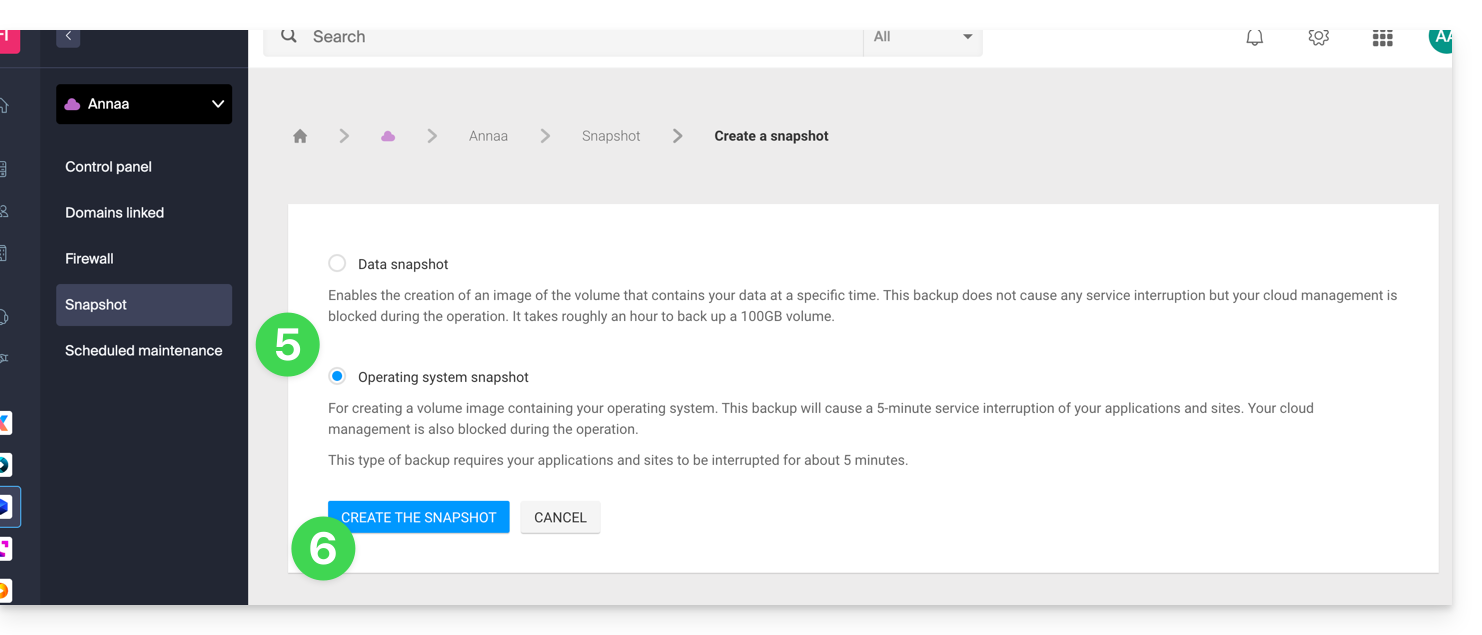
- Snapshot do sistema operacional: permite criar uma imagem do volume que contém seu sistema operacional. Este tipo de backup implica uma interrupção de alguns minutos de seus aplicativos e sites.
- Recomenda-se criar snapshots regularmente, por exemplo, uma vez por semana ou por mês. Isso permitirá que você tenha um histórico do seu VPS Cloud e possa reverter para um estado anterior em caso de problemas.
- É obviamente possível restaurar o estado do VPS Cloud usando o snapshot criado anteriormente.
Criar um instantâneo
Para isso:
- Clique aqui para acessar o gerenciamento do seu produto no Manager Infomaniak (precisa de ajuda?).
- Clique diretamente no nome atribuído ao produto em questão.
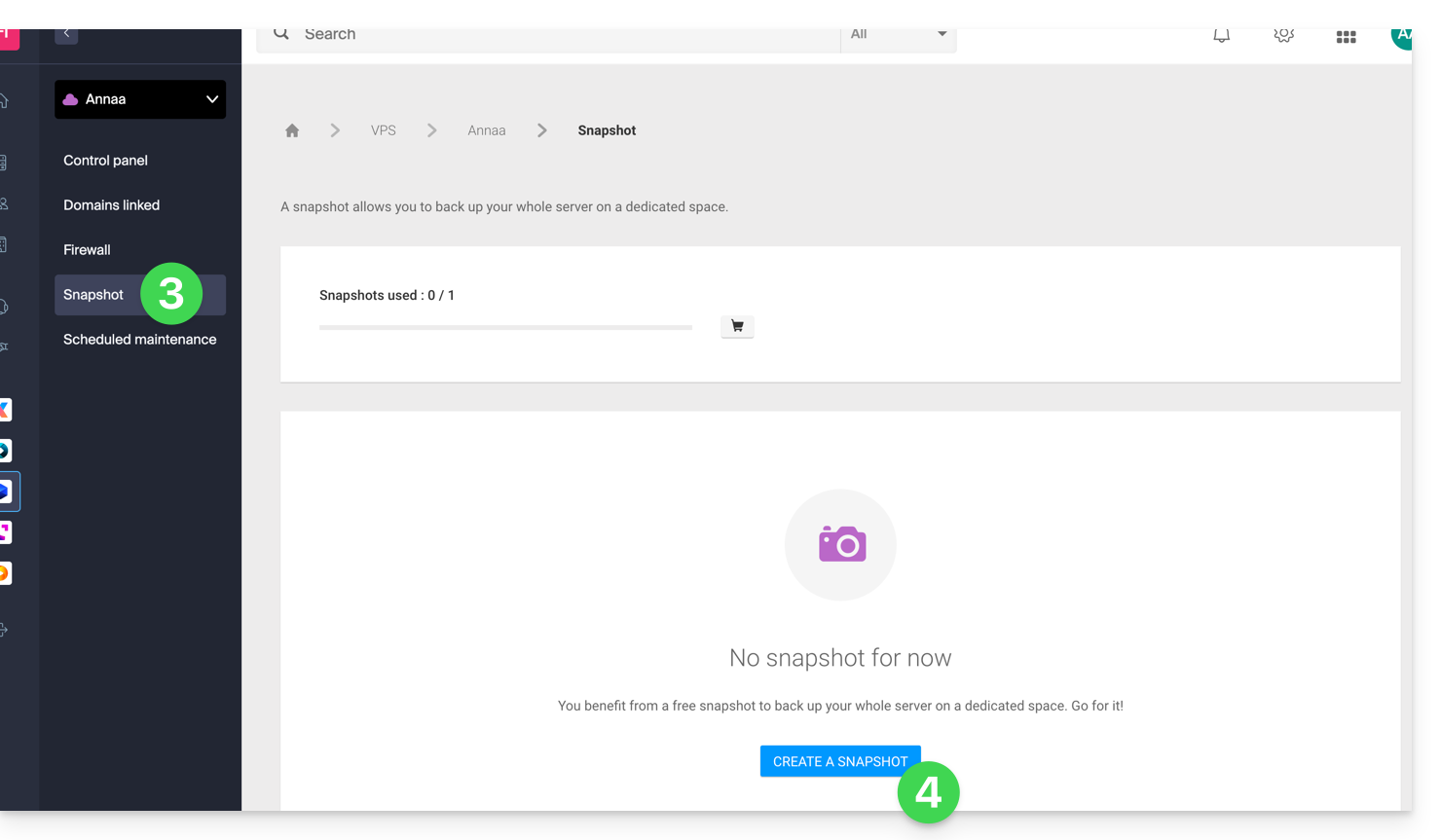
- Clique em Snapshot no menu lateral esquerdo.
- Clique no botão azul Criar um snapshot:
- Escolha o tipo de snapshot a criar (dados ou sistema operativo).
- Clique no botão azul para iniciar a criação do snapshot:
- Um e-mail é enviado quando a cópia de segurança é criada.
Excluir uma cópia de segurança
Para isso:
- Clique aqui para acessar o gerenciamento do seu produto no Manager Infomaniak (precisa de ajuda?).
- Clique diretamente no nome atribuído ao produto em questão.
- Clique em Snapshot no menu lateral esquerdo.
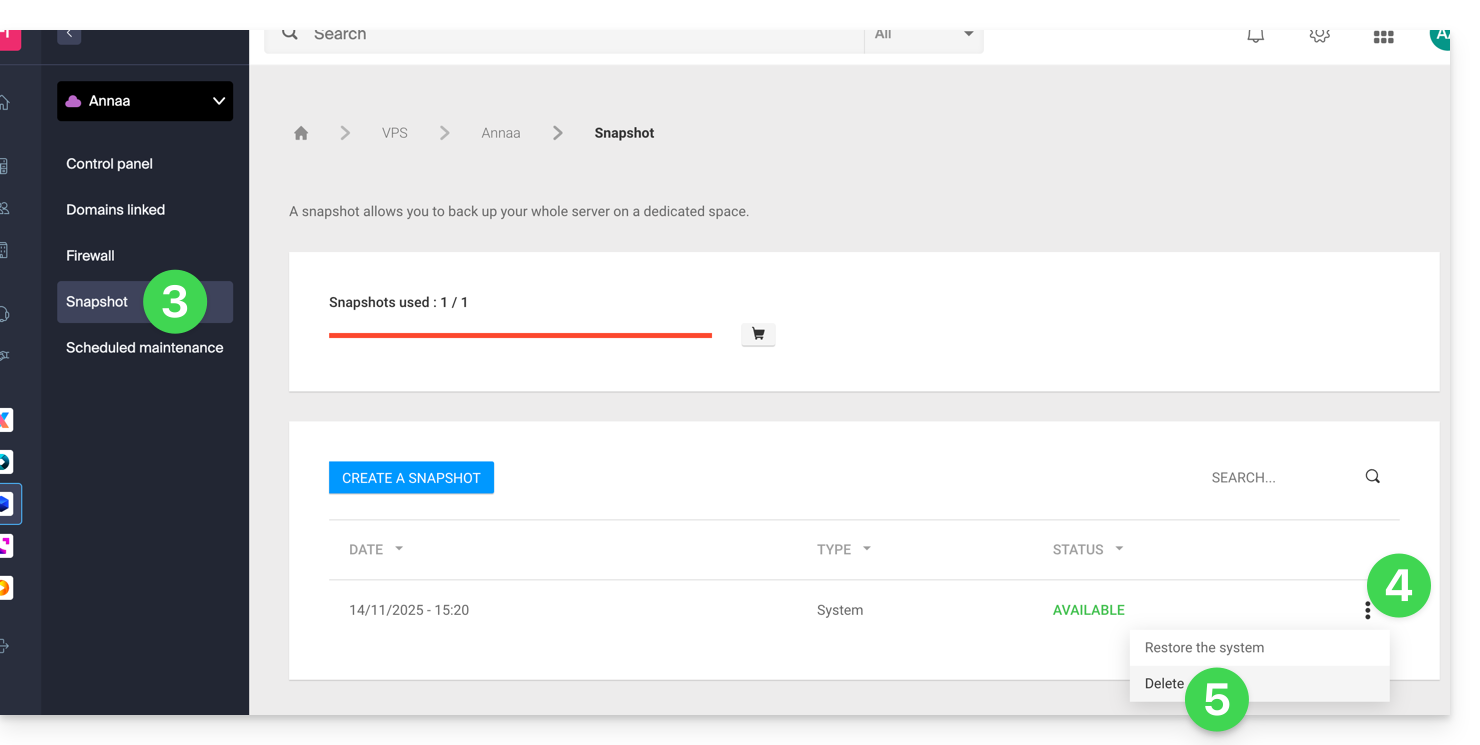
- Clique no menu de ação ⋮ à direita do item correspondente na tabela exibida.
- Clique em Excluir:
Encomendar snapshots adicionais
Para tal:
- Clique aqui para acessar o gerenciamento do seu produto no Manager Infomaniak (precisa de ajuda?).
- Clique diretamente no nome atribuído ao produto em questão.
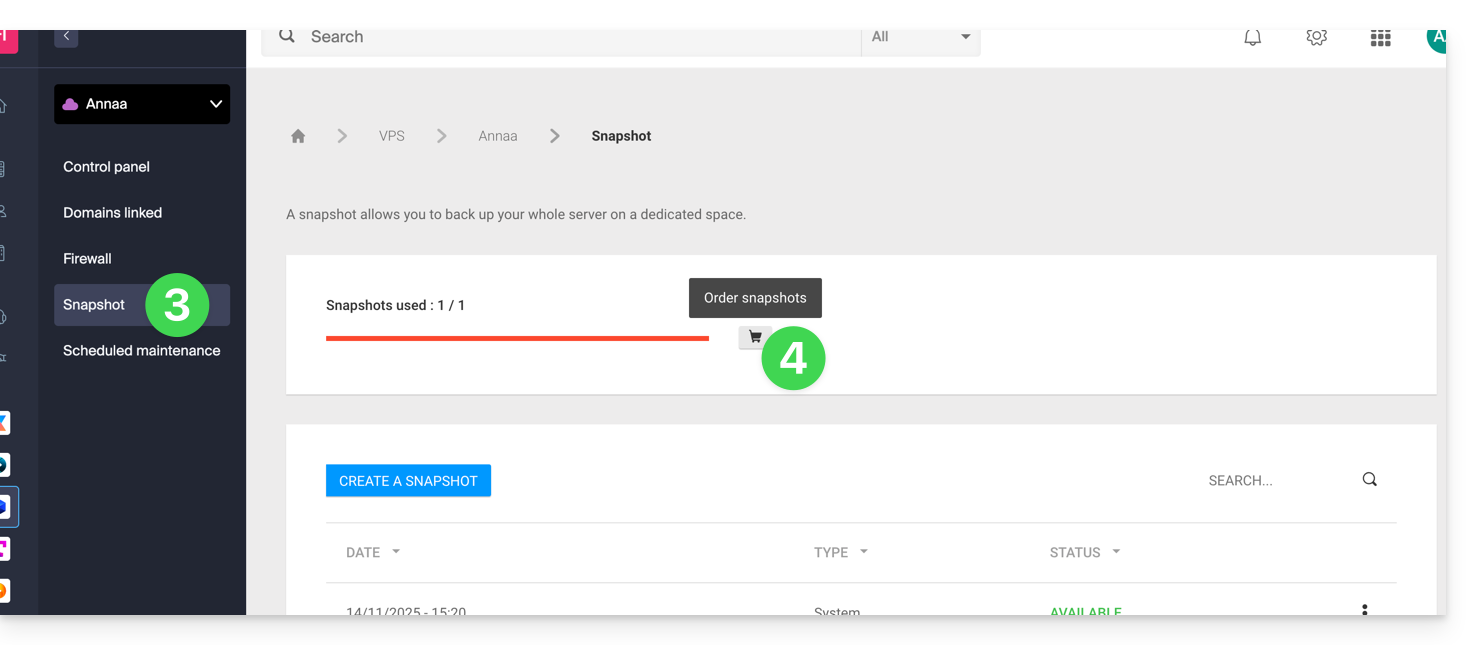
- Clique em Snapshot no menu lateral esquerdo.
- Clique no ícone do carrinho de compras:
- Siga as instruções para finalizar o pedido.
Não é possível solicitar uma cópia de segurança adicional se uma cópia de segurança já estiver em andamento.
Link para esta FAQ: https://faq.infomaniak.com/1495
Esta seção de perguntas frequentes foi útil?