Base de conhecimento
1000 perguntas frequentes, 500 tutoriais e vídeos explicativos. Aqui, você encontra apenas soluções!
Manage kMeet meeting subtitles
Atualização 10/11/2026
This guide explains how to use the kMeet feature, Infomaniak's ethical and free video conferencing solution, which allows you todisplay real-time subtitles during meetings, making it easier to understand the conversations and meeting accessibility requirements, and even enabling translation at a later stage.
Automatically generate subtitles for participants' speeches
You can display an automatic transcript of the participants' speech during a kMeet meeting:
- Click here to access kMeet in your kSuite Infomaniak (or launch the mobile/desktop app — ❓: help).
- Start a meeting (❓: help) or join one (❓: help).
- Allow access to your microphone.
- Click on the ○○○ icon in the toolbar.
- Click on Enable subtitles.
- What is said by the participants is displayed at the bottom of your kMeet window:
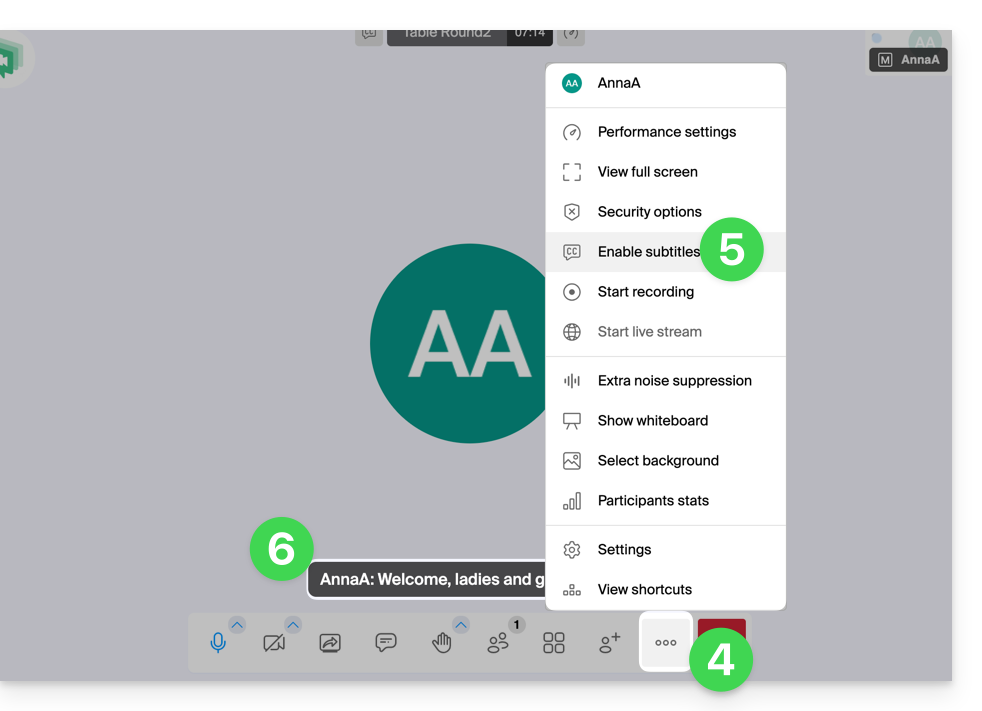
- To stop displaying subtitles on your screen, click on the appropriate menu again (see point 5 above).
If you encounter any issues, please refer to this other guide.
Link para esta FAQ: https://faq.infomaniak.com/1431
Esta seção de perguntas frequentes foi útil?