Base de conhecimento
1000 perguntas frequentes, 500 tutoriais e vídeos explicativos. Aqui, você encontra apenas soluções!
Exportar um certificado SSL
Este guia explica como descarregar ou exportar um certificado SSL a partir do painel de controlo Infomaniak.
Introdução
- O download do certificado gera um arquivo no formato
.zip. - O arquivo contém os arquivos
.keye.crt(bem como_windows.pfxe.protected.key, dependendo do tipo de certificado):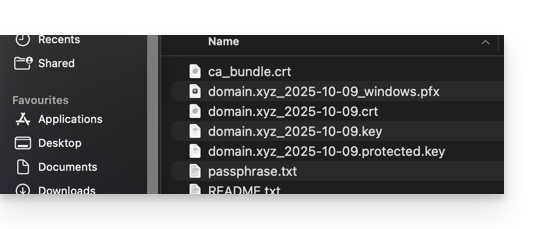
- Recomenda-se armazenar este certificado e a sua chave privada num local seguro, pois esta última poderá permitir o acesso aos seus dados encriptados.
Exportar ou descarregar um certificado SSL
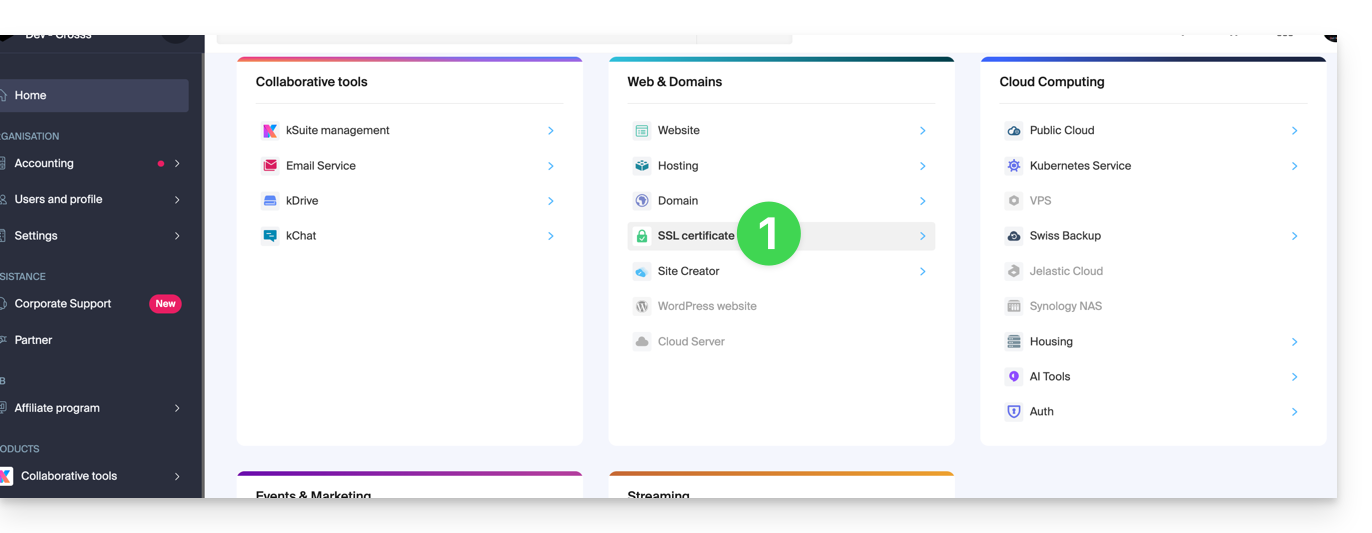
Para aceder à gestão dos seus certificados:
- Clique aqui para aceder à gestão do seu produto no painel de controlo Infomaniak (precisa de ajuda?):
- Filtre os tipos de certificado, se necessário, clicando no ícone correspondente.
- Visualize os diferentes tipos de certificados, como Let's Encrypt, Sectigo DV & EV...
- Adicione os certificados que devem ser exibidos.
- Aplique os filtros:
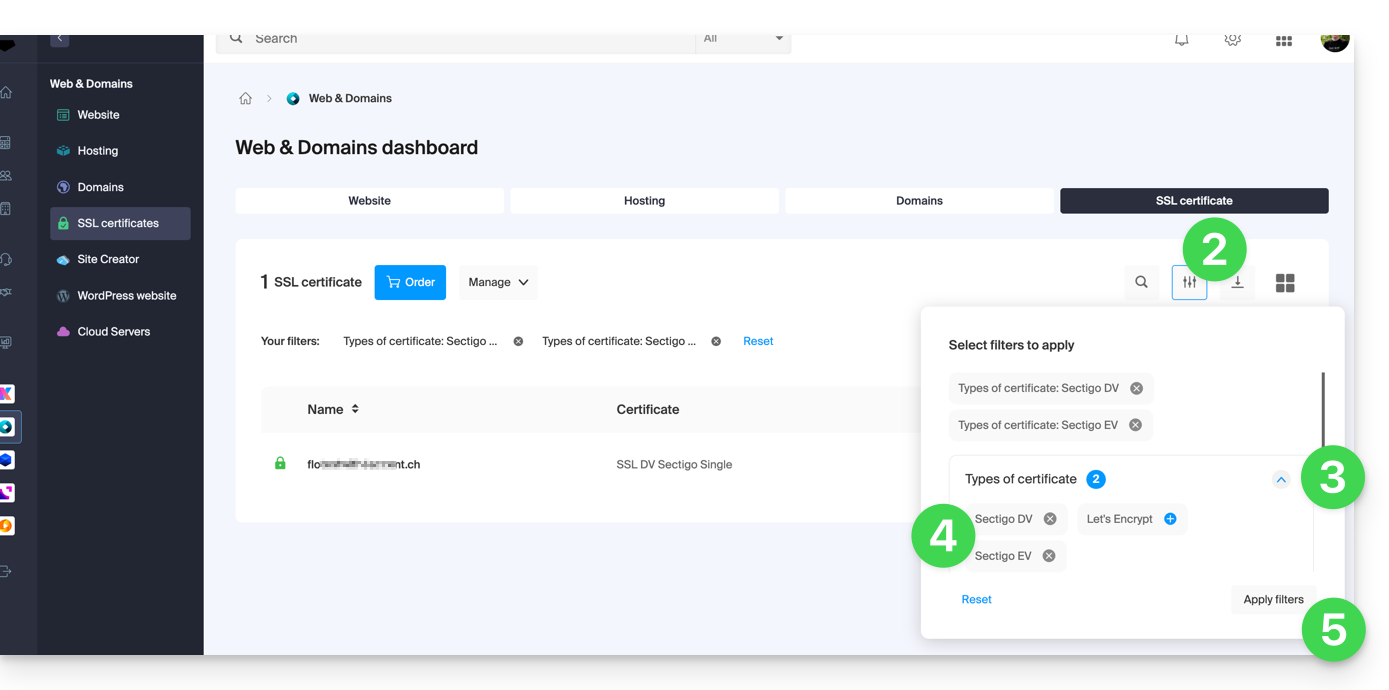
- A tabela exibe apenas os tipos de certificados que você selecionou.
Exportar um certificado Let's Encrypt
- Clique diretamente no nome atribuído ao certificado Let's Encrypt na lista:
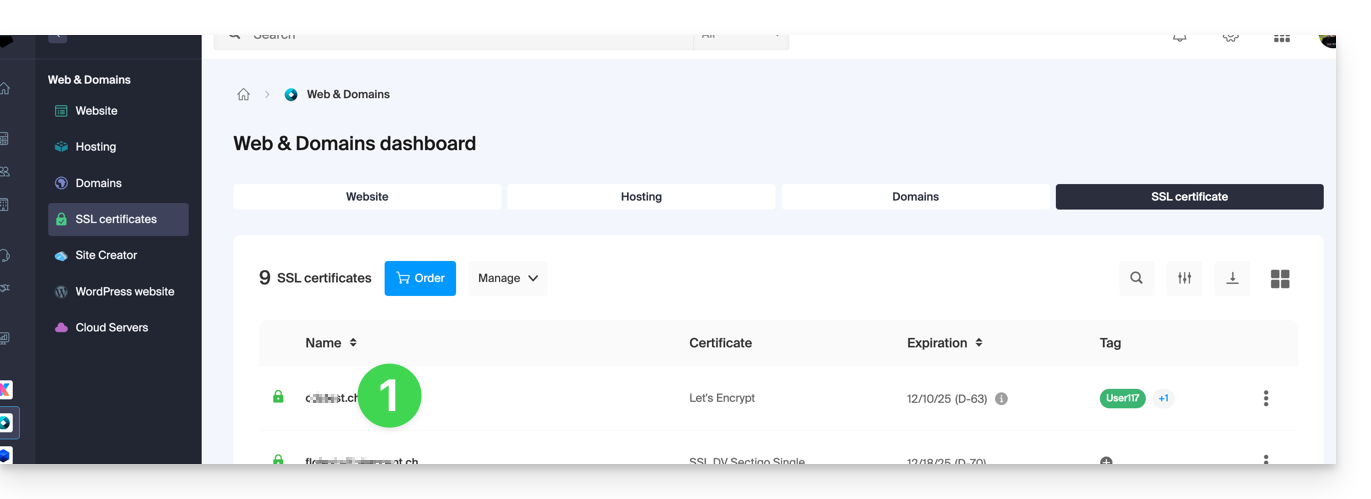
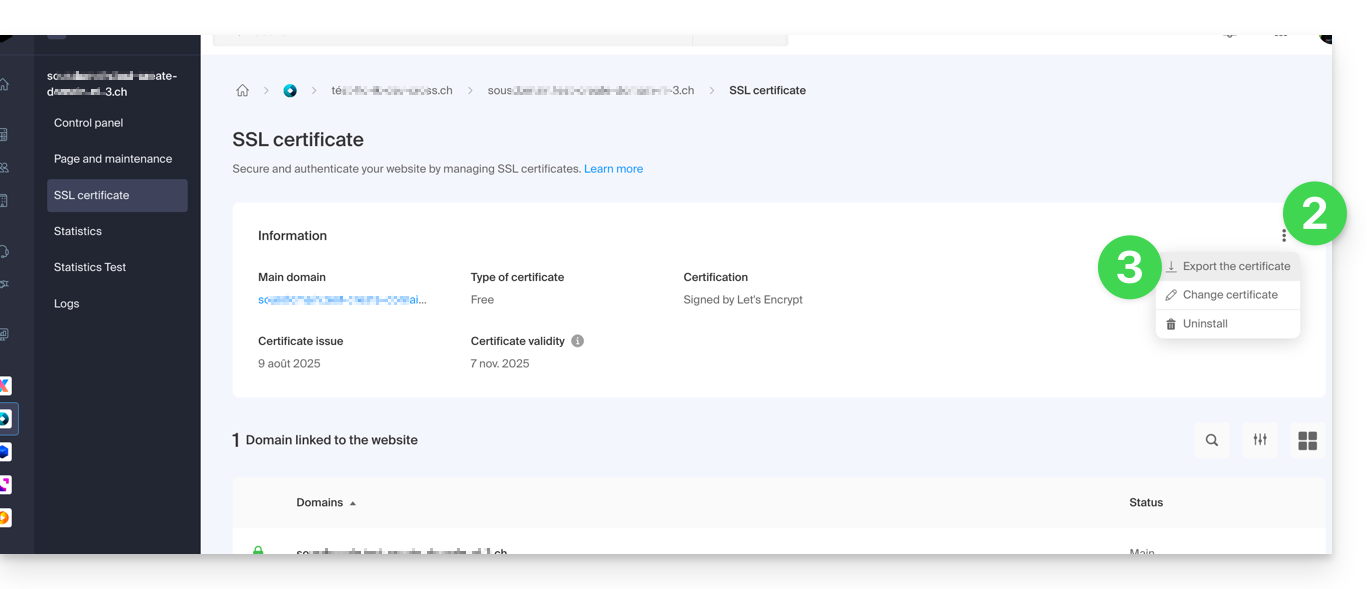
- Clique no menu de ação ⋮ à direita do item correspondente na tabela que é exibida.
- Selecione Exportar certificado e siga as instruções para baixar o arquivo para o seu dispositivo:
Exportar um certificado Sectigo
- Clique diretamente no nome atribuído ao certificado na lista de certificados.
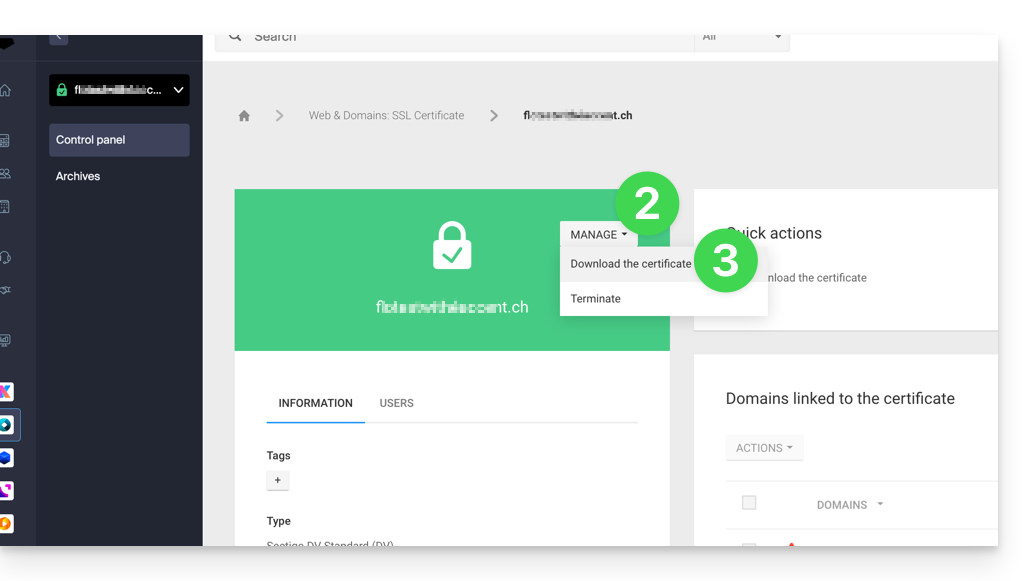
- Clique no botão Gerenciar.
- Clique em Descarregar o certificado e siga as instruções para descarregar o arquivo no seu dispositivo:
Link para esta FAQ: https://faq.infomaniak.com/1034
Esta seção de perguntas frequentes foi útil?